

1. How to Get Receipts From Amazon Using a PC
Step 1: Visit Amazon’s website and sign in to your account.
Step 2: Click the Returns & Orders option at the top right.

Step 3: Under the Orders tab, click on the chevron icon.

Step 4: From the drop-down menu, select the year of your purchase.
Note: If you don’t remember the year, you can use the search bar to search for the orders directly.

Step 5: Once you find the product you want, click the Invoice option next to View order details.

Step 6: Select Invoice 1 or P-slip/Warranty 1 or Printable Order Summary.
Note: If you are planning for a warranty claim, you can click to download the Warranty slip or invoice. For the sake of demonstration, we are downloading Invoice 1.

The invoice will open in PDF format. You can save it offline by clicking the download button and naming the file. If you want to know another way to do it without going through a lengthy process, Continue reading.
Also Read: How to add Amazon App Store on Windows 11
2. How to Download Invoice From Amazon Using Email
With every purchase, Amazon sends a mail confirming the product delivery and a link to download the invoice. So, follow the steps below to find your receipt.
Note: This method depends on whether Amazon provides email updates in your country or location.
Step 1: Open your mail in any browser and log in to your registered email account with Amazon.
Note: In our case, it is Gmail. Yours may be different, but the steps remain the same.
Step 2: In the search bar, type the name of the product and press Enter.
Step 3: Look for the item’s shipped email from the search address and click on it to open.

Step 4: In the mail, click View or Print Invoice to open the invoice in a PDF document.

There you go. You have successfully downloaded the invoice without going to the Amazon website. If you don’t have access to a desktop and want to download the invoice using the mobile app, keep reading.
3. How to Get a Receipt From Amazon App on Android or iOS
The steps to download an invoice from Amazon using the mobile app are simple to execute, even if you have archived the order. Follow the instructions below.
Step 1: Open the Amazon app on your Android or iOS device.
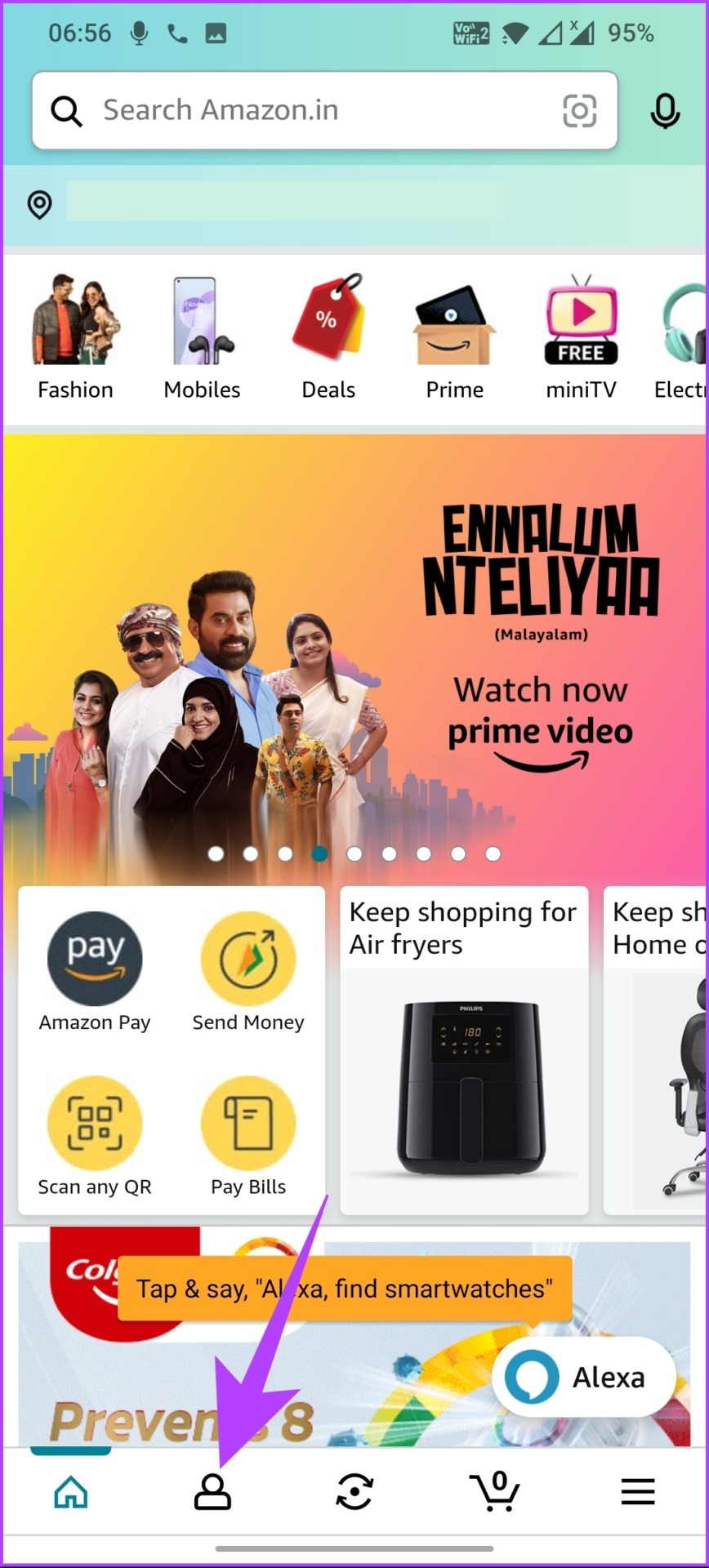
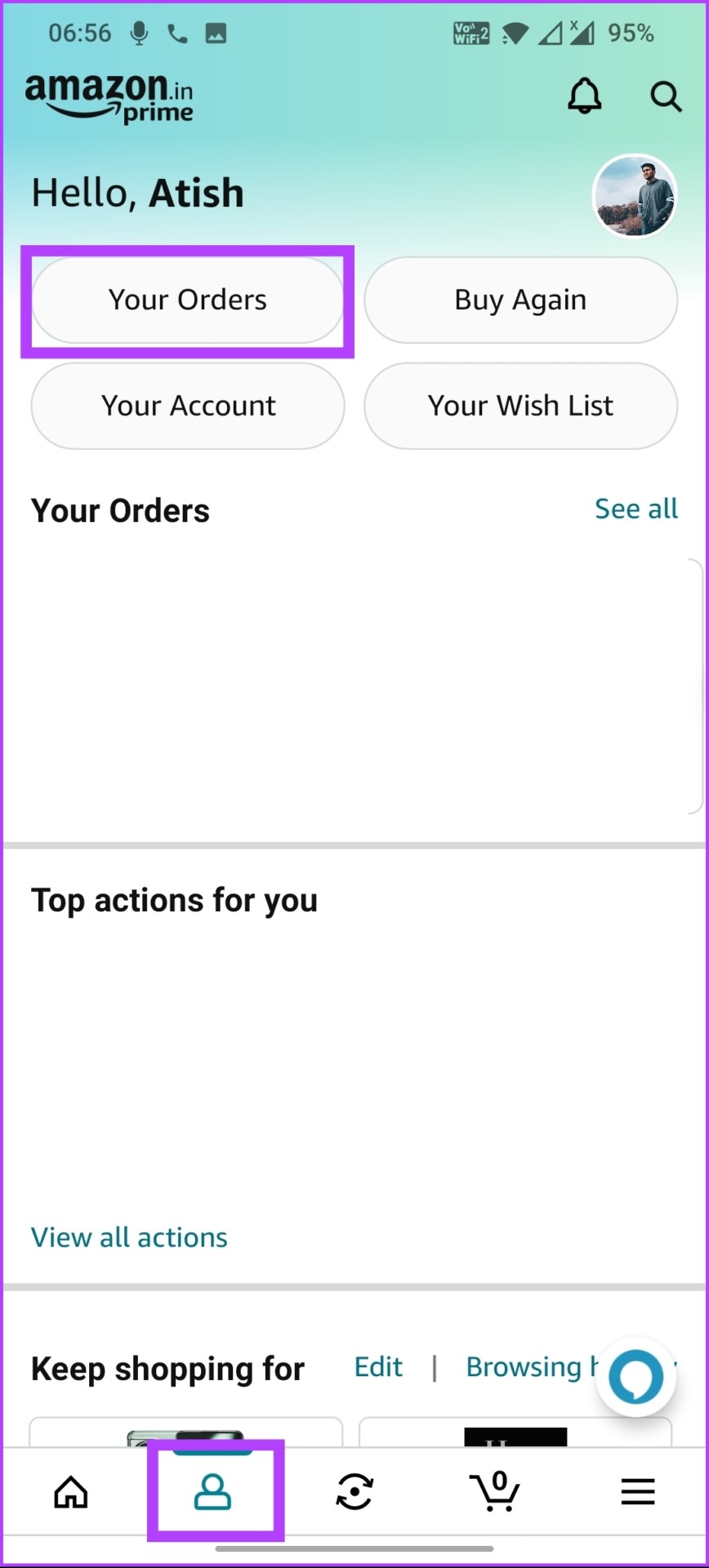
Step 2: Go to the Account tab at the bottom and select the Your Orders tab.
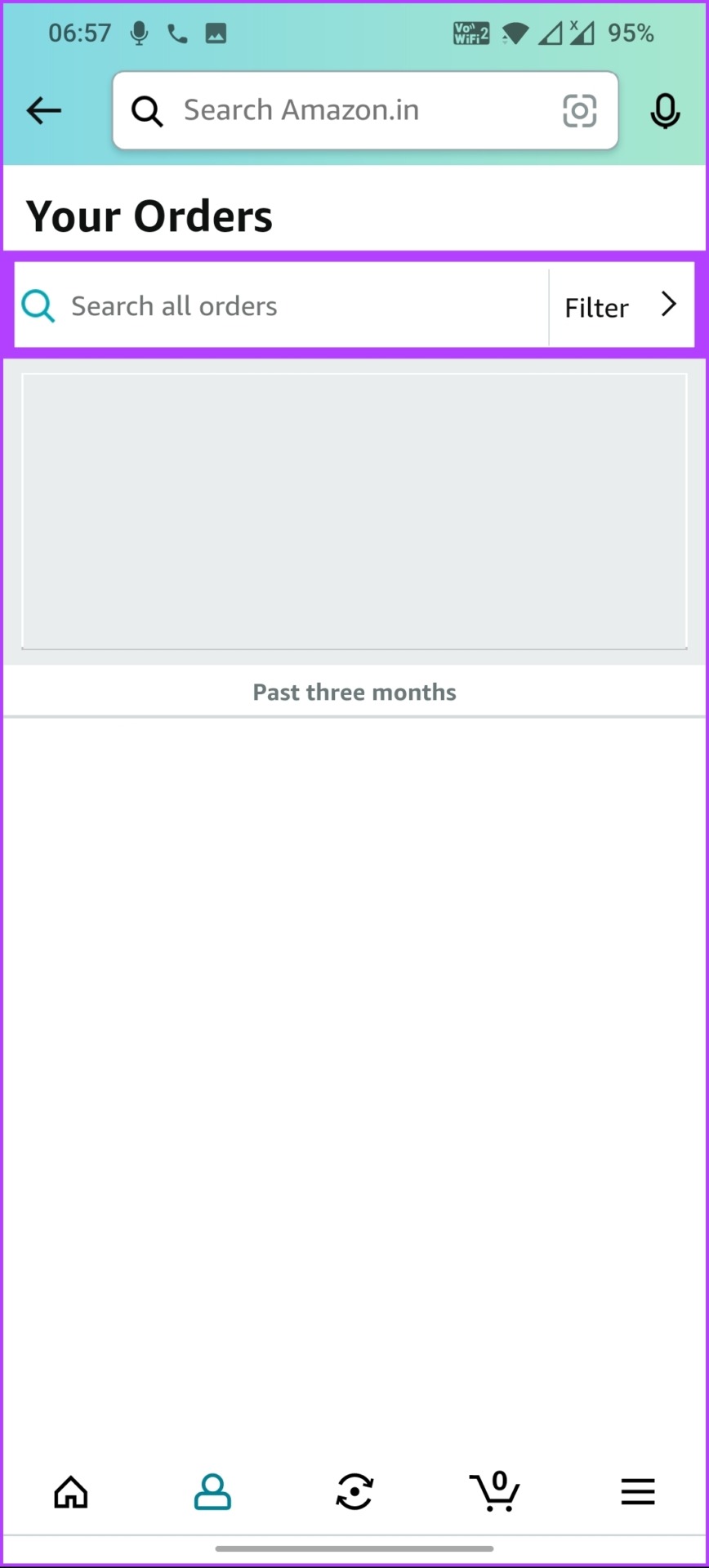
Step 3: Tap the Search bar, type the product name for which you want to download the invoice, and tap the next arrow.

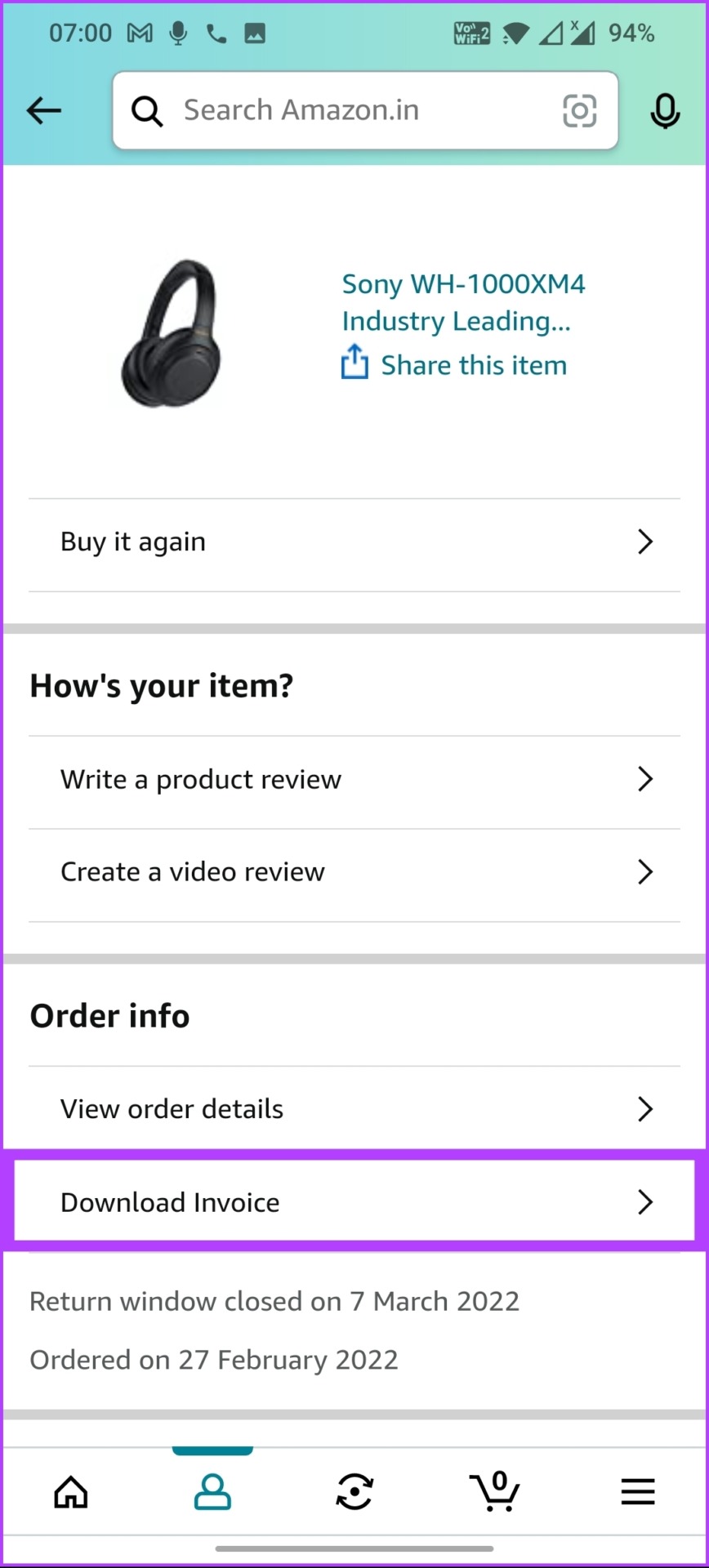
Step 4: Tap on the search result and select Download Invoice under Order info.

Step 5: In the bottom sheet, select Invoice and tap Download documents.
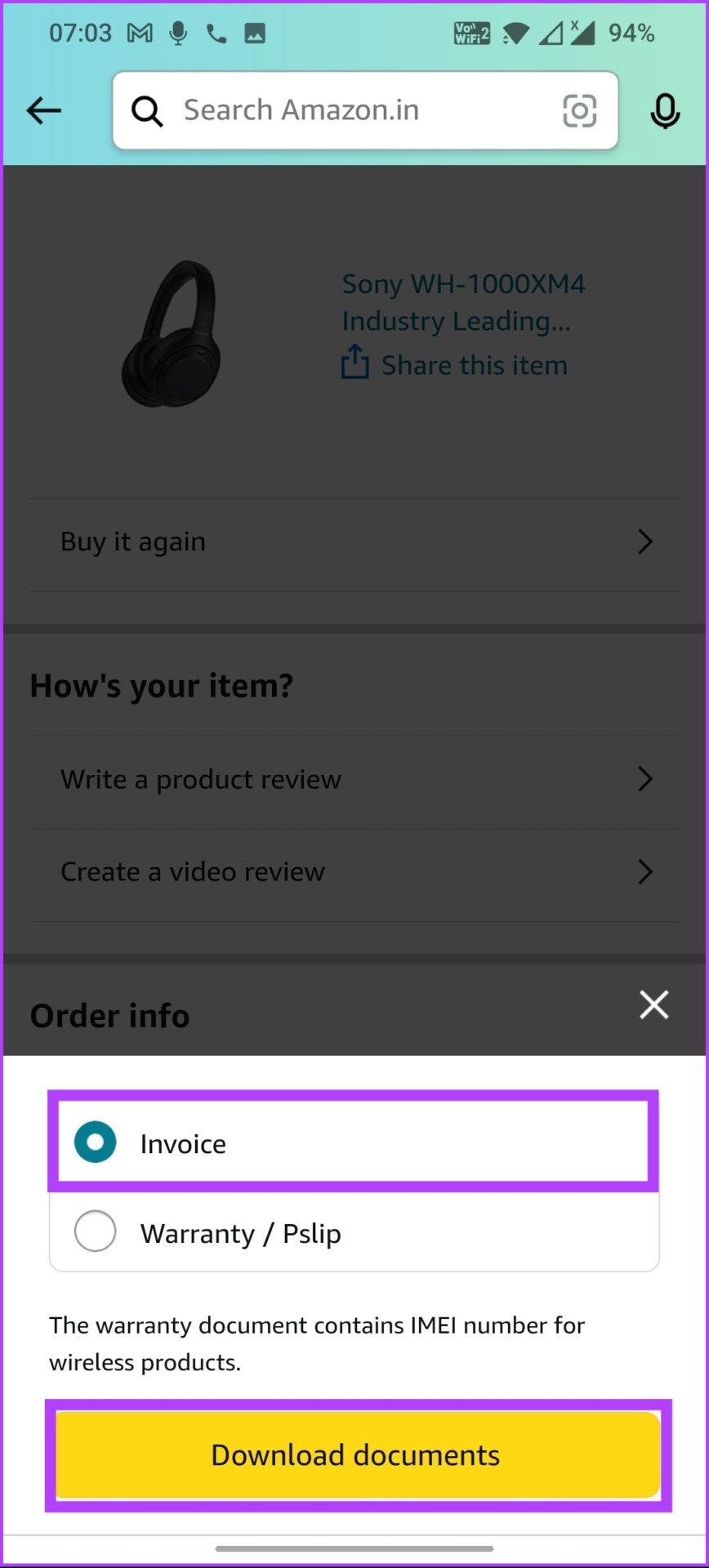
There you have it. You have successfully downloaded the invoice from Amazon mobile app. If you want to print the downloaded invoice from Amazon, you can. Move to the following method.
How to Print Receipts from Amazon
Step 1: Open the invoice document, which is in PDF format.
Step 2: Click on the Print option.
Note: Press the shortcut ‘Ctrl+P’ on Windows or ‘Command+P’ on Mac to open the print dialog box.

Step 3: Select the printer and number of pages from the prompt, and click Print.

There you have it. You have downloaded the file and printed the invoice. If you have any queries, check out the FAQ section below.
FAQs on Amazon Invoices
Yes, you can download an invoice from Amazon before delivery. To do this, you need to go to your order history, select the order for which you want to download the invoice, and click on Download Invoice. The invoice will be saved in PDF format on your device.
Most Amazon products come with invoices, but it depends on the specific product and the seller that provides it. To determine if a specific product has an invoice, check its details page or contact the seller directly.
Now that you know how to get a receipt from Amazon, you can stay organized and take control of your financial records.
Was this helpful?
Last updated on 24 August, 2024
3 Comments
Leave a Reply
Read Next
 2 Ways to Print From Canva for Free
Method 1: Using Your Desktop Computer Step 1: Visit the Canva website in a browser and sign in with your account details.
2 Ways to Print From Canva for Free
Method 1: Using Your Desktop Computer Step 1: Visit the Canva website in a browser and sign in with your account details.
 How to Print WhatsApp Chat on iPhone and Android
Note: When exporting chat history, WhatsApp doesn't let you select a specific timeframe.
How to Print WhatsApp Chat on iPhone and Android
Note: When exporting chat history, WhatsApp doesn't let you select a specific timeframe.
 7 Ways to Fix Outlook Not Responding When Trying to Print
Try Basic Fixes: Restart Outlook: When Outlook relaunches, it loads all the modules, including extensions.
7 Ways to Fix Outlook Not Responding When Trying to Print
Try Basic Fixes: Restart Outlook: When Outlook relaunches, it loads all the modules, including extensions.
 4 Ways to Fix Microsoft Print to PDF Not Working on Windows 11
Fix 1: Ensure Print to PDF Is Enabled in Windows Features Microsoft Print to PDF integrates into the Print dialog box on your PC.
4 Ways to Fix Microsoft Print to PDF Not Working on Windows 11
Fix 1: Ensure Print to PDF Is Enabled in Windows Features Microsoft Print to PDF integrates into the Print dialog box on your PC.
 6 Ways to Fix Print Spooler Keeps Stopping on Windows 10 and Windows 11
Fix 1: Run Printer Troubleshooter Windows comes with a dedicated printer troubleshooter that can automatically diagnose and fix any printing issues on your PC.
6 Ways to Fix Print Spooler Keeps Stopping on Windows 10 and Windows 11
Fix 1: Run Printer Troubleshooter Windows comes with a dedicated printer troubleshooter that can automatically diagnose and fix any printing issues on your PC.
 5 Ways to Remove a Stuck Print Job in Windows 11
Fix 1: Clear Print Queue Using the Settings App One of the most straightforward ways to remove stuck print jobs is to clear the entire print queue in Windows 11.
5 Ways to Remove a Stuck Print Job in Windows 11
Fix 1: Clear Print Queue Using the Settings App One of the most straightforward ways to remove stuck print jobs is to clear the entire print queue in Windows 11.
 2 Ways to Print Multiple Files on Windows 11
Method 1: Print Multiple Word, Excel, and Other Media We will first show you how to launch the current print queue on Windows.
2 Ways to Print Multiple Files on Windows 11
Method 1: Print Multiple Word, Excel, and Other Media We will first show you how to launch the current print queue on Windows.
 4 Ways to Print Contacts From iPhone
Method 1: Print Contacts From iPhone Using iCloud You can print your entire contacts list from your iPhone using your iCloud account.
4 Ways to Print Contacts From iPhone
Method 1: Print Contacts From iPhone Using iCloud You can print your entire contacts list from your iPhone using your iCloud account.
The article above may contain affiliate links which help support Guiding Tech. The content remains unbiased and authentic and will never affect our editorial integrity.

I wanted to print an invoice for something I ordered on Amazon using my iPhone 13. I follow the instructions exactly like you told me on how to do this. But it did not work. Under order info you told me to click on invoice, but there is no such thing to click on. The only thing under in order info was: View order details, and Share a gift receipt. Nothing else was under there. so what’s with that? Thank you.
Same here
It sounds like Amazon’s interface might have changed. On your iPhone, try this instead: Go to the order details and tap “View order details.” Scroll down to find “Order summary” or “Download invoice.” If you don’t see these options, accessing Amazon via a desktop browser might be necessary to download or print the invoice. Let me know if that helps!