

Fix 1: Repair the Word Document
Microsoft Word offers a repair feature for fixing damaged or corrupted documents. If you experience the “Word found unreadable content” error while opening a particular document, repair it using the steps below.
Step 1: Open Microsoft Word and select Open from the left sidebar. Then, click the Browse option.

Step 2: Locate and select your Word file. Click the downward arrow next to Open to select Open and Repair.

Now, wait for Microsoft Word to repair your file and open it.
Fix 2: Remove the Read-Only Attribute
Microsoft Word may fail to read the content of a document if it is in read-only mode. You can remove the read-only attribute from your Word document to see if that helps.
Step 1: Right-click on the problematic Word file and select Properties.

Step 2: Under the General tab, clear the Read-only checkbox. Then, hit Apply, followed by OK.

Fix 3: Restore an Earlier Version of the Word Document
If the Word document you are trying to access was saved to OneDrive, you can attempt to restore an earlier version of the document. This should help revert any changes that may have damaged the document.
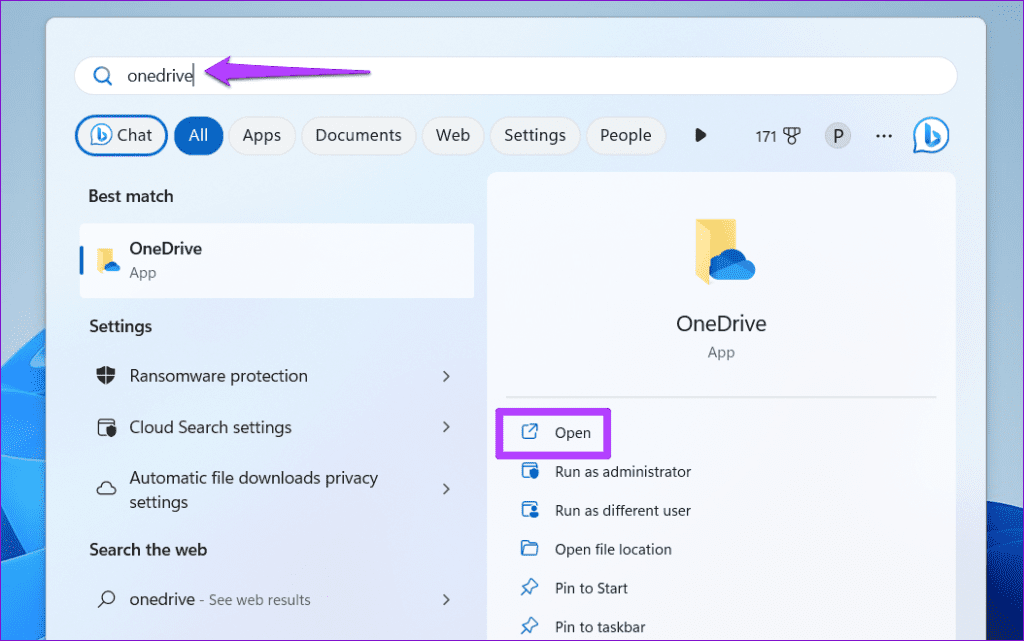
Step 1: Press Windows + S to open the search menu, type OneDrive, and select Open.
Step 2: Locate the Word file you are trying to open. Right-click on it and select Show more options.

Step 3: Select Version history from the list.

Step 4: Hover your mouse over an earlier version of the document on the list. Click the three-dot icon and select Restore.
Tip: You can also download the previous version of the file and see if Word can open it.

Fix 4: Disable Protected View in Word
Protected View is a security feature in Word that keeps you from opening malicious files on your PC. If you are confident about the source of your document, you can temporarily disable this feature and see if that fixes the “Word found unreadable content” error.
Step 1: Open Microsoft Word and select Options from the left pane.

Step 2: In the Word Options window, switch to the Trust Center tab and click the Trust Center Settings button.

Step 3: Clear all three checkboxes to disable Protected View and click OK to save changes.

Try to reopen your Word document and check if the error still occurs.
Fix 5: Use Word’s Text Recovery Feature
If Microsoft Word cannot read your document’s content, try using its text recovery feature. It’s important to note that this tool will only help you recover text and remove any formatting. Additionally, Word won’t restore graphics, drawing objects, or any other items that are not text.
Step 1: Open Microsoft Word on your PC. Switch to the Open tab and click on Browse.
Step 2: Locate and select the file you want to open. Click the All Files drop-down menu and choose Recover Text from Any File.
Step 3: Click the Open button.

Was this helpful?
Last updated on 04 April, 2024
Read Next
 Top 5 Ways to Fix Disk Structure Is Corrupted and Unreadable Error on Windows 10
Windows 10 gives you alerts whenever the external storage disk goes corrupt.
Top 5 Ways to Fix Disk Structure Is Corrupted and Unreadable Error on Windows 10
Windows 10 gives you alerts whenever the external storage disk goes corrupt.
 3 Ways to Fix Content File Locked Error in Steam for Windows
Try Basic Fixes Run Steam as an administrator: If your Steam library folder lacks the necessary write permissions, you may encounter the 'content file locked' error.
3 Ways to Fix Content File Locked Error in Steam for Windows
Try Basic Fixes Run Steam as an administrator: If your Steam library folder lacks the necessary write permissions, you may encounter the 'content file locked' error.
 4 Fixes for “We Found a Problem With Some Content” Error in Microsoft Excel
Fix 1: Repair the Excel File Office apps, such as Excel, have a built-in repair feature to fix common problems with your files.
4 Fixes for “We Found a Problem With Some Content” Error in Microsoft Excel
Fix 1: Repair the Excel File Office apps, such as Excel, have a built-in repair feature to fix common problems with your files.
 5 Fixes for “Word Experienced an Error Trying to Open the File” Error in Windows
Fix 1: Unblock Your Word File Microsoft Word may fail to open a document if it has been altered by third-party software.
5 Fixes for “Word Experienced an Error Trying to Open the File” Error in Windows
Fix 1: Unblock Your Word File Microsoft Word may fail to open a document if it has been altered by third-party software.
 6 Ways to Fix “PowerPoint Found a Problem With Content” on Windows
Fix 1: Repair the Presentation File When you receive the "PowerPoint found a problem with content" error, PowerPoint offers the option to repair the file.
6 Ways to Fix “PowerPoint Found a Problem With Content” on Windows
Fix 1: Repair the Presentation File When you receive the "PowerPoint found a problem with content" error, PowerPoint offers the option to repair the file.
 6 Ways to Fix Microsoft Outlook Not Showing Email Content on Windows
Fix 1: Disable Offline Mode Your first step is to ensure that Outlook is not in offline mode.
6 Ways to Fix Microsoft Outlook Not Showing Email Content on Windows
Fix 1: Disable Offline Mode Your first step is to ensure that Outlook is not in offline mode.
 Understanding and Resolving the “This content isn’t available” Error on Facebook
Why Do I See "This Content Isn’t Available at the Moment" on Facebook There can be various reasons behind the ‘Content is not available right now’ error on Facebook.
Understanding and Resolving the “This content isn’t available” Error on Facebook
Why Do I See "This Content Isn’t Available at the Moment" on Facebook There can be various reasons behind the ‘Content is not available right now’ error on Facebook.
 4 Ways to Fix Upload Pending Error on Microsoft Word
Basic Fixes Check your internet connection: Microsoft Word needs a constant internet connection to sync the latest changes to the cloud storage.
4 Ways to Fix Upload Pending Error on Microsoft Word
Basic Fixes Check your internet connection: Microsoft Word needs a constant internet connection to sync the latest changes to the cloud storage.
The article above may contain affiliate links which help support Guiding Tech. The content remains unbiased and authentic and will never affect our editorial integrity.

