


Basic Fixes
- Check with your ISP: A server-side outage at your local ISP (Internet Service Provider) leads to issues like ‘No Internet, Secured’ on Windows.
- Restart router: If you face network connection issues on your connected devices, restart the router and try again. You can also update router firmware to the latest version.
- Disable VPN: A VPN service reroutes your internet traffic through private servers to hide your IP address, but when these servers are down, you may notice a ‘No internet, secured’ error.
- Switch to 2.4 GHz Wi-Fi: If you have an old Windows laptop, it may not work well with the 5GHz Wi-Fi frequency. Connect to a 2.4GHz Wi-Fi frequency and try again.
- Use an ethernet connection: An Ethernet connection offers reliable and high-speed internet on your PC. If your Wi-Fi adapter is acting up, remove it from the PC and use the Ethernet port.
Fix 1: Run Internet Troubleshooter
Windows comes with a built-in troubleshooter to fix network-related issues.
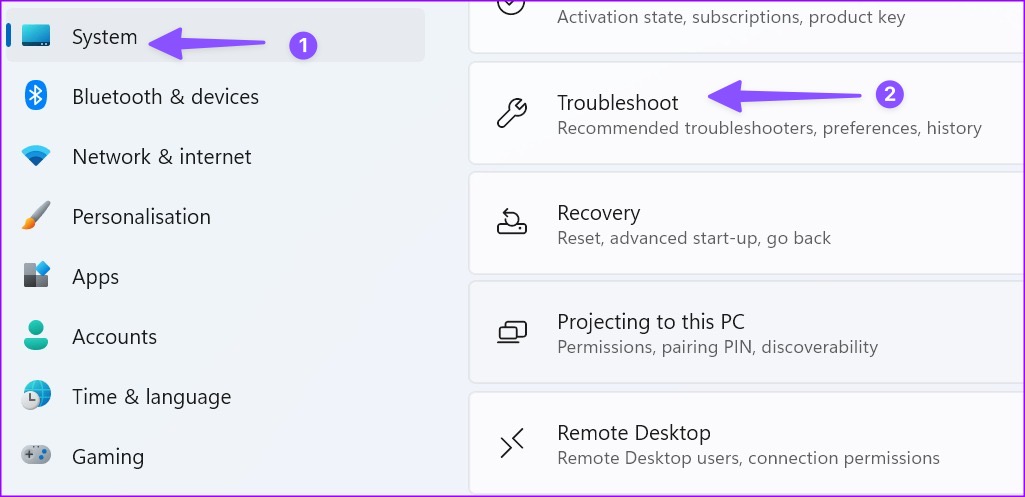
Step 1: Press the Windows + I keyboard shortcut to launch the Settings app.
Step 2: Select Troubleshoot > open Other troubleshooters.
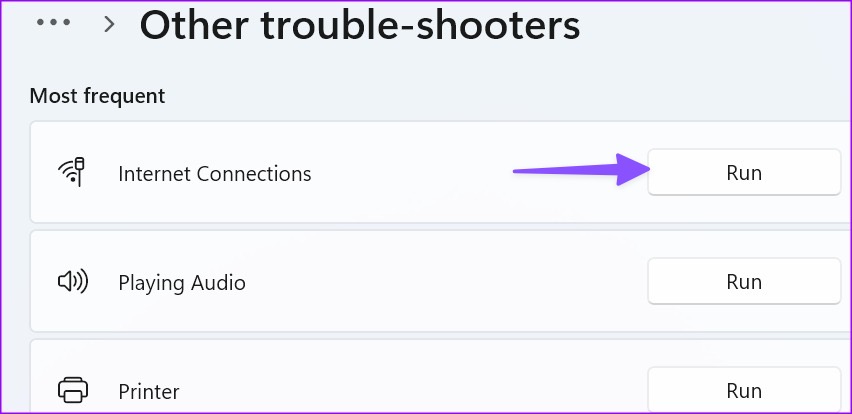
Step 3: Hit the Run button next to Internet connection troubleshooter and check again.
Fix 3: Reinstall Network Adapter Drivers
You may also see the error message if there’s a problem with the network adapter drivers. Reinstalling them will help.
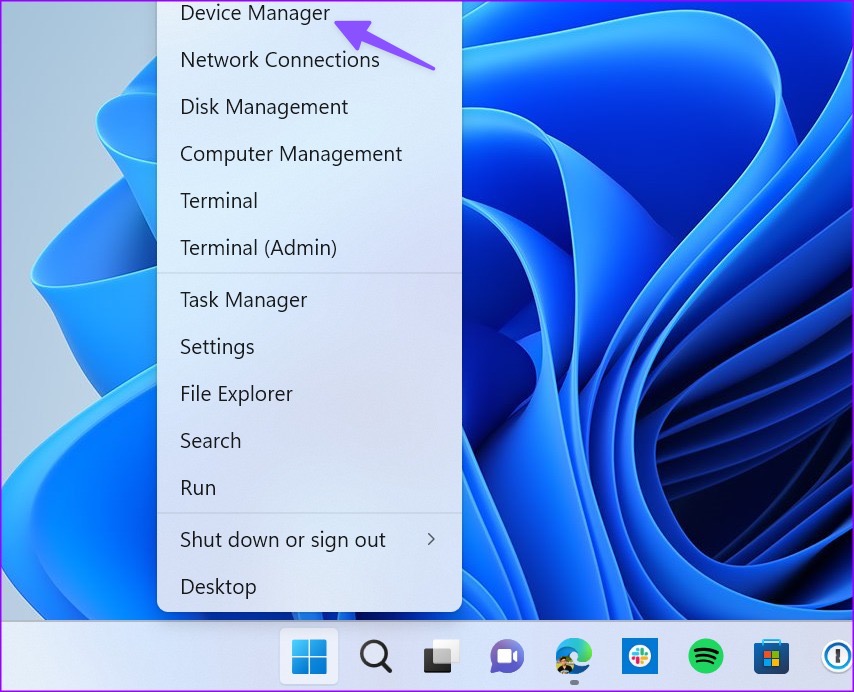
Step 1: Right-click on the Windows key and select Device Manager from the Power User menu.
Step 2: Expand the Network adapters menu and right-click on an adapter.
Step 3: Select Uninstall device.

Restart the PC, and let Windows automatically reinstall network adapter drivers.
Fix 3: Change Network Settings
You can temporarily disable IPv6 and fix the ‘No internet, secured’ error on Windows.
Step 1: Press the Windows + I keyboard shortcut to open the Settings app.
Step 2: Go to Advanced network settings in the Network & Internet menu.
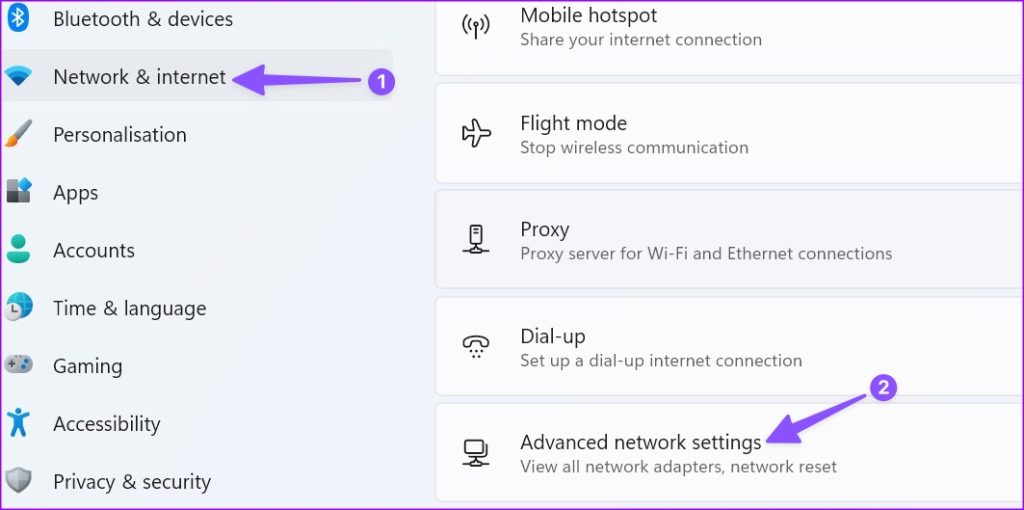
Step 3: Select More network adapter options.

Step 4: Right-click on the Wi-Fi network and open Properties.

Step 5: Disable the Internet Protocol Version 6 and click OK.

Fix 4: Flush DNS Cache
You can flush your PC’s DNS cache and try again. You need to run Command Prompt as admin to execute the command.
Step 1: Press the Windows key and type Command Prompt. Right-click on the Command Prompt from the result and select Run as admin.

Step 2: Type ipconfig /flushdns and hit Enter.

After you see the ‘Successfully flushed the DNS Resolver Cache’ message, close the app, and check your Wi-Fi network.
Fix 5: Reset Network Settings
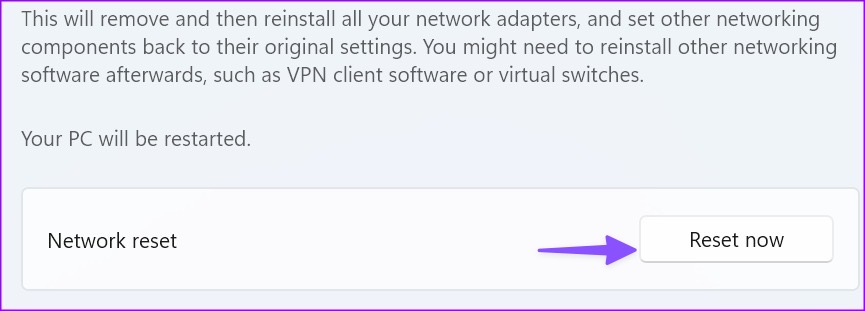
Resetting network settings is another nifty trick to fix the ‘No Internet, secured’ error in Windows. It reinstalls all your network adapters and sets networking components back to factory settings. You may need to set up a VPN client again.
Step 1: Press the Windows + I keyboard shortcut to open the Settings app.
Step 2: Go to Advanced network settings in the Network & Internet menu.
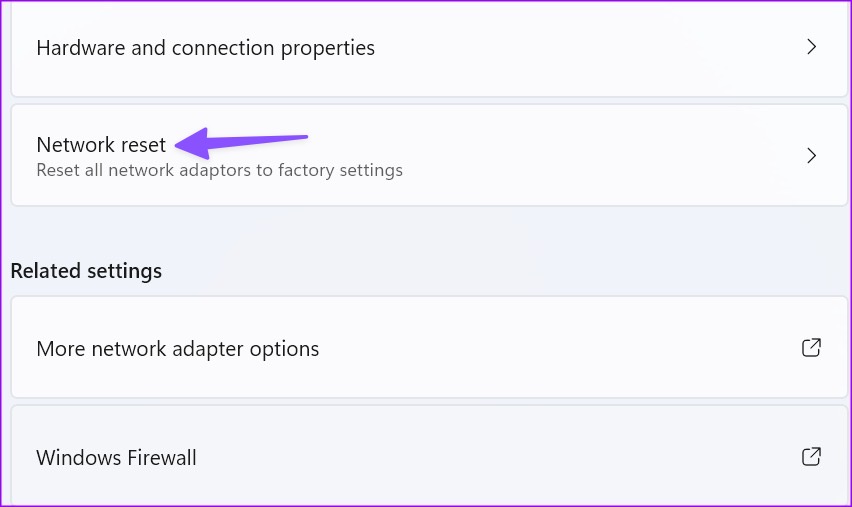
Step 3: Select Network Reset.
Read the implications of resetting network settings and hit Reset now.
Also Read: How to fix the “Can’t Connect to This Network” error on Windows 11
Was this helpful?
Last updated on 26 April, 2024
1 Comment
Leave a Reply
Read Next
 3 Ways to Fix Spotify No Internet Connection Available Error on Android
Try Basic Fixes Toggle offline mode in Spotify: Sometimes, when you disable the offline mode in Spotify, the app may show the "No internet connection available" error and become stuck.
3 Ways to Fix Spotify No Internet Connection Available Error on Android
Try Basic Fixes Toggle offline mode in Spotify: Sometimes, when you disable the offline mode in Spotify, the app may show the "No internet connection available" error and become stuck.
 Top 9 Ways to Fix ‘No Internet Connection’ Error on TikTok
TikTok continues to enjoy its tremendous run in the social media space.
Top 9 Ways to Fix ‘No Internet Connection’ Error on TikTok
TikTok continues to enjoy its tremendous run in the social media space.
 6 Best Ways to Fix Windows 11 Apps Won’t Connect to the Internet
Computers have a myriad of apps that enhance the performance of certain features.
6 Best Ways to Fix Windows 11 Apps Won’t Connect to the Internet
Computers have a myriad of apps that enhance the performance of certain features.
 8 Ways to Fix Slow Internet Speed on Windows 11
https://youtu.be/JSqfxm-5XZI Fix 1: Turn Off the Metered Connection Setting your internet connection as metered on Windows can prevent apps from using the internet proficiently, leading to slow internet speeds.
8 Ways to Fix Slow Internet Speed on Windows 11
https://youtu.be/JSqfxm-5XZI Fix 1: Turn Off the Metered Connection Setting your internet connection as metered on Windows can prevent apps from using the internet proficiently, leading to slow internet speeds.
 4 Ways to Fix Wi-Fi Connected but No Internet on Windows 11
Common Fixes Let's begin with some basic solutions to fix the Wi-Fi connected but no internet issue on your Windows machine: Check your internet plan - If you have exceeded
4 Ways to Fix Wi-Fi Connected but No Internet on Windows 11
Common Fixes Let's begin with some basic solutions to fix the Wi-Fi connected but no internet issue on your Windows machine: Check your internet plan - If you have exceeded
 Top 12 Ways to Fix Steam Not Connecting to the Internet on Windows
Steam is one of the popular gaming apps on Windows.
Top 12 Ways to Fix Steam Not Connecting to the Internet on Windows
Steam is one of the popular gaming apps on Windows.
 7 Ways to Open Internet Options on Windows 11
Method 1: Using the Start Menu The quickest way to search and open settings, programs, or files on Windows is through the Start Menu.
7 Ways to Open Internet Options on Windows 11
Method 1: Using the Start Menu The quickest way to search and open settings, programs, or files on Windows is through the Start Menu.
 How to Fix the Windows Sandbox No Internet Connection Issue
The Windows Sandbox lets you do just about anything.
How to Fix the Windows Sandbox No Internet Connection Issue
The Windows Sandbox lets you do just about anything.
The article above may contain affiliate links which help support Guiding Tech. The content remains unbiased and authentic and will never affect our editorial integrity.

Hello! From my experience, you need to go to “settings” and search for “reset this PC”. Keep your local files and reinstall windows. Hope this helps.