Basic Fixes
- Restart the Steam client: The first step to fixing the issue is to restart the Steam client. This will eliminate any temporary bug or glitch causing the problem.
- Switch to Google Public DNS: The problem can also be caused by a DNS issue. In this case, switch to Google Public DNS to resolve the problem.
- Disable VPN: Ensure you’re not connected to a VPN, as it might affect your connection and cause the issue.
Fix 1: Flush DNS Cache
One of the main reasons CAPTCHA might not be working in Steam is corrupt DNS cache data. The solution is to flush the DNS cache data. You can do that by following the below steps:
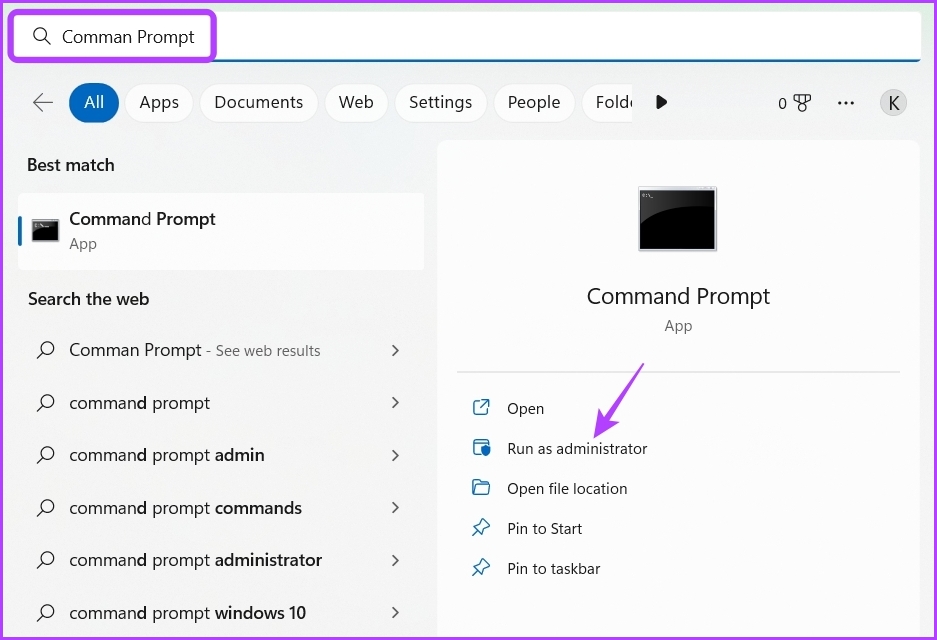
Step 1: Open the Start Menu, type Command Prompt in the search bar, and choose Run as administrator from the right pane.
Step 2: Type ipconfig /flushdns and press Enter.
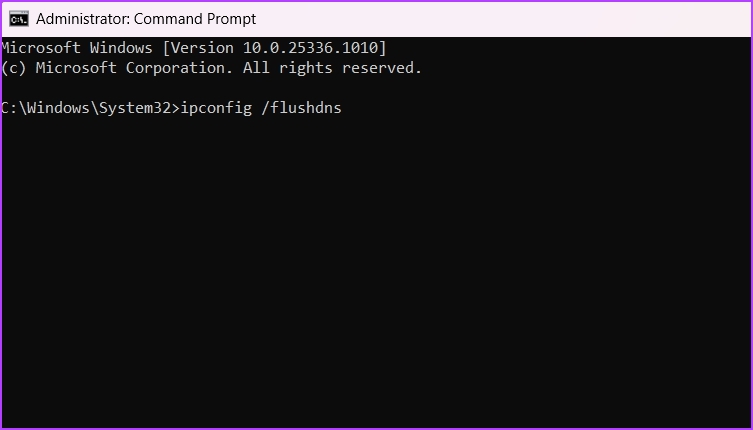
After completing the process, restart your computer and check for the issue.

Fix 2: Disable IPv6
IPv6 is the latest IP version that offers better security and allows more IP addresses than its predecessor. However, there are still many internet connections that don’t support IPv6.
When you forcefully configure those connections for IPv6, you will face connectivity issues in different apps like Steam. To fix that, downgrade to IPv4. Here’s how:
Step 1: Open the Start Menu, type View network connections in the search, and choose Open.

Step 2: Right-click on your connection and choose Properties from the context menu.
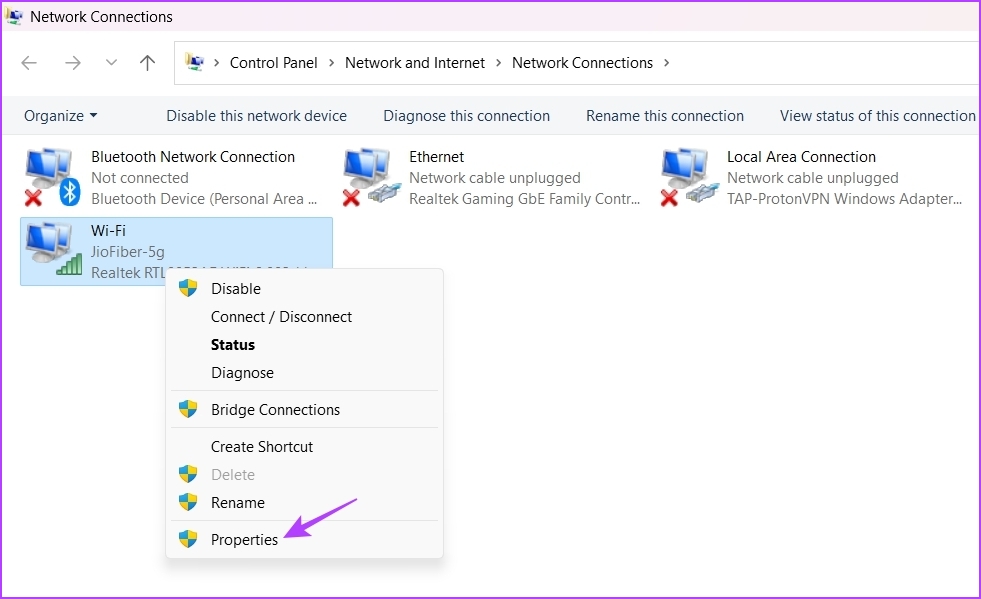
Step 3: Uncheck the IPv6 box and check the IPv4 box. Then, click OK.

Fix 3: Disable Proxy
If you use a proxy server, it might be causing the issue you’re experiencing. To disable the proxy server, follow these steps:
Step 1: Open the Start menu, type Internet Options in the search bar, and press Enter.
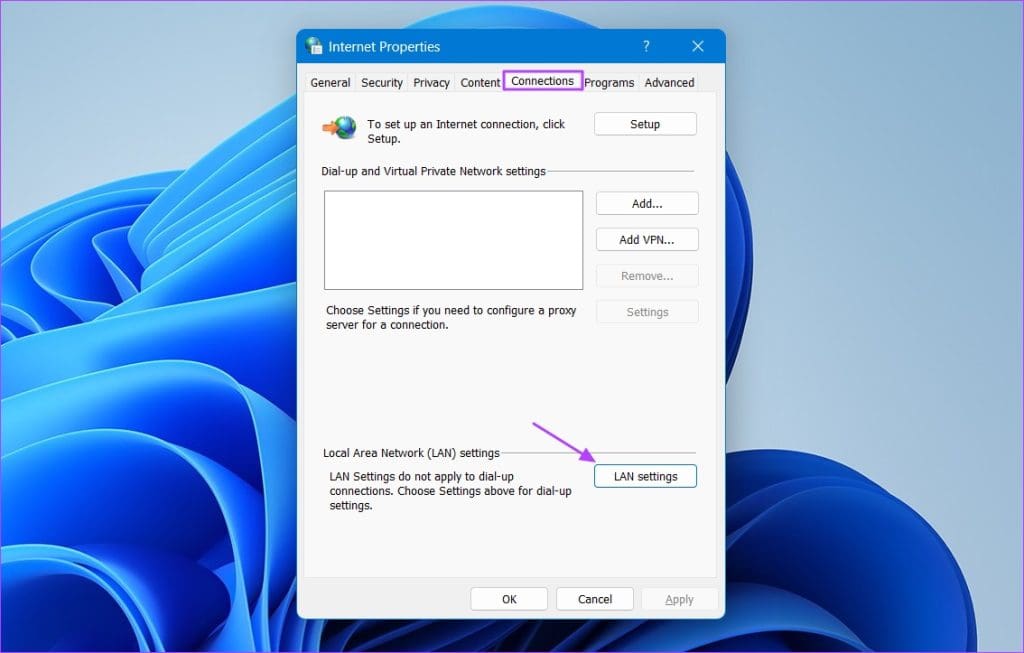
Step 2: Click the Connections tab > LAN settings.
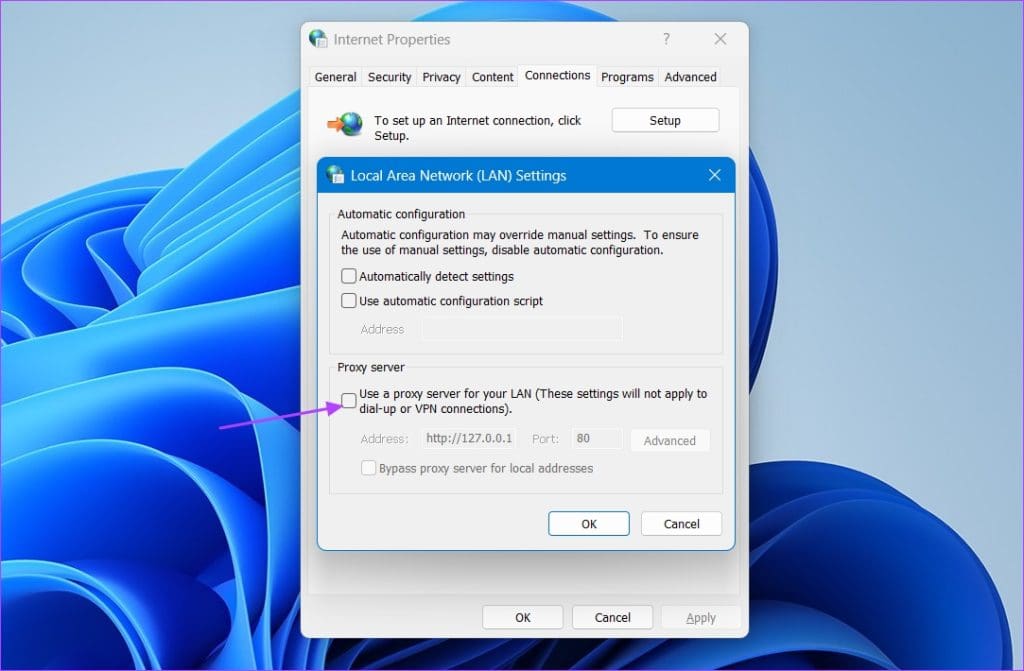
Step 3: Uncheck the Use a proxy server for your LAN box. Then, click OK.
Fix 4: Reset Winsock
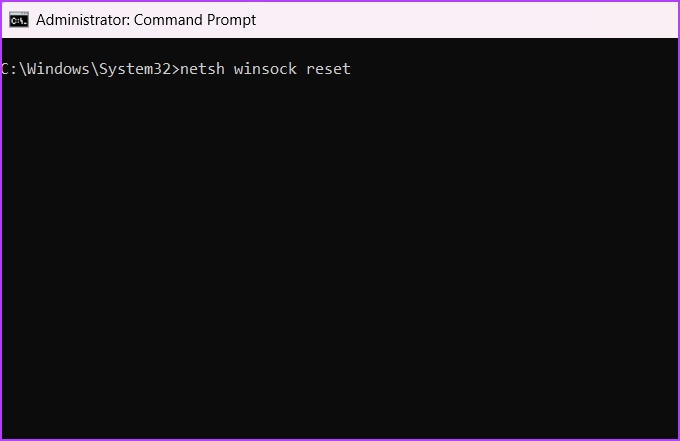
If the above solutions weren’t helpful, try resetting Winsock. Resetting Winsock will eliminate any problem interfering with the communication between programs and the network services. To reset Winsock, launch Command Prompt as an administrator, type the following command, and press Enter.
netsh winsock reset
Fix 5: Change the Steam Language
Steam supports various languages, but if you use it in a different language than the one native to your current location, it might be why you’re getting the Your response to the CAPTCHA appears to be invalid error. We know this may sound strange, but it has caused problems for some users.
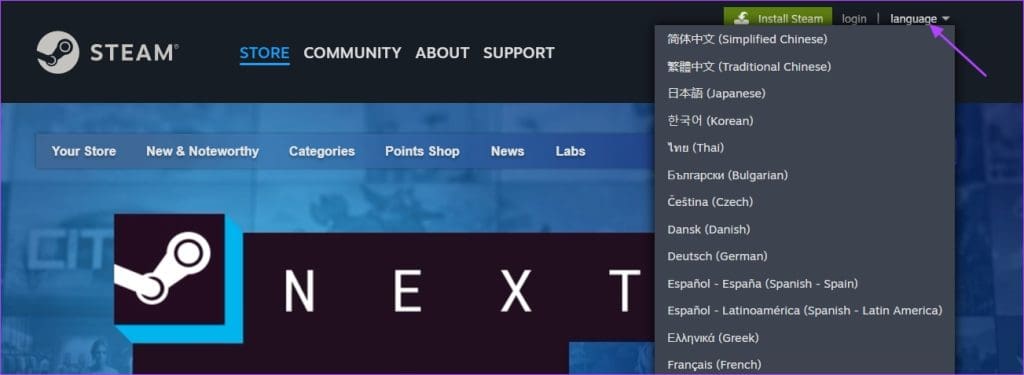
To change the Steam language, visit the Steam website, click on the Language dropdown menu, and select the native language of your current country.
Fix 6: Use the Steam Website
If you’re facing a problem while signing up through the Steam app, try signing up through the Steam website. Here’s how:
Step 1: Visit the Steam website and click the login option.

Step 2: Click the Create an account option under the New to Steam option. Then, create your account, and you should no longer face the problem.

Also Read: Steam not downloading games? Here’s how to fix it
Was this helpful?
Last updated on 23 August, 2024
Read Next
 4 Ways to Fix Google Keeps Asking to Fill Image Captcha
Fix 1: Disable Active VPN The Google search algorithm knows common VPN servers used by bots.
4 Ways to Fix Google Keeps Asking to Fill Image Captcha
Fix 1: Disable Active VPN The Google search algorithm knows common VPN servers used by bots.
 6 Ways to Fix Voice Chat Not Working in Steam for Windows
Fix 1: Check the Default Audio Device and Volume Level The first you need to check the default audio input device on your Windows computer and its volume level.
6 Ways to Fix Voice Chat Not Working in Steam for Windows
Fix 1: Check the Default Audio Device and Volume Level The first you need to check the default audio input device on your Windows computer and its volume level.
 4 Ways to Fix Steam Family Sharing Not Working on Windows 11
Steam Family Sharing Limitations Steam Family Sharing may not work on your Windows 11 PC due to one of the following limitations: Family Sharing not enabled: Ensure that the Family
4 Ways to Fix Steam Family Sharing Not Working on Windows 11
Steam Family Sharing Limitations Steam Family Sharing may not work on your Windows 11 PC due to one of the following limitations: Family Sharing not enabled: Ensure that the Family
 Top 12 Ways to Fix Steam Not Connecting to the Internet on Windows
Steam is one of the popular gaming apps on Windows.
Top 12 Ways to Fix Steam Not Connecting to the Internet on Windows
Steam is one of the popular gaming apps on Windows.
 4 Ways to Fix the Login Error Code E84 in Steam for Windows
Switch to a different network connection: A slow or intermittent internet connection can also cause login errors in Steam.
4 Ways to Fix the Login Error Code E84 in Steam for Windows
Switch to a different network connection: A slow or intermittent internet connection can also cause login errors in Steam.
 3 Ways to Fix Content File Locked Error in Steam for Windows
Try Basic Fixes Run Steam as an administrator: If your Steam library folder lacks the necessary write permissions, you may encounter the 'content file locked' error.
3 Ways to Fix Content File Locked Error in Steam for Windows
Try Basic Fixes Run Steam as an administrator: If your Steam library folder lacks the necessary write permissions, you may encounter the 'content file locked' error.
 Top 5 Ways to Fix ‘Steam Stuck on Verifying Installation’ Error in Windows
Basic Fixes Check Your Internet Connection: As a starting point, it's important to ensure that your internet connection is working.
Top 5 Ways to Fix ‘Steam Stuck on Verifying Installation’ Error in Windows
Basic Fixes Check Your Internet Connection: As a starting point, it's important to ensure that your internet connection is working.
 6 Ways to Fix Not Enough Disk Space Error in Steam on Windows 11
Why Don’t I Have Enough Disk Space While Running Steam?
6 Ways to Fix Not Enough Disk Space Error in Steam on Windows 11
Why Don’t I Have Enough Disk Space While Running Steam?
The article above may contain affiliate links which help support Guiding Tech. The content remains unbiased and authentic and will never affect our editorial integrity.