

Basic Fixes
- Try playing another song: Spotify does not have lyrics for every track in its library. It’s possible that the song you are playing does not have lyrics added to it. Try playing some mainstream songs and see if the lyrics appear.
- Check Spotify’s server status: Like any popular streaming service, Spotify can occasionally experience server outages. To avoid this possibility, check Spotify’s server status by visiting a website like Downdetector.
- Update the app: If your phone’s Spotify app is outdated, it may not show lyrics. Head to the Play Store or App Store to update the Spotify app and see if that helps.
Fix 1: Disable Offline Mode
It’s important to note that Spotify does not show lyrics when you use the app in offline mode. To start viewing lyrics for your songs, use these steps to disable the offline mode.
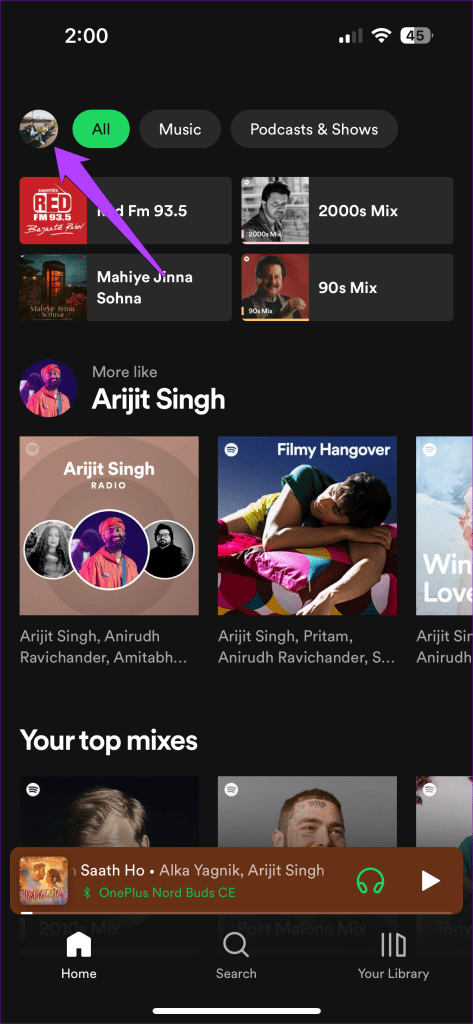
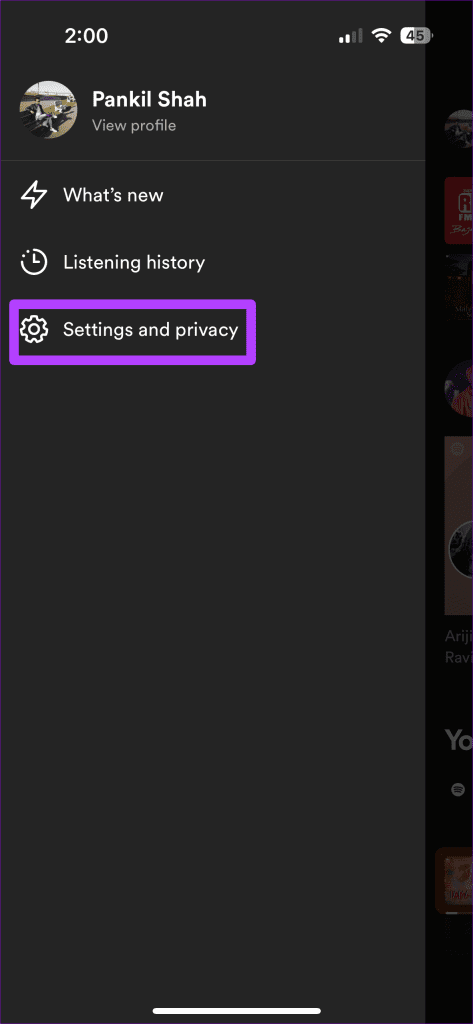
Step 1: Open the Spotify app, tap the profile icon at the top left corner, and select Settings and privacy.
Step 2: Scroll down to the Playback section and disable the toggle for Offline mode.

Fix 2: Sign Out and Sign Back In
Temporary account issues can also cause the Spotify app to misbehave and display strange errors on your phone. An effective way to fix such issues is to sign out of the Spotify app and then sign back in.
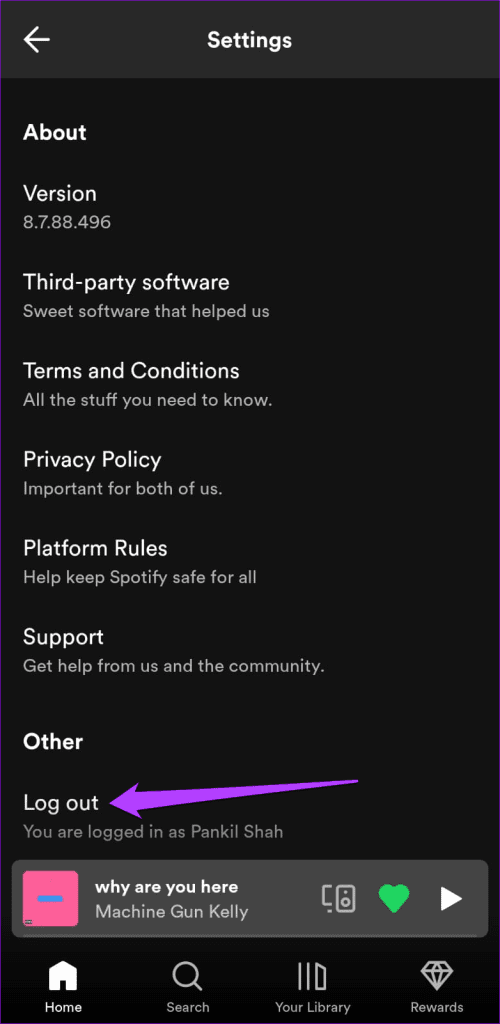
Step 1: Open the Spotify app, tap the profile icon in the top left corner, and select Settings and privacy.
Step 2: Then, scroll down and tap on Log out. After that, sign back into your Spotify account and check if the issue persists.
Fix 3: Clear Spotify App Cache
Spotify creates cache files to improve your experience and reduce data usage. These files include your recently played songs, album art, and other frequently used data. However, obsolete or corrupt files within the Spotify cache can sometimes disrupt app processes, resulting in various issues.
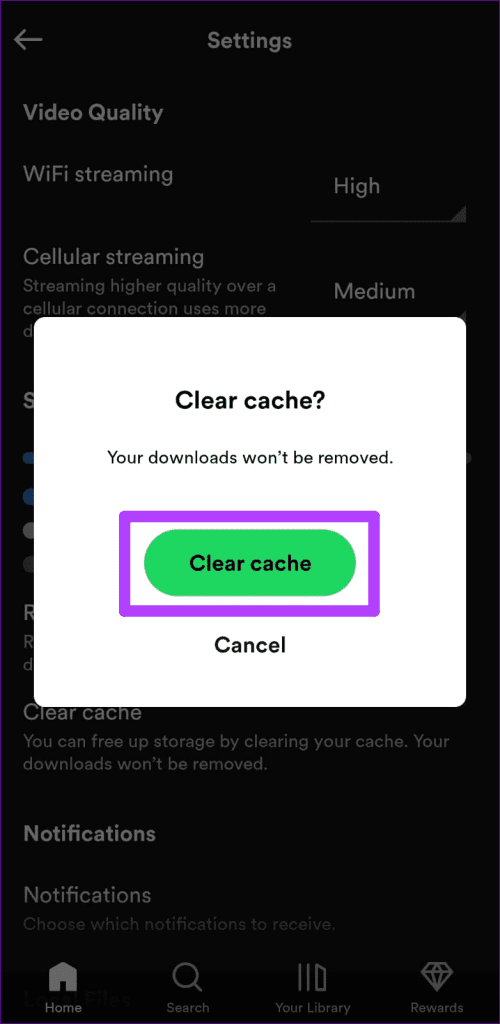
For such occasions, Spotify allows you to clear cache within its settings menu. The following steps will work on Android and iPhone.
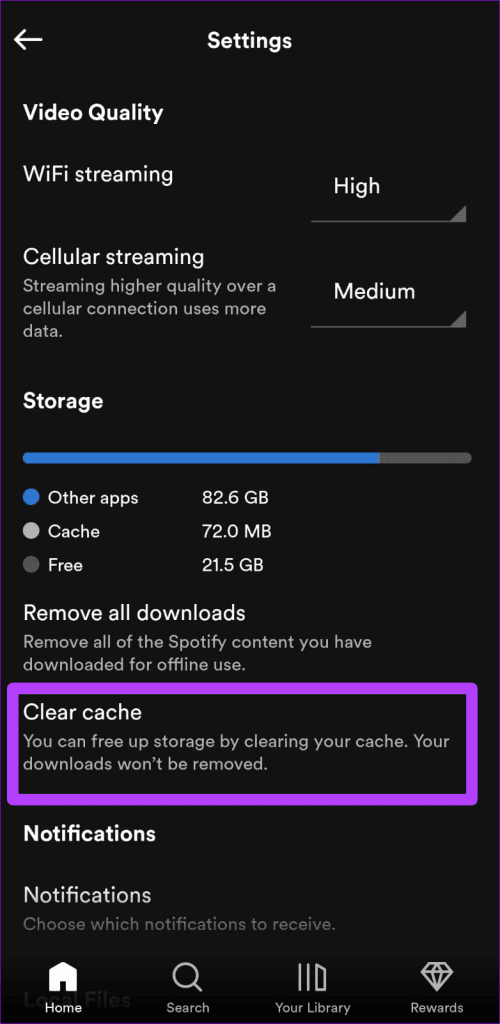
Step 1: Open the Spotify app, tap the profile icon at the top left corner, and select Settings and privacy.
Step 2: Scroll down to tap on Clear cache > select Clear cache again when prompted.
Was this helpful?
Last updated on 08 May, 2024
Read Next
 How to View Lyrics on Spotify Mobile, Desktop and TV
How to See Lyrics in Spotify for Desktop or Web Players If lyrics are available for that particular song, you’ll notice a tiny Mic icon in the Now Playing bar
How to View Lyrics on Spotify Mobile, Desktop and TV
How to See Lyrics in Spotify for Desktop or Web Players If lyrics are available for that particular song, you’ll notice a tiny Mic icon in the Now Playing bar
 5 Offline Android Music Player App With Lyrics Support
1.
5 Offline Android Music Player App With Lyrics Support
1.
 How to Enable Song Lyrics on YouTube Music
How to Find Lyrics on YouTube Music on Mobile Let us start by showing the steps to check real-time lyrics on the YouTube Music app on your iPhone or Android
How to Enable Song Lyrics on YouTube Music
How to Find Lyrics on YouTube Music on Mobile Let us start by showing the steps to check real-time lyrics on the YouTube Music app on your iPhone or Android
 4 Fixes for Spotify Album Art Not Showing on iPhone
Basic Fixes Check Album Art of songs downloaded from web: If you have downloaded songs from other websites, check whether the files have album art in them.
4 Fixes for Spotify Album Art Not Showing on iPhone
Basic Fixes Check Album Art of songs downloaded from web: If you have downloaded songs from other websites, check whether the files have album art in them.
 3 Ways to Fix Discord Not Showing Spotify Status
Basic Fixes: Clear Discord cache - A corrupt Discord cache often leads to issues like Spotify not showing on Discord.
3 Ways to Fix Discord Not Showing Spotify Status
Basic Fixes: Clear Discord cache - A corrupt Discord cache often leads to issues like Spotify not showing on Discord.
 5 Fixes for Spotify Not Showing Friend Activity
Fix 1: Enable the Friend Activity Tab The Spotify app may not show the Friend Activity tab if you have previously hidden it using the View menu.
5 Fixes for Spotify Not Showing Friend Activity
Fix 1: Enable the Friend Activity Tab The Spotify app may not show the Friend Activity tab if you have previously hidden it using the View menu.
 3 Ways to Fix Unable to Log In to Spotify on Android and iPhone
Try Basic Fixes Update the app: The Spotify app on your phone may be outdated or buggy.
3 Ways to Fix Unable to Log In to Spotify on Android and iPhone
Try Basic Fixes Update the app: The Spotify app on your phone may be outdated or buggy.
 3 Ways to Fix Something Went Wrong Error in Spotify for Android and iPhone
Try Basic Fixes Update the app: Using an outdated version of the Spotify app can also trigger the "Something went wrong" error.
3 Ways to Fix Something Went Wrong Error in Spotify for Android and iPhone
Try Basic Fixes Update the app: Using an outdated version of the Spotify app can also trigger the "Something went wrong" error.
The article above may contain affiliate links which help support Guiding Tech. The content remains unbiased and authentic and will never affect our editorial integrity.

