Updates are a frequent and necessary, if slightly annoying, part of the Windows 10 and 11 experience. It’s how your PC stays healthy and up to date after all. These updates, particularly major ones like 24H2, need plenty of disk space to download and install before cleaning things up. Too often, for a small hard drive, though, the space requirements are too much, and you’ll get the message “Not Enough Disk Space for Updates.” So what do you do?
In this article, we’ll show you five quick and easy methods for clearing up hard drive space in different ways when there’s not enough disk space for updates.
Not Enough Space for Updates – 5 Fixes to Try
No disk space? No problem. We’ve got five different ways to free up some space for your updates, from shuffling data to deleting it. There are, of course, other ways to get the job done (including third-party solutions), but we’re focusing on keeping it brief and easy.
Free Up Space With Apps & Features
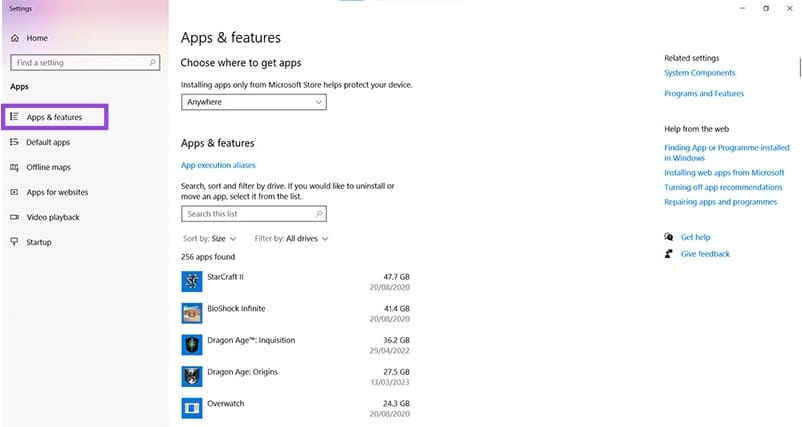
“Apps & features” is a tool on Windows 10 and 11 that allows you to see what programs, apps, and tools you have currently installed and, importantly, how much space they’re occupying. This is a handy way to see what’s on your drive without having to hunt down various folders and shortcuts. Take a look at files that are too big, or you haven’t used in a while. If you see one you don’t need, simply click on it, then hit the “Uninstall” button.
Use Disk Cleanup
It’s not just apps and features taking up valuable hard drive space. Over time, your hard drive can become clogged with unused files, temporary data, and bits and pieces of information that have become mixed in during all the copying and pasting. While Windows takes care of defragging your PC automatically, you can free up some valuable space with the Disk Clean-up utility. Here’s how to use it:
Step 1. Type “Disk Clean-up” into your search bar and choose the utility when it pops up.
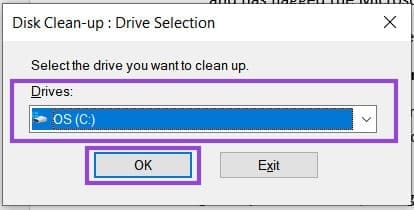
Step 2. Choose which drive you want to scan. Updates use your OS hard drive, so pick that.
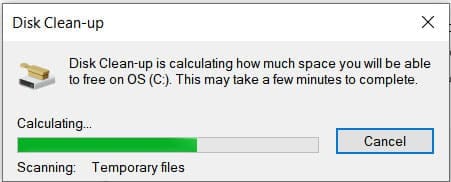
Step 3. Let the utility scan your drive for information. Depending on the size and taken storage space taken, it may take a while.
Step 4. A new window will then pop up showing the different files the utility can delete. This won’t impact the running of your system. The two biggest are usually the Recycle Bin and the Temporary files. Check the ones you want to clear and press the “OK” button.
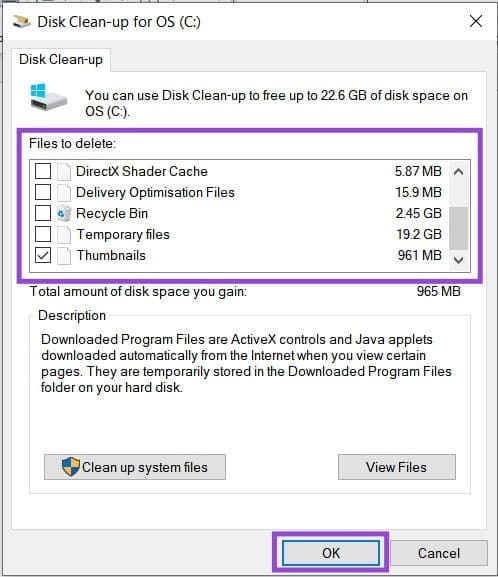
Step 5. The utility will clear these files. Try the update again after this.
Storage Sense
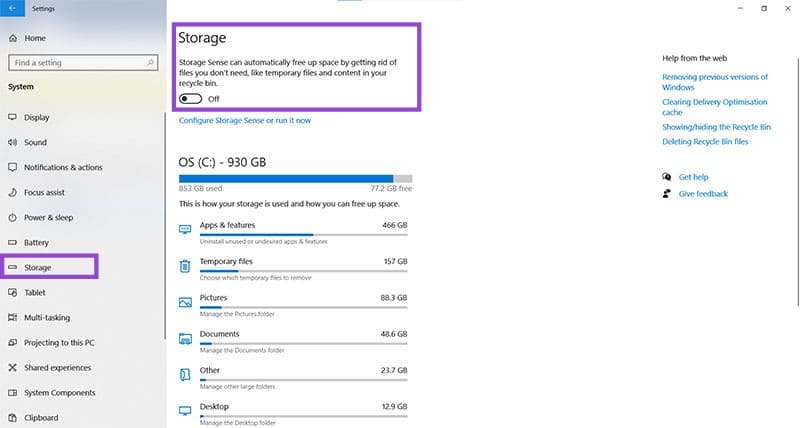
Windows also has a more user-friendly alternative to Disk Clean-up: Storage Sense. You can find this in your Settings, under “Storage.” Once there, you’ll see the overall disk space on your main hard drive and what’s taking up the most space. Enable the whole feature, and you can click on individual aspects of storage to remove. As with Disk Clean-up, you can click on what area you want to keep clean, but you can also enable it for everything.
Storage Sense will automatically delete unused files from your machine to keep space free. If you don’t mind having files that you aren’t using automatically disappear, then enable it.
Clear the Update Cache
Occasionally, Windows Updates fail, leaving files that take up a great deal of hard drive space. Even when they succeed, backups are stored. If you need to free space in a hurry, clear the Windows Update Cache:
Step 1. Open the Run dialog (Win + R) and type “C:\Windows\SoftwareDistribution\” and press “OK.”
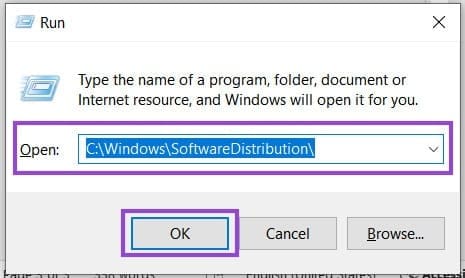
Step 2. Select all the files and folders and delete them. Press (Shift + Del) to skip sending them to the Recycle Bin. Windows will recreate these folders, but without the data.

Use External Devices as Storage
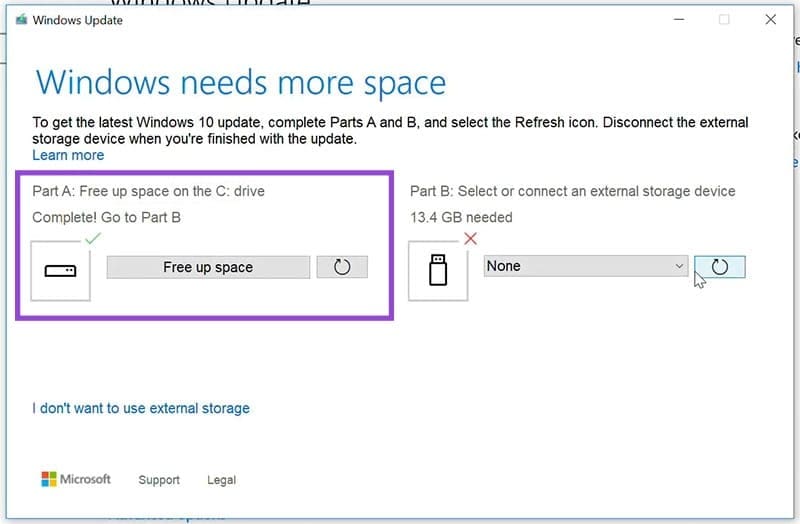
Windows Update also offers the chance to plug in external storage where the files can be temporarily stored. This option will pop up automatically, so if you have a spare drive available, opt to use it.
Was this helpful?
Last updated on 29 October, 2025
Read Next
 6 Ways to Fix Not Enough Disk Space Error in Steam on Windows 11
Why Don’t I Have Enough Disk Space While Running Steam?
6 Ways to Fix Not Enough Disk Space Error in Steam on Windows 11
Why Don’t I Have Enough Disk Space While Running Steam?
 Disable Low Disk Space Warning (Windows 11)
Have you been running out of disk space on one of your drives?
Disable Low Disk Space Warning (Windows 11)
Have you been running out of disk space on one of your drives?
 Not Enough Free Disk Space Steam Fix
So, you’re settling down to play the Steam game you’ve been waiting ages for, only to have Steam tell you that your hard drive doesn’t have enough space.
Not Enough Free Disk Space Steam Fix
So, you’re settling down to play the Steam game you’ve been waiting ages for, only to have Steam tell you that your hard drive doesn’t have enough space.
 4 Ways to Fix Windows Stuck on Checking for Updates
Basic Fixes Check internet connection: Ensure your PC is connected to a stable Wi-Fi or Ethernet connection.
4 Ways to Fix Windows Stuck on Checking for Updates
Basic Fixes Check internet connection: Ensure your PC is connected to a stable Wi-Fi or Ethernet connection.
 7 Ways to Fix Windows 11 Updates Not Downloading or Installing
Fix 1: Run the Windows Update Troubleshooter Windows 11 includes a dedicated troubleshooter that can automatically scan, detect, and fix any issues with Windows Updates.
7 Ways to Fix Windows 11 Updates Not Downloading or Installing
Fix 1: Run the Windows Update Troubleshooter Windows 11 includes a dedicated troubleshooter that can automatically scan, detect, and fix any issues with Windows Updates.
 5 Ways to Fix Disk Cleanup Stuck on Calculating in Windows 11
Basic Fixes Clean boot Windows and relaunch Disk Cleanup: An installed software may conflict with the Disk Cleanup utility.
5 Ways to Fix Disk Cleanup Stuck on Calculating in Windows 11
Basic Fixes Clean boot Windows and relaunch Disk Cleanup: An installed software may conflict with the Disk Cleanup utility.
 5 Ways to Fix Google Chrome High Disk Usage on Windows
Basic Fixes Restart Chrome: Open Task Manager, end the process for Google Chrome, and reopen the browser.
5 Ways to Fix Google Chrome High Disk Usage on Windows
Basic Fixes Restart Chrome: Open Task Manager, end the process for Google Chrome, and reopen the browser.
 Top 8 Ways to Fix External Drive Not Showing Up in Disk Management on Windows
Disk Management is a built-in utility on Windows to manage your hard drivers, SSDs, and other external drives.
Top 8 Ways to Fix External Drive Not Showing Up in Disk Management on Windows
Disk Management is a built-in utility on Windows to manage your hard drivers, SSDs, and other external drives.
The article above may contain affiliate links which help support Guiding Tech. The content remains unbiased and authentic and will never affect our editorial integrity.