Basic Fixes
- Switch to 5G or Wi-Fi: The ability to share the screen of your iPhone during a FaceTime call depends a lot on your internet speed.
- Force quit and relaunch FaceTime: This will give the app a fresh start on your iPhone.
- Update or reinstall FaceTime: To do this, you need to update the software version of your iPhone.
Fix 1: Enable SharePlay For FaceTime
When you talk about FaceTime screen sharing, you are referring to the SharePlay feature. Here’s how to enable it.
Step 1: Open the Settings app on your iPhone.
Step 2: Tap on FaceTime and then select SharePlay.
Step 3: Tap the toggle next to SharePlay to enable the feature.


Fix 2: Disable and Enable FaceTime Again
If you still face the issue, you can enable the FaceTime feature again on your iPhone. This is just like using Airplane Mode to reset your iPhone’s wireless network connections. When you re-enable FaceTime, all your data will be downloaded on your iPhone. Here’s how.
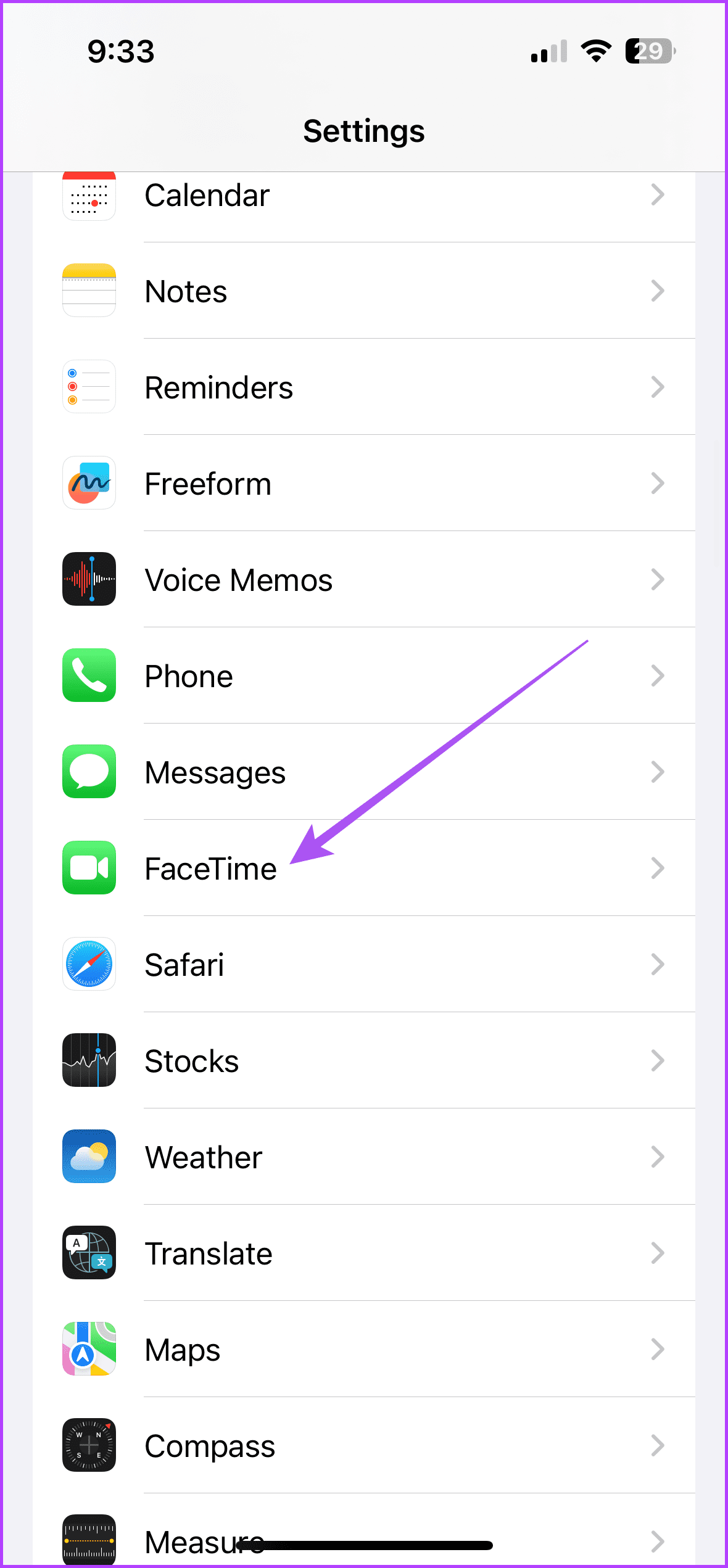
Step 1: Open the Settings app on your iPhone.
Step 2: Scroll down and then tap on FaceTime.
Step 3: Tap the toggle next to FaceTime to disable the feature.
Step 4: Wait for some time and then tap the toggle again to enable the feature.

Fix 3: Reset All Settings
If none of the solutions have worked, we suggest resetting all iPhone settings. This will restore all features to default.
Open Settings > General > Transfer or Reset iPhone > Reset > Reset All Settings.


Tip: Check our post that covers the best fixes for FaceTime screen sharing not working on your Mac.
Was this helpful?
Last updated on 11 July, 2024
Read Next
 4 Ways to Fix FaceTime Screen Sharing Not Working on Mac
Basic Fixes Check device support: Android and Windows users can join a FaceTime call via the web only.
4 Ways to Fix FaceTime Screen Sharing Not Working on Mac
Basic Fixes Check device support: Android and Windows users can join a FaceTime call via the web only.
 4 Fixes for Microsoft Teams Screen Sharing Not Working on Windows 11
https://youtu.be/Wm3ds6ia05A Preliminary Fixes Internet connection: Sharing your screen on Teams requires high-speed internet connectivity.
4 Fixes for Microsoft Teams Screen Sharing Not Working on Windows 11
https://youtu.be/Wm3ds6ia05A Preliminary Fixes Internet connection: Sharing your screen on Teams requires high-speed internet connectivity.
 Top 11 Fixes for FaceTime Audio Not Working on iPhone and iPad
FaceTime is a fantastic video-calling service that Apple users cherish.
Top 11 Fixes for FaceTime Audio Not Working on iPhone and iPad
FaceTime is a fantastic video-calling service that Apple users cherish.
 Top 6 Fixes for Facetime Picture-in-Picture Not Working on iPhone & iPad
With the Picture-in-Picture (PiP) mode, multitasking is easy on iPhone and iPad.
Top 6 Fixes for Facetime Picture-in-Picture Not Working on iPhone & iPad
With the Picture-in-Picture (PiP) mode, multitasking is easy on iPhone and iPad.
 2 Fixes for FaceTime Not Working on Apple TV 4K
Basic Fixes Check model number: To use this feature, you must have the Apple TV 4K (2nd generation or later) connected to your TV.
2 Fixes for FaceTime Not Working on Apple TV 4K
Basic Fixes Check model number: To use this feature, you must have the Apple TV 4K (2nd generation or later) connected to your TV.
 4 Fixes When Zoom Screen Sharing Is Not Working on Windows
Basic Fixes: Turn off your video before screen-sharing: Lower-end CPUs may find it challenging to keep up with both the video feed and screen-sharing over a Zoom call.
4 Fixes When Zoom Screen Sharing Is Not Working on Windows
Basic Fixes: Turn off your video before screen-sharing: Lower-end CPUs may find it challenging to keep up with both the video feed and screen-sharing over a Zoom call.
 4 Ways to Fix FaceTime Not Working on iPhone
https://youtu.be/I4u79xaUaeI Fix 1: Check if Data Usage Is Enabled and Force Restart Your iPhone Reboot your router if you're connected to a Wi-Fi network.
4 Ways to Fix FaceTime Not Working on iPhone
https://youtu.be/I4u79xaUaeI Fix 1: Check if Data Usage Is Enabled and Force Restart Your iPhone Reboot your router if you're connected to a Wi-Fi network.
 6 Ways to Fix Apple Music Family Sharing Not Working on iPhone
Are you facing issues with Apple Music Family Sharing on your iPhone?
6 Ways to Fix Apple Music Family Sharing Not Working on iPhone
Are you facing issues with Apple Music Family Sharing on your iPhone?
The article above may contain affiliate links which help support Guiding Tech. The content remains unbiased and authentic and will never affect our editorial integrity.