Try Basic Fixes
- Check Facebook’s server status: It’s not uncommon for Facebook servers to experience problems. So, check Facebook’s server status on a website like Downdetector to see if they face an outage.
- Update the app: The Facebook app may be outdated or buggy. Open the Play Store or App Store on your phone to update Facebook and check if it loads comments after that.
Fix 1: The Comment May Have Been Deleted
Like most social media platforms, Facebook allows users to delete unpleasant or spammy comments from their posts. If you can’t find one of the comments you posted earlier, the account owner of the post has likely deleted it. Sometimes, Facebook may also delete a comment if it breaches community standards or contains inappropriate content.
So, if you can’t see one or two specific comments on Facebook, there may be nothing wrong with the app.
Fix 2: Sign Out and Sign Back In
Temporary issues with your Facebook account can also prevent the app from loading comments on your phone. An easy way to resolve such issues is to sign out of the Facebook app and sign back in. Here are the steps for the same.
Step 1: In the Facebook app, tap the menu icon at the top-right corner.
Step 2: Scroll down to tap on Log out. Select Log Out again to confirm.


Sign back into your Facebook account and check if the issue persists.
Fix 3: Clear Facebook App Cache (Android)
Overwhelming or corrupt cache data could also prevent the Facebook app from showing comments on your Android device. Try purging the existing Facebook app cache to see if that helps. Here’s how to do it.
Step 1: Long-press on the Facebook app icon and tap the info icon from the resulting menu.
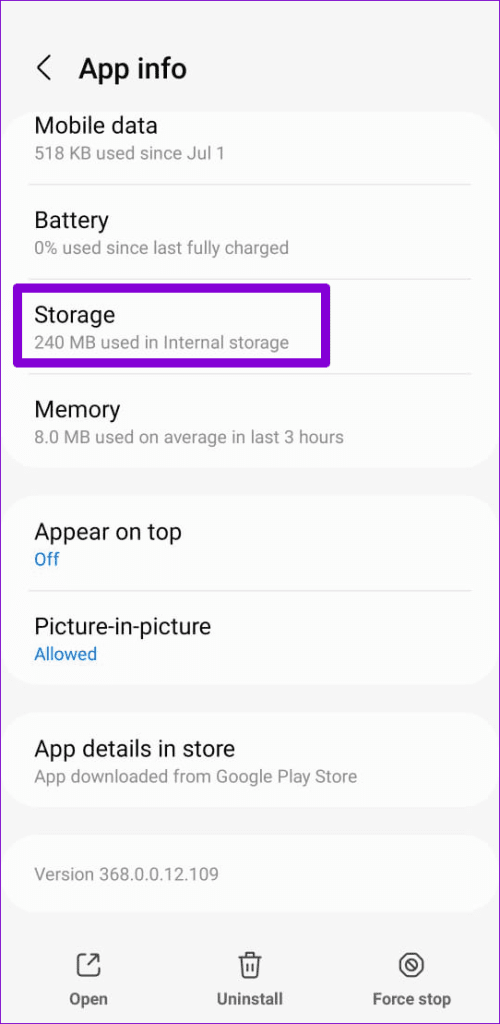
Step 2: Go to Storage and tap the Clear cache option at the bottom.


Was this helpful?
Last updated on 04 July, 2024
Read Next
 3 Ways to Fix Instagram Comments Not Showing on Android and iPhone
Try Basic Fixes Check Instagram’s server status: Server-side glitches could prevent Instagram from loading properly or display strange errors.
3 Ways to Fix Instagram Comments Not Showing on Android and iPhone
Try Basic Fixes Check Instagram’s server status: Server-side glitches could prevent Instagram from loading properly or display strange errors.
 What Happens When You Hide Comments on Facebook
How to Hide Comments on Facebook When you come across your comment or someone's comment on your update, select the three-dot menu next to the comment and pick the Hide
What Happens When You Hide Comments on Facebook
How to Hide Comments on Facebook When you come across your comment or someone's comment on your update, select the three-dot menu next to the comment and pick the Hide
 Top 4 Ways to Fix Facebook Not Loading in Safari
https://youtu.be/rIpRwwjzGtQ Basic Fixes Check Facebook server status - When facing server issues, Facebook won't load properly no matter the browser.
Top 4 Ways to Fix Facebook Not Loading in Safari
https://youtu.be/rIpRwwjzGtQ Basic Fixes Check Facebook server status - When facing server issues, Facebook won't load properly no matter the browser.
 3 Ways to Fix YouTube Comments Not Showing on iPhone and Android
Basic Fixes Check if YouTube is down: You can check YouTube's server status on Downdetector to know if it is facing downtime.
3 Ways to Fix YouTube Comments Not Showing on iPhone and Android
Basic Fixes Check if YouTube is down: You can check YouTube's server status on Downdetector to know if it is facing downtime.
 3 Ways to Fix Facebook Games Not Loading in Google Chrome
Try Basic Fixes Close and reopen the game: Sometimes, temporary glitches can cause your Facebook games to become unresponsive and stop working.
3 Ways to Fix Facebook Games Not Loading in Google Chrome
Try Basic Fixes Close and reopen the game: Sometimes, temporary glitches can cause your Facebook games to become unresponsive and stop working.
 How to Fix Facebook Not Loading in Google Chrome
Basic Fixes Try using Incognito Mode: This is a quick hack that enables faster loading of websites that don't launch in the standard browsing window.
How to Fix Facebook Not Loading in Google Chrome
Basic Fixes Try using Incognito Mode: This is a quick hack that enables faster loading of websites that don't launch in the standard browsing window.
 3 Ways to Fix Photos and Videos Not Loading on Facebook Messenger
Try Basic Fixes Update the Messenger app: Using an outdated version of the Facebook app on your Android or iPhone can trigger the "This media is no longer available" error
3 Ways to Fix Photos and Videos Not Loading on Facebook Messenger
Try Basic Fixes Update the Messenger app: Using an outdated version of the Facebook app on your Android or iPhone can trigger the "This media is no longer available" error
 5 Ways to Fix WhatsApp Status Not Loading on Android and iPhone
Try Basic Fixes Check if WhatsApp is down: Services like WhatsApp can experience server outages at times.
5 Ways to Fix WhatsApp Status Not Loading on Android and iPhone
Try Basic Fixes Check if WhatsApp is down: Services like WhatsApp can experience server outages at times.
The article above may contain affiliate links which help support Guiding Tech. The content remains unbiased and authentic and will never affect our editorial integrity.