With the error code CE-11773-6, PS5 users might learn that something went wrong during the connection authentication process while the console is downloading or updating games. If you can sign in, your PS5 is connected to the internet, the system software is up to date, and your PlayStation Plus subscription is active, Sony says the issue is likely temporary, so you can try again later. But if you keep encountering it, here’s what to do to fix the error CE-11777-6.
Fix 1 – Restart Your Network or Router to Fix Error CE-11777-6 PS5
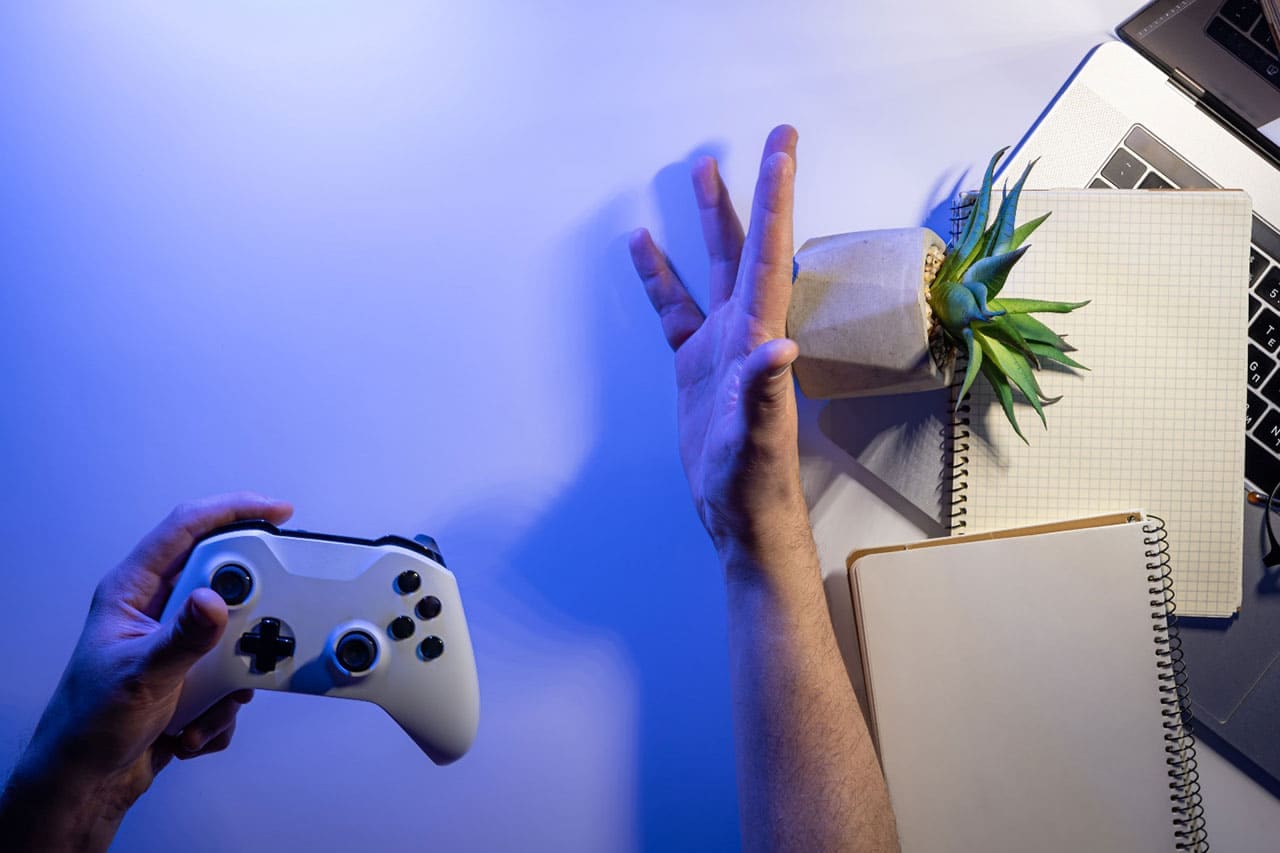
In rare cases, the router or modem might fail to connect your PS5 to the internet. This is usually solved with a quick restart.
Step 1. Unplug your modem, wait for a few seconds, then plug it back in.
Step 2. Wait for the modem to receive an internet connection. You can test it out with another device like a PC or mobile.
Step 3. Restart your PS5.
Step 4. Go to Settings > Users and Accounts and make sure you’re signed in to PlayStation.
Step 5. Try to redownload the game and reconnect to your account.
Fix 2 – Check Your PlayStation Account
If the game was obtained through a PlayStation Plus subscription, canceling that subscription will prevent you from downloading or updating it, which can result in the error CE-117773-6. This can even be due to a lapsed payment (or your bank changing subscription settings on your card).
Step 1. Go to “Settings.”
Step 2. Open “Users and Accounts.”
Step 3. Go to “Payment and subscriptions” and check your subscription details. It should show whether the payment was finalized and its date.
You can use this menu to reactivate the subscription with new details.
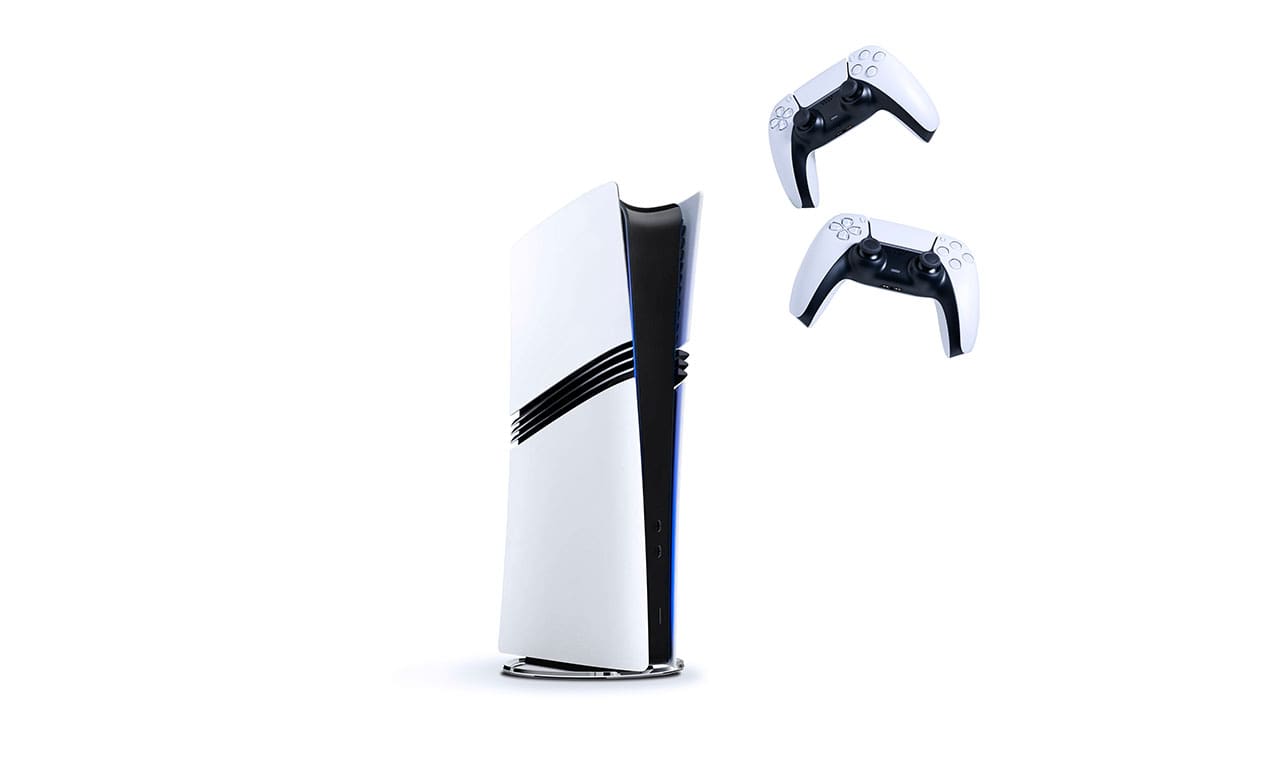
Fix 3 – Fix Error Code CE-11773-6 PS5 by Running Safe Mode
In rare cases, the PS5’s network card, internal settings, or corrupted cache files might be preventing it from getting a connection to download servers. You can use the internal “Safe Mode” to remove interference and use a fresh cache.
Step 1. Turn off the console.
Step 2. Press and hold the power button again, and release it after you hear the second beep.
Step 3. Connect the controller to the PS5 using a USB cable, then press the PS button.
Step 4. Choose the option “Rebuild Database.”
Step 5. Wait for the process to complete and restart the console.
Fix 4 – Manually Update the Console
If your PS5 has trouble updating its system software normally, you can update it manually using a USB storage device.
Step 1. On a PC, go to the following page, which lists the update file for the latest version of PS5 software.
Step 2. Scroll down and select “PS5 console update file,” then save the file.

Step 3. On a USB, create a folder named “PS5,” and inside that folder create a new one called “UPDATE.” Make sure that the USB drive is formatted as FAT32 or exFAT.
Step 4. Put the update file in the “UPDATE” folder and name it “PS5UPDATE.PUP”
Step 5. Insert the USB into the PS5.
Step 6. Run the PS5 in Safe Mode and select the option “Update System Software.”
Step 7. Select the option to find the file on the USB.
Step 8. Wait for the process to complete and restart the console.
Fix 5 – Factory Reset the Console
If other troubleshooting steps don’t work, you can reset the PS5 as a last resort. Resetting the console deletes all user data and restores it to its original state, so back up any important data first.
Was this helpful?
Last updated on 27 September, 2026
Read Next
 How to Fix the PS5 Error CE-109531-9
Nothing brings the explosive action of console gaming closer than the right audio device, be that good headphones or surround sound.
How to Fix the PS5 Error CE-109531-9
Nothing brings the explosive action of console gaming closer than the right audio device, be that good headphones or surround sound.
 5 Best Charging Cables for PS5 DualSense Controller That You Can Buy
Unlike the Xbox controllers, the Sony PlayStation 5 DualSense controllers come with a rechargeable battery.
5 Best Charging Cables for PS5 DualSense Controller That You Can Buy
Unlike the Xbox controllers, the Sony PlayStation 5 DualSense controllers come with a rechargeable battery.
 6 Best PS5 Bluetooth Adapters for Audio
The Sony PS5 lacks Bluetooth.
6 Best PS5 Bluetooth Adapters for Audio
The Sony PS5 lacks Bluetooth.
 6 Best UPS for PS5 Under $150
The Sony PlayStation 5 is an excellent gaming console, although it is sensitive to power outages.
6 Best UPS for PS5 Under $150
The Sony PlayStation 5 is an excellent gaming console, although it is sensitive to power outages.
 6 Best PS5 Racing Games To Play with Steering Wheel
One of the best gaming experiences on a console is with racing titles.
6 Best PS5 Racing Games To Play with Steering Wheel
One of the best gaming experiences on a console is with racing titles.
 How to Check DualSense Controller Battery on PS5 or PC
How to Check the DualSense Controller Battery on PS5 Checking the battery level of your DualSense controller on a PS5 is fairly straightforward, as you'd expect.
How to Check DualSense Controller Battery on PS5 or PC
How to Check the DualSense Controller Battery on PS5 Checking the battery level of your DualSense controller on a PS5 is fairly straightforward, as you'd expect.
 4 Fixes for PS5 Not Recognizing External Hard Drive
Try Basic Fixes Make sure the hard drive is compatible: Your PS5 supports nearly all external hard drives ranging from 250GB to 8TB in storage capacity, connected via the SuperSpeed
4 Fixes for PS5 Not Recognizing External Hard Drive
Try Basic Fixes Make sure the hard drive is compatible: Your PS5 supports nearly all external hard drives ranging from 250GB to 8TB in storage capacity, connected via the SuperSpeed
 5 Fixes for “Word Experienced an Error Trying to Open the File” Error in Windows
Fix 1: Unblock Your Word File Microsoft Word may fail to open a document if it has been altered by third-party software.
5 Fixes for “Word Experienced an Error Trying to Open the File” Error in Windows
Fix 1: Unblock Your Word File Microsoft Word may fail to open a document if it has been altered by third-party software.
The article above may contain affiliate links which help support Guiding Tech. The content remains unbiased and authentic and will never affect our editorial integrity.