Of all partitions that might exist on your PC, none is more vital to its operation than the Extensible Firmware Interface, or EFI. It stores the essential files your machine needs to start, and if it’s faulty, you’re stuck.
Not to worry; in this article, we’re going to show you how to fix EFI partition step-by-step.
What Is the EFI?
Before we get started, you might be wondering what the EFI is and why you never really see it mentioned.
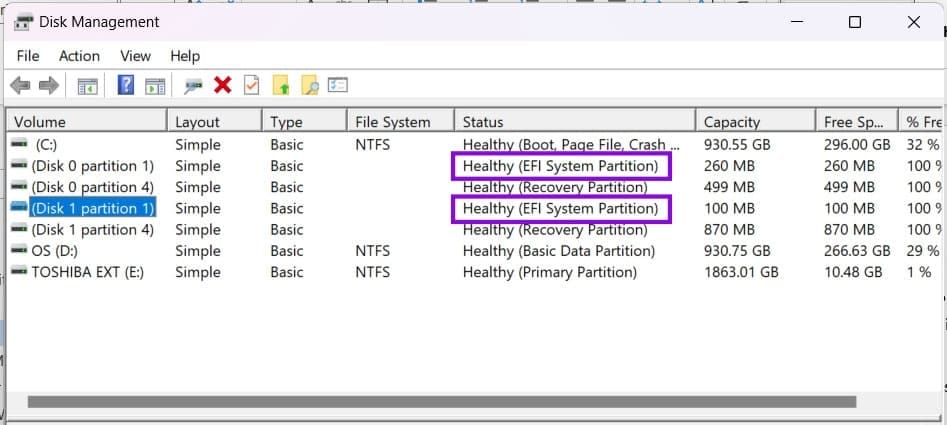
The EFI System Partition (ESP) is a dedicated partition on your drive that contains the UEFI boot files your machine needs to start the Windows operating system. It’s formatted with FAT32 and can be identified using DiskPart in Command Prompt.
How to Fix EFI Partition Windows 11 – Our Guide
If you’re having difficulty starting Windows, your EFI System Partition or its boot files might be corrupted or not working correctly. Our guide will show you how to rebuild EFI partition step by step.
Enter Recovery Mode
Let’s start by entering the Windows Recovery Environment (WinRE). If Windows is still accessible, hold down the “Shift” key while selecting “Restart.” If Windows won’t start, your system may automatically enter WinRE after repeated startup failures. You can also use Windows installation or recovery software to access the recovery tools.
Once in Recovery Mode, follow these steps:
Step 1. Click “Advanced options.”
Step 2. In the next menu, choose “Command Prompt.”

Step 3. Command Prompt will open. It’s time for the next part.
Identify Your Drive
The EFI System Partition (ESP) is usually a small FAT32 partition, often around 100–500 MB in size, and DiskPart normally identifies it as “System.” To find it, follow these steps:
Step 1. In “Command Prompt,” type “bcdedit” and press “Enter.”
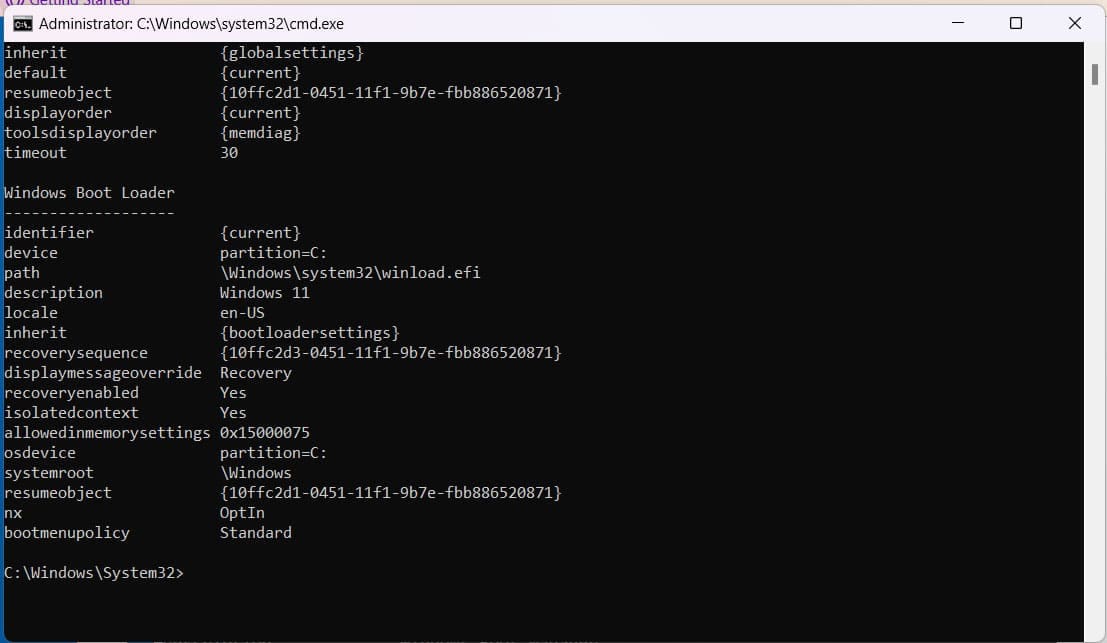
Step 2. In the Windows Boot Loader section, look for the “osdevice” entry. This tells you the drive letter assigned to the Windows partition in the Recovery Environment. Make a note of it, as it may not be “C.”
Step 3. Type “diskpart” and press “Enter” to start the DiskPart utility.
Step 4. Type “lis vol” and press “Enter.” This displays the volumes on your PC.

Step 5. Look for a small FAT32 volume with “System” listed in the “Info” column. This is normally the EFI System Partition. Its size may vary.
Step 6. Make a note of the volume number of the EFI System Partition. Then type “select volume 5,” replacing 5 with the correct volume number, and press “Enter.”
Step 7. Type “assign letter=Z” and press “Enter.” This temporarily assigns the EFI System Partition the drive letter Z: so that you can work with it from Command Prompt.
Step 8. Type “exit” and press “Enter” to leave DiskPart.
Formatting the Partition
If your EFI System Partition has been corrupted or is listed as “RAW” rather than “FAT32,” you may need to reformat the partition before rebuilding the boot files:
Step 1. Type “format Z: /FS:FAT32 /Q” and hit “Enter.”
Step 2. Hit “Y” to begin the process.
Step 3. When prompted for a new name, enter “EFI” and hit “Enter.”
Rebuild the Boot Files
If the boot files have been corrupted, you’ll need to rebuild the BCD and boot files on the EFI System Partition using the Windows directory (your main OS disk). Here’s what to do:
Step 1. In Command Prompt, type “bcdboot C:\Windows /s Z: /f UEFI,” where the two capital letters are your main OS drive and your EFI partition. Hit “Enter” to begin the rebuild.
With all this done, your EFI partition should be rebuilt, reformatted, and ready to go.
Was this helpful?
Last updated on 17 September, 2026
Read Next
 Windows 11 Keeps Assigning Drive Letter to Recovery Partition
You might be used to Windows swapping the names of your external hard drives and USBs, but what happens when your recovery partition, which should only be used in emergencies,
Windows 11 Keeps Assigning Drive Letter to Recovery Partition
You might be used to Windows swapping the names of your external hard drives and USBs, but what happens when your recovery partition, which should only be used in emergencies,
 How to Clean Install Windows 11: A Step-By-Step Guide
Are you looking to give your computer a fresh start by installing the latest version of Windows?
How to Clean Install Windows 11: A Step-By-Step Guide
Are you looking to give your computer a fresh start by installing the latest version of Windows?
 Installing AMD Graphics Driver From Scratch Step by Step
If you’re having issues with a flickering screen, or if a new update of Windows has your system doing strange things, you’re probably looking for an answer.
Installing AMD Graphics Driver From Scratch Step by Step
If you’re having issues with a flickering screen, or if a new update of Windows has your system doing strange things, you’re probably looking for an answer.
 How to Completely Disable VBS in Windows 11 – Step by Step
Virtualization-Based Security (VBS) walls off a protected region of memory, which stops unsigned drivers and malicious code from loading even if they slip past your antivirus.
How to Completely Disable VBS in Windows 11 – Step by Step
Virtualization-Based Security (VBS) walls off a protected region of memory, which stops unsigned drivers and malicious code from loading even if they slip past your antivirus.
 How to Sync Messages From iPhone to Mac: A Step-By-Step Guide
The interoperability between iPhone and Mac is unparalleled; from using the iPhone as Mac’s webcam to syncing messages from iPhone to Mac.
How to Sync Messages From iPhone to Mac: A Step-By-Step Guide
The interoperability between iPhone and Mac is unparalleled; from using the iPhone as Mac’s webcam to syncing messages from iPhone to Mac.
 DIY Outdoor Movie Theater: A Step-by-Step Tech Guide to Transform Your Backyard
If you like watching movies on a giant screen but do not fancy stepping out to a movie theatre for it, you've come to the right place.
DIY Outdoor Movie Theater: A Step-by-Step Tech Guide to Transform Your Backyard
If you like watching movies on a giant screen but do not fancy stepping out to a movie theatre for it, you've come to the right place.
 How to Remove Two-Step Verification PIN in WhatsApp
Disable WhatsApp Two-Step Verification PIN on Android Step 1: Launch WhatsApp > tap on the three vertical dots menu at the top-right corner > select Settings.
How to Remove Two-Step Verification PIN in WhatsApp
Disable WhatsApp Two-Step Verification PIN on Android Step 1: Launch WhatsApp > tap on the three vertical dots menu at the top-right corner > select Settings.
 4 Ways to Fix Device Manager Not Opening on Windows
Fix 1: Open Device Manager With Admin Rights To start, you can try opening Device Manager with admin rights on Windows and see if it works.
4 Ways to Fix Device Manager Not Opening on Windows
Fix 1: Open Device Manager With Admin Rights To start, you can try opening Device Manager with admin rights on Windows and see if it works.
The article above may contain affiliate links which help support Guiding Tech. The content remains unbiased and authentic and will never affect our editorial integrity.