Basic Fixes
- Restart your router: A simple restarting of your internet router can fix the issue once you reconnect to your network.
- Use the same Wi-Fi and Apple ID: Only then you will be able to connect your Apple TV remote app and your iPhone. This is just like the feature of Continuity Camera.
- Force quit and relaunch the Remote app: This will give the app a fresh start on your device.
- Update software version: Open Settings > General > Software Update.
Fix 1: Forget and Reconnect iPhone
If you still face the same issue, try reconnecting your iPhone with the Apple TV. You will first need to forget your iPhone and then reconnect the Remote app again with your Apple TV. Here’s how.
Step 1: Open Settings > Remotes and Devices.
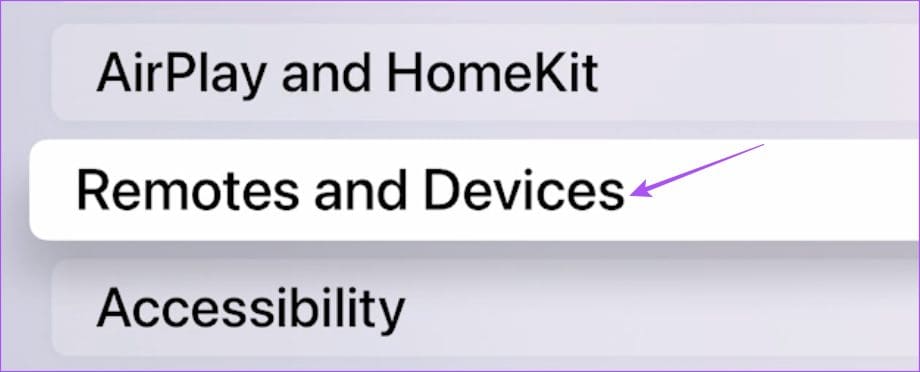
Step 2: Select your iPhone name.

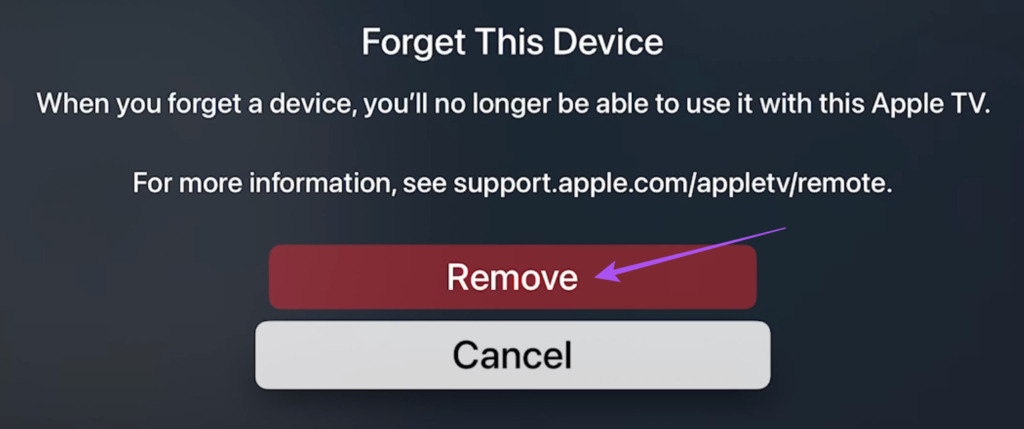
Step 3: Select Forget This Device and then choose Remove to confirm.
Step 4: Launch the Control Center swiping down from the top-right corner on your iPhone.
Step 5: Tap on the Remote app icon.
Step 6: Select your Apple TV.
Fix 2: Reset Apple TV
Resetting your Apple TV will restore all its default settings and preferences. You will be logged out of all your streaming apps, Apple ID, and other Wi-Fi details that you may have added. You will also have to reconnect your iPhone again with your Apple TV to check if the Remote app is working.
Open Settings > System > Reset.

Tip: You can also take a look at our post if your Apple TV gets stuck at the Apple logo.
Was this helpful?
Last updated on 23 July, 2024
Read Next
 4 Fixes if Chrome Remote Desktop Is Not Working on Windows 11
Fix 1: Disable PIN-Less Authentication Chrome Remote Desktop lets you pair your trusted devices with your computer.
4 Fixes if Chrome Remote Desktop Is Not Working on Windows 11
Fix 1: Disable PIN-Less Authentication Chrome Remote Desktop lets you pair your trusted devices with your computer.
 5 Fixes for Remote Desktop Copy-Paste Not Working on Windows
Fix 1: Configure Remote Desktop Connection Settings A common reason you may be unable to copy and paste data during a Remote Desktop session is if you have previously disabled
5 Fixes for Remote Desktop Copy-Paste Not Working on Windows
Fix 1: Configure Remote Desktop Connection Settings A common reason you may be unable to copy and paste data during a Remote Desktop session is if you have previously disabled
 How to Turn Off Apple TV With or Without a Remote
Apple TV is slowly becoming a fan favorite, especially for those who are already a part of the Apple ecosystem.
How to Turn Off Apple TV With or Without a Remote
Apple TV is slowly becoming a fan favorite, especially for those who are already a part of the Apple ecosystem.
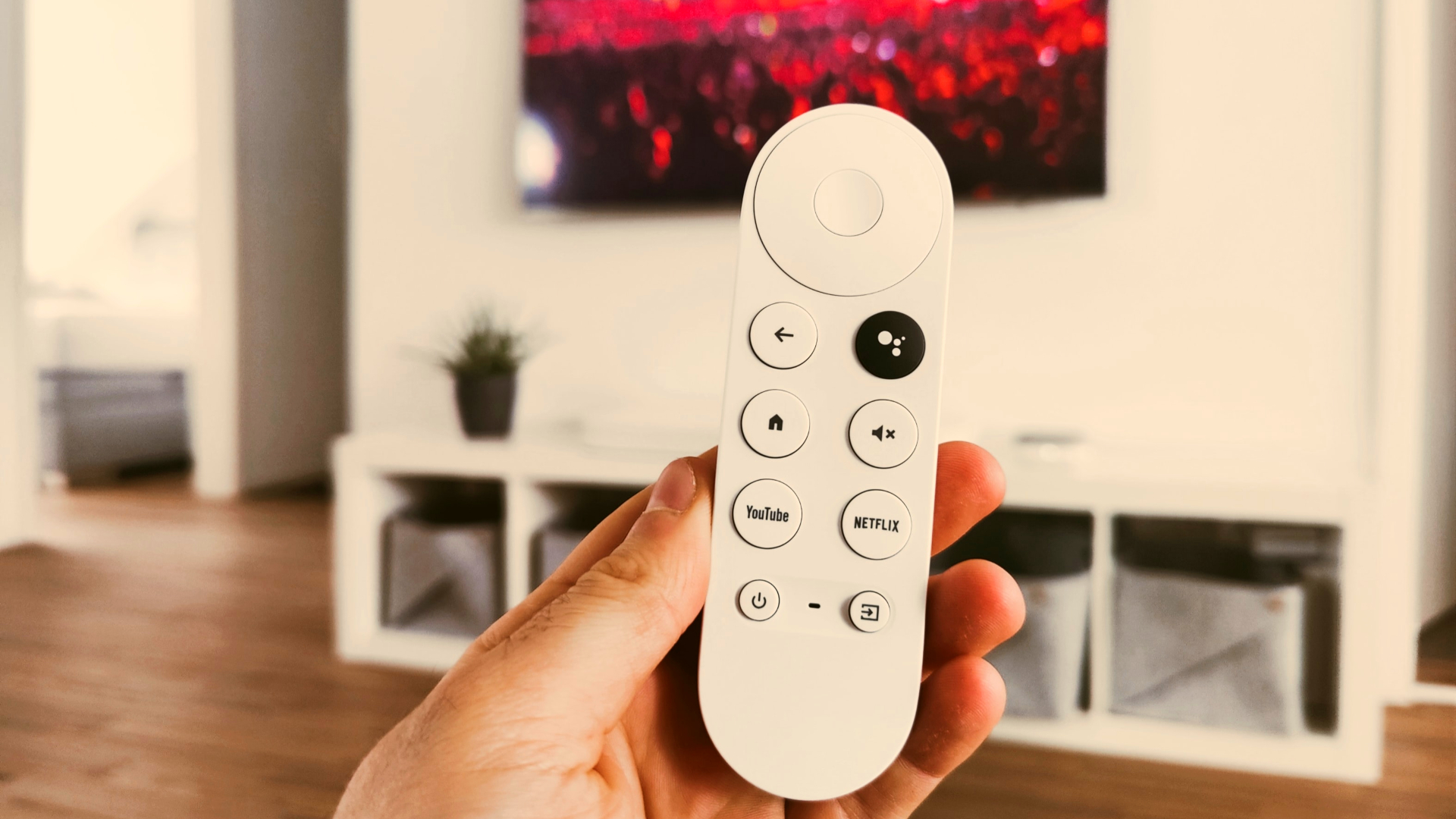 3 Ways to Fix Android TV Remote Not Working
Basic Fixes Restart your Android TV: A simple restart can sometimes help fix such issues.
3 Ways to Fix Android TV Remote Not Working
Basic Fixes Restart your Android TV: A simple restart can sometimes help fix such issues.
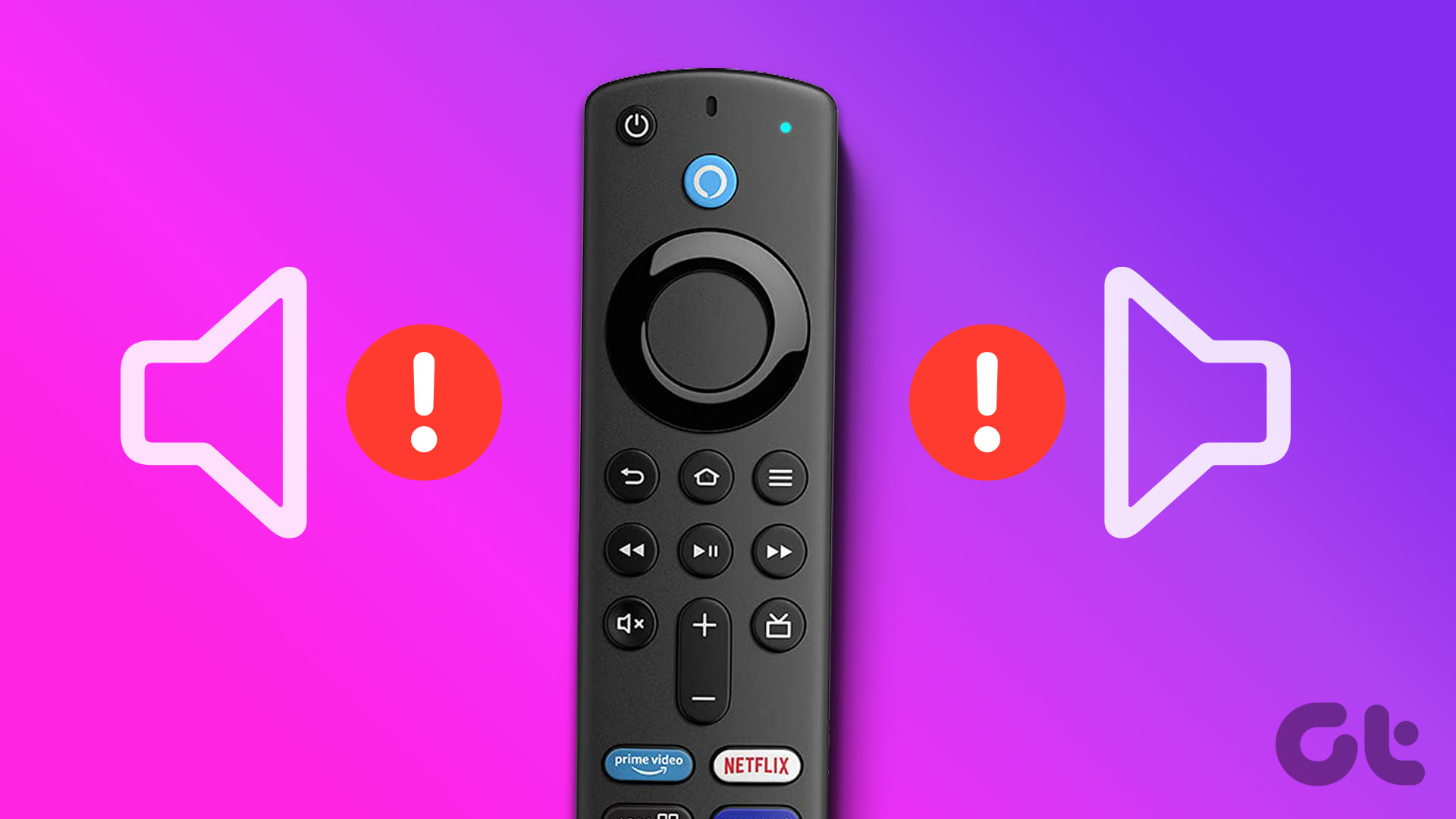 3 Ways to Fix Fire TV Stick Remote Volume Not Working
Basic Fixes: Check the remote batteries: Fire TV Stick relies on batteries to work properly.
3 Ways to Fix Fire TV Stick Remote Volume Not Working
Basic Fixes: Check the remote batteries: Fire TV Stick relies on batteries to work properly.
 2 Ways to Fix Samsung TV Remote Not Working
Basic Fixes: Restart the TV: Unplug your Samsung TV and plug it back in.
2 Ways to Fix Samsung TV Remote Not Working
Basic Fixes: Restart the TV: Unplug your Samsung TV and plug it back in.
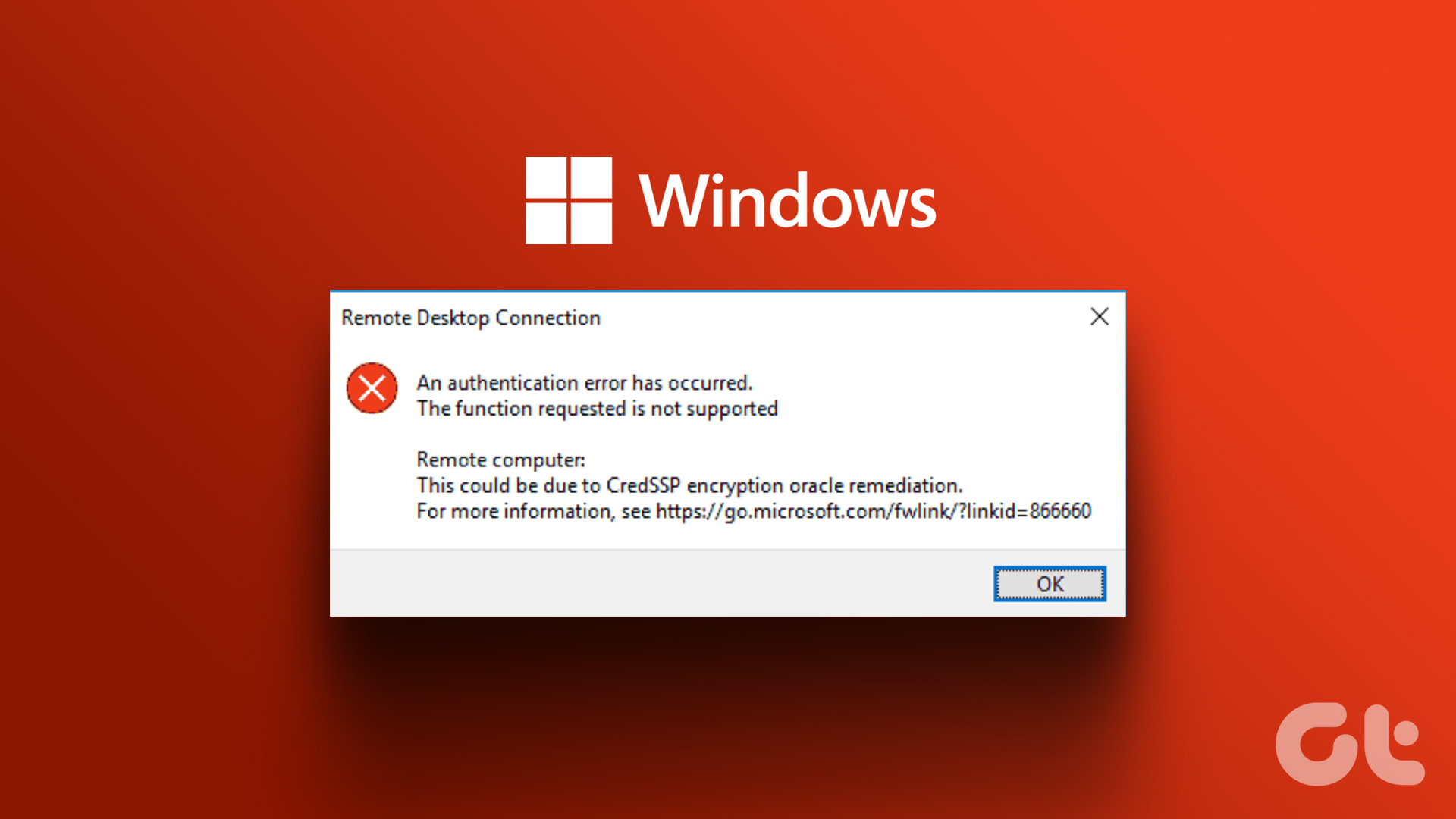 4 Fixes for Remote Desktop Authentication Error on Windows 11
Preliminary Fixes Check remote if the desktop is enabled: The Remote Desktop authentication error often occurs because your Windows 11 PC cannot establish a remote connection without the Remote Desktop
4 Fixes for Remote Desktop Authentication Error on Windows 11
Preliminary Fixes Check remote if the desktop is enabled: The Remote Desktop authentication error often occurs because your Windows 11 PC cannot establish a remote connection without the Remote Desktop
 4 Ways to Fix Fire TV Stick Remote Not Working
Basic Fixes Ensure the remote is within range: The usual range of a Fire TV Stick's remote is around 10 feet.
4 Ways to Fix Fire TV Stick Remote Not Working
Basic Fixes Ensure the remote is within range: The usual range of a Fire TV Stick's remote is around 10 feet.
The article above may contain affiliate links which help support Guiding Tech. The content remains unbiased and authentic and will never affect our editorial integrity.