Basic Fixes
- Disable data saver: Open Settings > Network and internet > Disable Data saver.
- Disable battery saver: Open Settings > Battery > Battery Saver > Disable the feature.
- Remove and add the widget again: Long-press the weather widget on the home screen and then remove it. Add the widget again to your home screen.
- Update Android version: Install the latest version of Android on your device. This will also update the weather widget.
- Update or reinstall Google app: Install the latest version of the Google app as the weather widget is part of the Google app itself.
Fix 1: Enable Current Location Access
The weather widget needs access your current location to update details that are relevant to the current location. So if it is still not updating location on your Android phone, here’s how to check the current location access for the app.
Step 1: Tap on the weather widget on the Home screen of your Android phone.
Step 2: Tap the Settings icon at the top-right corner.
Step 3: Tap the toggle next to Current Location.


Step 4: Go back and then open Settings > Location > Enable Location.
Fix 2: Enable Google Location Accuracy
This applies especially if you use the Google Weather widget on your Android phone. As the name suggests, this feature helps detect your device’s accurate location to display the current weather conditions.
Open Settings > Location > Location Services > Google Location Accuracy > Enable Improve Location Accuracy.


Fix 3: Enable Personalize Using App Data
If you are a Google Pixel user, you can try enabling the option of Personalize Using App Data. This will ensure that the weather widget keeps updating the data as per your location change.
Long-press on the home screen > Customize / Home settings > At a Glance > Personalize using app data > Turn on Personalize using app data.
Fix 4: Reset All Settings
If nothing works, you can reset all settings on your Android phone. This will restore all system and app settings to default.
Open Settings > System > Reset options > Erase all data (factory reset).


Was this helpful?
Last updated on 07 August, 2024
Read Next
 4 Fixes for Location Not Updating in Weather App on Samsung Galaxy Phones
Basic Fixes Switch to 5G: To get the most accurate weather data, we suggest switching to 5G network on your Samsung phone.
4 Fixes for Location Not Updating in Weather App on Samsung Galaxy Phones
Basic Fixes Switch to 5G: To get the most accurate weather data, we suggest switching to 5G network on your Samsung phone.
 4 Fixes for Apple Watch Weather Not Showing or Updating
Basic Fixes Check Apple Watch connectivity: Ensure your Apple Watch is connected to Wi-Fi and your iPhone via Bluetooth.
4 Fixes for Apple Watch Weather Not Showing or Updating
Basic Fixes Check Apple Watch connectivity: Ensure your Apple Watch is connected to Wi-Fi and your iPhone via Bluetooth.
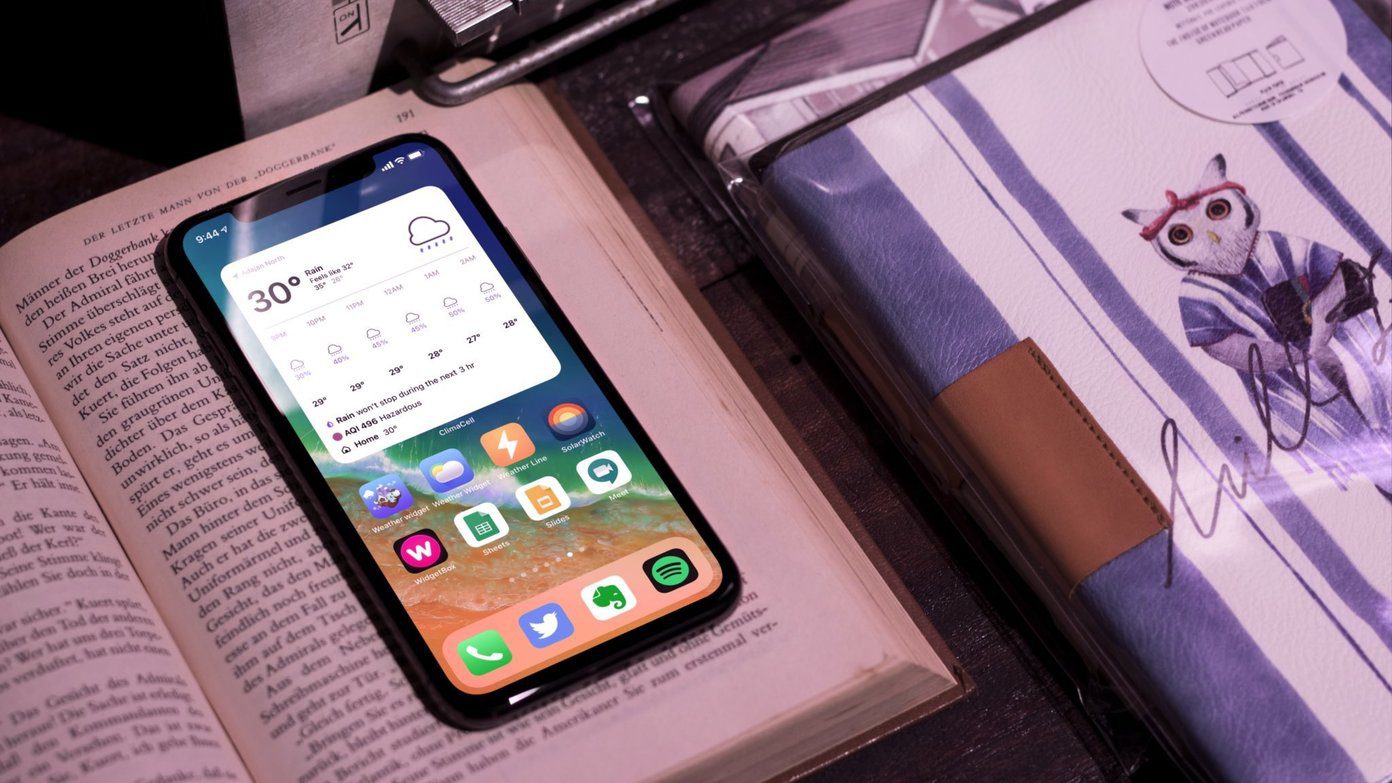 6 Best Weather Widget Apps for iPhone
iOS 14 update brings much-needed customization options for iPhone users.
6 Best Weather Widget Apps for iPhone
iOS 14 update brings much-needed customization options for iPhone users.
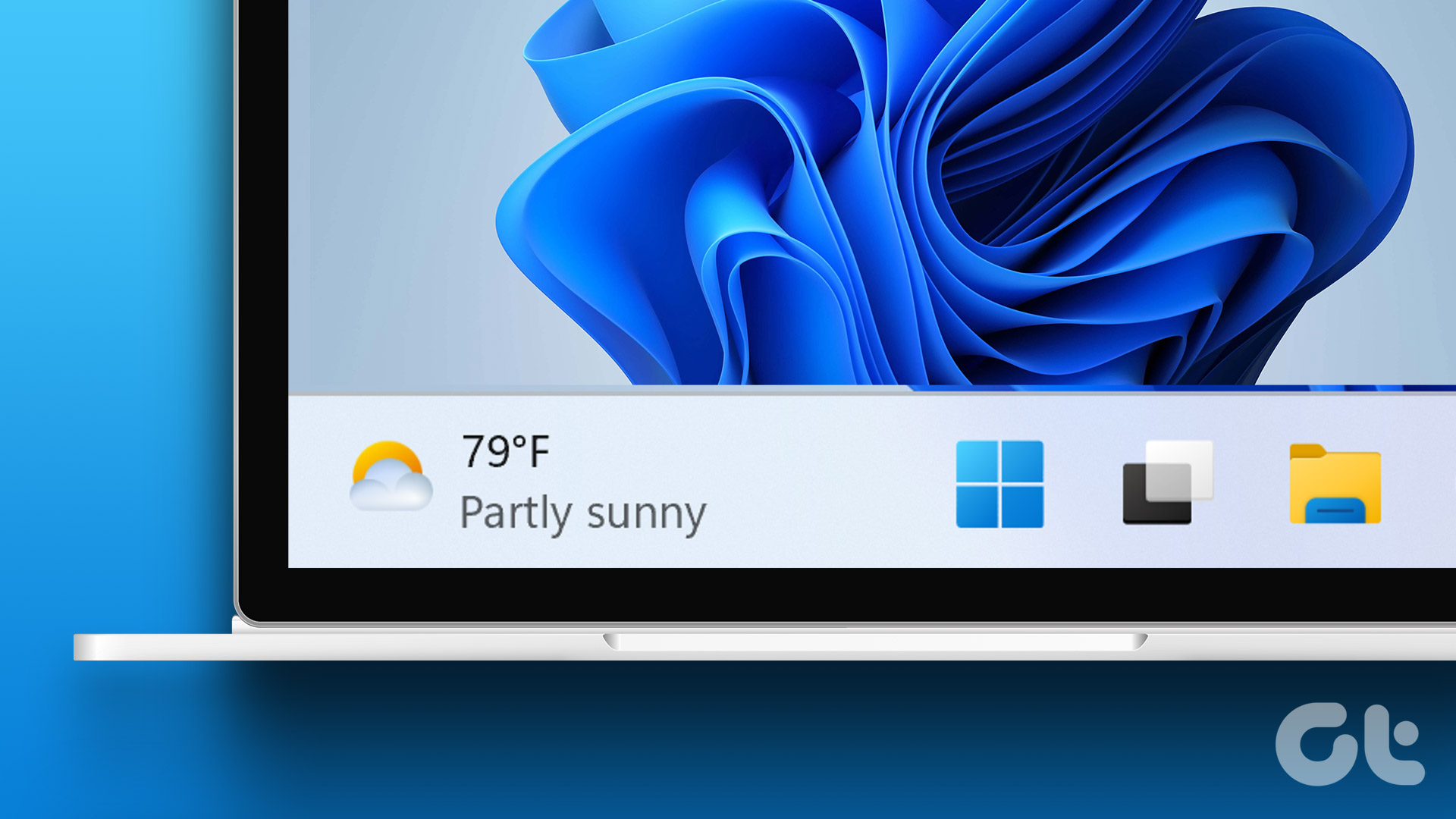 How to Add Weather Widget to Taskbar in Windows 11
Method 1: Turn on Widgets in Windows 11 The default widget icon on the latest version of the Windows 11 taskbar is the weather icon.
How to Add Weather Widget to Taskbar in Windows 11
Method 1: Turn on Widgets in Windows 11 The default widget icon on the latest version of the Windows 11 taskbar is the weather icon.
 Top 8 Fixes for Google At a Glance Widget Not Working on Android
Introduced as an exclusive feature for the Pixel Launcher, At a Glance widget eventually made it to all Android phones.
Top 8 Fixes for Google At a Glance Widget Not Working on Android
Introduced as an exclusive feature for the Pixel Launcher, At a Glance widget eventually made it to all Android phones.
 4 Fixes for Google Search Bar or Widget Not Working on Android
Basic Fixes: Restart your phone: Temporary glitches in the Google app can cause the search bar or widget not to work properly.
4 Fixes for Google Search Bar or Widget Not Working on Android
Basic Fixes: Restart your phone: Temporary glitches in the Google app can cause the search bar or widget not to work properly.
 4 Fixes for Telegram Live Location Not Updating on iPhone and Android
Basic Fixes: Check internet access: For apps to access your location, you require internet access on your mobile.
4 Fixes for Telegram Live Location Not Updating on iPhone and Android
Basic Fixes: Check internet access: For apps to access your location, you require internet access on your mobile.
 5 Best Ways to Fix Google Search Bar Widget Missing in Android
Google is still the king of search engines.
5 Best Ways to Fix Google Search Bar Widget Missing in Android
Google is still the king of search engines.
The article above may contain affiliate links which help support Guiding Tech. The content remains unbiased and authentic and will never affect our editorial integrity.