Basic Fixes
- Make playlists public on Apple Music: Go to Apple Music > profile icon > Edit > enable your playlists to make them public.
- Check your Apple Music subscription: You can ensure that your Apple Music subscription is active and the payment for the current month was processed.
- Update Alexa and Apple Music apps: Updating both apps will ensure no bugs are causing this issue.
Fix 1: Set Apple Music as the Default in Alexa
Alexa uses Amazon Music as the default music streaming service. You must replace it with Apple Music to start playing songs.
Step 1: Open the Alexa app on your phone > tap on More > select Settings.
Step 2: Select Music & Podcasts under the Alexa Preferences menu.
Step 3: Tap Link New Service > select Apple Music from the following menu. Follow the on-screen instructions to set up Apple Music.
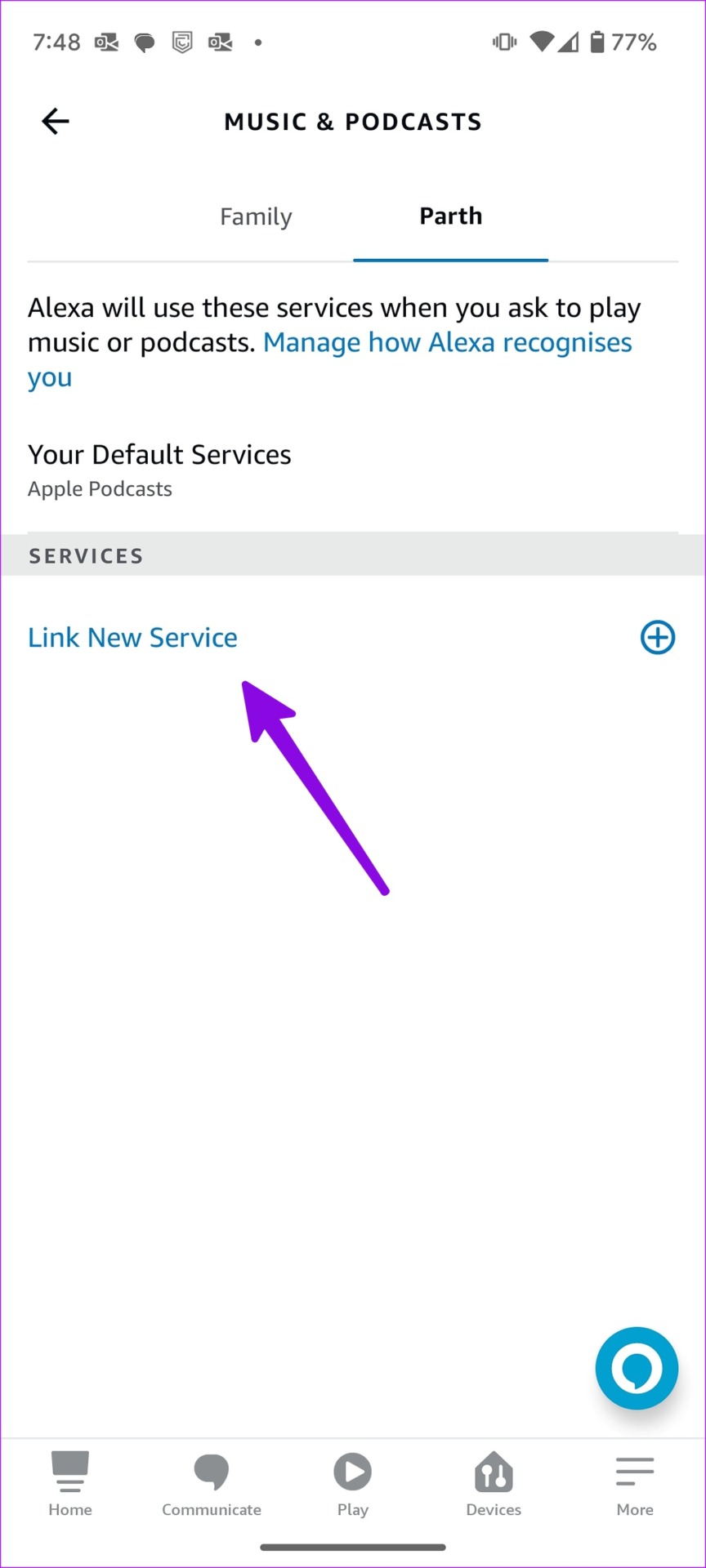

Step 4: Select Your Default Services.
Step 5: Tap the + icon under Music and select Apple Music.
Alexa should play your Apple Music songs without breaking a sweat.
Fix 2: Disable Profanity Filter
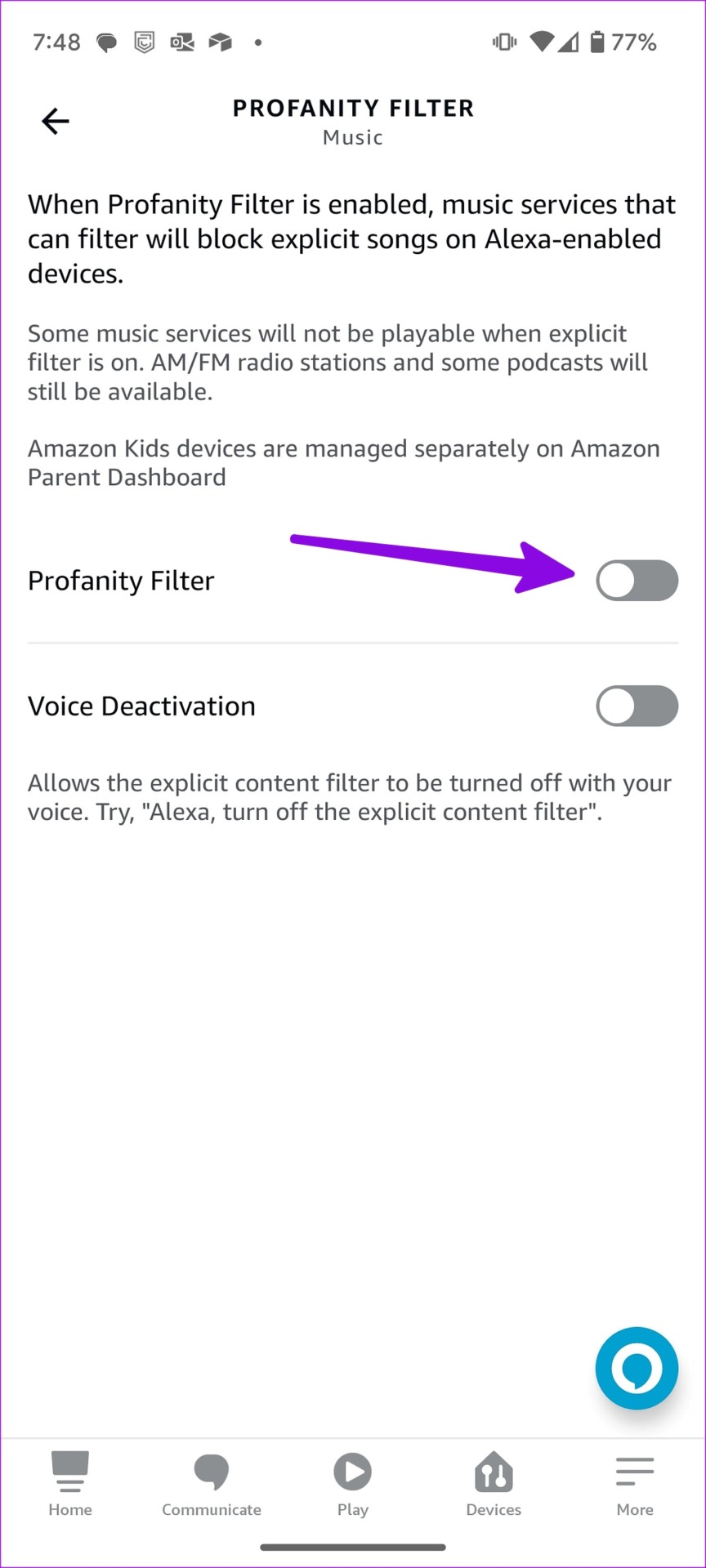
When you enable the Profanity filter in Alexa, music streaming services may block explicit songs on Alexa-enabled devices. If you have enabled the voice deactivation function for the profanity filter, say, ‘Alexa, turn off the explicit content filter.’ You can disable it from the Alexa mobile app using the steps below.
Step 1: Open Music & Podcasts in Alexa Preferences.
Step 2: Tap Profanity Filter and turn off the toggle next to it.

Fix 3: Relink Apple Music Account
To fix Alexa’s inability to play the Apple Music playlist, you can disable the Apple Music skill and link it again.
Step 1: Open the Alexa app, tap on More, and select Alexa settings.
Step 2: Scroll to Music & Podcasts and select Apple Music.
Step 3: Tap Disable Skill button. Confirm the same from the following menu.


Step 4: Go back and select Enable to use.
Step 5: Enter your Apple account ID and password, and use Alexa’s voice commands to play your favorite tracks.
Fix 4: Register Amazon Echo Again
If your added Amazon account on Echo does not authenticate, Alexa may not respond to your voice commands. You must remove your account and register it again.
Step 1: Launch the Alexa app and tap on the Devices tab at the bottom bar.
Step 2: Select your Amazon Echo device and tap the Settings icon at the top-right corner.
Step 3: Scroll to the Registered menu and select Deregister. Confirm the same.
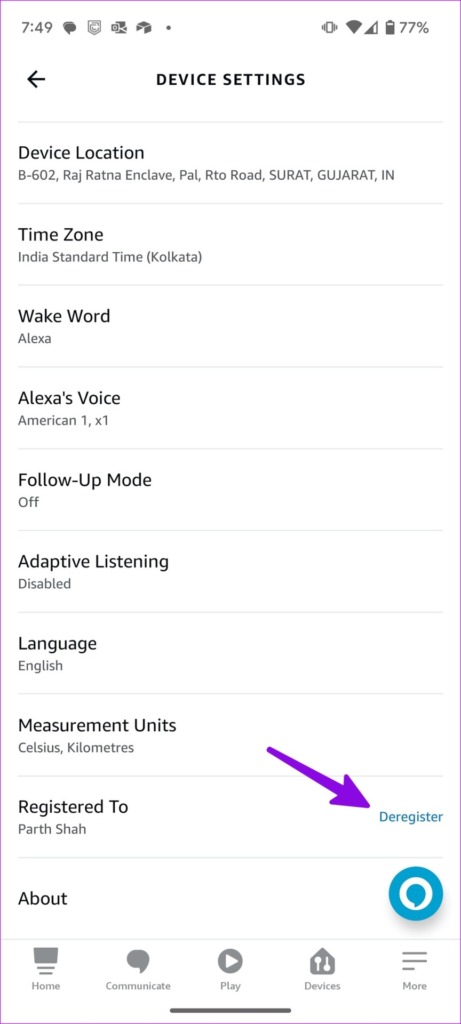
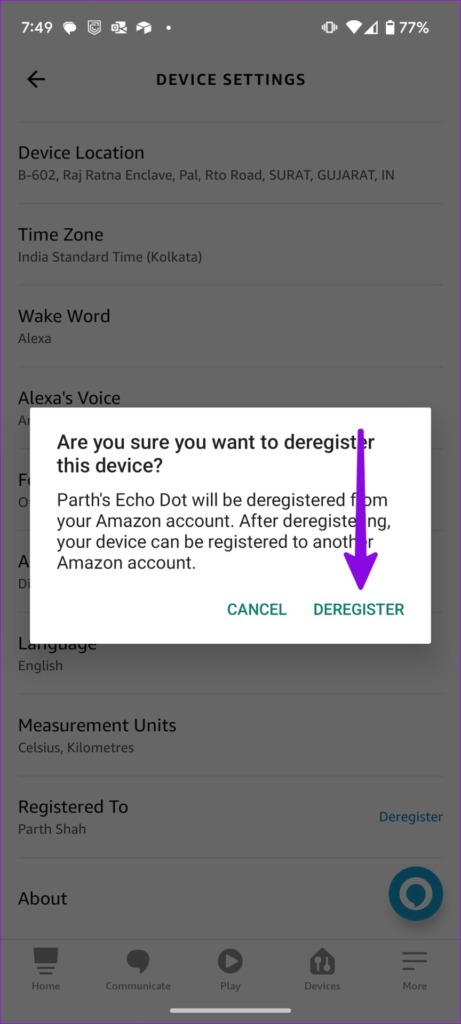
Step 4: Register your Amazon account again.
Was this helpful?
Last updated on 16 July, 2024
Read Next
 8 Ways to Fix Alexa Not Playing Amazon Music
Some Basic Fixes Restart your Echo device: You should start the troubleshooting process of Alexa not playing Amazon Music by restarting your Echo.
8 Ways to Fix Alexa Not Playing Amazon Music
Some Basic Fixes Restart your Echo device: You should start the troubleshooting process of Alexa not playing Amazon Music by restarting your Echo.
 8 Fixes for Alexa Not Playing Music From Spotify
Basic Fixes Check your internet connection and restart devices: Ensure the Alexa-enabled Echo device has an active internet connection and restart your device.
8 Fixes for Alexa Not Playing Music From Spotify
Basic Fixes Check your internet connection and restart devices: Ensure the Alexa-enabled Echo device has an active internet connection and restart your device.
 Top 7 Ways to Fix Siri Not Playing Music from Apple Music
Siri not recognizing your voice and not playing music from Apple Music can lead to an undesirable experience.
Top 7 Ways to Fix Siri Not Playing Music from Apple Music
Siri not recognizing your voice and not playing music from Apple Music can lead to an undesirable experience.
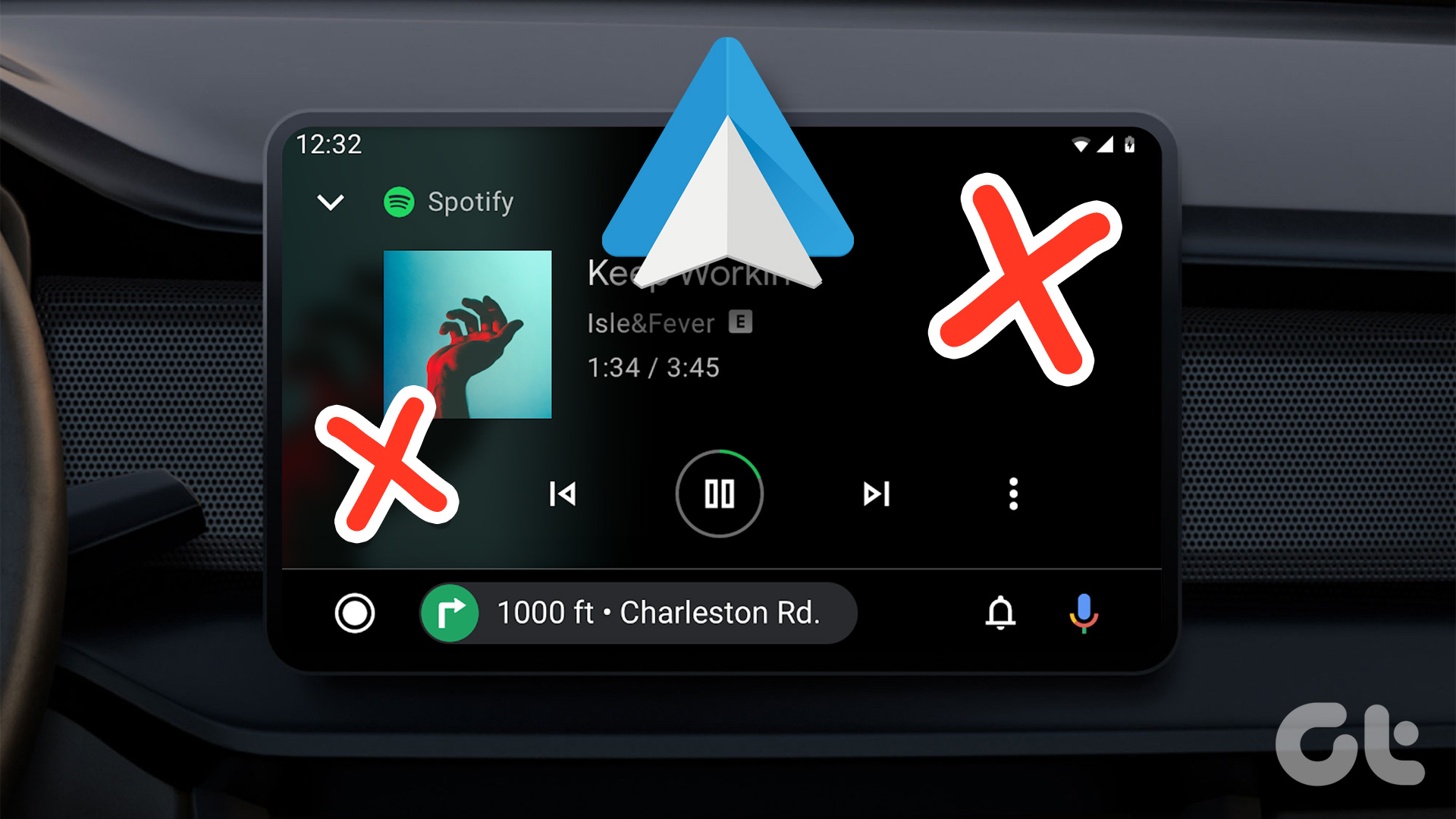 4 Fixes for Android Auto Not Playing Music From Spotify or YouTube Music
Fix 1: Change the Default Music Streaming Service Say you have a Spotify subscription.
4 Fixes for Android Auto Not Playing Music From Spotify or YouTube Music
Fix 1: Change the Default Music Streaming Service Say you have a Spotify subscription.
 How to Fix Apple Music Not Playing Downloaded Songs
Basic Fixes: Check the Apple Music server status: If Apple Music is not working properly, you will have issues playing any song, downloaded or otherwise.
How to Fix Apple Music Not Playing Downloaded Songs
Basic Fixes: Check the Apple Music server status: If Apple Music is not working properly, you will have issues playing any song, downloaded or otherwise.
 4 Ways to Fix Amazon Echo Not Playing Music
Basic Fixes Check your internet connection: Ensure your Amazon Echo device is connected to a robust Wi-Fi connection.
4 Ways to Fix Amazon Echo Not Playing Music
Basic Fixes Check your internet connection: Ensure your Amazon Echo device is connected to a robust Wi-Fi connection.
 How to Stop Music From Automatically Playing in Apple CarPlay and Android Auto
How to Stop Apple CarPlay From Automatically Playing Music Unfortunately, there’s no toggle or option by default to stop Apple Music auto-play on iPhone.
How to Stop Music From Automatically Playing in Apple CarPlay and Android Auto
How to Stop Apple CarPlay From Automatically Playing Music Unfortunately, there’s no toggle or option by default to stop Apple Music auto-play on iPhone.
 Top 7 Fixes for Apple Music Starts Playing by Itself on iPhone
Picture this: you're in an important meeting or a quiet library, and your iPhone is lying nearby.
Top 7 Fixes for Apple Music Starts Playing by Itself on iPhone
Picture this: you're in an important meeting or a quiet library, and your iPhone is lying nearby.
The article above may contain affiliate links which help support Guiding Tech. The content remains unbiased and authentic and will never affect our editorial integrity.