Method 1: Use the File Explorer Options
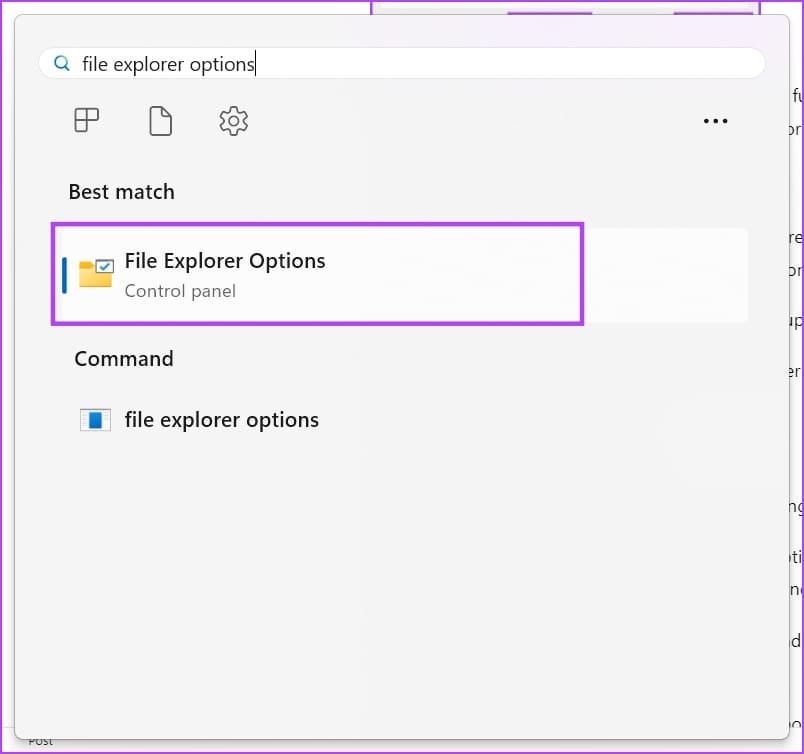
Step 1: Open File Explorer Options from the Start menu.
Here’s how you can open the menu on older versions of Windows.
On Windows 7 and Vista
- Right-click the Start button and select Control Panel.
- Select the Appearance and Personalization option on the left-side navigation pane.
- Click the Specify single- or double-click to open the link under the Folder Options setting.
On Windows XP
- Click Start and then go to the Control Panel by clicking its icon.
- Open the Folders option.
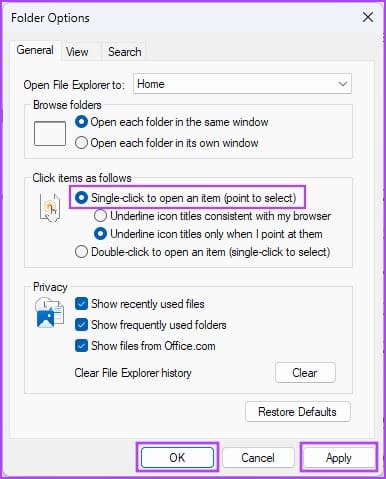
Step 2: Under the Click items as follows option, select the Single-click to open an item (point to select) option.
Step 3: Here, you can also choose any of the following items highlighting options:
- Underline icon titles consistent with my browser: all icons and items will look like a hyperlink on the web browser
- Underline icon titles only when I point at them: pointing an item or icon will show up a hyperlink that you can click to visit the app, folder, or file
Step 5: Click the Apply and OK buttons to save and enforce the changes.
Method 2: Enable Single Click to Open Items Using the Registry Editor
When you cannot activate the single click to open apps and files on Windows using any of the above two methods, modify the Windows Registry keys by following the following steps. Don’t forget to back up the Registry entries, in case something goes wrong.
Step 1: Open the Run command box by hitting the Windows + R keys.
Step 2: Then, type regedit in the Run box and hit Enter.

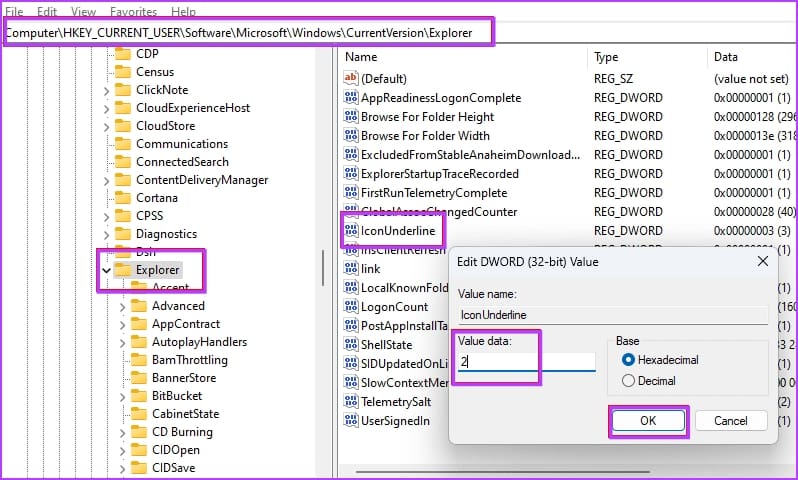
Step 3: Go to the Explorer key from HKEY_CURRENT_USER by expanding these Registry entries: HKEY_CURRENT_USER -> Software -> Microsoft -> Windows -> CurrentVersion -> Explorer.
When inside the Explorer key, follow these steps:
Step 4: Double-click the IconUnderline and change the value to 2. (Default value is 3)
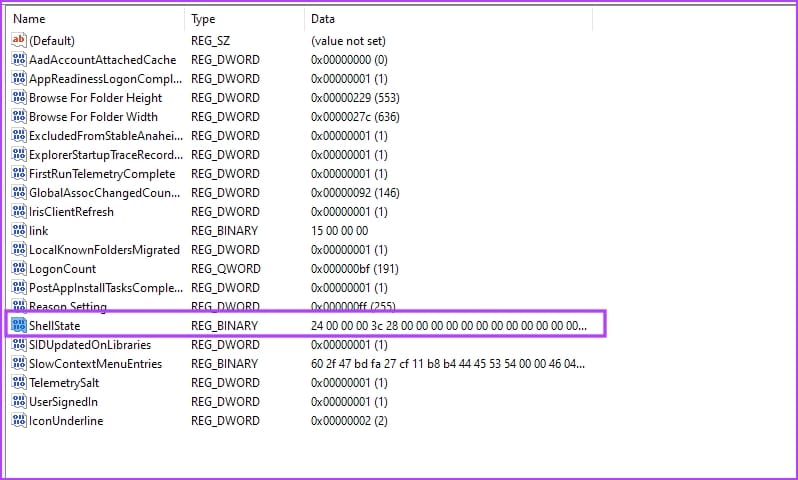
Step 5: Double-click the ShellState Registry entry.
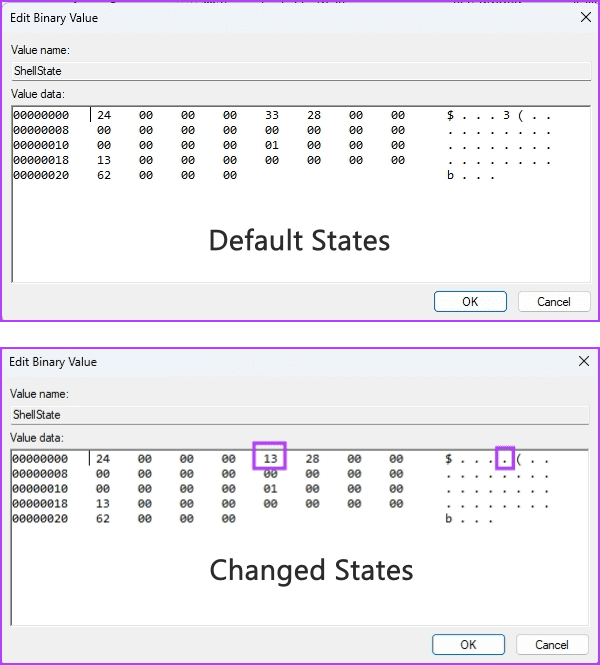
Step 6: Make the necessary changes as shown in the below image and click on OK.
To help you understand the changes, we’ve added a comparison between the default states and the changes that need to be made. You need to replace the value of the fifth column in the first row with 13.
Step 7: After making the above changes, restart your Windows PC.
Now, you should see the same single-click functionality to open files and elements as you saw in the previous methods.
Method 3: Use the Command Prompt to Activate Single-Click to Open Items
If you find the above-mentioned Registry Editor tweak complicated, follow these steps to activate single-click on Windows using Command Prompt.
Step 1: Open the Command Prompt with administrator rights. Search for the command prompt in the Start menu, right-click, and select Run as administrator.
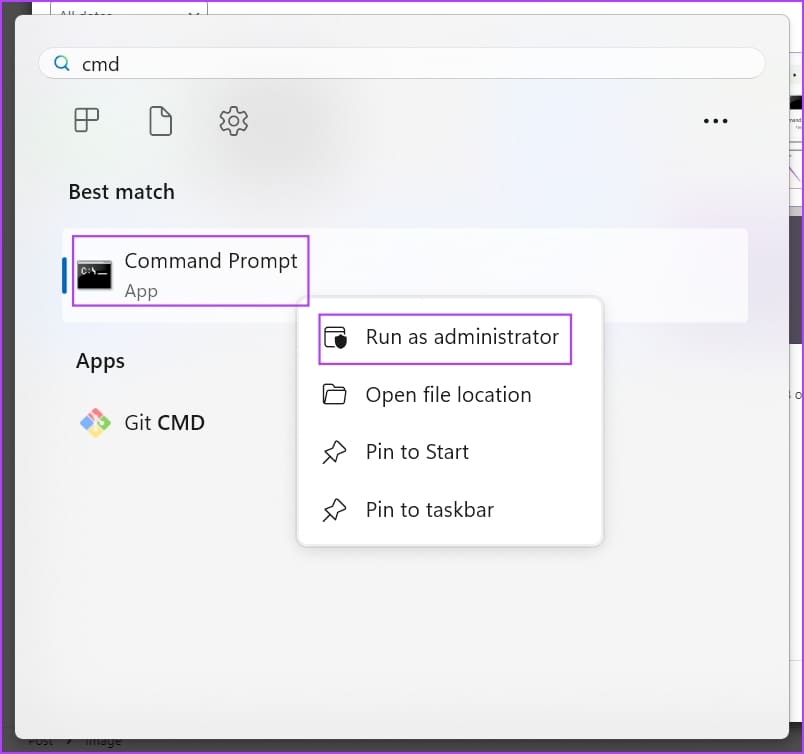
Step 2: Now, copy-paste the following code and hit Enter:
REG ADD "HKCU\SOFTWARE\Microsoft\Windows\CurrentVersion\Explorer" /V IconUnderline /T REG_DWORD /D 3 /F
Step 3: Again, copy and paste this command and hit Enter:
REG ADD "HKCU\SOFTWARE\Microsoft\Windows\CurrentVersion\Explorer" /V ShellState /T REG_BINARY /D 240000001ea8000000000000000000000000000001000000130000000000000062000000 /F
Step 3: Restart the Windows PC.
That’s it! You’ve successfully activated the single-click function to open elements on your Windows PC.
Was this helpful?
Last updated on 25 July, 2024
Read Next
 How to Enable or Disable Mouse Click Sound on Windows 11
Enable the Mouse Click Sound on Windows 11 If you're tired of your default mouse or trackpad click sound, setting a custom sound will enhance your navigation experience.
How to Enable or Disable Mouse Click Sound on Windows 11
Enable the Mouse Click Sound on Windows 11 If you're tired of your default mouse or trackpad click sound, setting a custom sound will enhance your navigation experience.
 3 Ways to Disable or Enable Search Highlights in Windows 10 and Windows 11
Method 1: Disable or Enable Search Highlights From the Settings App The Settings app on Windows allows you to control most things on your PC.
3 Ways to Disable or Enable Search Highlights in Windows 10 and Windows 11
Method 1: Disable or Enable Search Highlights From the Settings App The Settings app on Windows allows you to control most things on your PC.
 How to Fix a Slow Windows 10 Desktop Right-Click (Context) Menu
The desktop right-click menu, otherwise known as the desktop context menu, provides instant access to numerous useful options ranging from aligning desktop icons to customizing display settings.
How to Fix a Slow Windows 10 Desktop Right-Click (Context) Menu
The desktop right-click menu, otherwise known as the desktop context menu, provides instant access to numerous useful options ranging from aligning desktop icons to customizing display settings.
 How to Fix Mouse Left Click (Button) Not Working on Windows
Basic Fixes: Check for hardware issues: Most mouse-related problems are associated with hardware failures.
How to Fix Mouse Left Click (Button) Not Working on Windows
Basic Fixes: Check for hardware issues: Most mouse-related problems are associated with hardware failures.
 How to Change the Right-Click Menu in Windows 11
https://youtu.be/VVABQpp3K9w How to Change the Right-Click Menu in Windows 11 Method 1: Using Registry Editor Step 1: Firstly, press the Windows key, type Registry Editor, and click Run as administrator.
How to Change the Right-Click Menu in Windows 11
https://youtu.be/VVABQpp3K9w How to Change the Right-Click Menu in Windows 11 Method 1: Using Registry Editor Step 1: Firstly, press the Windows key, type Registry Editor, and click Run as administrator.
 3 Fixes for Right Click Not Working on Windows 11
Basic Fixes: Unplug peripheral devices: This will work because it isolates possible software interference and hardware conflicts that may trigger the problem.
3 Fixes for Right Click Not Working on Windows 11
Basic Fixes: Unplug peripheral devices: This will work because it isolates possible software interference and hardware conflicts that may trigger the problem.
 3 Ways to Enable or Disable Sync Settings in Windows
Method 1: Turn Sync Settings On or Off Using the Settings App The Settings app gives you several options for managing your account preferences, including the ability to enable or
3 Ways to Enable or Disable Sync Settings in Windows
Method 1: Turn Sync Settings On or Off Using the Settings App The Settings app gives you several options for managing your account preferences, including the ability to enable or
 4 Ways to Enable or Disable Num Lock at Windows Startup
Method 1: Disable Fast Startup Step 1: Click the search icon on the taskbar, type control panel, and press Enter.
4 Ways to Enable or Disable Num Lock at Windows Startup
Method 1: Disable Fast Startup Step 1: Click the search icon on the taskbar, type control panel, and press Enter.
The article above may contain affiliate links which help support Guiding Tech. The content remains unbiased and authentic and will never affect our editorial integrity.