

What is Autostart on Android
Autostart means that apps will start themselves in the background after they are closed. An example can be downloading a large file on Google Chrome. It’s like watching paint dry if you keep the app open until the file is downloaded. Hence when it is manually or automatically killed, it needs to restart to complete the download.
Autostart is also necessary for time-sensitive applications that need to send notifications regularly. Even if you don’t manually close the app, they are automatically shut down if there is a lack of available RAM. Therefore, keeping Autostart enabled is essential.
Why Disable Autostart?
However, some applications needlessly autostart. Their functionality in the background has barely any meaning, and in such cases, you may consider disabling the same. But if you are using an older device, and prioritize performance above everything else, disabling autostart for apps will free up memory. However, you may lose out on a few features of the app.
Note: Throughout the article, we have used a OnePlus device to demonstrate the process. The steps will remain more or less similar on other Android devices.
How to Autostart Applications on Android
Ideally, if an app needs to remain in the background to perform an important task, it will ask you to turn on autostart for it the very first time you use the app.
However, if an app is not performing an activity that is expected to take place in the background when you are not using it, you can manually turn on autostart.
Method 1: Enable Autostart for an Individual app
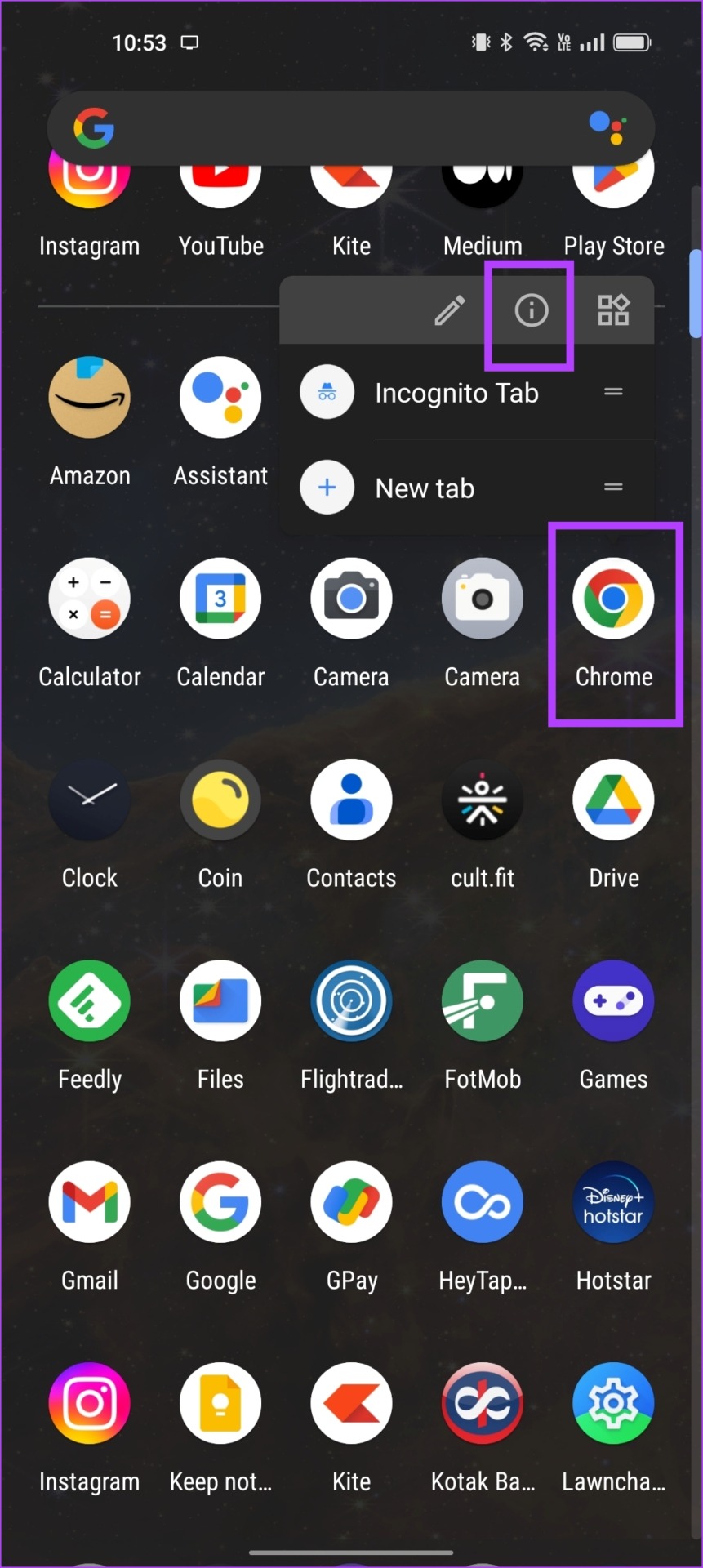
Step 1: Long-tap on the app icon in the launcher and tap on the app info icon.
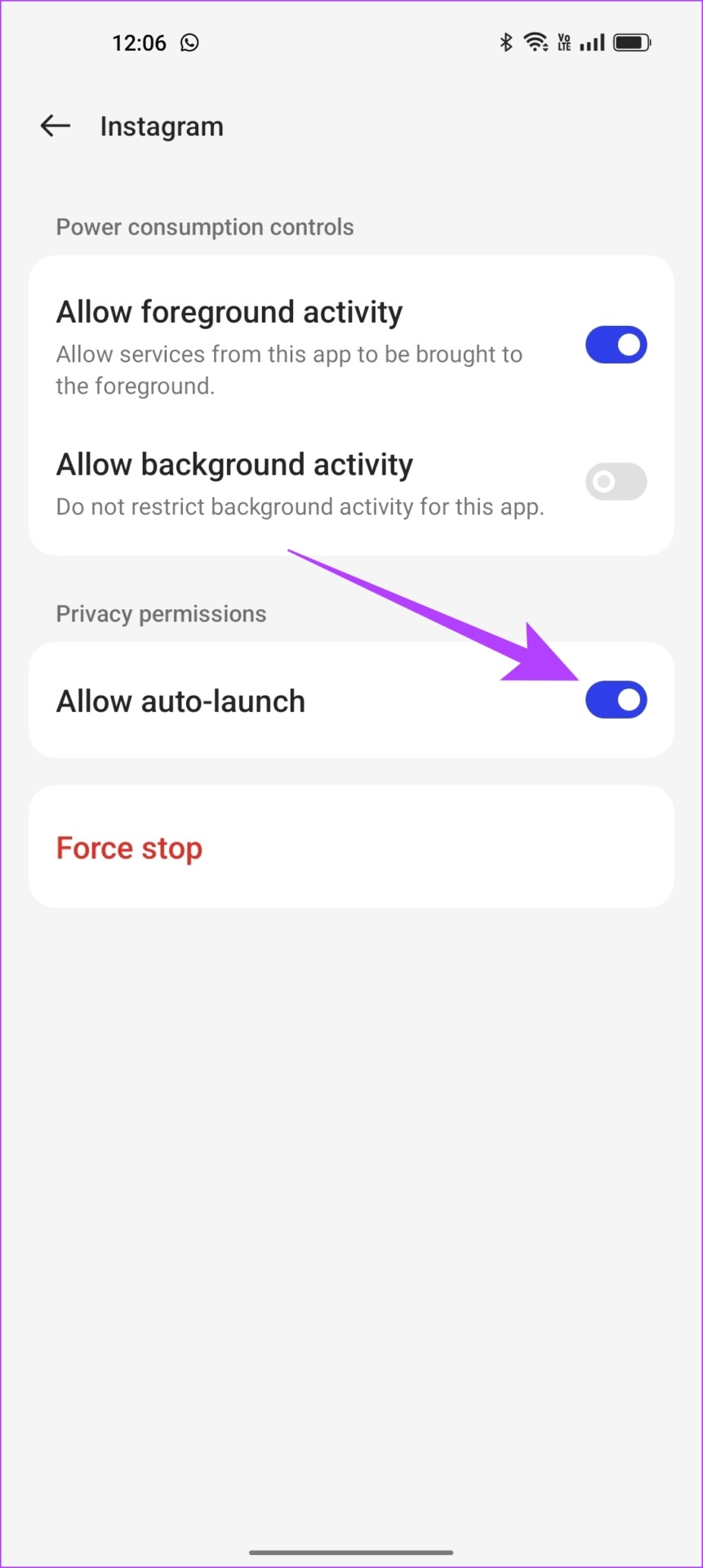
Step 2: Tap on Battery usage. Enable the toggle for Allow auto-launch.
Autostart is now enabled for the app, and when necessary, it can launch a few background activities on its own.


Method 2: Enable Autostart in the Settings App
If you want to enable autostart for multiple apps, it is time-consuming to open the settings page for each of them and turn on autostart. Thankfully, you can enable autostart for multiple apps at once using the Settings app. Here’s how.
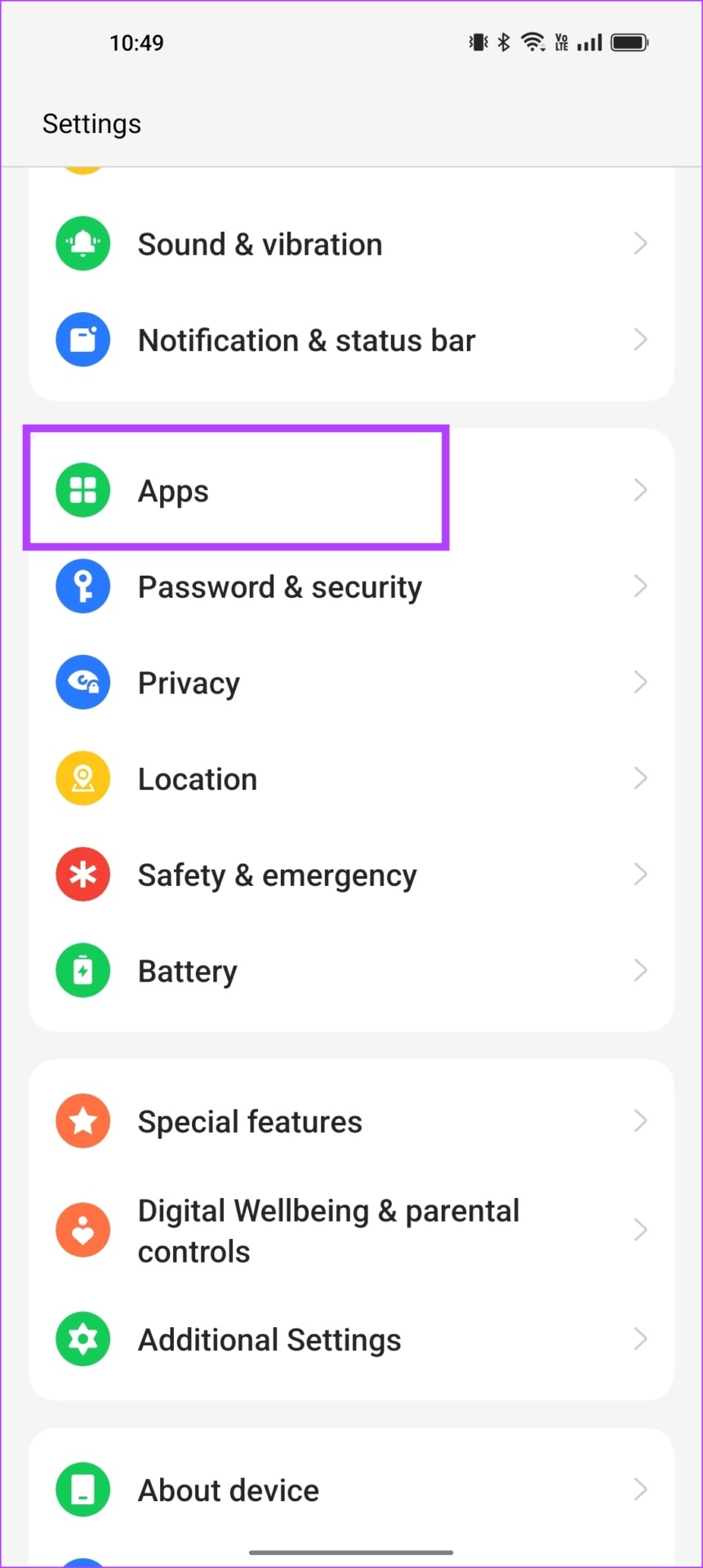
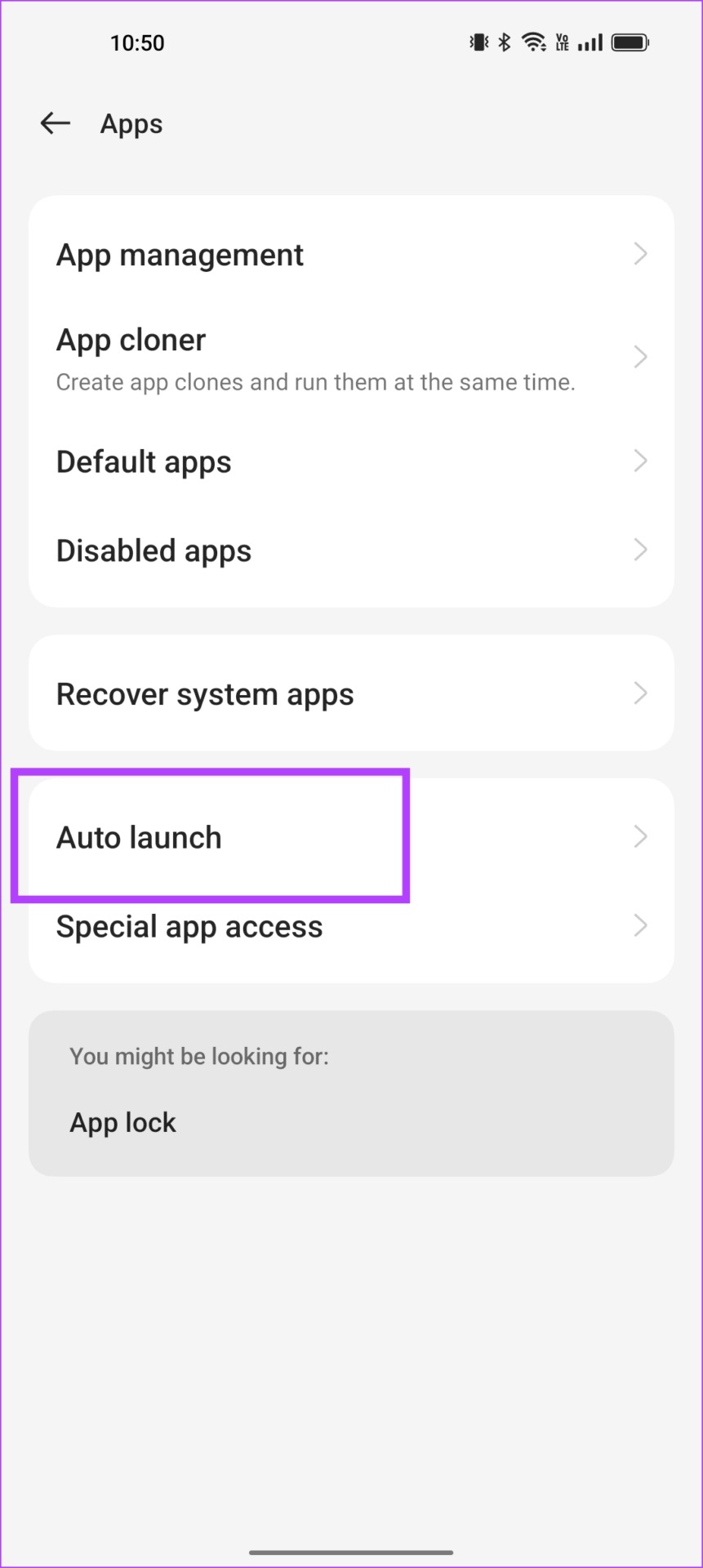
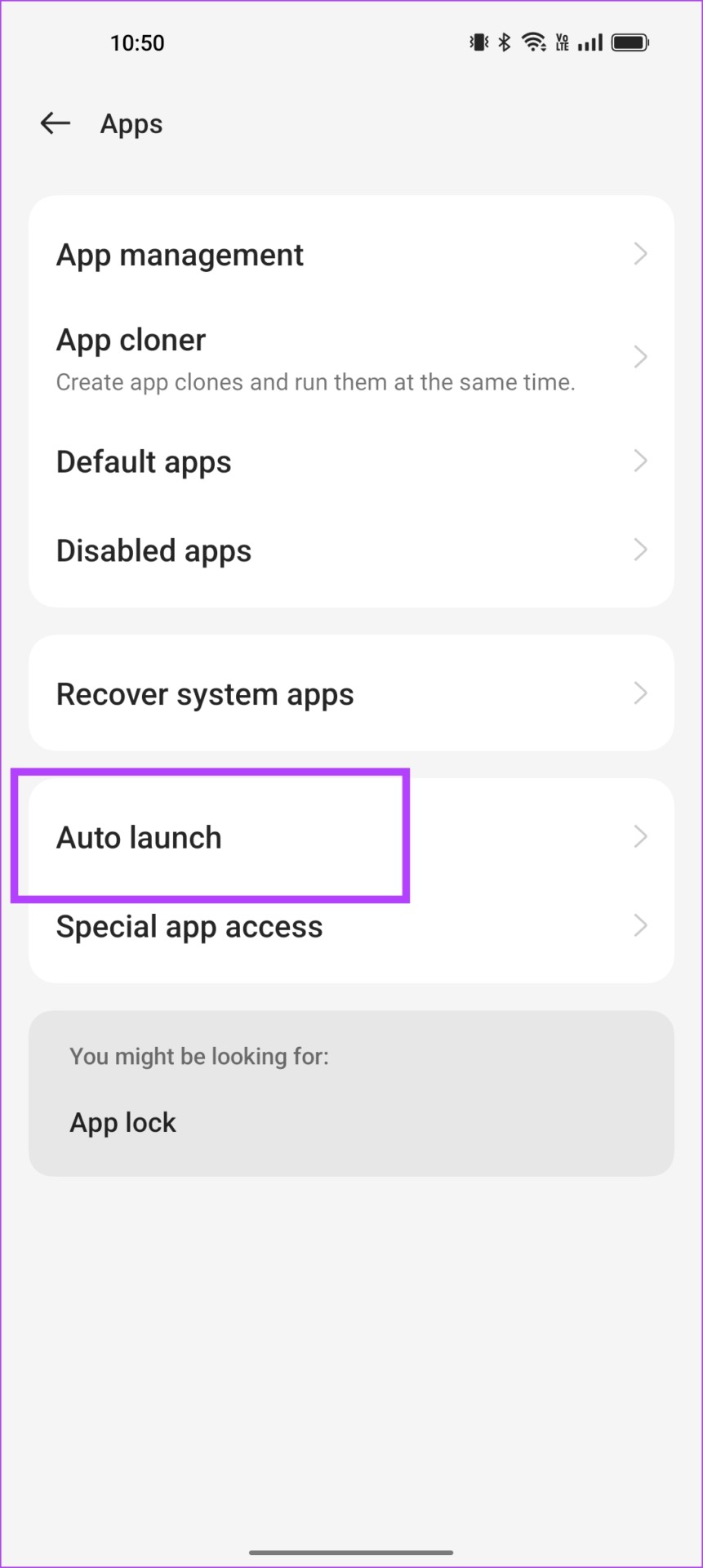
Step 1: Open the Settings app. Tap on Apps, and select Auto launch.
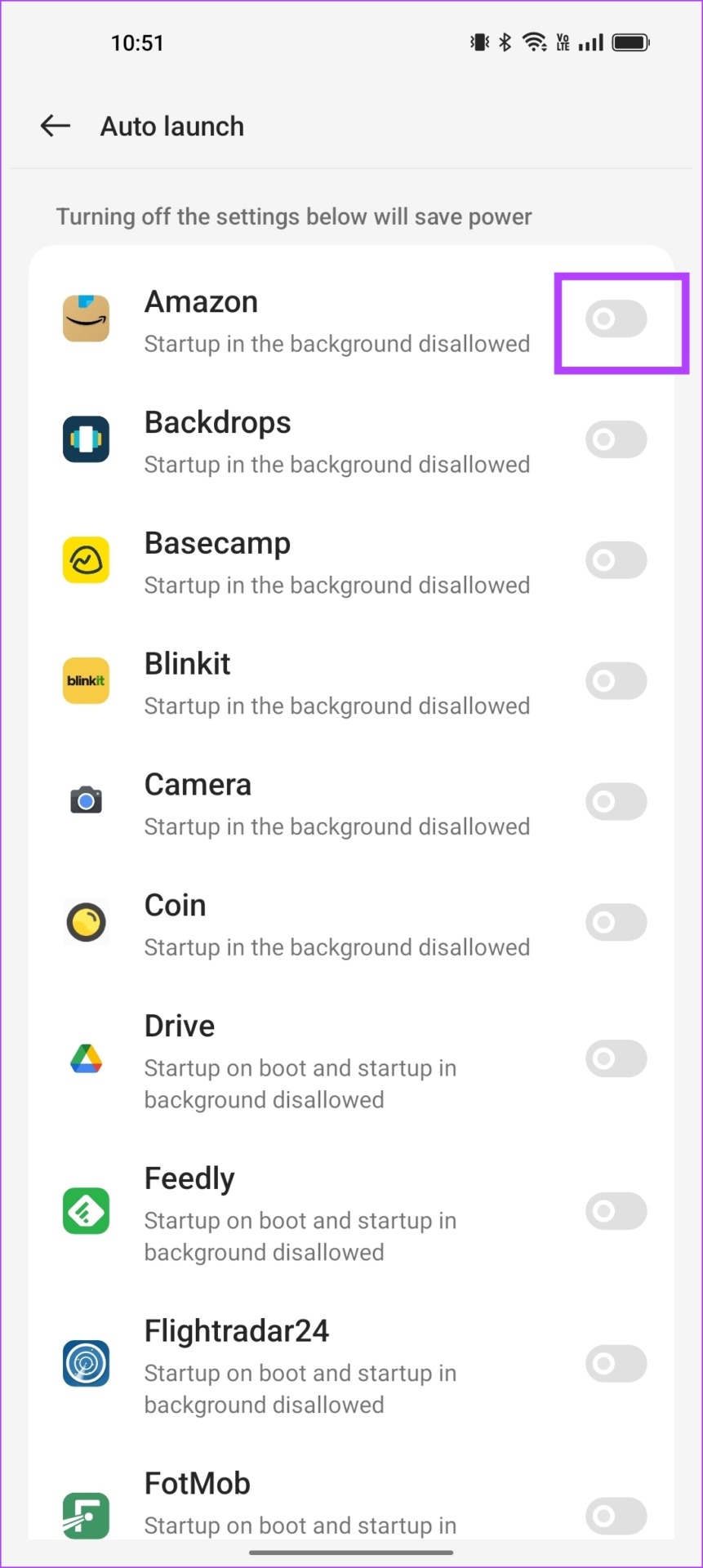
Step 2: You will now find a list of apps that do not have autostart enabled. Simply turn on the toggle for the apps you want.
If the app still doesn’t run in the background, you can try disabling the battery saver for the same.
Optional: Turn off Battery Optimization for Apps
The battery saver or battery optimization features on your device restrict a few activities of an app to help improve the battery life. However, there is a good chance that this battery saver is also preventing apps from automatically starting a few background services.
Step 1: Open the Settings app. Tap on Battery > More Settings > Optimise battery use.
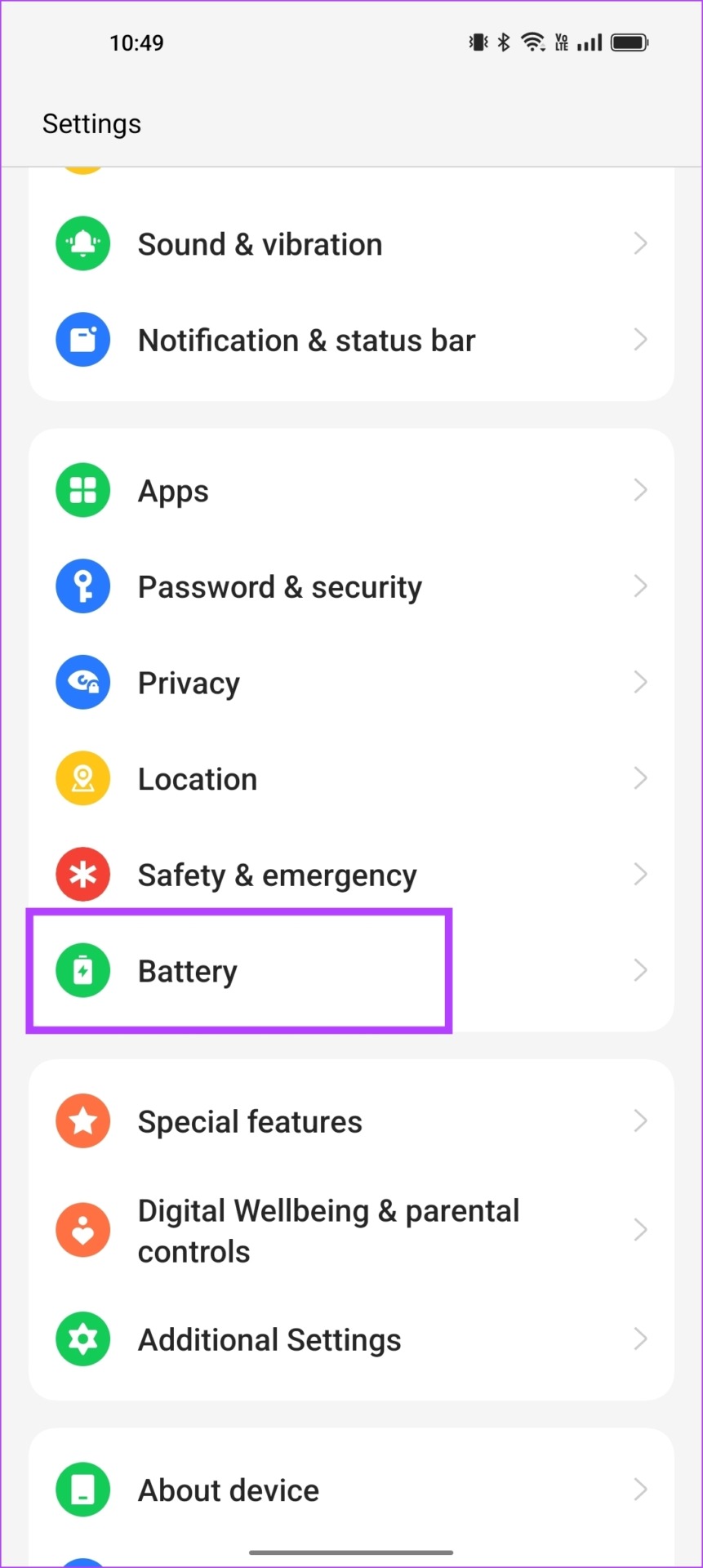
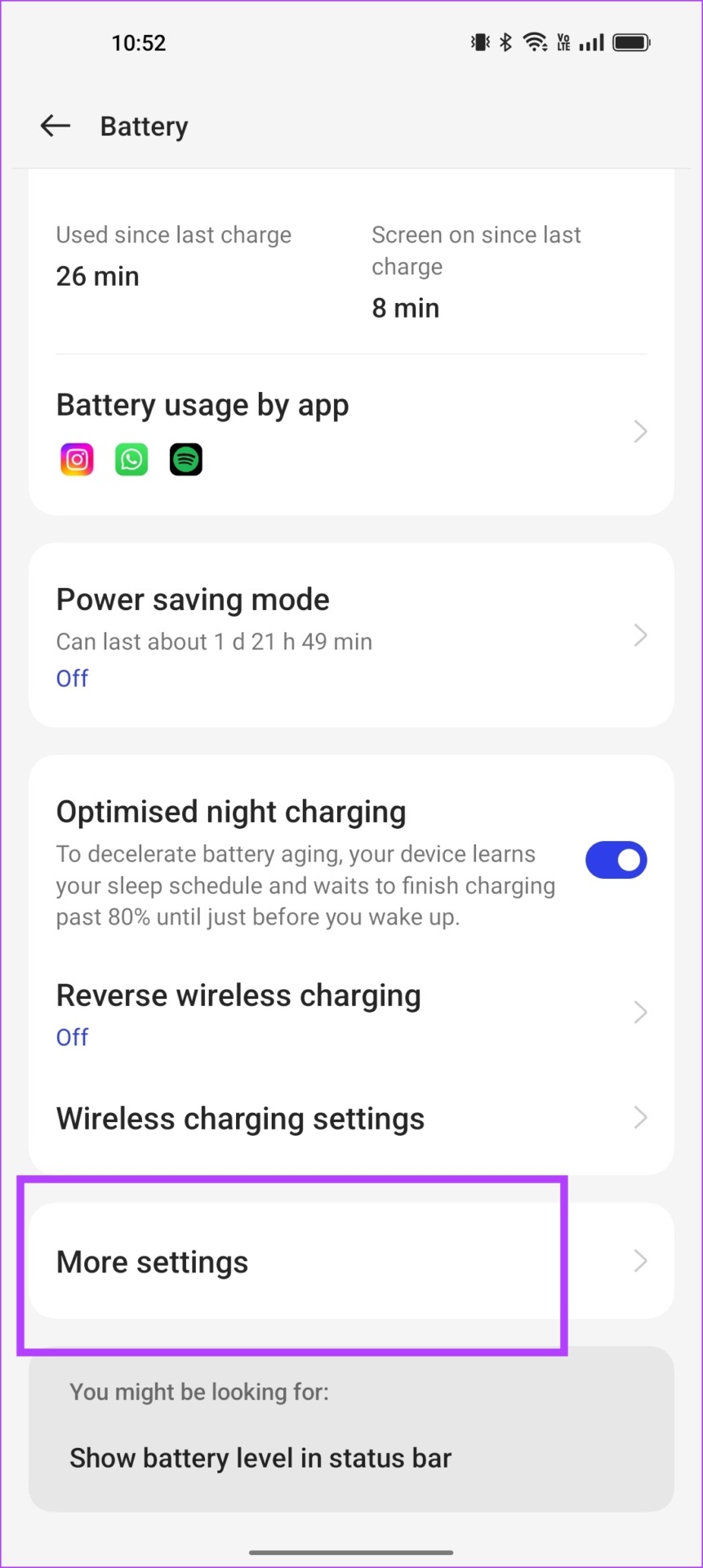

Step 2: Select the app that you want to turn off battery optimization for. Tap on Don’t Optimize.


How to Disable Autostart for Apps on Android
While all system apps need to run in the background, some installed applications don’t necessarily need to. They don’t perform any important activity that requires them to start themselves again in the background. In that case, you can identify these apps and turn off autostart for the same.
Besides, disabling autostart saves memory on your phone and can help improve performance and even save some battery.
Note: Turning off autostart for a few apps may prevent you from getting notifications from the app. If you consider an application to be important enough not to miss any notification, we recommend against turning it off.
Method 1: Turn off Autostart in Settings
Step 1: Open the Settings app. Tap on Apps, and tap on Auto Launch.
Step 2: You will see a list of apps that have autostart turned on. You can turn off the toggle to disable autostart for the desired apps.

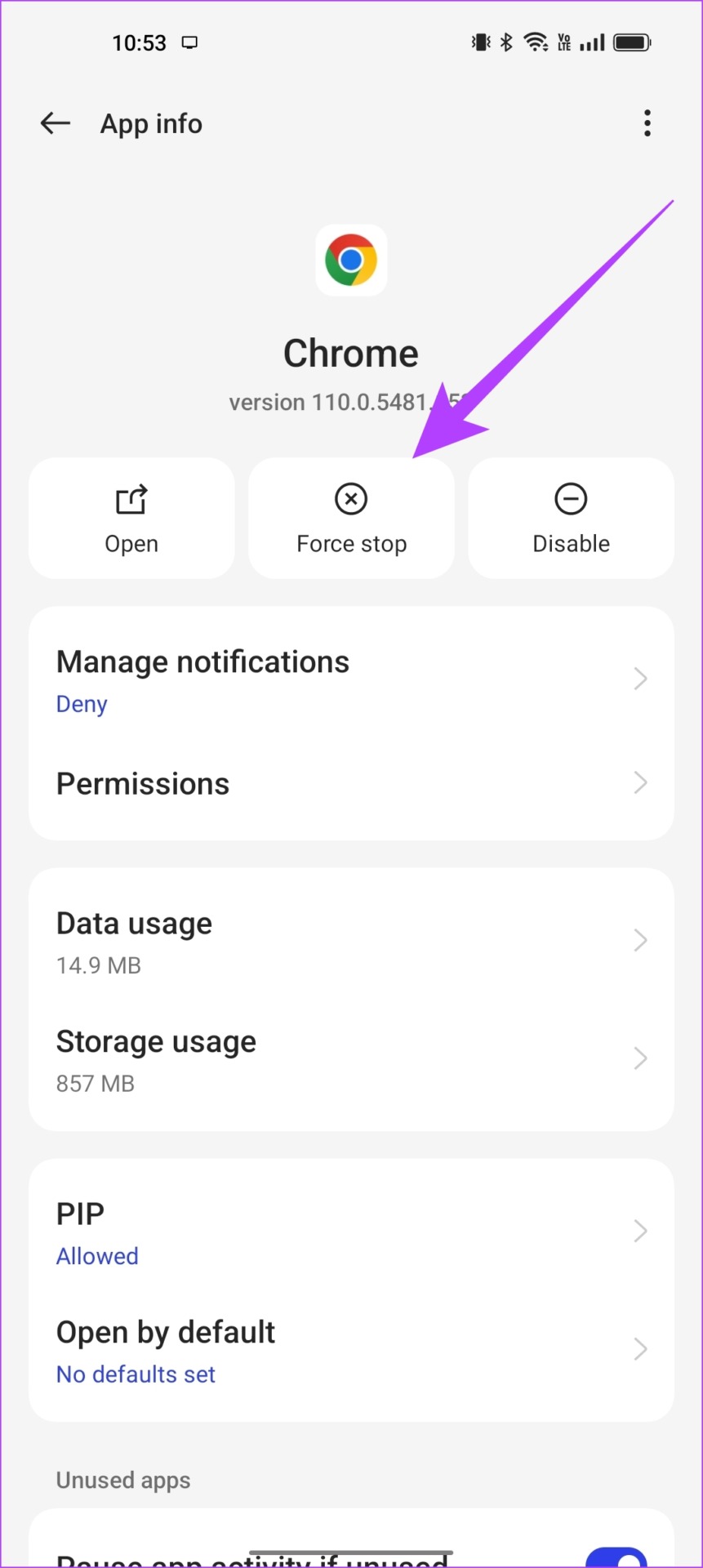
Method 2: Force Stop Apps
When you force-stop an application, it will not launch itself in the background until you open the app again. Doing this for an app can prevent it from automatically starting.
This is especially helpful if you don’t want to disable the autostart for it but just prevent it from autostarting for a specific period.
Long-tap on the app icon. Tap on the app info button, and select Force Stop. This will now close the application, free up the occupied memory, and will not start itself in the background.
Method 3: Use Developer Options to Limit Background Processes
There is an option to automatically shut down apps every time you exit them. For that, we first need to enable developer options.
Note: These are experimental features meant for development. Proceed with caution and at your own risk.
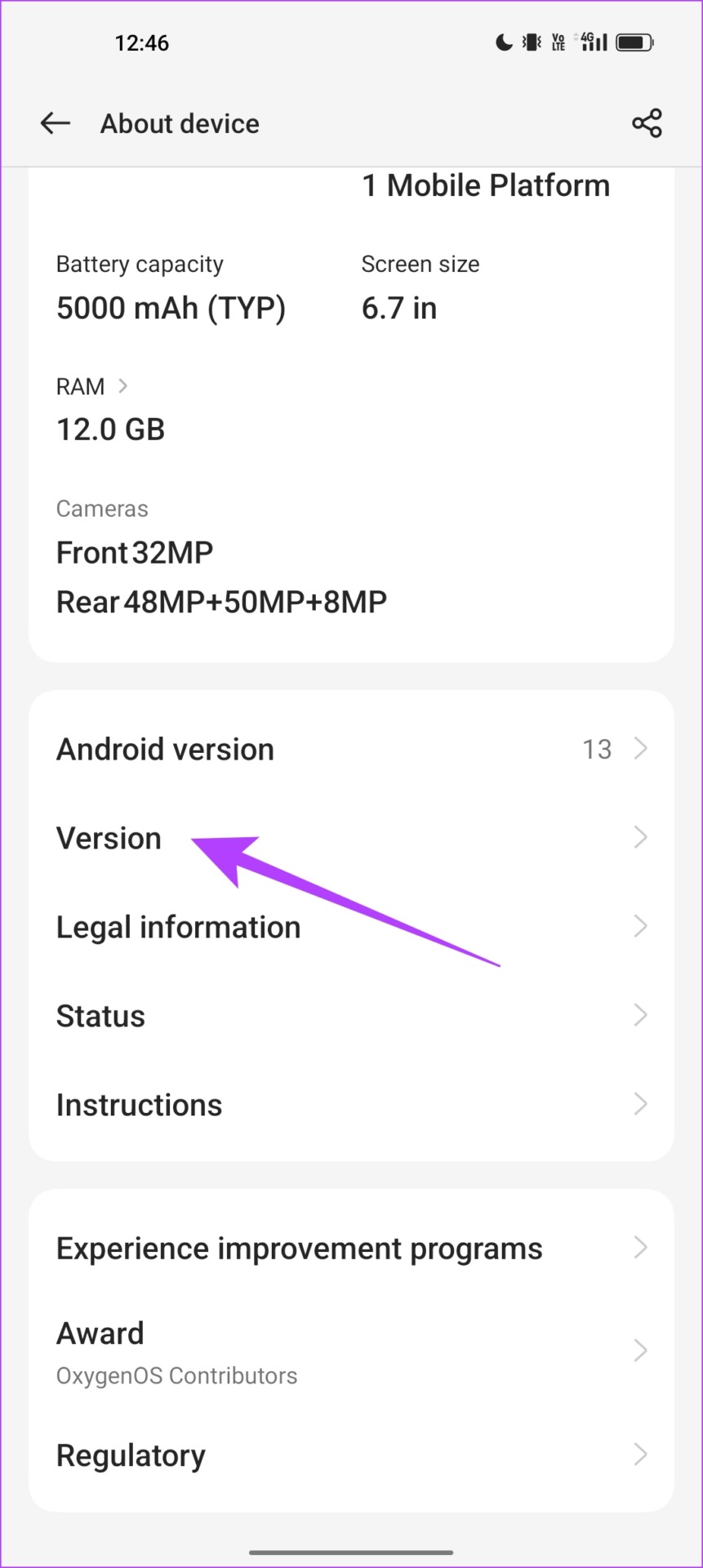
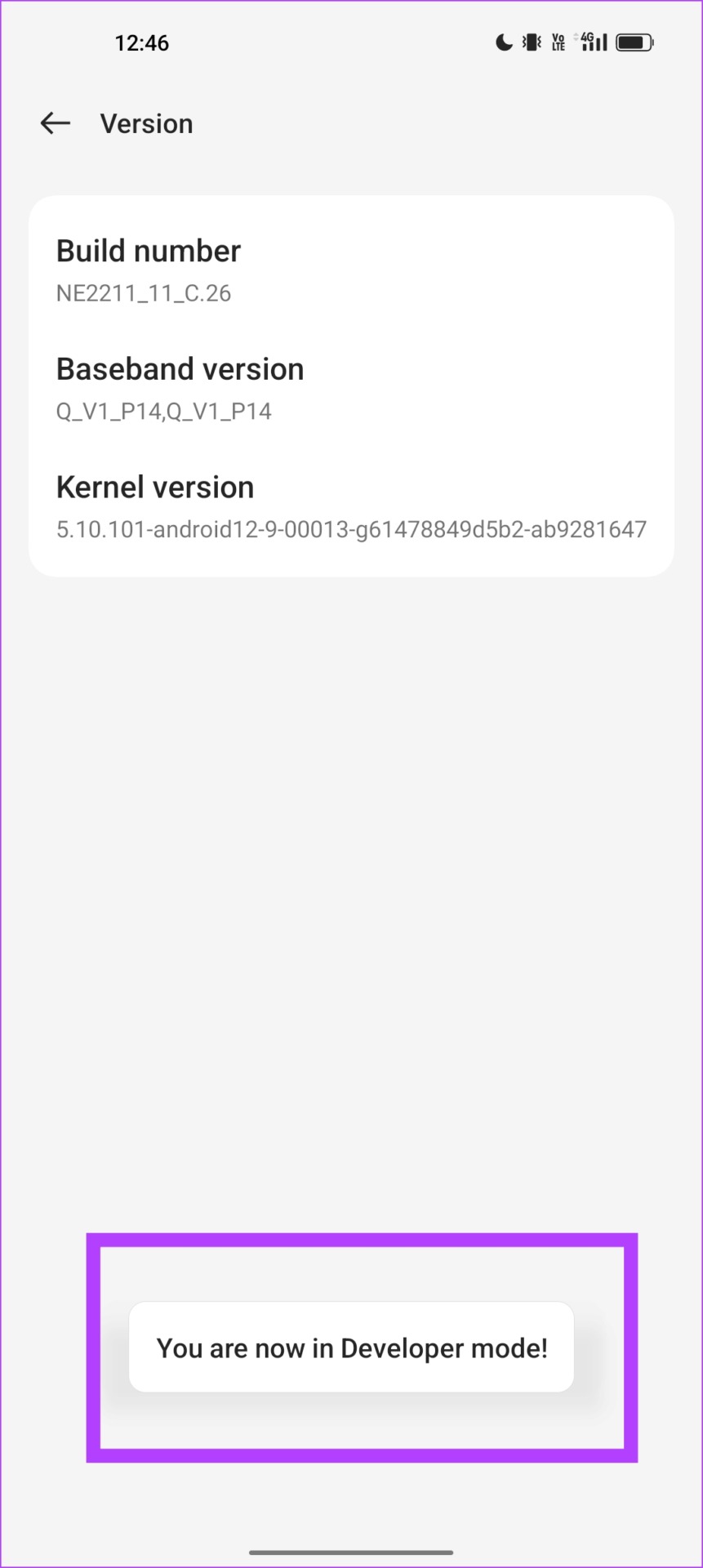
Open Settings > About Device > Version. Tap several times on the Build number until you get a message that says You are now in Developer mode.

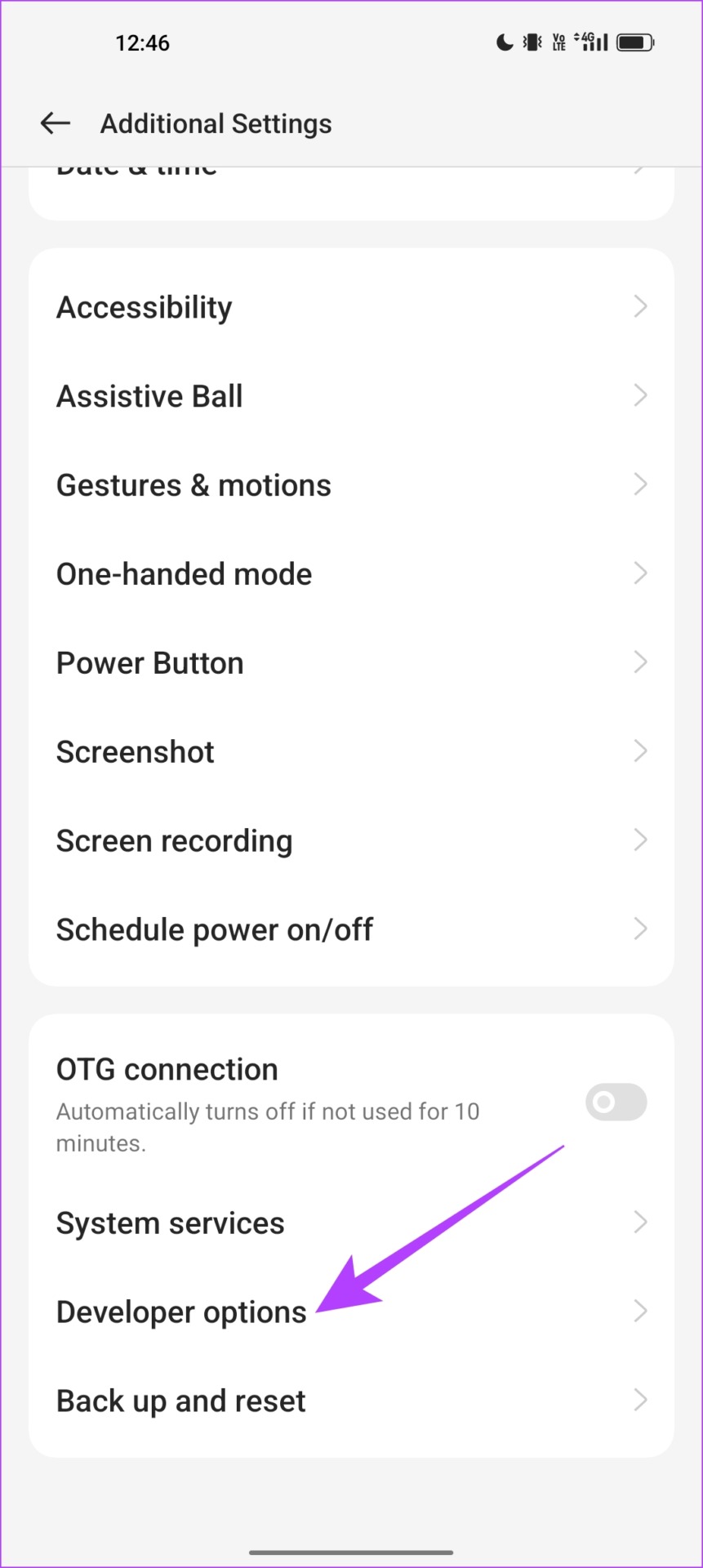
Step 1: We now need to open developer options. Open the Additional Settings menu in the settings app.
Step 2: Tap on Developer options.

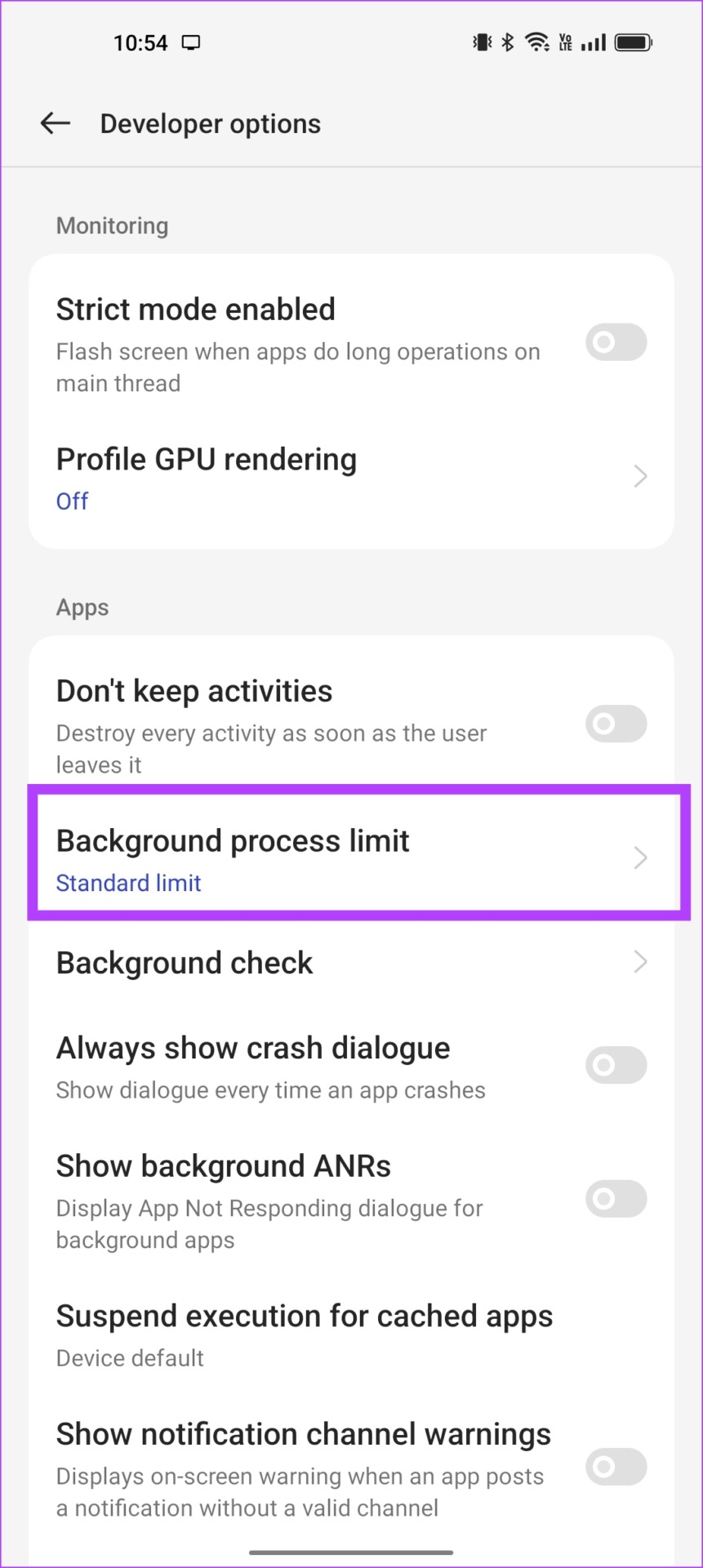
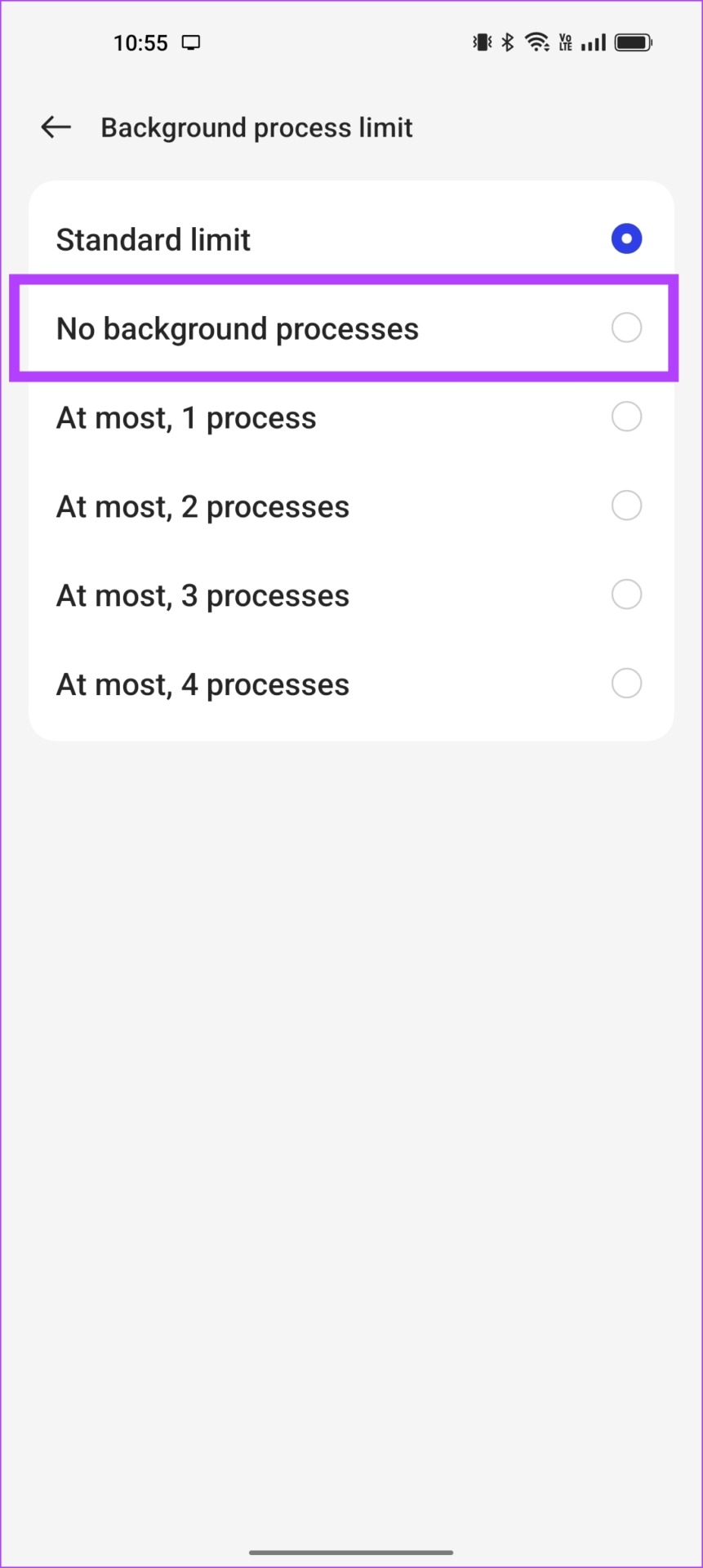
Step 3: Scroll down to find the Background process limit option. Check the box for No background processes.
This will ensure that no third-party apps run in the background.
Alternatively, you can also turn on the toggle for Don’t keep activities which destroys all background activities of the application as soon as you leave the app.

Wondering if the iPhone has an autostart-like feature? Yes, it is called Background App Refresh.
Was this helpful?
Last updated on 25 July, 2024
4 Comments
Leave a Reply
Read Next
 How to Enable, Disable, and Manage App Permissions on Android
How to Enable or Disable Permissions for an App on Android When you use an app for the first time, it requests permission to access your location, camera, contacts, and
How to Enable, Disable, and Manage App Permissions on Android
How to Enable or Disable Permissions for an App on Android When you use an app for the first time, it requests permission to access your location, camera, contacts, and
 How to Enable and Disable Autofill on Android
Note: The steps might differ for different Android devices and Android versions.
How to Enable and Disable Autofill on Android
Note: The steps might differ for different Android devices and Android versions.
 How to Disable Apps on Android and What Happens When You Do
How to Disable Apps on Android On Android, you can disable an app from your phone’s Settings menu.
How to Disable Apps on Android and What Happens When You Do
How to Disable Apps on Android On Android, you can disable an app from your phone’s Settings menu.
 How to Enable or Disable Slow Mode on Discord
What Is Slow Mode in Discord Discord’s slow mode feature helps limit the number of messages a user can send in a channel.
How to Enable or Disable Slow Mode on Discord
What Is Slow Mode in Discord Discord’s slow mode feature helps limit the number of messages a user can send in a channel.
 How to Enable or Disable Battery Saver in Windows 11
How to Turn On or Off Battery Saver Manually Method 1.
How to Enable or Disable Battery Saver in Windows 11
How to Turn On or Off Battery Saver Manually Method 1.
 4 Ways to Enable or Disable Num Lock at Windows Startup
Method 1: Disable Fast Startup Step 1: Click the search icon on the taskbar, type control panel, and press Enter.
4 Ways to Enable or Disable Num Lock at Windows Startup
Method 1: Disable Fast Startup Step 1: Click the search icon on the taskbar, type control panel, and press Enter.
 How to Enable or Disable End-to-End Encryption for Instagram Chats
What Is End-to-End Encryption on Instagram With End-to-End encryption, Instagram will secure chats with under an extra layer of protection.
How to Enable or Disable End-to-End Encryption for Instagram Chats
What Is End-to-End Encryption on Instagram With End-to-End encryption, Instagram will secure chats with under an extra layer of protection.
 How to Enable or Disable Smart App Control in Windows 11
Have you ever downloaded an app that was more trouble than it's worth?
How to Enable or Disable Smart App Control in Windows 11
Have you ever downloaded an app that was more trouble than it's worth?
The article above may contain affiliate links which help support Guiding Tech. The content remains unbiased and authentic and will never affect our editorial integrity.

These settings (except the exclude from battery optimisation) are all not available on any of my phones, including my Samsung. Nor have I ever seen any setting like this anywhere ever before on any phone. What quirky brand/model are you using that you have all this?
It is still available almost each and every cell phone you have to explore your car phone efficiently first then, you will understand all some hidden like mysterious thing in it
I need help with understanding app and Android phone and how to set it up I can’t do it by myself I don’t read that well and I don’t know how to comprehend what it says to do. Thank u and please help me
In which thing you encounter difficulties. If you want bro I can assist you in many ways. Firstly. You have to tell about your car phone which you still use.