What Is Hibernate Mode on Windows 11
Hibernation is a power-conserving state in which Windows takes a snapshot of your system and saves that content to your hard drive before turning off the system. When you turn your computer back on, it reads the memory state from storage and restores all your open programs and data exactly as you left them.
How to Enable Hibernate Mode on Windows 11
To use Windows 11’s hibernate mode, you must enable it on your computer. Here’s how to do it.
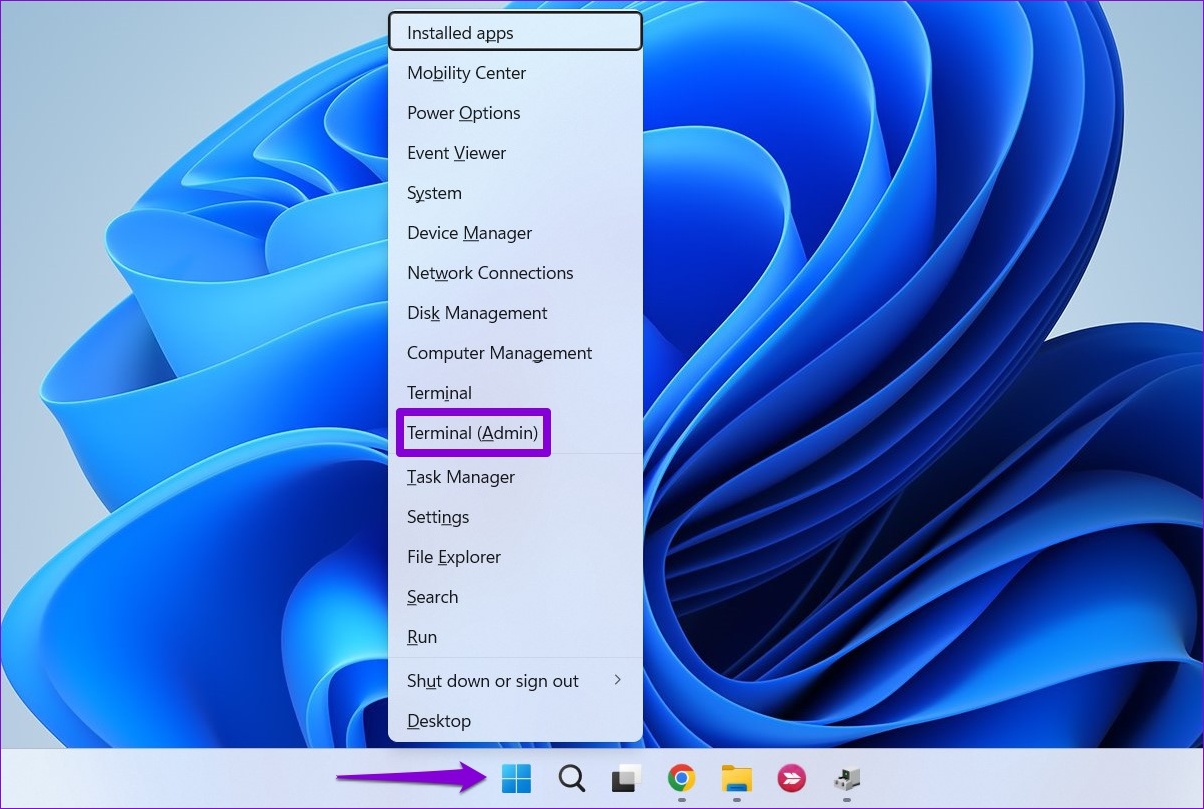
Step 1: Right-click on the Start icon and select Terminal (Admin) from the list.
Step 2: Type the following command in the Command Prompt window and press Enter:
powercfg /availablesleepstates
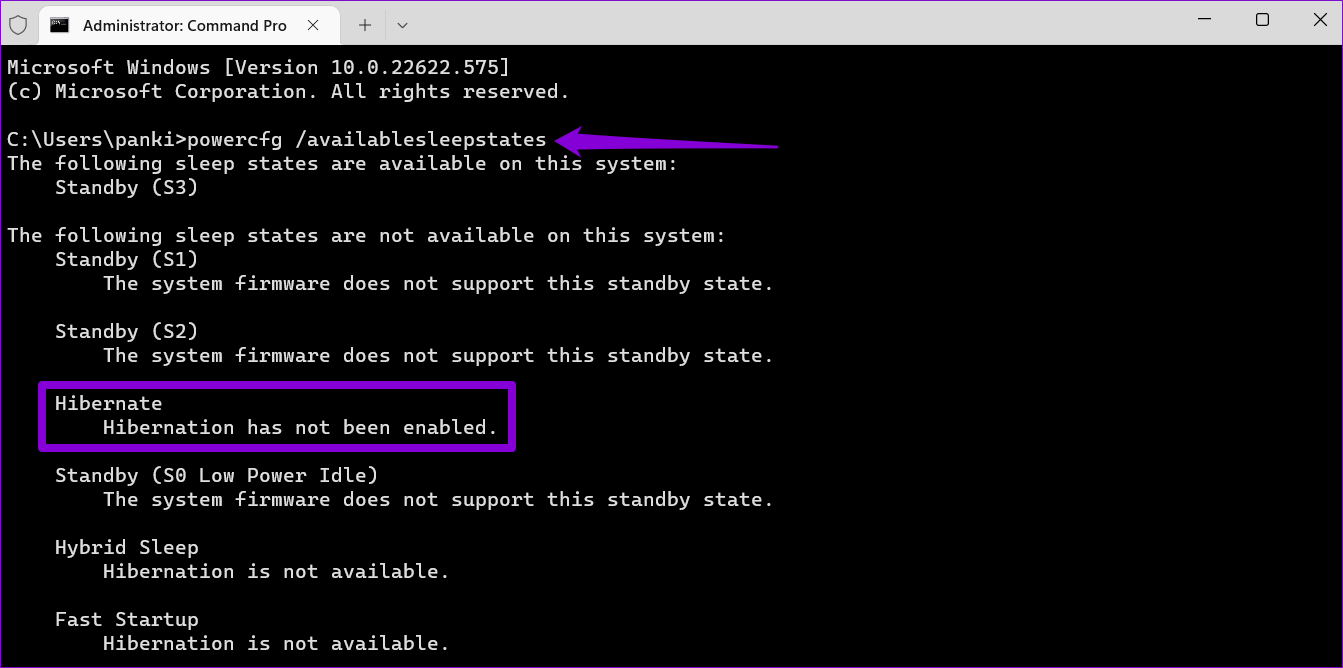
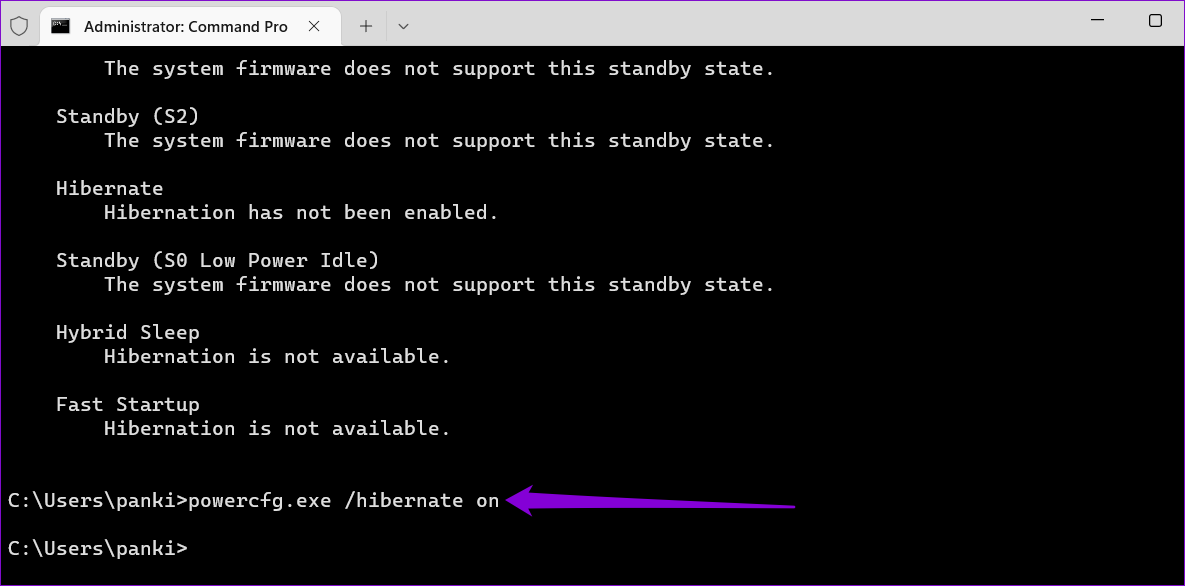
Step 3: Check if the hibernation feature is enabled on your PC. If not, run the following command to enable it.
powercfg.exe /hibernate on
How to Add Hibernate Option to the Power Menu
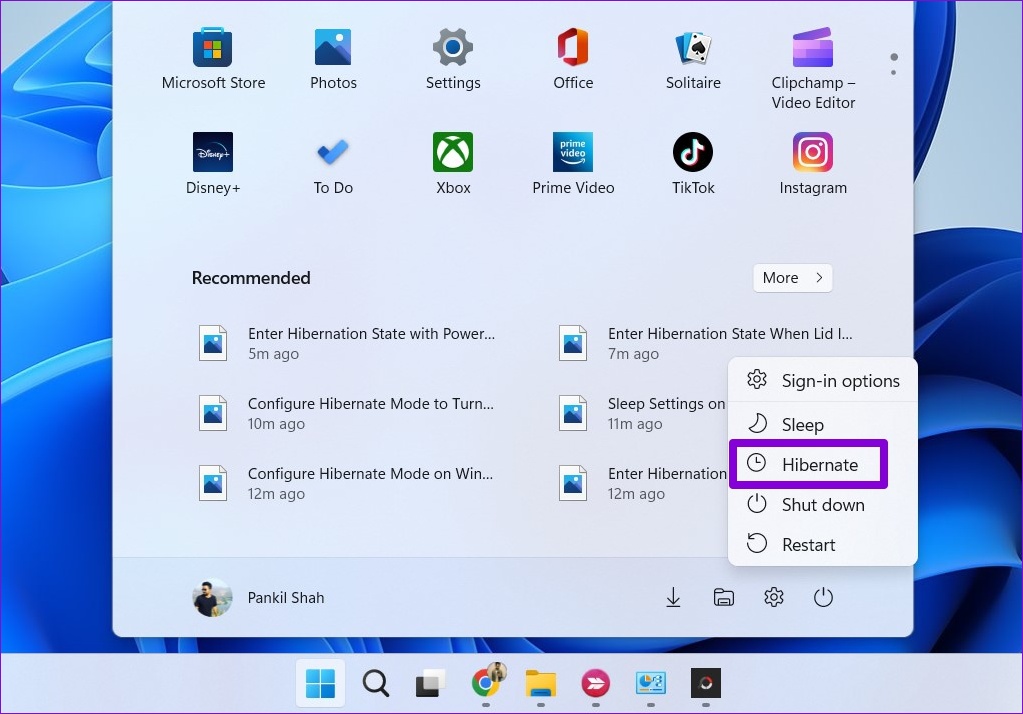
By default, Windows 11’s power menu does not show the Hibernate option even after enabling it. To add the Hibernate option to the power menu, follow the steps below.
Step 1: Click the search icon on the taskbar, type control panel, and press Enter.
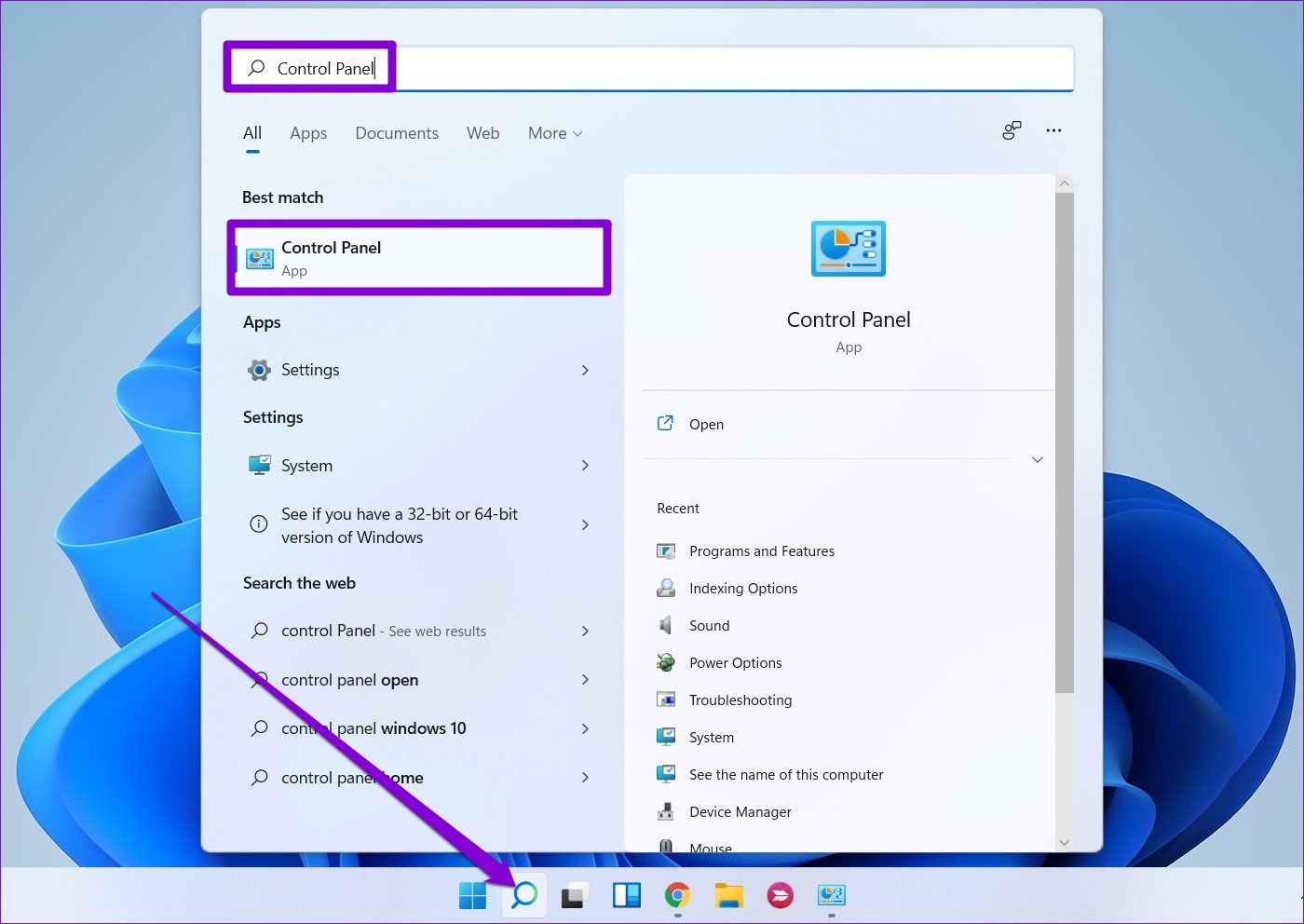
Step 2: Use the drop-down menu at the top-right corner to change the view type to Large icons and select Power Options.

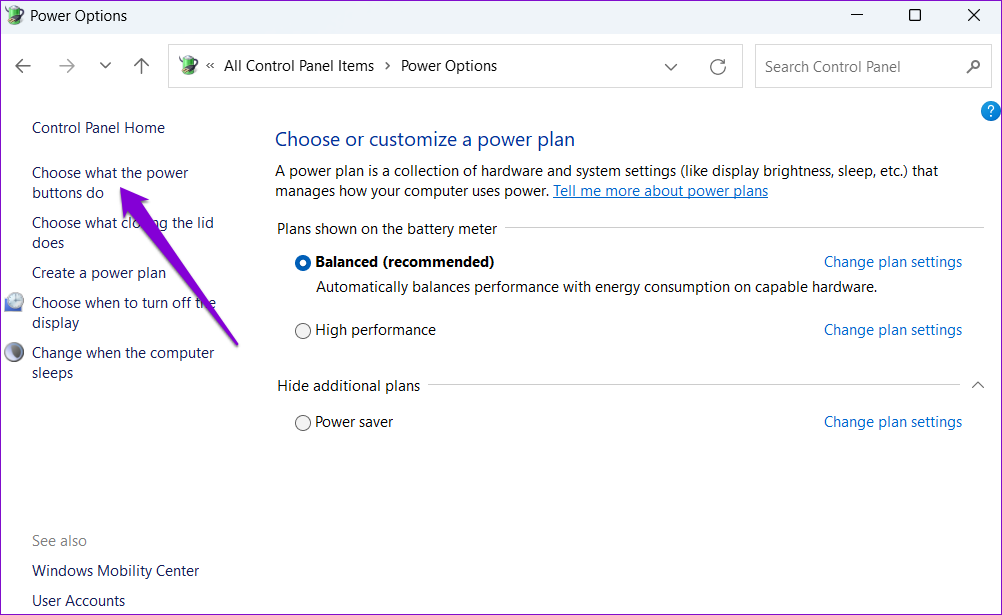
Step 3: Click on Choose what the power buttons do in the left pane.
Step 4: Click on Change settings that are currently unavailable.

Step 5: Check the box for Hibernate and click Save changes.

Once you complete the above steps, you should see the Hibernate option in the Windows 11 power menu.
How to Customize and Use Hibernate Mode on Windows 11
If you intend to use hibernate mode frequently, configure Windows to enter the hibernation state when you press the power button or close the laptop lid. Here’s how to do it.
Step 1: Open the Control Panel on your PC and go to Power Options.
Step 2: Click on Choose what the power buttons do.
Step 3: Use the drop-down menus next to When I press the power button to select Hibernate.
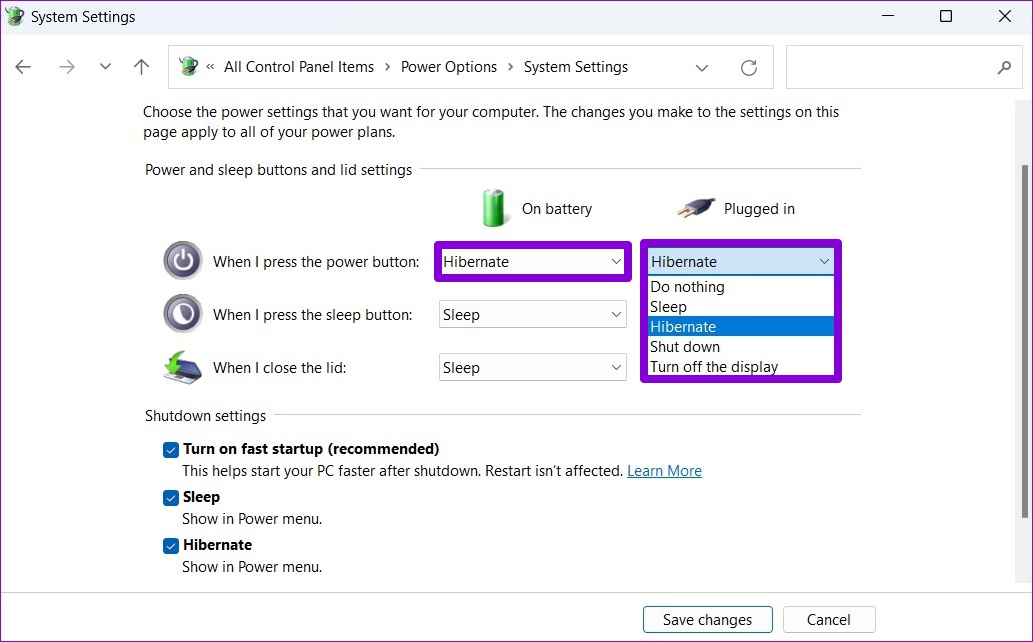
Step 4: For Windows laptops, use the drop-down menus next to When I close the lid to select the Hibernate option.
Step 5: Click on Save changes.
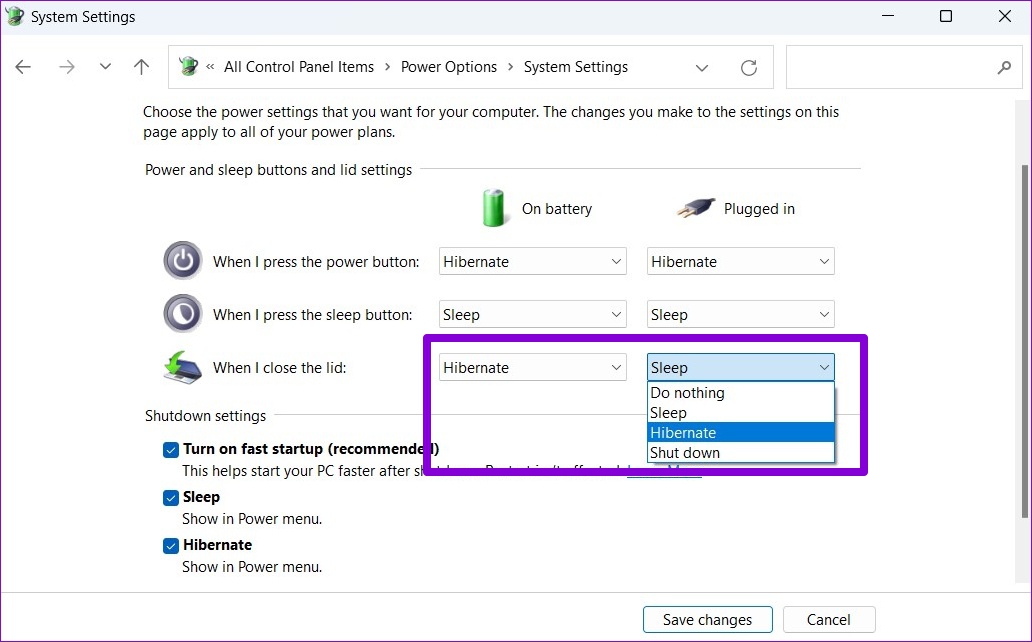
And you’re all set. Windows will enter the hibernation state when you press the power button or close the lid. Conveniently, you can also configure your PC to hibernate automatically after a period of inactivity. Here’s how.
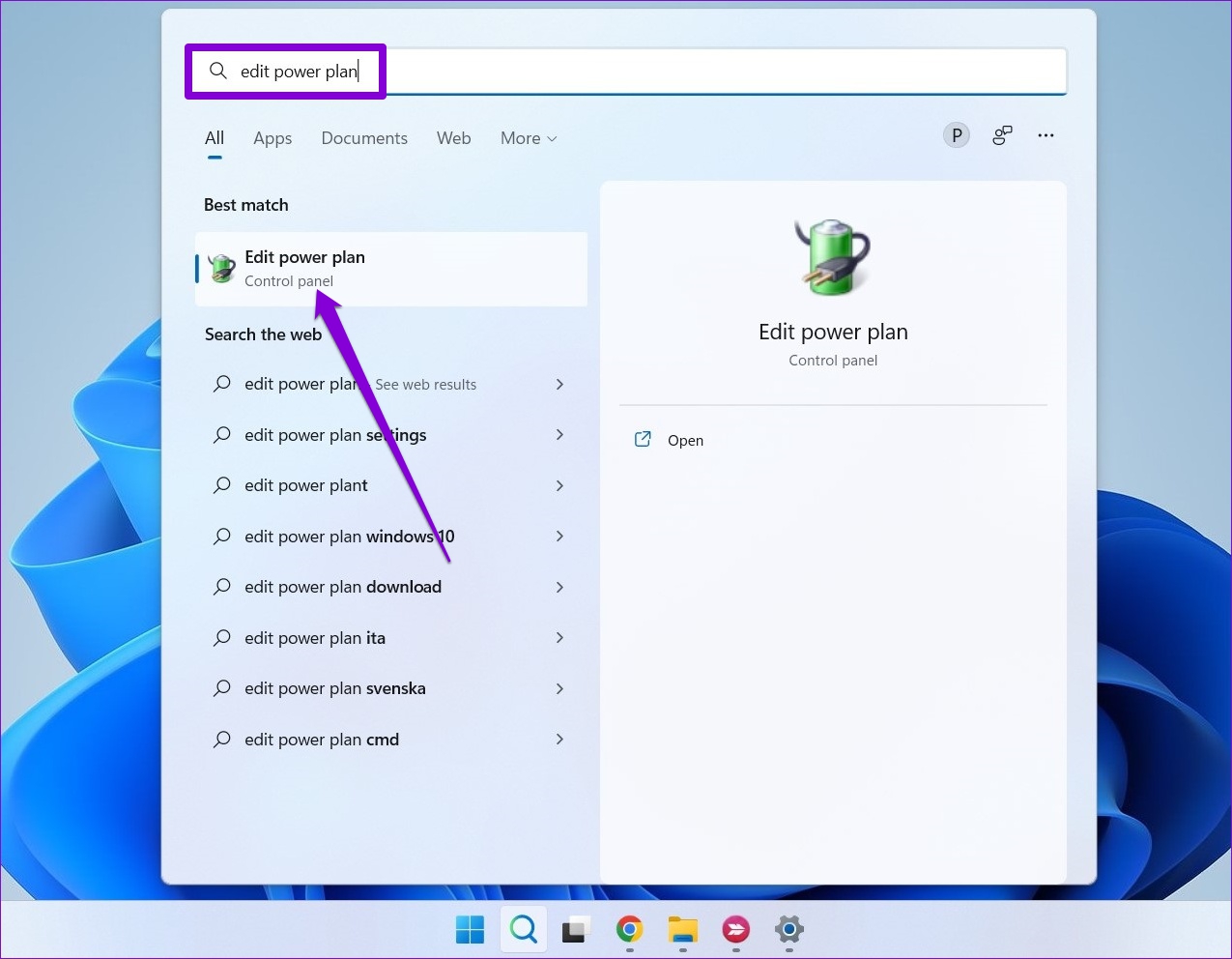
Step 1: Press the Windows key + S to open the search menu. Type edit power plan in the box and select the first result that appears.
Step 2: Click on Change advanced power settings.

Step 3: In the Power Options window, double-click on Sleep to expand it.
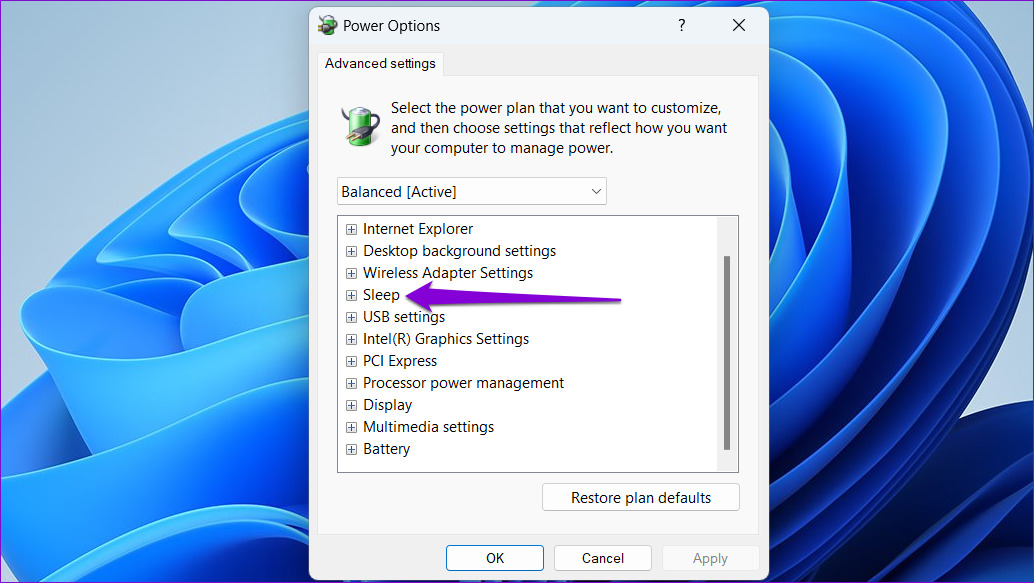
Step 4: Expand Hibernate after and use the drop-down menus next to On battery and Plugged in to specify the number of minutes of inactivity, after which your PC should enter hibernation mode. Then, hit Apply, followed by OK.

Was this helpful?
Last updated on 03 July, 2024
Read Next
 7 Best Ways to Fix Hibernate Goes to Lock Screen Error on Windows 10
The Hibernate mode, not to be confused with the Sleep feature, on Windows OS saves battery, but the best part is, you can close your lid to activate it.
7 Best Ways to Fix Hibernate Goes to Lock Screen Error on Windows 10
The Hibernate mode, not to be confused with the Sleep feature, on Windows OS saves battery, but the best part is, you can close your lid to activate it.
 How to Enable or Disable Internet Explorer Mode in Edge
Enable or Disable the Internet Explorer Mode in Microsoft Edge Microsoft Edge's Internet Explorer mode lets you effortlessly access old websites without switching browsers.
How to Enable or Disable Internet Explorer Mode in Edge
Enable or Disable the Internet Explorer Mode in Microsoft Edge Microsoft Edge's Internet Explorer mode lets you effortlessly access old websites without switching browsers.
 How to Enable or Disable Picture-in-Picture Mode on iPhone and iPad
Enable Automatic Picture-in-Picture Mode on iPhone and iPad If your iPhone or iPad doesn't automatically open videos in Picture-in-Picture mode when quitting to the Home screen, it's likely that your
How to Enable or Disable Picture-in-Picture Mode on iPhone and iPad
Enable Automatic Picture-in-Picture Mode on iPhone and iPad If your iPhone or iPad doesn't automatically open videos in Picture-in-Picture mode when quitting to the Home screen, it's likely that your
 How to Enable and Disable Focus Mode in Microsoft Word
How to Enable Focus Mode in Microsoft Word Focus Mode hides the Ribbon and Taskbar on your document to reduce distractions and let you work only on the document's text
How to Enable and Disable Focus Mode in Microsoft Word
How to Enable Focus Mode in Microsoft Word Focus Mode hides the Ribbon and Taskbar on your document to reduce distractions and let you work only on the document's text
 How to Enable or Disable Slow Mode on Discord
What Is Slow Mode in Discord Discord’s slow mode feature helps limit the number of messages a user can send in a channel.
How to Enable or Disable Slow Mode on Discord
What Is Slow Mode in Discord Discord’s slow mode feature helps limit the number of messages a user can send in a channel.
 How to Enable OneNote Dark Mode on Any Device
How to Change OneNote to Dark Mode in the Windows App To turn on Dark Mode on the OneNote Windows app, go to the account settings and change the app's
How to Enable OneNote Dark Mode on Any Device
How to Change OneNote to Dark Mode in the Windows App To turn on Dark Mode on the OneNote Windows app, go to the account settings and change the app's
 What Is Demo Mode on Android and How to Enable It
What Is Demo Mode on Android Demo Mode is one of the developer mode options that sets up your device for demonstration by altering its behavior to provide a curated experience.
What Is Demo Mode on Android and How to Enable It
What Is Demo Mode on Android Demo Mode is one of the developer mode options that sets up your device for demonstration by altering its behavior to provide a curated experience.
 Airplane Mode: What It Does and How to Enable or Disable It on Your Phone
What Is Airplane Mode?
Airplane Mode: What It Does and How to Enable or Disable It on Your Phone
What Is Airplane Mode?
The article above may contain affiliate links which help support Guiding Tech. The content remains unbiased and authentic and will never affect our editorial integrity.