How to Disable or Enable Location in Chrome for Windows or macOS
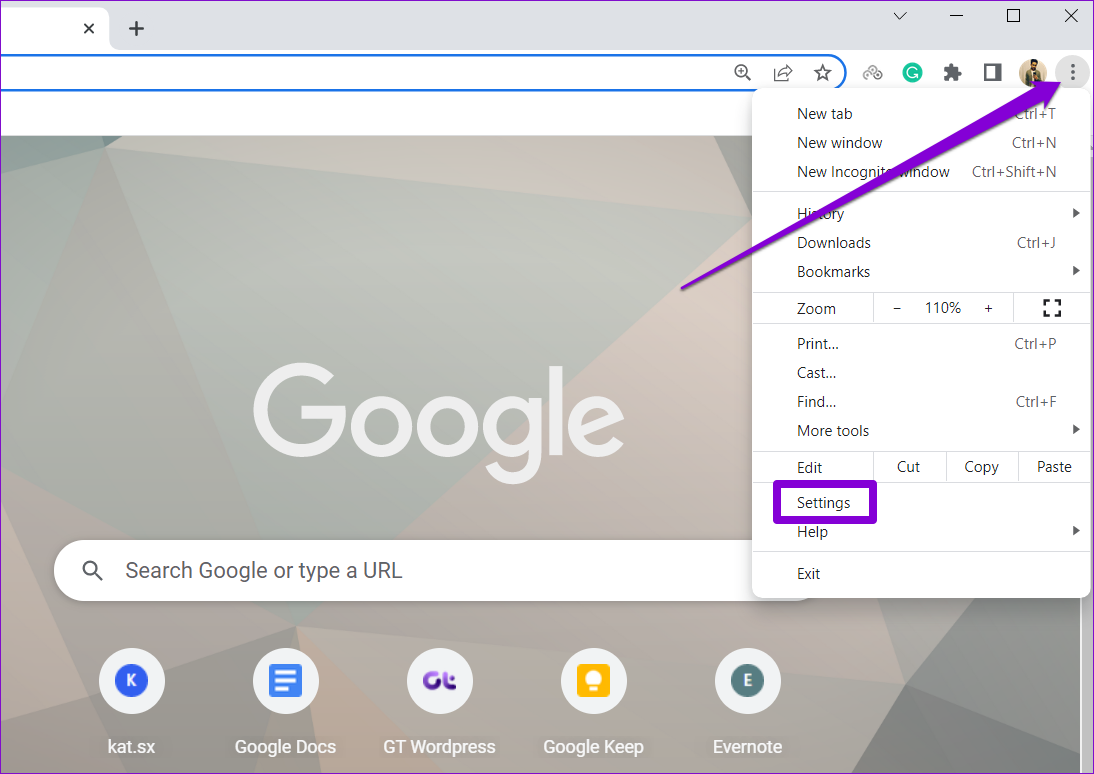
Step 1: Open Google Chrome on your PC. Click the three-dot menu icon at the top right corner and select Settings.
Step 2: Switch to the Privacy and security tab and select Site settings on your right.

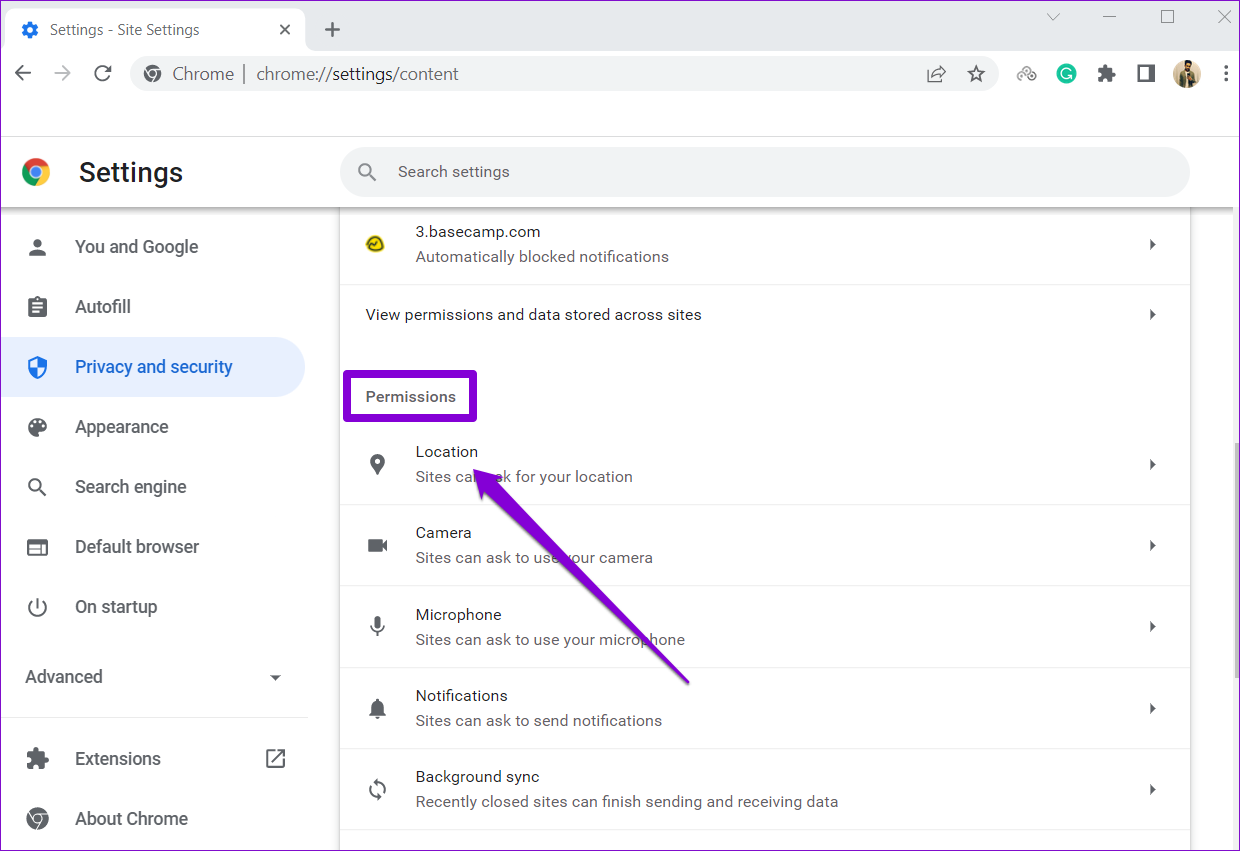
Step 3: Scroll to the Permissions section and click on Location.
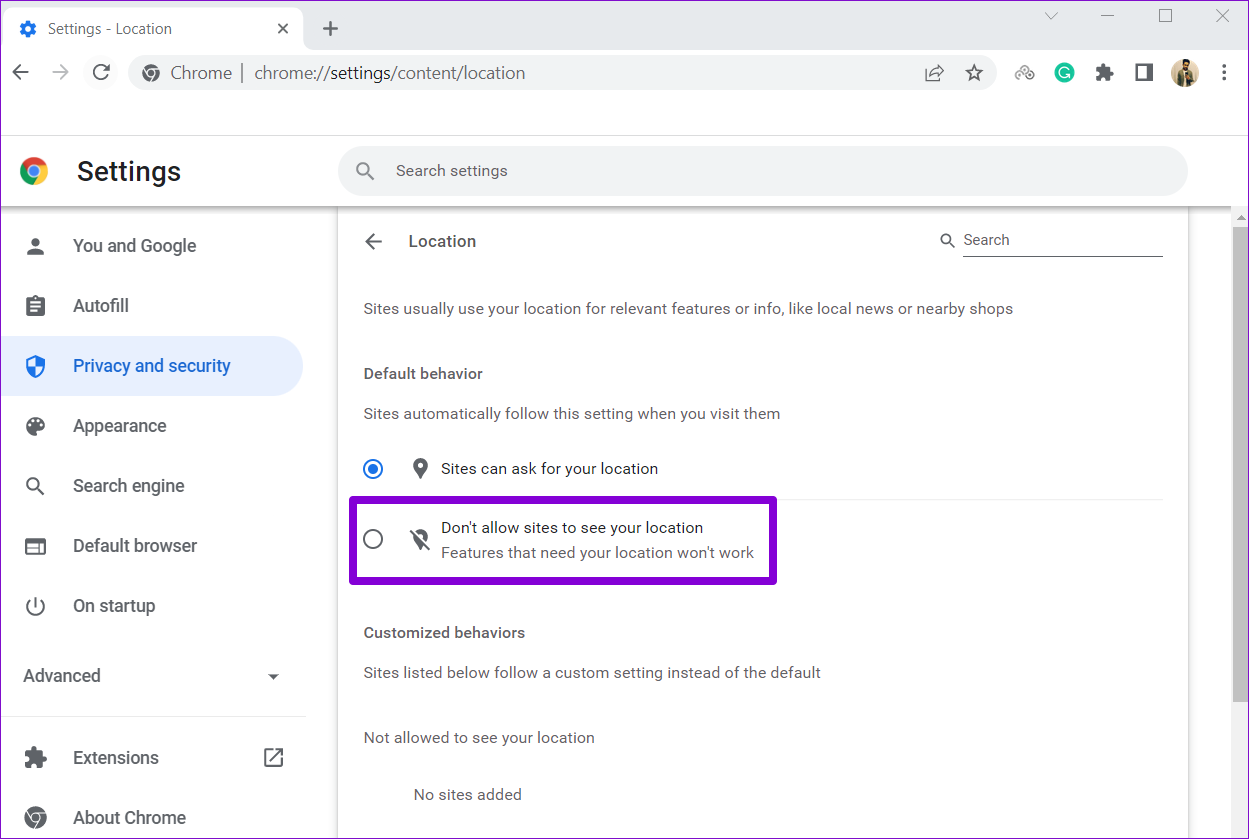
Step 4: Under Default behavior, select Don’t allow sites to see your location. Select the Sites can ask for your location option if you want to allow sites to track your location.
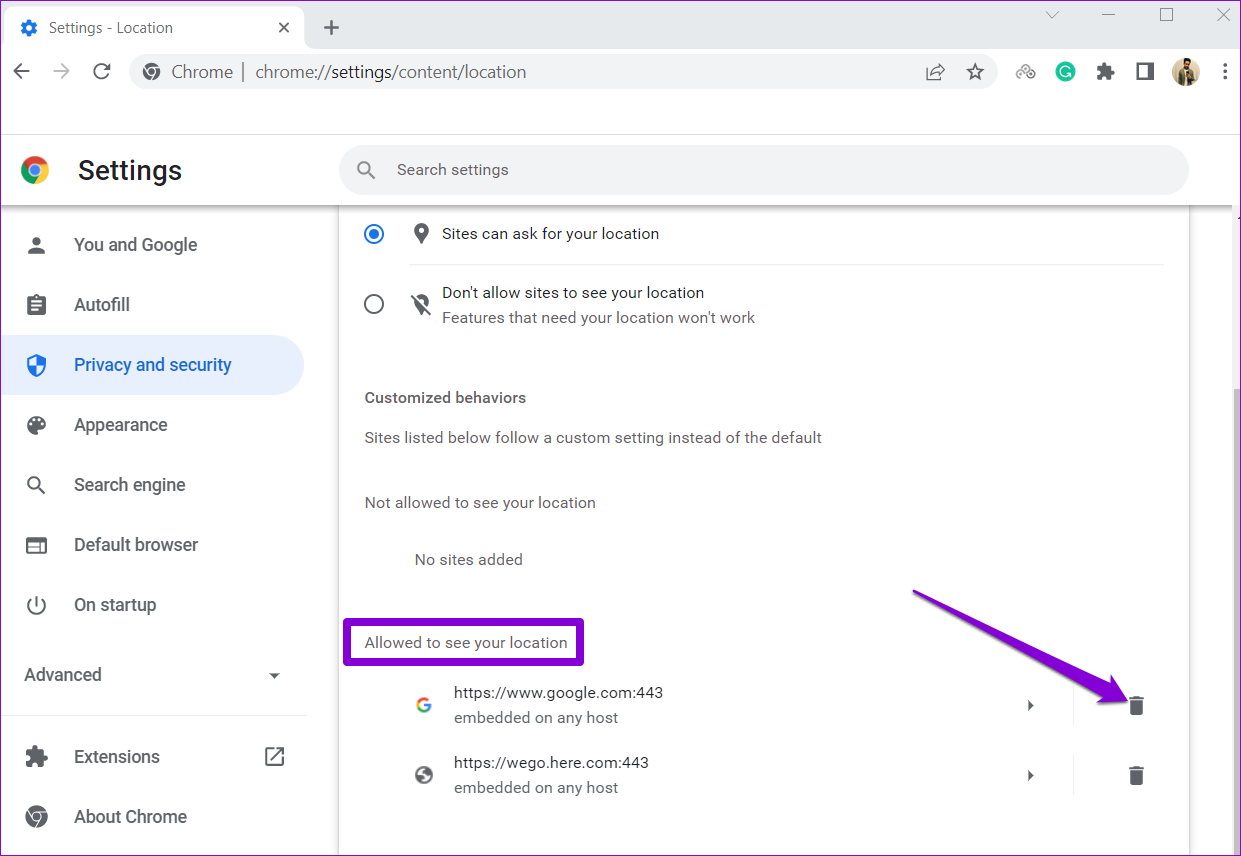
If you’ve already allowed a few websites to track your location, you’ll find them under the “Allowed to see your location” section. Click on the trash icon next to the website to remove its location permission.
How to Disable or Enable Location in Chrome for Android
Your Android phone lets you manage location permissions for each app individually. Besides that, Chrome for Android also offers an option to disable or enable location services within the app. Here’s how to access it.
Step 1: Open Google Chrome on your Android phone. Tap the three-dot menu icon at the top right corner and select Settings.
Step 2: Under Advanced, tap on Site settings.
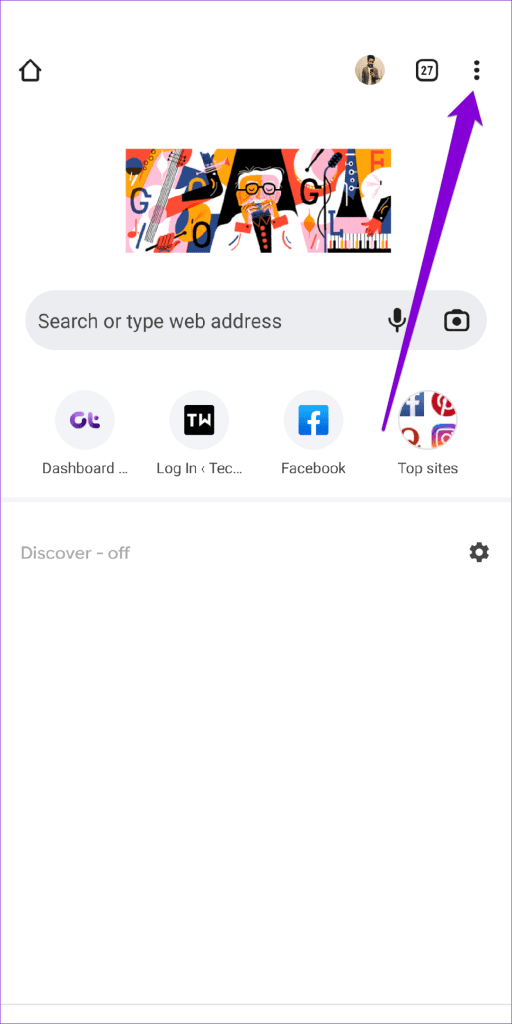
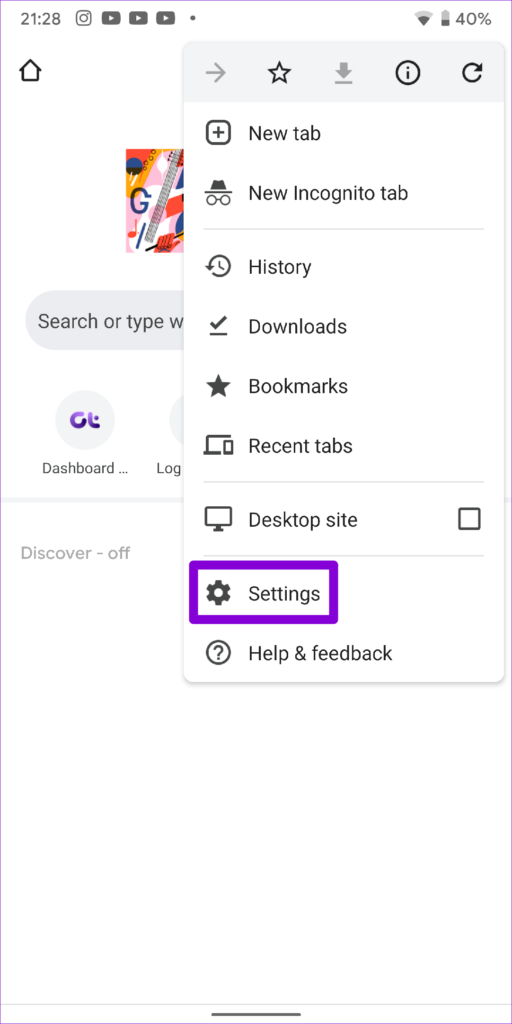

Step 3: Go to Location and turn off location services. If you’ve already allowed sites to access your location, they’ll be listed under Exceptions. To prevent a website from accessing your location, tap on its URL and select Remove.


How to Disable or Enable Location in Chrome for iOS
Unlike Android, Chrome for iOS doesn’t offer an option to manage location permissions from the app. You must use the Settings app on your iPhone to disable or enable location permissions for Chrome. Here’s how you do it.
Step 1: Launch the Settings app on your iPhone. Scroll down to locate and tap on Chrome.
Step 2: Go to Location and change the location access to Never.

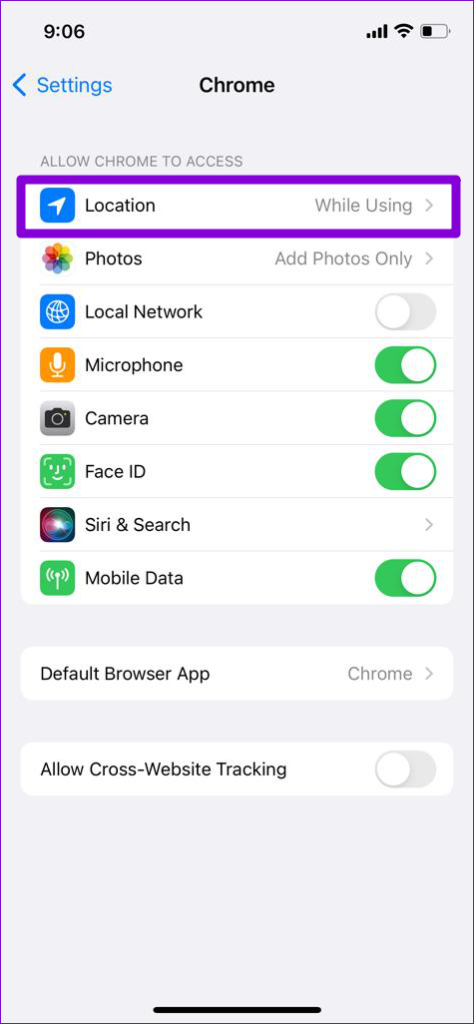

That’s about it. Chrome won’t track your location after that. If you wish to allow location permissions for specific websites, follow the method above and select the Ask Next Time or When I Share or While Using the App options instead.
Was this helpful?
Last updated on 04 July, 2024
Read Next
 4 Fixes for “No Permission to Enable Voice Typing” on Android
Basic Fixes: Clear the Gboard app cache: As you use Gboard, it collects data to enhance your experience.
4 Fixes for “No Permission to Enable Voice Typing” on Android
Basic Fixes: Clear the Gboard app cache: As you use Gboard, it collects data to enhance your experience.
 How to Give and Revoke Permission to Edit Google Docs on Mobile and Web
How to Give Permission to Edit Google Docs on PC Since a Google Docs document can be shared in two ways, the steps to grant or revoke the permission to
How to Give and Revoke Permission to Edit Google Docs on Mobile and Web
How to Give Permission to Edit Google Docs on PC Since a Google Docs document can be shared in two ways, the steps to grant or revoke the permission to
 How to Enable or Disable Autofill in Google Chrome for PC and Mobile
Are you tired of entering your personal information every time you fill out a form or make an online purchase?
How to Enable or Disable Autofill in Google Chrome for PC and Mobile
Are you tired of entering your personal information every time you fill out a form or make an online purchase?
 Can Zoom Host See My Screen Without Permission
Can Zoom Host See What I’m Doing In a Zoom meeting, the host of the video call and the meeting participants have the screen sharing function, provided the host has
Can Zoom Host See My Screen Without Permission
Can Zoom Host See What I’m Doing In a Zoom meeting, the host of the video call and the meeting participants have the screen sharing function, provided the host has
 How to Enable or Disable Reader Mode in Chrome
Method 1: Using the Reading Mode Chrome Flag Similar to forcing dark mode on Chrome, you may enable the Reader Mode using Chrome flags.
How to Enable or Disable Reader Mode in Chrome
Method 1: Using the Reading Mode Chrome Flag Similar to forcing dark mode on Chrome, you may enable the Reader Mode using Chrome flags.
 3 Ways to Fix MIUI Dual Apps Permission Denied Error
Basic Fixes Restart device: Restarting your device can eliminate any bugs causing problems with the Dual Apps feature.
3 Ways to Fix MIUI Dual Apps Permission Denied Error
Basic Fixes Restart device: Restarting your device can eliminate any bugs causing problems with the Dual Apps feature.
 How to Change or Fake Location in Chrome, Edge, and Firefox
Method 1: Use a VPN to Fake Your Location in Chrome, Edge, and Firefox VPN makes your private network truly private when you connect to its servers.
How to Change or Fake Location in Chrome, Edge, and Firefox
Method 1: Use a VPN to Fake Your Location in Chrome, Edge, and Firefox VPN makes your private network truly private when you connect to its servers.
 How to Enable Smooth Scrolling on Google Chrome
Method 1: Use Chrome Flags for Smooth Scrolling Google Chrome has an experimental, hidden feature menu called Flags, and some of these help enhance the user experience.
How to Enable Smooth Scrolling on Google Chrome
Method 1: Use Chrome Flags for Smooth Scrolling Google Chrome has an experimental, hidden feature menu called Flags, and some of these help enhance the user experience.
The article above may contain affiliate links which help support Guiding Tech. The content remains unbiased and authentic and will never affect our editorial integrity.