Method 1: Use Chrome Flags for Smooth Scrolling
Google Chrome has an experimental, hidden feature menu called Flags, and some of these help enhance the user experience. One such option enables smooth scrolling.
Note: This method works on Google Chrome on Android and iPhone, too.
Step 1: Open Chrome and type chrome://flags in the address bar.

Step 2: Search for Smooth Scrolling in the search bar.
Step 3: Click on the drop-down menu for Smooth Scrolling.

Step 4: Choose Enabled.
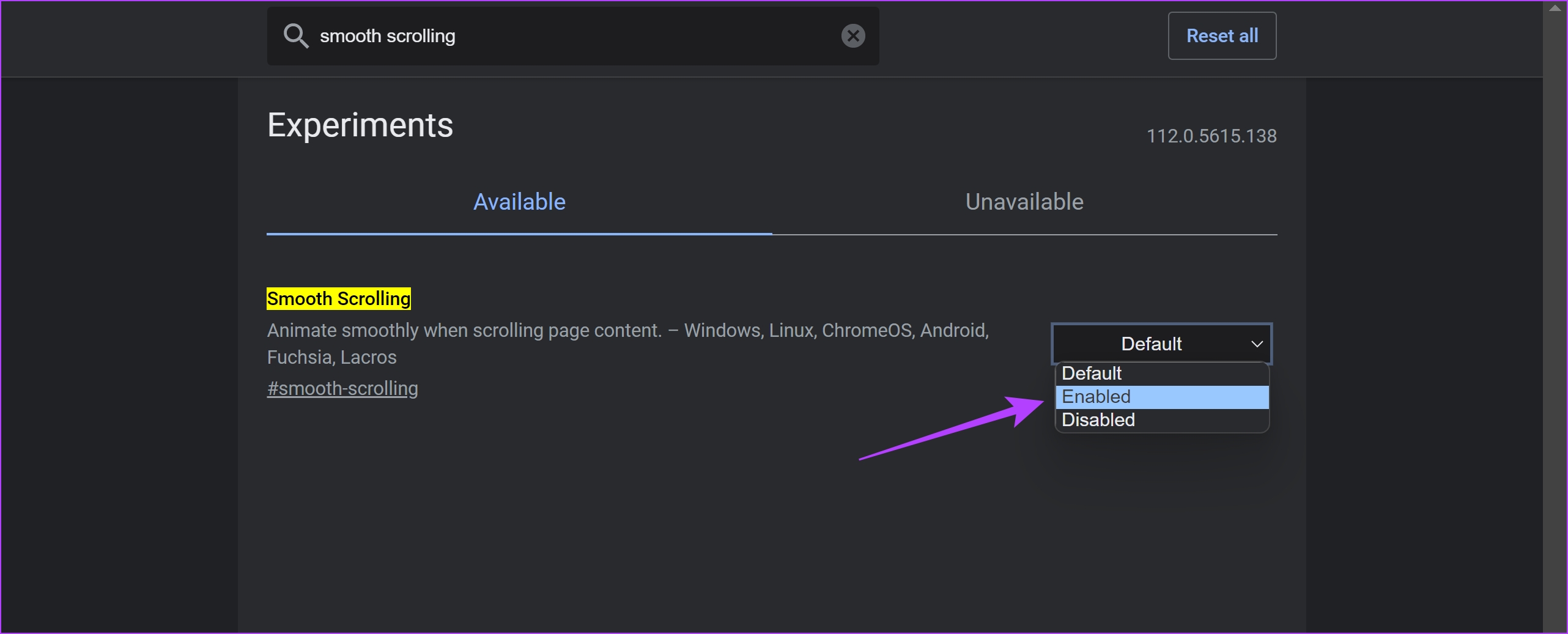
Step 5: Now, relaunch Google Chrome. Once you do this, the smooth scrolling feature will be activated.
Note: To turn off smooth scrolling in Chrome, follow the above steps and select Disabled.

Also Read: How to increase download speeds in Google Chrome.
Method 2: Enable Smooth Scrolling on Chrome With Extensions
Chromium Wheel Smooth Scroller is a highly-rated extension with over 90,000 users that lets you enable smooth scrolling on the browser.
Step 1: Download and install the extension from the Chrome Webstore.
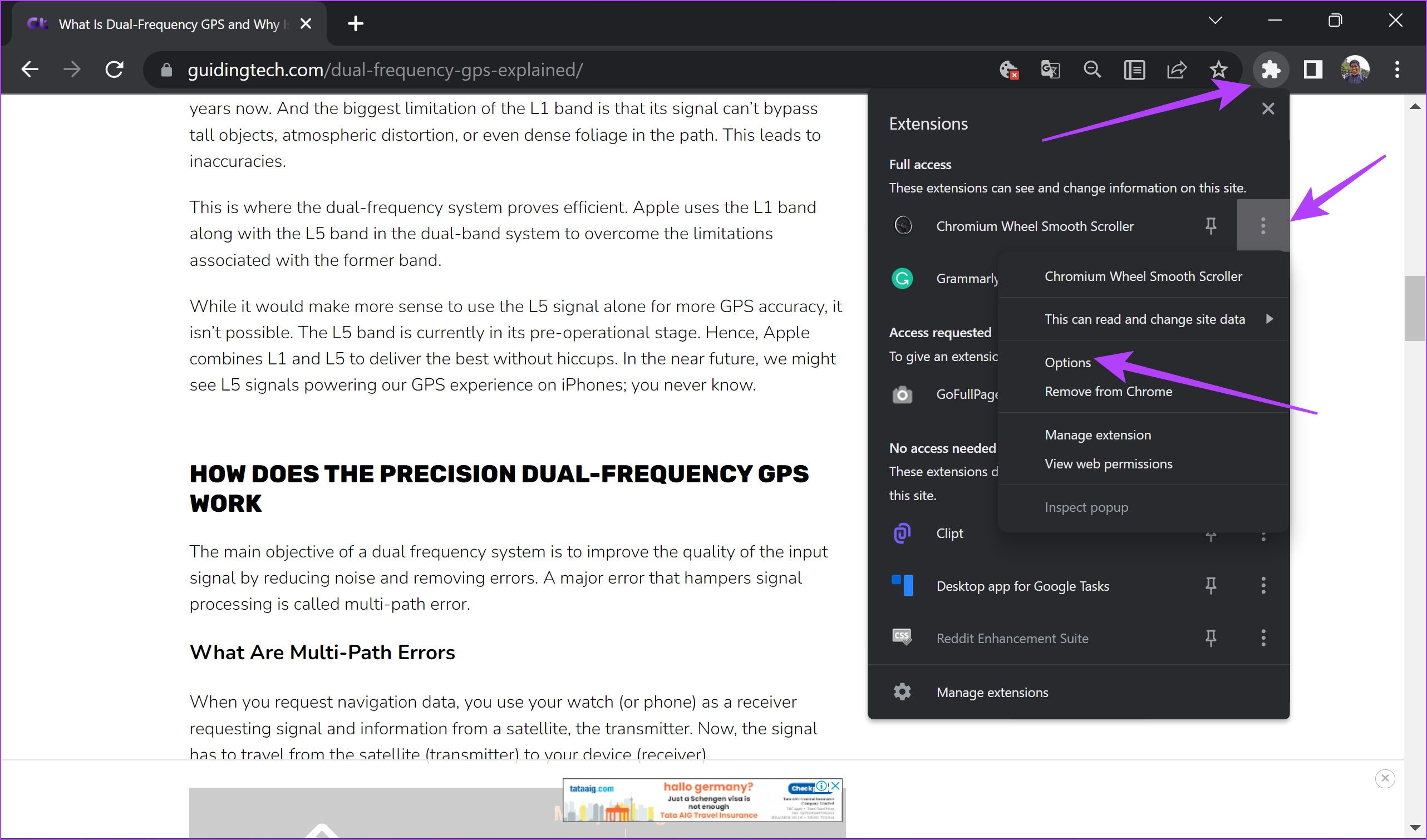
Step 2: The extension is now installed and activated. However, you can also tweak the settings. Click on the extensions menu > select three dots next to the extension.
Step 3: Click on Options.
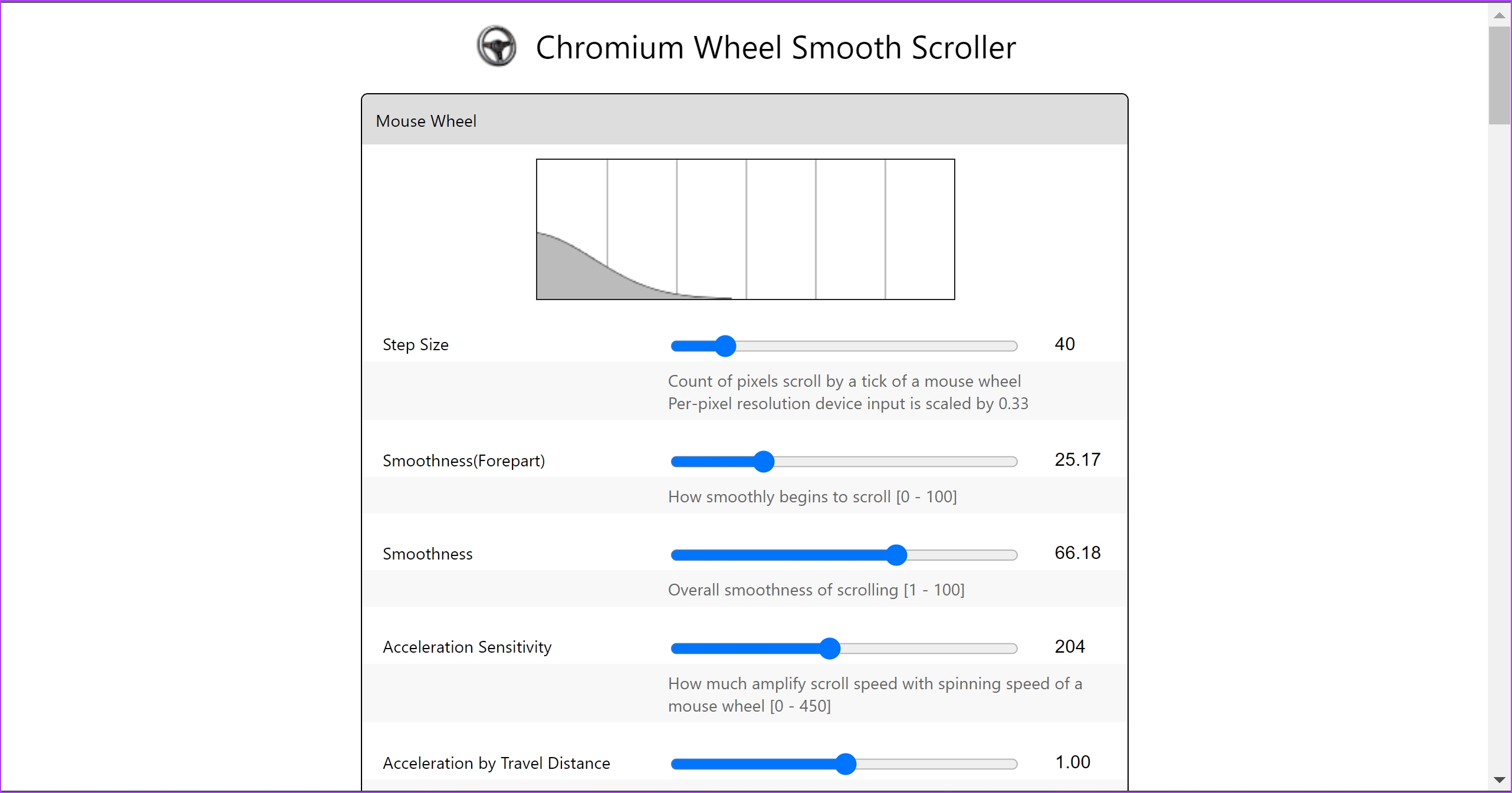
Step 4: You can customize the smoothness, step size, and other scrolling variables.
Also Read: Best Chrome Flags for your Android device
Was this helpful?
Last updated on 02 August, 2024
Read Next
 3 Ways to Enable Smooth Scrolling on Mozilla Firefox
What is Smooth Scrolling on Firefox When you scroll through a page and every time you swipe down or roll the wheel, the page moves down by a certain amount.
3 Ways to Enable Smooth Scrolling on Mozilla Firefox
What is Smooth Scrolling on Firefox When you scroll through a page and every time you swipe down or roll the wheel, the page moves down by a certain amount.
 How to Enable Scrolling By Default in Adobe Acrobat DC and Reader DC
Switching to your preferred page mode in Adobe Acrobat DC and Acrobat Reader DC often disables continuous scrolling.
How to Enable Scrolling By Default in Adobe Acrobat DC and Reader DC
Switching to your preferred page mode in Adobe Acrobat DC and Acrobat Reader DC often disables continuous scrolling.
 How to See First Message on Instagram Without Scrolling
Can You Scroll to the Start of the Message Thread on Instagram?
How to See First Message on Instagram Without Scrolling
Can You Scroll to the Start of the Message Thread on Instagram?
 How to Stop Facebook From Scrolling Automatically
Basic Fixes Update your web browser: Ensure that you use the latest version of your preferred web browser.
How to Stop Facebook From Scrolling Automatically
Basic Fixes Update your web browser: Ensure that you use the latest version of your preferred web browser.
 How to See First Message on WhatsApp Without Scrolling
WhatsApp has been around for a while.
How to See First Message on WhatsApp Without Scrolling
WhatsApp has been around for a while.
 7 Best Ways to Fix Mouse Wheel Scrolls Up When Scrolling Down Issue
Recently, my wireless mouse started throwing tantrums.
7 Best Ways to Fix Mouse Wheel Scrolls Up When Scrolling Down Issue
Recently, my wireless mouse started throwing tantrums.
 How to Take Scrolling (Long) Screenshots on Android
How to Take a Long Screenshot on Samsung Devices Step 1: Press the power button and volume down together.
How to Take Scrolling (Long) Screenshots on Android
How to Take a Long Screenshot on Samsung Devices Step 1: Press the power button and volume down together.
 3 Ways to Fix Mouse Keeps Scrolling Automatically Windows 10 and Windows 11
https://youtu.be/1UZ3PWNr-lE Try Basic Fixes Disconnect and reconnect the mouse: Unplug your mouse cable or wireless adapter from your computer and reconnect it to a different port.
3 Ways to Fix Mouse Keeps Scrolling Automatically Windows 10 and Windows 11
https://youtu.be/1UZ3PWNr-lE Try Basic Fixes Disconnect and reconnect the mouse: Unplug your mouse cable or wireless adapter from your computer and reconnect it to a different port.
The article above may contain affiliate links which help support Guiding Tech. The content remains unbiased and authentic and will never affect our editorial integrity.