


Method 1: Disable Microsoft Teams From Its Settings
If you want to keep Teams installed on your PC but prefer to launch it manually when necessary, follow the steps below.
Step 1: Press the Windows key on your keyboard. Then, type Microsoft Teams and click Open.
Step 2: Once launched, click on the three-dot icon at the top bar next to your profile icon. From the drop-down, choose Settings.
Step 3: In Settings, under System, uncheck the box for Auto-start Teams.
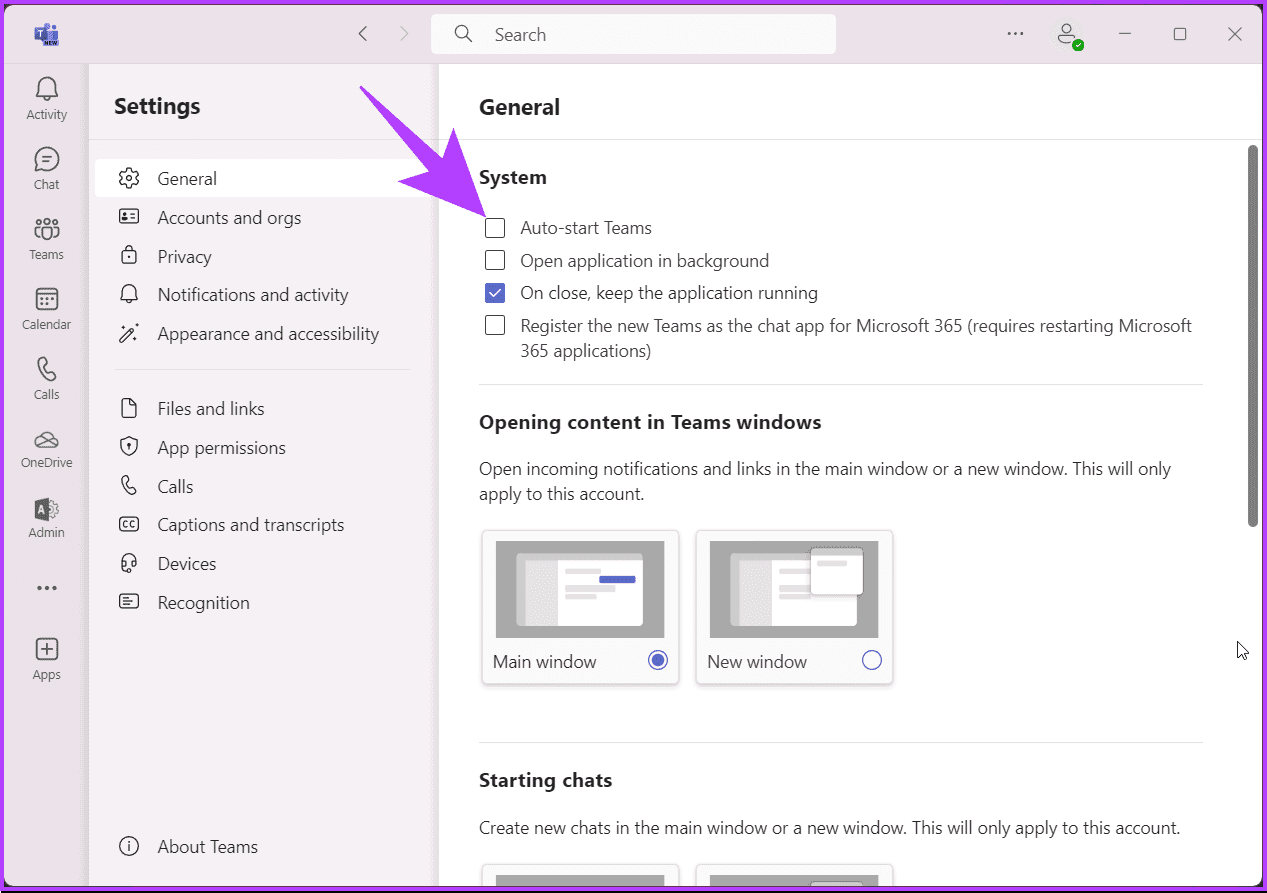
Microsoft Teams should no longer auto-start each time you turn on your PC.
Method 2: Stop Microsoft Teams From Opening on Startup Using Task Manager
You can use the Task Manager to adjust the startup status of Microsoft Teams if you want to stop the app from launching automatically. Here’s how.
Step 1: Press the Windows key on your keyboard, type Task Manager, and click Run as administrator.
Note: Alternatively, press the Windows key + Shift + Esc to open Task Manager.
Step 2: From the side pane, go to Startup Apps > choose Microsoft Teams > click Disable at the top.

You can also use this method to stop any other app on your Windows computer from starting automatically.
Method 3: Disable Microsoft Teams Using Registry Editor
This method is more complex than the one above. We also recommend backing up the Windows Registry before proceeding with the steps below.
Step 1: Press the Windows key on your keyboard, type Registry Editor, and click Run as administrator.
Note: Alternatively, press the Windows + R keys to open the Run dialog box, type regedit.exe, and click OK to open Registry Editor.
Step 2: In the top address bar, enter the following path:
HKEY_CURRENT_USER\Software\Microsoft\Windows\CurrentVersion\Run
Note: You can manually navigate to the section too.

Step 3: Find and right-click on the com.squirrel.Teams.Teams key. Then, click Delete.
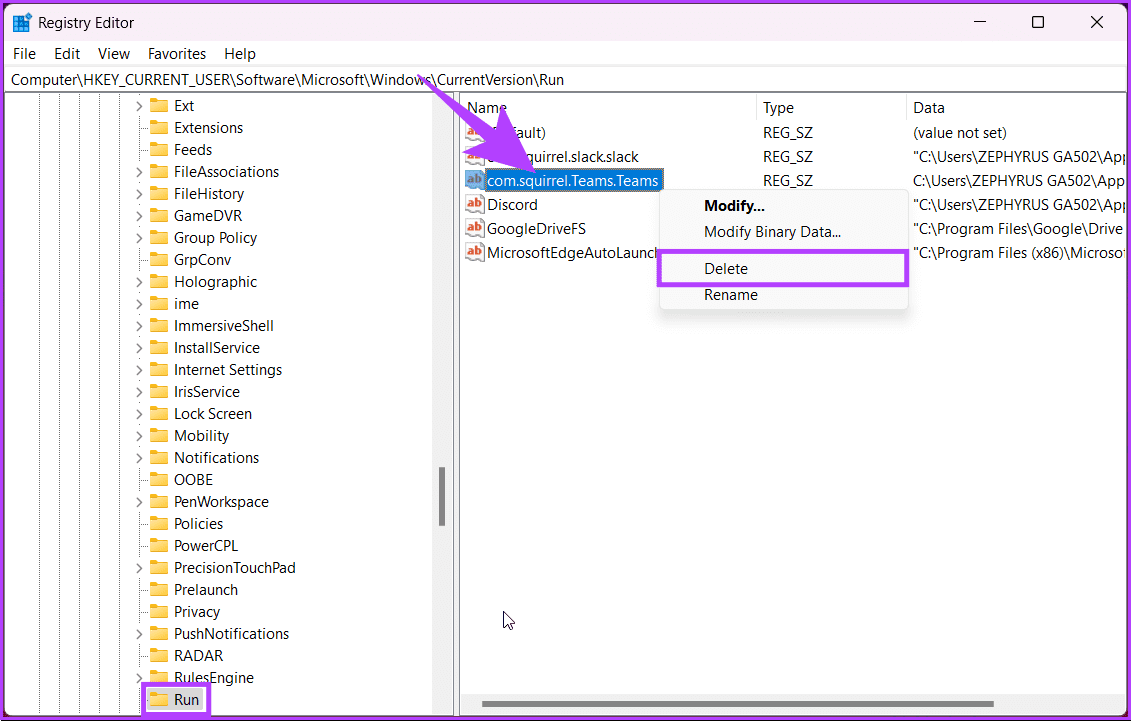
Step 4: In the confirmation window, click Yes.
Finally, reboot the system to implement the changes.
FAQs
No, disabling Teams should not impact other Microsoft apps unless they directly integrate with Teams for functionalities.
Yes, disabling teams can minimize background processes and potentially improve system performance, especially on resource-constrained devices.
Was this helpful?
Last updated on 25 July, 2024
1 Comment
Leave a Reply
Read Next
 4 Ways to Stop Apps From Opening at Startup in Windows 11
Method 1: Remove Startup Programs via Windows Settings Probably the easiest way to disable or manage startup apps in Windows 11 is via the Settings app.
4 Ways to Stop Apps From Opening at Startup in Windows 11
Method 1: Remove Startup Programs via Windows Settings Probably the easiest way to disable or manage startup apps in Windows 11 is via the Settings app.
 How to Stop Facebook Messenger From Opening at Startup on Windows
Method 1: Modify In-App Settings to Prevent Messenger From Opening Automatically Like most apps, Facebook Messenger lets you customize its startup behavior from its in-app settings menu.
How to Stop Facebook Messenger From Opening at Startup on Windows
Method 1: Modify In-App Settings to Prevent Messenger From Opening Automatically Like most apps, Facebook Messenger lets you customize its startup behavior from its in-app settings menu.
 How to Stop Chrome From Opening Old Tabs at Startup
Basic Fixes: Disable third-party tools: Some third-party tools can interfere with Chrome tabs.
How to Stop Chrome From Opening Old Tabs at Startup
Basic Fixes: Disable third-party tools: Some third-party tools can interfere with Chrome tabs.
 4 Ways to Fix OneDrive Not Opening on Startup in Windows 11
Fix 1: Enable OneDrive as a Startup App Windows 11 provides several options for running apps at startup.
4 Ways to Fix OneDrive Not Opening on Startup in Windows 11
Fix 1: Enable OneDrive as a Startup App Windows 11 provides several options for running apps at startup.
 How to Uninstall Microsoft Teams on Windows 10 Correctly
Uninstalling apps from Windows PC is pretty easy and you can use more than one way to remove apps.
How to Uninstall Microsoft Teams on Windows 10 Correctly
Uninstalling apps from Windows PC is pretty easy and you can use more than one way to remove apps.
 4 Ways to Stop Internet Explorer From Opening Edge
Method 1: Rename the BHO Folder Internet Explorer (IE) uses the Browser Helper Object (BHO) policy stored on your Windows PC to redirect you to Microsoft Edge.
4 Ways to Stop Internet Explorer From Opening Edge
Method 1: Rename the BHO Folder Internet Explorer (IE) uses the Browser Helper Object (BHO) policy stored on your Windows PC to redirect you to Microsoft Edge.
 Top 3 Ways to Stop Microsoft Teams From Starting Automatically on Windows 10
Microsoft Teams app is great for team management and communication.
Top 3 Ways to Stop Microsoft Teams From Starting Automatically on Windows 10
Microsoft Teams app is great for team management and communication.
 3 Ways to Fix Microsoft Teams Not Loading or Opening
Basic Fixes Check for downtime: Servers can be down, as many people worldwide rely on Teams.
3 Ways to Fix Microsoft Teams Not Loading or Opening
Basic Fixes Check for downtime: Servers can be down, as many people worldwide rely on Teams.
The article above may contain affiliate links which help support Guiding Tech. The content remains unbiased and authentic and will never affect our editorial integrity.

Your blog helped me a lot to improve the performance of my system