How to Delete Telegram Contacts on Android
1. Deleting a Single Telegram Contact
Step 1: Open the Telegram app on your Android.
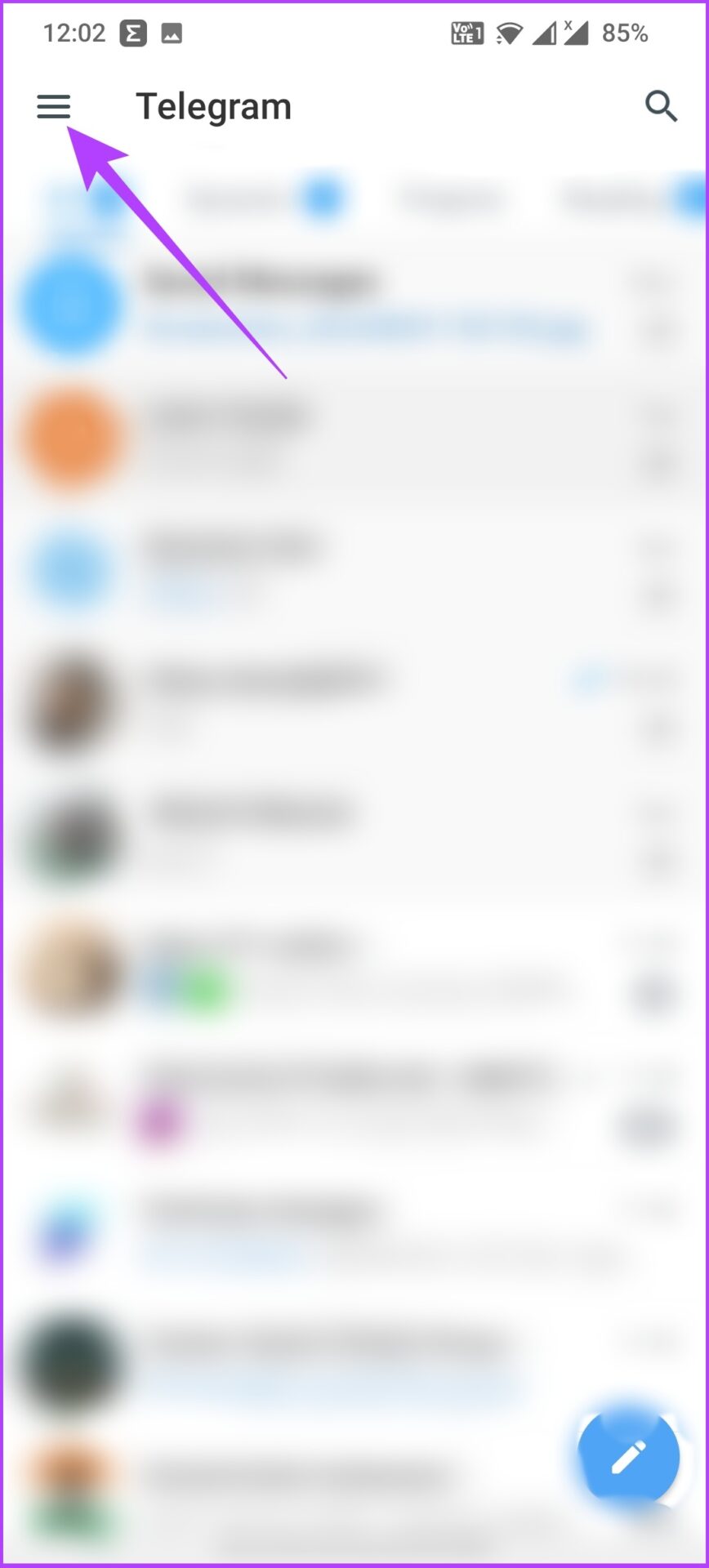
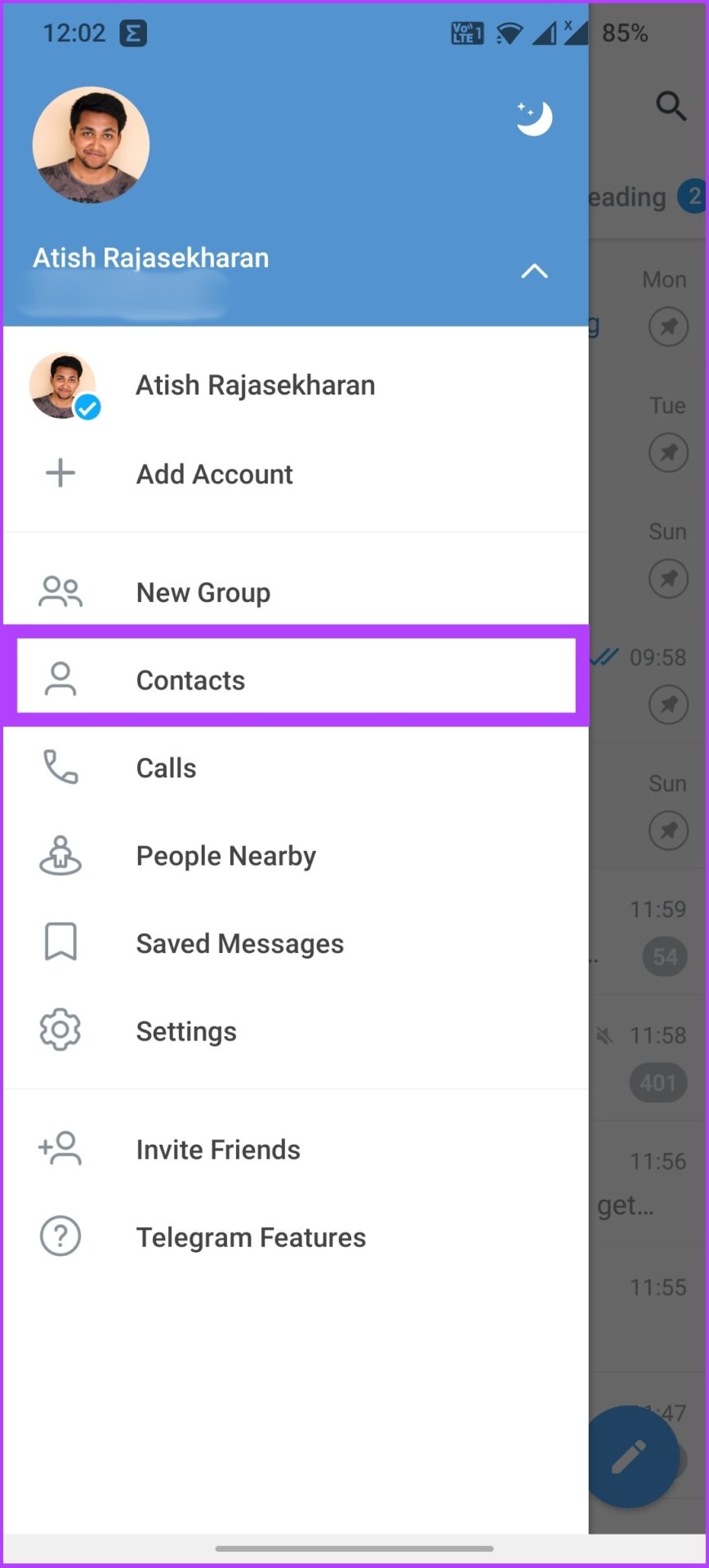
Step 2: Tap on the hamburger menu at the top left and select Contacts.
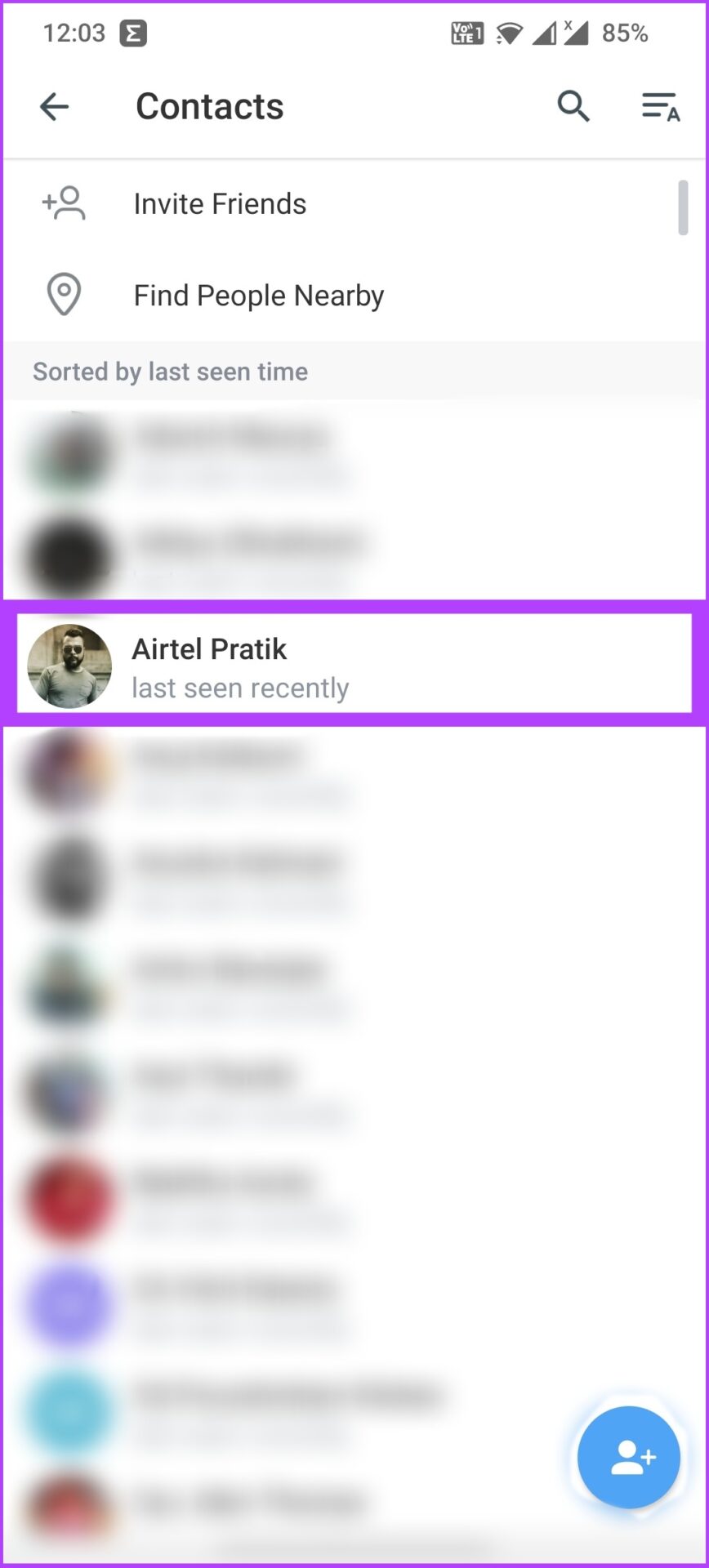
Step 3: Now, search and tap on the account you want to delete. Then, click on the contact’s profile.
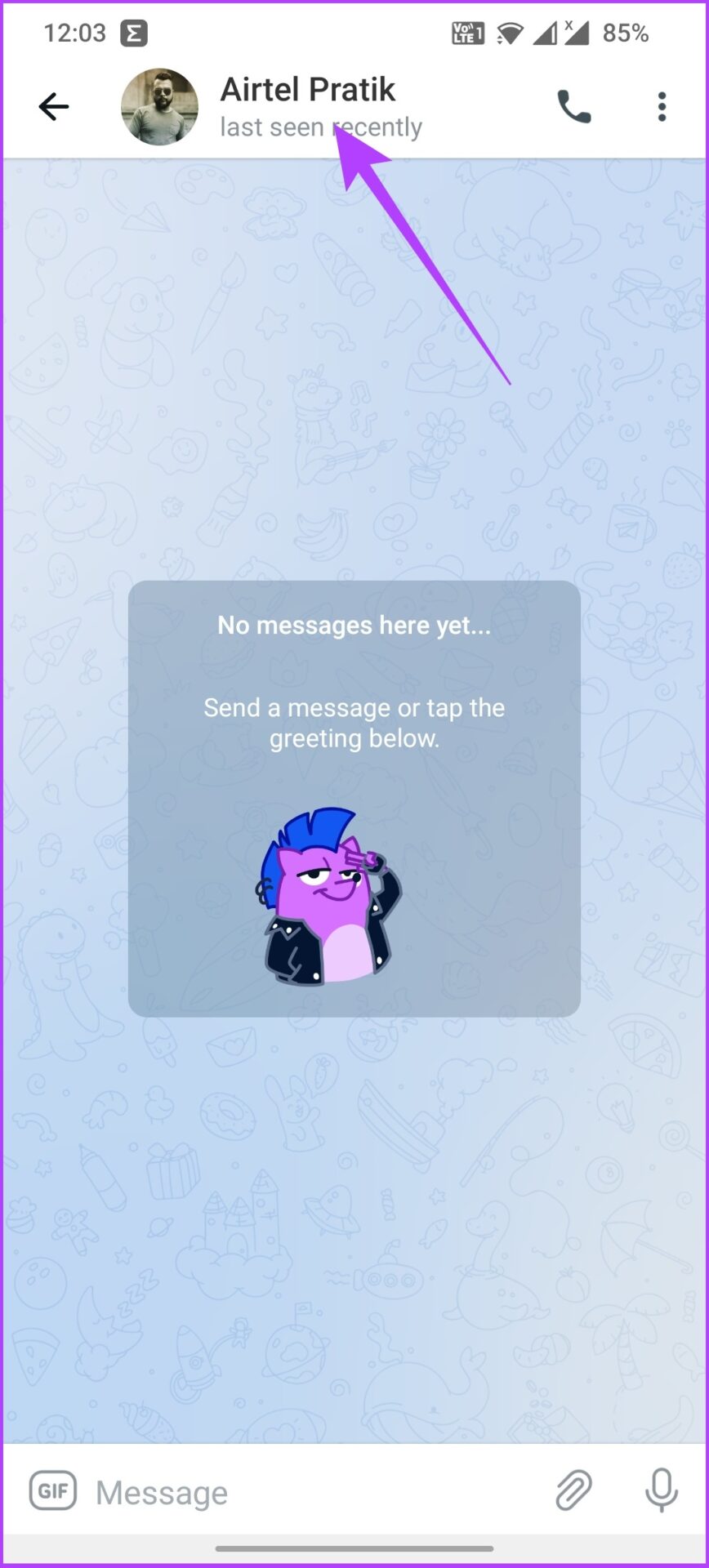
Step 4: Now, tap on the three dots at the top right corner and select Delete Contact.
We recommend deleting the chat before deleting the contact.

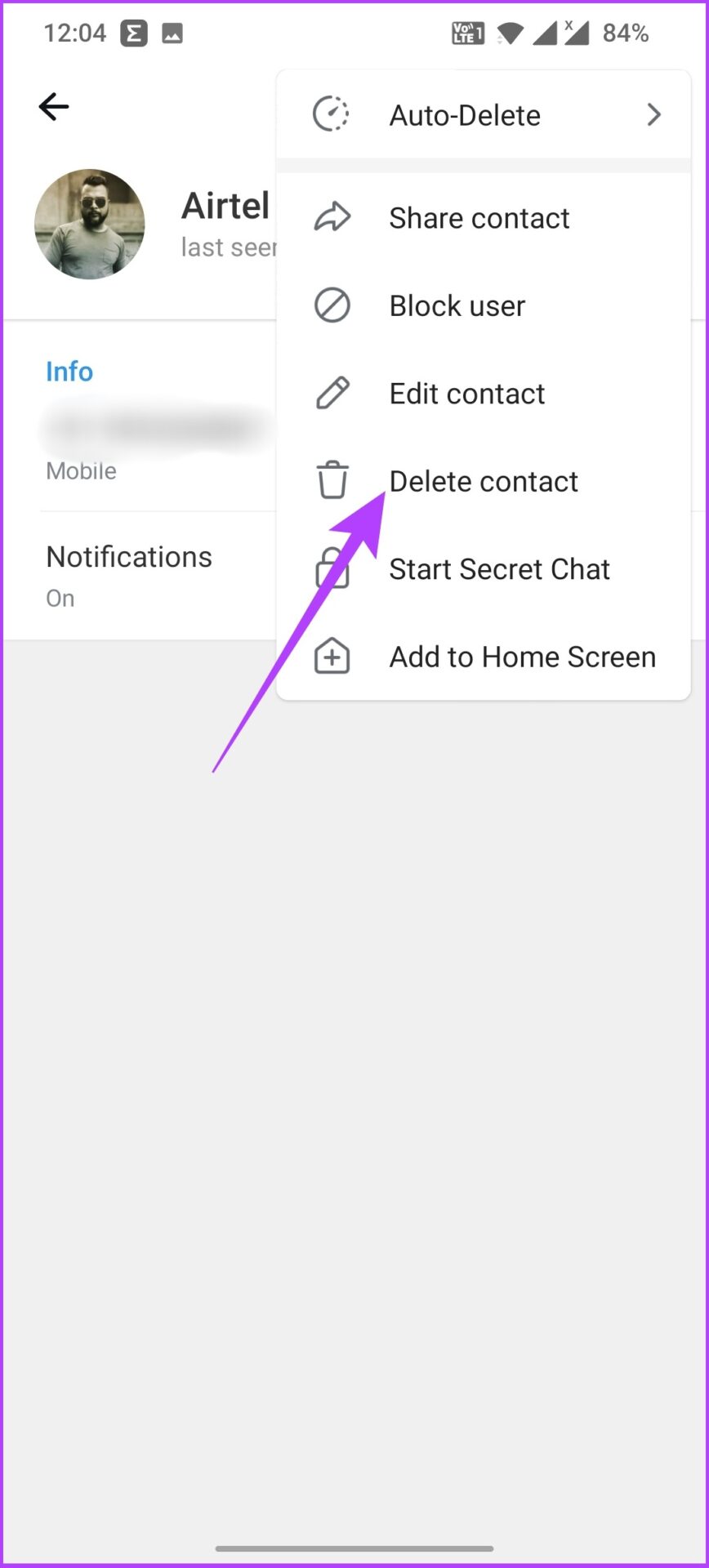
Step 5: Select Delete on the prompt shown.
That’s it! The contact will be removed from the Telegram contact list. Want to remove all synced contacts at once? Read the next section.
How to Delete All Telegram Contacts
Step 1: Open the Telegram app and tap on the hamburger menu in the upper left corner.
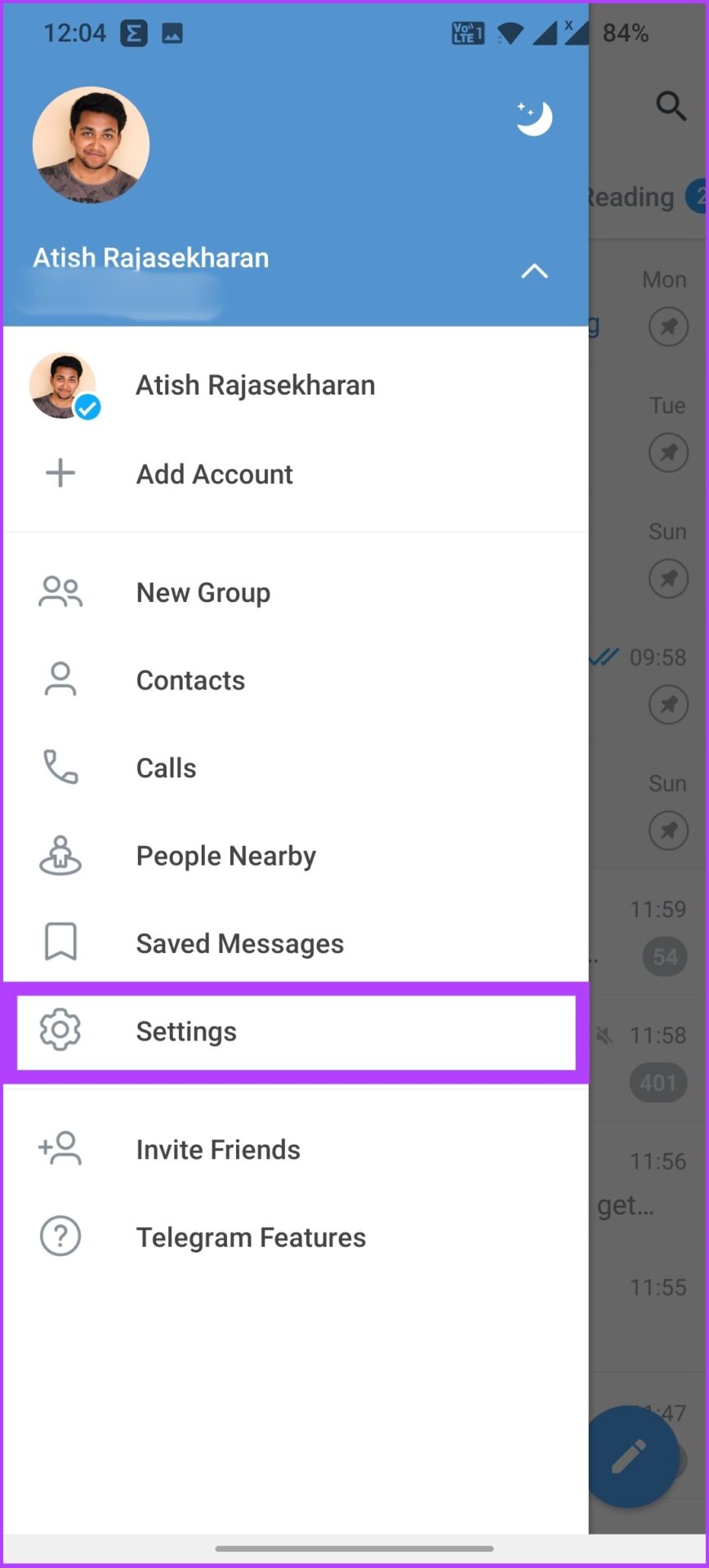
Step 2: Go to Settings and tap Privacy and Security.

Step 3: Under Contacts, tap Delete Synced Contacts and select Delete in the prompt.


There you go. All the synced Telegram contacts will be removed using your Android device. However, these contacts will still be in your Android contact list, meaning they can sync back if you haven’t turned off syncing with your phone’s contact list. So, here’s how to do that.
Disable Contact Syncing on Telegram
Step 1: Open the Telegram app and tap the hamburger menu.
Step 2: Go to Settings and tap Privacy and Security.
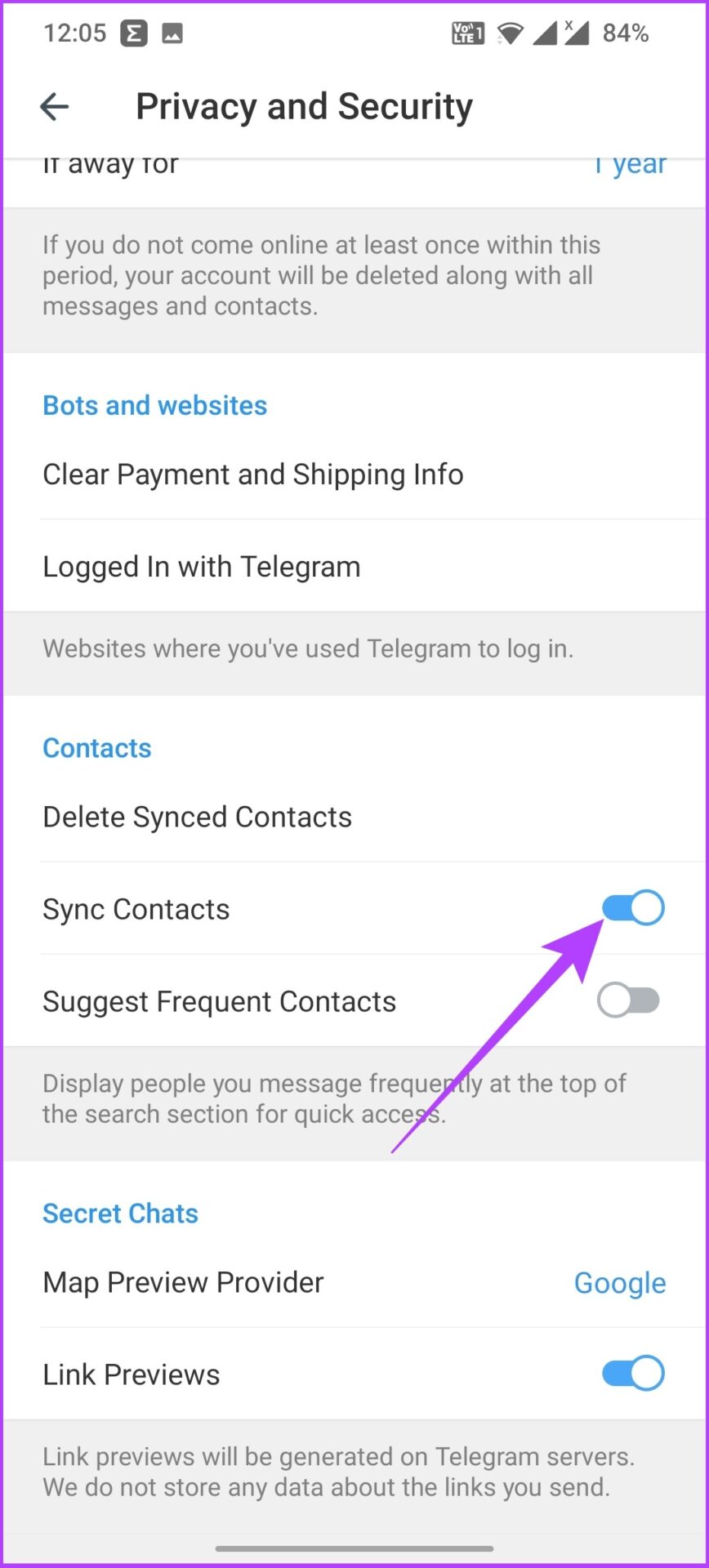
Step 3: Under Contacts, toggle off Sync Contact.

The above steps should help you out. Well, if you’re simply annoyed by the Telegram contact joined notifications, check our guide on how to turn off contact joined notifications on Telegram rather than deleting the contact.
How to Delete Telegram Contacts on iOS
Deleting a Single Contact From Telegram
Step 1: Open the Telegram app and go to the Contacts tab.
Step 2: Tap the search bar to find the contact you want to delete.

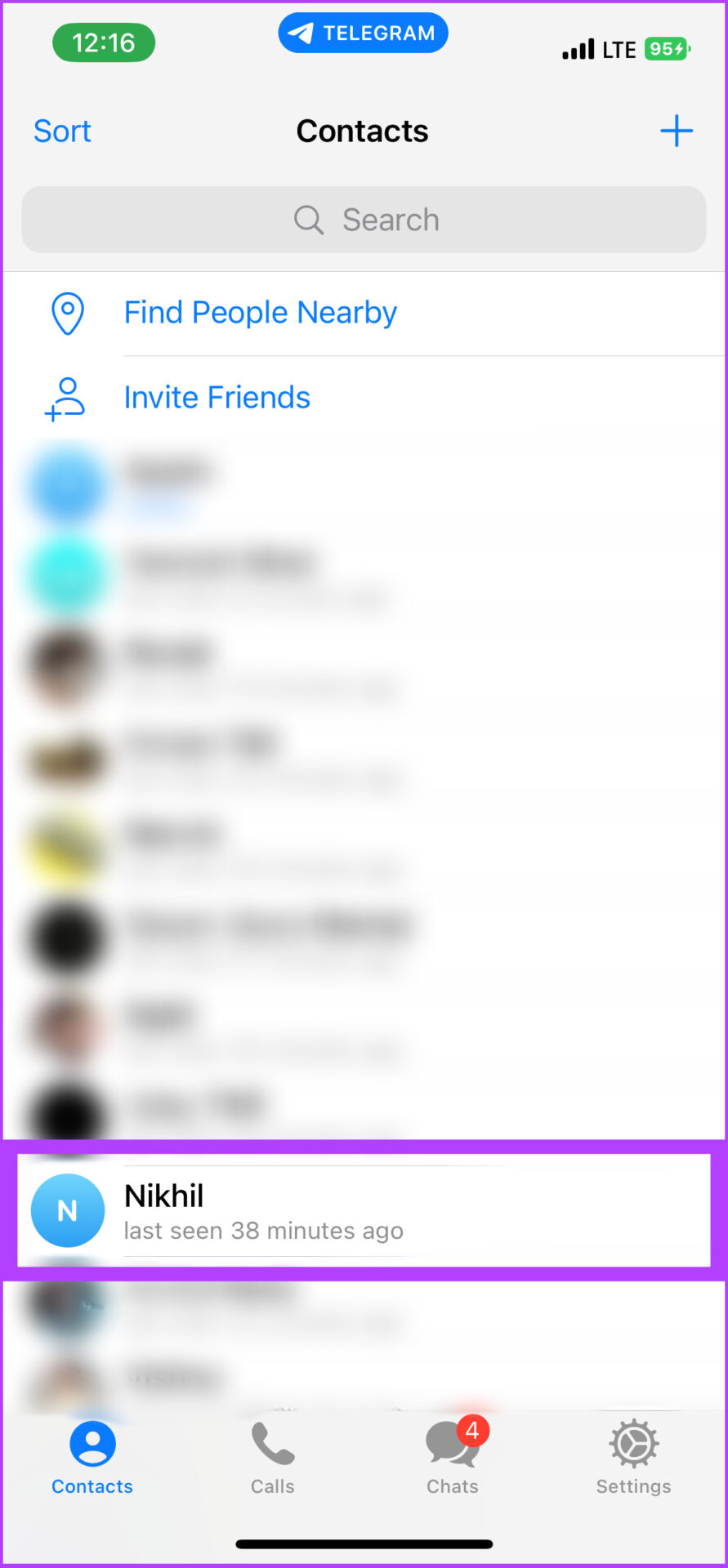
Step 3: Go to their details page and tap on their user avatar in the upper right corner.
Step 4: Now, go to Edit, select Delete Contact, and tap on Done.

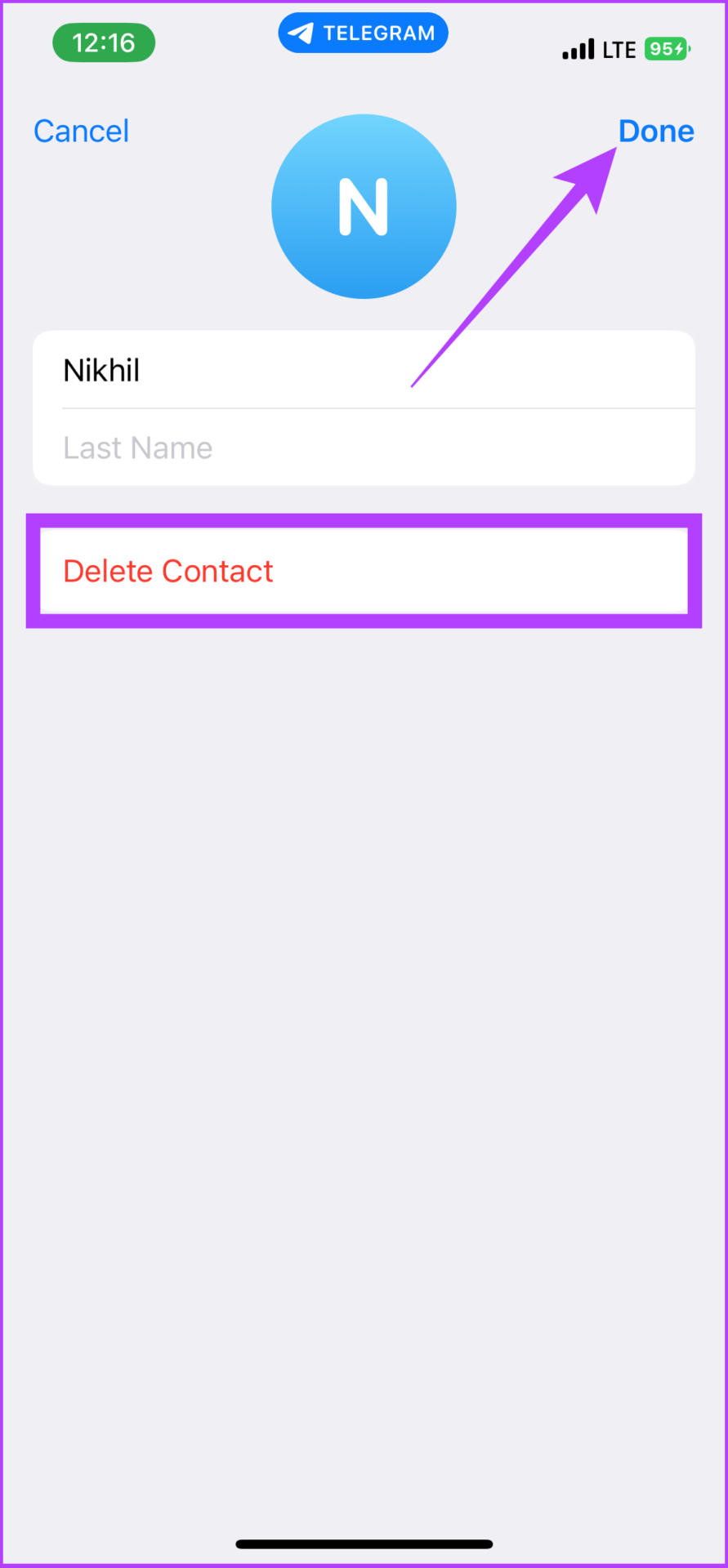
Step 5: Finally, select Delete Contact to confirm.
That’s all. The contact you delete will be removed from Telegram’s contact book. To remove all contacts simultaneously, check the next section.
Deleting Multiple Telegram Contacts at Once
Step 1: Open the Telegram app and go to the Settings tab.
Step 2: Tap Privacy and Security and go to Data Settings.
Step 3: Tap Delete Synced Contacts.
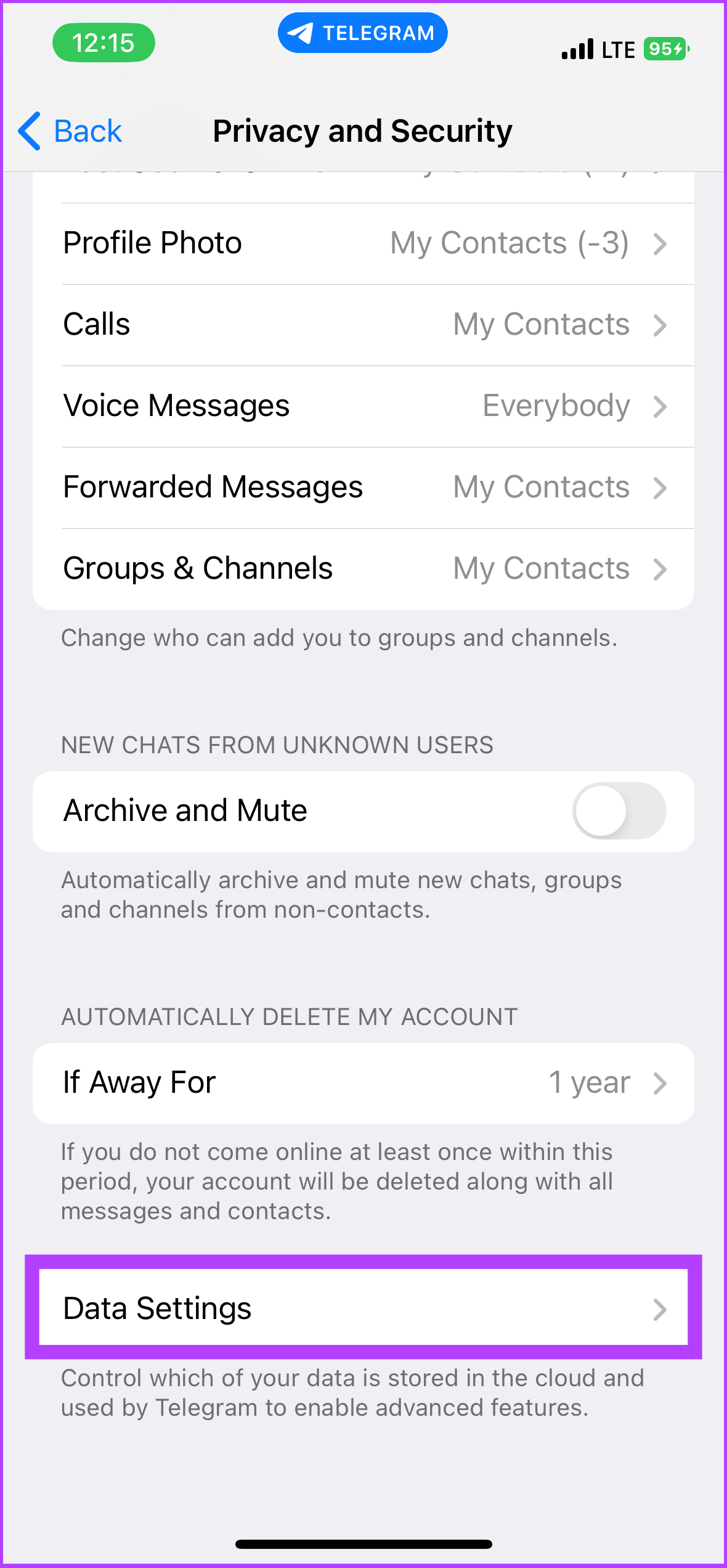

There you are. All your Telegram contacts will be deleted at once. If you want to log out of specific devices, check out our guide on how to log out of devices from your Telegram account.
Further, you can directly disable contact syncing on Telegram using an iPhone to avoid contact sync or the notification altogether.
How to Unlink Telegram Contacts From iPhone
Note: When you delete synced contacts, you will lose access to synced Telegram contacts only and not your phone contacts.
Step 1: Open the Telegram app and go to the Settings tab.
Step 2: Tap Privacy and Security and go to Data Settings.
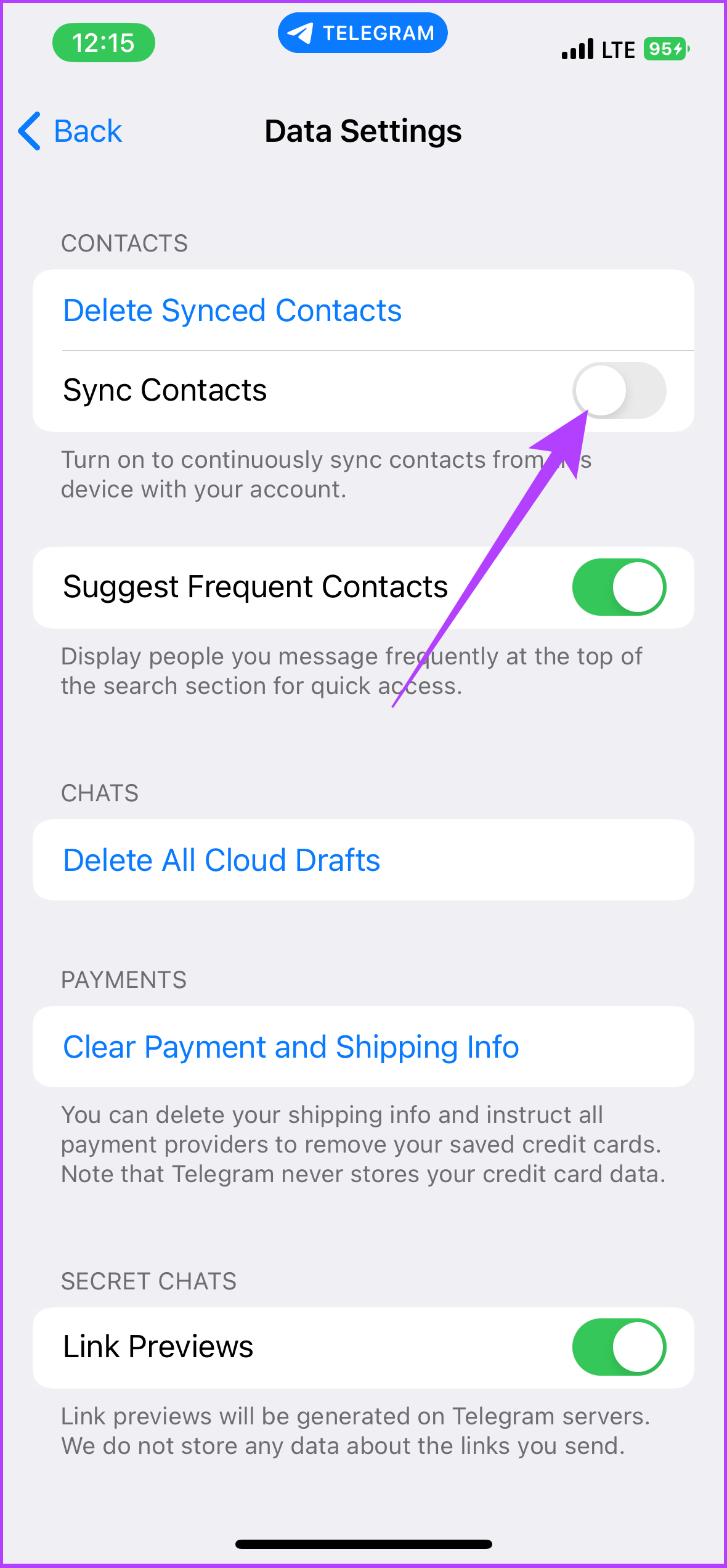
Step 3: Under Contacts, toggle off Sync Contacts.
How to Delete Contacts From Telegram on a PC and Mac
Deleting a Single Telegram Contact on a PC
Step 1: Open the Telegram Desktop app and click on the hamburger menu in the upper left corner.
Step 2: Go to Contacts.
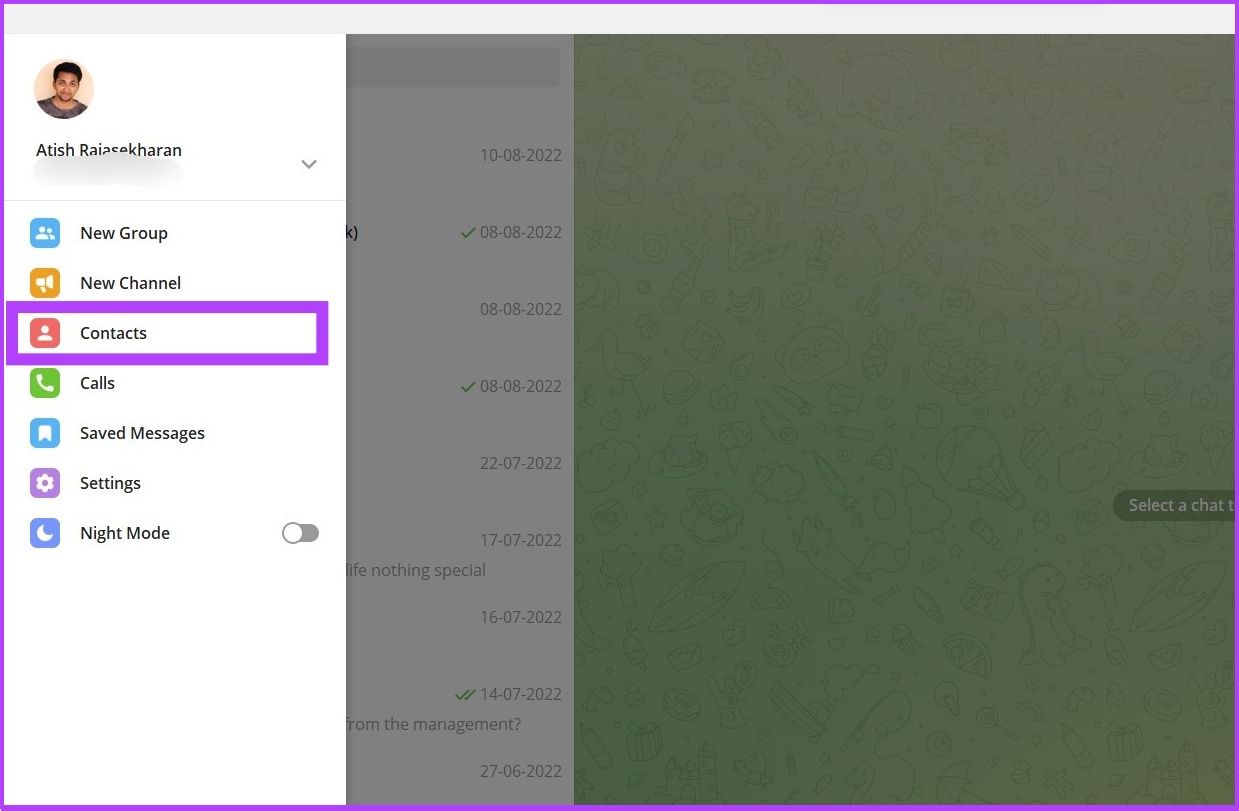
Step 3: Now find the contact you want to remove from Telegram and tap on the profile.
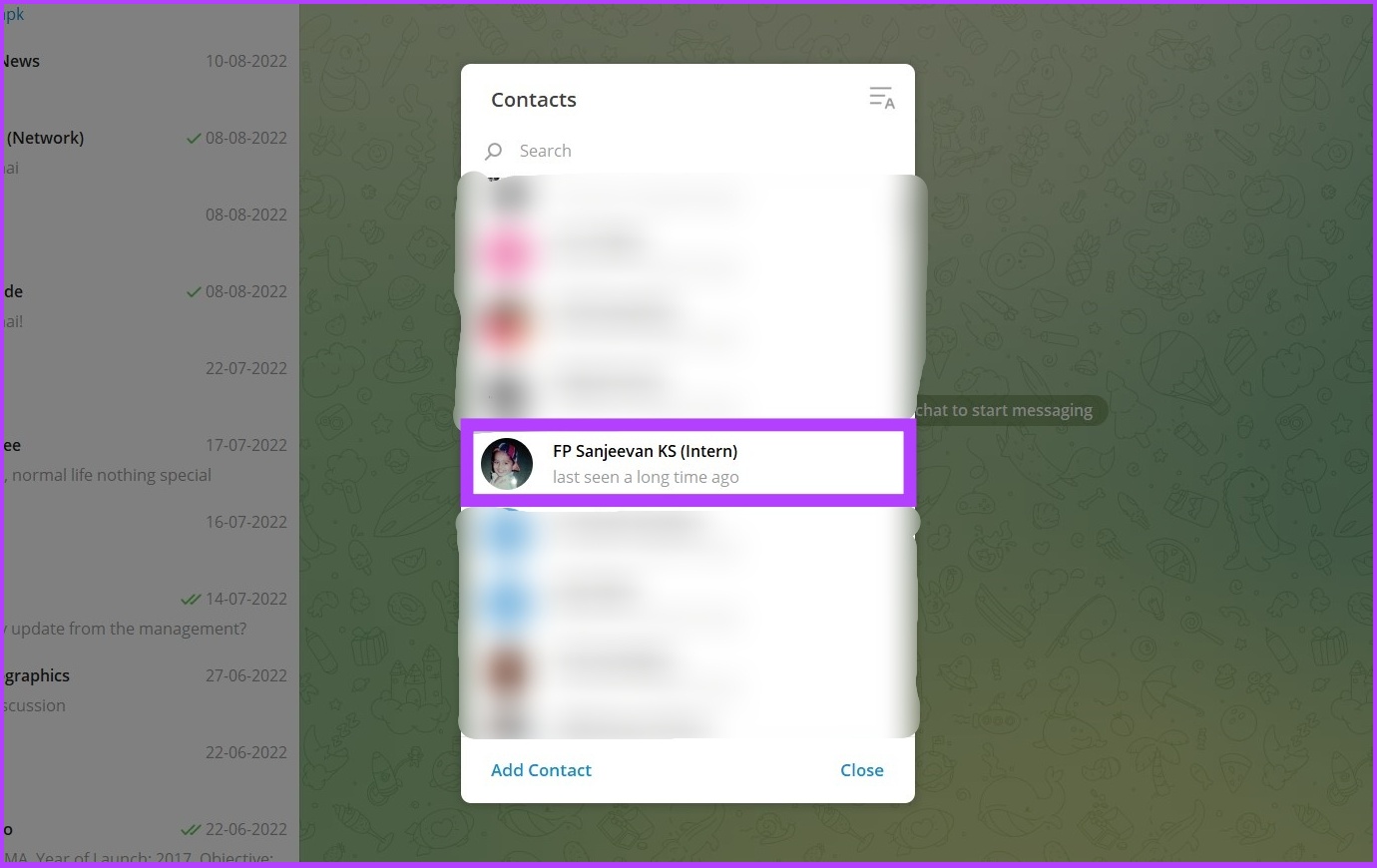
Step 4: Go to Contact’s Profile and click Delete Contact.

Step 5: Select Delete in the prompt to confirm.
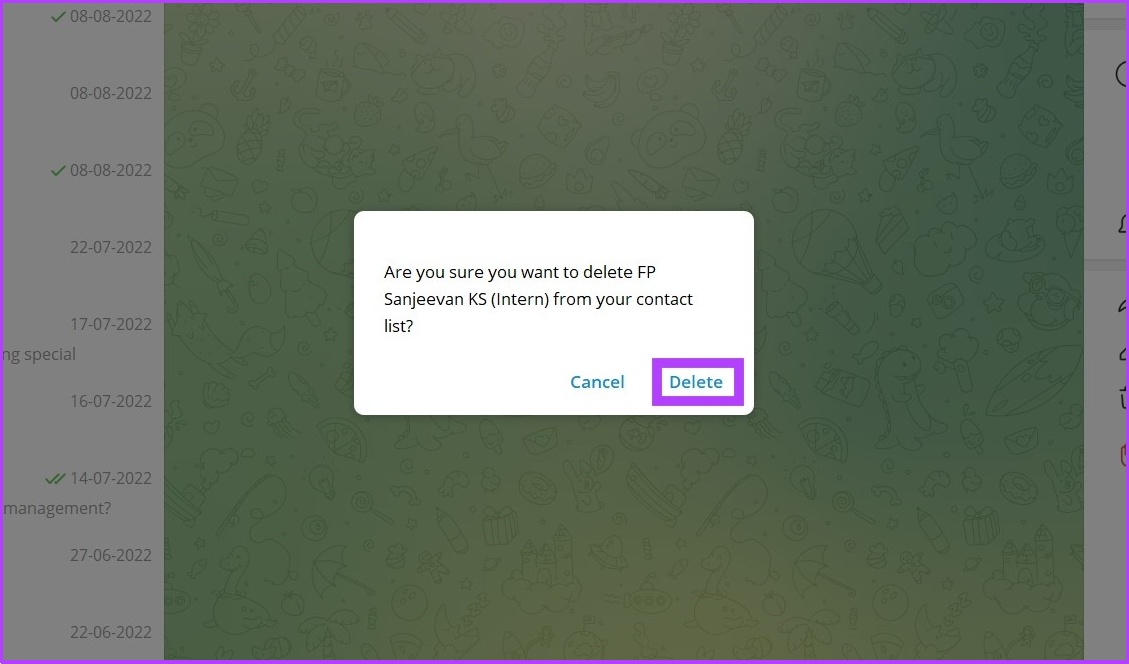
That’s all there is to it. You can use Telegram desktop and Telegram web to do this. Mind you, once you delete a contact from the app, the contact’s phone number and other details will not be removed from your phone’s contact list.
To remove a contact from the phone’s contact list, you must follow the traditional way of deleting contacts from the phone.
Deleting Multiple Contacts via PC or Mac
You can’t delete multiple contacts on the Telegram desktop. So, we will be using Telegram Web to execute this. Let’s proceed.
Step 1: Open Telegram Web using the below link.
Step 2: Sign in to your account and click on the hamburger menu in the upper left corner.
Step 3: Now, click on Switch to the older version.

Step 4: Then click on Contacts.

Step 5: Choose Edit and select the contacts you want to remove from Telegram.

Step 8: Now, click Delete and confirm it.
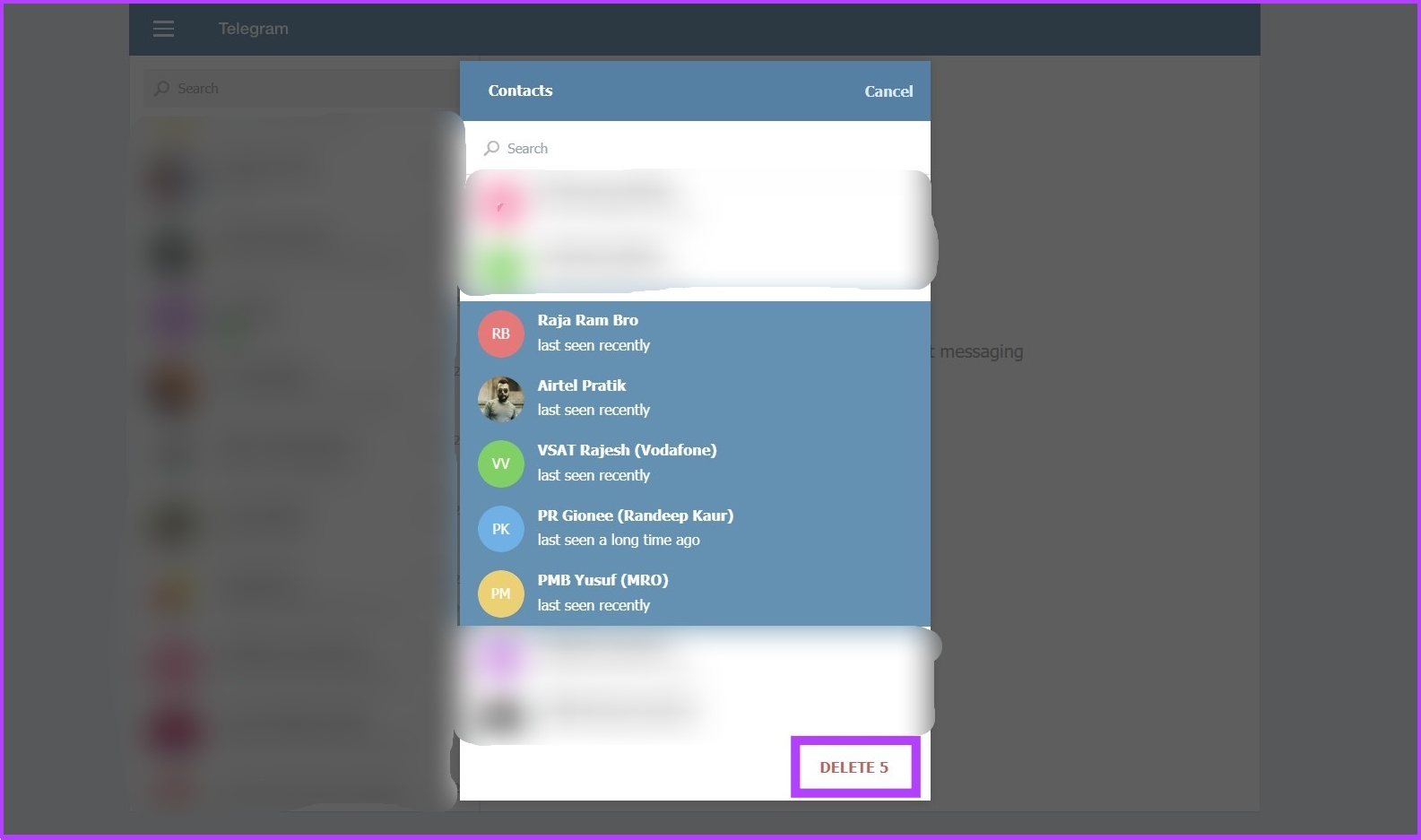
There you go. You have removed unwanted contacts using Telegram Web.
There are many ways to delete your Telegram contacts, one at a time or all at once. Besides, it is better to disable the option to sync Telegram contacts to your phone to avoid deleting the same contact repeatedly.
Was this helpful?
Last updated on 18 August, 2024
Read Next
 iCloud Contacts vs Google Contacts: Where Should You Save Contacts on Your iPhone
When you are using an Android phone, one prefers using Google Contacts to store and manage contacts.
iCloud Contacts vs Google Contacts: Where Should You Save Contacts on Your iPhone
When you are using an Android phone, one prefers using Google Contacts to store and manage contacts.
 Google Contacts vs Samsung Contacts: Which App Is Best for Saving and Managing Contacts
Apart from phones running Stock Android, all other Android phones have their own set of basic apps.
Google Contacts vs Samsung Contacts: Which App Is Best for Saving and Managing Contacts
Apart from phones running Stock Android, all other Android phones have their own set of basic apps.
 3 Fixes for Telegram Not Syncing Contacts
Basic Fixes Switch to Wi-Fi: Contact syncing on Telegram requires faster internet speeds.
3 Fixes for Telegram Not Syncing Contacts
Basic Fixes Switch to Wi-Fi: Contact syncing on Telegram requires faster internet speeds.
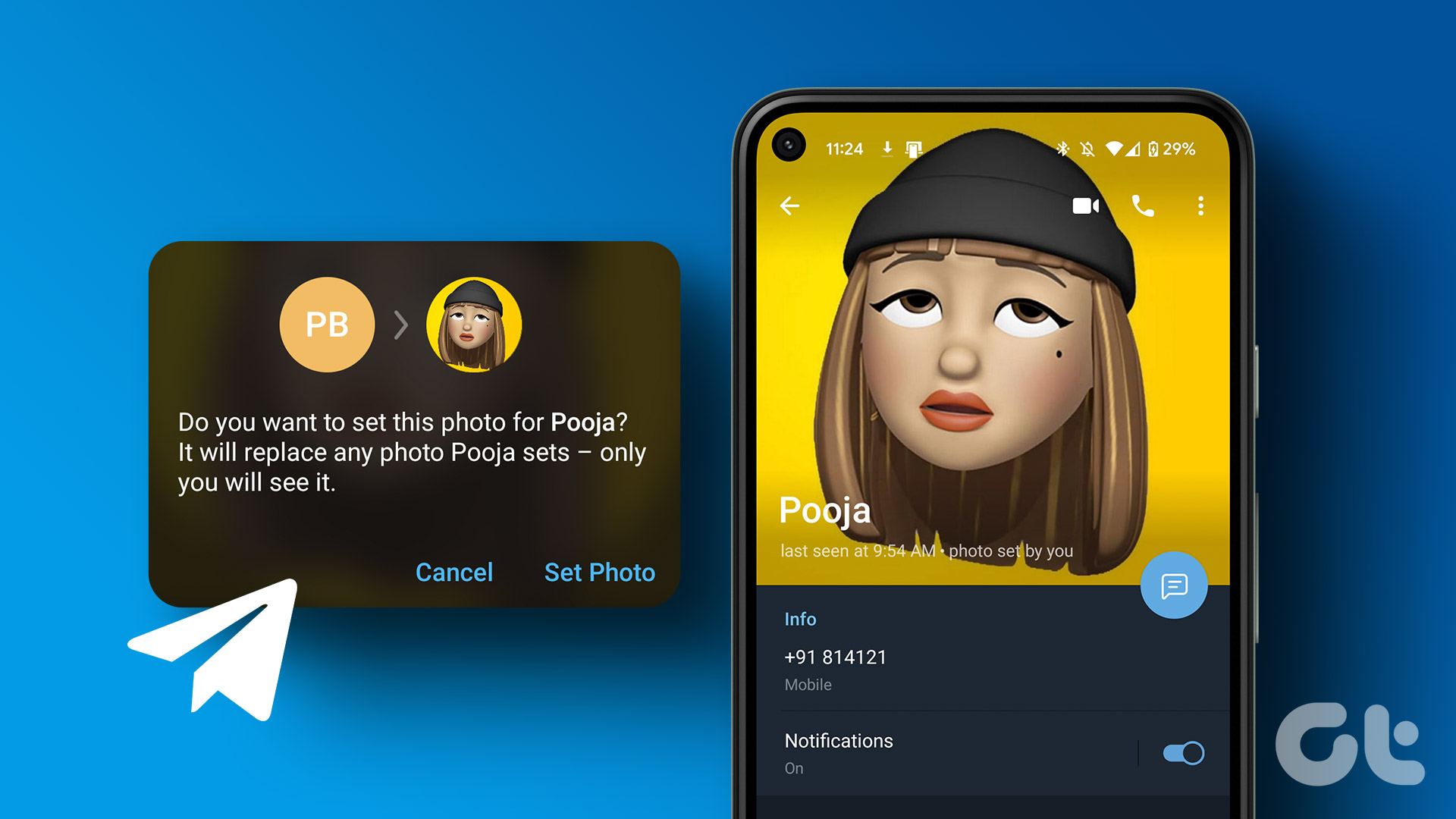 How to Set Custom Profile Picture for Contacts on Telegram
How to Set Custom Profile Picture on Telegram on Mobile Let's start by showing you the steps for Android and iPhone.
How to Set Custom Profile Picture for Contacts on Telegram
How to Set Custom Profile Picture on Telegram on Mobile Let's start by showing you the steps for Android and iPhone.
 How to Suggest Profile Picture to Your Telegram Contacts
How to Suggest a Picture Photo on Telegram Mobile App You can suggest a profile photo to your Telegram contacts on the Telegram mobile app.
How to Suggest Profile Picture to Your Telegram Contacts
How to Suggest a Picture Photo on Telegram Mobile App You can suggest a profile photo to your Telegram contacts on the Telegram mobile app.
 How to Use Google Contacts Instead of Samsung Contacts
Samsung Galaxy phones carry a lot of pre-loaded apps, and some of them you'll rarely use.
How to Use Google Contacts Instead of Samsung Contacts
Samsung Galaxy phones carry a lot of pre-loaded apps, and some of them you'll rarely use.
 How to Add, Edit or Delete Contacts in Gmail
In today's interconnected world, managing your contacts efficiently is key to staying in touch with friends, colleagues, and acquaintances.
How to Add, Edit or Delete Contacts in Gmail
In today's interconnected world, managing your contacts efficiently is key to staying in touch with friends, colleagues, and acquaintances.
 2 Ways to Delete Your Telegram Account
How to Export Data Before Deleting the Telegram Account Before proceeding with this step, you must know that you can only do this from Telegram's desktop app.
2 Ways to Delete Your Telegram Account
How to Export Data Before Deleting the Telegram Account Before proceeding with this step, you must know that you can only do this from Telegram's desktop app.
The article above may contain affiliate links which help support Guiding Tech. The content remains unbiased and authentic and will never affect our editorial integrity.