Delete Entire Facebook Watch History on Mobile
For the most part, the majority of folks use their phone to browse through Facebook. So, let us first show you how to delete your Facebook Watch history on iPhone and Android. Ensure that you are using the latest version of the app to avoid any hiccups.
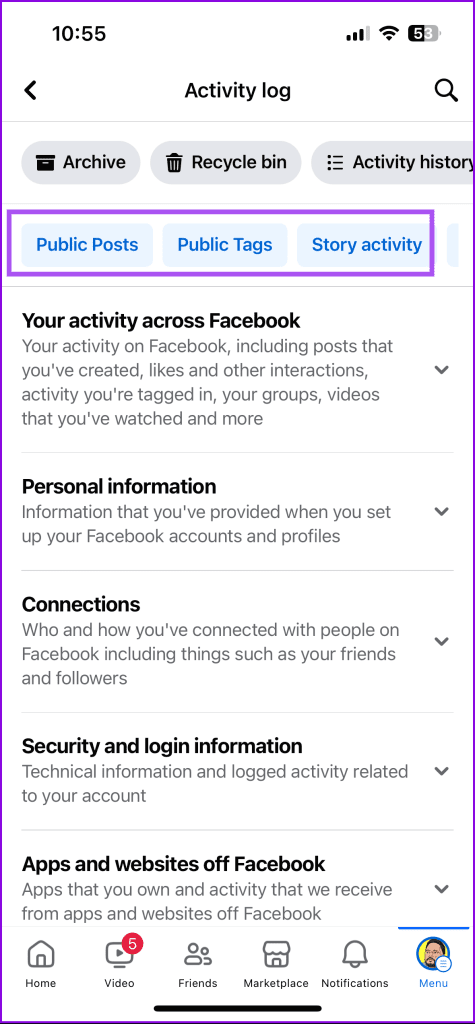
Step 1: Open the Facebook app > Settings > Activity log.
Step 2: Swipe right to look for the Videos watched filter. Tapping on it shows your Facebook Watch history.
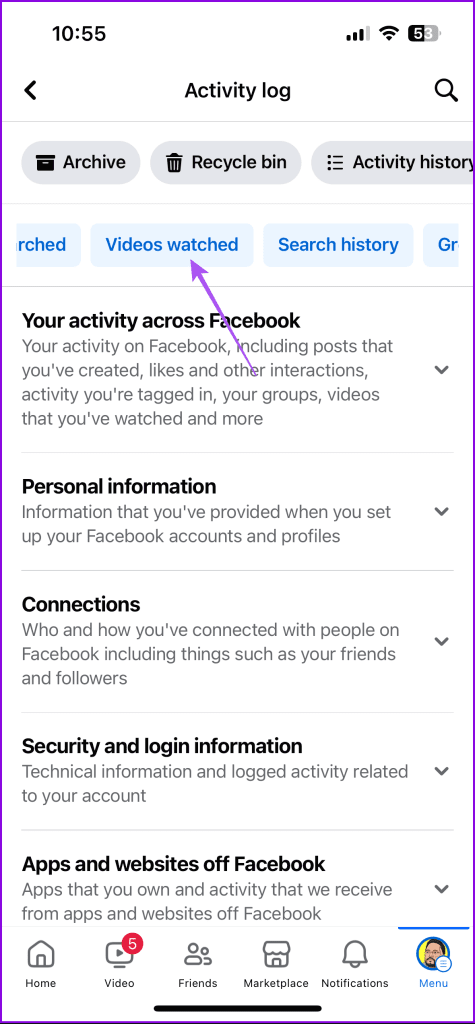
Step 3: Tap on Clear Video Watch History > select Clear to confirm.
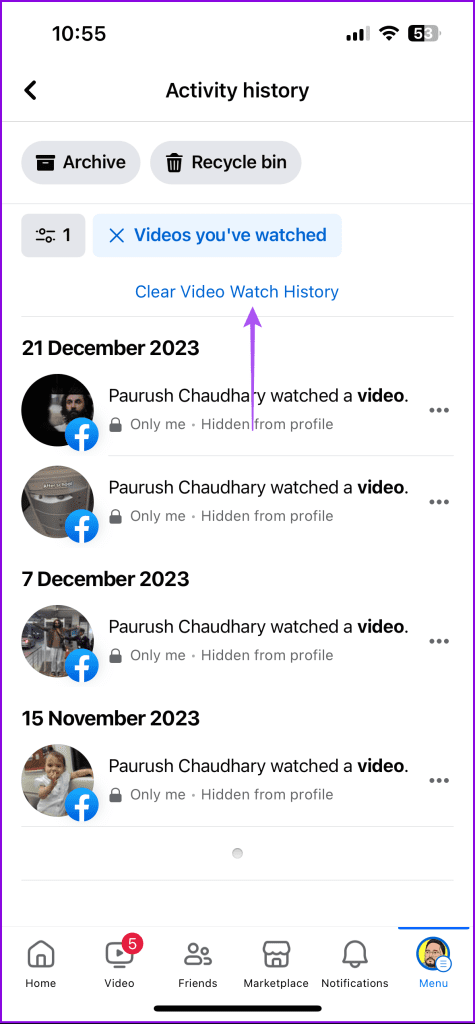

Once done, your entire Facebook Watch history will be cleared from your account.
Delete Specific Videos From Facebook Watch History on Mobile
You can also choose to remove a few selected videos from your Facebook Watch history. Here’s how.
Step 1: Open the Facebook app > Settings > Activity log > Videos watched.
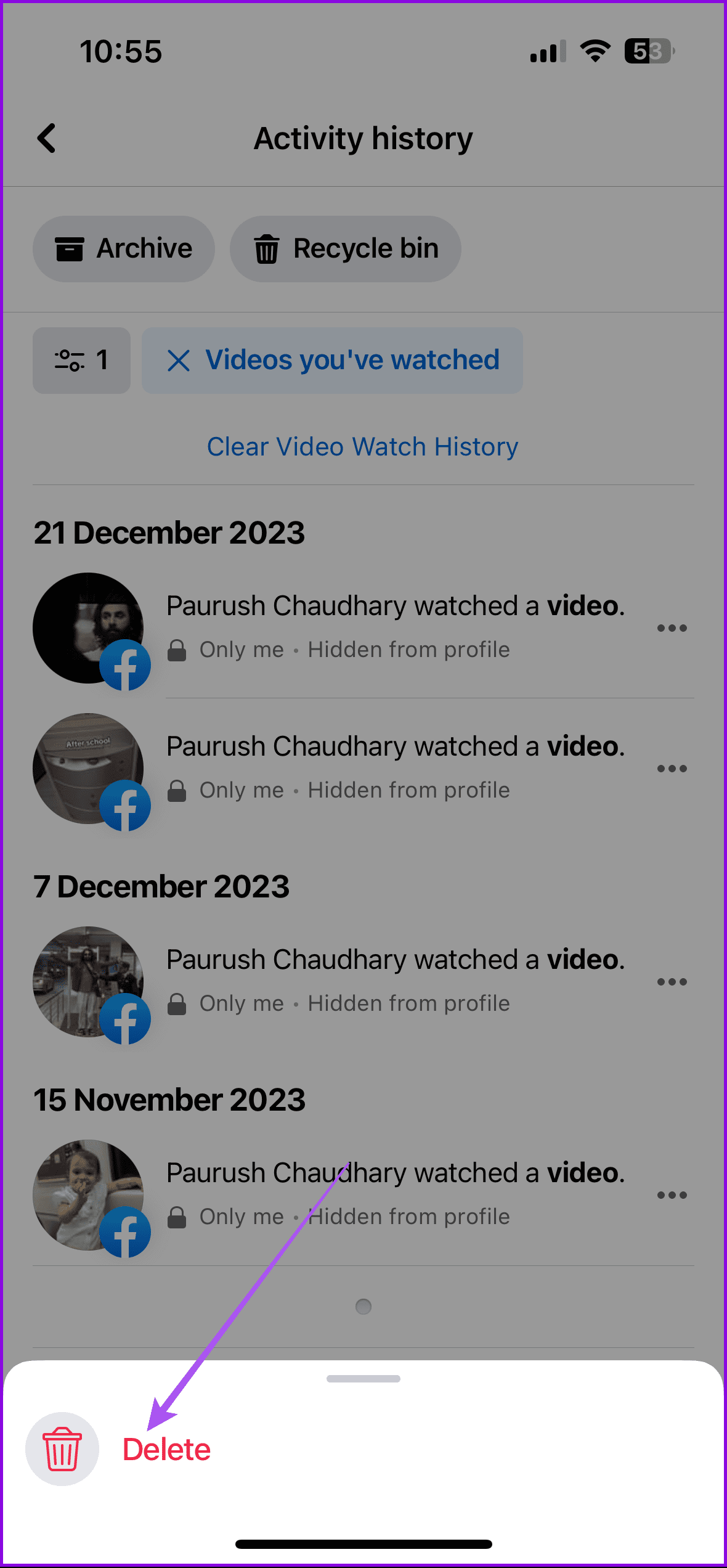
Step 2: Tap the three dots next to the video that you wish to remove. Then, tap on Delete at the bottom to confirm.

Delete Facebook Watch History For Selected Days
You can also choose to clear your Facebook Watch history for specific dates of the month and year. Here’s how.
Step 1: Open Facebook > Settings > Activity log > Videos watched.
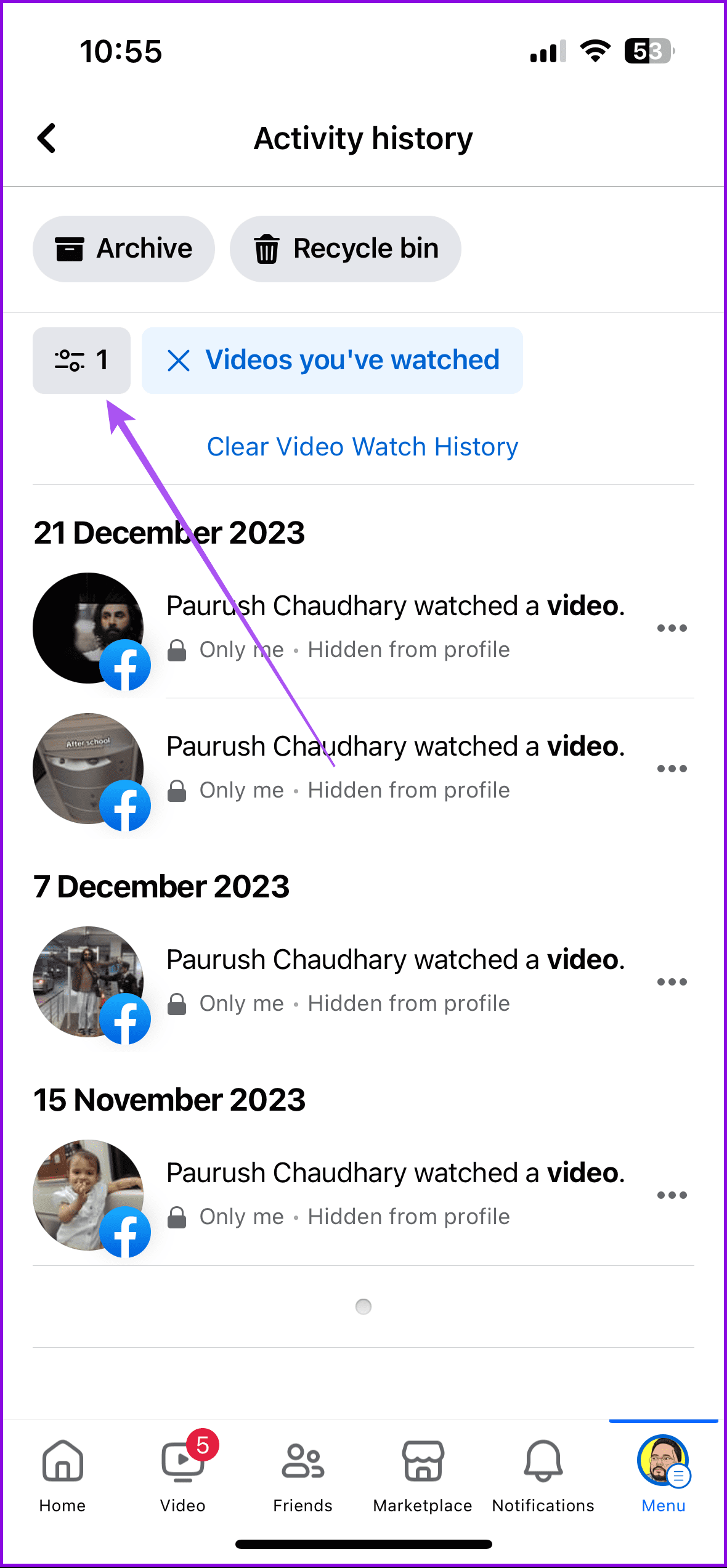
Step 2: Tap the Filters icon > select Date at the bottom.
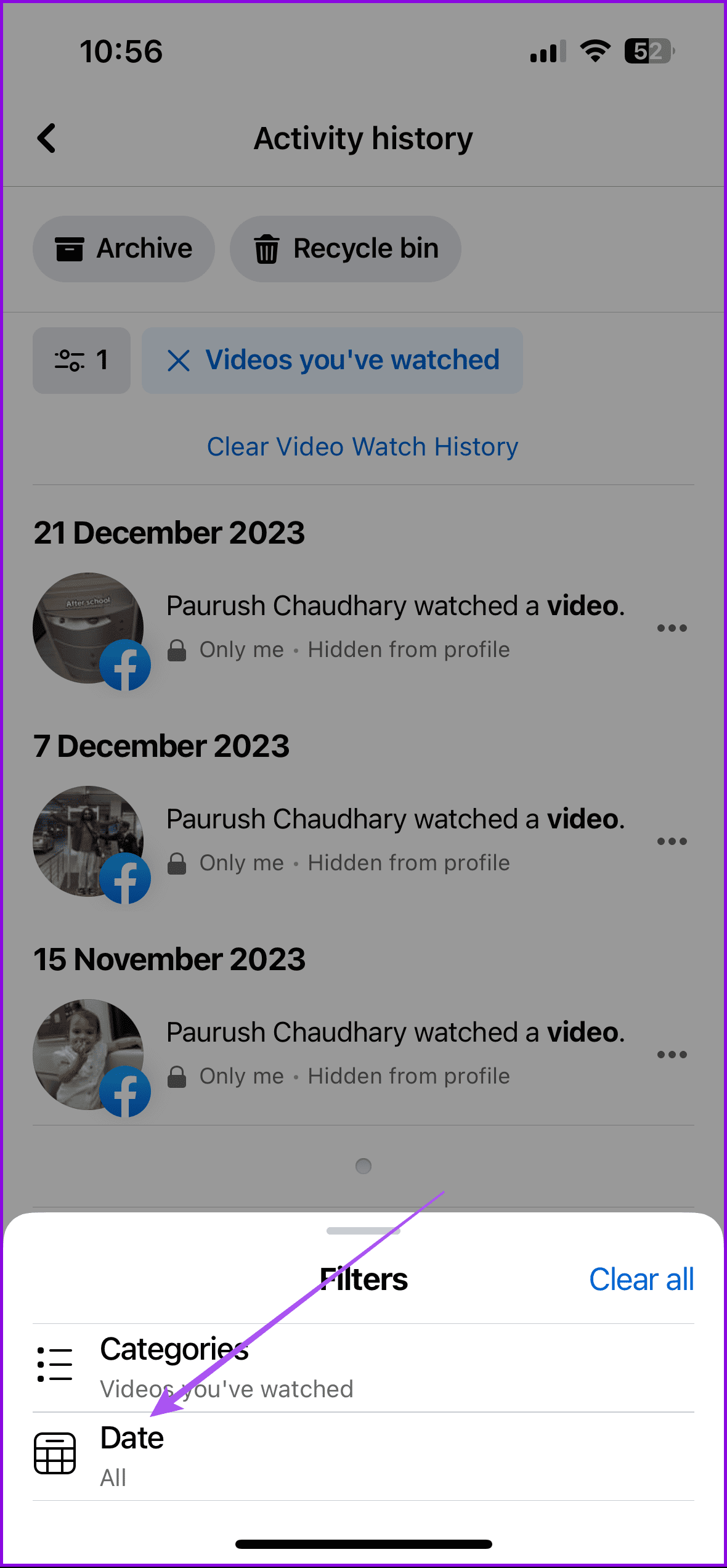
Step 3: Specify the timeframe for which you want to delete your Facebook Watch history.
Then, repeat the same steps as mentioned above to clear the watch history.
Tip: Refer to our post if your iPhone is not ringing when Facebook app is open.
Delete Entire Facebook Watch History on Desktop
Let us now focus on the steps to delete your entire Facebook Watch history using your browser on your desktop.
Step 1: Log in to your Facebook account > Profile icon > Settings & Privacy > Activity log.

Step 2: Click on Videos You Have Watched from the menu on the right.
Step 3: Lastly, select Clear Video Watch History on the top-right side.

To delete specific videos, click the three dots next to your video name and then click on Delete.

Delete Facebook Watch History For Selected Days on Desktop
Step 1: Open your Facebook account > Profile icon > Settings & privacy > Activity log > Videos you’ve watched.
Step 2: Click the Calendar icon under Filters on the left side.

Step 3: Select the duration and then click on Save Changes.

Delete Live Video Watch History on Facebook
You can also remove any livestream videos you have watched on the platform. Here’s how to do it using your desktop.
Step 1: Open Settings & privacy in your Facebook profile > Activity log.
Step 2: Type Live Videos in the search bar on the left side. The, click on Live videos you’ve watched.

Repeat the same steps for removing videos as mentioned above.
Tip: You can also refer to our post if Facebook is not playing videos while you scroll the platform.
Was this helpful?
Last updated on 29 August, 2024
Read Next
 How to Delete WhatsApp Group Permanently (Desktop and Mobile)
How to Delete WhatsApp Group Permanently as Admin As an admin, you are authorized to delete the group from its existence.
How to Delete WhatsApp Group Permanently (Desktop and Mobile)
How to Delete WhatsApp Group Permanently as Admin As an admin, you are authorized to delete the group from its existence.
 How to Delete a Google Passkey From a Desktop or Mobile
Note: You don't have to delete your Passkey from both desktop and mobile.
How to Delete a Google Passkey From a Desktop or Mobile
Note: You don't have to delete your Passkey from both desktop and mobile.
 How to Delete YouTube Playlist on Desktop or Mobile
Are you thinking of decluttering your YouTube playlists but wondering how to proceed with it and its potential consequences?
How to Delete YouTube Playlist on Desktop or Mobile
Are you thinking of decluttering your YouTube playlists but wondering how to proceed with it and its potential consequences?
 How to Add or Delete a Netflix Profile on Mobile and Desktop
With the changes in Netflix's password-sharing policy, many people have been changing or canceling their plan altogether.
How to Add or Delete a Netflix Profile on Mobile and Desktop
With the changes in Netflix's password-sharing policy, many people have been changing or canceling their plan altogether.
 How to Delete a Word Document on Desktop, Web, and Mobile
Deleting a Word document may seem straightforward, but the process can vary across platforms.
How to Delete a Word Document on Desktop, Web, and Mobile
Deleting a Word document may seem straightforward, but the process can vary across platforms.
 How to Leave a Facebook Group on Mobile or Desktop
Facebook is a hub for community connection.
How to Leave a Facebook Group on Mobile or Desktop
Facebook is a hub for community connection.
 How to Find the Email You Used for Facebook on Mobile or Desktop
Can I Find Out What Email I Used for Facebook Without Logging In Unfortunately, you cannot find the email associated with your Facebook account without logging in.
How to Find the Email You Used for Facebook on Mobile or Desktop
Can I Find Out What Email I Used for Facebook Without Logging In Unfortunately, you cannot find the email associated with your Facebook account without logging in.
 3 Ways to Fix Facebook “No Data Available” Error on Desktop and Mobile
Try Basic Fixes Check if Facebook is down: Facebook is not immune to occasional server-level hiccups.
3 Ways to Fix Facebook “No Data Available” Error on Desktop and Mobile
Try Basic Fixes Check if Facebook is down: Facebook is not immune to occasional server-level hiccups.
The article above may contain affiliate links which help support Guiding Tech. The content remains unbiased and authentic and will never affect our editorial integrity.