Note: You don’t have to delete your Passkey from both desktop and mobile. You can choose any of the mentioned methods, and it will sync with other devices simultaneously.
How to Delete a Device’s Google Passkey on a Desktop
Step 1: Open Google in any web browser and click on your profile picture at the top right.
Step 2: From the drop-down, select Manage your Google Account. This will take you to your Google Account details page.

Step 3: From the left pane, select Security.
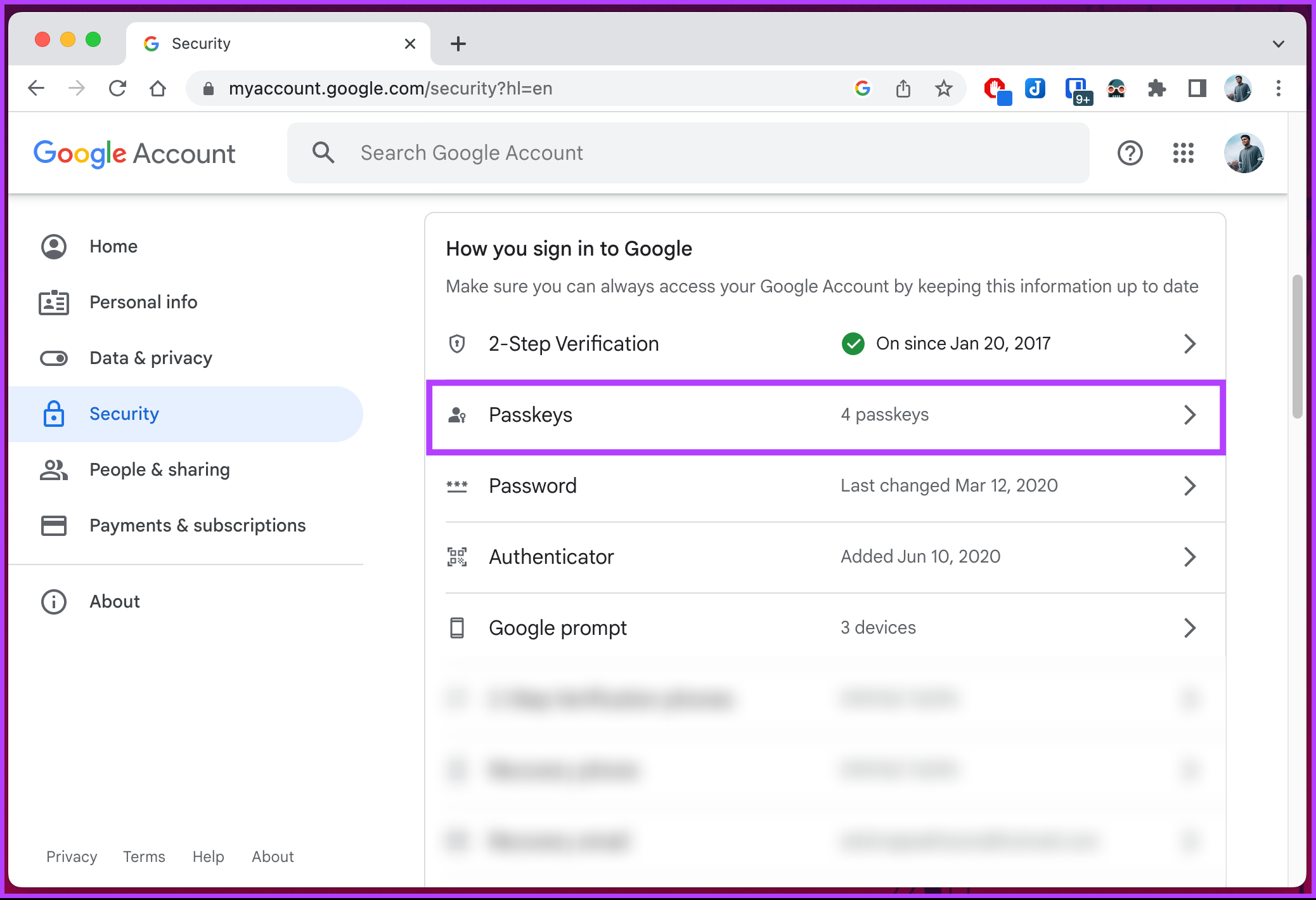
Step 4: Under Security, scroll to the How you sign in to Google section and select Passkeys.
Step 5: You will be asked to use your Passkey to confirm your identity; click Continue.
Step 6: From the pop-up, click the Continue button and authenticate the Passkey through your fingerprint, pin, or Windows Hello.

Once authenticated, you will be taken to the Passkeys page.
Step 7: Under the Passkeys you created section, click on the cross (X) icon next to the Passkey you want to remove.
Step 8: In the Remove this passkey? pop-up, choose Remove.

That’s it. The selected Passkey will be removed from your Google account. You can add it back whenever you want, at your convenience.
If you don’t have access to your desktop, you can execute the steps using your mobile; keep reading.
How to Delete a Device’s Google Passkey on a Mobile
Note: For ease of demonstration, we will use an Android device. You can do the same on your iOS device too.
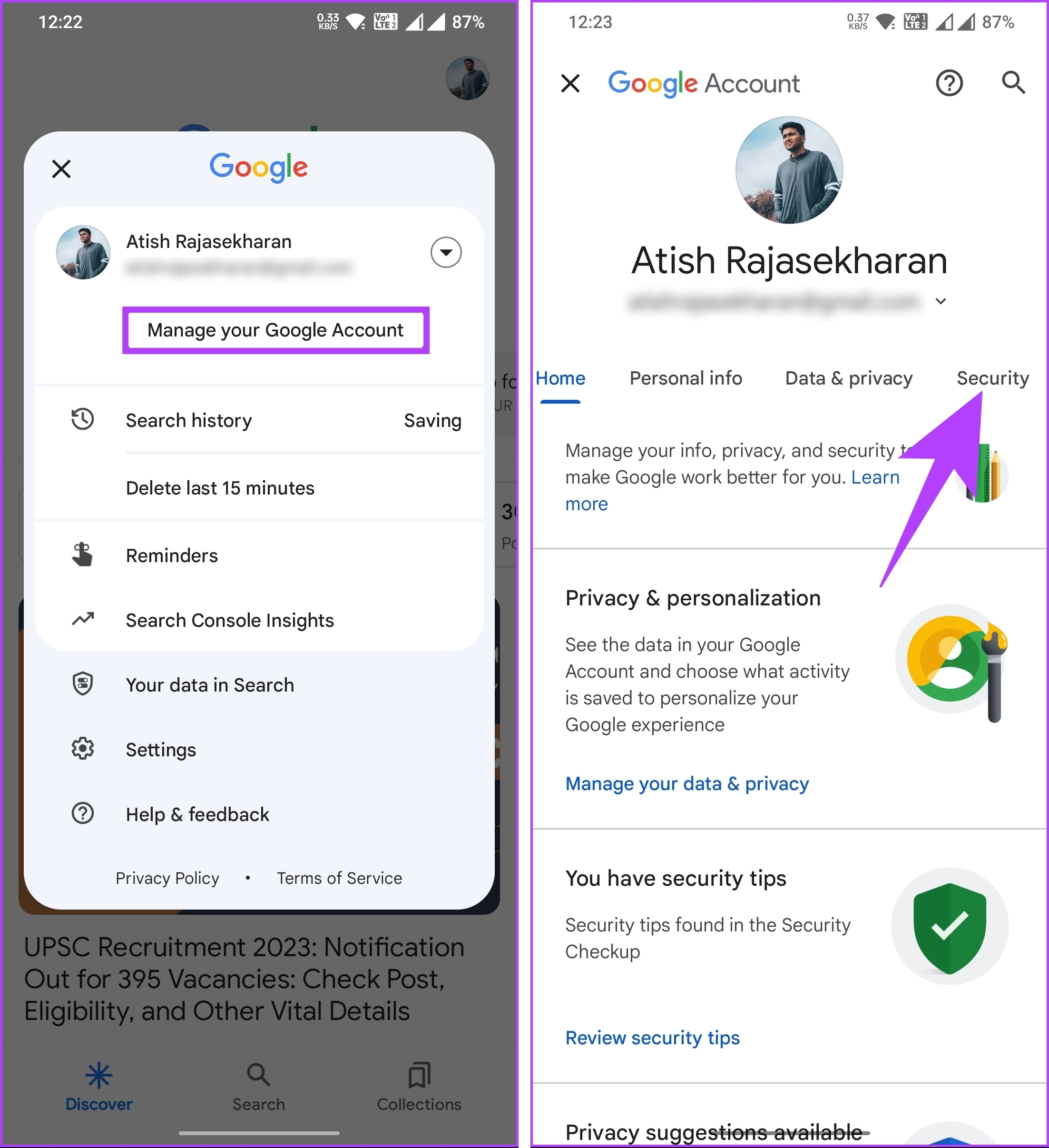
Step 1: Launch the Google app and tap on your profile picture at the top right corner.
Step 2: Select Manage your Google Account from the drop-down, and under the Google Account screen, go to Security.
Step 3: Under the How you sign in to Google section, tap on Passkeys. The in-browser will take you to authenticate your account and confirm your identity.
Step 4: Tap Continue and authenticate your account.

Once authenticated, you will be taken to the Passkeys page.
Step 5: Under Passkeys you created, tap on the cross (X) icon next to the Passkey you want to remove from your account.
Step 6: In the pop-up, select Remove.

There you go. You have successfully removed the Passkey from your Google account. If you have multiple passkeys that you want to remove, there’s no shortcut. You will have to remove them individually by following the steps mentioned above.
FAQs
Yes, using passkeys is safe as it acts as an additional layer of security compared to traditional passwords and significantly improves the security of your accounts. However, remaining vigilant and taking additional measures to protect your personal information is important.
No, passkeys do not replace passwords. It will act as an alternative to a password. We believe there’s a long way to go before passkeys replace passwords forever.
Was this helpful?
Last updated on 19 August, 2024
Read Next
 How to Delete WhatsApp Group Permanently (Desktop and Mobile)
How to Delete WhatsApp Group Permanently as Admin As an admin, you are authorized to delete the group from its existence.
How to Delete WhatsApp Group Permanently (Desktop and Mobile)
How to Delete WhatsApp Group Permanently as Admin As an admin, you are authorized to delete the group from its existence.
 How to Delete YouTube Playlist on Desktop or Mobile
Are you thinking of decluttering your YouTube playlists but wondering how to proceed with it and its potential consequences?
How to Delete YouTube Playlist on Desktop or Mobile
Are you thinking of decluttering your YouTube playlists but wondering how to proceed with it and its potential consequences?
 How to Add or Delete a Netflix Profile on Mobile and Desktop
With the changes in Netflix's password-sharing policy, many people have been changing or canceling their plan altogether.
How to Add or Delete a Netflix Profile on Mobile and Desktop
With the changes in Netflix's password-sharing policy, many people have been changing or canceling their plan altogether.
 How to Delete Facebook Watch History on Mobile and Desktop
Delete Entire Facebook Watch History on Mobile For the most part, the majority of folks use their phone to browse through Facebook.
How to Delete Facebook Watch History on Mobile and Desktop
Delete Entire Facebook Watch History on Mobile For the most part, the majority of folks use their phone to browse through Facebook.
 How to Delete a Word Document on Desktop, Web, and Mobile
Deleting a Word document may seem straightforward, but the process can vary across platforms.
How to Delete a Word Document on Desktop, Web, and Mobile
Deleting a Word document may seem straightforward, but the process can vary across platforms.
 How to Delete Your Microsoft Account on Desktop and Mobile
A Microsoft account is a single sign-in service that allows you to access various Microsoft products and services, such as Windows, Office, Xbox, Skype, OneDrive, Outlook, and more.
How to Delete Your Microsoft Account on Desktop and Mobile
A Microsoft account is a single sign-in service that allows you to access various Microsoft products and services, such as Windows, Office, Xbox, Skype, OneDrive, Outlook, and more.
 A Guide to Editing Google Forms on Mobile and Desktop
How to Edit Google Forms Once Created On Desktop Step 1: Go to Google Forms and log in with the same Google account you used to create the form.
A Guide to Editing Google Forms on Mobile and Desktop
How to Edit Google Forms Once Created On Desktop Step 1: Go to Google Forms and log in with the same Google account you used to create the form.
 How to Use Voice Typing on Google Docs on Mobile and Desktop
While Google Docs is primarily geared toward drafting formal letters, invites, meeting notes, and table of contents, you can also use it to jot down ideas or as a journal.
How to Use Voice Typing on Google Docs on Mobile and Desktop
While Google Docs is primarily geared toward drafting formal letters, invites, meeting notes, and table of contents, you can also use it to jot down ideas or as a journal.
The article above may contain affiliate links which help support Guiding Tech. The content remains unbiased and authentic and will never affect our editorial integrity.