How to Set Up Collections on Your Kindle
Having a Collection helps you manage titles from different genres or subjects stored on your Kindle. It is akin to organizing digital shelves of different books that are on your reading list. Ensure that you are using the updated software version on your Kindle model to avoid any hiccups.
Step 1: On the Kindle home screen, tap the three dots in the top-right corner and then select Create A Collection.

Step 2: Give a name to your Collection and then tap on Save.

Step 3: Select the titles you wish to add to your Collection and then tap on Save.
Step 4: Once your Collection is created, tap on Library at the bottom.
Step 5: Tap the Sort By Menu icon at the top right side.

Step 6: Select Collections. You have to option to show your Collections in either Grid view or List view.
You will now see the Collections that you have created. Keep repeating the same steps to organize your Kindle books into collections.
Mark Collection as Favorite on Kindle
Once you have created multiple Collections, you can choose a Collection as your favorite. Here’s how.
Step 1: Go to Library > Sort by > Collections.
Step 2: Once done, tap the three dots on a collection and then tap on Mark Collection as favorite.

Edit Collection on Kindle
You can choose to edit the name of your Collection and remove titles. Here’s how.
Step 1: Open Library > Sort by > Collection > Tap the Collection name.
Step 2: Tap the Add/Remove icon at the top right side to add or remove titles.

Step 3: Select or deselect the titles and then tap on Save at the bottom-right corner.

Add Collections to Your Kindle Library Page
You also have the option to view all your Collections or just your favorites in the Library tab directly. You won’t have to choose a different option for the same.
Step 1: Open Settings > Home and Library > Library tab > Collections.
Step 2: You can choose to either Show Favorites in Library or Show All in Library.

Rename or Delete Collections on Amazon Kindle
Lastly, here’s how you can choose to rename or delete a collection from your Amazon Kindle device.
Open Library > Sort by > Collections > Three dots next to the Collection name > Rename Collection or Delete Collection.

Do note that the Collections you create on your Kindle device don’t sync to the Kindle mobile app. They will only get synced with the cloud, and you can view them on the Kindle webpage by logging in to your Amazon account.
Tip: If you are also facing the same issue, you can refer to our post, where we suggest the best fixes for Kindle not downloading books.
Was this helpful?
Last updated on 26 August, 2024
Read Next
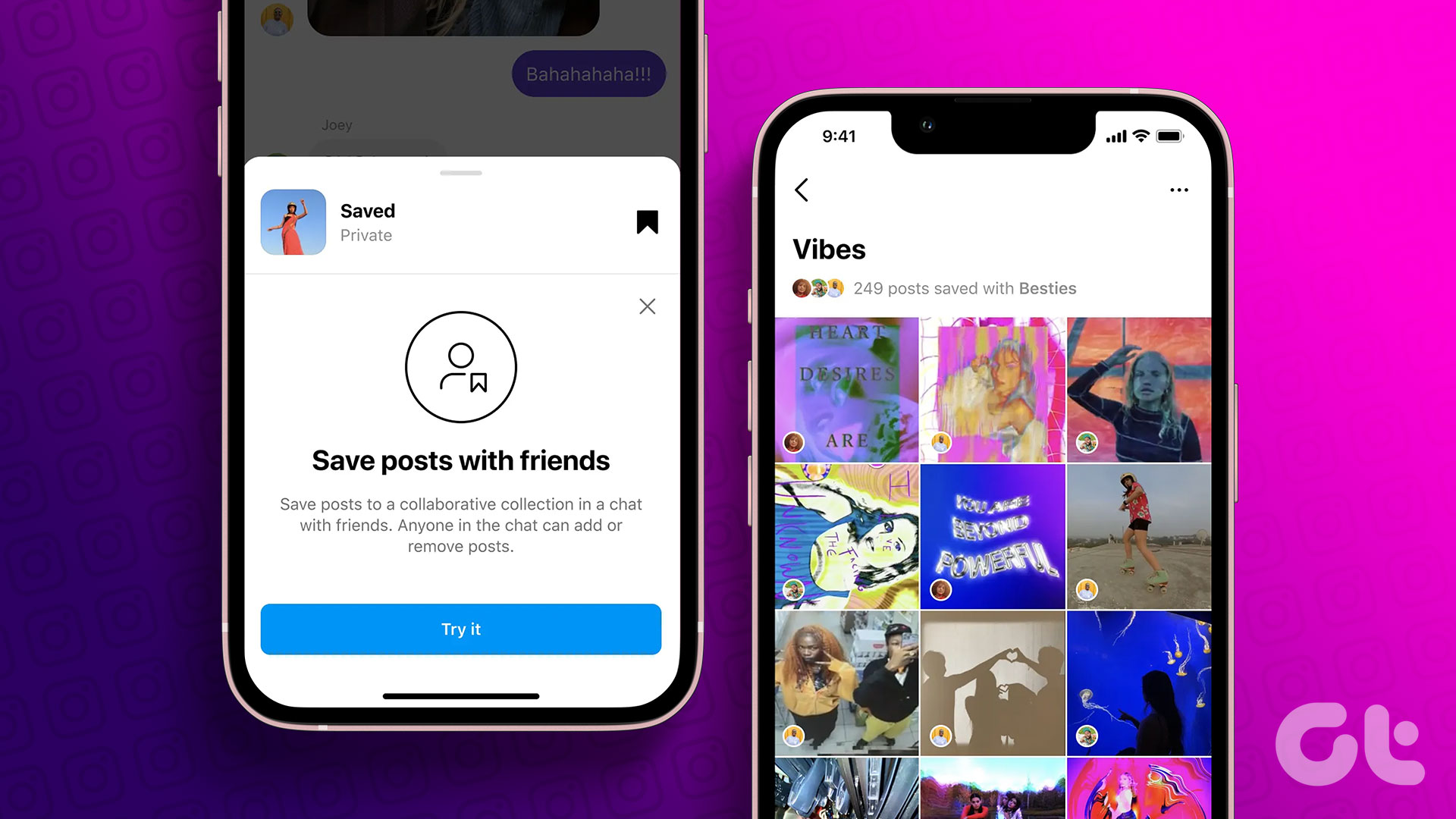 How to Use Collaborative Collections on Instagram
Instagram has a variety of content for every type of person in the form of Reels, images, and videos.
How to Use Collaborative Collections on Instagram
Instagram has a variety of content for every type of person in the form of Reels, images, and videos.
 6 Best Amazon Kindle Scribe Covers and Cases
The Amazon Kindle Scribe is perhaps one of the largest eReaders right now. It has a huge footprint, and it can be difficult to hold.
6 Best Amazon Kindle Scribe Covers and Cases
The Amazon Kindle Scribe is perhaps one of the largest eReaders right now. It has a huge footprint, and it can be difficult to hold.
 How to Use Text-To-Speech on Amazon Kindle
Enable Text-To-Speech on Kindle The VoiceView Screen Reader is an accessibility feature that lets you listen to Kindle books over Bluetooth.
How to Use Text-To-Speech on Amazon Kindle
Enable Text-To-Speech on Kindle The VoiceView Screen Reader is an accessibility feature that lets you listen to Kindle books over Bluetooth.
 3 Fixes for Amazon Kindle Not Showing Book Covers
Basic Fixes Check the side loaded book file type: Besides ebooks, you can also documents and webpages to your Kindle reader.
3 Fixes for Amazon Kindle Not Showing Book Covers
Basic Fixes Check the side loaded book file type: Besides ebooks, you can also documents and webpages to your Kindle reader.
 How to Change Amazon Account on Kindle
What Happens When You Remove Your Kindle Account All the purchased books on the account will also be removed from Kindle.
How to Change Amazon Account on Kindle
What Happens When You Remove Your Kindle Account All the purchased books on the account will also be removed from Kindle.
 How to Create and Manage Rules in Outlook 365 Webmail
Managing emails is an arduous task.
How to Create and Manage Rules in Outlook 365 Webmail
Managing emails is an arduous task.
 How to Create and Manage Chat Folders in Telegram
In most messaging apps, managing chats has to be the most complicated task at hand.
How to Create and Manage Chat Folders in Telegram
In most messaging apps, managing chats has to be the most complicated task at hand.
 How to Create and Manage a Custom Map in My Maps and Google Drive
Most users are familiar with Google Maps, which offers real-time GPS navigation and information about landmarks and transport conditions.
How to Create and Manage a Custom Map in My Maps and Google Drive
Most users are familiar with Google Maps, which offers real-time GPS navigation and information about landmarks and transport conditions.
The article above may contain affiliate links which help support Guiding Tech. The content remains unbiased and authentic and will never affect our editorial integrity.