

To convert a scanned PDF into an editable Word document, open it in Adobe Acrobat Pro and choose Convert → Microsoft Word → DOCX. With text recognition enabled, Acrobat runs optical character recognition (OCR) during export, so you can go from a page image to editable text in one step.
For professional creators and video production teams, this can be particularly useful when updating scanned production schedules, client briefs, call sheets and other documents without having to recreate them from scratch.
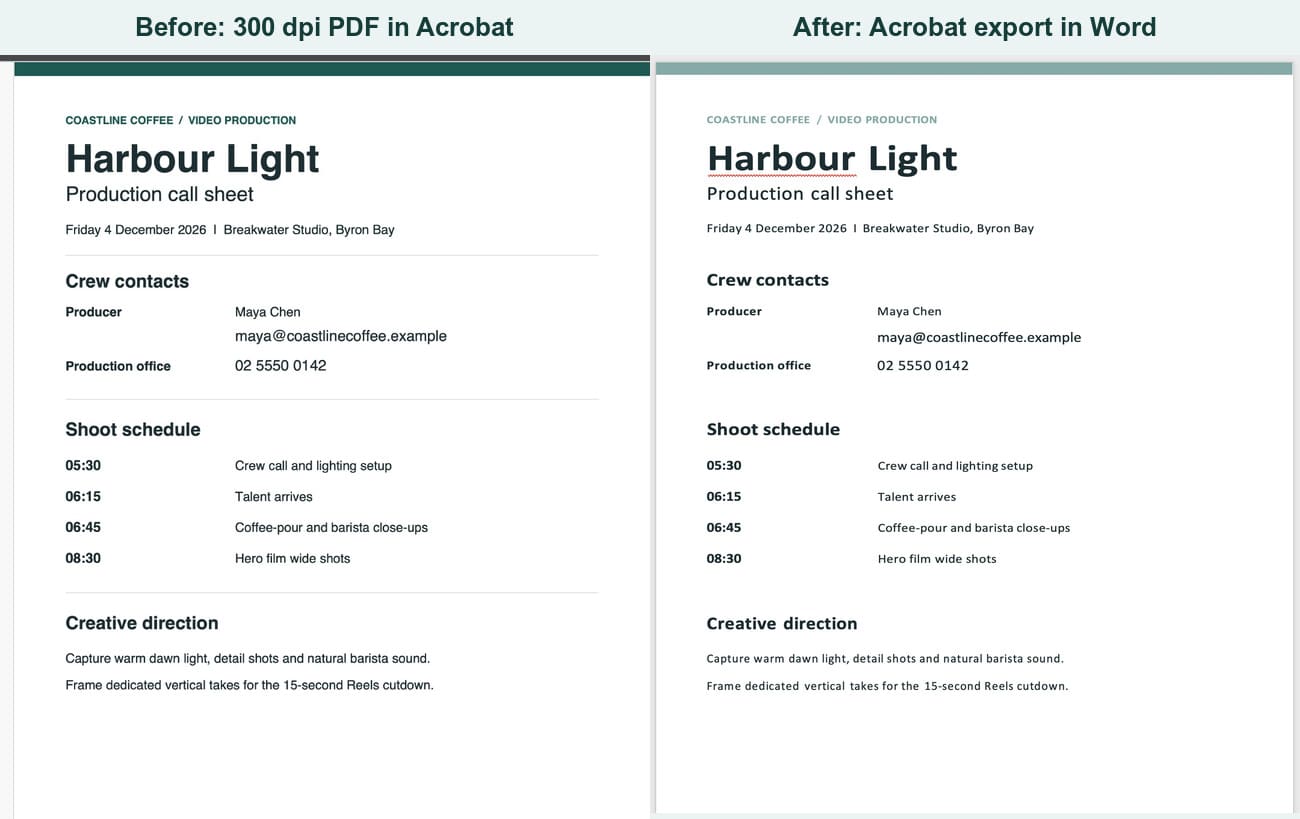
I tested Acrobat on a fictional production call sheet (Harbour Light) with a two-column shoot schedule and a single-column creative brief. From the clean 300 dpi scan, Acrobat recovered all 14 production details I checked and both sentences of creative direction. It also kept all four call times beside their activities in Word. That gave me an editable starting point for updating the schedule or reusing the brief without retyping either section.
Tested in November 2026 with Adobe Acrobat Pro 26.003.22110 on macOS Tahoe 26.5.1. I opened and checked the exports in Microsoft Word for Mac.
How to Convert Scanned PDFs to Word Using Adobe Acrobat OCR
Step 1: Open Your Scanned PDF
Open your scanned PDF in the Acrobat desktop app. Try selecting a line of text or searching for a distinctive word with Command + F on Mac or Ctrl + F on Windows. If you can read the word on the page but Acrobat cannot find it, the file may be an image-only scan. Keep a copy of the source PDF for checking your export.
Step 2: Convert the PDF to Word
Select Convert in the top toolbar. Choose Microsoft Word, select DOCX, and click Convert to DOCX. On my Mac, I also used the File → Export a PDF → Microsoft Word → Word Document menu.
Step 3: Configure OCR and Export Settings
In the Mac export dialog, open Settings and check that Recognize text if needed is enabled. Use Set Language if you need to change the recognition language.
The dialog offers Retain Flowing Text for documents you plan to rewrite and Retain Page Layout when positioning matters. Keep Include Images enabled if the source has visuals you want to carry over. Click OK, choose where to save, and click Save.

Step 4: Check the Converted Word Document
Open the DOCX in Word and click into a sentence to check that you can edit it. Compare the two files side by side.
On the call sheet, I checked that 06:15 still sat beside Talent arrives and that the creative brief still specified a 15-second vertical cutdown. I also checked the actual email text, since a Word hyperlink can look plausible even with a wrong letter in the address.
How to Fix Acrobat OCR Errors
If you need both a searchable PDF and an editable Word file, run OCR explicitly before exporting.
In Acrobat, open All tools → Scan & OCR → In this file. Select the page range and language, then choose Recognize Text.
In the same tool, select Correct recognized text, enable Review recognized text, and select a highlighted word. Compare it with the scanned image, update the Recognized as field, and click Accept.
Search for the corrected text in the PDF, then export and check the new DOCX. Acrobat’s review highlights words it flags as uncertain, so cross-check production details yourself.
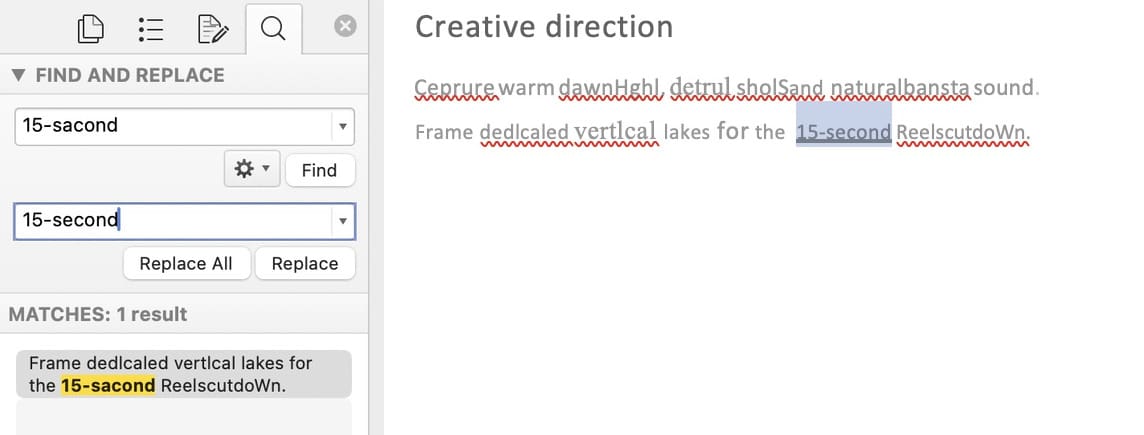
If the error is already in your Word export, correct it there. The 85 dpi export turned 15-second into 15-sacond and Talent arrives into Ta1en1 arrives.
In Word for Mac, I opened Edit → Find → Replace, searched for 15-sacond, entered 15-second, and clicked Replace. Checking the scan first confirmed the intended duration. The replacement fixed that word, and the surrounding line still needed proofreading.
How Well Did Acrobat Retain the Text and Layout?
I exported two image-only copies of the same call sheet, a sharp 300 dpi scan and a softened, lower-contrast 85 dpi scan.
I checked 14 items against the source before correcting anything. These were the title, shoot date, venue, producer name, email, phone number, four call times and four matching activity descriptions.
I counted a field as correct when its wording, digits and internal spaces matched, and assessed the two creative-direction sentences separately.
| What I checked | 300 dpi image-only PDF | 85 dpi softened image-only PDF |
| Production details | 14 of 14 matched | 6 of 14 matched. The title, phone number and all four call times survived. |
| Single-column creative direction | Both sentences matched. | Both needed corrections. OCR joined words and misread the deliverable duration. |
| Two-column shoot schedule | All four activities stayed visually aligned with their times. The schedule did not export as a native Word table. | All four call times stayed legible. The activity descriptions needed proofreading, and the final entries crowded together. |
The clean export was ready for copy edits. Acrobat kept the headings, the schedule’s visual alignment and the creative notes in place.
I spotted a few differences in the typography and spacing, and the vertical bar between the date and location became a capital I. I’d turn the schedule into a native Word table for a crew that needs to add or reorder rows. Copying it as plain text grouped the times separately from their activities.
This was a one-page test with two layouts and two simulated scan qualities. The lower-quality copy changed both resolution and clarity, so the results reflect their combined effect.
For a faint photocopy, try All tools → Scan & OCR → Enhance scanned file, or rescan from the paper original if you have it.
For a storyboard or shot list, compare the panel captions and shot numbers with the PDF one by one. The text can look plausible even when it has shifted out of sequence.
Using Adobe Acrobat OCR in Professional Video Production Workflows
Professional video production often involves working with documents created at different stages of a project. Scanned client briefs, production schedules, shot lists and call sheets may contain information that needs to be updated or reused before editing begins.
Adobe Acrobat Pro’s OCR capabilities allow production teams to convert these documents into editable Word files without manually retyping the original content.
For editors working in Premiere Pro, recovering information such as video durations, aspect ratios, creative direction and delivery requirements can help establish project settings and confirm editing priorities before footage arrives.
With more than 40 years of experience developing creative technology, Adobe continues to build tools that support professional creators across different stages of production. From recovering and updating production documentation in Acrobat to editing and delivering video in Premiere Pro, Adobe’s tools help creative teams maintain control over their workflows and creative decisions.
FAQs
Can Adobe Acrobat convert a scanned PDF into an editable Word document?
Yes. Adobe Acrobat Pro uses optical character recognition (OCR) to recognize text within scanned PDFs and convert it into editable content when exporting to Microsoft Word.
Do I need to run OCR before converting a scanned PDF to Word?
Not necessarily. Acrobat can recognize text during the Word export process when text recognition is enabled. However, running OCR separately can be useful if you also need a searchable PDF or want to review recognized text before exporting.
What scan resolution is best for OCR?
A clear 300 dpi scan is generally a good starting point for recognizing printed text. Lower-resolution scans, poor contrast and blurred characters can reduce recognition accuracy.
Will converting a scanned PDF to Word preserve the original formatting?
Adobe Acrobat can retain many elements of the original layout, including headings, images and text positioning. However, complex layouts, tables and low-quality scans may require manual adjustments in Word.
Can I correct OCR errors after converting a PDF to Word?
Yes. Once the document has been exported to Word, you can manually edit recognized text or use Find and Replace to correct errors. Always compare important details against the original scanned PDF.
Final Thoughts
Adobe Acrobat Pro provides a practical way to convert scanned PDFs into editable Word documents without manually recreating their content.
In my test, Acrobat recovered all 14 checked production details from the clean 300 dpi scan, while the lower-quality scan required more manual corrections.
For professional creators preparing projects in Premiere Pro, recovering information from existing production documents can save time when updating schedules, reviewing creative briefs and confirming delivery requirements.
The key is to start with the clearest scan available and check important details against the original document before relying on the converted file.
Try Adobe Acrobat Pro to convert your next scanned production document into an editable Word file.
This article is sponsored by Adobe and contains affiliate links. We may earn a commission if you make a purchase through these links, at no additional cost to you. All opinions and testing observations are our own.
Was this helpful?
Last updated on 26 November, 2026
Read Next
 How to Insert a Word File into a PDF Using Adobe Acrobat
How to Insert Microsoft Word as an Attachment into a PDF using Adobe Acrobat To insert a Word document into a PDF, use the Tools tab on Adobe Acrobat.
 How to Fit Full Page to Window By Default in Adobe Acrobat DC and Reader DC
Adobe Acrobat DC and Acrobat Reader DC prefer fitting pages by width.
 How to Disable or Remove Recent Files in Adobe Reader and Acrobat DC
Remove Recent Files in Adobe Reader Desktop Step 1: On the Recent list, hover over the shortcut you want to delete.
 How to Enable Scrolling By Default in Adobe Acrobat DC and Reader DC
Switching to your preferred page mode in Adobe Acrobat DC and Acrobat Reader DC often disables continuous scrolling.
 5 Fixes for Adobe Acrobat Reader Not Opening in Windows 11/10
Before starting the fixes, please note that Adobe Acrobat Reader DC and Adobe Acrobat Reader are the same now.
 How to Change the Author Name for Comments in Adobe Acrobat
Method 1.
 Looking for Adobe Acrobat Alternative? Check out This Great AI Powered UPDF Editor
When it comes to PDFs, Adobe Acrobat is one of the first tools that comes to mind.
 Why Is Adobe Acrobat So Slow?
Usually, the answer to “Why is Adobe Acrobat so slow?” is due to large file sizes or a corrupted cache memory, which incrementally increases processing drain.
The article above may contain affiliate links which help support Guiding Tech. The content remains unbiased and authentic and will never affect our editorial integrity.