Usually, the answer to “Why is Adobe Acrobat so slow?” is due to large file sizes or a corrupted cache memory, which incrementally increases processing drain. If closing and reopening the file doesn’t work, here is what’s happening and some simple solutions you can try.
Why Is My Adobe Acrobat So Slow and How to Fix It?
Adobe Acrobat is arguably the premier PDF viewer and editing software to the point it’s become the go-to default for new users. But decades of updates and feature creep mean that the software is bulky and has a lot of utilities, each with its own processing requirements.
Over time, you may see Adobe Acrobat slow down from memory issues, which becomes more noticeable when editing large files or ones with a lot of images inside. On a system with limited memory, performance may be affected when Acrobat is used alongside other demanding applications and large or complex PDF files.
Fix 1 – Turn Off Generative AI Features
New versions of Adobe come with generative AI for editing. However, this requires an internet connection, and the AI actively makes Adobe Acrobat slow by virtue of needing more processing. If you’re not using the feature, you can turn it off.
Step 1. Close any open documents. On Windows, go to “Menu” > “Preferences.” On macOS, go to “View” > “Preferences.”
Step 2. Select the “Generative AI” tab, then uncheck “Enable generative AI features in Acrobat.” You can also uncheck “Show AI summary” or similar options.

Step 3. Click “OK,” then restart Adobe.
Fix 2 – Change the Graphics Rendering Setting
Acrobat uses several rendering settings to control how PDF pages and graphics are displayed. In some cases, adjusting these settings can help troubleshoot display or performance problems when wondring “Why is my Adobe Acrobat so slow?”
Step 1. Open “Preferences.”
Step 2. Go to the “Page Display” tab and the “Rendering” section.
Step 3. Avoid disabling every rendering option at the same time. If you are troubleshooting a display or performance problem, try changing one setting at a time and test Acrobat after each change.

Step 4. Click “OK,” then test Acrobat to see whether the change fixes the problem.
Fix 3 – Use Local Files Instead of the Cloud
A PDF from OneDrive, SharePoint, Google Drive, or any other sharing service is never really open on your machine. Instead, Acrobat is reading and writing across a connection all the while you edit. This can lead to latency issues and slow your work.
Instead, use local storage. In some cases, make sure that the folder isn’t even backed up by OneDrive, and then offload the file there later if you need it.
Fix 4 – Remove Other Programs
In some cases, Adobe Acrobat being slow isn’t even due to Adobe itself. The program does take up a bit of processing power, but other background programs can do the same. In this case, use the Task Manager and close any background processes that are taking up a lot of CPU time (you can sort by CPU usage).

If you spot a process you do not recognize, check what it is before ending it, as some processes are required for Windows or other software to function correctly.
Was this helpful?
Last updated on 06 September, 2026
Read Next
 How to Enable Scrolling By Default in Adobe Acrobat DC and Reader DC
Switching to your preferred page mode in Adobe Acrobat DC and Acrobat Reader DC often disables continuous scrolling.
How to Enable Scrolling By Default in Adobe Acrobat DC and Reader DC
Switching to your preferred page mode in Adobe Acrobat DC and Acrobat Reader DC often disables continuous scrolling.
 How to Fit Full Page to Window By Default in Adobe Acrobat DC and Reader DC
Adobe Acrobat DC and Acrobat Reader DC prefer fitting pages by width.
How to Fit Full Page to Window By Default in Adobe Acrobat DC and Reader DC
Adobe Acrobat DC and Acrobat Reader DC prefer fitting pages by width.
 5 Fixes for Adobe Acrobat Reader Not Opening in Windows 11/10
Before starting the fixes, please note that Adobe Acrobat Reader DC and Adobe Acrobat Reader are the same now.
5 Fixes for Adobe Acrobat Reader Not Opening in Windows 11/10
Before starting the fixes, please note that Adobe Acrobat Reader DC and Adobe Acrobat Reader are the same now.
 How to Disable or Remove Recent Files in Adobe Reader and Acrobat DC
Remove Recent Files in Adobe Reader Desktop Step 1: On the Recent list, hover over the shortcut you want to delete.
How to Disable or Remove Recent Files in Adobe Reader and Acrobat DC
Remove Recent Files in Adobe Reader Desktop Step 1: On the Recent list, hover over the shortcut you want to delete.
 How to Open Files in Separate Windows on Adobe Acrobat Pro, Standard, and Reader DC
The tabbed-view in Adobe Acrobat Pro, Standard, and Reader DC is a mixed bag.
How to Open Files in Separate Windows on Adobe Acrobat Pro, Standard, and Reader DC
The tabbed-view in Adobe Acrobat Pro, Standard, and Reader DC is a mixed bag.
 How to Insert a Word File into a PDF Using Adobe Acrobat
How to Insert Microsoft Word as an Attachment into a PDF using Adobe Acrobat To insert a Word document into a PDF, use the Tools tab on Adobe Acrobat.
How to Insert a Word File into a PDF Using Adobe Acrobat
How to Insert Microsoft Word as an Attachment into a PDF using Adobe Acrobat To insert a Word document into a PDF, use the Tools tab on Adobe Acrobat.
 How to Add or Remove PDF Background Using Adobe Acrobat
Change Background in a PDF File If you have an Adobe Acrobat Pro subscription, you can change the background color of your PDF using the Edit PDF tool.
How to Add or Remove PDF Background Using Adobe Acrobat
Change Background in a PDF File If you have an Adobe Acrobat Pro subscription, you can change the background color of your PDF using the Edit PDF tool.
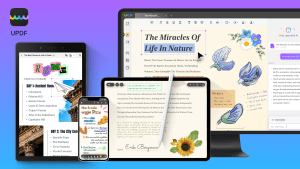 Looking for Adobe Acrobat Alternative? Check out This Great AI Powered UPDF Editor
When it comes to PDFs, Adobe Acrobat is one of the first tools that comes to mind.
Looking for Adobe Acrobat Alternative? Check out This Great AI Powered UPDF Editor
When it comes to PDFs, Adobe Acrobat is one of the first tools that comes to mind.
The article above may contain affiliate links which help support Guiding Tech. The content remains unbiased and authentic and will never affect our editorial integrity.