How to Erase Keyboard History in Gboard
Features like auto-corrections and keyboard history are auto-enabled to make your Gboard typing efficient. To give you more control over your data, here’s how to erase all your data and reset Gboard on your Android device.
Method 1: Delete Saved Words in Gboard
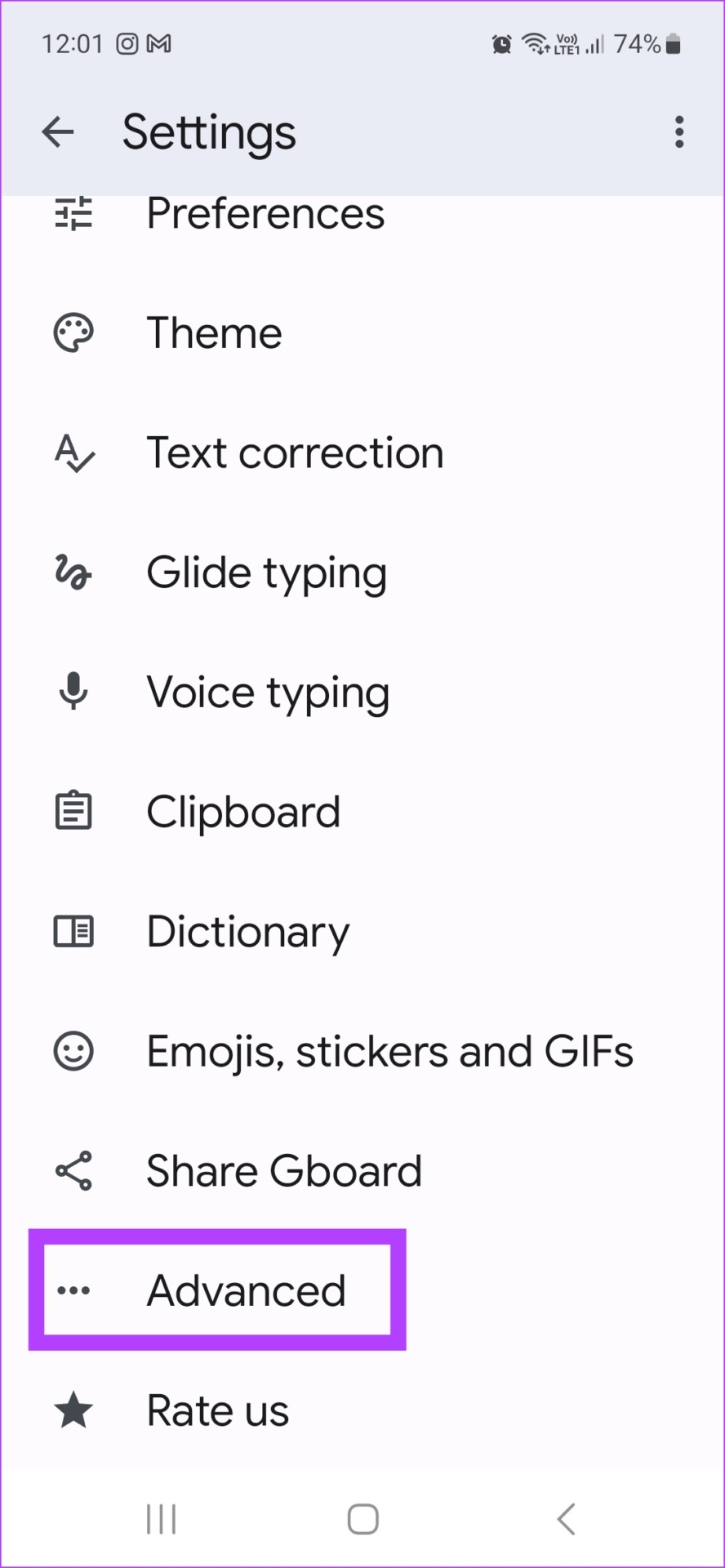
Step 1: Open Settings and go to General management. Tap on Gboard settings.


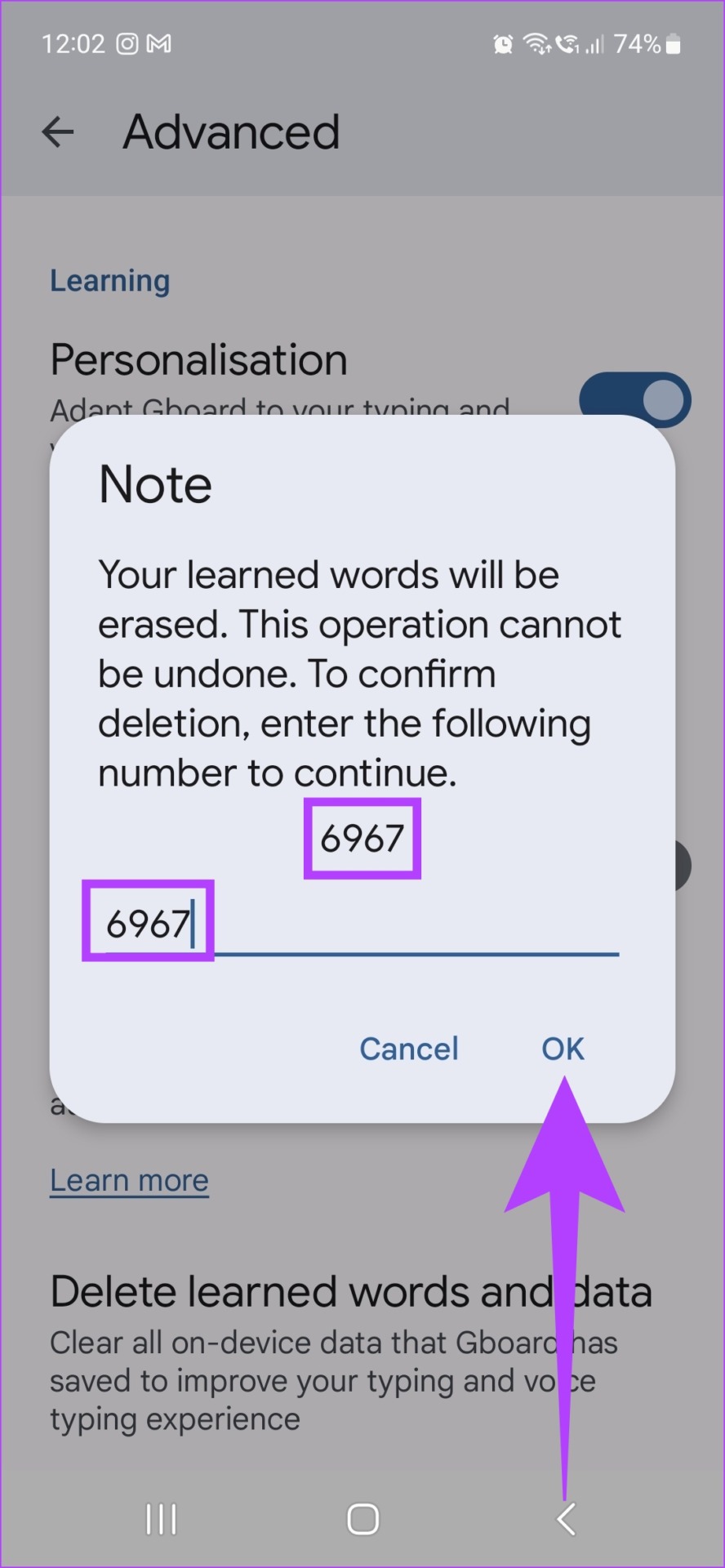
Step 2: Tap on Advanced. Here, tap on Delete learned words and data.
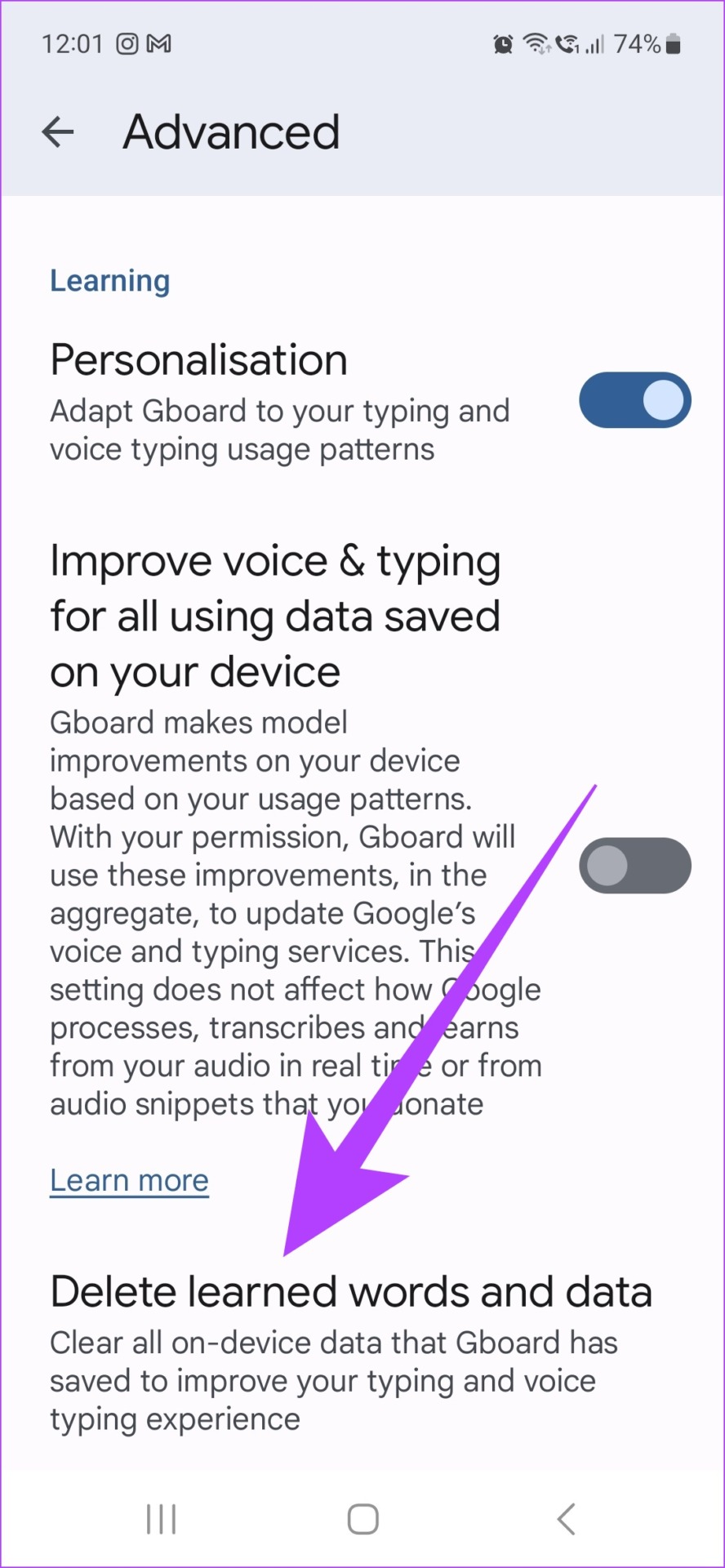
Step 3: Enter the number provided and tap on OK.
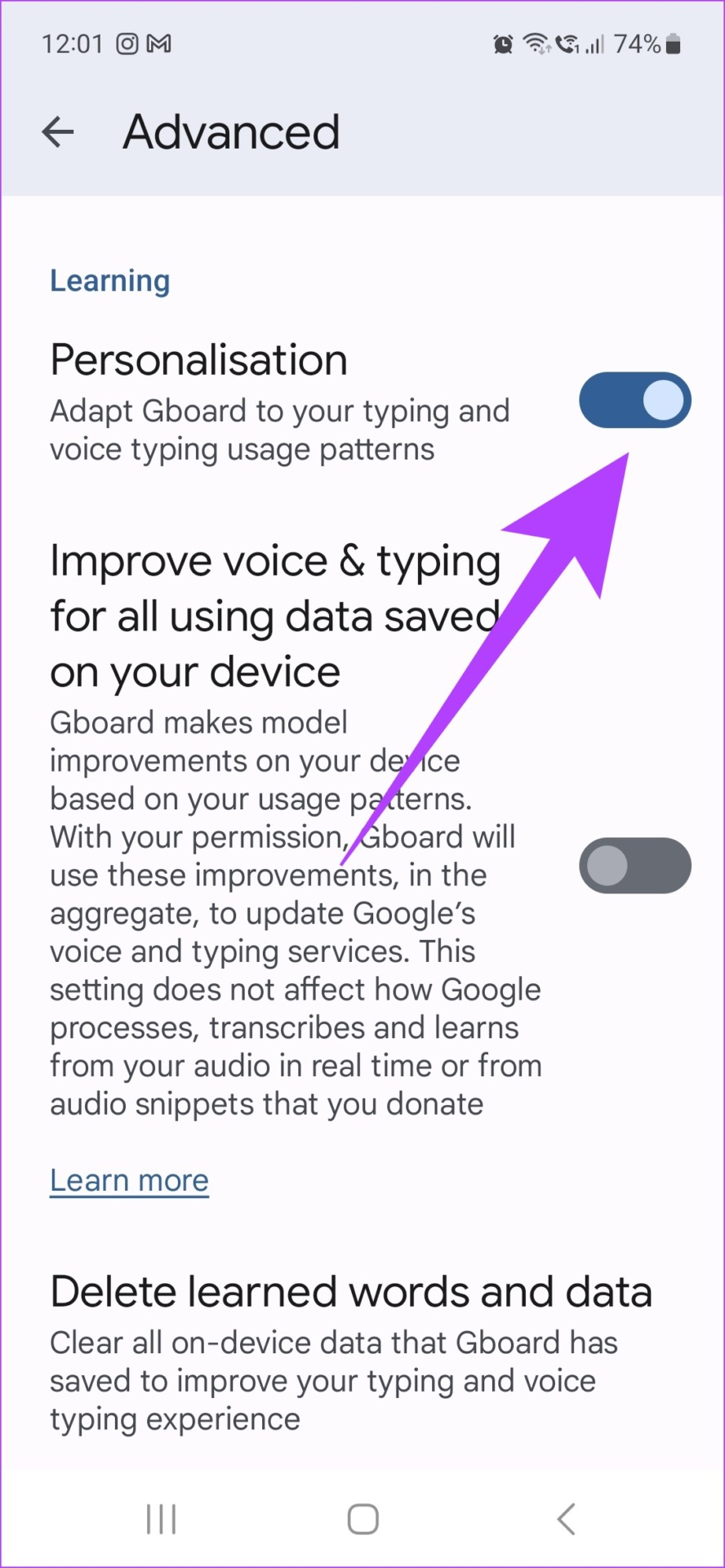
Step 4: Then, disable personalization by turning off the Personalization toggle.
You can also turn off predictive text by going to the Text correction setting in the Gboard menu and turning off Auto-correct.
Method 2: Clear All Data and Cache for Gboard
To effectively clear all Gboard data, go to your device’s settings and clear all Gboard’s data and cache. Here’s how to do it.
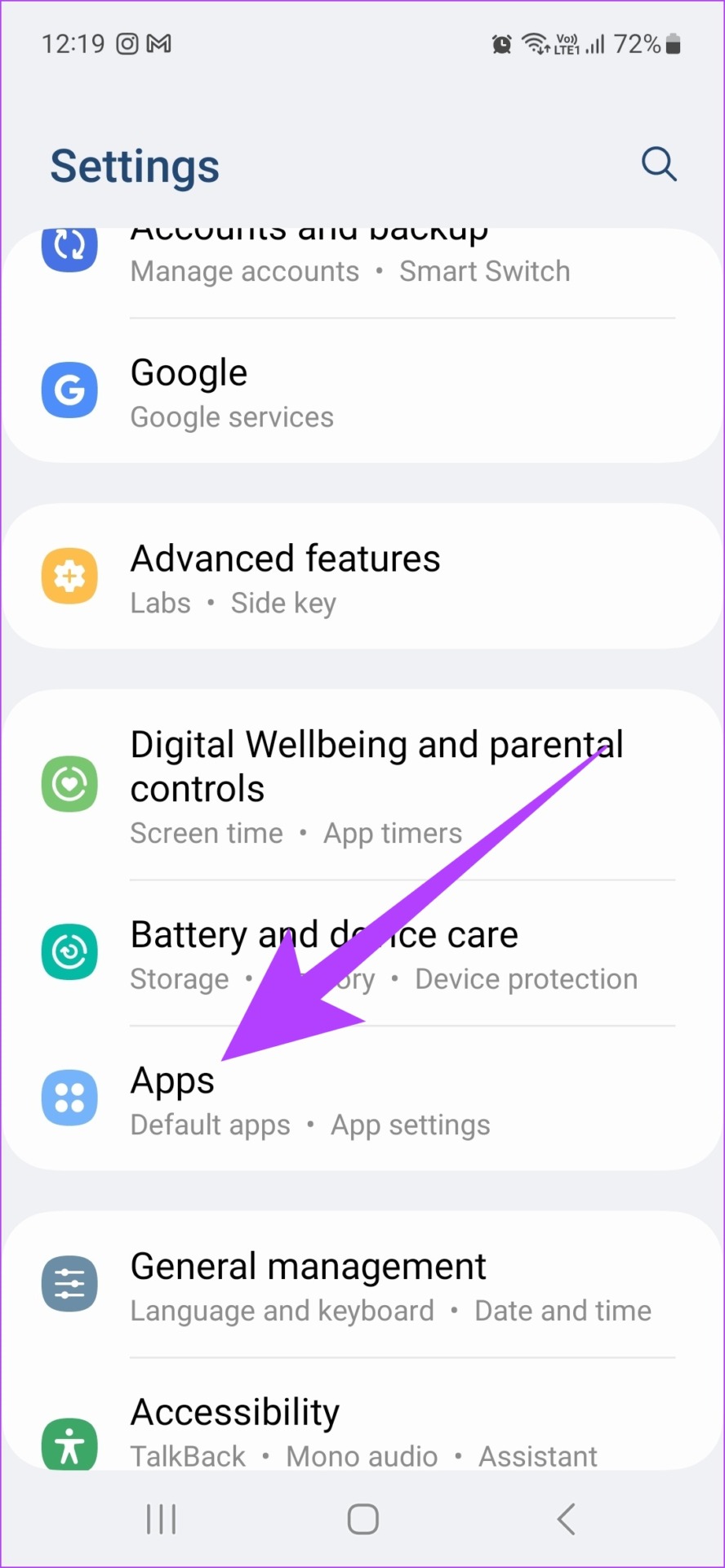
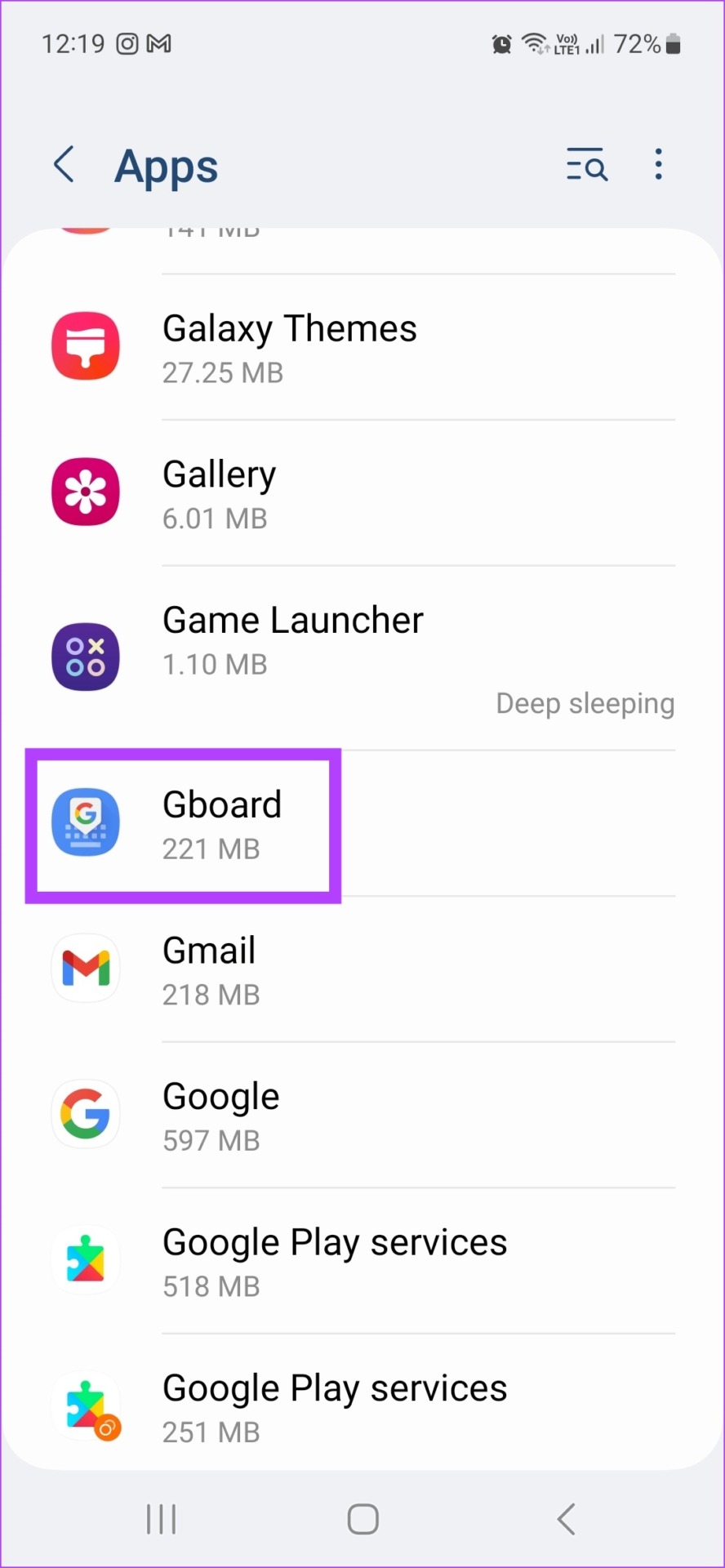
Step 1: Open Settings and go to Apps. Tap on Gboard.
Step 2: Scroll down and tap on Storage. Tap on Clear cache.
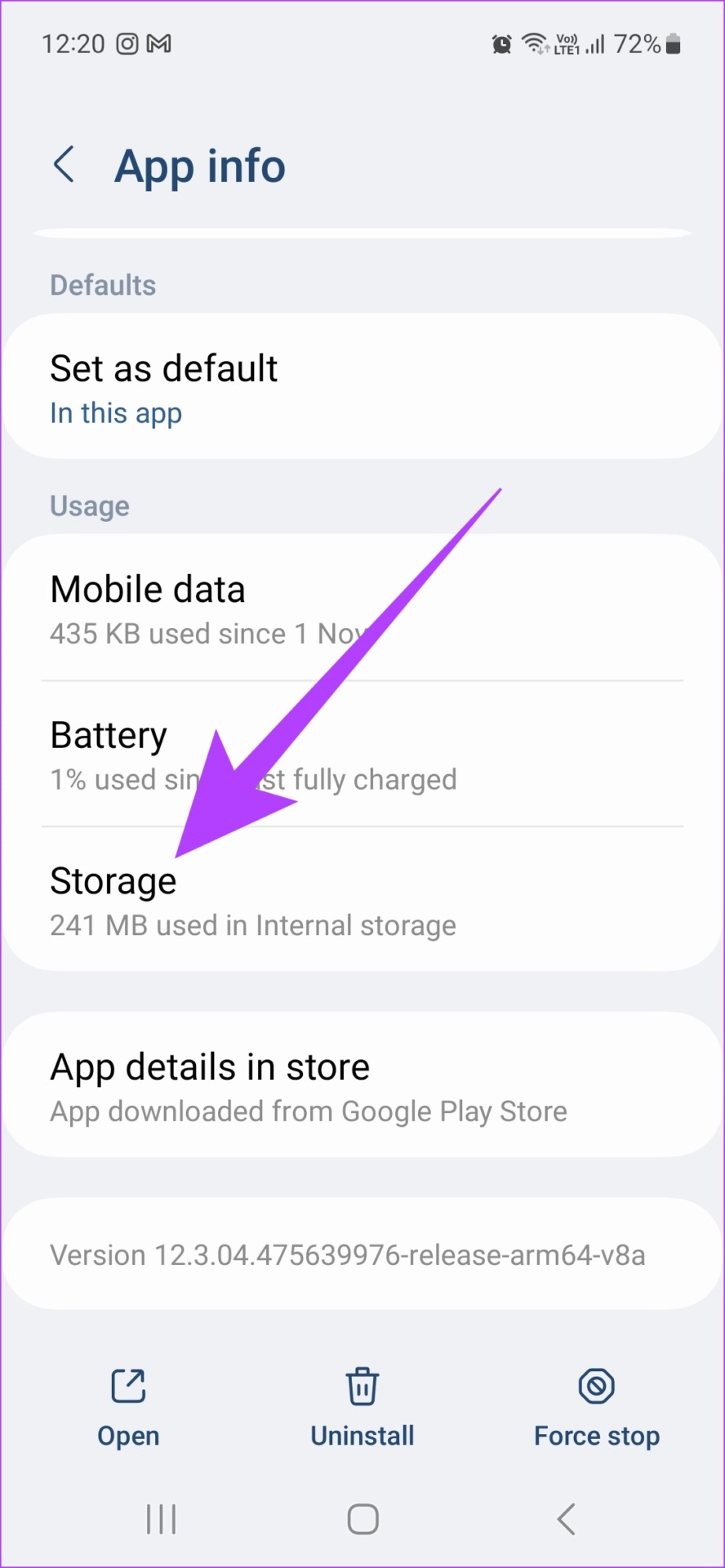

Step 3: Then, tap on Clear data and select Delete to confirm.


This will clear all the data and cache for Gboard on your device. Thus, completely erasing Gboard keyboard history.
How to Delete Keyboard History on Samsung Phones
Most Samsung devices nowadays come equipped with their native Samsung Keyboard app with the option for personalized suggestions and history already enabled. Here’s how to delete keyboard history and other personalized data from your Samsung Keyboard.
Step 1: Open Settings and tap on General management.
Step 2: Tap on Keyboard list and default. Then, tap on Samsung Keyboard.
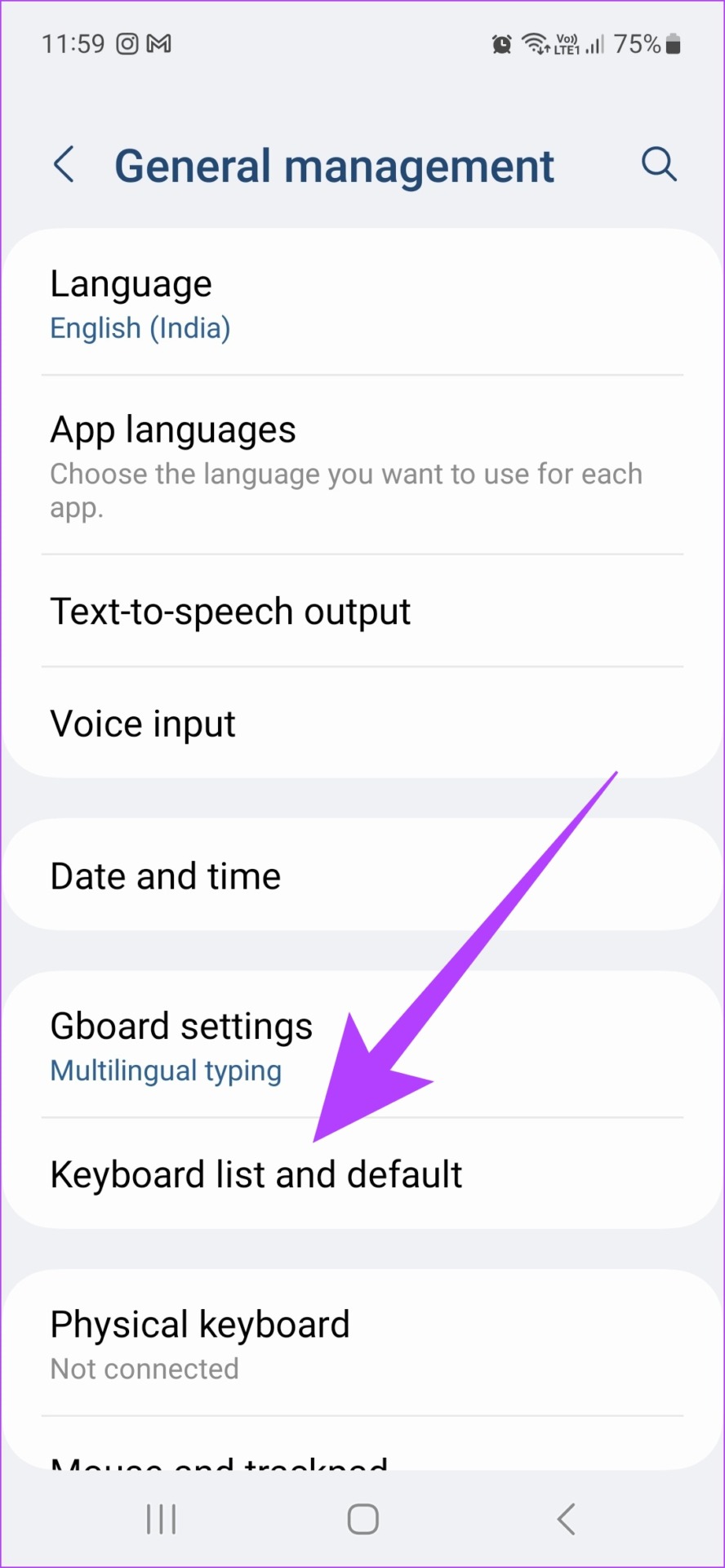

Step 3: Scroll down and tap on Reset to default settings.
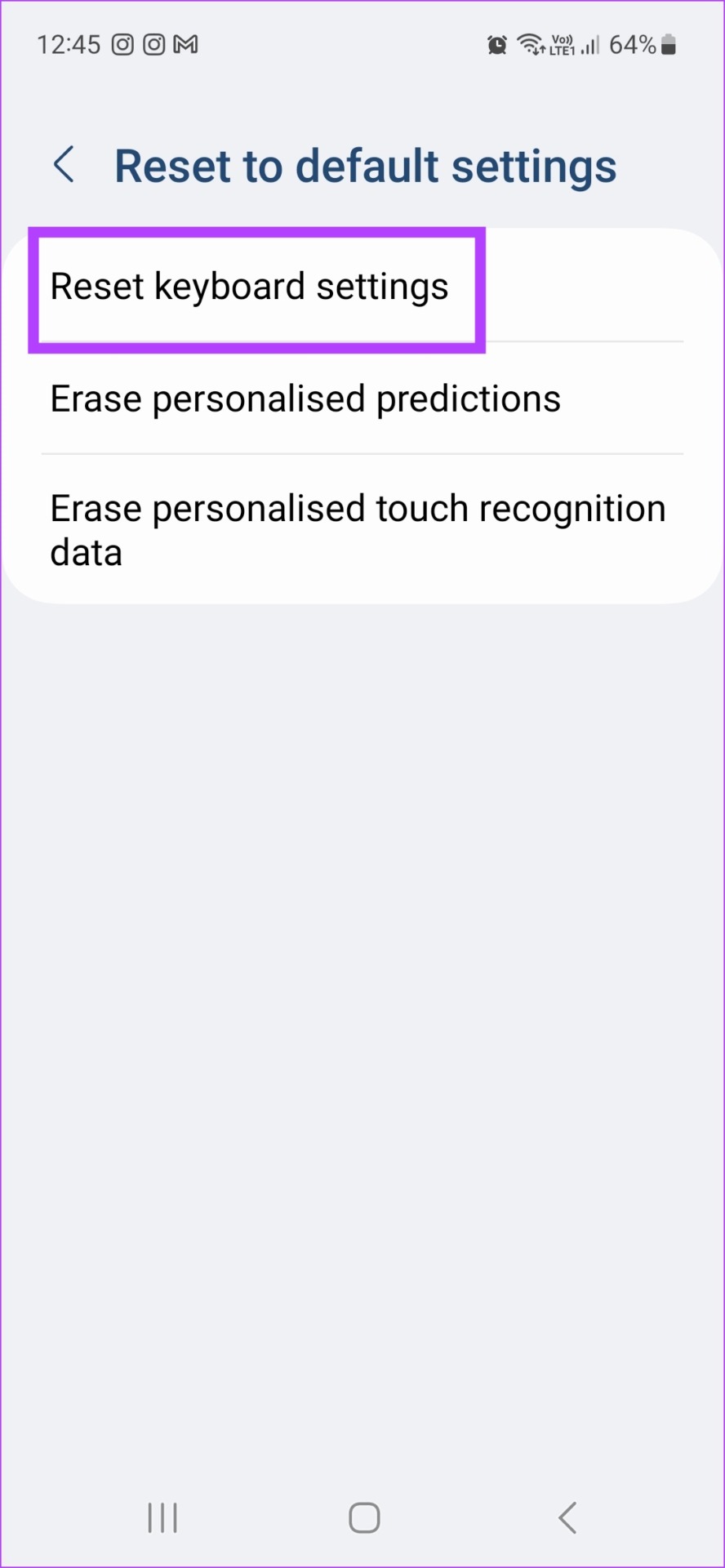
Step 4: Then, tap on Reset keyboard settings and tap on Reset to confirm.


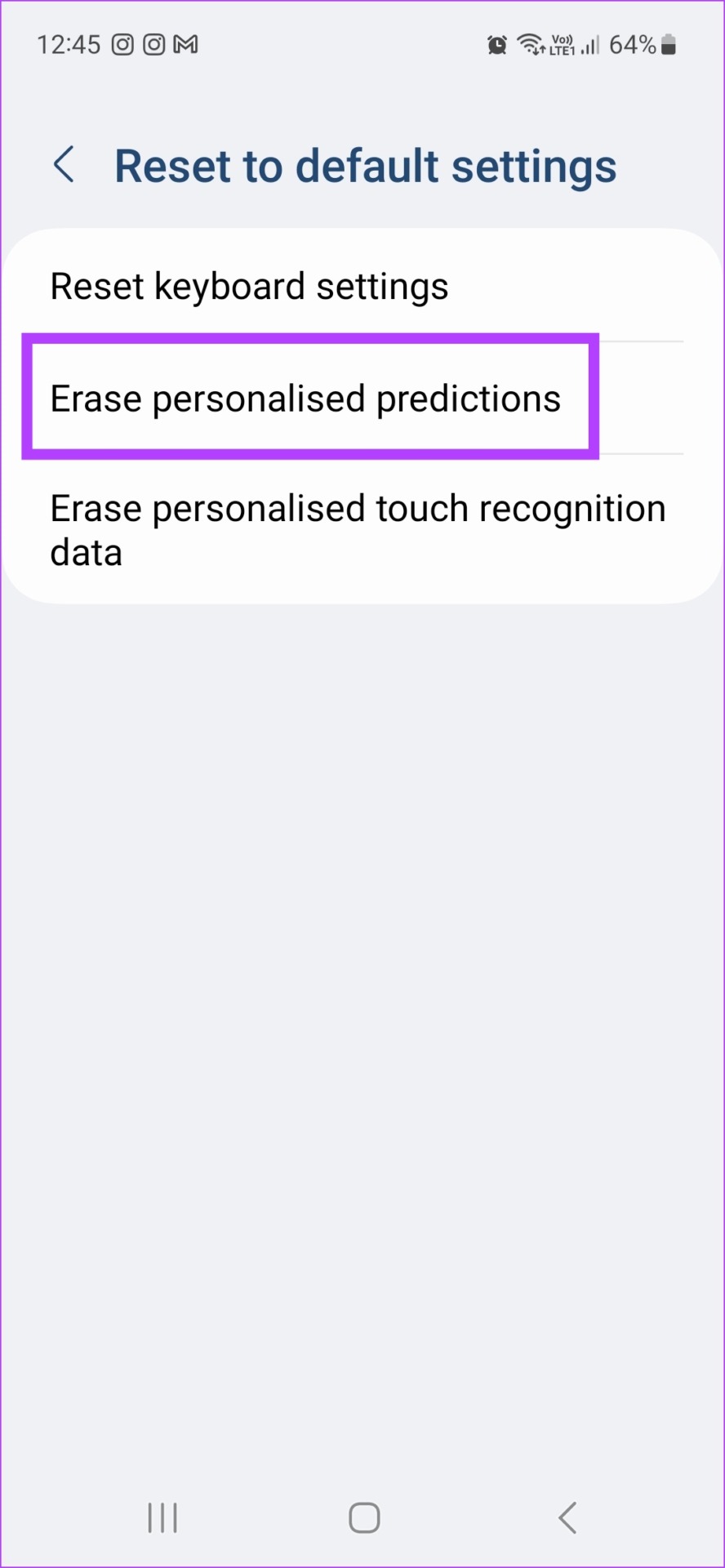
Step 5: Tap on Erase personalized predictions and select Erase to confirm.
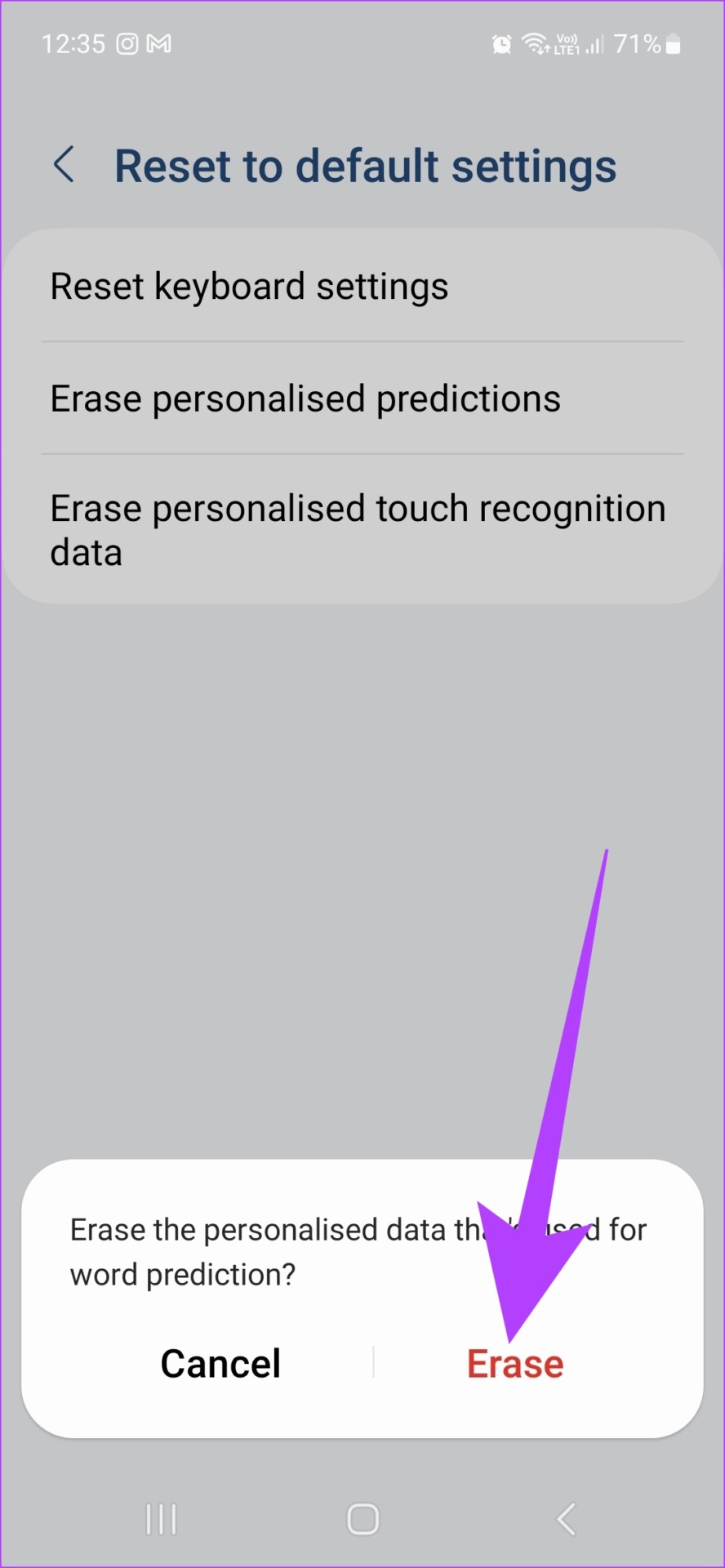
Step 6: Finally, tap on Erase personalized touch recognition data. Tap on Erase.


All Samsung Keyboard user data is now deleted. You can also turn off predictive text by going to the Samsung Keyboard settings and turning the Predictive text toggle off.
How to Clear History on Other Android Keyboards
Besides Gboard and Samsung Keyboard, other Android keyboards are also available that might come pre-installed with the device or have been separately installed by the user. So, to clear the history and remove learned words in other Android keyboards, follow these steps.
Step 1: Open Settings and go to your device’s System settings.
Step 2: Tap on Languages & input and go to Virtual keyboard.


Now, select your default keyboard app and tap on clear all data/reset data. Additionally, you can also turn off predictive text from the keyboard’s settings menu.
FAQs
Yes, resetting the keyboard data will also delete all previously saved custom settings.
No, once it has been deleted, keyboard history cannot be restored.
No, clearing keyboard history will not affect your texts.
Was this helpful?
Last updated on 28 June, 2024
Read Next
 What is Reverse Wireless Charging and How to Use It on Smartphones
What is Reverse Wireless Charging Reverse wireless charging isn't any different from standard wireless charging.
What is Reverse Wireless Charging and How to Use It on Smartphones
What is Reverse Wireless Charging Reverse wireless charging isn't any different from standard wireless charging.
 How to Get LED Notification Light on Samsung Galaxy Smartphones
https://youtu.be/-0j_UPYcV_Y Note: This trick is valid only on Galaxy phones with an OLED display, like the S23, S24 series, etc.
How to Get LED Notification Light on Samsung Galaxy Smartphones
https://youtu.be/-0j_UPYcV_Y Note: This trick is valid only on Galaxy phones with an OLED display, like the S23, S24 series, etc.
 3 Ways to Turn Off Camera Sound on Google Pixel Smartphones
Method 1: Disable Camera Sound in Settings Disabling the camera sound on a Google Pixel device is straightforward.
3 Ways to Turn Off Camera Sound on Google Pixel Smartphones
Method 1: Disable Camera Sound in Settings Disabling the camera sound on a Google Pixel device is straightforward.
 5 Best USB-C Earbuds with Microphones for Android Smartphones
Unlike yesteryears, new-age smartphones don't come with a headphone jack.
5 Best USB-C Earbuds with Microphones for Android Smartphones
Unlike yesteryears, new-age smartphones don't come with a headphone jack.
 5 Best Wireless Earbuds for iPhone 15 Series Smartphones
If you still haven't bought the in-house AirPods to match your Apple iPhone 15 smartphones, here are the best wireless earbuds for the iPhone 15 series.
5 Best Wireless Earbuds for iPhone 15 Series Smartphones
If you still haven't bought the in-house AirPods to match your Apple iPhone 15 smartphones, here are the best wireless earbuds for the iPhone 15 series.
 4 Fixes for Spotify Premium Not Working Offline on Smartphones
Basic Fixes: Check your subscription status: To listen offline on Spotify, you must be subscribed to any of their premium plans.
4 Fixes for Spotify Premium Not Working Offline on Smartphones
Basic Fixes: Check your subscription status: To listen offline on Spotify, you must be subscribed to any of their premium plans.
 How to Hide Android On-Screen Keyboard When Using External Keyboard
Google understands that multiple users connect physical keyboards to their Android devices.
How to Hide Android On-Screen Keyboard When Using External Keyboard
Google understands that multiple users connect physical keyboards to their Android devices.
 3 Ways to Clear the Clipboard History in Windows 11
Method 1: Using the Clipboard Tab The easiest and quickest way to empty clipboard history in Windows is through the Clipboard tab.
3 Ways to Clear the Clipboard History in Windows 11
Method 1: Using the Clipboard Tab The easiest and quickest way to empty clipboard history in Windows is through the Clipboard tab.
The article above may contain affiliate links which help support Guiding Tech. The content remains unbiased and authentic and will never affect our editorial integrity.