Method 1: Clear DNS Cache on Google Chrome, Microsoft Edge, and Brave Browser
Google Chrome, and other Chromium-based browsers on Android, namely Microsoft Edge and Brave, have an inbuilt option to clear the DNS cache. Here’s how you can do it.
Step 1: Open Chrome, Edge, or Brave on your Android device. Enter the following in the address bar:
- If you are using Google Chrome :
chrome://net-internals/#dns
- If you are using Microsoft Edge :
edge://net-internals/#dns
- If you are using Brave:
brave://net-internals/#dns
Step 2: Tap on the Clear host cache button.
You will not get any further feedback, but doing this will clear the DNS cache on your web browser.

Also Read: How to fix Google Chrome not loading on Android
Method 2: Clear DNS Cache for Other Web Browsers
This method helps you clear the DNS cache from your Android device in all cases. That is irrespective of the web browser you are using.
Tap and hold your default browser’s icon. Tap on App info > Storage Usage > Clear Cache.


Also Read: How to flush DNS cache on Windows
Was this helpful?
Last updated on 30 June, 2024
Read Next
 6 Easy Ways to Flush DNS Cache on Windows 11 and 10
Have you ever encountered trouble accessing a website or service and wondered why it wasn't loading?
6 Easy Ways to Flush DNS Cache on Windows 11 and 10
Have you ever encountered trouble accessing a website or service and wondered why it wasn't loading?
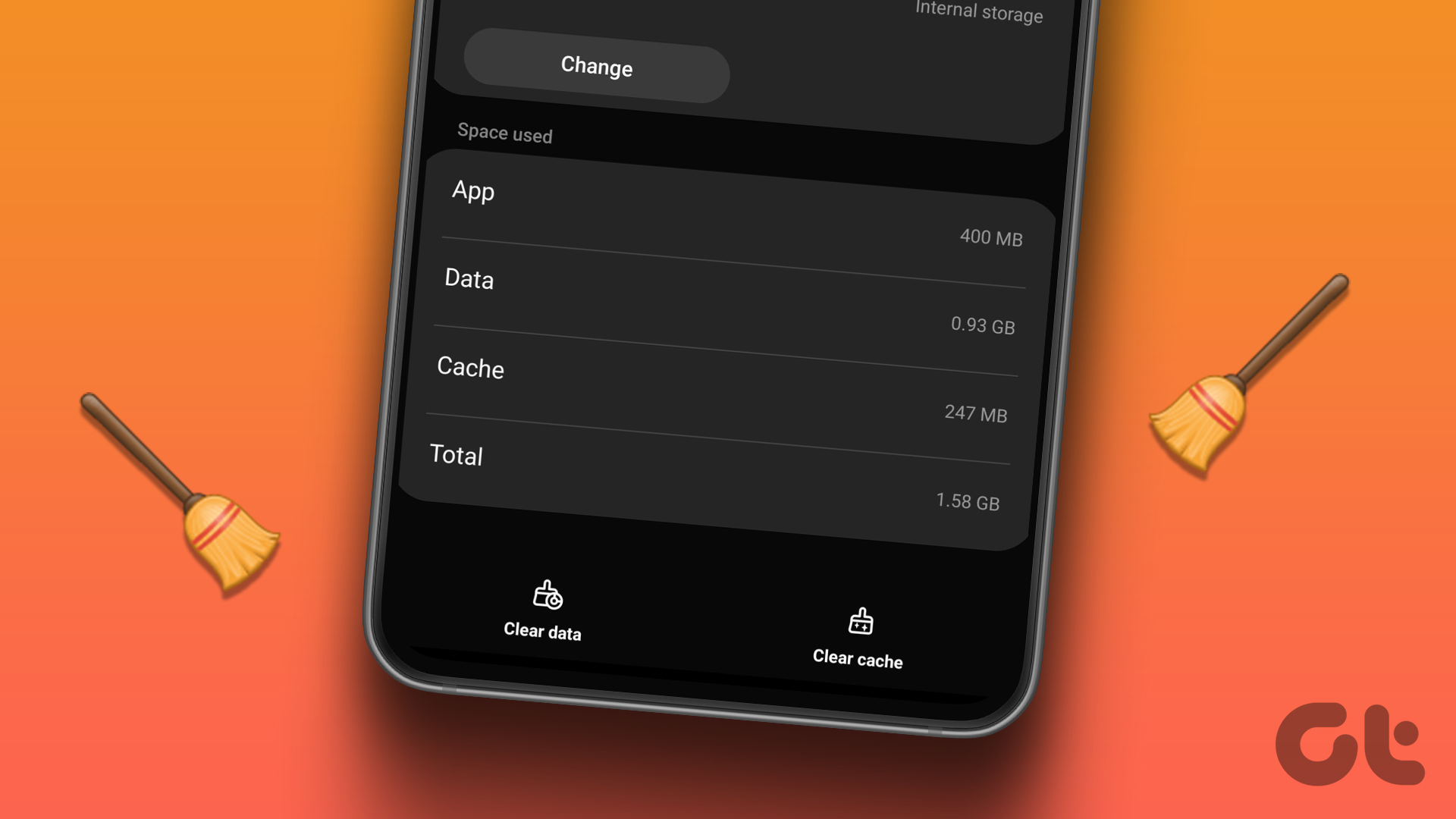 4 Ways to Clear Cache in Samsung Galaxy Phones
https://youtu.be/cwc-25dz6Pc Method 1: Clear Cache of One App on a Samsung Phone Step 1: Open Settings on your phone and go to Apps.
4 Ways to Clear Cache in Samsung Galaxy Phones
https://youtu.be/cwc-25dz6Pc Method 1: Clear Cache of One App on a Samsung Phone Step 1: Open Settings on your phone and go to Apps.
 How to Clear OneDrive Cache on Android and iOS
Method 1: Clear OneDrive Cache on Android On Android, you can clear the cache using settings.
How to Clear OneDrive Cache on Android and iOS
Method 1: Clear OneDrive Cache on Android On Android, you can clear the cache using settings.
 How to Clear Facebook Cache on Android and iPhone
What Does Clearing Facebook Cache Do?
How to Clear Facebook Cache on Android and iPhone
What Does Clearing Facebook Cache Do?
 How to Clear WhatsApp Cache on iPhone and Android
Clearing WhatsApp Cache on Android Step 1: Long press the WhatsApp icon and select the ‘i’ (App info) symbol.
How to Clear WhatsApp Cache on iPhone and Android
Clearing WhatsApp Cache on Android Step 1: Long press the WhatsApp icon and select the ‘i’ (App info) symbol.
 How to Clear Discord Cache on Windows, Mac, iPhone, and Android
Note: We are running a OnePlus 7T (Android 12) and an iPhone 12 (iOS 16.1) for the steps in this article.
How to Clear Discord Cache on Windows, Mac, iPhone, and Android
Note: We are running a OnePlus 7T (Android 12) and an iPhone 12 (iOS 16.1) for the steps in this article.
 How to Clear Twitter Cache from Android, iOS, or Web
If you are a Twitter user, you may have occasionally noticed the Twitter app freezing, slow loading, repeated content recommendations, or some features not working properly.
How to Clear Twitter Cache from Android, iOS, or Web
If you are a Twitter user, you may have occasionally noticed the Twitter app freezing, slow loading, repeated content recommendations, or some features not working properly.
 How to Clear Cache on Android TV and Google TV
Apart from Samsung and LG, most smart TV manufacturers use Google’s Android TV platform to unlock thousands of apps on your smart TV.
How to Clear Cache on Android TV and Google TV
Apart from Samsung and LG, most smart TV manufacturers use Google’s Android TV platform to unlock thousands of apps on your smart TV.
The article above may contain affiliate links which help support Guiding Tech. The content remains unbiased and authentic and will never affect our editorial integrity.