Method 1: Clear Cache of One App on a Samsung Phone
Step 1: Open Settings on your phone and go to Apps.
Step 2: Find the app whose cache you want to clear. Let’s say Facebook. Tap on it.


Step 4: Tap Storage.
Step 5: Tap Clear cache at the bottom.
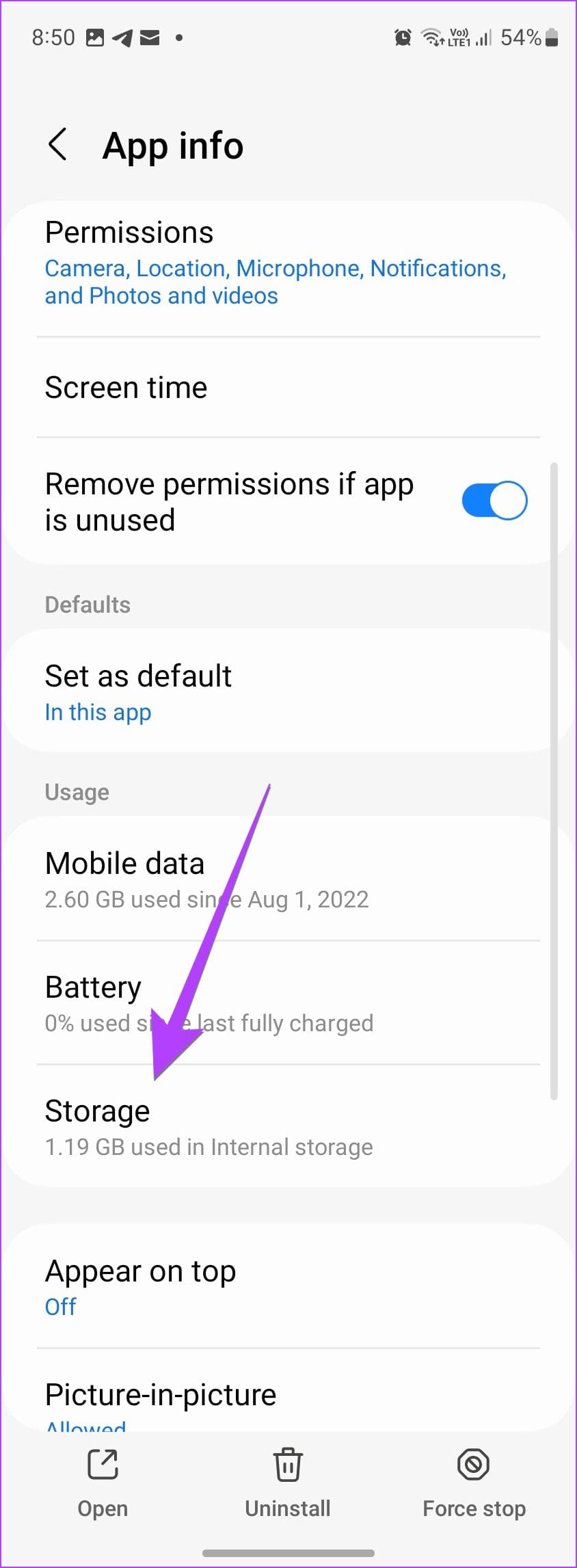

Step 6: Similarly, clear the cache of other apps. Then, restart your phone.
Method 2: Clear Cache of All Apps at Once on Samsung Galaxy Phones
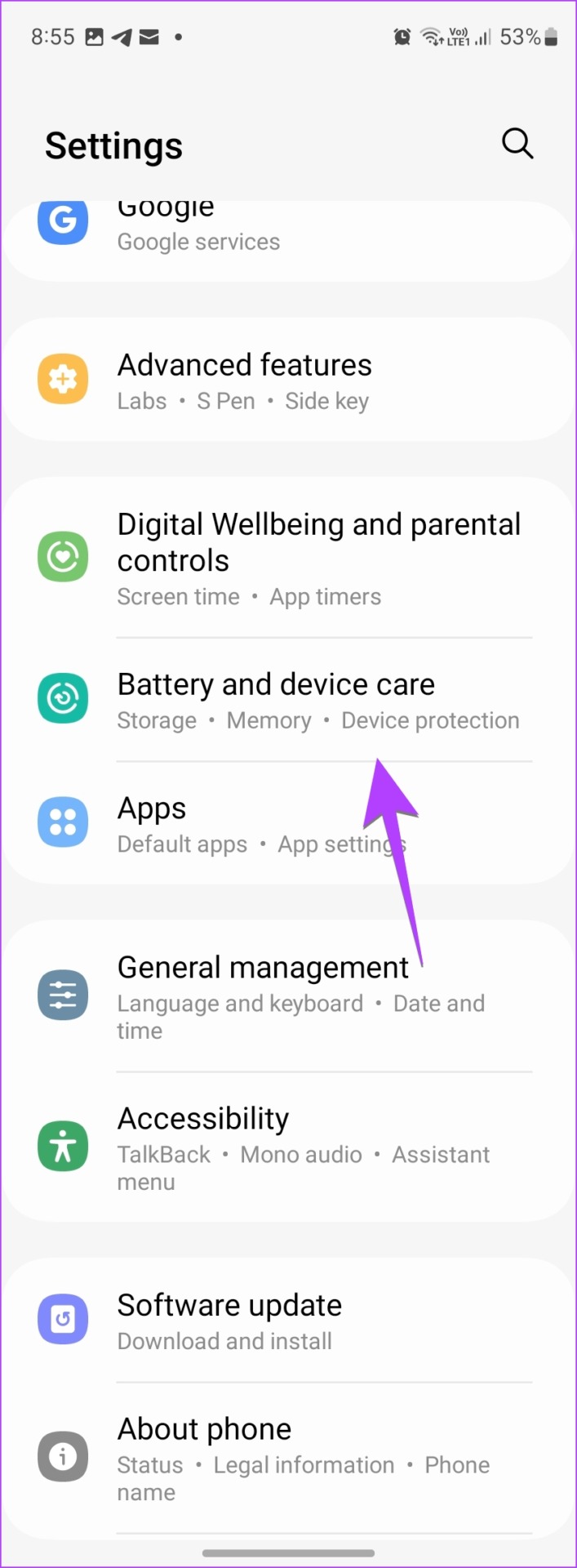
Step 1: Open Settings on your Samsung Galaxy phone.
Step 2: Go to Battery, followed by Device care.
Step 3: Tap Optimize now.
This will close background apps, scan your device for malware, manage battery usage, and clear cache on some phones.
Note: If you don’t see the cache cleared in the optimization result, follow the next step.

Step 4: Then, go to Storage, followed by the Clear now button.
Method 3: Clear Cache of Multiple Apps on Samsung Phone
You can also use third-party apps to clear the cache of individual, multiple, or all apps at once. In addition to that, these apps show the cache size of all the apps at once.
Step 1: Install and open the 1TapCleaner app from the Play Store.
Step 2: Open the app and grant the necessary permissions.
Step 3: Now, tap on Cache cleaner in the app.
You will see a list of all currently installed apps, with the one utilizing the most cache memory located at the top.
Step 4: To clear the cache for an individual app, tap on it and press the Clear cache button on the next screen.


Step 5: To clear the cache of all or multiple apps, go back to the previous screen and tap on the Brush button at the bottom.
Step 6: You will see the total occupied cache size on the next screen. Tap again on the Brush button.


By default, all the apps will be selected. If you want to clear the cache for all of them, tap on the Brush button.
You might need to grant accessibility permission to clear the cache.
Method 4: Delete Cache and Cookies on the Samsung Internet Browser
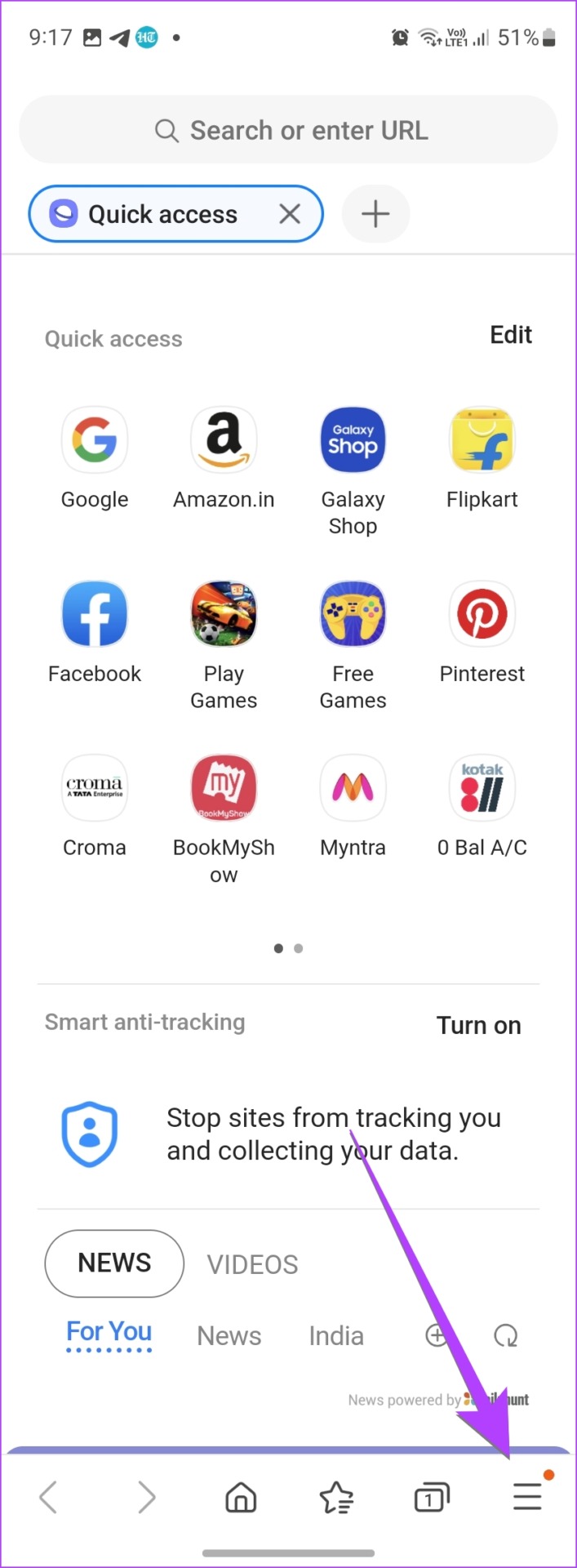
Step 1: Open the Samsung Internet app on your phone.
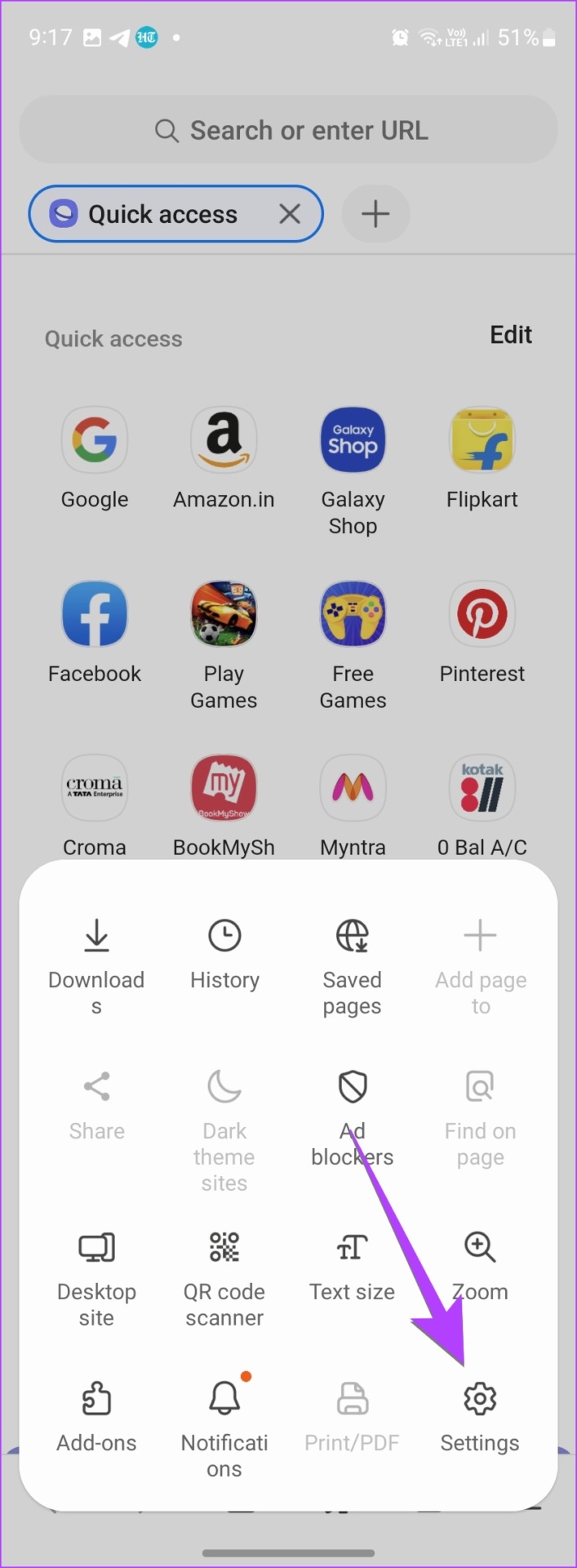
Step 2: Tap on the three-bar icon at the bottom and select Settings from the menu.
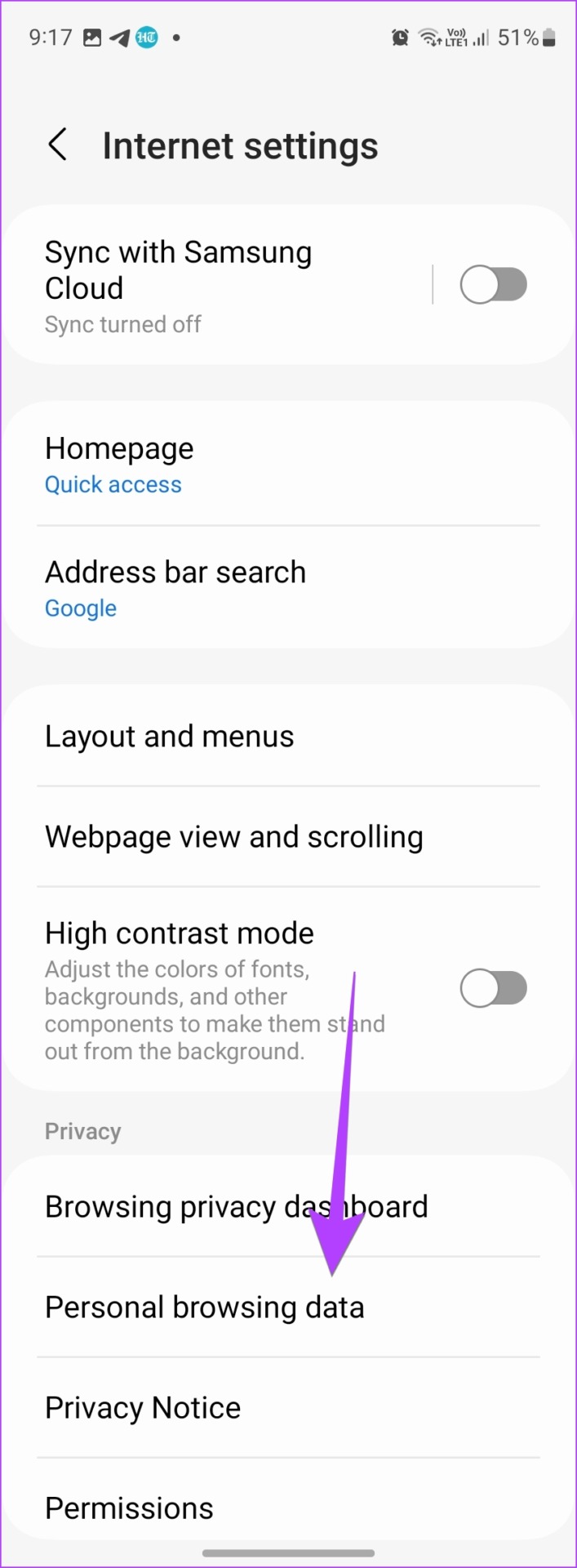
Step 3: Go to Personal browsing data and tap on Delete browsing data.

Step 4: Select the items that you want to delete. In this case, select Cookies and site data, and Cached images and files. Then, tap on the Delete data button at the bottom.
Note: Deleting cookies will sign you out of the websites where you are logged in on your Samsung Galaxy phone. You can also clear browsing data by selecting Browsing history.
FAQs About Clearing Cache on Samsung Galaxy Phone
Clearing the cache will delete temporary files that accumulate over time. On the contrary, clearing data will delete the actual data associated with the app. For instance, chats will be deleted in WhatsApp. Learn the difference between clearing cache and data.
Clearing the cache is not advised because apps save temporary data to make them run faster. However, some poorly designed apps do not properly manage the app cache. Furthermore, the app cache accumulates over a long period of time. So, you can clear the cache occasionally but not regularly, such as daily or weekly.
Clearing the cache helps free up storage on your Samsung Galaxy phone. Check out other ways to free up storage on your Samsung phone.
Was this helpful?
Last updated on 18 July, 2024
Read Next
 5 Fixes for Samsung Health App Not Tracking Steps
Basic Fixes Ensure that step counter is enabled: Open the Health app > Tap on Steps > Three dots in the top-right corner > Check and ensure that the step
5 Fixes for Samsung Health App Not Tracking Steps
Basic Fixes Ensure that step counter is enabled: Open the Health app > Tap on Steps > Three dots in the top-right corner > Check and ensure that the step
 4 Ways to Create a GIF on Samsung Galaxy Phones
Method 1: Create a GIF Using Photos Creating a GIF on your Samsung Galaxy phone is easiest if you use a bunch of images.
4 Ways to Create a GIF on Samsung Galaxy Phones
Method 1: Create a GIF Using Photos Creating a GIF on your Samsung Galaxy phone is easiest if you use a bunch of images.
 6 Fixes for Google Play Store Not Working on Samsung Galaxy Phones or Tablets
Try Basic Fixes Free up storage space: The Google Play Store may not download or update apps on your Samsung device if there is not enough storage space.
6 Fixes for Google Play Store Not Working on Samsung Galaxy Phones or Tablets
Try Basic Fixes Free up storage space: The Google Play Store may not download or update apps on your Samsung device if there is not enough storage space.
 6 Ways to Fix Notifications Not Working on Samsung Galaxy Phones
https://youtu.be/B5e3TKYKdzk Try Basic Fixes Disable power saver mode: When you enable power saver mode, apps may not work efficiently in the background and fail to show any notifications.
6 Ways to Fix Notifications Not Working on Samsung Galaxy Phones
https://youtu.be/B5e3TKYKdzk Try Basic Fixes Disable power saver mode: When you enable power saver mode, apps may not work efficiently in the background and fail to show any notifications.
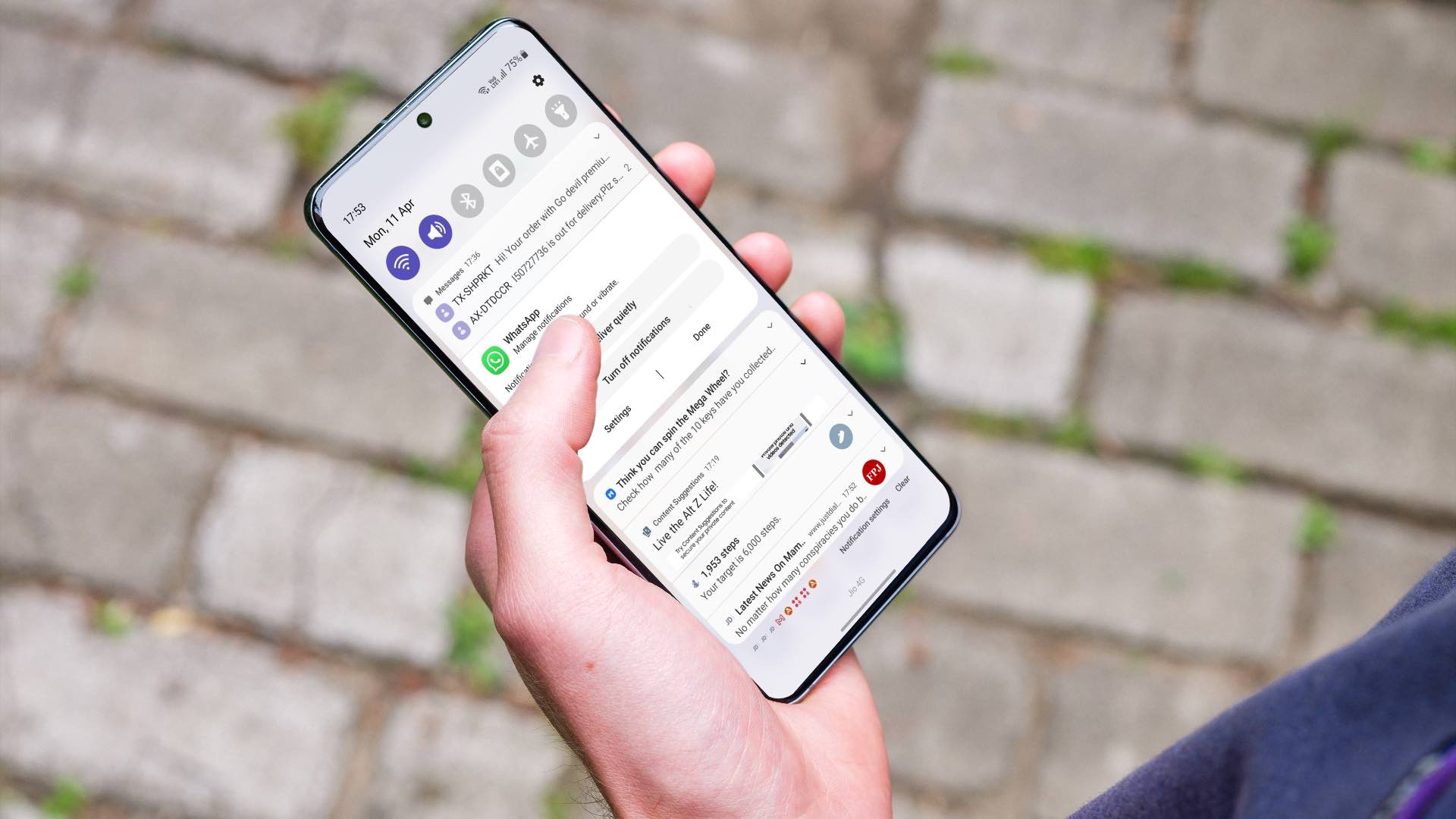 Top 5 Ways to Get Rid of Notifications on Samsung Galaxy Phones
Some Android apps display notifications that continue to stay at top for hours as banner with the app name in the notification center.
Top 5 Ways to Get Rid of Notifications on Samsung Galaxy Phones
Some Android apps display notifications that continue to stay at top for hours as banner with the app name in the notification center.
 6 Best Ways to Fix Wireless Power Sharing Not Working on Samsung Galaxy Phones
Wireless charging is quite common on premium smartphones, you’d be surprised to find a phone without one.
6 Best Ways to Fix Wireless Power Sharing Not Working on Samsung Galaxy Phones
Wireless charging is quite common on premium smartphones, you’d be surprised to find a phone without one.
 6 Ways to Turn off Do Not Disturb on Samsung Galaxy Phones
Basic Ways: Using Quick Settings: Swipe down twice from the top of the screen to open the Quick Settings panel.
6 Ways to Turn off Do Not Disturb on Samsung Galaxy Phones
Basic Ways: Using Quick Settings: Swipe down twice from the top of the screen to open the Quick Settings panel.
 10 Ways to Fix Moisture Detected in Charging Port Error on Samsung Galaxy Phones
Most Samsung Galaxy devices these days come with an IP rating.
10 Ways to Fix Moisture Detected in Charging Port Error on Samsung Galaxy Phones
Most Samsung Galaxy devices these days come with an IP rating.
The article above may contain affiliate links which help support Guiding Tech. The content remains unbiased and authentic and will never affect our editorial integrity.