
Considering how important user data and security have become, it’s natural to be concerned about how the programs you download can access and use your information. Location services are among the most commonly used data points that programs will leverage for ads, sales, and geo-locking content or services. So here’s how to check location permissions Windows 11 apps require for added features.
How to Check Location Permissions (Windows 11)
Actually determining which apps have access to your location information is fairly easy and can be done through the Settings menu.
Step 1. Open “Settings” with “Win + I” or by searching for it.
Step 2. Go to the “Privacy & security” tab on the left.
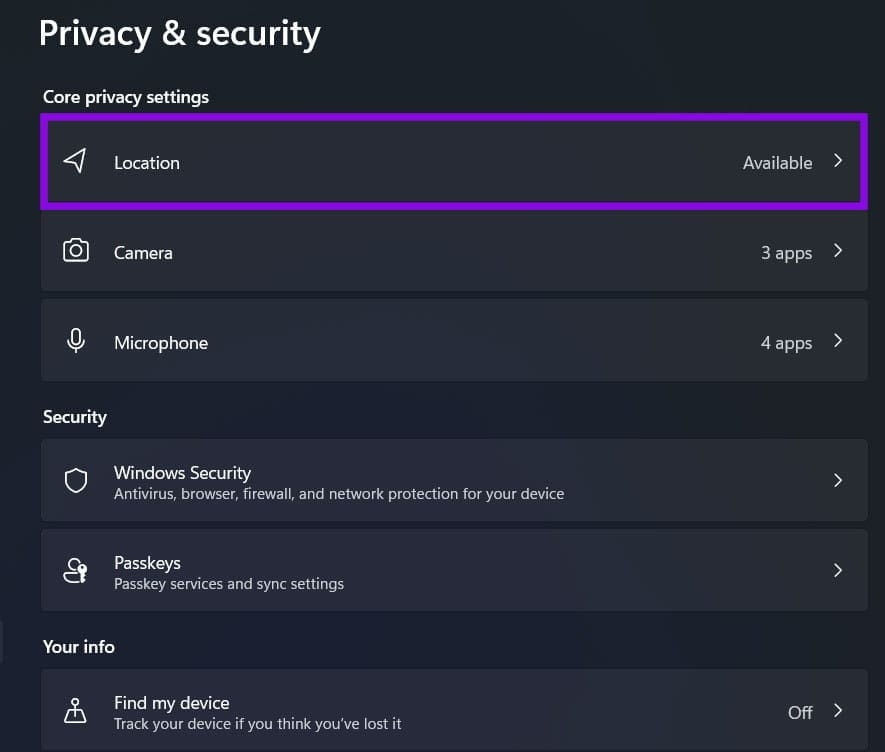
Step 3. Click on “Location” under “App permissions.” If you don’t see it immediately, scroll down the page.
Checking Location Access and Turning It On or Off
This menu displays several settings related to location access. So if you’re wondering, “Which apps use my location?” Windows 11 places all that there.

Here’s a broad breakdown.
- The “Location services” toggle is a broad switch that either allows or prevents any app from trying to access location data.
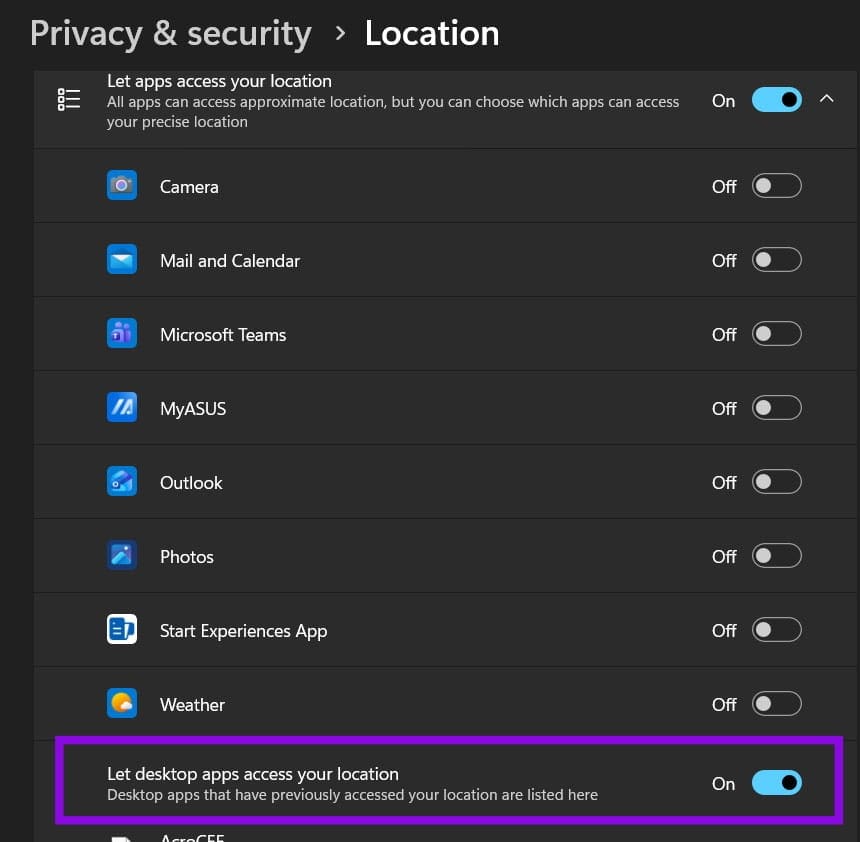
- The “Let apps access your location” toggle allows you to more selectively check which app can use location data for its services. Here, you can expand the section and toggle each app separately. The section also has a separate tab for apps that have a shortcut installed on the desktop or are directly put there.
- A bit further down is the “recent activity panel.” This one displays specific location-access requests in chronological order. Unfortunately, it detects multiple requests from one app separately, so you may need to click through it to navigate it better. The most common example here will likely be your internet browser, since most websites try to access location information for ads.
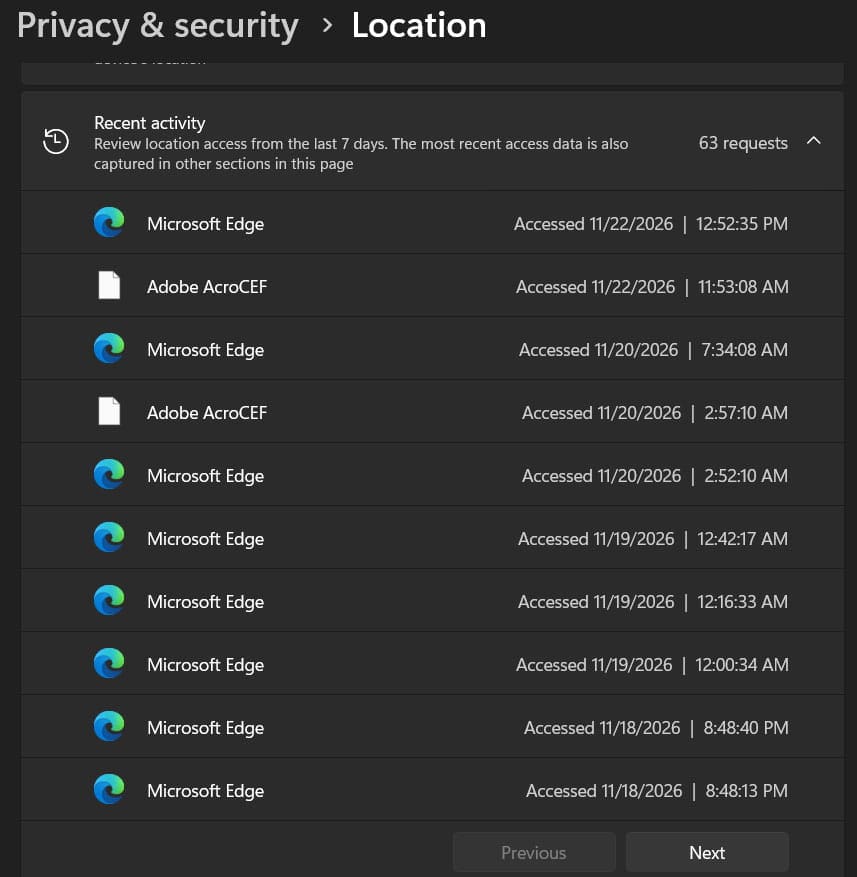
If the app doesn’t have an icon or an easily identifiable name, it might represent a background process or component of another application. However, its appearance alone isn’t enough to determine whether it’s safe or unsafe.
The app not having an icon doesn’t make it immediately malicious (or vice versa; an app with an icon but a strange name might still be unsafe). For example, AcroCEF is a component of Adobe Acrobat and Acrobat Reader. It can run as part of the applications’ normal functionality.
Setting a Location for Location Services
If you’re on a desktop device or don’t use Wi-Fi for long stretches of time, your actual location might “drift” when apps can’t determine where you’re located. This can also happen if you regularly use a VPN or your ISP happens to cover a larger area.
In these cases, you can use the “Default location” option in the Location Settings menu. You can put a pin on a map where you’re usually located, and most apps will revert to that location if they can’t precisely determine it.
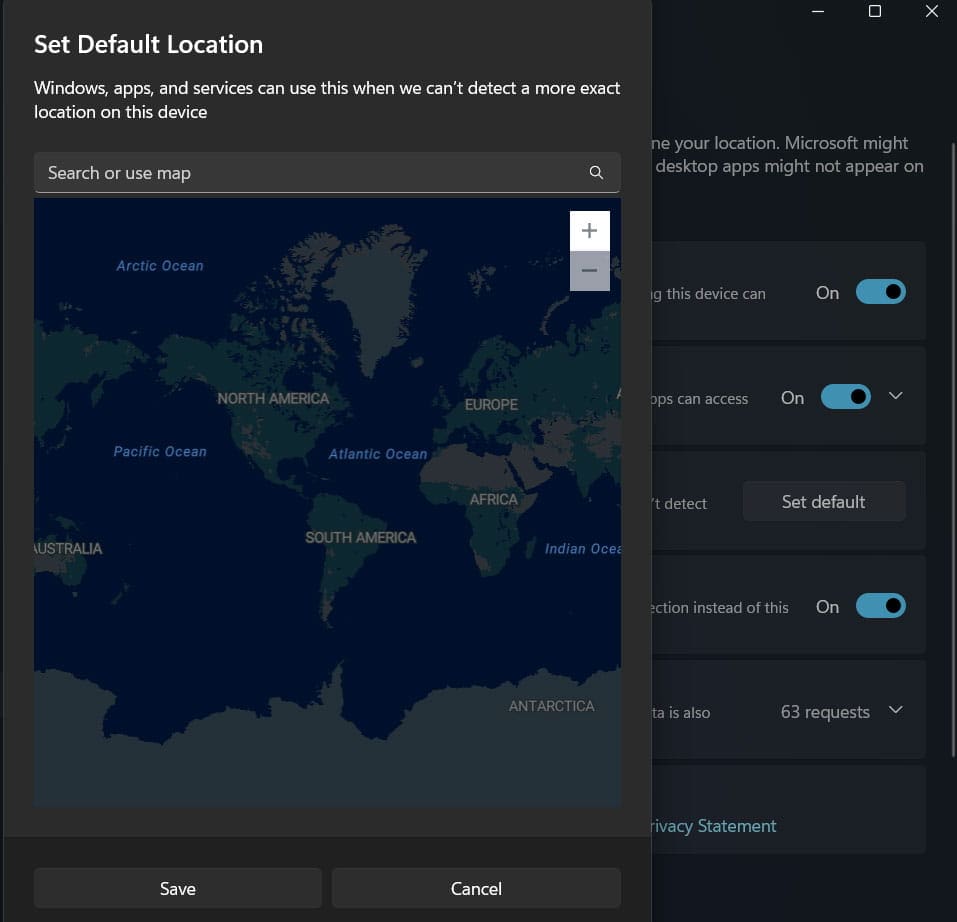
Note that this might not work, as a running VPN or your ISP can still affect the location based on your IP address.
Was this helpful?
Last updated on 24 November, 2026
Read Next
 How to Change GPS Location on iPhone With an iPhone Location Spoofer
Apple locks down iOS tightly, so there is no built-in toggle in your iPhone's Settings app to manually change your GPS coordinates.
 How to Check Location History on iPhone, iPad, and Mac
How to Check Location History on iPhone and iPad iPhone and iPad are usually the only Apple device that gets carried everywhere we go.
 6 Best Ways to Access Windows Tools on Windows 11
Windows Tools carries useful utilities like Event Viewer, Task Scheduler, and System Configuration Tool, organized into a folder for easy access.
 How to Access the Old Add or Remove Programs Panel and Other Classic Features in Windows 10
Windows 10 is a dramatic improvement over its predecessors in terms of both speed and stability.
 3 Ways to Access Google Keep Notes on Windows 11
Method 1: Access Google Keep Notes on the Web Google Keep lets you create, sync, and access notes across multiple devices.
 4 Ways to Fix Access Denied Error in Steam for Windows
Try Basic Fixes Check if Steam is down: Just like any other service, Steam is vulnerable to occasional server-side glitches.
 How to Remove Recent Files From Quick Access in Windows 11
Remove Files and Folders From Quick Access in File Explorer If you want to remove only specific files or folders from Quick Access (or Home) in File Explorer, follow the
 Top 10 Fixes for ‘Can’t Access Router Admin Page’ on Windows 11
For the most part, most users don't have to constantly access their Wi-Fi router's admin page.
The article above may contain affiliate links which help support Guiding Tech. The content remains unbiased and authentic and will never affect our editorial integrity.