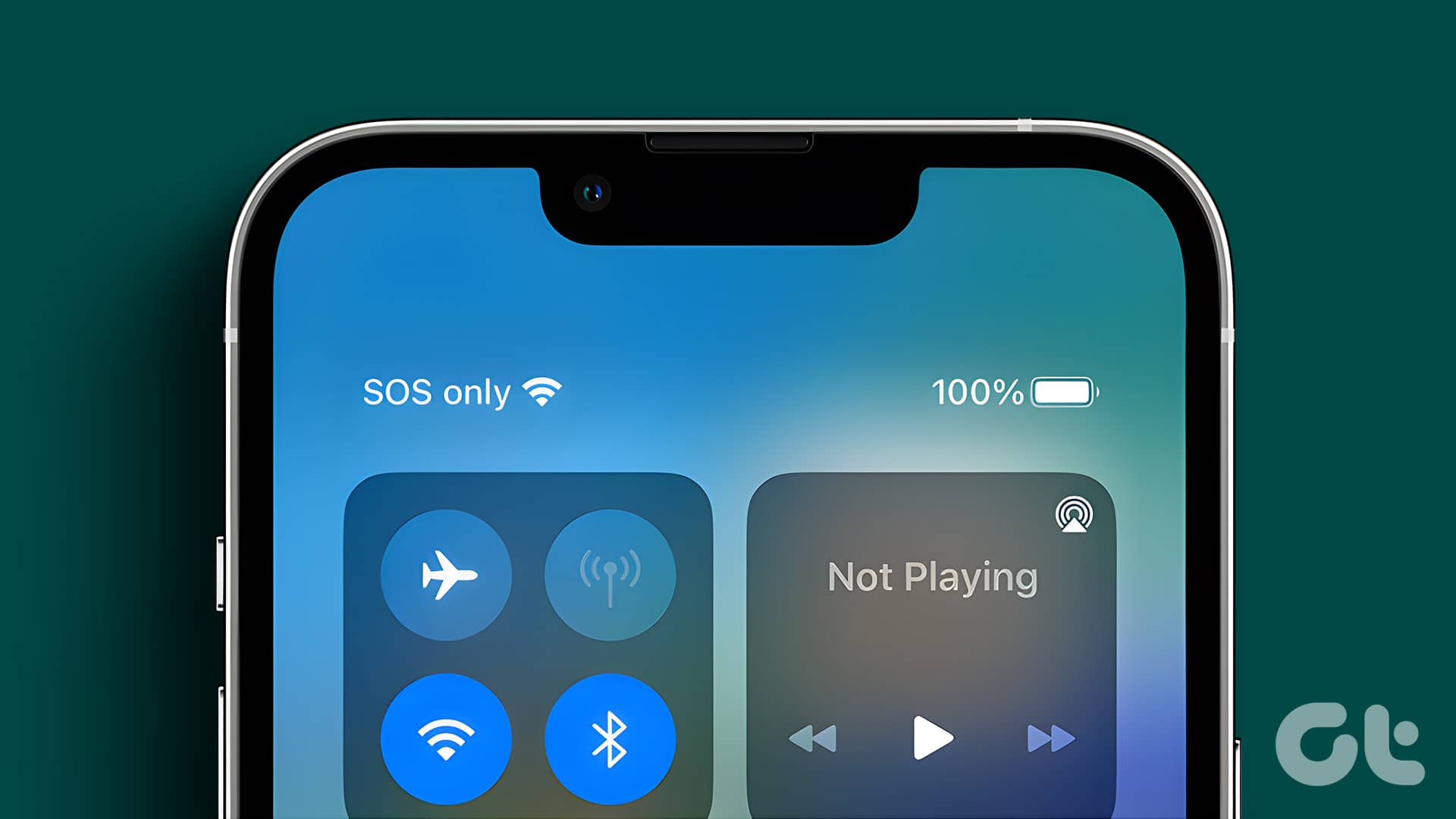

Apple locks down iOS tightly, so there is no built-in toggle in your iPhone’s Settings app to manually change your GPS coordinates. While a standard VPN routes your internet traffic through a remote server to mask your IP address, it leaves your phone’s actual satellite and Wi-Fi positioning untouched.
If you are testing location-based apps, protecting your privacy from background tracking, or adjusting your region on social platforms, you need a dedicated GPS simulation utility. Using a desktop-assisted tool like Fonelora Location Changer lets you override device coordinates on iOS without jailbreaking your handset.
Why a Standard VPN Cannot Change Your iPhone’s GPS
Many iPhone owners install a VPN expecting it to change their location across every app on their phone. In reality, iOS separates network routing from hardware positioning.
- What a VPN Changes: It encrypts your connection and assigns a new IP address, which works for streaming libraries and web browsers.
- What a GPS Tool Changes: It injects simulated latitude and longitude coordinates directly into iOS location services, updating what maps, social check-ins, and location-aware apps read.
- Movement Simulation: Unlike a static VPN server, GPS utilities let you plot multi-stop routes or use an on-screen joystick to mimic walking or driving.
How Fonelora Location Changer Works on iOS
Instead of modifying system files through a risky jailbreak, tools like the Fonelora location changer use Apple’s developer location-simulation framework. You can run sessions directly from a Windows PC or Mac, or use the companion Fonelora Go mobile app once initial desktop pairing is complete.
Before picking an address on the map, grabbing exact latitude and longitude numbers makes targeting much easier. Knowing how to get GPS coordinates from Google Maps lets you paste precise decimal coordinates straight into the search bar instead of dragging pins manually.
Method 1: Change iPhone GPS Location Using a PC or Mac

Controlling your location from a computer gives you a larger map canvas and works best when you want to plan multi-stop routes.
- Download and install Fonelora Location Changer on your Windows PC or Mac.
- Connect your iPhone to the computer using a reliable USB cable, unlock your screen, and tap Trust This Computer when prompted.

- Follow the on-screen setup prompts. If your iOS version asks for Developer Mode, open Settings > Privacy & Security > Developer Mode, toggle it on, and restart your iPhone.
- Select Teleport Mode on the desktop map, type in your target city, address, or coordinates, and click Move to update your phone’s GPS position.
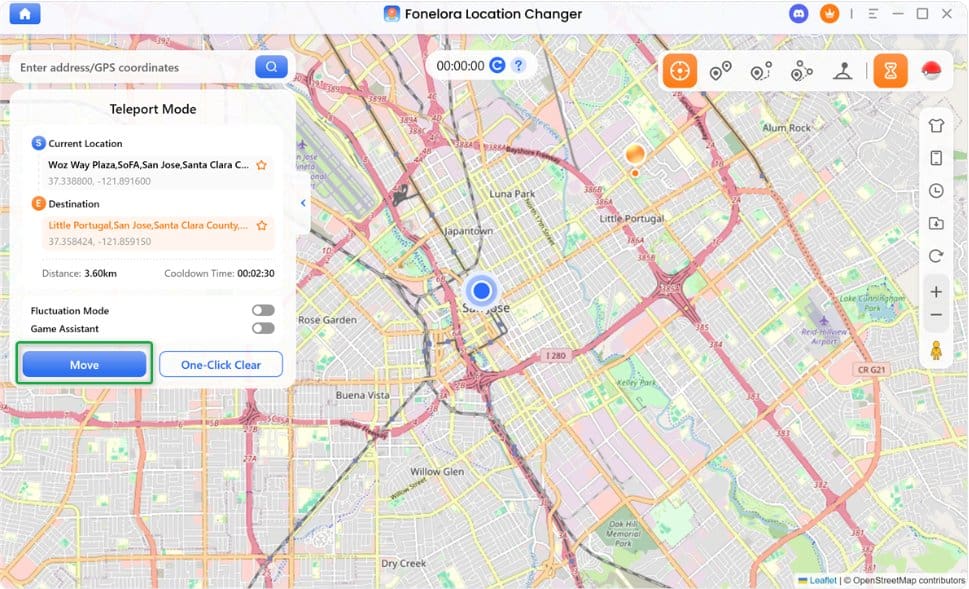
- To simulate travel rather than standing still, switch to Single-Spot or Multi-Spot Mode, set a walking or driving speed, and start the route.
Method 2: Control Virtual Location on iPhone With Fonelora Go
If you do not want to stay tethered to a desk, Fonelora Go lets you adjust coordinates directly from your iPhone after completing an initial computer setup.
- Connect your iPhone to the desktop client in General Mode first so the required configuration profile can be installed.

- Install Fonelora Go on your iPhone following the official setup prompt and approve any requested configuration and Developer Mode permissions.
- Disconnect your cable, open Fonelora Go, and search for your desired destination on the mobile map.
- Confirm the new pin or use the built-in virtual joystick to steer your simulated position in real time.
Keep in mind that untethered mobile control via Fonelora Go requires a Pro plan, so check iOS version compatibility before subscribing.
Privacy and Safety Things to Keep in Mind
Altering GPS data affects every app on your iPhone that relies on Core Location, so keep a few practical rules in mind:
- Respect App Terms of Service: Competitive location-based games and certain social platforms actively monitor for GPS spoofing and may issue temporary cooldowns or account bans if you jump across time zones instantly.
- Hardware Trackers Work Differently: Software spoofing only alters the GPS signal reported by your iPhone, whereas dedicated hardware devices like the best portable GPS trackers for cars or the best car trackers in the UK rely on independent satellite receivers and cellular modems.
- Clear Simulated Coordinates When Done: Restarting your iPhone cleanly resets your GPS back to your real physical location so navigation apps like Apple Maps and Google Maps work normally again.
Final Thoughts
Changing your iPhone’s GPS location requires stepping outside standard VPN apps and using a dedicated coordinate simulator. Using Fonelora Location Changer on a Mac or Windows PC gives you straightforward map control and route simulation without jailbreaking, while Fonelora Go adds on-the-go convenience once your initial setup is complete. Just stick to realistic travel speeds and restart your phone whenever you want your real-world location back.
Was this helpful?
Last updated on 24 November, 2026
Read Next
 What Is Dual-Frequency GPS and Why Is Apple Using It
What is Dual Frequency Band GPS The turn-by-turn directions on your navigation app are a result of a GPS signal received from a satellite.
 5 Best Dash Cam With GPS Tracking
If you are looking to invest in a dashboard camera for your car, getting a dash cam with GPS will prove to be a clever investment.
 3 Ways to Fix GPS Signal Lost on Android Auto
Fix 1: Enable Location Permission for Maps Whether you use Google Maps or Waze for navigation, it's important to enable the right permissions for the navigation app if you want
 5 Fixes for “GPS Signal Lost” Problem in Google Maps on Android
Try Basic Fixes Turn off battery saver mode: When you enable battery saver mode, Android restricts certain resource-intensive tasks like GPS tracking to conserve battery life.
 6 Best GPS Car Trackers in the UK in 2024
In today's fast-paced world, car theft is a growing concern for vehicle owners in the UK.
 How to Get GPS Coordinates From Google Maps
How to Find Coordinates of a Place on Google Maps To get longitude and latitude in Google Maps, follow the below steps.
 5 Best Portable GPS Trackers for Cars in 2024
Whether you're a security-conscious driver, a concerned parent, or someone who wants to keep an eye on their prized possession, a good GPS tracker can provide peace of mind and
 How to Change Weather Location on iPhone, iPad, or Apple Watch
If you own an iPhone or an Apple Watch, you probably know how convenient it is to check the weather forecast on these devices.
The article above may contain affiliate links which help support Guiding Tech. The content remains unbiased and authentic and will never affect our editorial integrity.