


Change Fortnite Username on Epic Game Store Using PC
Step 1: Open Epic Games Launcher on any web browser and log in to your account.
Step 2: Click your account name at the top right and choose Account.
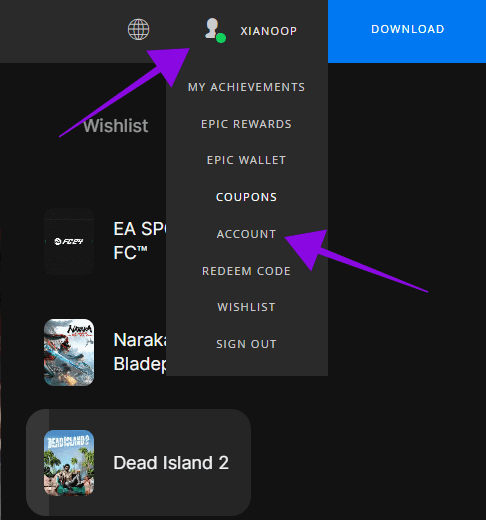
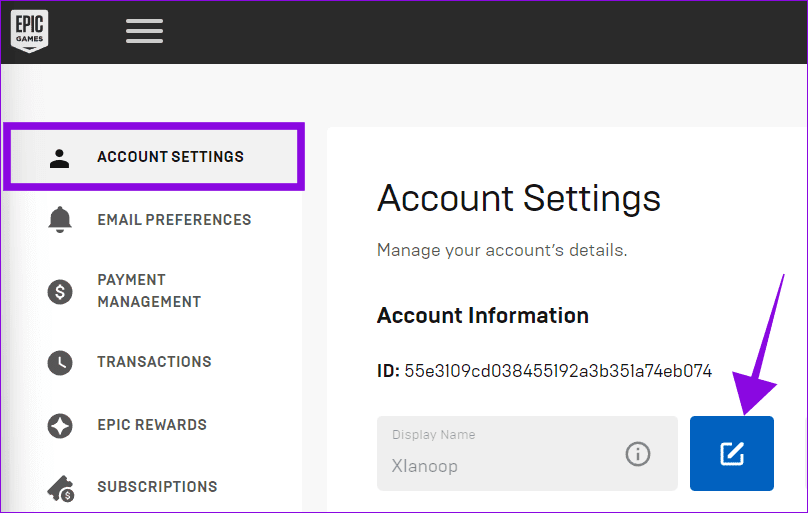
Step 3: Choose Account Settings.
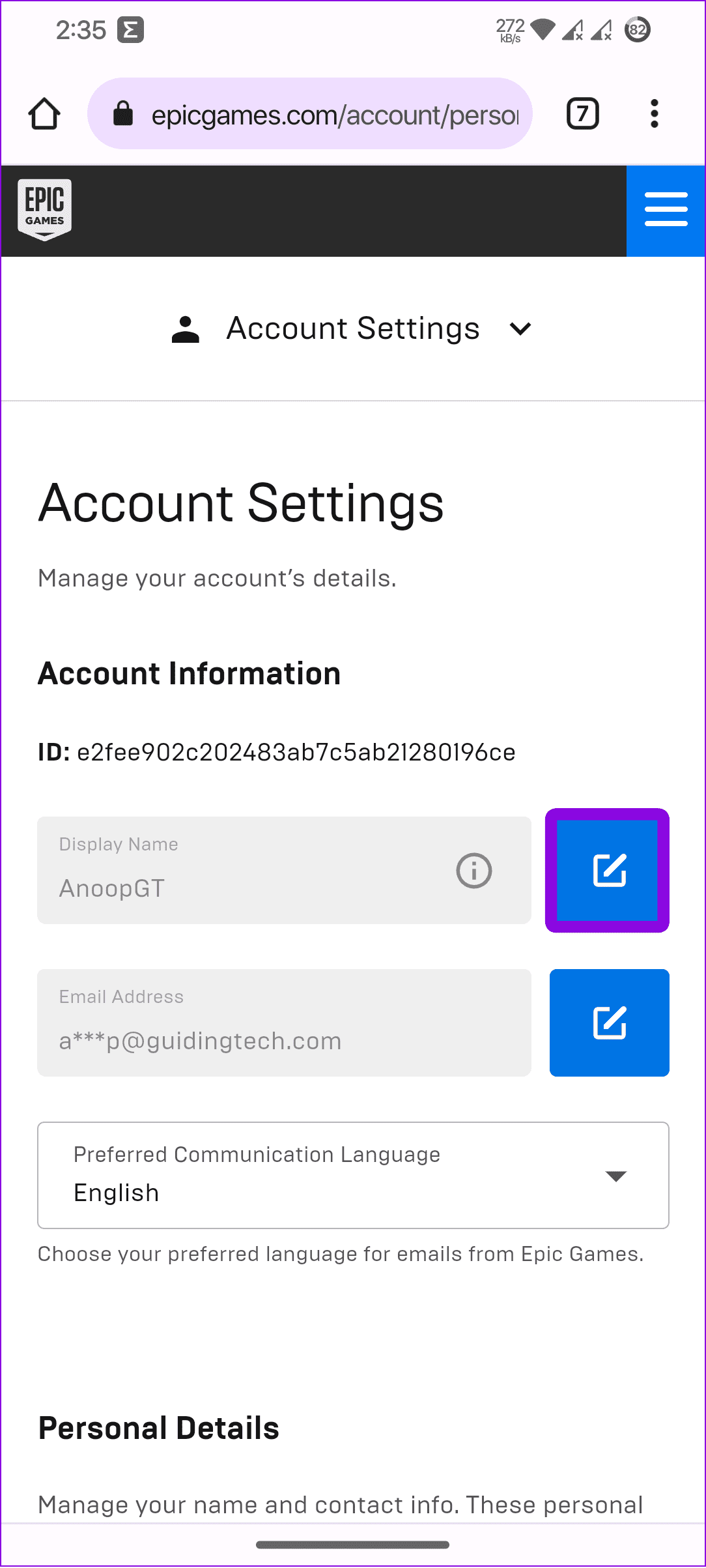
Step 4: Select edit next to the Display Name.
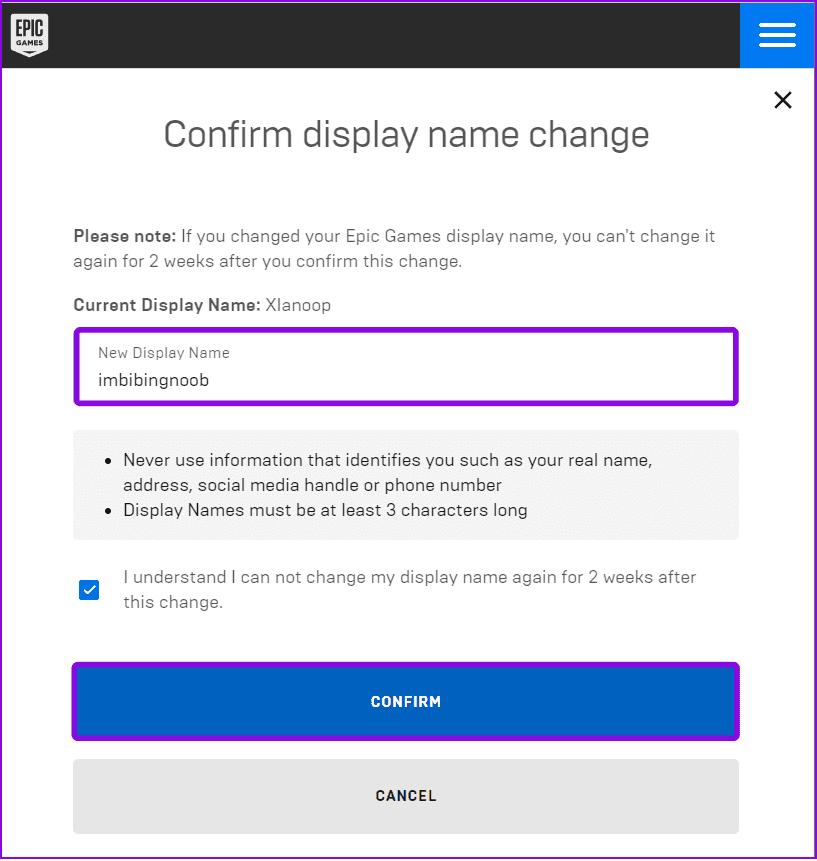
Step 5: Add the new Display Name and enable the box for I understand I can not change my display name again for 2 weeks after this change.
Step 6: After adding the name, choose Confirm to make changes.
How to Change Fortnite Username on Android and iPhone
Step 1: Open the Epic Games webpage and log in to your account.
Step 2: Tap the menu bar at the top right and choose your account name.

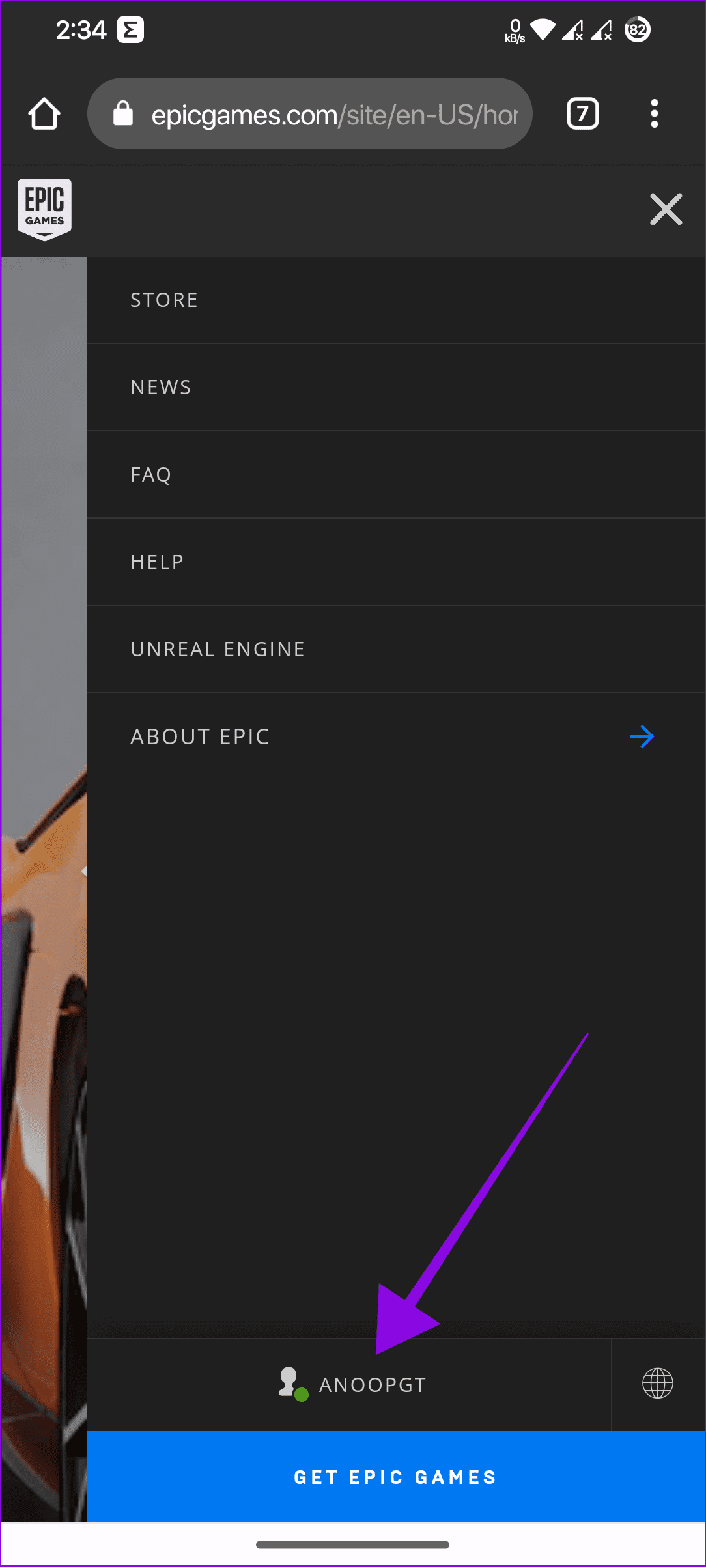
Step 3: Choose Account and tap the edit icon next to the display name.
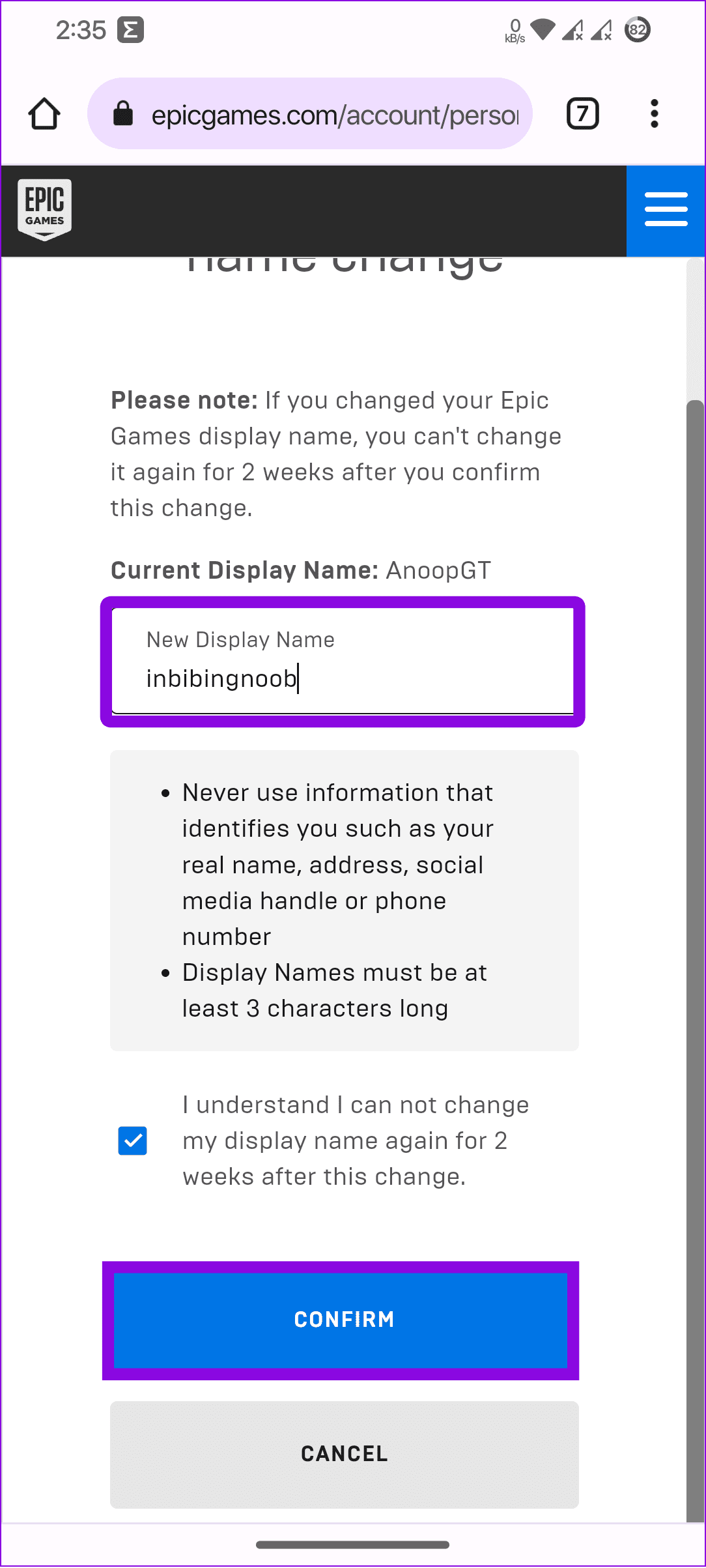
Step 4: Change Fortnite username and check the box for I understand I can not change my display name again for 2 weeks after this change.
Step 5: Once you are sure about the changes, tap Confirm.
How to Change Your Name on Fortnite on Nintendo Switch
To change your display name in Fortnite on Nintendo Switch, visit the Epic Games website and follow the above steps, depending on your device. Unlike other consoles, Fortnite in Switch uses the Epic Games account to set the username.
However, if you use Xbox or PS4, move on to the next section.
Change Username in Fortnite on Xbox
If you have been using the same account created on PC or mobile to play Fortnite on consoles like Xbox, change the nickname on Fortnite from the Epic Game Store. However, if you had created your Fortnite account from Xbox, change your Fortnite gamertag from your Xbox profile.
Step 1: Go to the Xbox Gamertag webpage and log into your account.
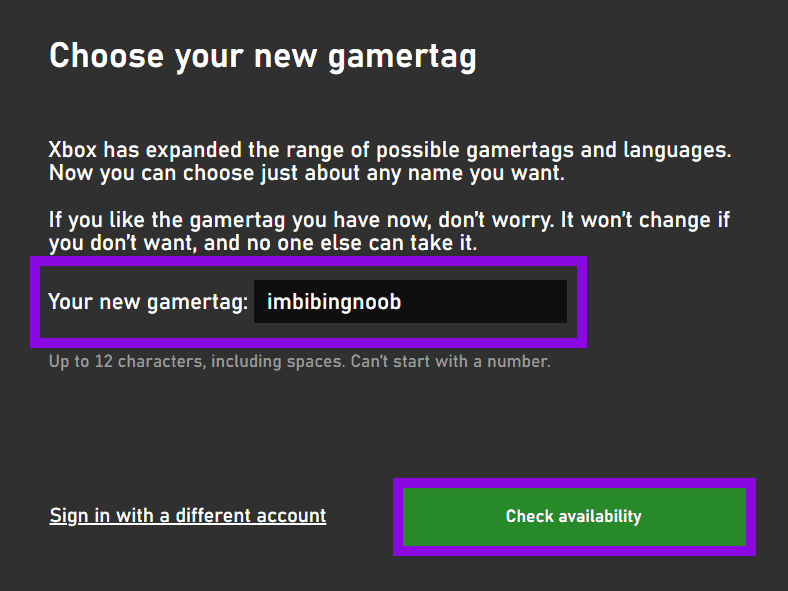
Step 2: Type your new name and click Check availability.
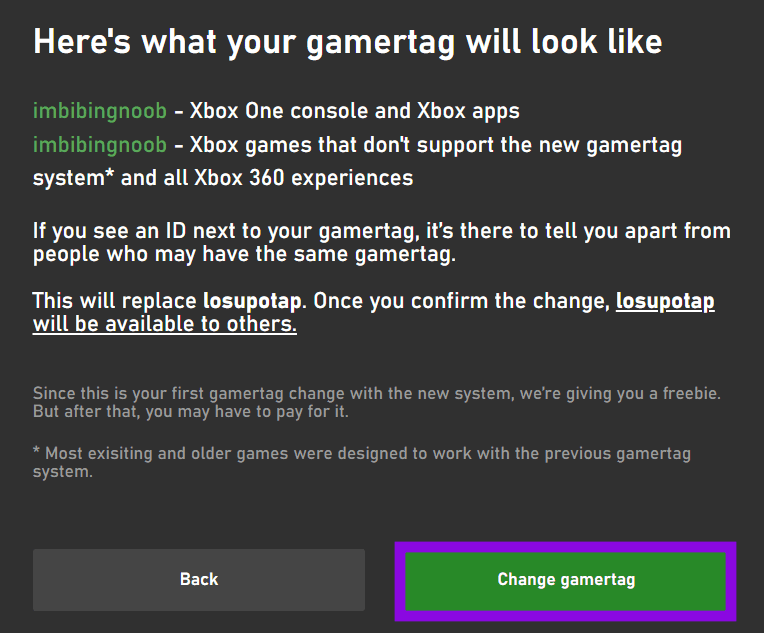
Step 3: Hit Change Gamertag, and in the confirmation window, click Change Gamertag. This will update your current gamertag.
Note: Like Xbox, you need to change your PSN name to change the Fortnite name on PS4 or PS5. Visit the PlayStation Network and change it from there. You must remember that this will also change your display name for all the other games in which you use the PlayStation Network.
FAQs
You can change your username in Fortnite for free on mobile and PC versions through Epic Games. However, you must pay ~$10 every time you change your Fortnite username on Xbox or PlayStation after the first time.
While you can have multiple Fortnite accounts, you cannot share, sell, or buy Fortnite accounts with other users. If caught, you might be banned from the game.
No, changing your Epic Games username does not clear your game data. Changing your Epic Games username only modifies your displayed name and does not affect your progress, stats, or any other game-related data associated with your account.
If you only play Fortnite on Xbox, PS, or Switch, you can avoid creating an account with Epic Games. However, if you also play Fortnite on your PC, Mac, or mobile, upgrading to a full Epic Games account is better as it saves your progress across devices.
Was this helpful?
Last updated on 30 August, 2024
Read Next
 How to Delete a Fortnite Account on All Platforms
What Happens When You Delete Your Epic Games Account Deleting your Fortnite account will also delete your Epic Games account.
How to Delete a Fortnite Account on All Platforms
What Happens When You Delete Your Epic Games Account Deleting your Fortnite account will also delete your Epic Games account.
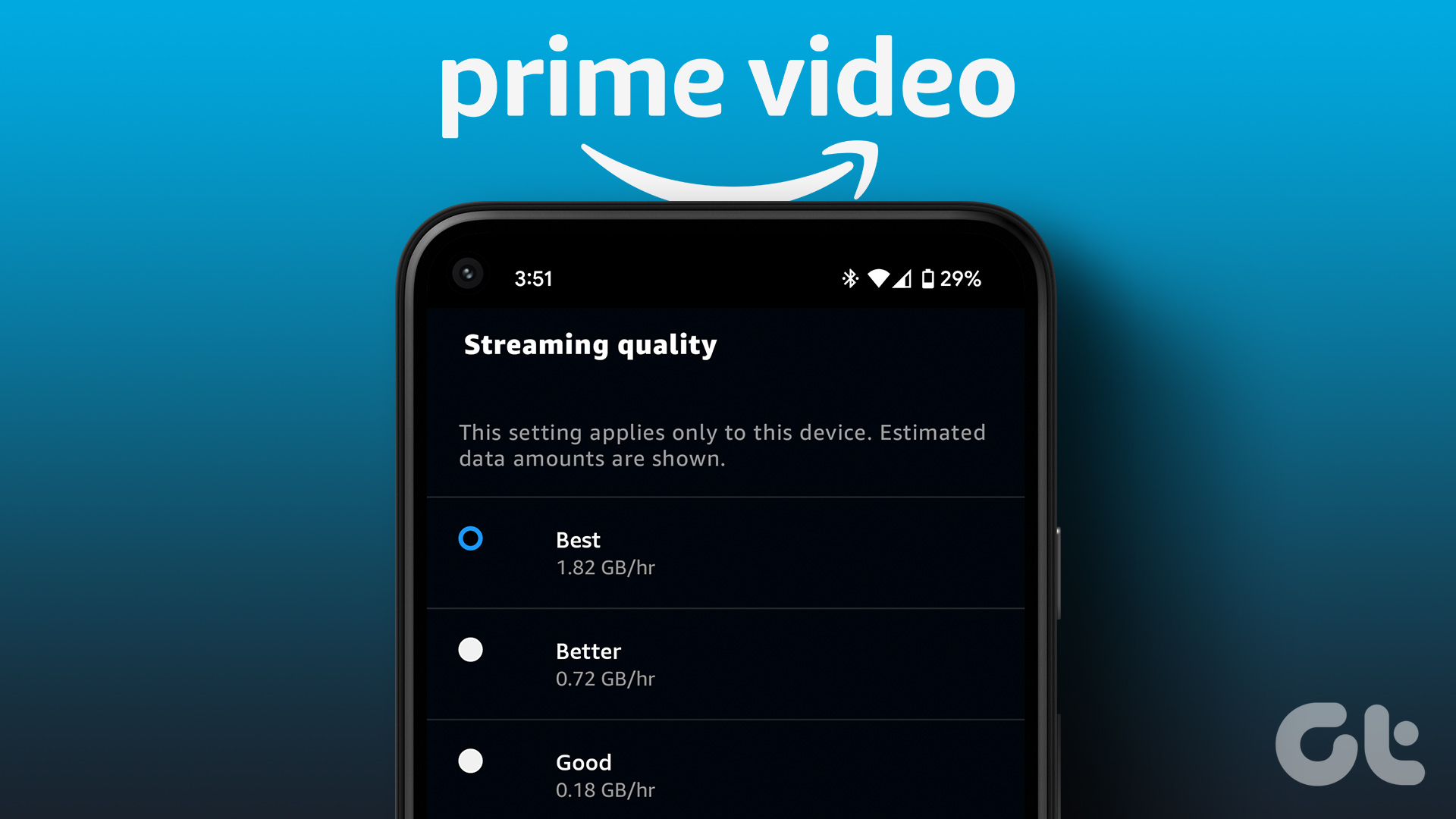 How to Change Amazon Prime Video Streaming Quality on Any Device
Most streaming services these days offer the best quality possible.
How to Change Amazon Prime Video Streaming Quality on Any Device
Most streaming services these days offer the best quality possible.
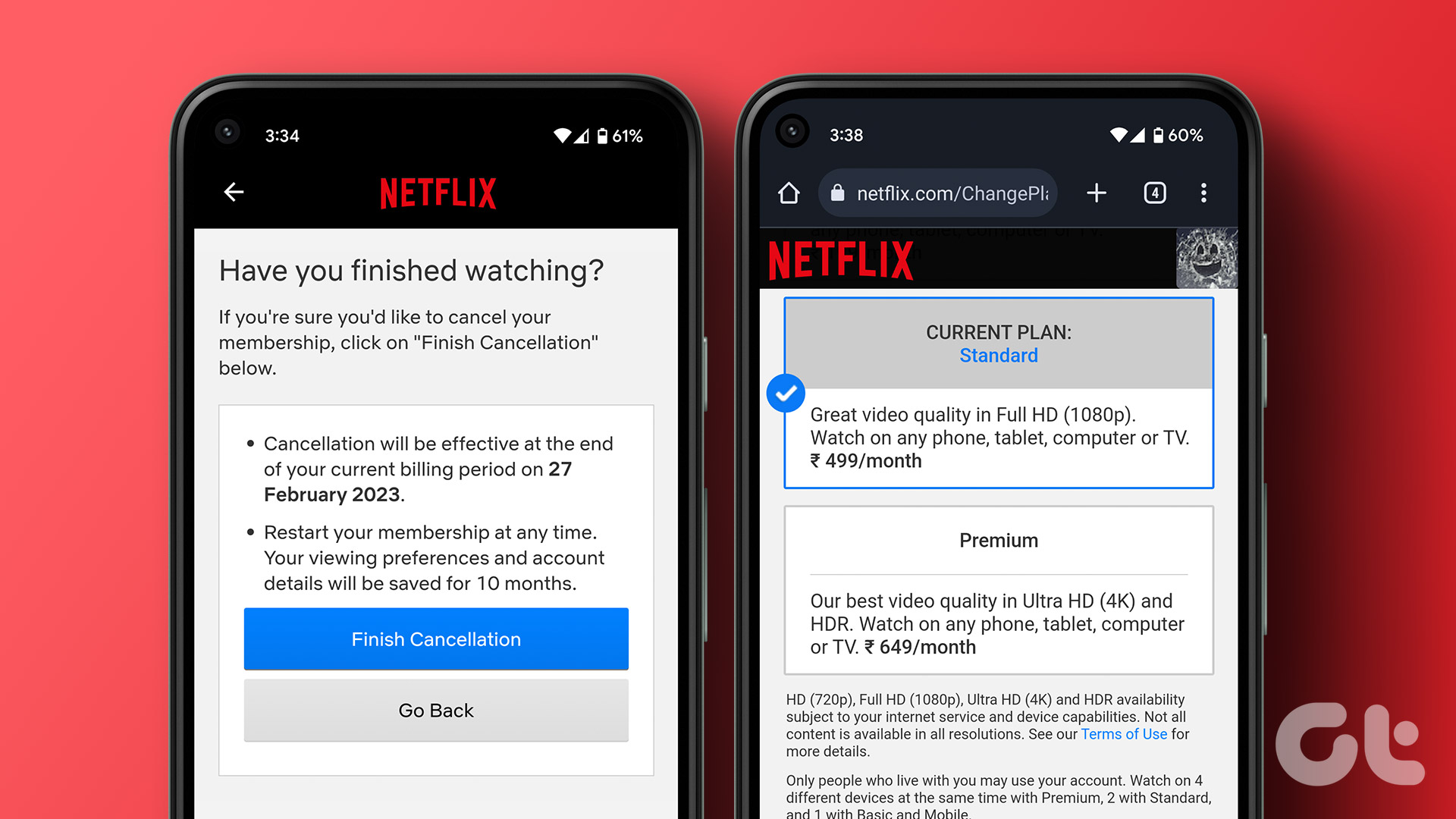 How to Change or Cancel Netflix Plan on Any Device
How to Change Your Plan on Netflix If you've made your decision and wish to change your Netflix plan, here's how to do it.
How to Change or Cancel Netflix Plan on Any Device
How to Change Your Plan on Netflix If you've made your decision and wish to change your Netflix plan, here's how to do it.
 How to Change Discord Profile Picture on Any Device
While other Discord users might not remember your username, there is a chance they might remember your profile picture.
How to Change Discord Profile Picture on Any Device
While other Discord users might not remember your username, there is a chance they might remember your profile picture.
 How to Clear Facebook Search Suggestions From Any Device
4 Ways to Clear Facebook Search Suggestions on iPhone or Android Facebook uses your search history to show better search results and suggestions.
How to Clear Facebook Search Suggestions From Any Device
4 Ways to Clear Facebook Search Suggestions on iPhone or Android Facebook uses your search history to show better search results and suggestions.
 How to Delete a Blank Page in Google Docs on Any Device
How to Remove Empty Pages Using the Google Docs Mobile App Although the Google Docs mobile app does not have as many options as the desktop version, it still gets
How to Delete a Blank Page in Google Docs on Any Device
How to Remove Empty Pages Using the Google Docs Mobile App Although the Google Docs mobile app does not have as many options as the desktop version, it still gets
 How to Manage Netflix Subtitle Settings on Any Device
Method 1: Change Netflix Subtitles Style and Size on iPhone and iPad While the Netflix iOS app does not have any native options to change the subtitle settings, you can
How to Manage Netflix Subtitle Settings on Any Device
Method 1: Change Netflix Subtitles Style and Size on iPhone and iPad While the Netflix iOS app does not have any native options to change the subtitle settings, you can
 3 Ways to Fix White Screen on YouTube on Any Device
Basic Fixes Restart YouTube: Restarting an app can eliminate temporary errors or glitches.
3 Ways to Fix White Screen on YouTube on Any Device
Basic Fixes Restart YouTube: Restarting an app can eliminate temporary errors or glitches.
The article above may contain affiliate links which help support Guiding Tech. The content remains unbiased and authentic and will never affect our editorial integrity.

