How to Create a Wallpaper Folder on Your Mac
You’ll need to create a local folder containing all the images you want to set as wallpaper on Mac. There are two ways to create a folder of wallpapers on a Mac. You can use the default Photos app or the Finder menu to create a folder.
Method 1: Photos App on Mac
If you sync your iPhone or iPad photos to iCloud, you can access the same from the default Photos app on Mac.
Step 1: Open the Photos app on Mac.
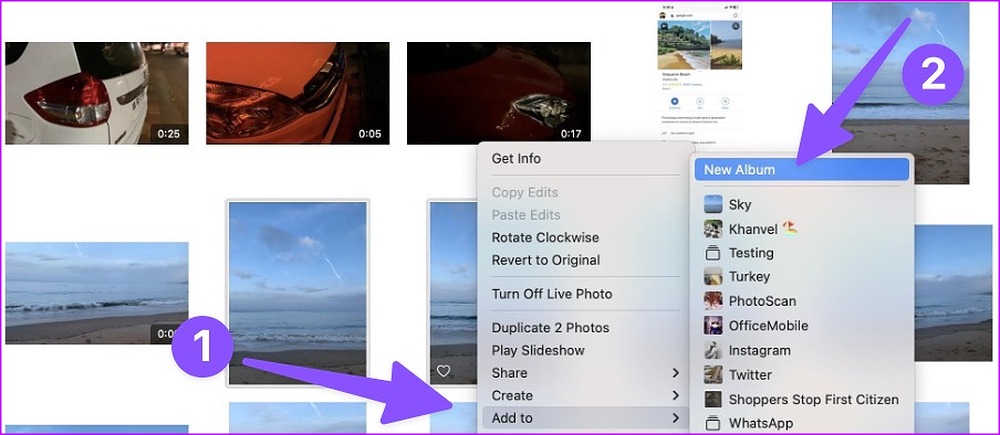
Step 2: Select photos and then right-click on them (or two-finger click on a touchpad).
Step 3: Expand Add to from the context menu > New Album > Give it a name.
Method 2: Finder App on Mac
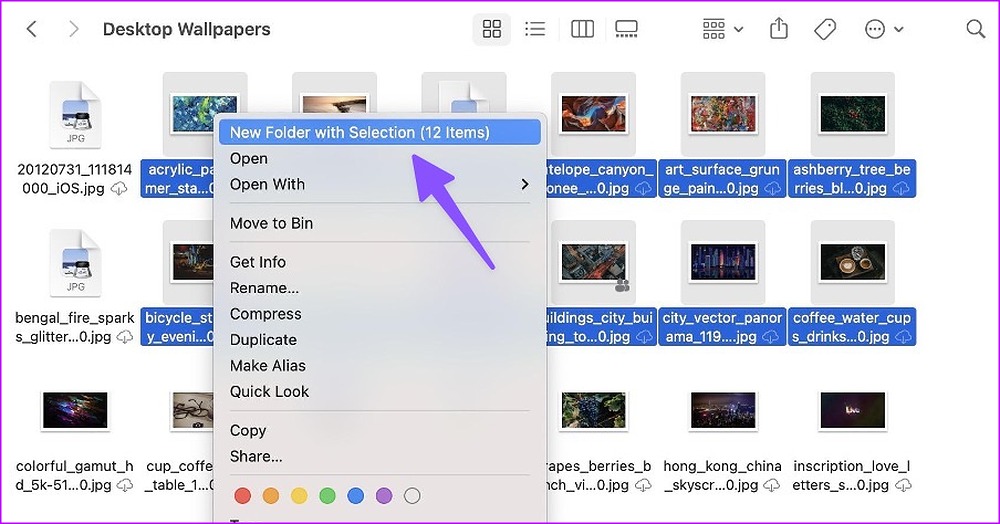
Step 1: Open Finder from the Mac dock and then select several photos.
Step 2: Right-click New Folder with Selection and then rename the folder. Hit the Return key to complete the folder.
Automatically Change Wallpapers on Mac
After you create a pictures folder on Mac use the steps below to automate all wallpapers.
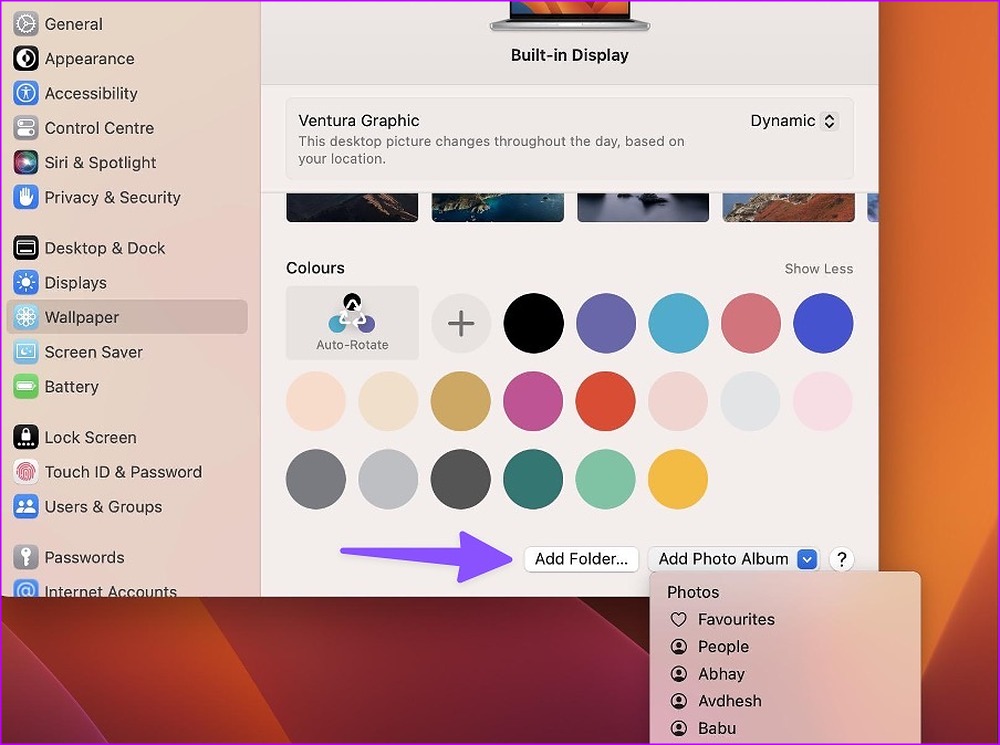
Step 1: Open Settings > Wallpaper > Add Photo Album > Select the Album name > Select Auto-Rotate.
Step 2: Select your newly created folder and then check all the pictures from the same menu.
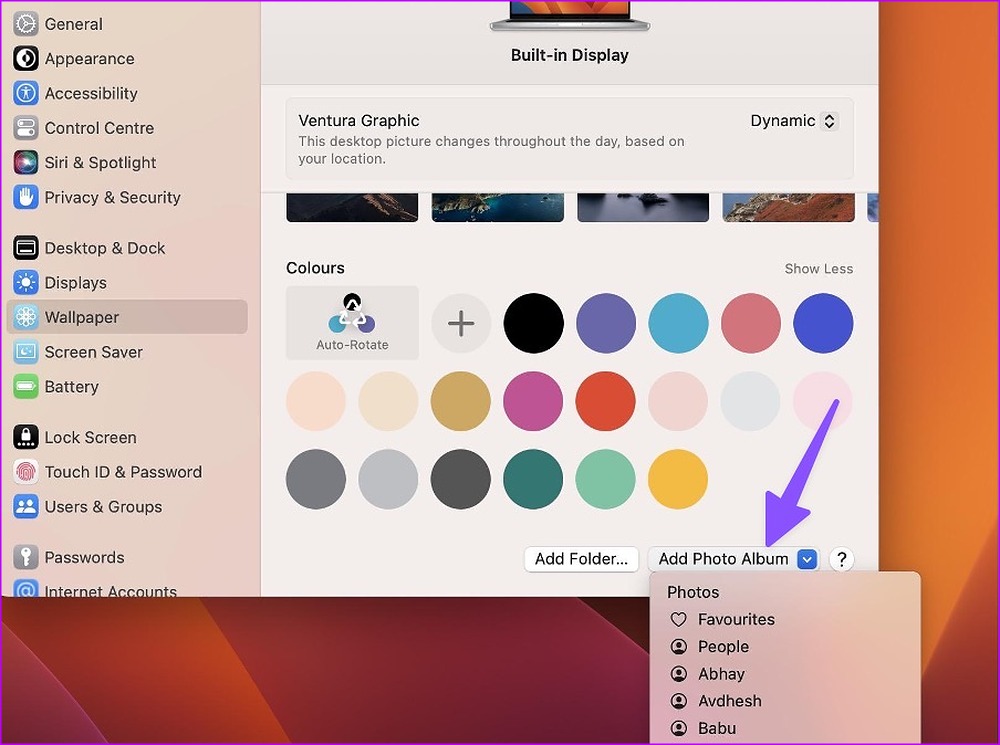
Step 3: Click Auto-Rotate, and then the system will change the desktop wallpaper on your Mac.

Step 4: To change the auto-rotate frequency, expand the Change picture menu and then select the relevant cycle.
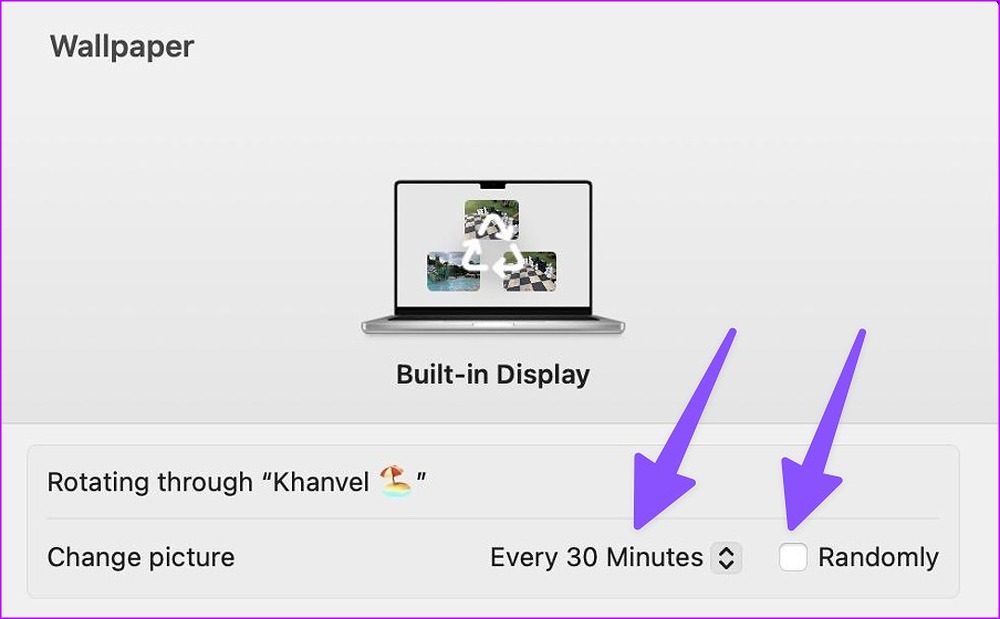
You can also auto-change wallpaper when logging in or when waking Mac from sleep. macOS allows you to change wallpaper randomly from the folder.
If you want to import wallpapers from the Finder app, click Add Folder to open Finder. Select a folder > set all pictures to auto-rotate as wallpaper on your Mac.
Set Dynamic Desktop Wallpapers
Any Mac running macOS Mojave or later can pick a dynamic wallpaper from System Settings. Such desktop picture changes throughout the day based on your location. For instance, the wallpaper will be bright and ready to welcome you in the morning. It will turn dark by late evening or night.
Open Settings > Wallpaper > Set Dynamic wallpaper.

In the latest macOS Ventura, Apple offers nine dynamic wallpapers.
Use 24 Hour Wallpaper App
The 24-Hour Wallpaper is an excellent third-party wallpaper app on Mac. It packs 100+ beautiful ready-to-use wallpapers from different categories like nature, cityscape, and beaches. All wallpapers remain synchronized with your time and location all day. The app offers all images in 5K resolution. Whether you work on a MacBook or a big desktop, a 5K wallpaper delivers crisp results on your Mac.

The app integrates directly with the system wallpaper and does the job with minimal CPU, GPU, and battery use. The 24 Hour Wallpaper app costs $10 as a one-time payment. You can check the app in action from the Mac menu bar and make relevant changes from the same menu.
Was this helpful?
Last updated on 30 July, 2024
Read Next
 How to Fix Outlook for Mac Not Receiving Emails Automatically
Basic Fixes Check email storage: If your email inbox storage is full, you won’t receive new messages in any app or on the web Switch between new and classic Outlook
How to Fix Outlook for Mac Not Receiving Emails Automatically
Basic Fixes Check email storage: If your email inbox storage is full, you won’t receive new messages in any app or on the web Switch between new and classic Outlook
 Mac Wallpaper Keeps Changing? 2 Easy Fixes
Basic Fixes Restart Device: Your Mac's wallpaper changing constantly might be just a simple software glitch.
Mac Wallpaper Keeps Changing? 2 Easy Fixes
Basic Fixes Restart Device: Your Mac's wallpaper changing constantly might be just a simple software glitch.
 4 Fixes for Dynamic Wallpaper Not Working on Mac
Basic Fixes Enable Dynamic Appearance: Open Settings > Appearance > Select Auto to make your Mac wallpapers dynamic.
4 Fixes for Dynamic Wallpaper Not Working on Mac
Basic Fixes Enable Dynamic Appearance: Open Settings > Appearance > Select Auto to make your Mac wallpapers dynamic.
 How to Change Font Style in Notes App on iPhone, iPad and Mac
Change Font Style in Notes App on iPhone and iPad Let's first show you how to change the font style of your notes in the Notes app on your iPhone
How to Change Font Style in Notes App on iPhone, iPad and Mac
Change Font Style in Notes App on iPhone and iPad Let's first show you how to change the font style of your notes in the Notes app on your iPhone
 How to Change Default Search Engine in Safari on iPhone, iPad, and Mac
The Safari browser is the default app to browse the web on Apple devices.
How to Change Default Search Engine in Safari on iPhone, iPad, and Mac
The Safari browser is the default app to browse the web on Apple devices.
 Top 4 Ways to Change New Outlook Back to Old (Classic View) Outlook on Windows and Mac
The new Outlook app for desktop boasts a modern and simplified design, aligning it more closely with the web version of Microsoft Outlook.
Top 4 Ways to Change New Outlook Back to Old (Classic View) Outlook on Windows and Mac
The new Outlook app for desktop boasts a modern and simplified design, aligning it more closely with the web version of Microsoft Outlook.
 How to Automatically CC or BCC Yourself in Outlook and Gmail
How to Automatically CC or BCC Yourself in Outlook Step 1: Open Outlook and click on the three-dot menu.
How to Automatically CC or BCC Yourself in Outlook and Gmail
How to Automatically CC or BCC Yourself in Outlook Step 1: Open Outlook and click on the three-dot menu.
 3 Ways to Fix iPhone Not Automatically Connecting to Wi-Fi
Before you begin, ensure that there isn't any problem with your network connectivity and the Wi-Fi router.
3 Ways to Fix iPhone Not Automatically Connecting to Wi-Fi
Before you begin, ensure that there isn't any problem with your network connectivity and the Wi-Fi router.
The article above may contain affiliate links which help support Guiding Tech. The content remains unbiased and authentic and will never affect our editorial integrity.