Note that you cannot exclusively change the language for Apple Maps. You can only change the language for Siri, which changes the navigation voice language on Apple Maps.
Change Apple Maps Voice Language on iPhone
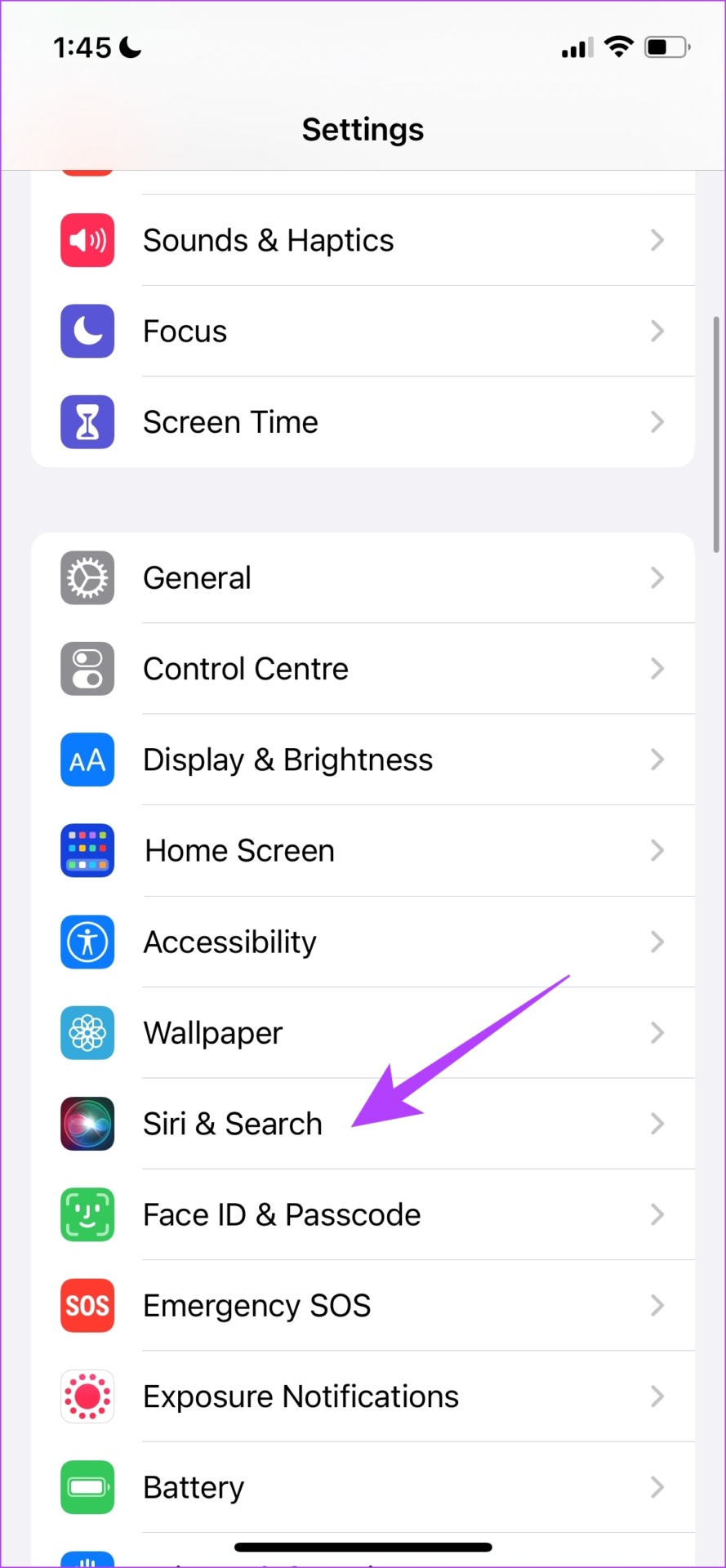
Step 1: Open the Settings app > Siri & Search.
Step 2: Tap on Language. Select the Language you want to change.
You can also use the Siri Voice menu, and change the accent of the voice.


Also Read: How to fix Apple Maps not showing direction arrow on iPhone
Change Apple Maps Voice Language on Apple Watch
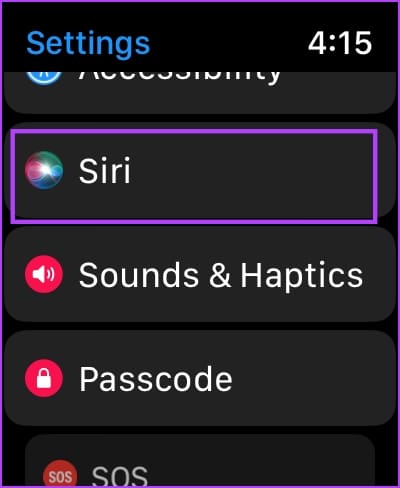
Step 1: Open the Settings app on your Apple Watch. Tap on Siri.
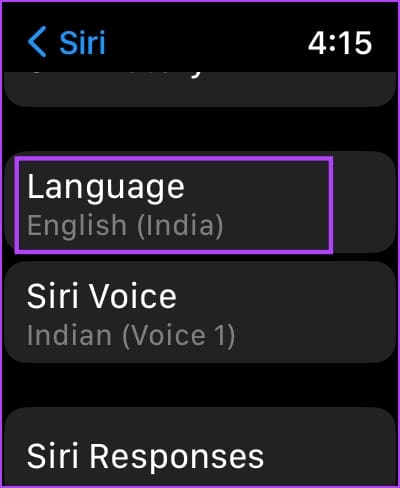
Step 2: Tap on Language. Select the language that you want to change to.
You can also use the Siri Voice menu to change the accent of the voice.

Also Read: How to fix speaker not working on Apple Watch
Change Apple Maps Voice Language on Mac
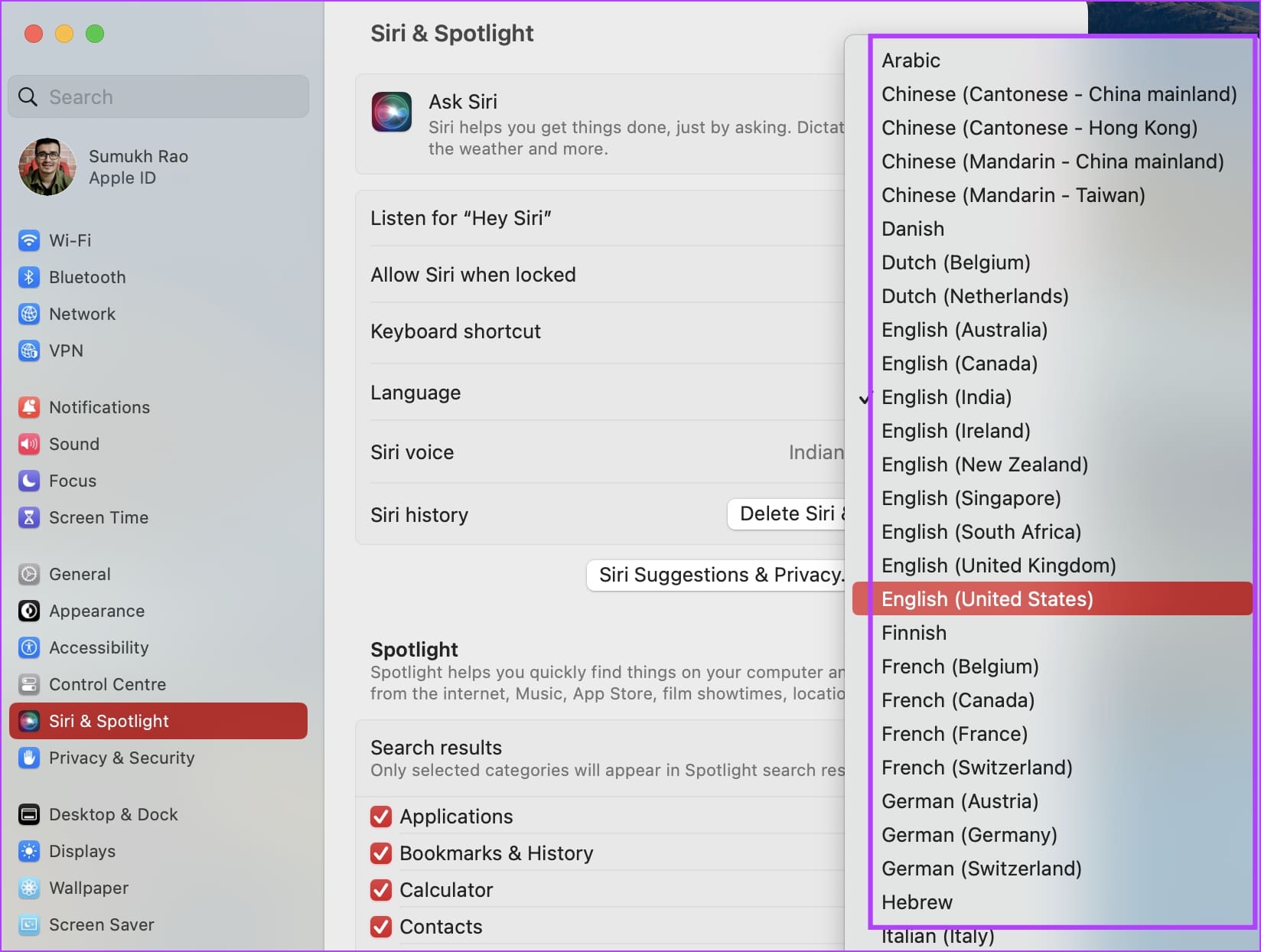
Step 1: Click on the Apple logo in the toolbar and go to System Settings.

Step 2: Click on Siri & Spotlight in the side menu and click on the drop-down for Language.

Step 3: Select a new language from the list of languages.
You can also use the Siri Voice menu, and change the accent of the voice.
Also Read: How to fix speed limit not showing in Apple Maps
How to Change Apple Maps Language
Unfortunately, you cannot change the language exclusively for Apple Maps. However, you can change the device region and language on your iPhone and Mac. This changes the language for all apps and services, including Apple Maps.
Was this helpful?
Last updated on 09 July, 2024
Read Next
 How to Switch Between KM and Miles in Google Maps and Apple Maps
How to Change Kilometers to Miles in Apple Maps To change KM to Miles (or vice versa) on iPhone, iPad, and Mac, all you need to do is change your
How to Switch Between KM and Miles in Google Maps and Apple Maps
How to Change Kilometers to Miles in Apple Maps To change KM to Miles (or vice versa) on iPhone, iPad, and Mac, all you need to do is change your
 How to Turn Off Voice Navigation in Google Maps for Android and iPhone
How to Turn Off Google Maps Voice Navigation From In-App Settings The most straightforward way to turn off or mute voice directions in Google Maps is from the in-app settings
How to Turn Off Voice Navigation in Google Maps for Android and iPhone
How to Turn Off Google Maps Voice Navigation From In-App Settings The most straightforward way to turn off or mute voice directions in Google Maps is from the in-app settings
 3 Fixes for Google Maps Voice Navigation Not Working on Android and iPhone
Basic Fixes Check volume: Check the volume level on your smartphone, and ensure it isn't low.
3 Fixes for Google Maps Voice Navigation Not Working on Android and iPhone
Basic Fixes Check volume: Check the volume level on your smartphone, and ensure it isn't low.
 Google Maps vs Maps Go Comparison: Explaining the Difference
Last year, Google announced the optimized version of Android Oreo operating system, Android Go.
Google Maps vs Maps Go Comparison: Explaining the Difference
Last year, Google announced the optimized version of Android Oreo operating system, Android Go.
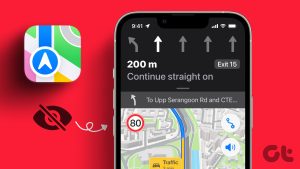 How to Fix Apple Maps Not Showing the Speed Limit
Basic Fixes Switch to 5G: Navigation requires strong internet connectivity at all times.
How to Fix Apple Maps Not Showing the Speed Limit
Basic Fixes Switch to 5G: Navigation requires strong internet connectivity at all times.
 4 Fixes for Apple Maps Not Showing Direction Arrow on iPhone
Basic Fixes Disable Low Power Mode: Open Settings > Battery and then disable Low Power Mode.
4 Fixes for Apple Maps Not Showing Direction Arrow on iPhone
Basic Fixes Disable Low Power Mode: Open Settings > Battery and then disable Low Power Mode.
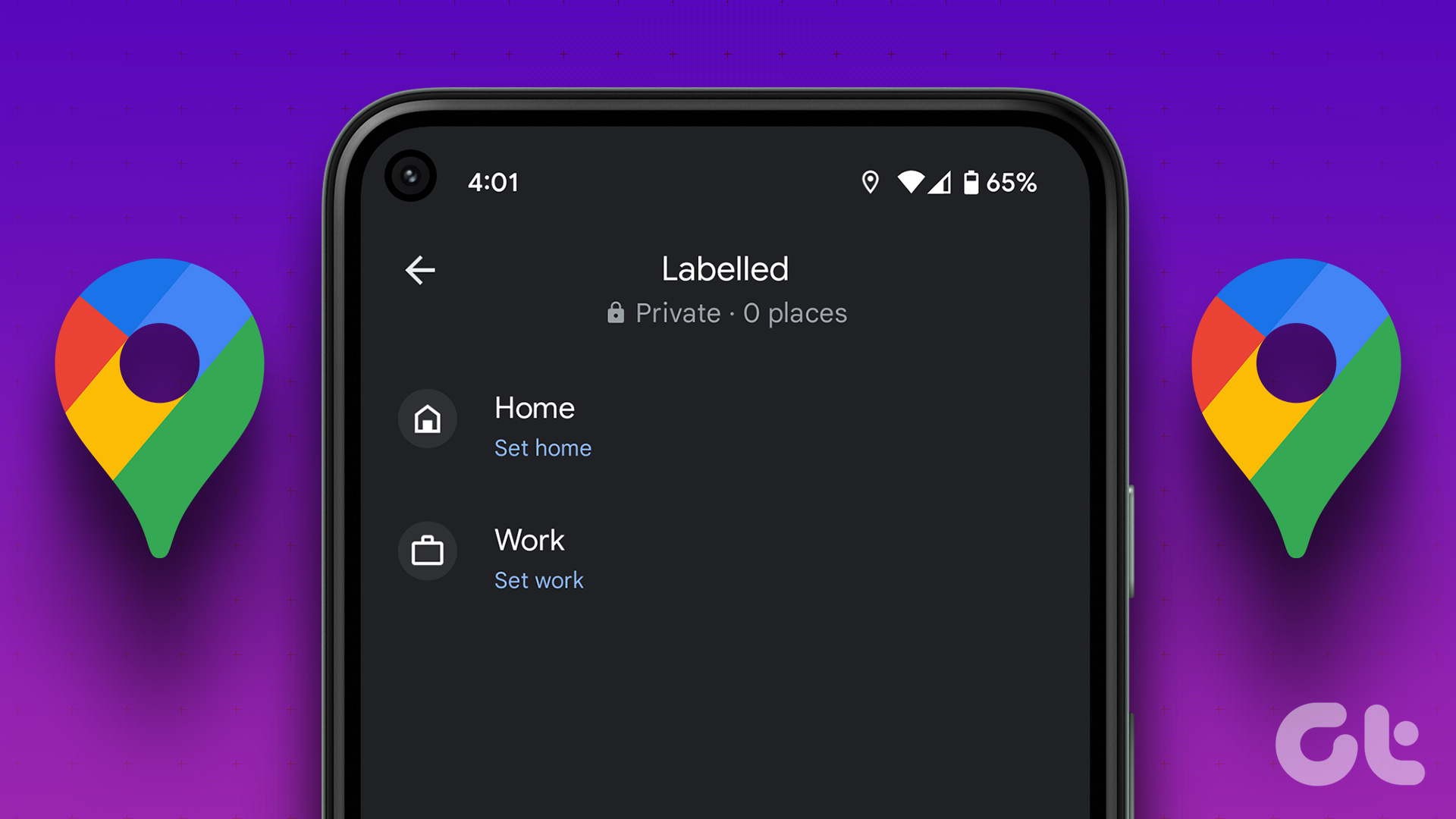 How to Add or Change Home and Work Location on Google Maps
How to Set Home and Work Location on Google Maps Step 1: Tap on the Saved tab on the bottom toolbar.
How to Add or Change Home and Work Location on Google Maps
How to Set Home and Work Location on Google Maps Step 1: Tap on the Saved tab on the bottom toolbar.
 How to Use Voice Memos on iPhone: A Complete Guide
How to Record an Audio on iPhone Step 1: Click on the red button at the bottom to record the audio.
How to Use Voice Memos on iPhone: A Complete Guide
How to Record an Audio on iPhone Step 1: Click on the red button at the bottom to record the audio.
The article above may contain affiliate links which help support Guiding Tech. The content remains unbiased and authentic and will never affect our editorial integrity.