On iPhone
Method 1: On Apple Keyboard
Follow these steps to type in another language in WhatsApp on iPhone using the Apple keyboard:
Step 1: Open a WhatsApp chat so that the Apple keyboard shows up.
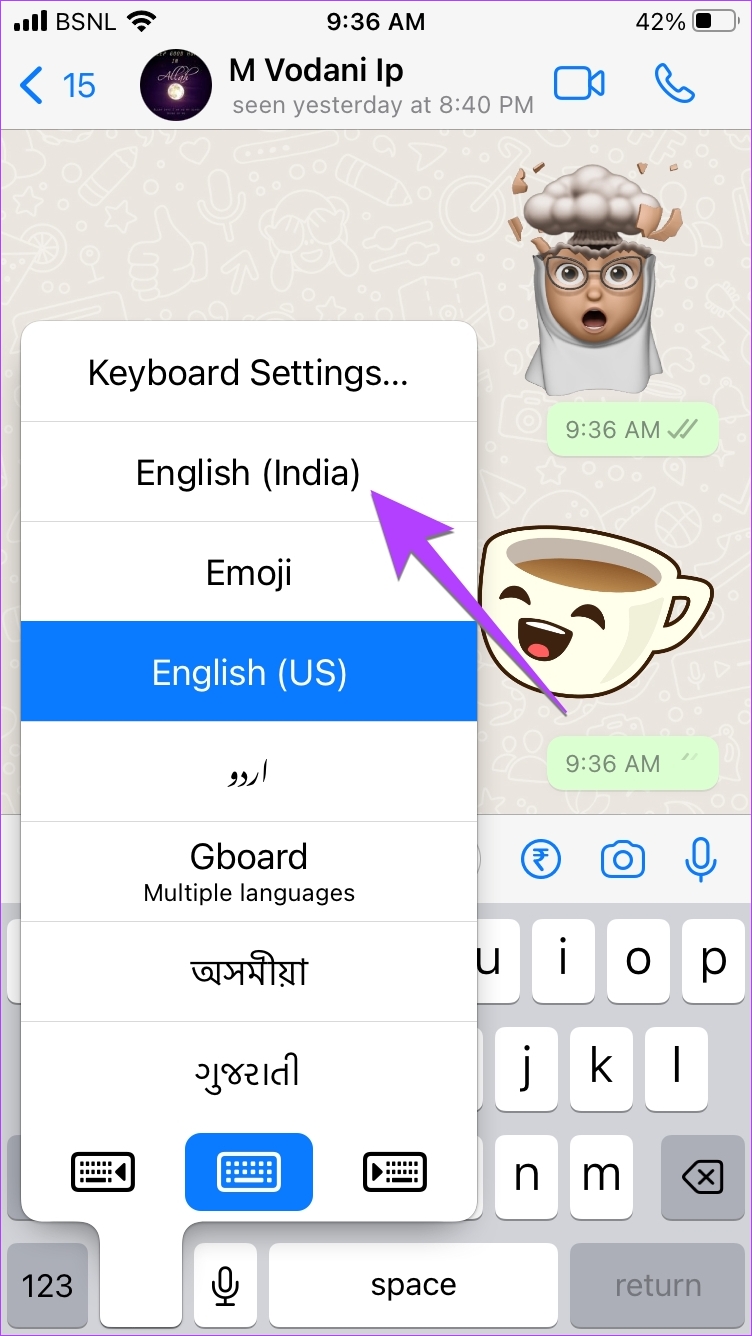
Step 2: Touch and hold the Globe icon at the bottom-left corner. Select Keyboard Settings from the menu.


Step 3: Tap on Keyboards > Add New Keyboard.
Step 4: Select the desired language to add to the Apple Keyboard.


For instance, if you want to type in Hindi, select Hindi. Then, select the keyboard style (if it shows up) and hit the Done button at the top.
Step 5: The newly added language will show up in the list of languages.
Now, open WhatsApp chat again. Touch and hold the Globe icon. Choose the language with which you want to type in WhatsApp. The keyboard characters will switch to the new typing language.
Tip: Check out the best iPhone keyboards with a number row on top
Method 2: On Google Keyboard (Gboard)
If you’re using the Google Keyboard on your iPhone, here’s how you can add a new language.
Step 1: Open the Gboard app on your iPhone from the list of installed apps.
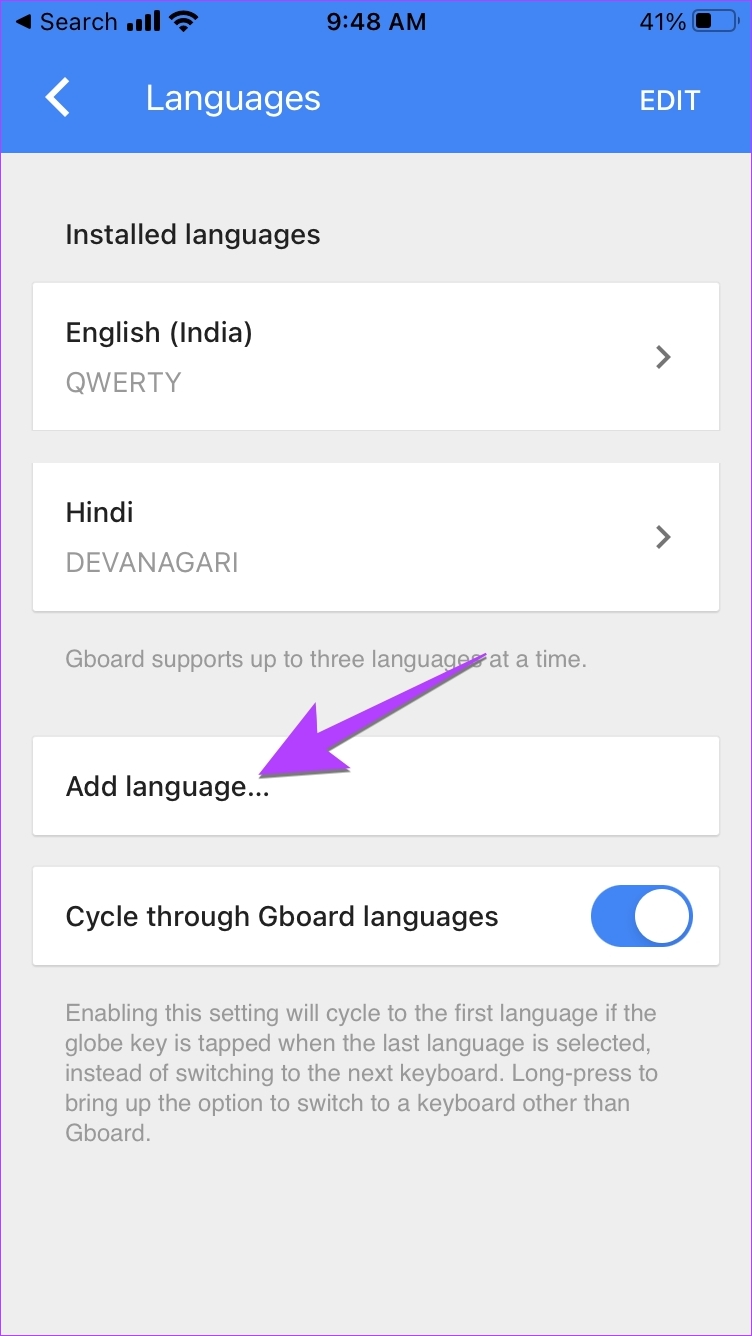
Step 2: Tap on Languages followed by Add language.
Note: If you don’t see the Add language option, tap on Edit at the top and delete one language. That’s because Gboard on iPhone only supports three languages.
Step 3: Select the typing language to install. Wait for the language to be installed.


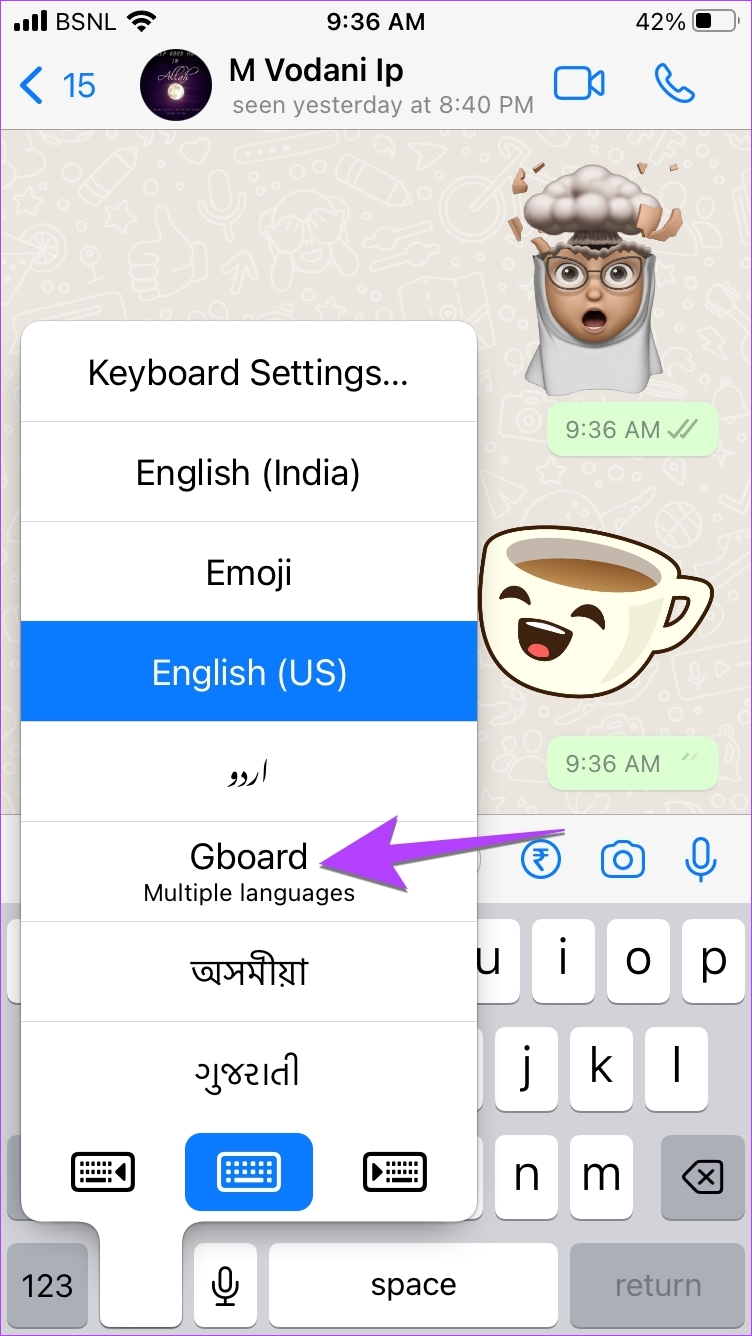
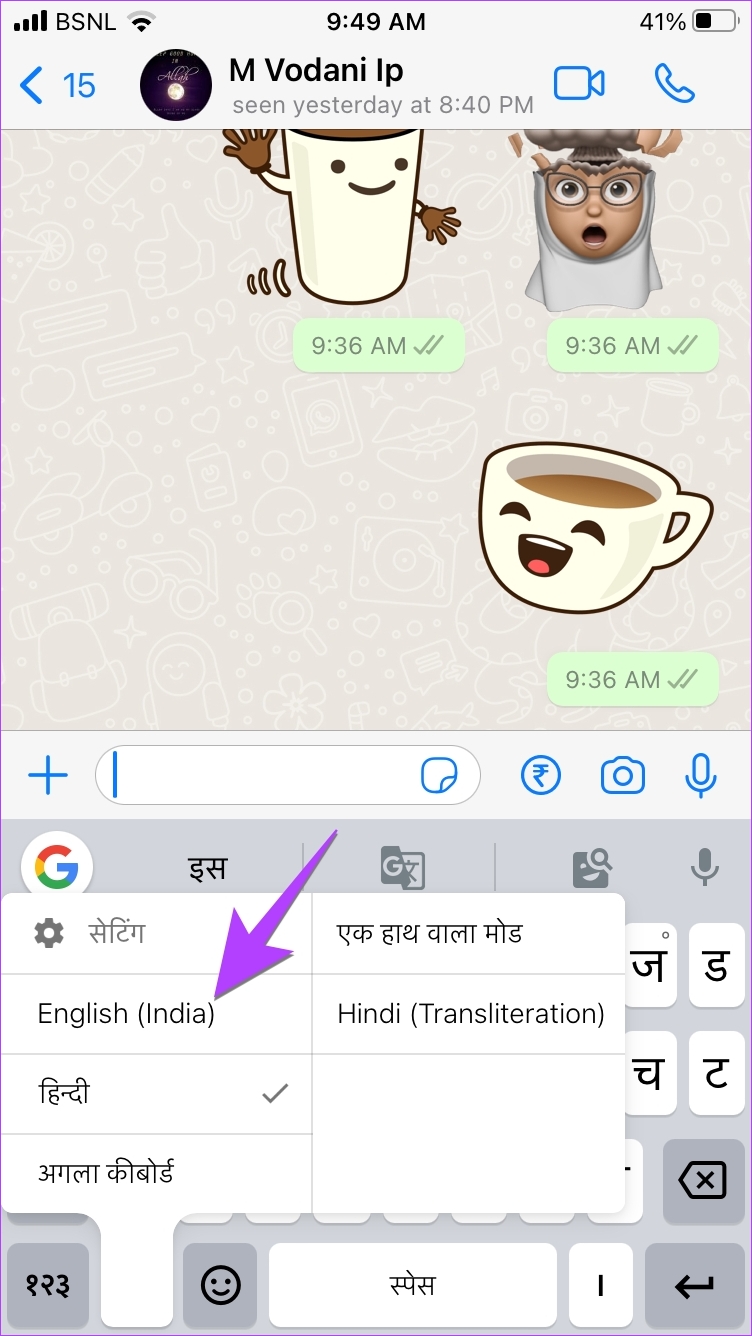
Step 4: Now, to switch to the new typing language in WhatsApp, open any WhatsApp chat so that the keyboard shows up. Then, press and hold the Globe icon at the bottom. Select Gboard.
Step 5: Again, press and hold the Globe icon and select the typing language to switch to it.

Also Read: How to fix Gboard not working on iPhone
On Android
Method 1: On Google Keyboard
Step 1: Open the Gboard keyboard in WhatsApp on your phone.
Step 2: Tap on the three-dot icon at the top of the keyboard and press the Settings button.
Step 3: Tap on Languages followed by Add keyboard.


Step 4: Select the language with which you want to type in WhatsApp. If the keyboard customization screen shows up, select the keyboard style and hit the Done button.
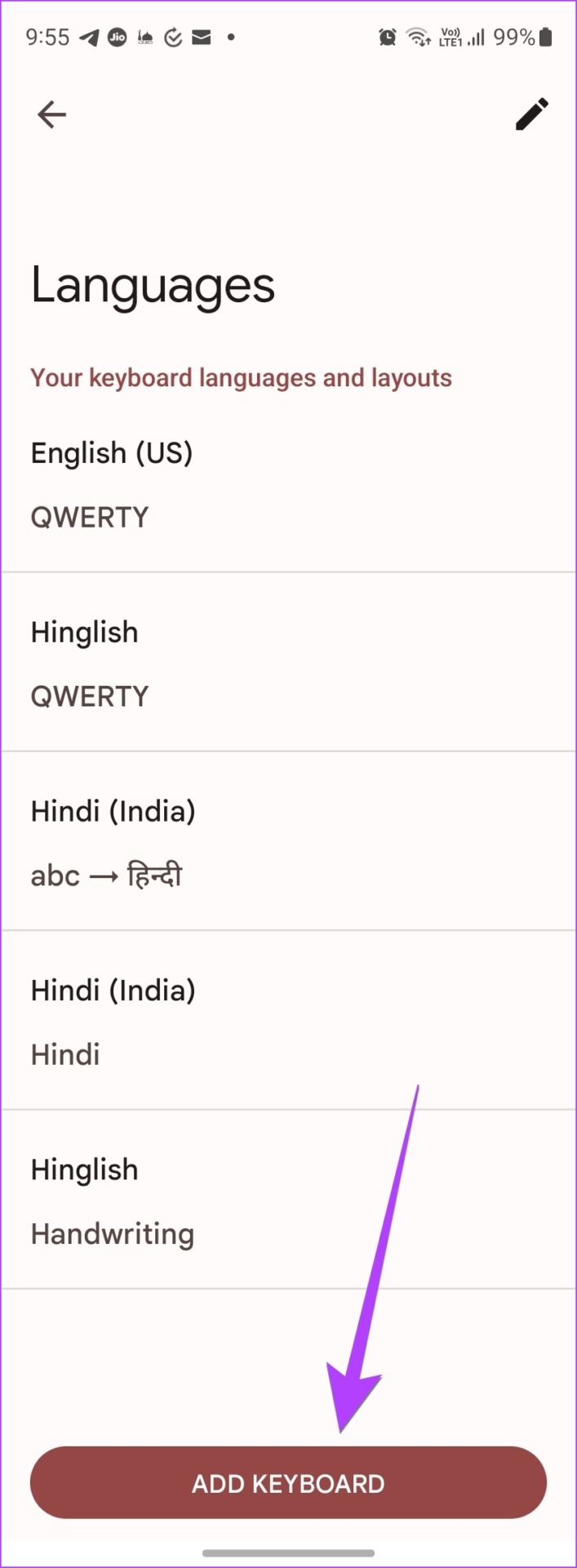


Tip: If you always want to type in WhatsApp using the newly added language, you can make it the default language. For that, tap on the Pencil icon at the top of the Languages screen. Drag the language that you want to make as default using the three-bar icon to the top. The top-most language is taken as the default typing language by Gboard.
Step 5: Now, to switch between the typing languages while typing in WhatsApp, open any chat in the WhatsApp app.
The Gboard keyboard will show up. Touch and hold the Gboard’s spacebar to bring the language selection screen. Tap on the language with which you want to type in WhatsApp.


Once you have selected the new typing language, simply start typing with it and it will show up in the WhatsApp chat.
Method 2: On SwiftKey
Step 1: Open any chat in WhatsApp to launch the SwiftKey app.
Step 2: Tap on the three-dot icon at the top of the keyboard and select Settings.

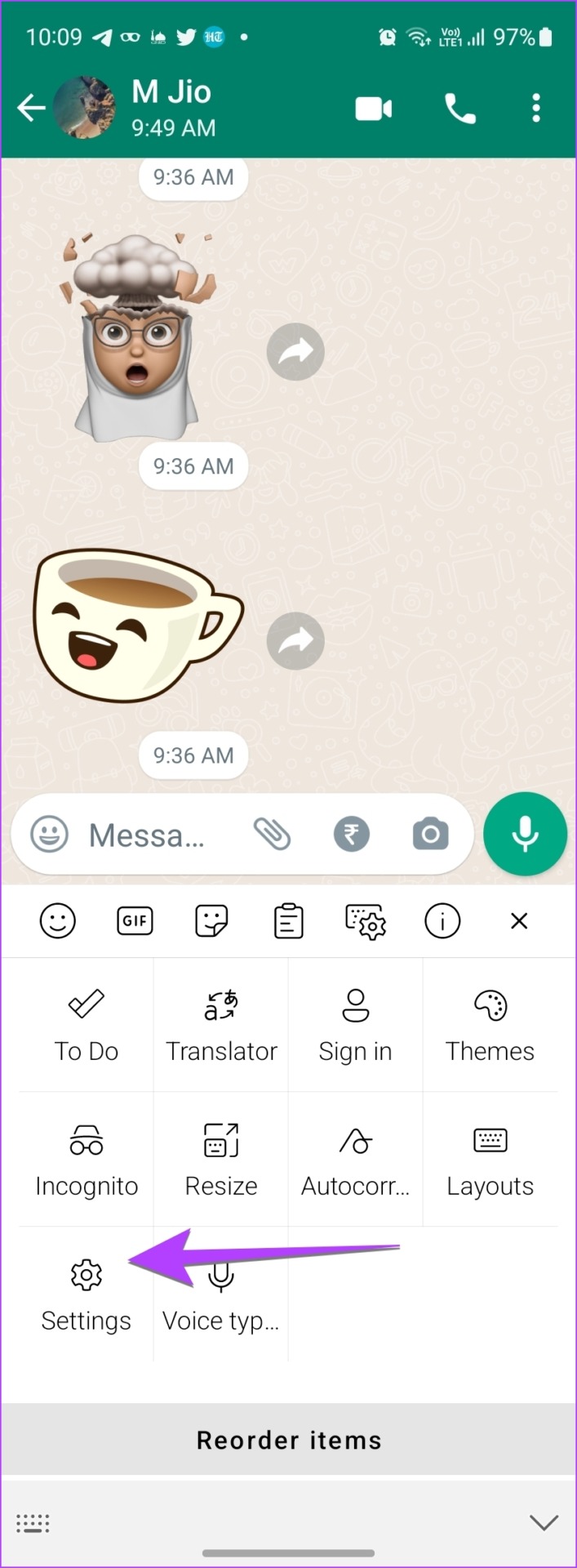

Step 3: Go to Languages.
Step 4: Scroll down to the All Languages section and tap on the language that you want to type in WhatsApp. Select the keyboard layout for the new typing language and hit the Add button at the top.
Step 5: With the new typing language enabled, open any WhatsApp chat again. Then, swipe right or left on the spacebar to switch to the language with which you are interested in typing in WhatsApp.


Method 3: On Samsung Keyboard
Step 1: Launch any WhatsApp chat to open the Samsung keyboard.
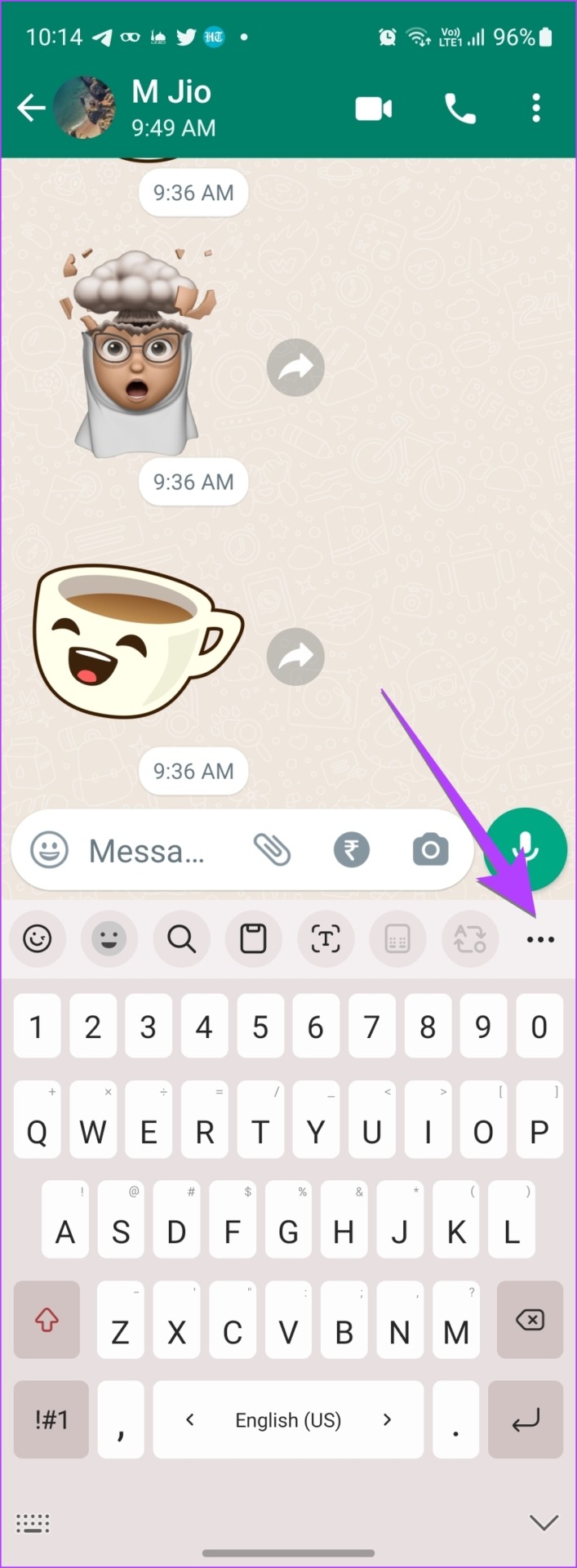
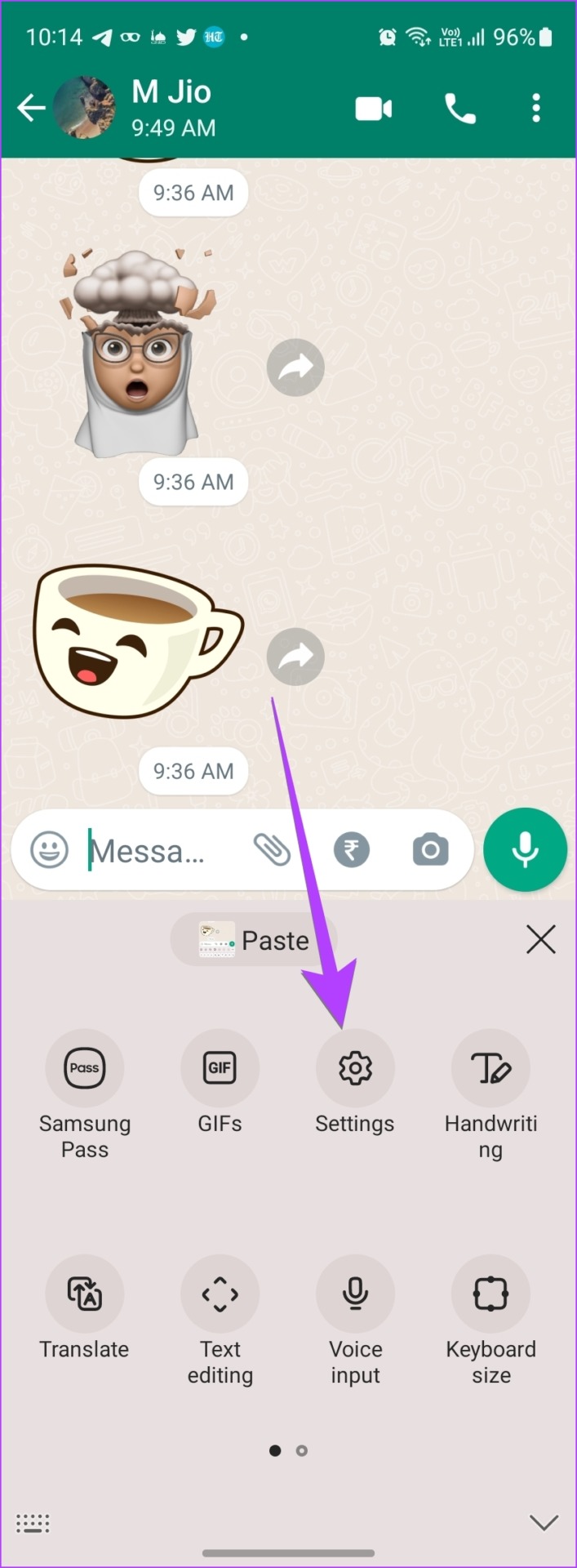
Step 2: Tap on the three-dot icon at the top-right corner of the Samsung keyboard and select Settings from the menu.
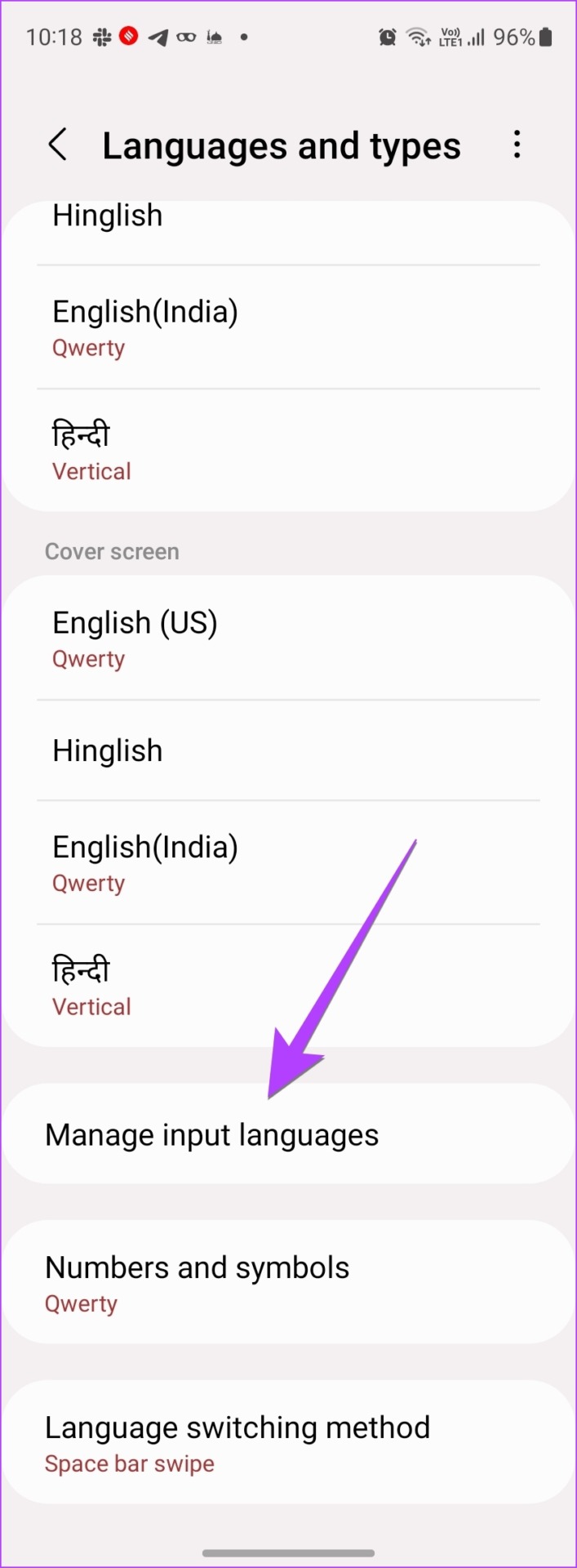
Step 3: Tap on Languages and Types followed by Manage input languages.

Step 4: Enable the toggle next to the language with which you want to type in WhatsApp.
If you don’t find the desired language, scroll down to the Available Languages section and tap on the Download icon next to the language. Then, enable it.
Step 5: Once the desired typing language has been enabled, open any chat in WhatsApp and swipe left or right on the keyboard’s spacebar to switch to the desired typing language in WhatsApp.


Also Read: 4 Ways to change keyboard on Android
Was this helpful?
Last updated on 23 July, 2024
Read Next
 How to Change Language on Amazon: A Complete Guide
How to Change Amazon’s Language on Web Browser Note: Amazon's URL dynamically adjusts depending on the region you're accessing it from.
How to Change Language on Amazon: A Complete Guide
How to Change Amazon’s Language on Web Browser Note: Amazon's URL dynamically adjusts depending on the region you're accessing it from.
 How to Change the Display and Authoring Language in Microsoft Excel
How to Change the Display Language in Microsoft Excel Display language is the one that Excel uses throughout its interface, which includes menus, buttons, dialog boxes, and more.
How to Change the Display and Authoring Language in Microsoft Excel
How to Change the Display Language in Microsoft Excel Display language is the one that Excel uses throughout its interface, which includes menus, buttons, dialog boxes, and more.
 How to Change the Default Language in Steam for Desktop and Mobile
How to Change the Language in Steam for Desktop Changing the default language in the Steam app is similar on both Windows and Mac, thanks to their comparable interfaces.
How to Change the Default Language in Steam for Desktop and Mobile
How to Change the Language in Steam for Desktop Changing the default language in the Steam app is similar on both Windows and Mac, thanks to their comparable interfaces.
 How to Change Facebook Language Back to English
How to Change Language on Facebook Notably, if you change the language settings on one device, it will not automatically update on another device.
How to Change Facebook Language Back to English
How to Change Language on Facebook Notably, if you change the language settings on one device, it will not automatically update on another device.
 How to Change Language in WPS Office for Android and iOS
Microsoft does offer a free version of its Office suite for mobile devices.
How to Change Language in WPS Office for Android and iOS
Microsoft does offer a free version of its Office suite for mobile devices.
 How to Change the Language of Individual Apps on Android 13
How many times have you looked at an application and wished you could use it in a different language?
How to Change the Language of Individual Apps on Android 13
How many times have you looked at an application and wished you could use it in a different language?
 How to Change the Default Language in Windows 11
How to Change the Display Language in Windows 11 Windows 11 supports various languages.
How to Change the Default Language in Windows 11
How to Change the Display Language in Windows 11 Windows 11 supports various languages.
 How to Fix Typing Indicator Not Showing on Instagram
Basic Fixes Force quit and relaunch Instagram: You can force quit and relaunch the app to give it a fresh start, especially if it has been running in the background
How to Fix Typing Indicator Not Showing on Instagram
Basic Fixes Force quit and relaunch Instagram: You can force quit and relaunch the app to give it a fresh start, especially if it has been running in the background
The article above may contain affiliate links which help support Guiding Tech. The content remains unbiased and authentic and will never affect our editorial integrity.