By default, Windows uses blue and red to display spellcheck issues in Word. In Windows 365-enabled licenses, you might also get other options such as purple for contextual edits. All of these are hardcoded into the program and don’t appear in the Options screen. However, if you want to change the color of spellcheck underlines in Word, you’ll need to use the Registry. Here’s how.
Word Spellcheck: Change Underline Color with the Registry Editor Step-by-Step
You will need administrator access to your system to change the registry, which is typically granted to the first account made on the system. If you’re a guest or work user, you might need to ask your IT to enable the registry editor for you.
Step 1. Hit “Win + R” on the keyboard to open the Run utility.
Step 2. Enter “regedit” and click on “Ok” or hit “Enter.” Choose “Yes” on the User Account Control access when prompted.
Step 3. Go to the following address in the Registry Editor:
Computer\HKEY_CURRENT_USER\Software\Microsoft\Shared Tools\Proofing Tools
You can either click manually through each folder in the path, or drag over the entire address in the address bar, then paste in the path from above.
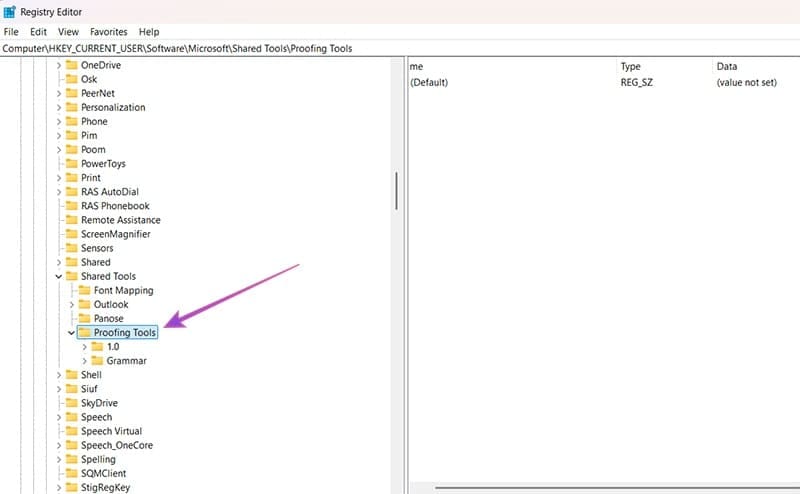
Step 4. In the pane on the right, check if you have “SpellingWavyUnderlineColor” as an entry. If you do, double-click on it. If you don’t, right-click on an empty space in the pane and select “New” then “DWORD Value.” Enter “SpellingWavyUnderlineColor” as the name of the value.

Step 5. Double-click on the value, then select “Hexadecimal” for the base. In the “value data” textbox, enter the RGB of the color you need preceded by 00 (for example, 00FF0000 is red). The editor should accept both lowercase and uppercase letters.
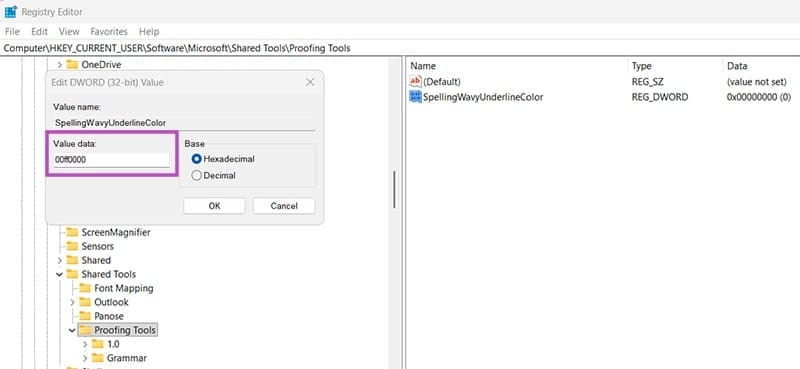
Step 6. Repeat Steps 4 and 5 for the following entries:
- SpellingWavyUnderlineColor (already done as the first part) – underlines typing issues.
- GrammarWavyUnderlineColor – underlines grammar errors.
- ContextualSpellingWavyUnderlineColor – underlines contextual spelling differences (there > their)
- SmartTagUnderlineColor – available in older versions of Word for smart tags. These are typically nonexistent on Word 2019 and later, so you might not need them at all.
Step 7. Exit the Registry Editor, which automatically saves your progress, then restart the PC.
What Colors to Change Color of Spellcheck Underlines in Word
Technically, since the registry uses RGB color coding, you can use pretty much any color that has an associated RGB (red-green-blue) hexadecimal. You can refer to the following table for some common colors, alongside their color codes.
| Color | Red | Green | Blue | Code for Registry Editor |
| White | 255 | 255 | 255 | 00FFFFFF |
| Black | 0 | 0 | 0 | 00000000 |
| Red | 255 | 0 | 0 | 00FF0000 |
| Green | 0 | 255 | 0 | 0000FF00 |
| Blue | 0 | 0 | 255 | 000000FF |
| Cyan | 0 | 255 | 255 | 0000FFFF |
| Magenta | 255 | 0 | 255 | 00FF00FF |
| Yellow | 255 | 255 | 0 | 00FFFF00 |
| Dark Gray | 127 | 127 | 127 | 007F7F7F |
| Light Gray | 191 | 191 | 191 | 00BFBFBF |
| Dark Red | 127 | 0 | 0 | 007F0000 |
| Dark Green | 0 | 127 | 0 | 00007F00 |
| Dark Blue | 0 | 0 | 127 | 0000007F |
| Teal | 0 | 127 | 127 | 00007F7F |
| Purple | 127 | 0 | 127 | 007F007F |
| Tan | 127 | 127 | 0 | 007F7F00 |
You can also use online sources to get the color codes in RGB. Whichever option you use, make sure to append two zeroes (00) before the color’s RGB values in hexadecimal to use for the Registry Editor. This denotes transparency for the ARGB system, which needs to default to 0.
Alternatively, you can use additional numbers, with the 00 > FF scaling in transparency. This can produce odd results, as “80” converts to 50.2% transparency (since 80 converts to 128 which is slightly more than half of 255, the max value of two hexadecimal digits). If the color picker uses RGBA, change the code accordingly.
Was this helpful?
Last updated on 04 October, 2025
Read Next
 3 Ways to Underline Text in Microsoft Word
Underline Text and the Spaces Between The default setting in Microsoft Word allows you to underline both text and spaces.
3 Ways to Underline Text in Microsoft Word
Underline Text and the Spaces Between The default setting in Microsoft Word allows you to underline both text and spaces.
 3 Best Ways to Double Underline Text in Google Docs
Method 1: Using Paragraph Borders This option is best used to underline text in a paragraph.
3 Best Ways to Double Underline Text in Google Docs
Method 1: Using Paragraph Borders This option is best used to underline text in a paragraph.
 How to Create a Custom Color Set and Theme in Microsoft Word
How to Create a Custom Color Set In Microsoft Word, a color set is a collection of colors used to organize and store colors.
How to Create a Custom Color Set and Theme in Microsoft Word
How to Create a Custom Color Set In Microsoft Word, a color set is a collection of colors used to organize and store colors.
 How to Change Background Color of the Windows Photos App
Method 1: Change Background Through the Photos App By default, the Photos app displays the color mode specified by the operating system.
How to Change Background Color of the Windows Photos App
Method 1: Change Background Through the Photos App By default, the Photos app displays the color mode specified by the operating system.
 How to Change Background Color in Paint 3D
Every person likes certain colors over others.
How to Change Background Color in Paint 3D
Every person likes certain colors over others.
 How to Change Color of PNG Image and Text in GIMP
Many times, we have a single color image such as an icon or a logo whose color needs to be changed.
How to Change Color of PNG Image and Text in GIMP
Many times, we have a single color image such as an icon or a logo whose color needs to be changed.
 How to Change Taskbar Color in Windows 11
Changing the taskbar color is a simple yet effective way to add your touch to the digital canvas.
How to Change Taskbar Color in Windows 11
Changing the taskbar color is a simple yet effective way to add your touch to the digital canvas.
 How to Change Font Color on Desktop Icons (Windows 11)
You might want to learn how to change font color on desktop icons Windows 11 if you have a hard time reading the text in its default color, or just
How to Change Font Color on Desktop Icons (Windows 11)
You might want to learn how to change font color on desktop icons Windows 11 if you have a hard time reading the text in its default color, or just
The article above may contain affiliate links which help support Guiding Tech. The content remains unbiased and authentic and will never affect our editorial integrity.