You might not always want what your web browser gives you as a homepage when you start it up. The good news is you don’t have to settle for it. In this article, we’ll show you how to change default browser page in Chrome and all the other major browsers.
How to Change Default Browser Page in Chrome
Changing your Chrome browser homepage is quite straightforward. This is what you need to do:
Step 1. Click “Settings” and the ellipses menu (three dots) in the top-right corner of Chrome.
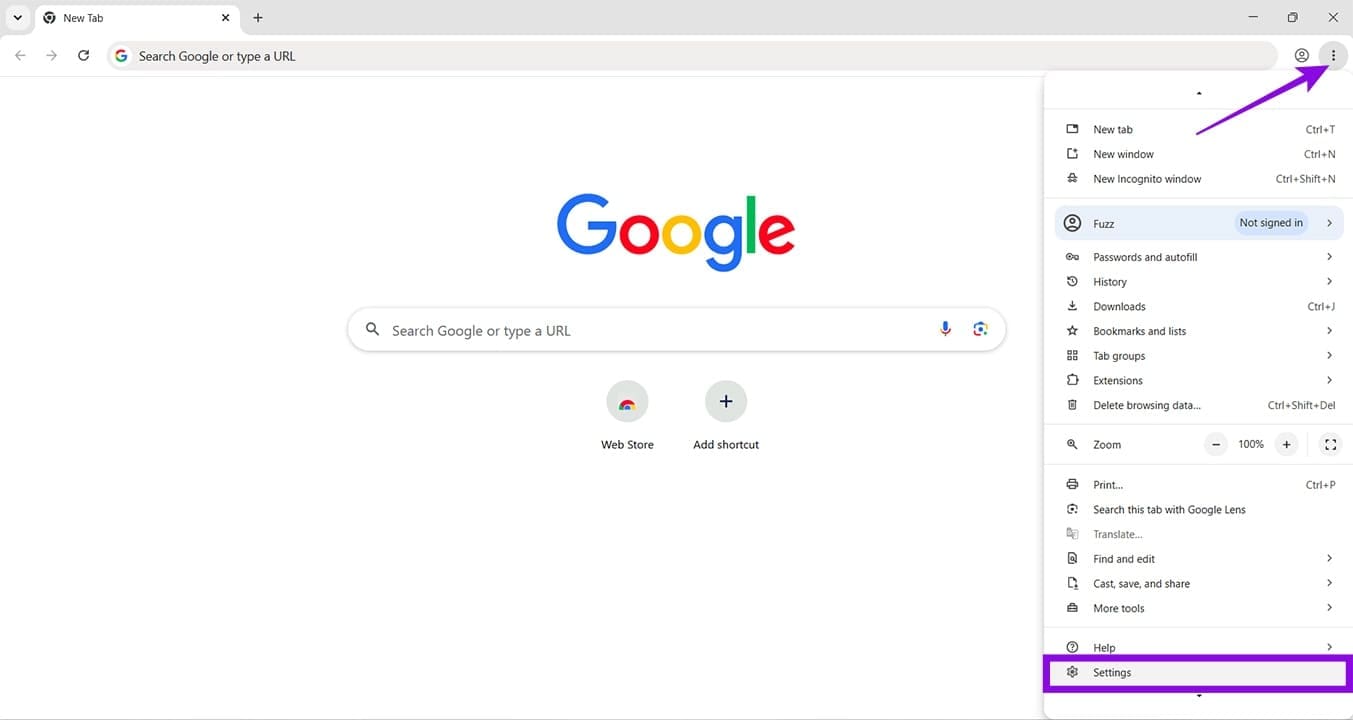
Step 2. Scroll down the menu to “Settings” at the bottom and click it.
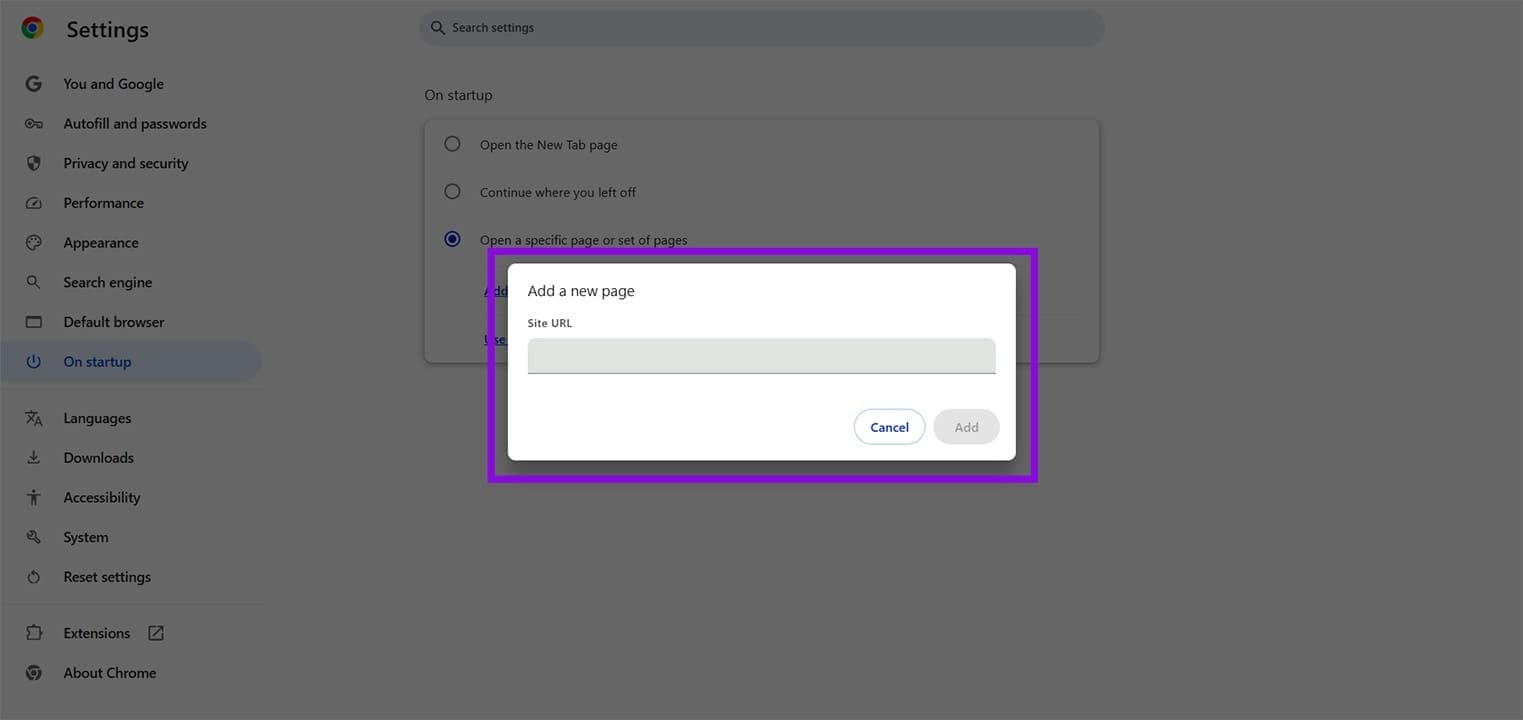
Step 3. Choose “On startup” in the sidebar.
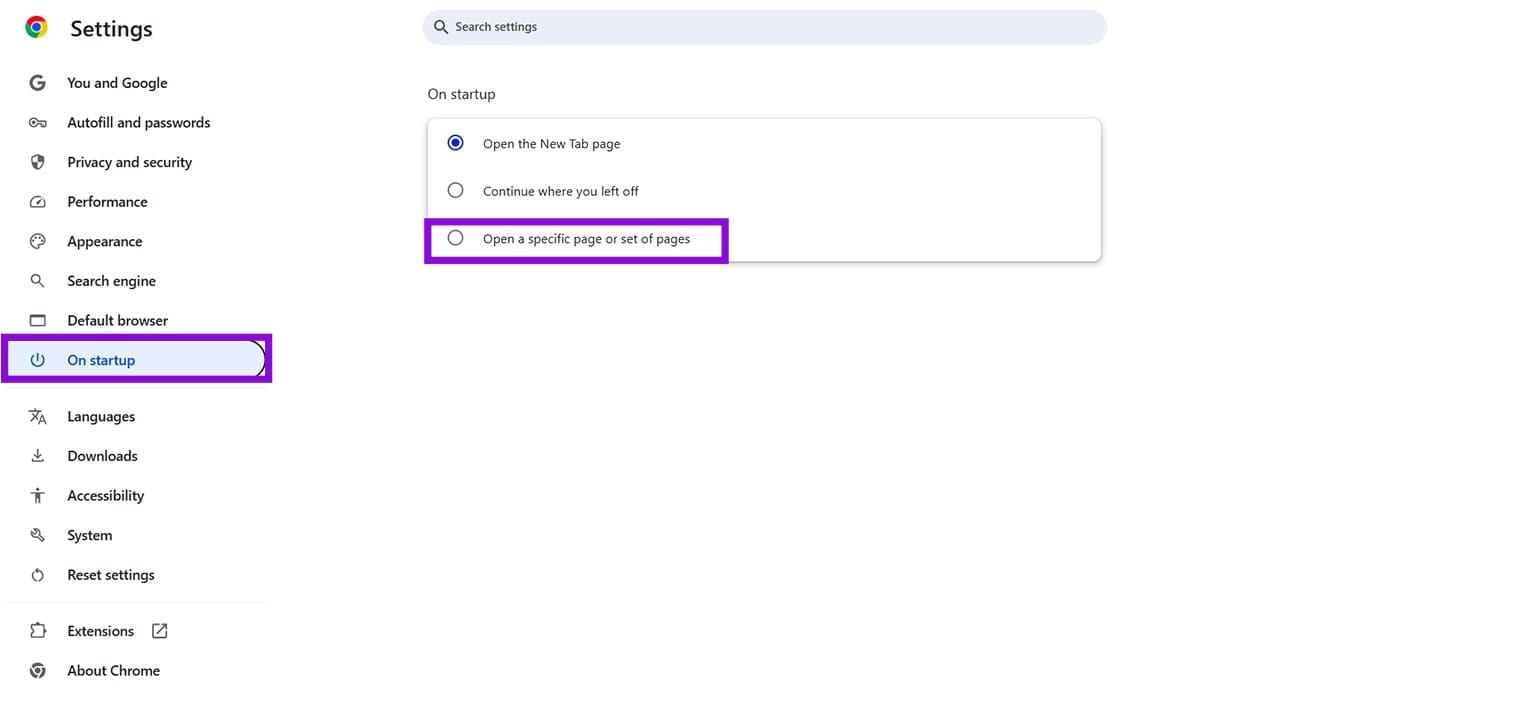
Step 4. In the main window, select “Open a specific page or set of pages.”
Step 5. Two options will appear below. Choose “Add a new page.”
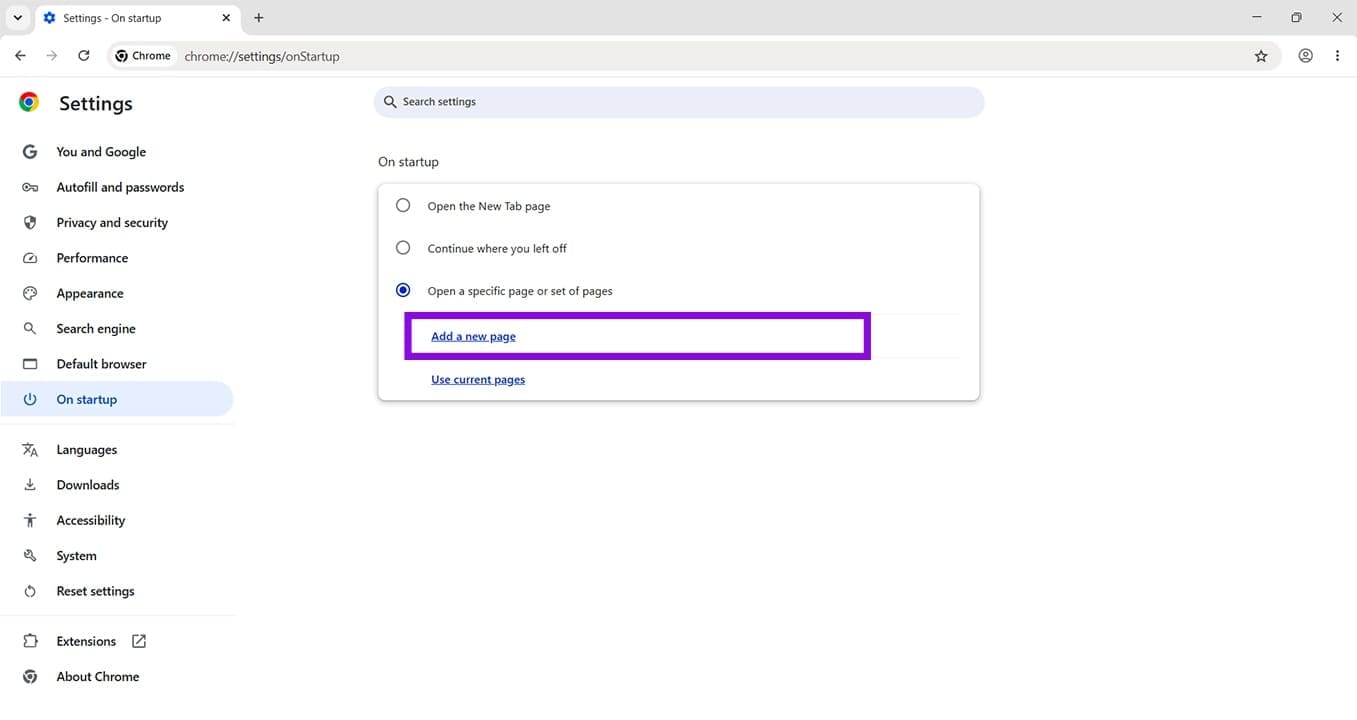
Step 6. A new window will pop up. Enter the URL of the site you want to make your homepage and click “Add” when done.
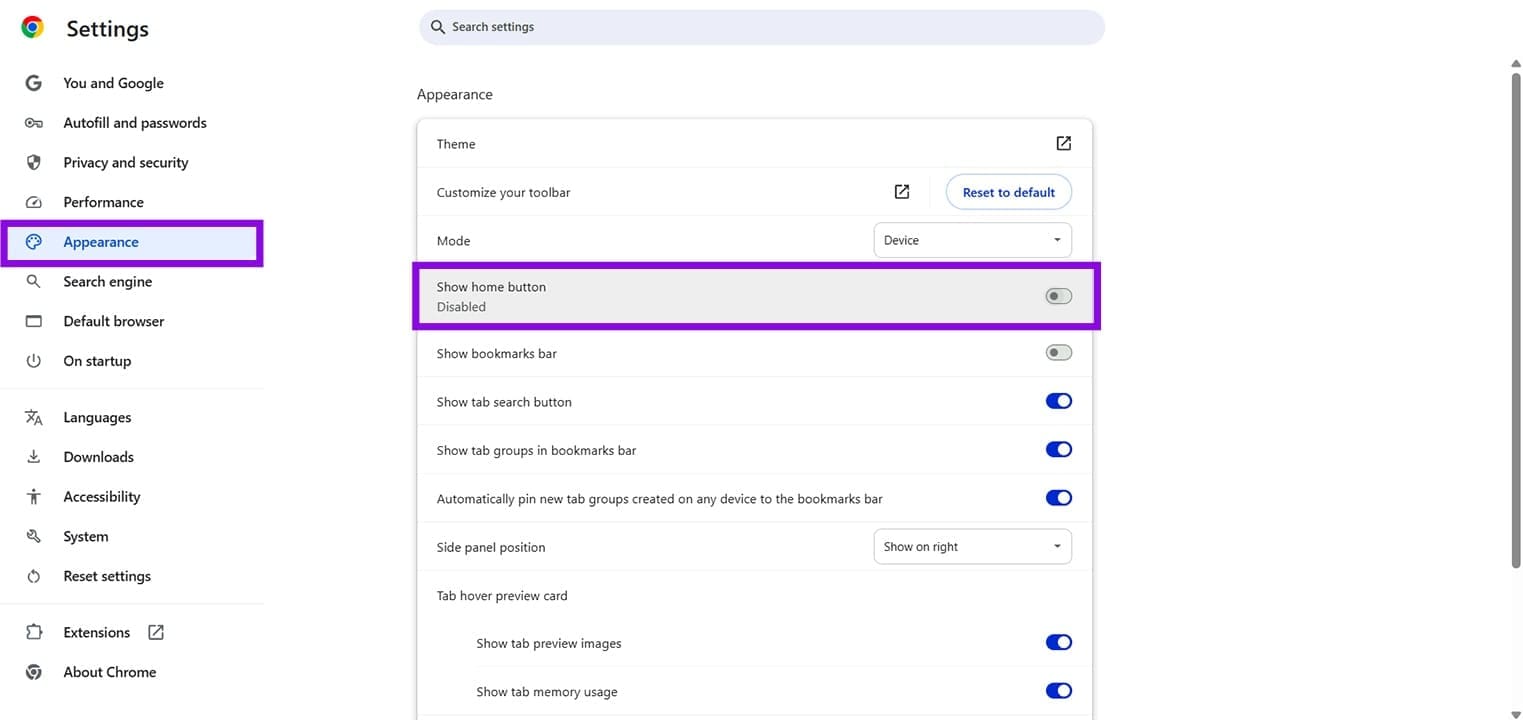
Step 7. If you want access to a “Home” icon, select “Appearance” in the Settings sidebar and then toggle “Show home button” to “On.” Whenever you click it, you’ll be taken to your new homepage.
Changing the Browser Page in Edge
Edge is a Chromium browser, so changing the homepage is quite similar to Google Chrome. Here’s what to do:
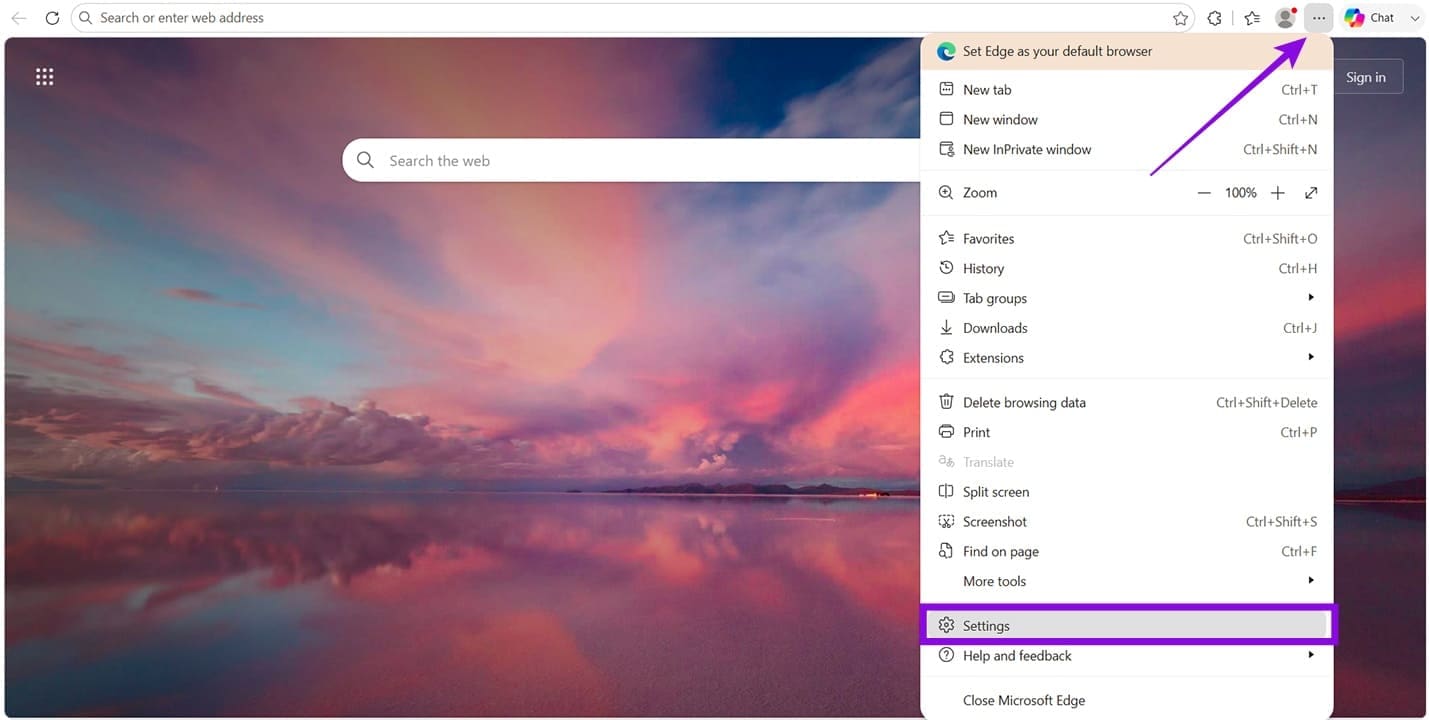
Step 1. Click the ellipses menu (three dots) in the top-right of Edge.
Step 2. Navigate to “Settings” and click it.
Step 3. In the “Settings” menu, click “Start, home, and new tab page” in the sidebar.
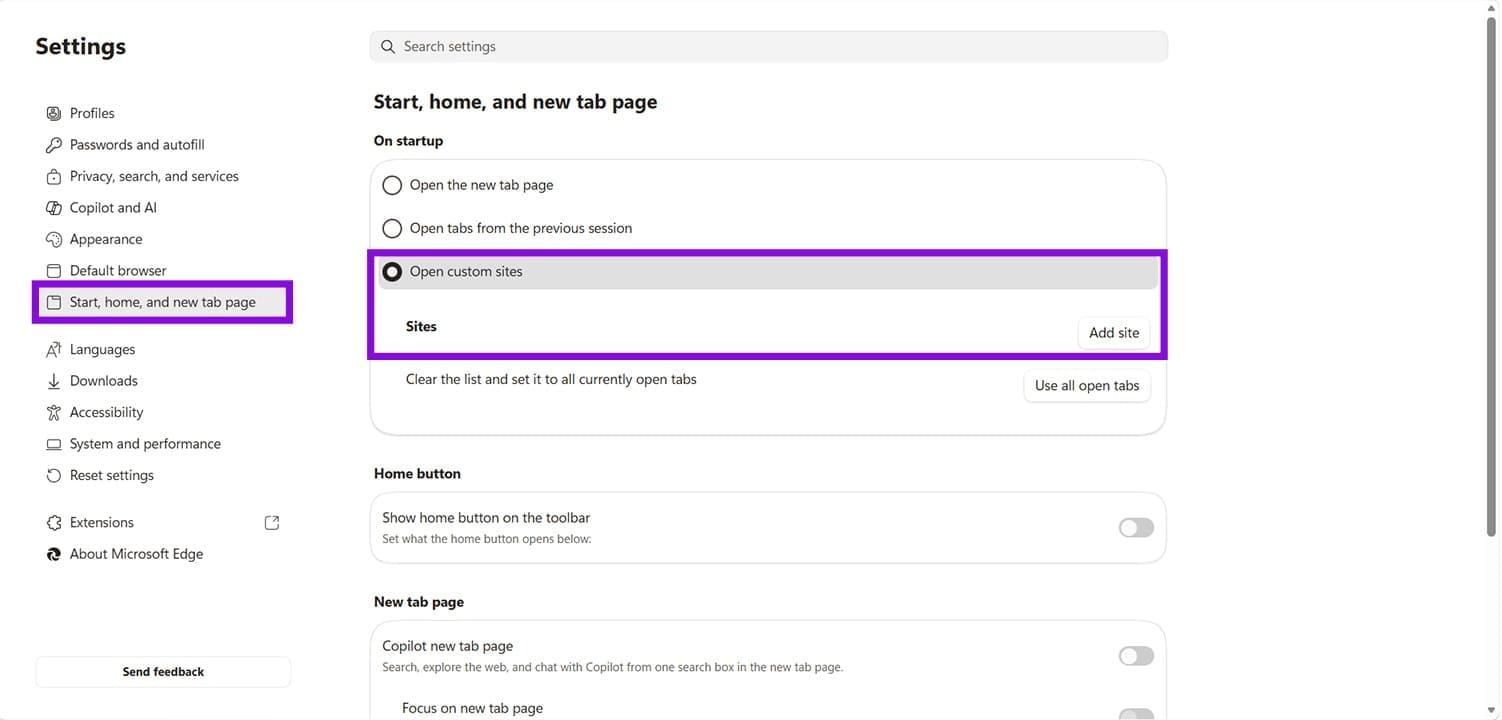
Step 4. In the “On startup” subsection in the main window, select “Open custom sites” and click the “Add site” button that’ll appear below.
Step 5. Enter the URL of your new homepage in the window that pops up and click “Add” once done.
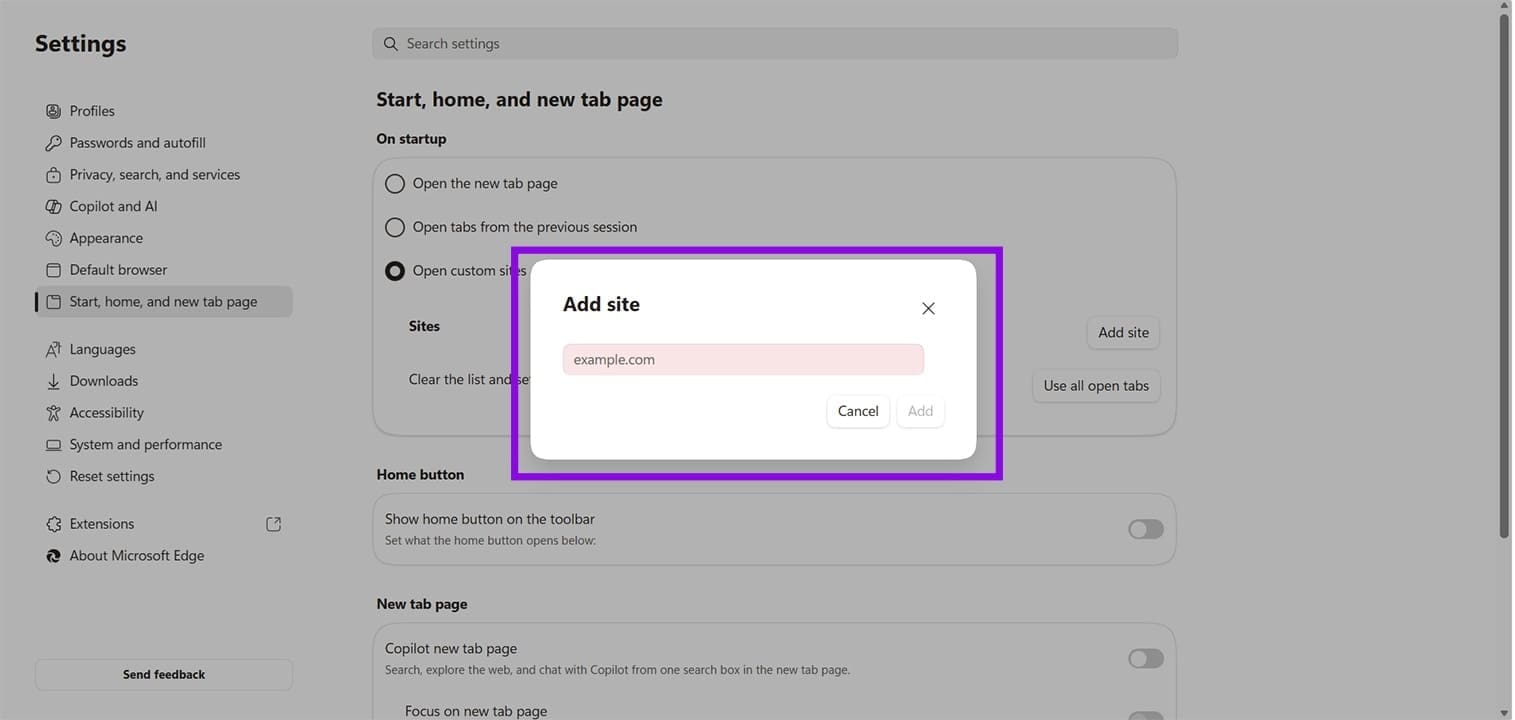
Step 6. Right below this section, you can toggle “Show home button on the toolbar” to “On” to enable the Home button to shortcut to your new homepage.
Changing Your Homepage in Firefox
The homepage default change in Firefox can be done in the following way:
Step 1. Click the “Menu” button in the top-right of the browser (three horizontal lines).
Step 2. Click “Settings” near the bottom of the menu that drops down.
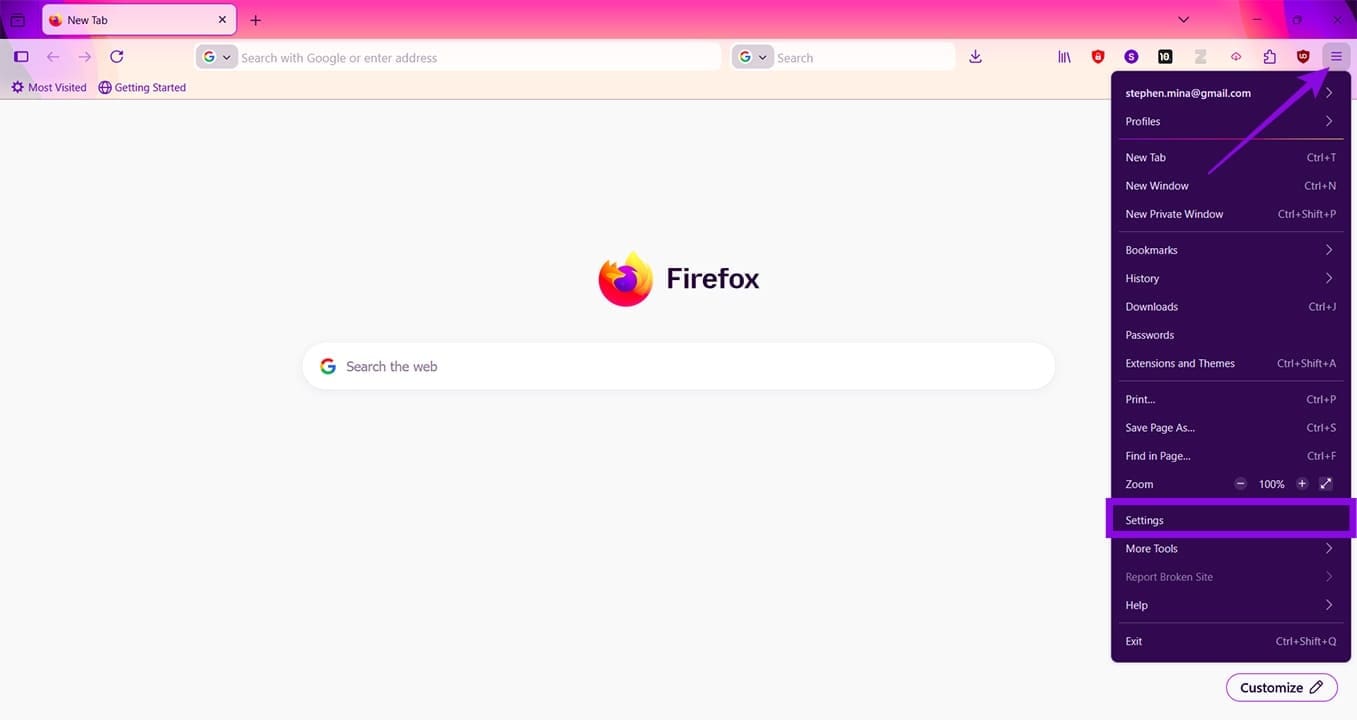
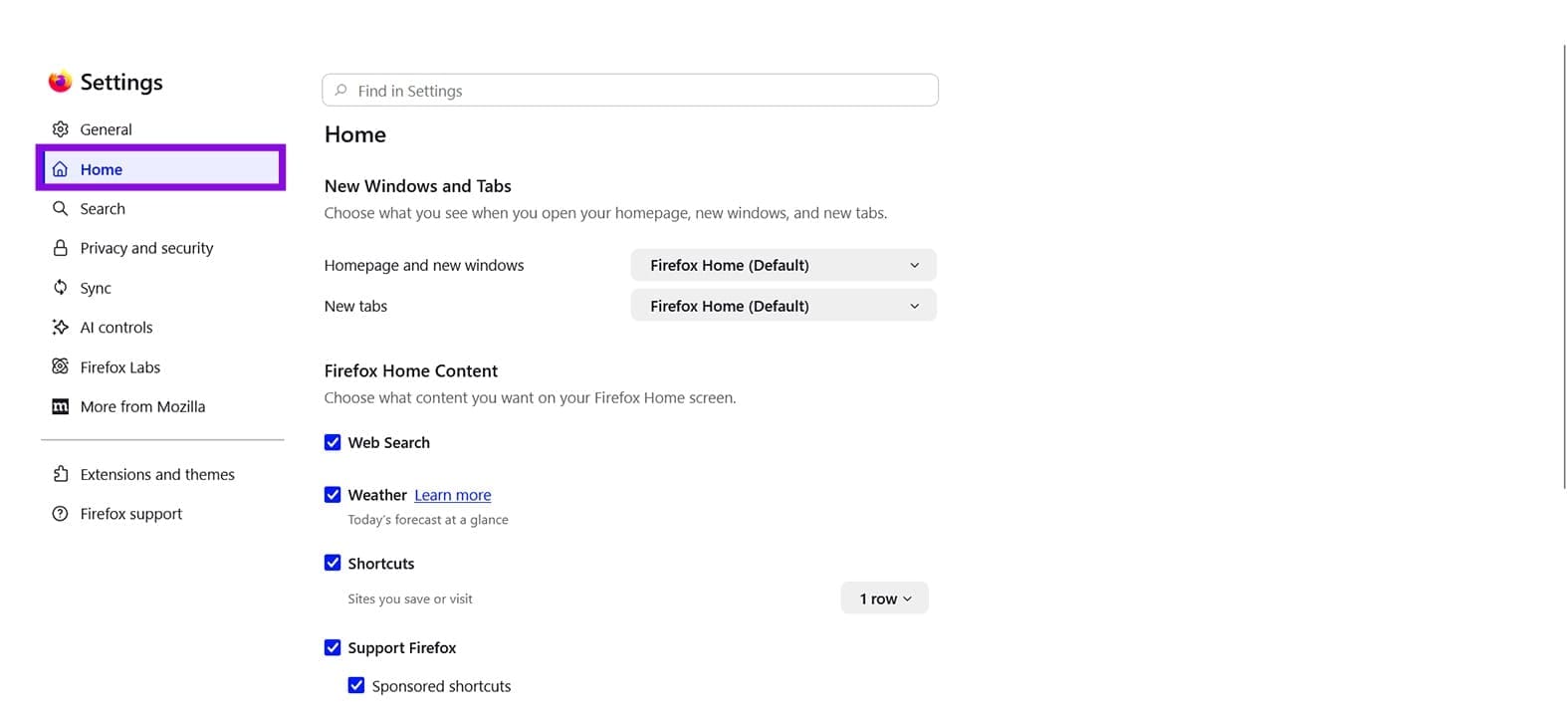
Step 3. Click “Home” in the sidebar of the “Settings” menu.
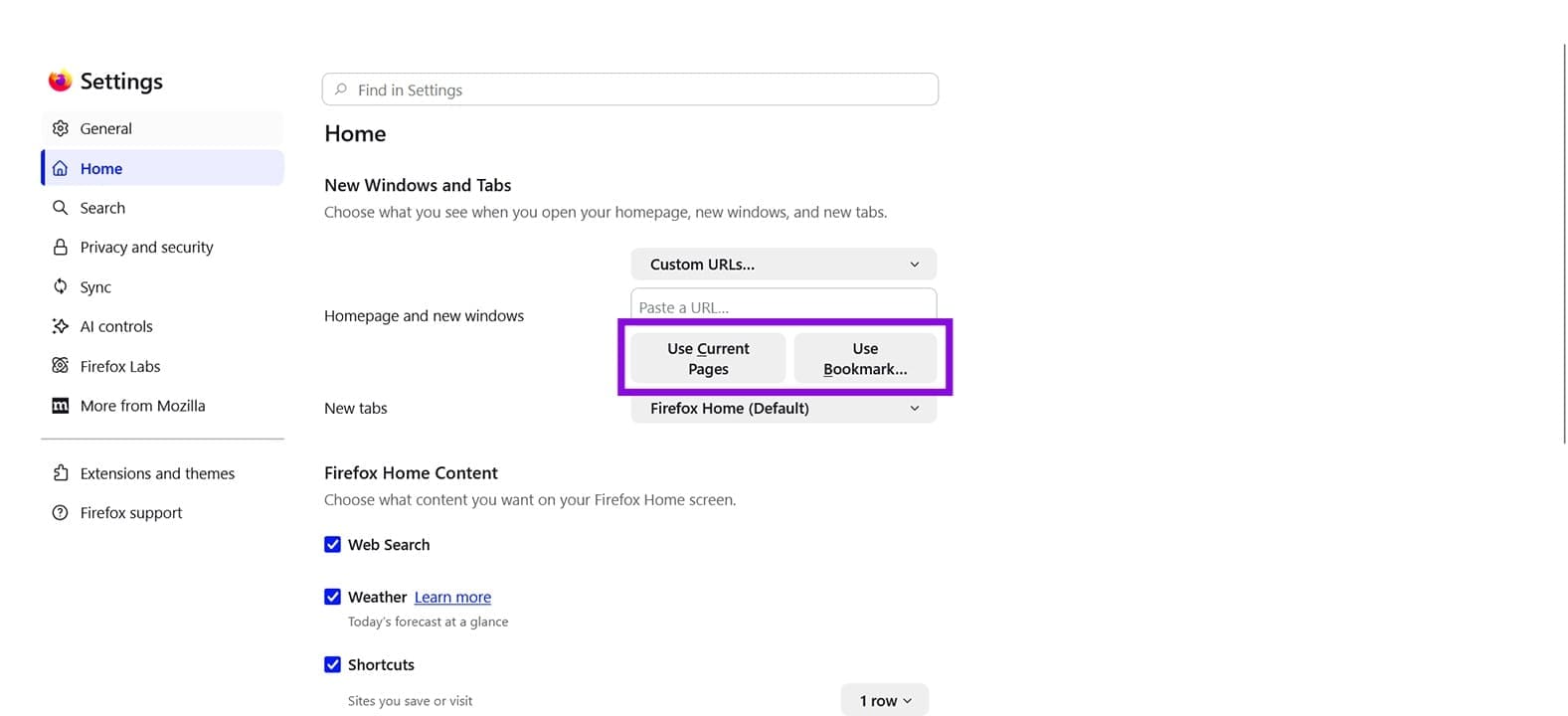
Step 4. In the “New Windows and Tabs” subsection, click the dropdown next to “Homepage and new windows.” Choose “Custom URLs.”
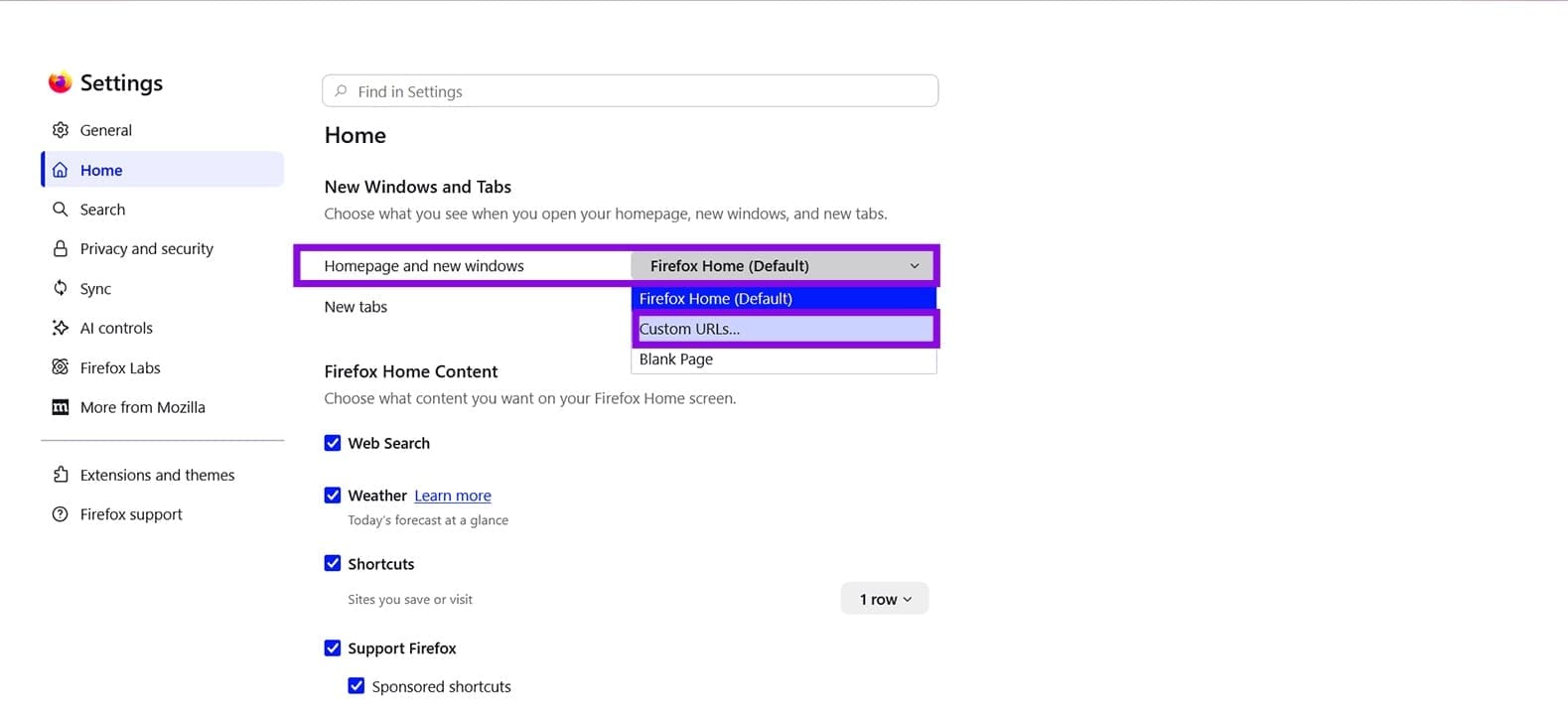
Step 5. Enter the URL of your desired homepage. Firefox offers you the option to set your homepage to a current page (“Use Current Pages”) or select from a bookmark (“Use Bookmarks”).
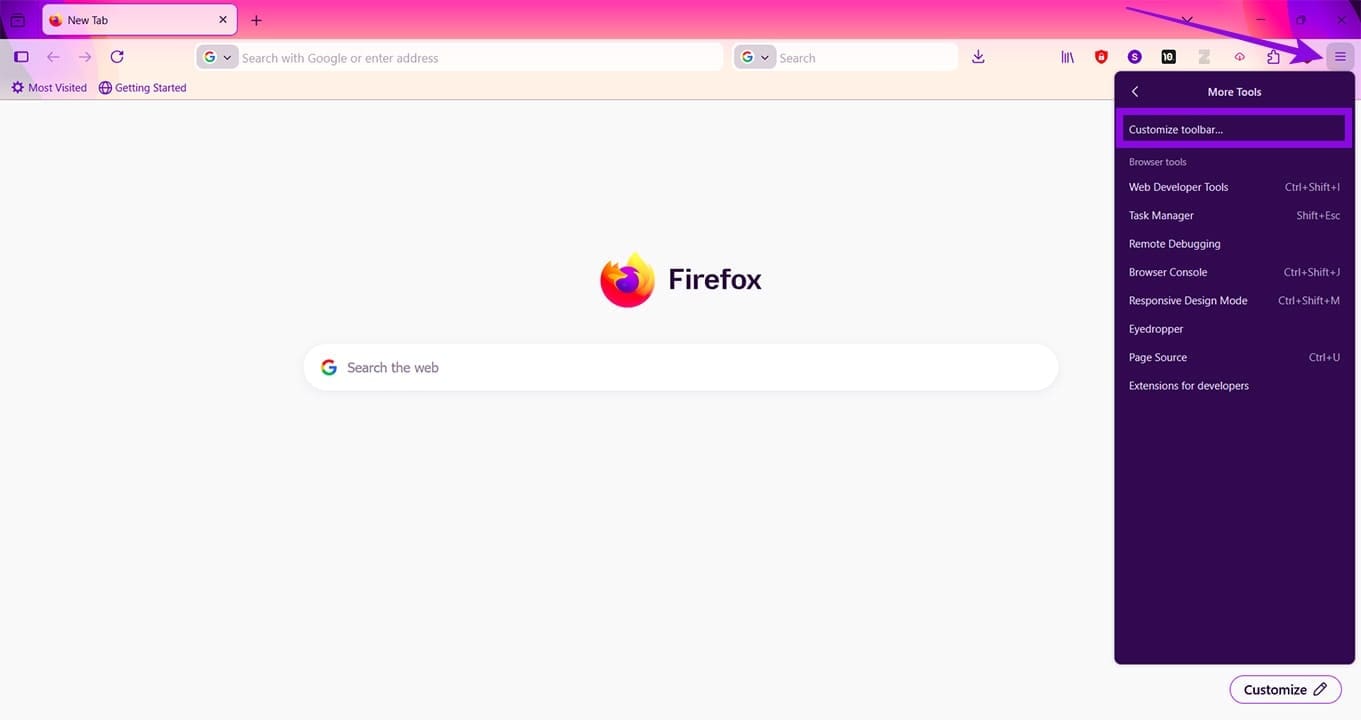
Step 6. If you want to bring the “Home” icon to your toolbar, you’ll need to go back to the “Menu” button and select “Menu,” “More Tools,” and “Customize toolbar.”
Step 7. Click and drag the “Home” icon up to an available box in your toolbar.
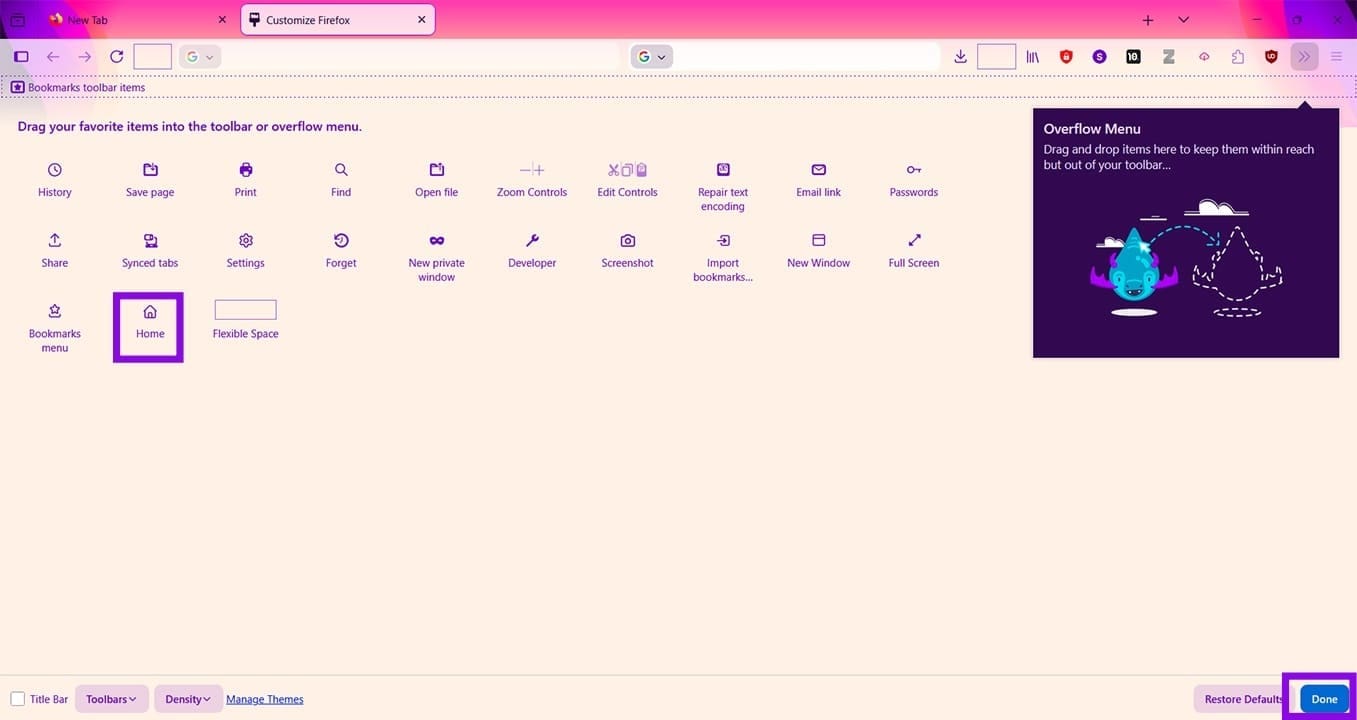
.Step 8. Click “Done” to finalize.
Was this helpful?
Last updated on 11 June, 2026
Read Next
 iOS 18 Features Mark a Major Leap for Apple, and Here’s Why I Think So
Now that Apple has unveiled the features coming in iOS 18 and the dust has settled, I've had some time to consider what these new customization and 'intelligence'-centric features mean
iOS 18 Features Mark a Major Leap for Apple, and Here’s Why I Think So
Now that Apple has unveiled the features coming in iOS 18 and the dust has settled, I've had some time to consider what these new customization and 'intelligence'-centric features mean
 6 Chrome Extensions to Customize Google Homepage
1.
6 Chrome Extensions to Customize Google Homepage
1.
 11 Tips to Customize Chrome Homepage or New Tab Page
1.
11 Tips to Customize Chrome Homepage or New Tab Page
1.
 6 Best Browsers With Built-in VPN for Android
Why Should You Need a Browser With VPN VPN (Virtual Private Network) serves multiple purposes apart from the fact that it unlocks content locked away in your geolocation.
6 Best Browsers With Built-in VPN for Android
Why Should You Need a Browser With VPN VPN (Virtual Private Network) serves multiple purposes apart from the fact that it unlocks content locked away in your geolocation.
 6 Ways to Fix YouTube Lagging on Chrome, Firefox, and Other Browsers
https://youtu.be/YyRuUvT3-ho Basic Fixes Use a reliable Wi-Fi network: It goes without saying that you need a fast and reliable network connection to play YouTube videos.
6 Ways to Fix YouTube Lagging on Chrome, Firefox, and Other Browsers
https://youtu.be/YyRuUvT3-ho Basic Fixes Use a reliable Wi-Fi network: It goes without saying that you need a fast and reliable network connection to play YouTube videos.
 How to Import Passwords Into Edge From Other Browsers
Switching browsers can be a pain, but it doesn’t have to be.
How to Import Passwords Into Edge From Other Browsers
Switching browsers can be a pain, but it doesn’t have to be.
 How to Prevent Browsers Asking Current Location
Privacy while browsing is a top concern for many people.
How to Prevent Browsers Asking Current Location
Privacy while browsing is a top concern for many people.
 How to Stop Browsers From Updating Automatically
Automatic browser updates are on by default for good reason.
How to Stop Browsers From Updating Automatically
Automatic browser updates are on by default for good reason.
The article above may contain affiliate links which help support Guiding Tech. The content remains unbiased and authentic and will never affect our editorial integrity.