Automatic browser updates are on by default for good reason. They remove security vulnerabilities, fix bugs, and keep your browser compatible with modern websites. But when an update breaks, and you’re forced to reroll it, you can stop the faulty version from getting applied. Here’s how to stop automatic browser updates for the most popular browsers.
Option 1 – How to Stop Auto Update Chrome Browser
Chrome runs using a background Windows service called Google Update that installs new versions silently. Disabling that service is how to stop auto update Chrome browser.
Step 1. Press “Win + R,” type “services.msc,” and press “Enter” to open the Windows Services manager.
Step 2. Scroll down and look for two entries: “Google Updater Service” and “Google Updater Internal Service.” You’ll need to disable both.
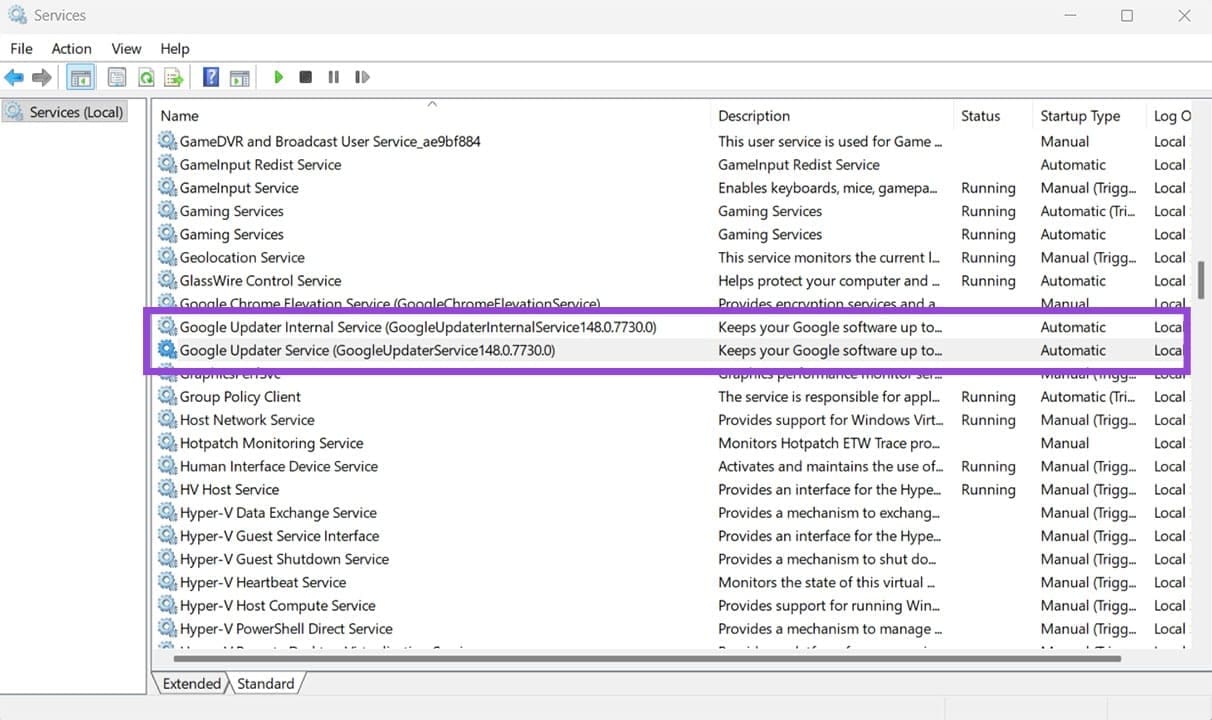
Step 3. Double-click on a service to open its properties. For “Startup type,” change it from “Automatic” to “Disabled,” then click “Stop” to halt it immediately, and click “OK.”
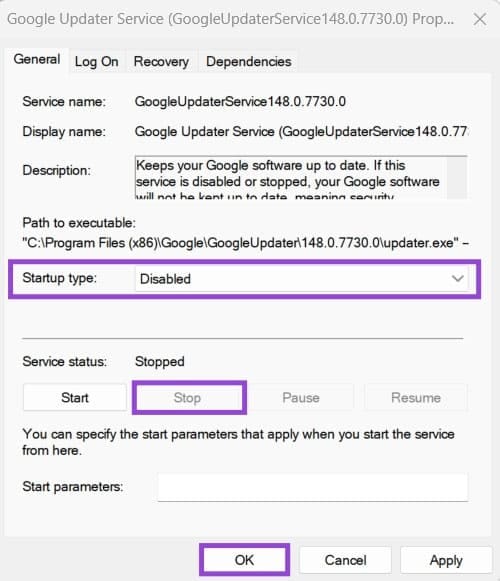
Step 4. Set the other service to “Disabled” as well.
Step 5. Restart your PC.
Option 2 – Stop Automatic Browser Updates for Edge
Like Chrome, Edge uses a background Windows service to download and install updates without prompting you. Disabling it follows a similar process.
Step 1. Press “Win + R,” type “services.msc,” and press “Enter.”
Step 2. Scroll to “Microsoft Edge Update Service (edgeupdate)” and double-click it.
Step 3. Set the “Startup type” to “Disabled,” click “Stop” to end the running service, then click “OK.”
Step 4. There’s another entry named “Microsoft Edge Update Service (edgeupdatem).” Repeat the process for this one.
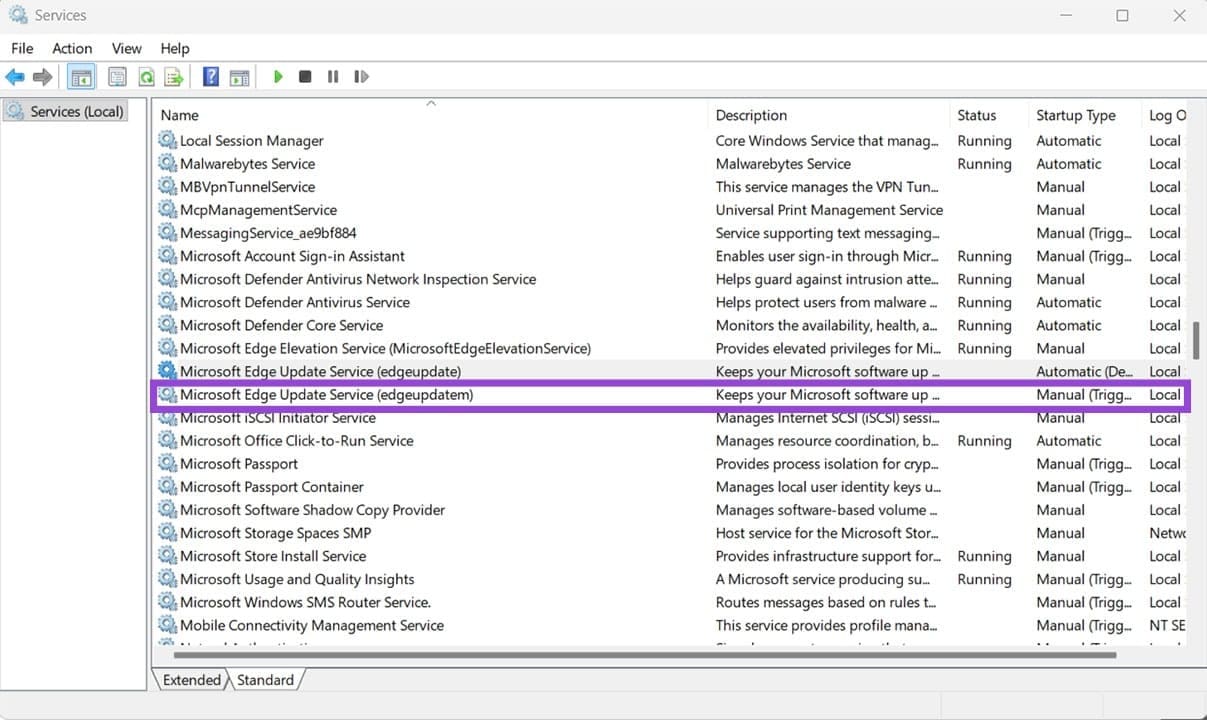
Alternatively, you can block Edge updates via the Registry:
Step 1. Open the Registry Editor, then go to: HKEY_LOCAL_MACHINE\SOFTWARE\Policies\Microsoft\EdgeUpdate.
Step 2. Create a new DWORD value named “UpdateDefault” and set it to “0” to block all Edge updates, or “2” to allow updates only when you manually trigger them.
Option 3 – Stop Firefox From Updating Automatically
Firefox has a distinct setting for disabling updates.
Step 1. Open Firefox and click on the three-line icon in the top-right corner, then select “Settings.”
Step 2. In the “General” tab, scroll down to the “Firefox Updates” section.
Step 3. Select “Check for updates but let you choose to install them” if you want to stay aware of new versions without having them applied automatically.
Option 4 – Stop Browsers From Auto-Updating on Mac
On macOS, browser update behavior depends on how the browser was installed. Browsers downloaded directly from their official websites use their own built-in updaters, while App Store versions update through macOS’s centralized update system.
Firefox on Mac: Works the same way as with Windows (see Option 3).
Chrome on Mac: Open Terminal and run the following command to disable the Google Software Updater: defaults write com.google.Keystone.Agent checkInterval 0.
Edge on Mac: Similar to Chrome, open Terminal and run “defaults write com.microsoft.edgeupdate checkInterval 0”.
App Store browsers: If your browser was installed via the Mac App Store, go to “System Settings,” then to “Software Update,” and “Automatic Updates,” and toggle off “Install app updates from the App Store.”
Was this helpful?
Last updated on 20 April, 2026
Read Next
 5 Ways to Fix Microsoft Store Apps Not Updating Automatically
Fix 1: Verify Auto Update Settings in the Microsoft Store The first thing you should do is verify the auto-update settings in the Microsoft Store app.
5 Ways to Fix Microsoft Store Apps Not Updating Automatically
Fix 1: Verify Auto Update Settings in the Microsoft Store The first thing you should do is verify the auto-update settings in the Microsoft Store app.
 4 Ways to Fix Apps Not Updating Automatically on iPhone
Basic Fixes Try basic troubleshooting options first if your apps fail to automatically update within a reasonable time frame.
4 Ways to Fix Apps Not Updating Automatically on iPhone
Basic Fixes Try basic troubleshooting options first if your apps fail to automatically update within a reasonable time frame.
 2 Ways to Stop Downloads From Opening Automatically in Chrome
Method 1: Uncheck Always Open This File Option Chrome lets you automatically launch certain file types as soon as they've finished downloading locally.
2 Ways to Stop Downloads From Opening Automatically in Chrome
Method 1: Uncheck Always Open This File Option Chrome lets you automatically launch certain file types as soon as they've finished downloading locally.
 3 Ways to Stop Instagram From Automatically Following Accounts
Fix 1: Unlink Third-Party Apps and Websites Third-party apps and services linked to your Instagram account may auto-follow specific accounts in the background.
3 Ways to Stop Instagram From Automatically Following Accounts
Fix 1: Unlink Third-Party Apps and Websites Third-party apps and services linked to your Instagram account may auto-follow specific accounts in the background.
 How to Stop Facebook From Scrolling Automatically
Basic Fixes Update your web browser: Ensure that you use the latest version of your preferred web browser.
How to Stop Facebook From Scrolling Automatically
Basic Fixes Update your web browser: Ensure that you use the latest version of your preferred web browser.
 5 Browsers to Always Open Desktop Sites on Android and iOS
1.
5 Browsers to Always Open Desktop Sites on Android and iOS
1.
 How to Update Opera Browsers on Desktop and Mobile
Method 1: Update Opera Browser on iPhone Updating the Opera browsers on your iPhone is straightforward.
How to Update Opera Browsers on Desktop and Mobile
Method 1: Update Opera Browser on iPhone Updating the Opera browsers on your iPhone is straightforward.
 6 Fastest Browsers for Windows 11 You Should Try
How Did We Test Each Browser on Windows 11 To find the best and fastest browsers for Windows 11, we installed multiple browsers and tested each on popular benchmarking tools.
6 Fastest Browsers for Windows 11 You Should Try
How Did We Test Each Browser on Windows 11 To find the best and fastest browsers for Windows 11, we installed multiple browsers and tested each on popular benchmarking tools.
The article above may contain affiliate links which help support Guiding Tech. The content remains unbiased and authentic and will never affect our editorial integrity.