

Note: For this guide, we used the OnePlus 7T running Android 11 and iPhone 12 running iOS 16, but you can follow the same steps on your iOS or Android device. However, some steps and screenshots might look different.
How to Reset Instagram Explore Page
Method 1: Mark as Not Interested
Step 1: Open the Instagram app and go to the Explore page.
Step 2: Now, open the post you don’t like and click on the three-dot menu at the upper right.
Step 3: Select Not interested.


This will remove the post from your suggestion, and it will never appear, provided you don’t show interest in this type of content. And, yes, you must repeat this process every time you see some irrelevant content or something you don’t like.
Also Read: How to share comments on Instagram story
Method 2: Clear Search History
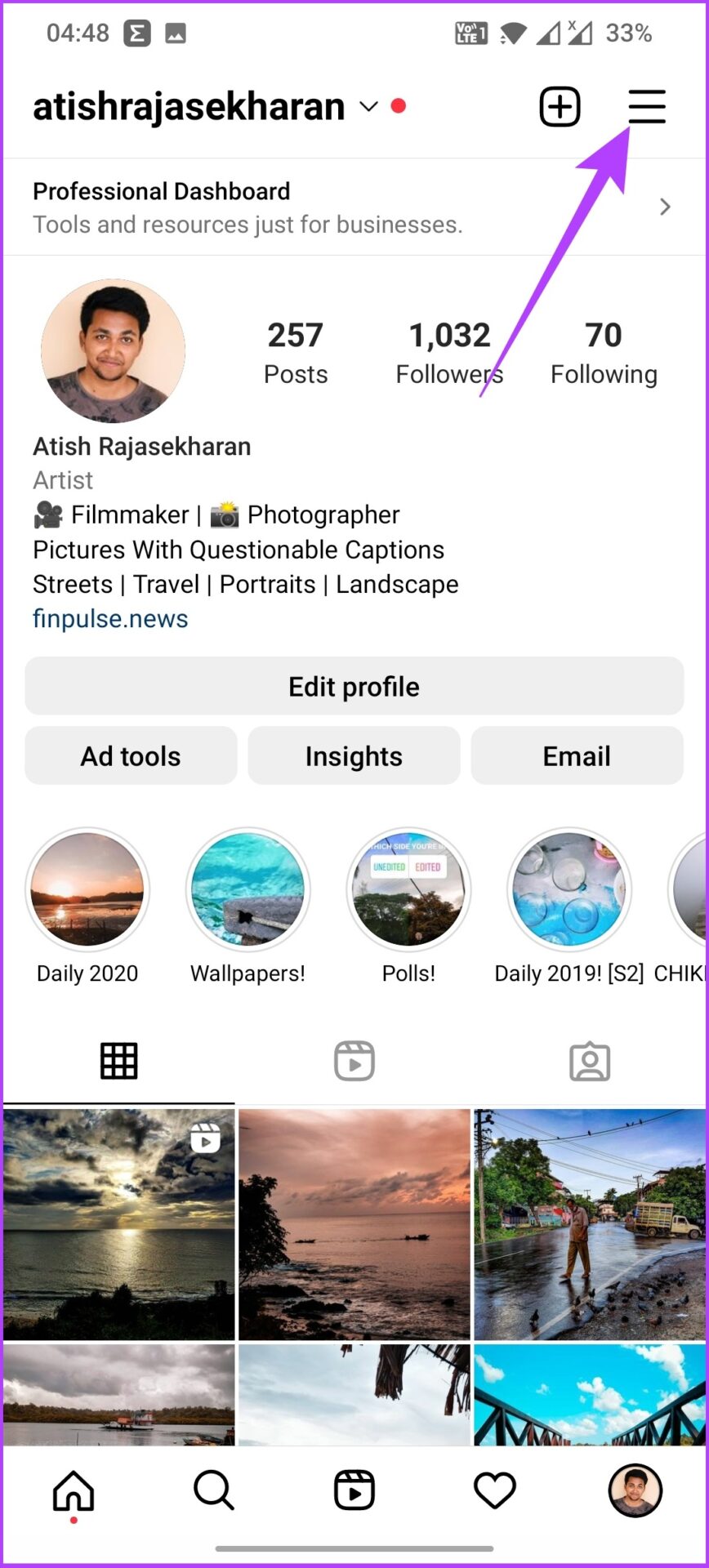
Step 1: Open the Instagram app and tap on your profile at the bottom right.
Step 2: Tap on the three-line icon at the upper right and select Your Activity.

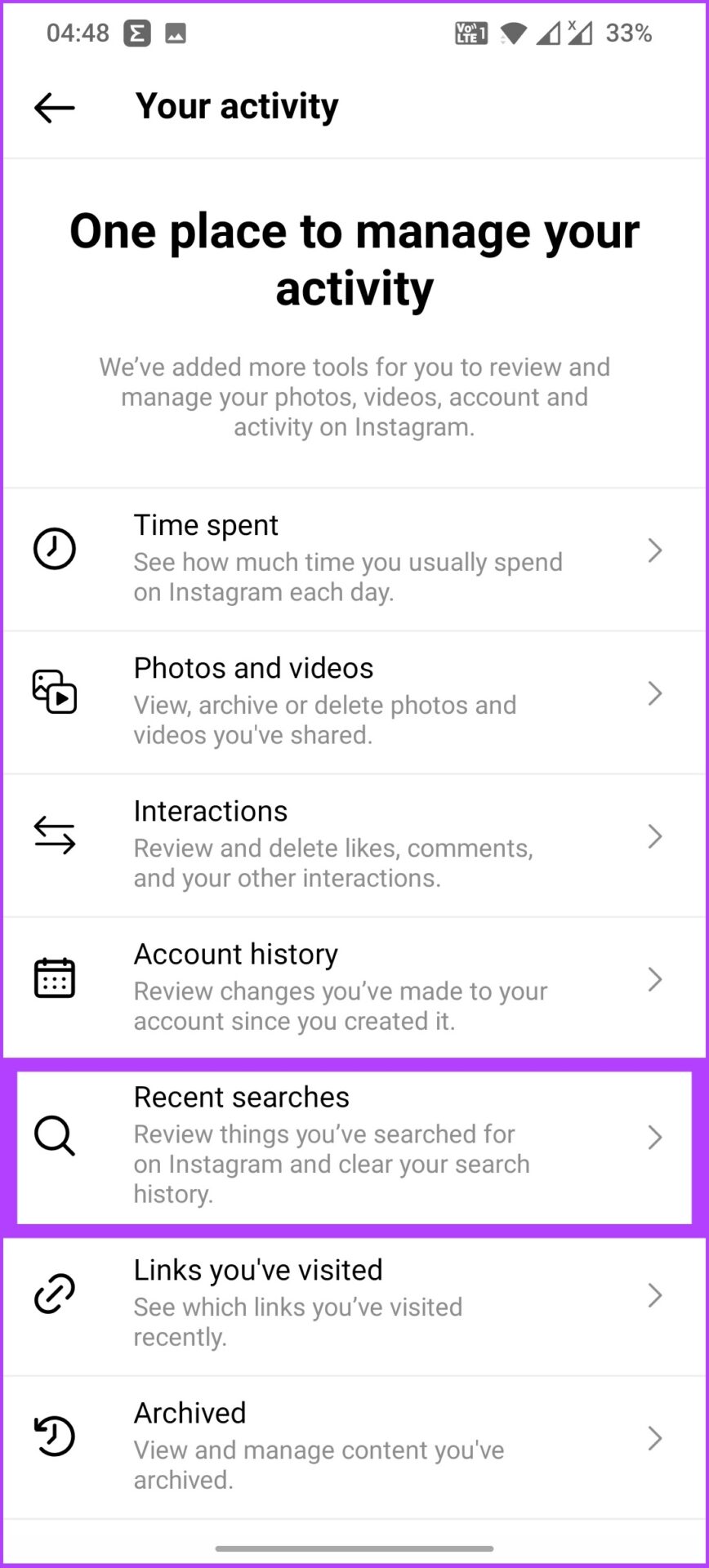
Step 3: Select Recent searches > tap Clear all.
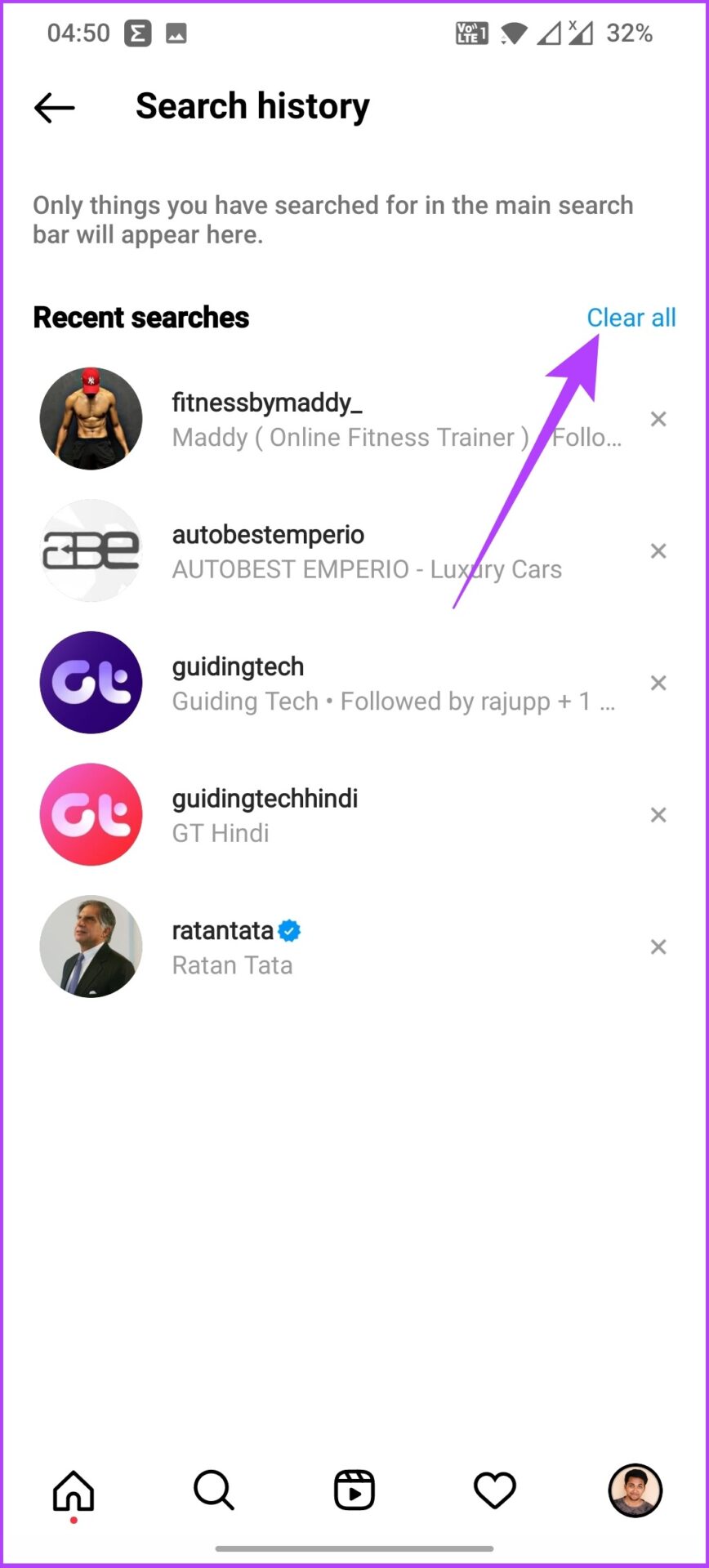
Step 4: Select Clear all in the prompt to confirm.
By clearing the search history, you are flushing out your potential interest, as per Instagram’s algorithm, and resetting your Explore page with something you might be interested in.
Method 3: Clear Instagram Cache
Note: Removing the cache removes data from Instagram stored on your phone. So, before you go ahead, check our detailed guide explaining what happens when you delete the Instagram cache.
Clear Cache on Android
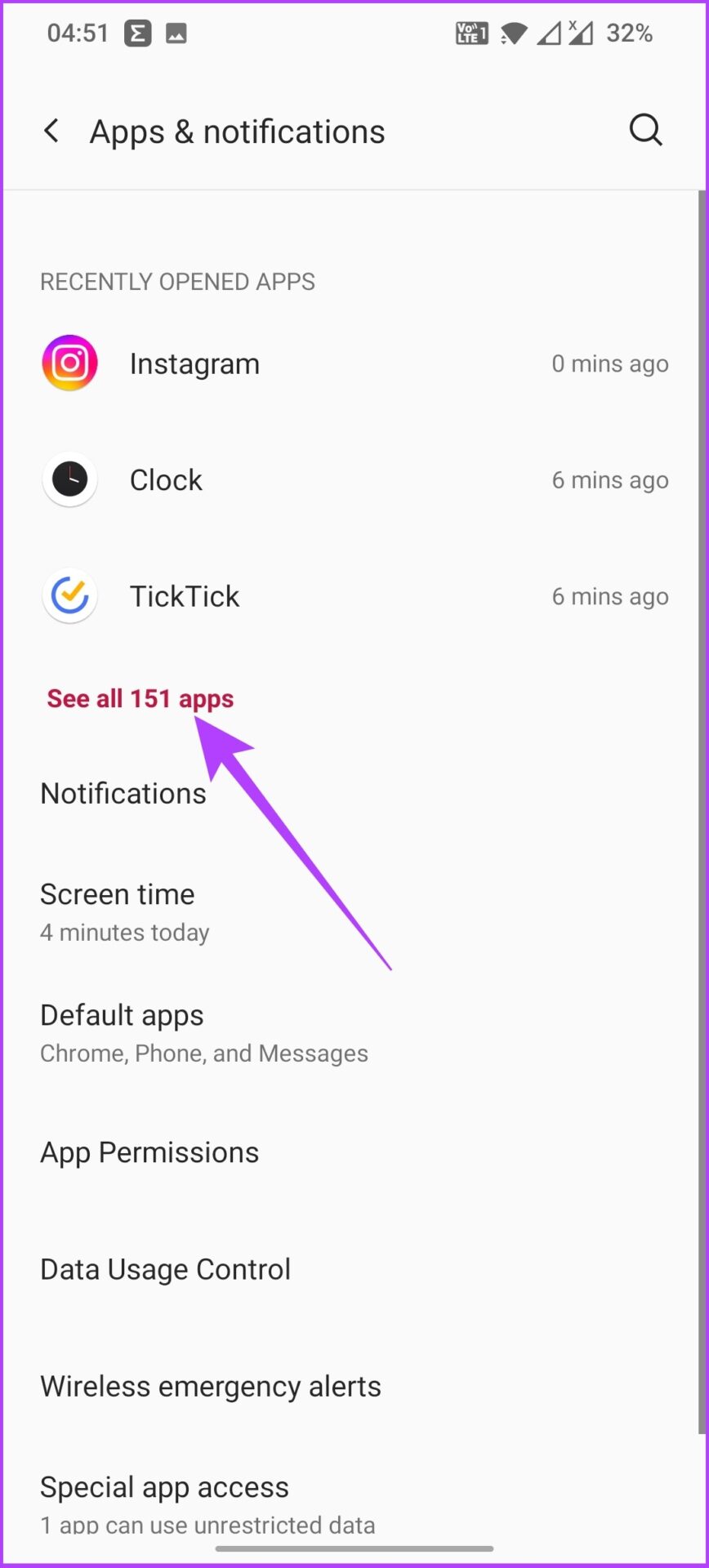
Step 1: Open phone Settings and go to Apps & notifications.
Note: Every Android device has an Apps & Notifications option; however, they might be named differently.
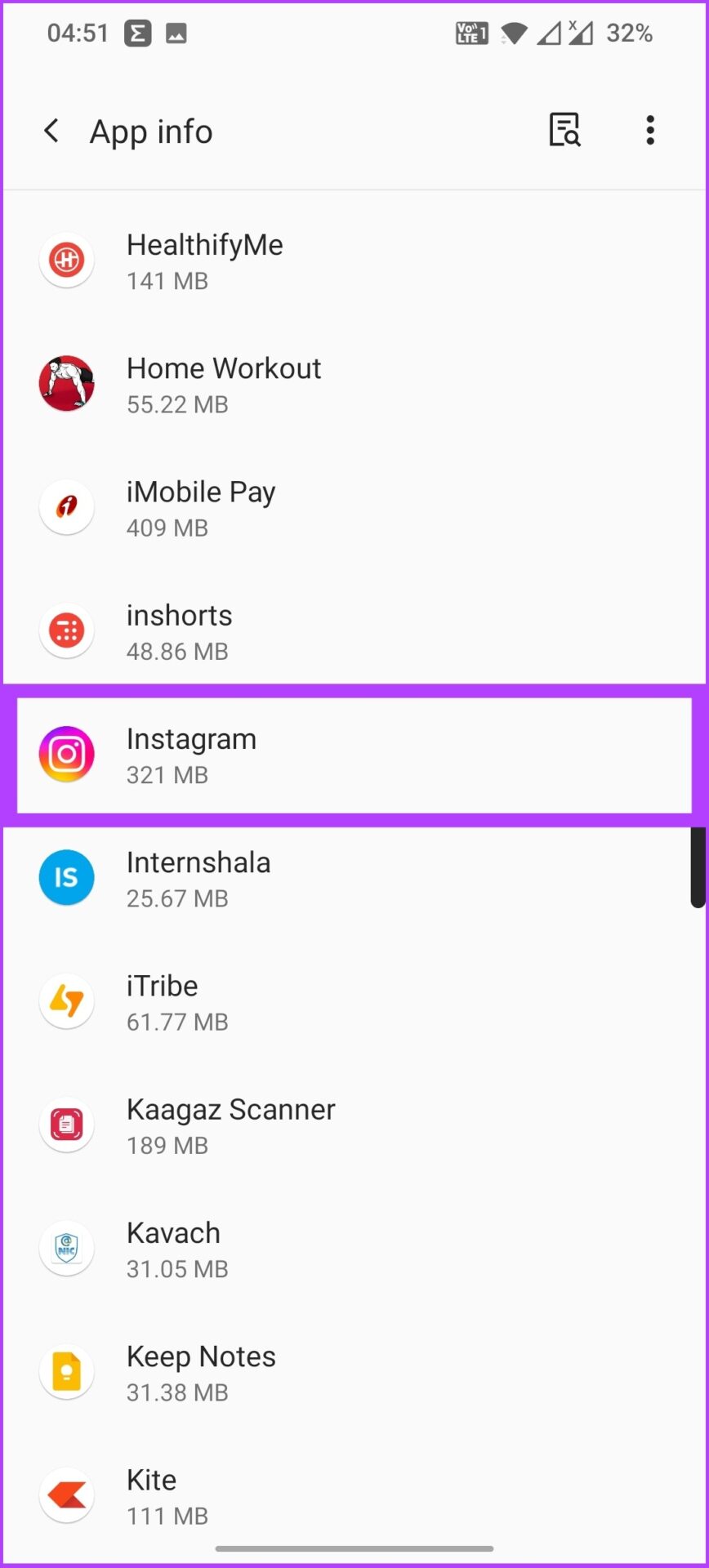
Step 2: Go to See all apps > select Instagram.
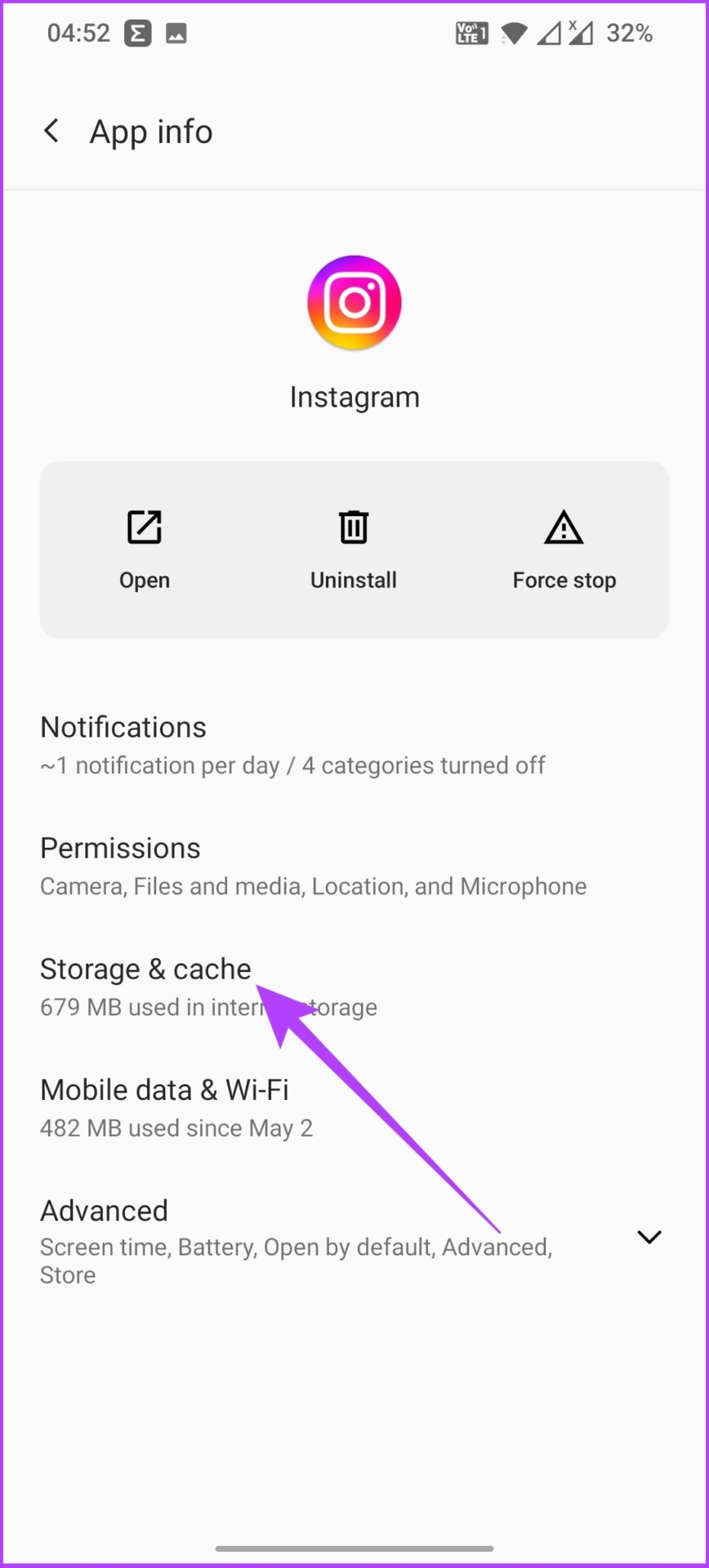
Step 3: Tap on Storage & Cache > select Clear Cache.
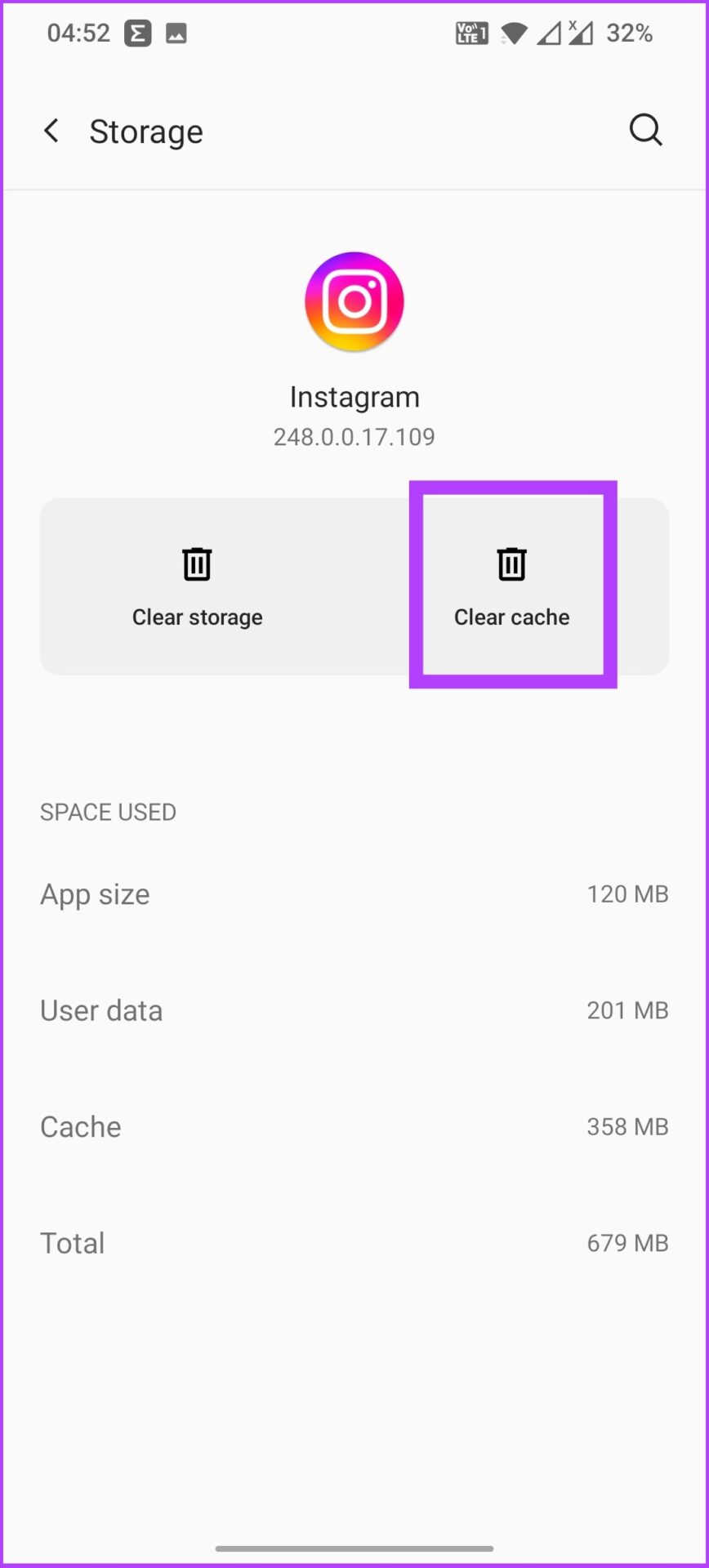
That’s it. You have successfully cleared the Instagram cache on Android. If this method doesn’t work, clear storage.
Delete and Reinstall Instagram on iPhone
There’s no way to clear the cache on iPhone. So, to clear the Instagram app’s cache, you must delete the app altogether and reinstall it from the App Store.
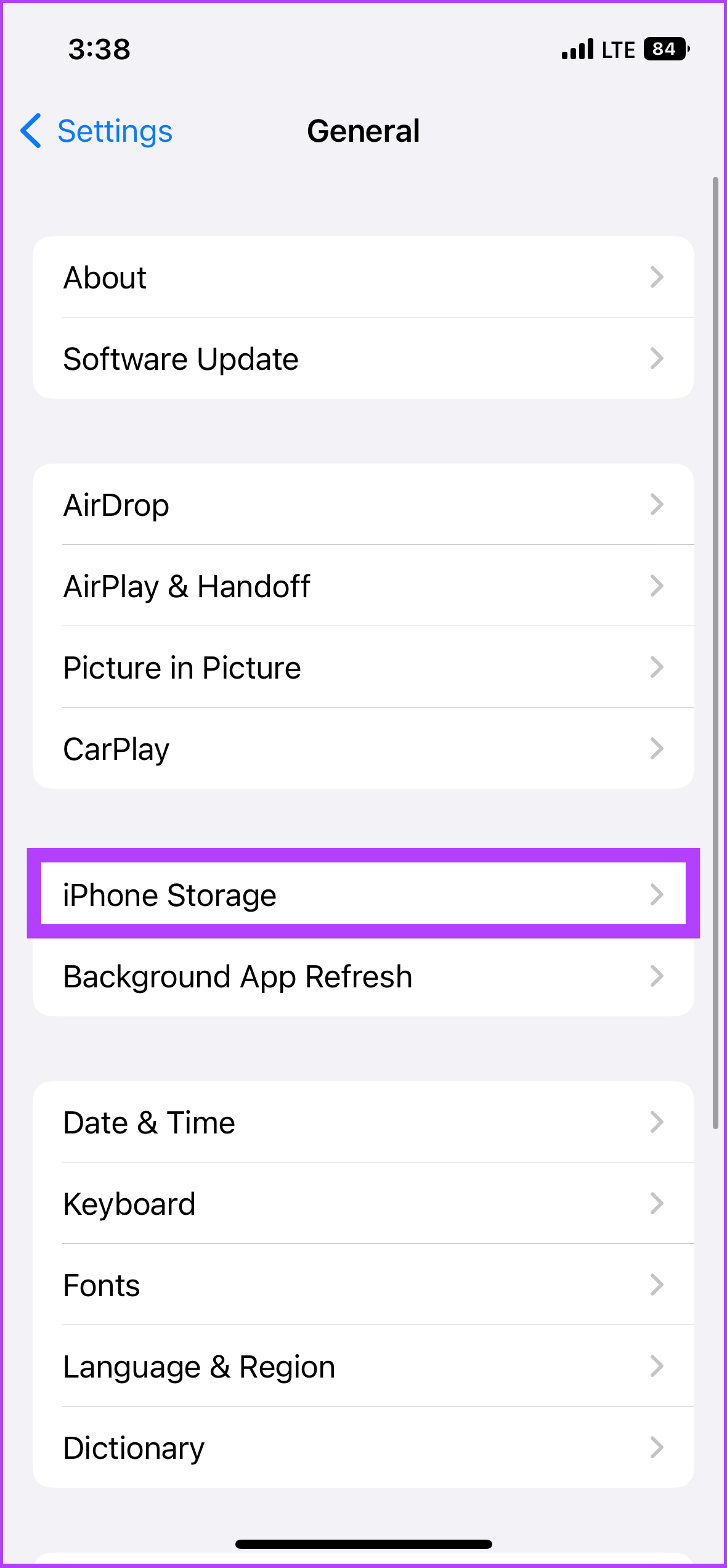
Step 1: Go to iPhone Settings and tap on General.
Step 2: Now, go to iPhone Storage, scroll down, and select Instagram.
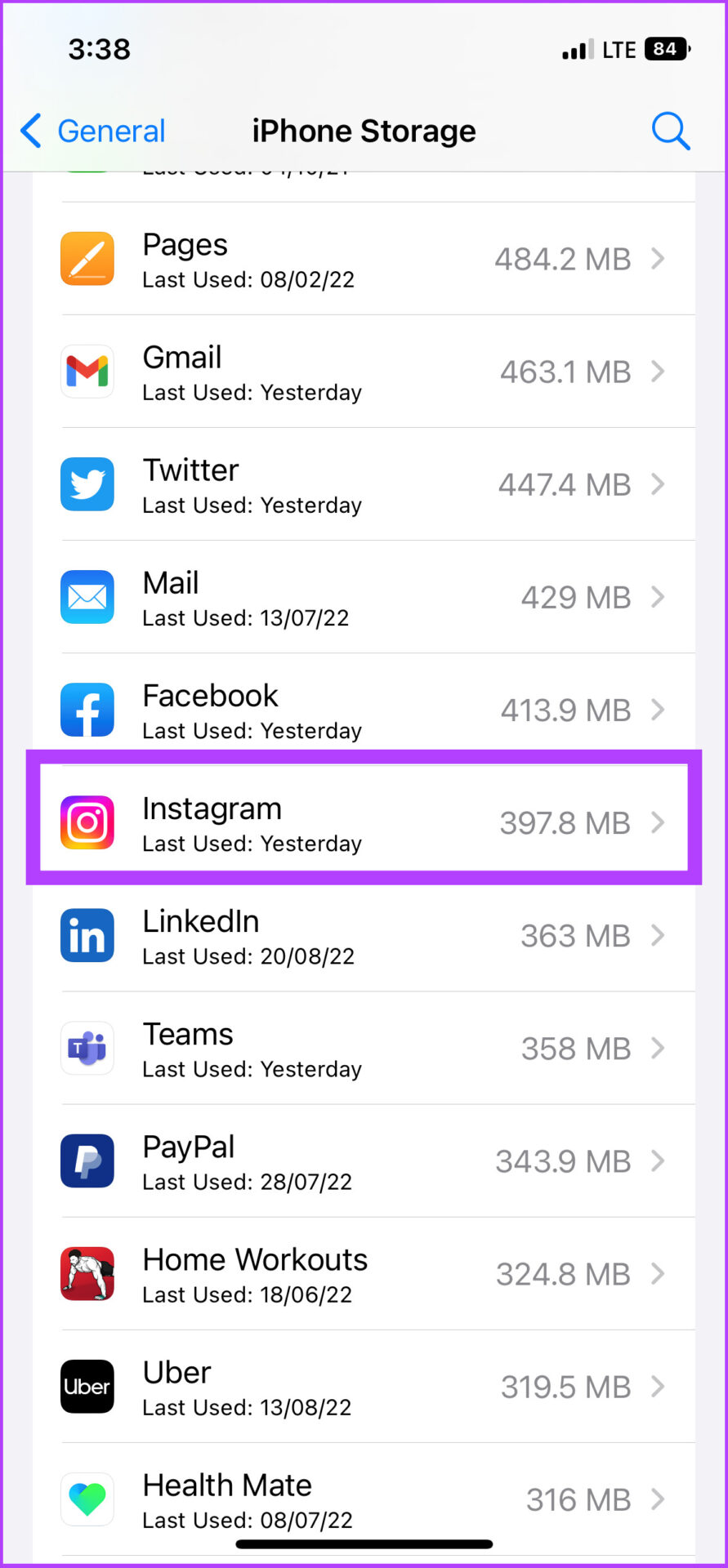
Step 3: Lastly, tap on Delete App.
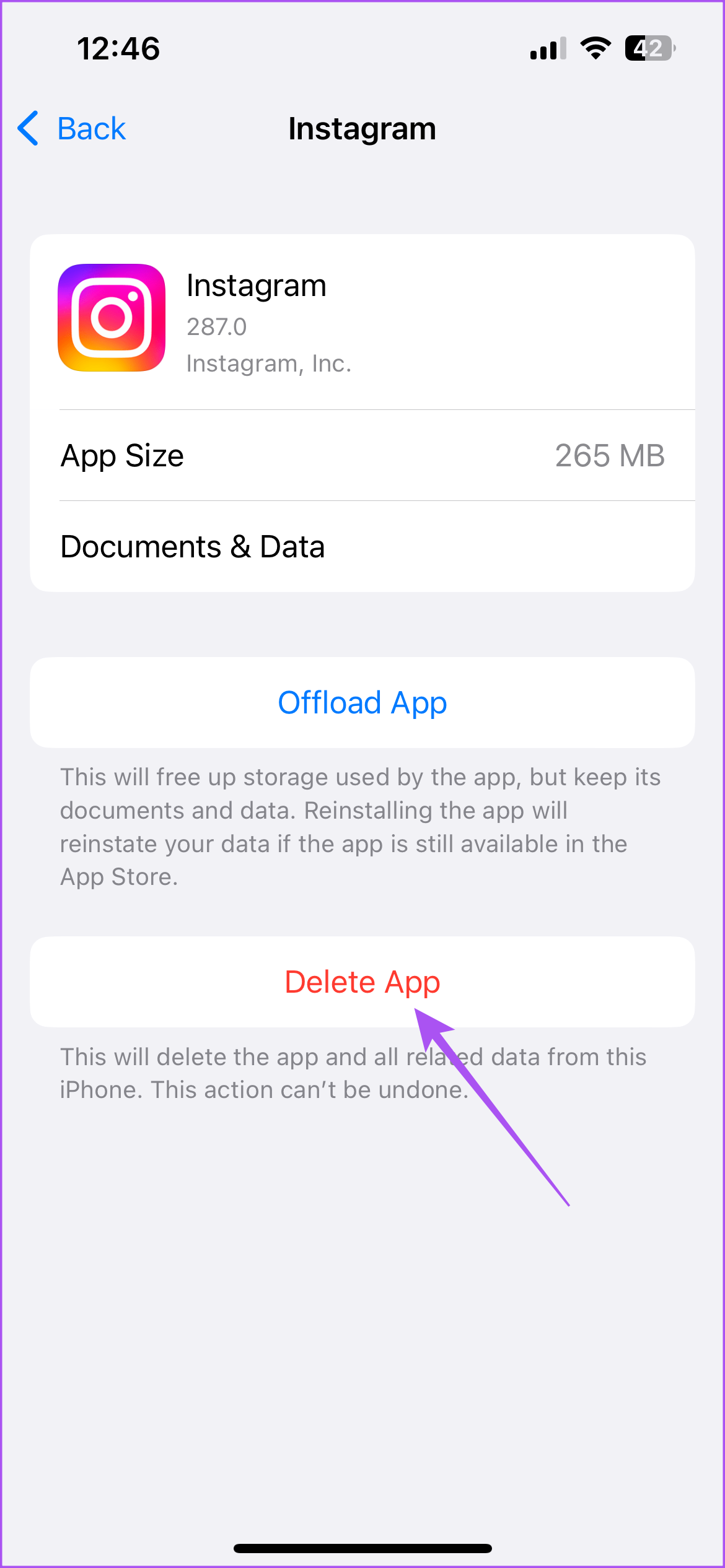
While there is an Offload app option, it deletes the app while storing its documents and data locally on the iPhone. Hence, deleting the app is your only option. Once done, reinstall Instagram to find a refreshed Explore page.
Tips to Improve Your Instagram Explore Feed
- Engage with the content you want to see more of. By liking and commenting on posts in your Explore feed that interest you, you’re telling the algorithm that you wish to see more of such content.
- Curate your feed by Following accounts that align with your interests. The more you follow accounts in a specific niche, the more likely you will see content from similar accounts in your Explore feed.
- Utilize Instagram’s Favorite feature. You can add up to 50 accounts to your Favorites list. Posts from these accounts will appear higher in your feed.
FAQs
The Explore page is a core feature of Instagram that suggests content based on your interests and interactions. While you can’t delete it, you can customize the content you see on the Explore page by interacting with different types of posts and accounts.
There could be several reasons your Instagram Explore page is messed up. If you’ve recently engaged with posts or profiles that do not align with your usual interests, it can lead to a shift in the content shown on your Explore page.
Additionally, Instagram occasionally tests new features and algorithms, which can temporarily disrupt the accuracy of the Explore page for some users.
Was this helpful?
Last updated on 30 May, 2024
Read Next
 How to Manage the Content Shown on Your Instagram Explore Page
A large number of Instagram users scroll through the app discover new content.
How to Manage the Content Shown on Your Instagram Explore Page
A large number of Instagram users scroll through the app discover new content.
 How to Use Google Sky Maps to Explore Outer Space
Most individuals might know of Google Maps, but not many people know about Google Sky Maps, another offering for those interested in space.
How to Use Google Sky Maps to Explore Outer Space
Most individuals might know of Google Maps, but not many people know about Google Sky Maps, another offering for those interested in space.
 How To Fix Instagram Not Posting To Facebook Business Page Issue
Both Facebook and Instagram have features that make them easy to use together.
How To Fix Instagram Not Posting To Facebook Business Page Issue
Both Facebook and Instagram have features that make them easy to use together.
 How to Properly Link Instagram to Facebook Page and Profile
Link Instagram to Facebook Page Before following these steps, ensure you are the admin (owner) of the Facebook page you want to link with Instagram.
How to Properly Link Instagram to Facebook Page and Profile
Link Instagram to Facebook Page Before following these steps, ensure you are the admin (owner) of the Facebook page you want to link with Instagram.
 How to Fix “This Page Isn’t Available Right Now” on Instagram
https://youtu.be/SUz6riRulTE Basic Fixes: Double-check the link: Some users prefer to just manually type the link, which gives way to mistakes in the link address.
How to Fix “This Page Isn’t Available Right Now” on Instagram
https://youtu.be/SUz6riRulTE Basic Fixes: Double-check the link: Some users prefer to just manually type the link, which gives way to mistakes in the link address.
 How to Reset iPhone and What Happens When You Reset iPhone
https://youtu.be/VPnZOK4EqVQ How to Reset iPhone to Factory Settings Before we move on to erasing data or settings on the iPhone, check out the section below to ensure your data or
How to Reset iPhone and What Happens When You Reset iPhone
https://youtu.be/VPnZOK4EqVQ How to Reset iPhone to Factory Settings Before we move on to erasing data or settings on the iPhone, check out the section below to ensure your data or
 How to Change the Startup and Home Page on Google Chrome
How to Change the Startup Page on Google Chrome The Google logo and a search bar are the first things you'll see when you open the Chrome browser.
How to Change the Startup and Home Page on Google Chrome
How to Change the Startup Page on Google Chrome The Google logo and a search bar are the first things you'll see when you open the Chrome browser.
 3 Ways to Adjust the Page Margin in Microsoft Word
Method 1: Adjust the Page Margin of a Word Document Using the Ruler Step 1: Open the Word document to adjust the page margin.
3 Ways to Adjust the Page Margin in Microsoft Word
Method 1: Adjust the Page Margin of a Word Document Using the Ruler Step 1: Open the Word document to adjust the page margin.
The article above may contain affiliate links which help support Guiding Tech. The content remains unbiased and authentic and will never affect our editorial integrity.

