Let’s look at how to cancel Telegram Premium subscription on Android, iPhone, Mac, and Windows.
Method 1: Cancel Telegram Subscription On Android
Step 1: Open the Google Play Store on your Android phone and tap on your Profile icon at the top-right corner.
Step 2: Then, select Payments and Subscriptions from the list of options.
Step 3: Tap on Subscriptions and select Telegram from your Active Subscriptions list.
Step 4: Tap on Cancel subscription at the bottom to proceed.


Step 5: Select a reason for cancellation and tap on Continue. Now, tap on Cancel subscription at the bottom to confirm.
You will receive a confirmation that your Telegram Premium subscription has been canceled. Didn’t get the notification? Read our guide to fix Telegram notifications not working on Android.
Method 2: Cancel Telegram Subscription on iPhone Using App Store
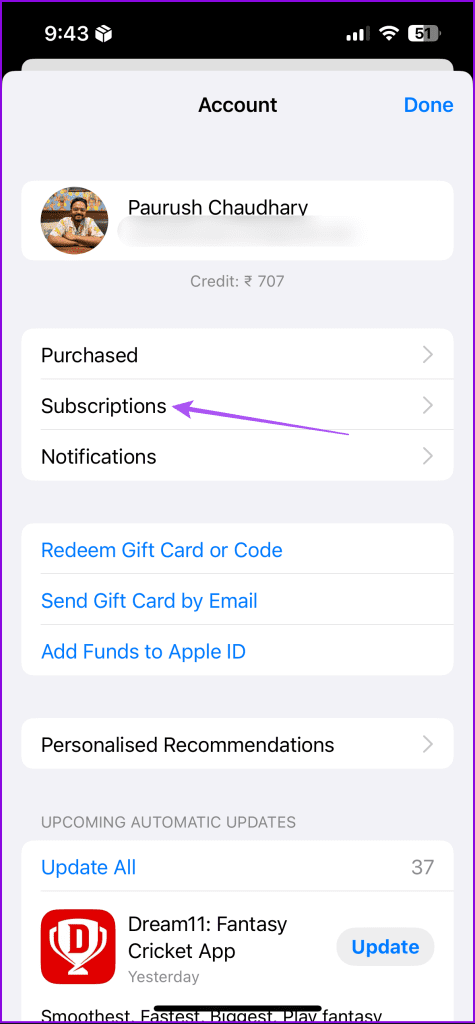
Step 1: Open the App Store on your iPhone and tap the profile icon at the top-right corner.
Step 2: Select Subscriptions and tap on Telegram Messenger from the list.
Step 3: Tap on Cancel Subscription and then tap Confirm again to confirm your choice.


Method 3: Using Telegram on iPhone
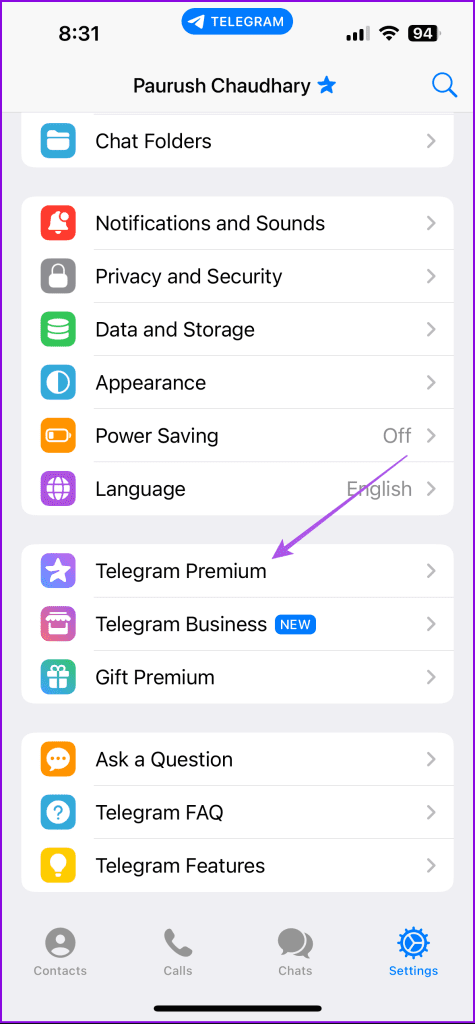
Step 1: Open the Telegram app and tap the Settings icon at the bottom-right corner.
Step 2: Scroll down and tap on Telegram Premium. Then scroll to the bottom and tap on App Store.

Step 3: Here, tap on Telegram Messenger from the list. Then, tap on Cancel Subscription. Lastly, tap Confirm.
Method 4: On Mac
Step 1: Open Telegram on your Mac and click the Settings icon at the bottom.

Step 2: Scroll down in the Settings menu and tap on Telegram Premium.
Step 3: In the Telegram Premium popup message, click on App Store.

Step 4: Click on Open to open iTunes on your Mac.
Step 5: Once the Subscriptions tab loads in iTunes on your Mac, click on Edit next to Telegram Messenger.

Step 6: Click on Cancel Subscription and then click on Confirm to continue with the cancellation.
Tip: You can also check our guide to fix Telegram not working on Mac.
Method 4: On Windows
Note that you must install iTunes on your Windows PC to cancel the Telegram Premium subscription.
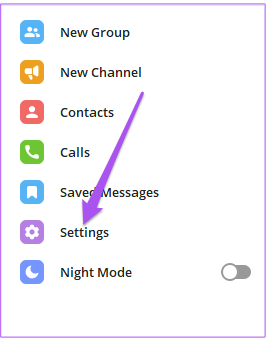
Step 1: Launch Telegram on your Windows PC. Then, tap the Hamburger icon at the top-left corner.
Step 2: Now, click on Settings from the list of options.
Step 2: Scroll down and click on Telegram Premium.
A popup message of Telegram Premium will appear on the right side.
Step 3: Click the App Store link in the pop-up message.

This will open iTunes on your PC. You may need to enter your Apple account password to authenticate.
Step 4: After the Subscriptions page loads on your screen, click on Edit next to Telegram Messenger.

Step 5: Click on Cancel Subscription and select Confirm to continue with the cancellation.
You also can check our guide on how to subscribe to Telegram Premium if you want to start using it again.
Was this helpful?
Last updated on 02 April, 2024
Read Next
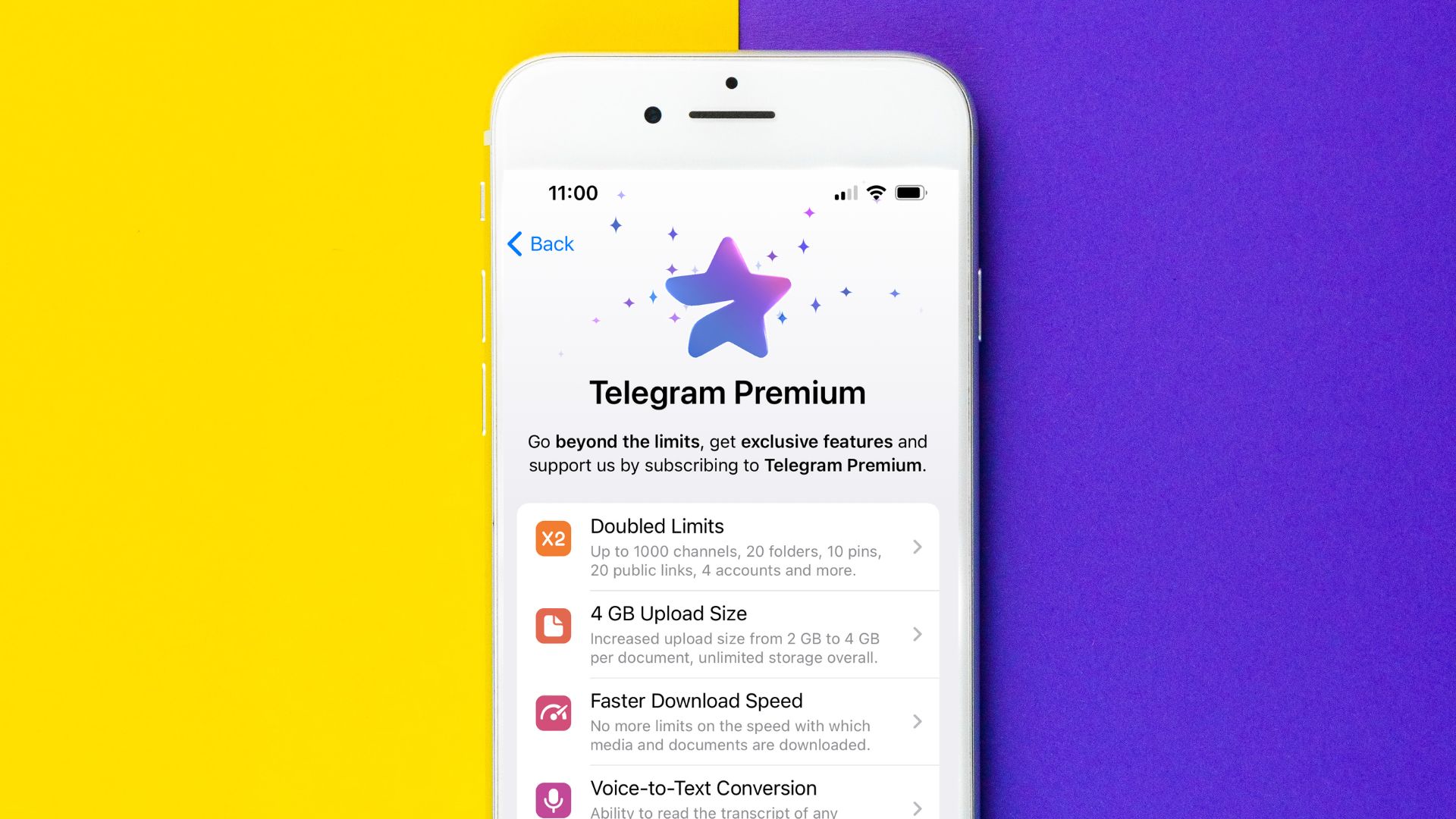 How to Subscribe to Telegram Premium (For a Discounted Price)
Telegram Free vs Premium Features FreePremiumFile Sharing Limit2GB4GBGroups and ChannelsUp to 500Up to 1000Pin Chats510Reserve Public Links1020 Subscribe to Telegram Premium for a Cheaper Price via Premium Bot At a
How to Subscribe to Telegram Premium (For a Discounted Price)
Telegram Free vs Premium Features FreePremiumFile Sharing Limit2GB4GBGroups and ChannelsUp to 500Up to 1000Pin Chats510Reserve Public Links1020 Subscribe to Telegram Premium for a Cheaper Price via Premium Bot At a
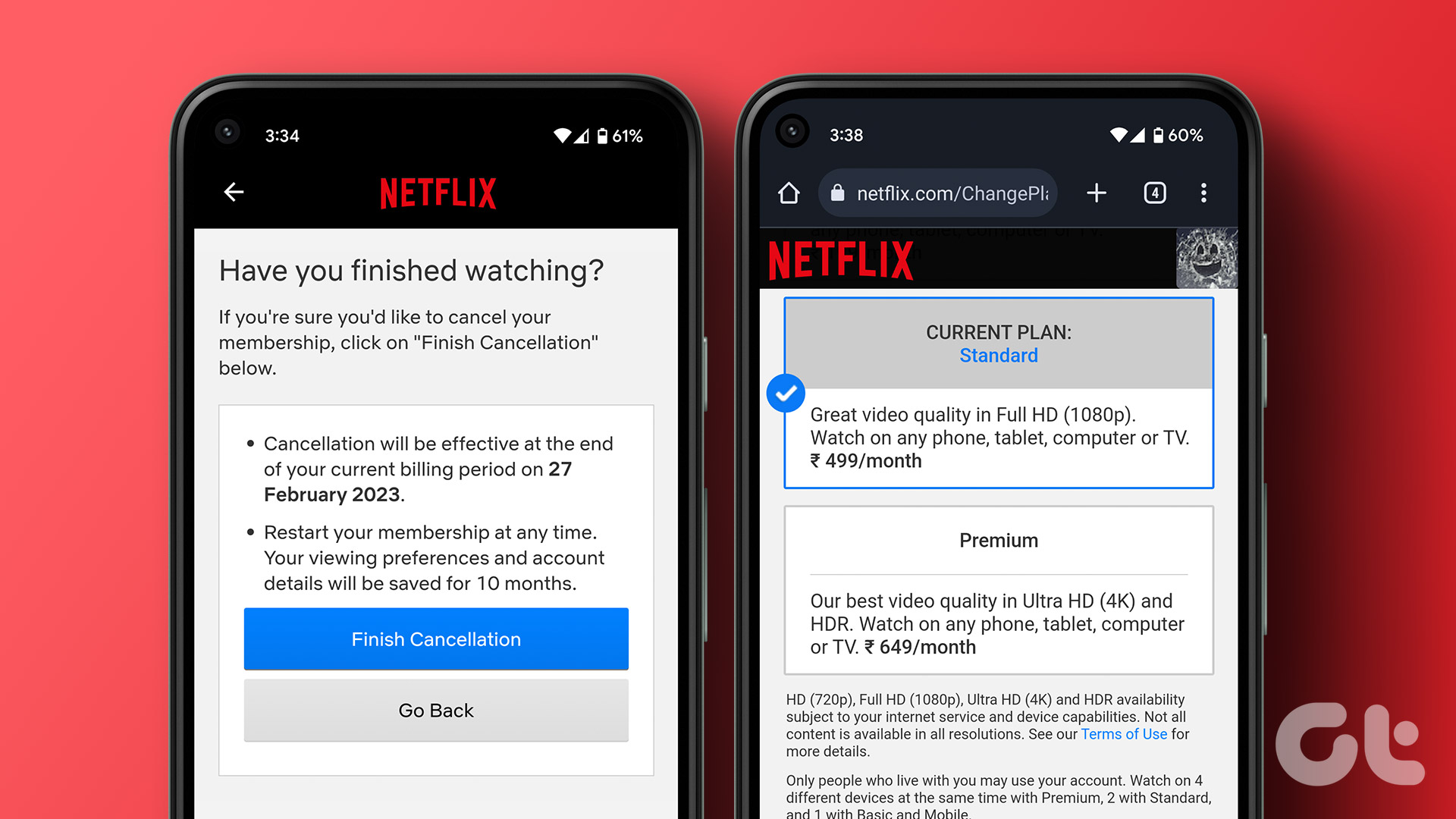 How to Change or Cancel Netflix Plan on Any Device
How to Change Your Plan on Netflix If you've made your decision and wish to change your Netflix plan, here's how to do it.
How to Change or Cancel Netflix Plan on Any Device
How to Change Your Plan on Netflix If you've made your decision and wish to change your Netflix plan, here's how to do it.
 How to Edit or Cancel a Scheduled Email in Gmail
How to Edit a Scheduled Email in Gmail During the time between scheduling and sending an email, you can edit or reschedule the content as needed.
How to Edit or Cancel a Scheduled Email in Gmail
How to Edit a Scheduled Email in Gmail During the time between scheduling and sending an email, you can edit or reschedule the content as needed.
 3 Fixes for YouTube Premium Not Downloading Videos Offline
Basic Fixes Check Internet Connectivity: Ensure your device is connected to a Wi-Fi network or cellular data with good signal strength and an active plan.
3 Fixes for YouTube Premium Not Downloading Videos Offline
Basic Fixes Check Internet Connectivity: Ensure your device is connected to a Wi-Fi network or cellular data with good signal strength and an active plan.
 Netflix Standard vs. Premium: Which Netflix Plan Is Best for You
Netflix Subscription Plans At a Glance While Netflix provides three plans in total, the Standard and Premium plans take the cake.
Netflix Standard vs. Premium: Which Netflix Plan Is Best for You
Netflix Subscription Plans At a Glance While Netflix provides three plans in total, the Standard and Premium plans take the cake.
 How to Get Bumble Premium for Free
Method 1: Get Bumble Premium Free Trial As of writing this guide, you can get the Premium free trial to use Bumble Premium without paying.
How to Get Bumble Premium for Free
Method 1: Get Bumble Premium Free Trial As of writing this guide, you can get the Premium free trial to use Bumble Premium without paying.
 4 Fixes for Spotify Premium Not Working Offline on Smartphones
Basic Fixes: Check your subscription status: To listen offline on Spotify, you must be subscribed to any of their premium plans.
4 Fixes for Spotify Premium Not Working Offline on Smartphones
Basic Fixes: Check your subscription status: To listen offline on Spotify, you must be subscribed to any of their premium plans.
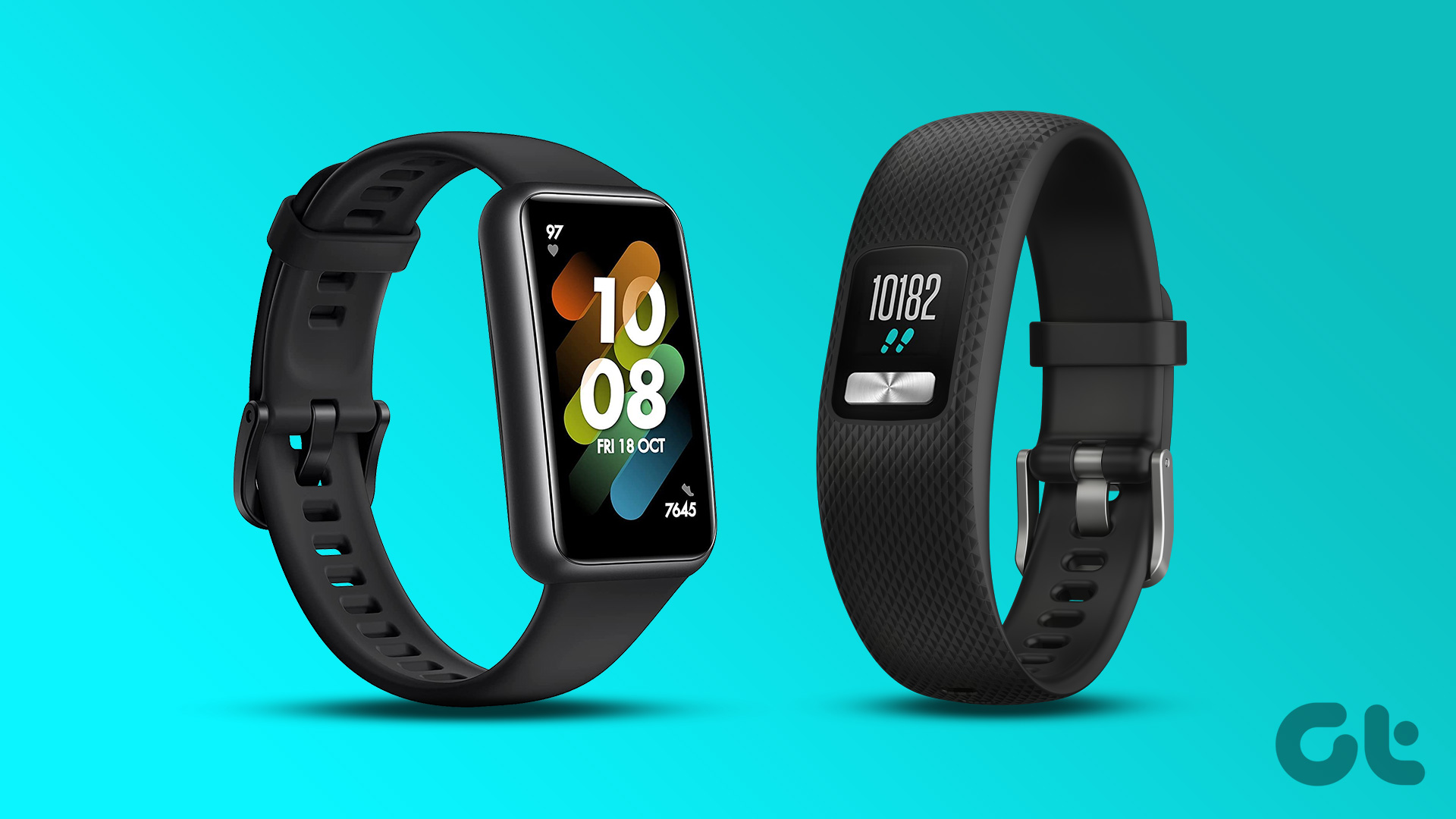 5 Best Fitness Trackers Without Subscription
Although there are no shortcuts to being healthy, you can use fitness trackers to stay on top of your wellness goals.
5 Best Fitness Trackers Without Subscription
Although there are no shortcuts to being healthy, you can use fitness trackers to stay on top of your wellness goals.
The article above may contain affiliate links which help support Guiding Tech. The content remains unbiased and authentic and will never affect our editorial integrity.