

How to Blur WhatsApp Video Call Background on iPhone
You can blur the background of your WhatsApp video call right from the Control Center on your iPhone. However, you need to be on a video call to implement this feature.
Note: You need an iPhone XR or later (including SE 2nd gene and later) running iOS 15 or above to use this feature.
Step 1: While you are on a WhatsApp video call, swipe down from the top-right corner to open the Control Center. Tap on Effects.
Step 2: Tap on the Portrait icon to turn it on.


Also Read: How to fix no sound in WhatsApp Video Calls
Blur Background for WhatsApp Video Calls on Samsung Galaxy Phones
Well, unfortunately, this feature is not available on devices other than the ones made by Samsung. Further, there seems to be no workaround for it too, and we can only hope WhatsApp adds the background blur feature in a future update.
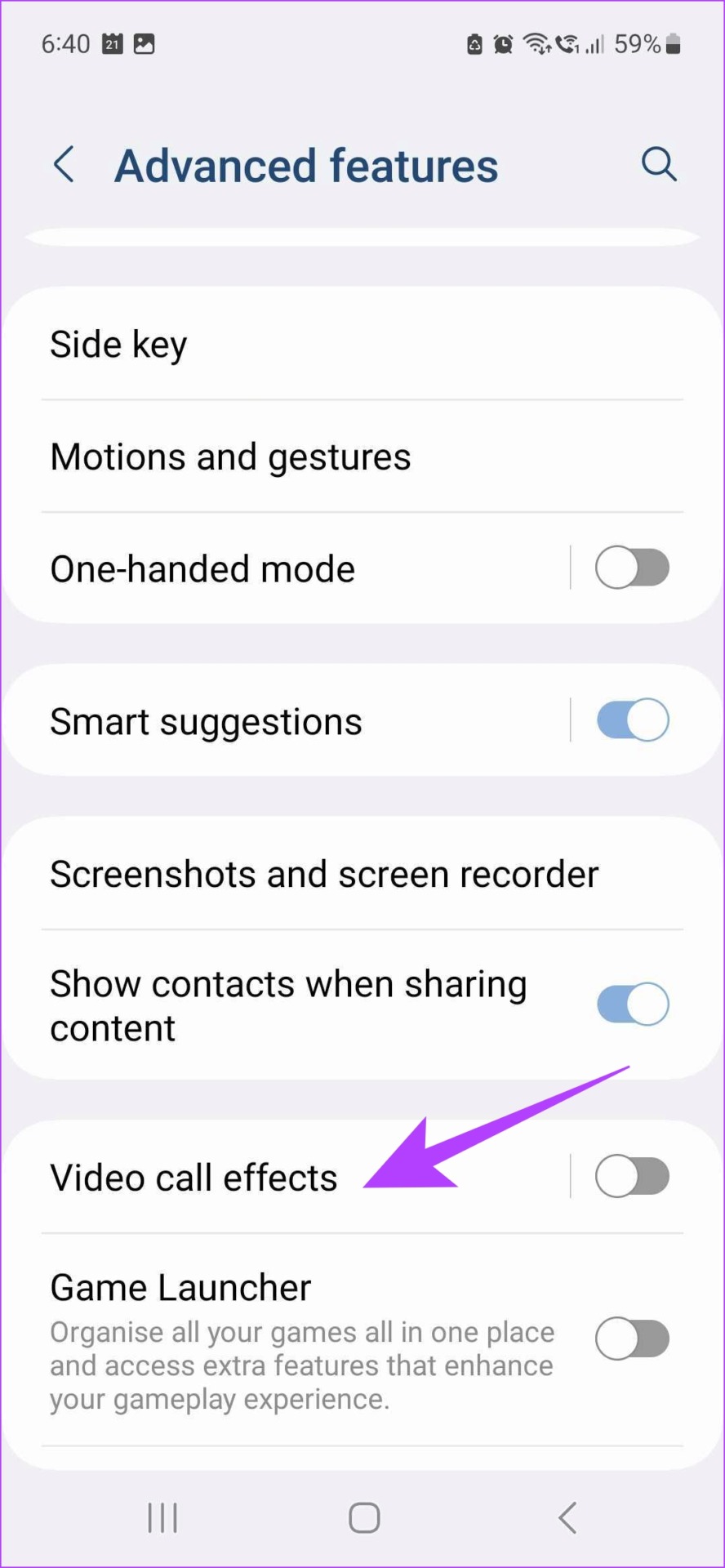
Step 1: Open the Settings app. Scroll down to find and select Advanced Features.
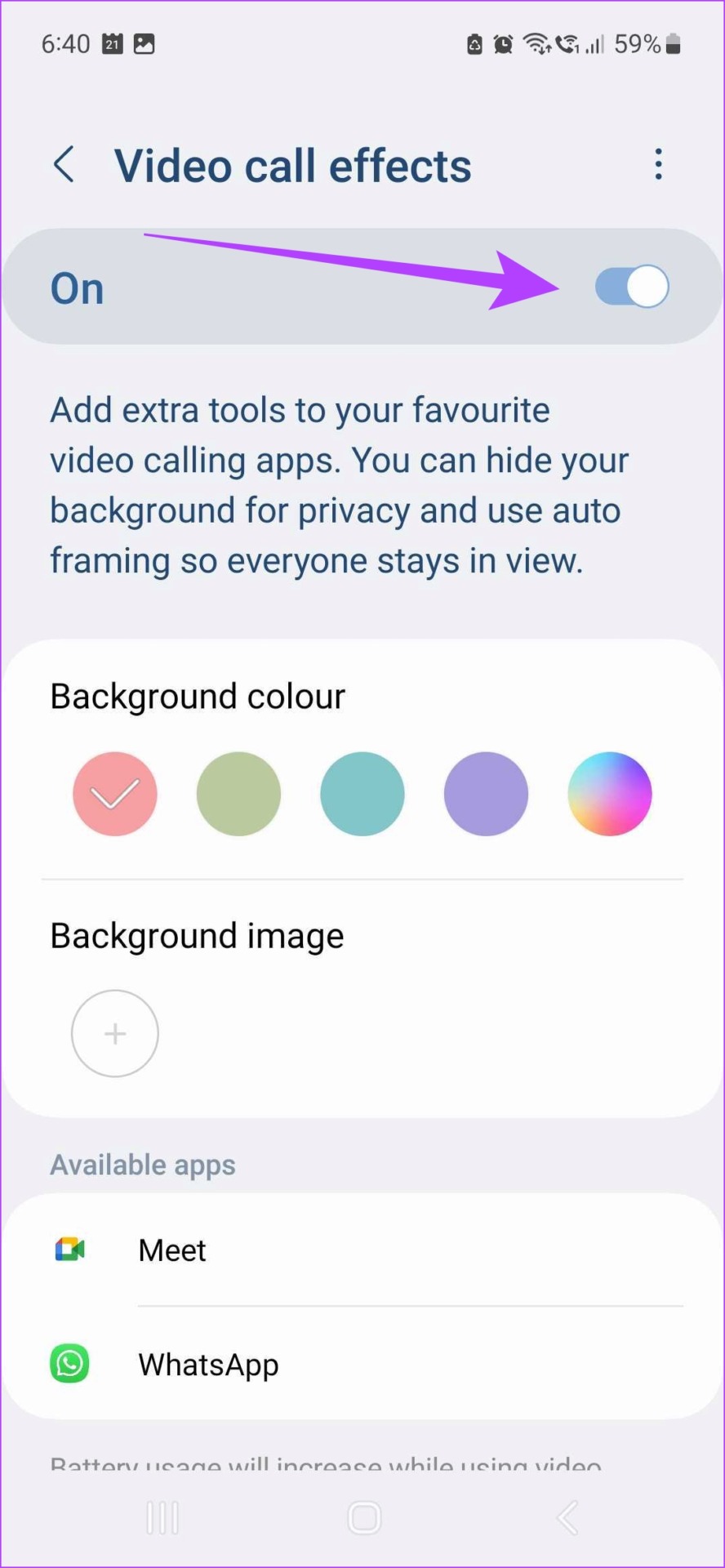
Step 2: Turn on the toggle for Video call effects and select the same to open the settings menu.
Step 3: There are a bunch of options to add background effects to your WhatsApp video call. You can add a background color or image if you like.

Also Read: How to fix front camera not working for WhatsApp video calls
Was this helpful?
Last updated on 25 July, 2024
Read Next
 4 Fixes When Google Meet Background Blur Is Not Working
Basic Fix: Use Google Chrome: Because not all browsers meet the requirements for blur, Google Chrome is the safest choice.
4 Fixes When Google Meet Background Blur Is Not Working
Basic Fix: Use Google Chrome: Because not all browsers meet the requirements for blur, Google Chrome is the safest choice.
 3 Fixes for Background Blur Not Working in Zoom App
Basic Fixes Clean camera lens: This is something that can cause issues with background blur on the Zoom app.
3 Fixes for Background Blur Not Working in Zoom App
Basic Fixes Clean camera lens: This is something that can cause issues with background blur on the Zoom app.
 How to Use Background Blur in Microsoft Teams
Microsoft answered Slack’s growing popularity with the introduction of the Microsoft Teams in 2016.
How to Use Background Blur in Microsoft Teams
Microsoft answered Slack’s growing popularity with the introduction of the Microsoft Teams in 2016.
 4 Ways to Blur Background or Part of a Picture on Samsung Galaxy Phones
https://youtu.be/ibIZ2QeeIgk Method 1: How to Blur Certain Parts of a Picture on Samsung Step 1: Launch the Samsung Gallery app on your phone.
4 Ways to Blur Background or Part of a Picture on Samsung Galaxy Phones
https://youtu.be/ibIZ2QeeIgk Method 1: How to Blur Certain Parts of a Picture on Samsung Step 1: Launch the Samsung Gallery app on your phone.
 5 Fixes for No Sound in WhatsApp Video Calls on iPhone and Android
Basic Fixes Force quit and relaunch WhatsApp: This will reload the app and give it a fresh start on your iPhone or Android phone.
5 Fixes for No Sound in WhatsApp Video Calls on iPhone and Android
Basic Fixes Force quit and relaunch WhatsApp: This will reload the app and give it a fresh start on your iPhone or Android phone.
 How to Blur a Video or Screen Recording on iPhone
https://youtu.be/iSiDI3GPpKM Method 1: Use WhatsApp to Blur a Part of Video on iPhone If you don’t want to install a dedicated app to blur something in video on an iPhone,
How to Blur a Video or Screen Recording on iPhone
https://youtu.be/iSiDI3GPpKM Method 1: Use WhatsApp to Blur a Part of Video on iPhone If you don’t want to install a dedicated app to blur something in video on an iPhone,
 3 Fixes for No Sound in Facebook Messenger Video Calls
Basic Fixes Check volume levels: Check whether you have optimum volume levels on your iPhone or Android phone.
3 Fixes for No Sound in Facebook Messenger Video Calls
Basic Fixes Check volume levels: Check whether you have optimum volume levels on your iPhone or Android phone.
 3 Ways to Blur a Part of a Picture on Android
Method 1: Use Google Photos to Blur a Face In a Photo The default gallery app on Android – Google Photos – is quite feature-rich, with ample image editing options.
3 Ways to Blur a Part of a Picture on Android
Method 1: Use Google Photos to Blur a Face In a Photo The default gallery app on Android – Google Photos – is quite feature-rich, with ample image editing options.
The article above may contain affiliate links which help support Guiding Tech. The content remains unbiased and authentic and will never affect our editorial integrity.

