Microsoft Outlook doesn’t really have a great way to deal with holidays and vacations in general, especially for team-wide applications. However, for personal use, you can add holidays to Outlook calendar and get started from there to make a more customized schedule.
Option 1: Add Holidays to Outlook Calendar on Windows
The stock Outlook app on Windows should be automatically synced with updated holidays, especially if you use a dedicated Microsoft account for it.
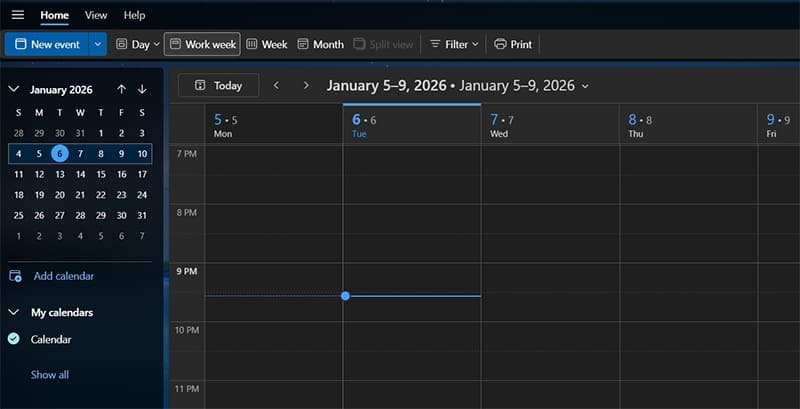
Step 1. Open Outlook, then go to Calendar for the account you want to use.
Step 2. Under the calendar selector, click on “Add calendar.”
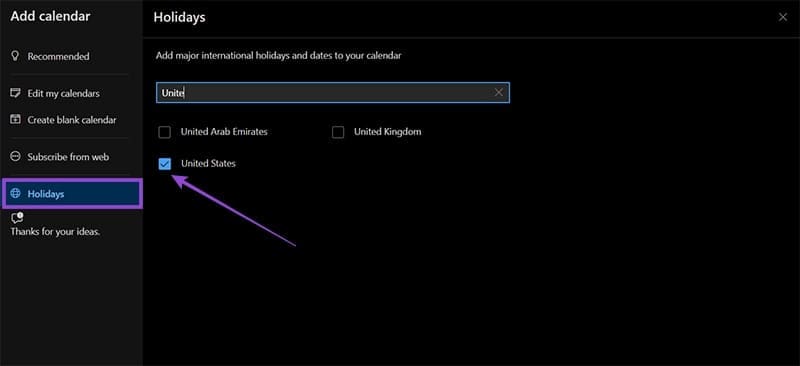
Step 3. Go to the “Holidays” tab in the dialog, then search for a country, region, or religious group you want to use the holidays for.
Step 4. Check the checkmark for the holiday group you want to use.
Option 2: Add Holidays to Outlook Calendar for Mac or Web
If you’re using the Mac client, you might not have the “new Outlook” option and may need to first add the calendar online, which will then be synced to your new client automatically.
Step 1. Go to outlook.com and log in with your Outlook email credentials.
Step 2. Open Outlook Calendar and select “Add calendar.”
Step 3. Find the “Holiday” section, then search for the specific country or religion you want to add the holidays for.
Option 3: Adding a Holiday as Out-of-Office Event
By default, when you add holidays to Outlook Calendar, they will be listed in your calendar as generic events. If shared, you might still be listed as “free” for meetings or work. You can bypass that by duplicating holidays.
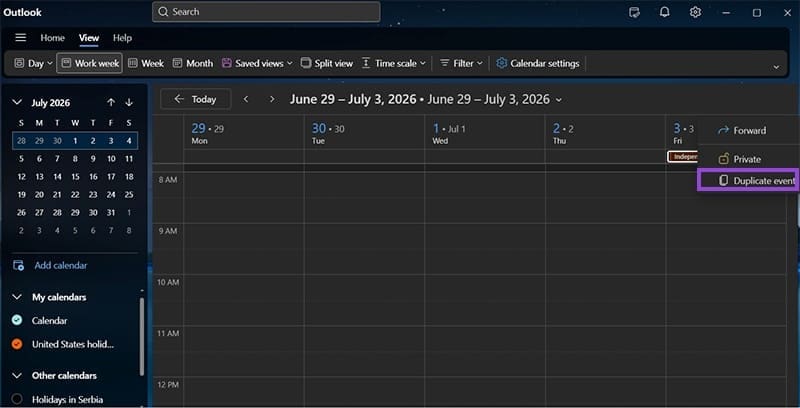
Step 1. Go to a specific holiday you want to copy from the Calendar view, right-click on it, and select “Duplicate event.”
Step 2. For the availability section on the toolbar, put “Out of Office” (or Busy). You can also set the “Response options” to disable needing a response. Click on “Save” when done.

Alternatively, you can use Outlook’s Automated Replies feature to create a curated list of dates during which contacting you will prompt an automatic response. This needs to be done manually.
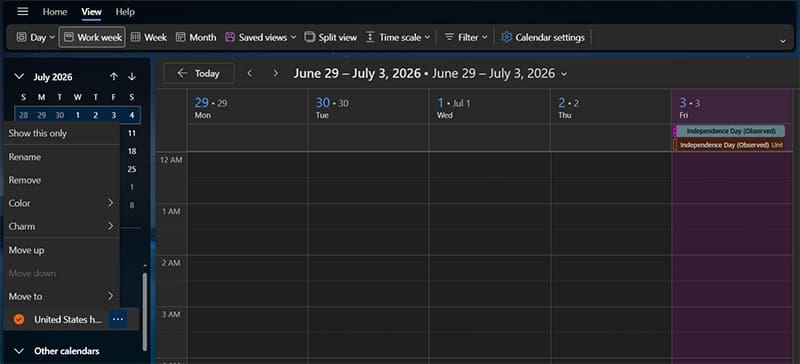
If you want to remove the “original” holidays so they don’t show up twice in your Calendar view, you can right-click on a holiday calendar from the list of calendars and select “Remove.”
If you want a more team-wide solution, Microsoft has limited built-in tools. You can technically use SharePoint to create a list of events that will then be referenced as a calendar that you can distribute to the team (and which is only usable in Outlook or SharePoint).
Otherwise, you can try using an automation app like Zapier that can convert Google or other calendars into similar Outlook events and block it in the app. However, this can port all other events, not just holidays.
Was this helpful?
Last updated on 11 January, 2026
Read Next
 How to Add and Remove Holidays Calendar in Apple Calendar App
How to Use Holidays Calendar on iPhone The Apple Calendar app offers a built-in regional calendar, displaying the common holidays (occasions and festivals) from that area.
How to Add and Remove Holidays Calendar in Apple Calendar App
How to Use Holidays Calendar on iPhone The Apple Calendar app offers a built-in regional calendar, displaying the common holidays (occasions and festivals) from that area.
 How to Add and Remove Holidays in Outlook Calendar on Mobile and Desktop
How to Add Holidays in Outlook Calendar App on Mobile Let's check how to add holidays to the Outlook Calendar app for Android and iPhone.
How to Add and Remove Holidays in Outlook Calendar on Mobile and Desktop
How to Add Holidays in Outlook Calendar App on Mobile Let's check how to add holidays to the Outlook Calendar app for Android and iPhone.
 4 Fixes for Samsung Calendar Not Showing Events and Holidays
Basic Fixes Check internet settings: Ensure that you have a high speed internet connection with your Samsung phone.
4 Fixes for Samsung Calendar Not Showing Events and Holidays
Basic Fixes Check internet settings: Ensure that you have a high speed internet connection with your Samsung phone.
 How to Add Zoom Meetings to Outlook Calendar and Google Calendar
How to Add Zoom Meetings to Google Calendar The easiest way is using the Zoom for Google Workspace Google calendar add-on.
How to Add Zoom Meetings to Outlook Calendar and Google Calendar
How to Add Zoom Meetings to Google Calendar The easiest way is using the Zoom for Google Workspace Google calendar add-on.
 How to Connect Outlook Calendar With Google Calendar: 4 Best Ways
Note: The methods recommended in the article allow two-way syncs in the calendar.
How to Connect Outlook Calendar With Google Calendar: 4 Best Ways
Note: The methods recommended in the article allow two-way syncs in the calendar.
 What to Do if You Can’t Add a Calendar to Outlook
Outlook gives you the option to add additional calendars to your workspace.
What to Do if You Can’t Add a Calendar to Outlook
Outlook gives you the option to add additional calendars to your workspace.
 How to Add and Edit Outlook Calendar Reminders
Add Reminders to Outlook Calendar on Mobile The Outlook app on your iPhone and Android lets you quickly add reminders to your Outlook calendar on the go.
How to Add and Edit Outlook Calendar Reminders
Add Reminders to Outlook Calendar on Mobile The Outlook app on your iPhone and Android lets you quickly add reminders to your Outlook calendar on the go.
 How to Set Up RSVP and Calendar Poll in Outlook
Would you like to encourage your email recipients to respond quickly to your emails or appointment invitations?
How to Set Up RSVP and Calendar Poll in Outlook
Would you like to encourage your email recipients to respond quickly to your emails or appointment invitations?
The article above may contain affiliate links which help support Guiding Tech. The content remains unbiased and authentic and will never affect our editorial integrity.