


Method 1: Using a New Chat or Unsaved Number in Chat
You can directly save a new contact and start chatting using WhatsApp itself on your iPhone. To add a new number on WhatsApp and save it in your contacts list on your iPhone, follow these steps:
Step 1: Launch WhatsApp on your iPhone and tap on the New chat icon at the top of the Chats tab.
Step 2: Tap on New Contact and add the contact’s name and number in the respective fields.

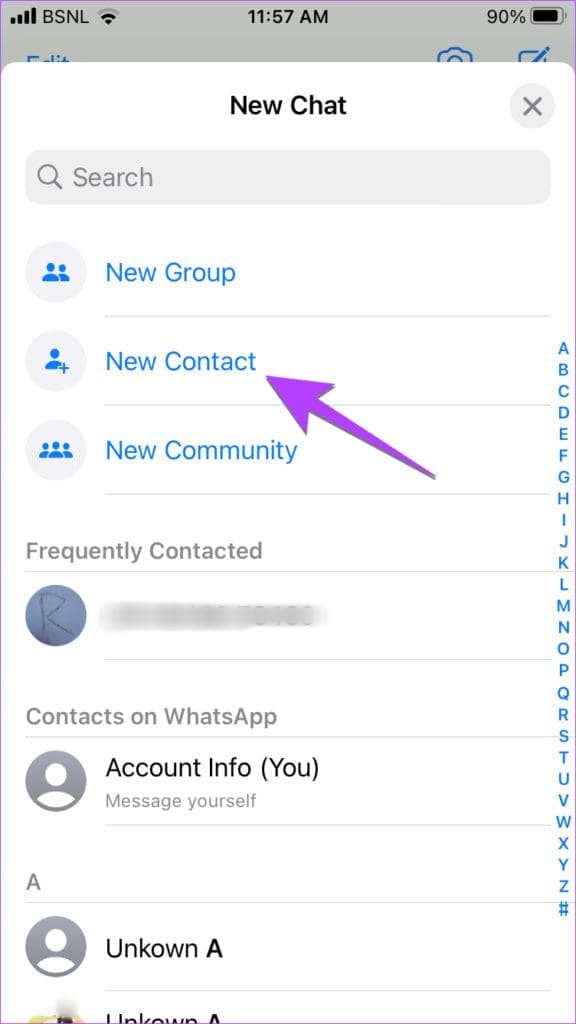
Step 3: Replace the country code with the appropriate code for international numbers. Do not enter 0 for international numbers. Finally, press the Save button.
Note: To save an unsaved number in chat, tap on the number at the top of the chat.
Then, tap on Create New Contact to save it as a new contact. Tap on Add to Existing Contact to add it to an existing contact.
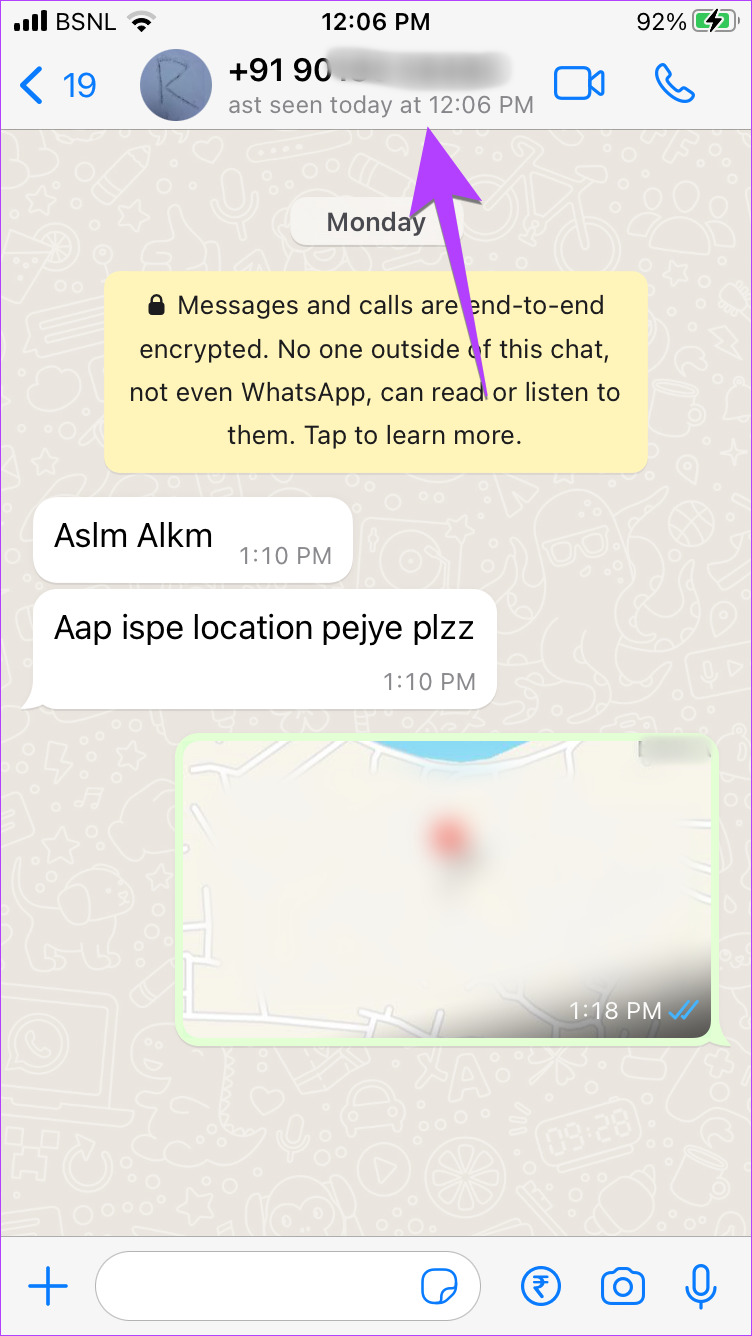

Enter the contact’s name. The number will appear automatically. Press the Save button to add the contact.
The contact will be added to your contacts list and will also appear on your WhatsApp contacts list. Press the New chat icon and search for the newly added WhatsApp contact.
Method 2: Using Group Chat
For group chats, you can add to contacts by long-pressing the message or using the group info.
From Group Chat
Step 1: Open the WhatsApp group from which you want to add a contact on your iPhone.
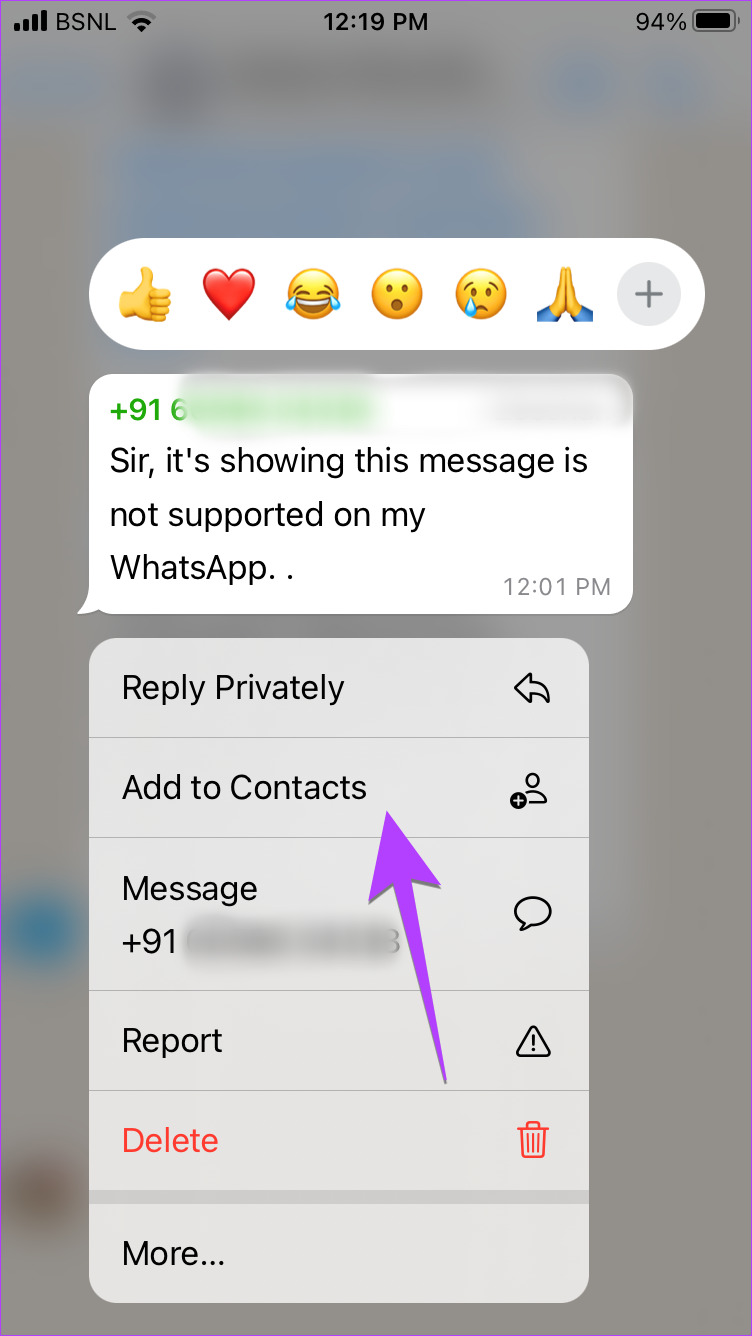
Step 2: Long-press on the unsaved number in the chat thread and tap on More.
Step 3: Tap on Add to Contacts from the menu. Select whether you want to create a new contact or add to an existing contact. Enter the contact’s name and tap Save.

From Group Info Screen
Step 1: Open the WhatsApp group and tap on the group name at the top.
Step 2: Scroll down to Participants and tap on the number you want to add.
Step 3: Scroll down again and tap on Create New Contact or Add to Existing Contact.


Step 4: Enter the name and hit the Save button.
Method 3: Add WhatsApp Contact by Using QR Code
WhatsApp also allows you to scan QR codes to add contacts and start chatting with them.
Step 1: Open the WhatsApp app on your iPhone and tap on Settings.
Step 2: Tap on the QR icon next to your name. Your WhatsApp QR code will appear. Tap on Scan and point the camera toward the QR code you want to scan.

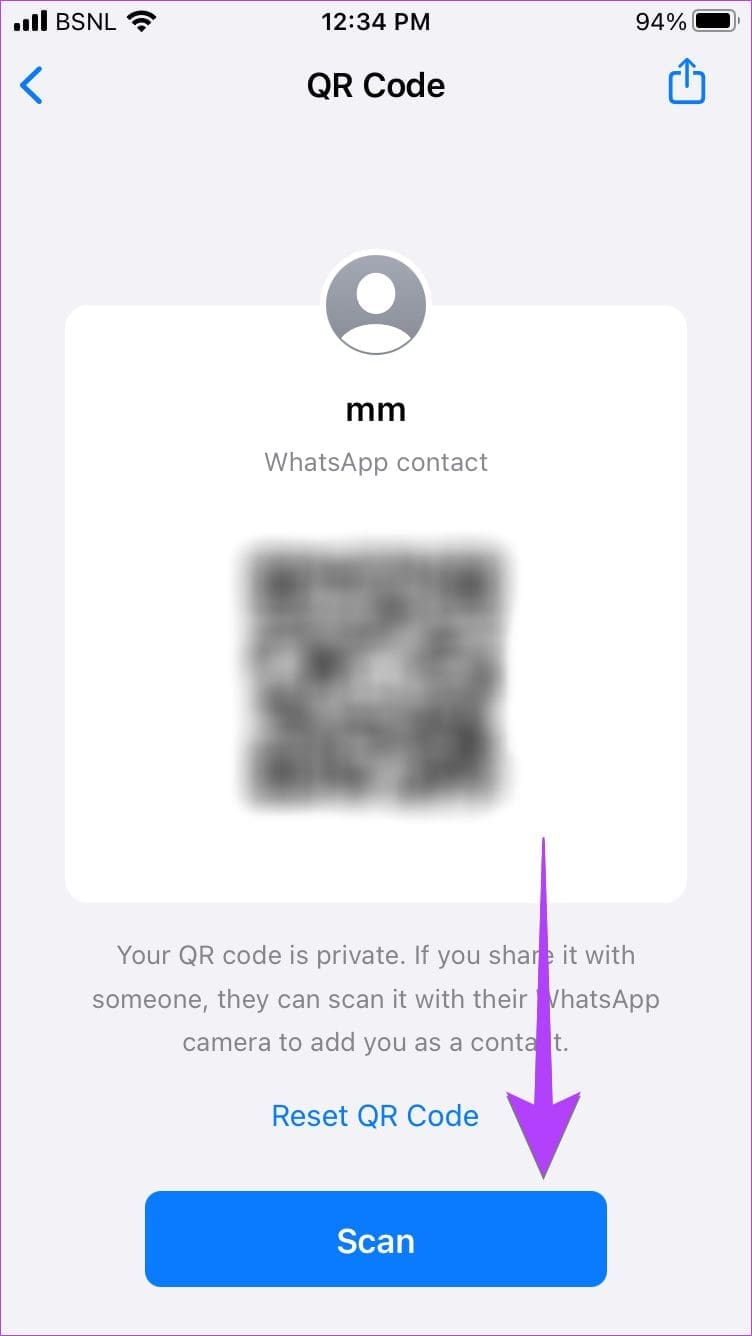
Step 3: The chat thread with the scanned number will open. Now, use the steps mentioned in method 2 to save the contact to your iPhone.
Method 4: Save Contact Directly on iPhone
Another way to add contacts to WhatsApp on iPhone is by saving them directly to your contacts list.
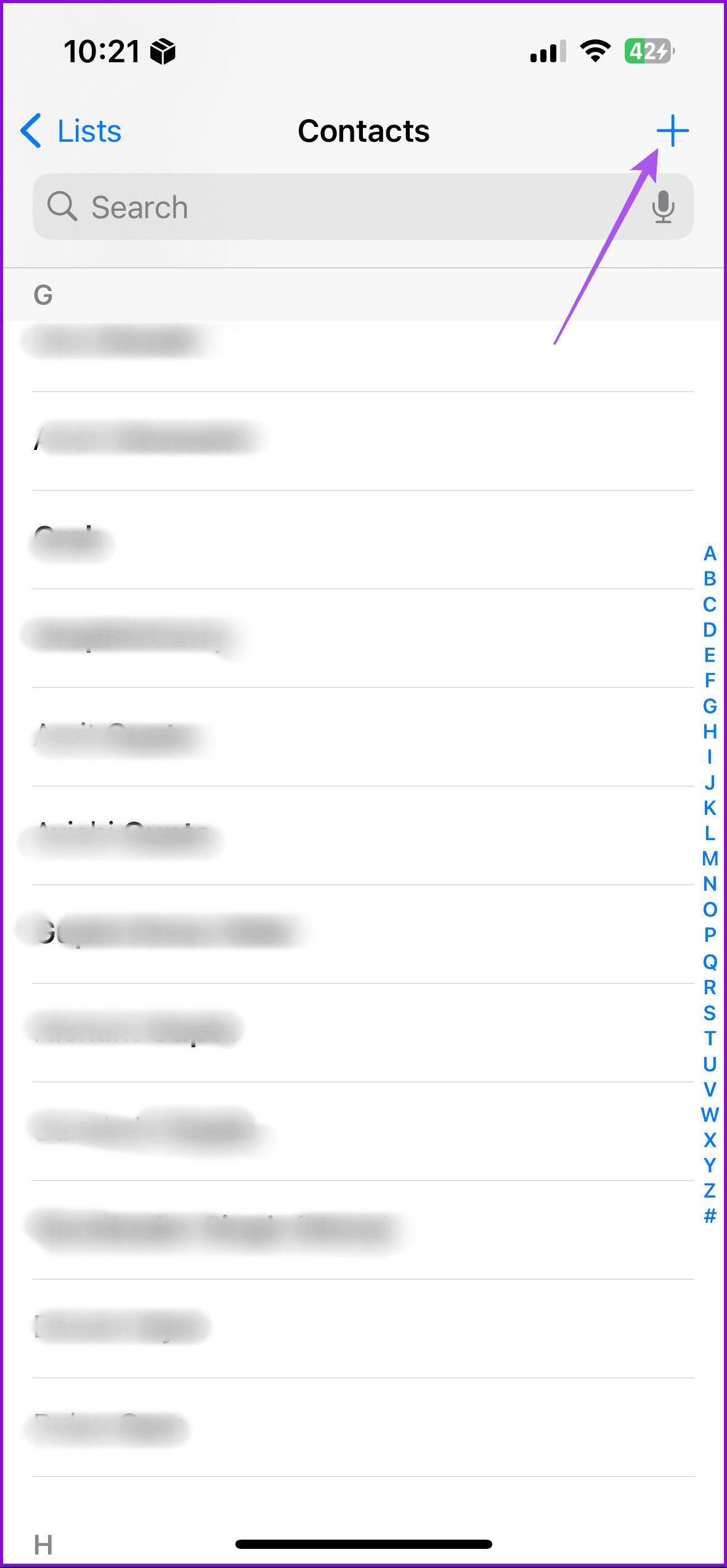
Step 1: Open the Contacts app on your iPhone and tap the + icon at the top.
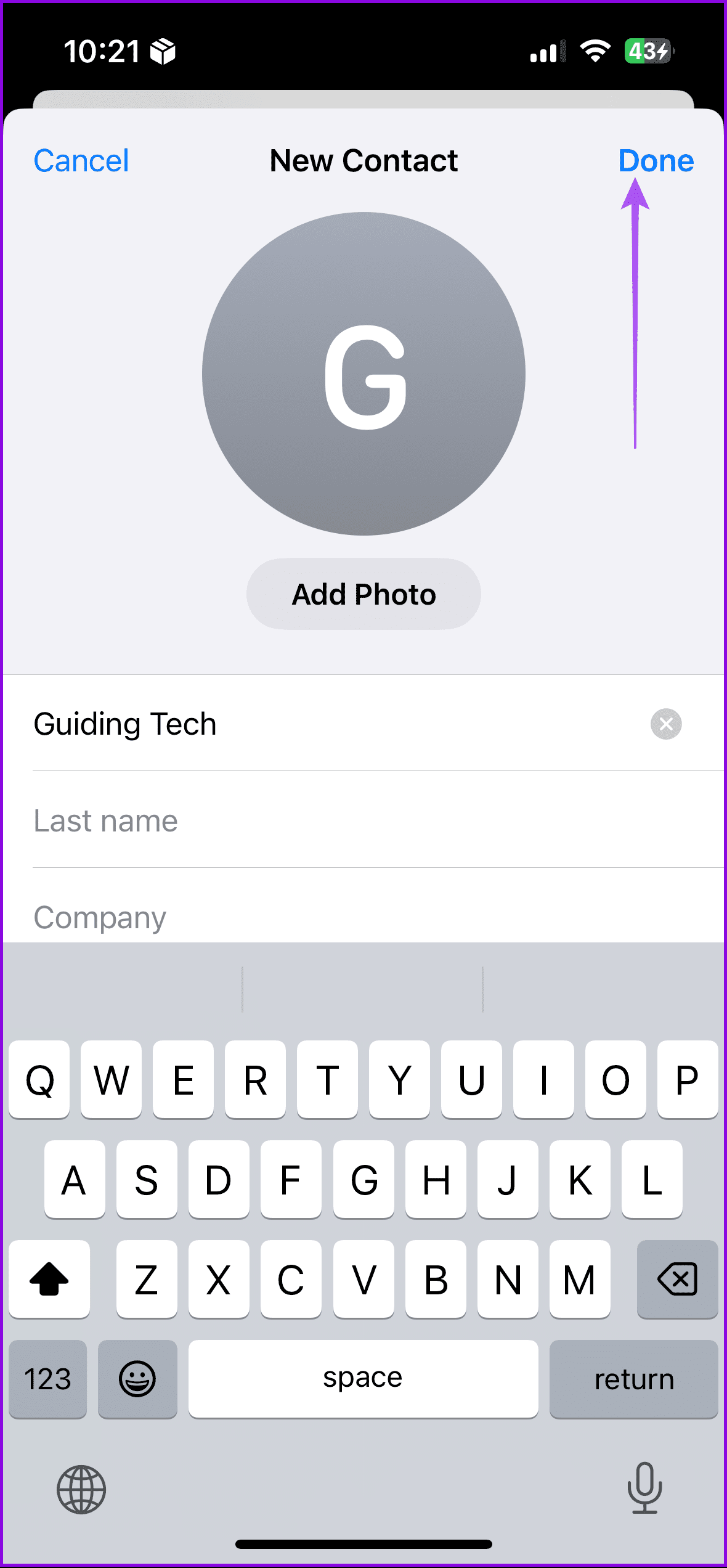
Step 2: Type the name and number of the contact and tap on Done.
Step 3: Now, open WhatsApp and tap on the New chat icon at the top. Search for the newly added contacts and start chatting with them.
Was this helpful?
Last updated on 06 June, 2024
1 Comment
Leave a Reply
Read Next
 iCloud Contacts vs Google Contacts: Where Should You Save Contacts on Your iPhone
When you are using an Android phone, one prefers using Google Contacts to store and manage contacts.
iCloud Contacts vs Google Contacts: Where Should You Save Contacts on Your iPhone
When you are using an Android phone, one prefers using Google Contacts to store and manage contacts.
 Google Contacts vs Samsung Contacts: Which App Is Best for Saving and Managing Contacts
Apart from phones running Stock Android, all other Android phones have their own set of basic apps.
Google Contacts vs Samsung Contacts: Which App Is Best for Saving and Managing Contacts
Apart from phones running Stock Android, all other Android phones have their own set of basic apps.
 How to Add New Contacts via WhatsApp Web
Use InTouch App to Add New Contacts Using WhatsApp Web InTouchApp is a contacts manager app that lets you add contacts directly via WhatsApp Web.
How to Add New Contacts via WhatsApp Web
Use InTouch App to Add New Contacts Using WhatsApp Web InTouchApp is a contacts manager app that lets you add contacts directly via WhatsApp Web.
 How to Use WhatsApp QR Codes to Add Contacts
How to Add Someone to WhatsApp by Scanning Their QR Code On Android Step 1: Tap on the three dots and select Settings.
How to Use WhatsApp QR Codes to Add Contacts
How to Add Someone to WhatsApp by Scanning Their QR Code On Android Step 1: Tap on the three dots and select Settings.
 How to Use Google Contacts Instead of Samsung Contacts
Samsung Galaxy phones carry a lot of pre-loaded apps, and some of them you'll rarely use.
How to Use Google Contacts Instead of Samsung Contacts
Samsung Galaxy phones carry a lot of pre-loaded apps, and some of them you'll rarely use.
 How to Add or Remove Contacts From Favorites on iPhone
Managing your contacts is hard, especially when you have the same device for personal and professional use.
How to Add or Remove Contacts From Favorites on iPhone
Managing your contacts is hard, especially when you have the same device for personal and professional use.
 How to Hide Your Profile Picture From Specific Contacts on WhatsApp
What Happens When You Hide Your Profile Picture From Specific Contacts on WhatsApp The selected WhatsApp contacts can no longer view your account photo.
How to Hide Your Profile Picture From Specific Contacts on WhatsApp
What Happens When You Hide Your Profile Picture From Specific Contacts on WhatsApp The selected WhatsApp contacts can no longer view your account photo.
 4 Fixes for WhatsApp Not Showing Contacts (Android and iPhone)
Basic Fixes: Force close and restart WhatsApp: Open background apps and force WhatsApp to close.
4 Fixes for WhatsApp Not Showing Contacts (Android and iPhone)
Basic Fixes: Force close and restart WhatsApp: Open background apps and force WhatsApp to close.
The article above may contain affiliate links which help support Guiding Tech. The content remains unbiased and authentic and will never affect our editorial integrity.

What does the message that reads Blank … From may 10,2021 mean I see it in one of my WhatsApp contact info but not everyone’s