


Method 1: Using Built-in Settings
Note: Pixel phones do not have a native feature to hide apps.
On Samsung Phones
Go to Settings followed by the Home screen. Tap on Hide apps on Home and Apps screens. Select the apps that you want to hide and tap on Done.

Pro Tip: You can also long press on the home screen of your Samsung Galaxy phone. Then, tap on Settings followed by Hide apps on Home and Apps screens to hide apps on Samsung Galaxy phones.
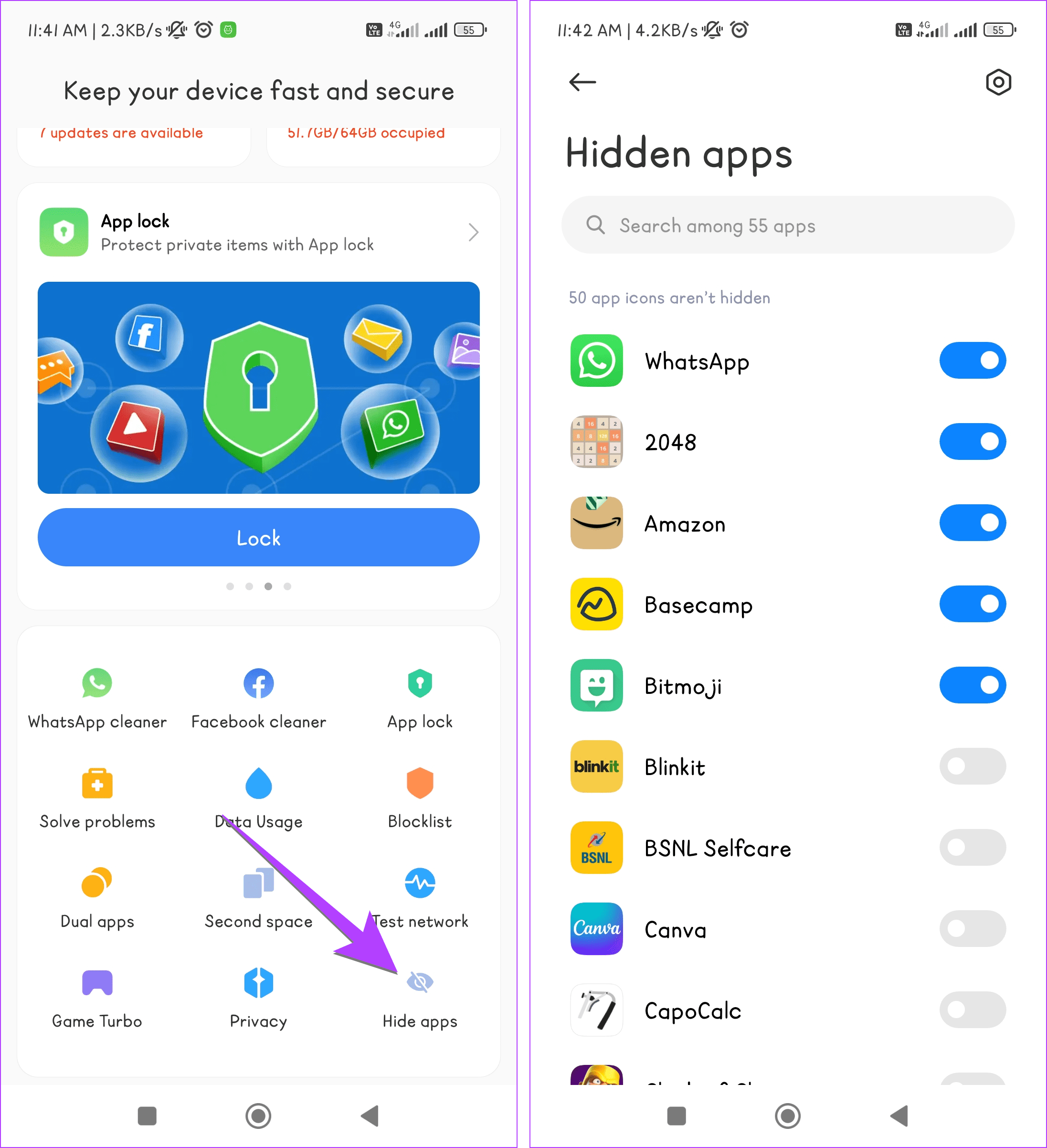
On Xiaomi Redmi Phones
Open the Security app and go to Hide apps. Enable the toggle next to the apps you want to hide.
Hide Apps on OnePlus Phones
Open Settings and go to Privacy. Tap on Hide apps. Enter a password for hidden apps. Then, enable the toggle for the apps that you want to hide.

Method 2: Using Secure Folder in Samsung Galaxy Phones
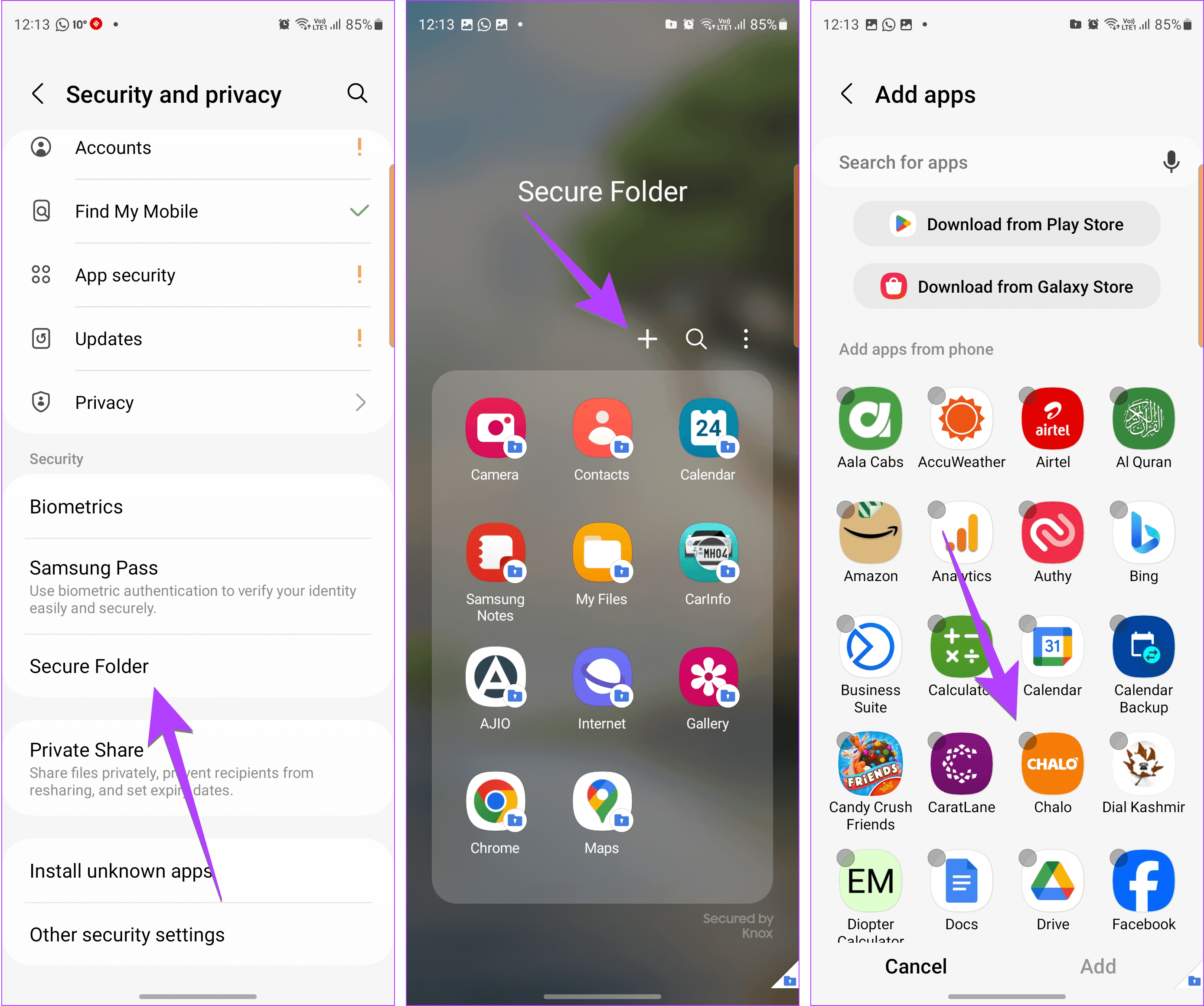
On Samsung Galaxy phones, you can also use the Secure Folder in Samsung phones to hide apps. The apps in the Secure Folder can only be accessed using a password or PIN.
Go to Settings followed by Security and Privacy. Tap on Secure Folder. Set up the password for Secure Folder and follow the on-screen instructions to set it up for the first time.
After creating a Secure Folder, open it from Settings or Quick Settings. Then, tap on the (+) icon. Select the apps that you want to add
Check our guides on how to add or remove apps from Secure Folder, and all the different ways to access Secure Folder.
Method 3: Using Third-Party Apps
Install Action Launcher from the Google Play Store, and finish the setup. Tap and hold anywhere on the home screen, select Settings, and tap on App Drawers. Then select Hidden Apps, and select the apps you want to hide. Don’t forget to tap the checkmark icon at the top left when you’re done.

Also Read: 4 app launchers to hide apps on Android.
Was this helpful?
Last updated on 15 May, 2024
1 Comment
Leave a Reply
Read Next
 4 Ways to Free Up Space on Android Without Deleting Apps
Basic Fixes: Find and remove large files: You can use Google's Files app to auto-detect and remove large files from your phone.
4 Ways to Free Up Space on Android Without Deleting Apps
Basic Fixes: Find and remove large files: You can use Google's Files app to auto-detect and remove large files from your phone.
 5 Best Gallery Apps With Hide Photos Option for Android
Many times, we want to hide some sensitive photos and videos from our phones.
5 Best Gallery Apps With Hide Photos Option for Android
Many times, we want to hide some sensitive photos and videos from our phones.
 4 App Launchers to Hide Apps on Android
Before You Begin: How to Change the Default Launcher When you install a new app launcher, you must make it the default on your device.
4 App Launchers to Hide Apps on Android
Before You Begin: How to Change the Default Launcher When you install a new app launcher, you must make it the default on your device.
 How to Force High Refresh Rate on All Android Apps Without Root
https://youtu.be/_hFOHZxUNSE How to Enable a High Refresh Rate on Android Step 1: Open the Settings app.
How to Force High Refresh Rate on All Android Apps Without Root
https://youtu.be/_hFOHZxUNSE How to Enable a High Refresh Rate on Android Step 1: Open the Settings app.
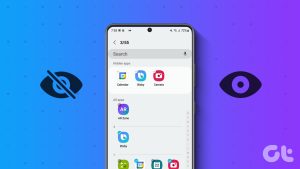 How to Hide or Unhide Apps on Samsung Galaxy Phones
Method 1: Hide Apps From Home Screen and App Drawer Samsung One UI Launcher has a built-in feature to hide apps from your home screen and app drawer.
How to Hide or Unhide Apps on Samsung Galaxy Phones
Method 1: Hide Apps From Home Screen and App Drawer Samsung One UI Launcher has a built-in feature to hide apps from your home screen and app drawer.
 Top 7 Free Gallery Apps Without Ads
We need a gallery app to view photos and videos on our Android phones.
Top 7 Free Gallery Apps Without Ads
We need a gallery app to view photos and videos on our Android phones.
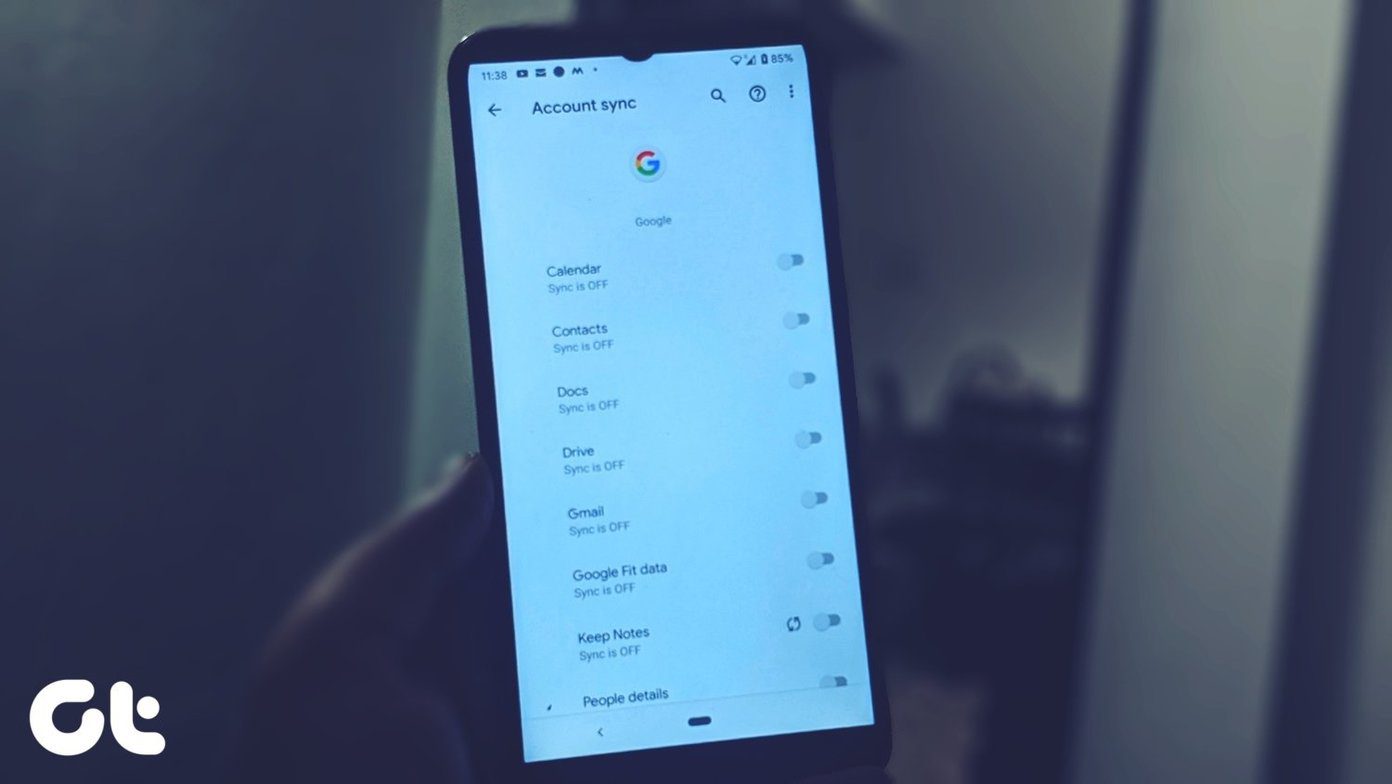 5 Ways to Add Google Account in Android Without Syncing
Method 1: Quickly Disable Sync Google doesn’t let you choose what you want to sync and what you don’t when you add a Google account.
5 Ways to Add Google Account in Android Without Syncing
Method 1: Quickly Disable Sync Google doesn’t let you choose what you want to sync and what you don’t when you add a Google account.
 5 Ways to Take Screenshots Without Power Button on Android
Method 1: Use Gestures You can use Gestures to capture a screenshot - on Xiaomi devices, go to Settings > Additional Settings > Gestures > enable the Slide 3 fingers
5 Ways to Take Screenshots Without Power Button on Android
Method 1: Use Gestures You can use Gestures to capture a screenshot - on Xiaomi devices, go to Settings > Additional Settings > Gestures > enable the Slide 3 fingers
The article above may contain affiliate links which help support Guiding Tech. The content remains unbiased and authentic and will never affect our editorial integrity.

Real me