Basic Fixes
- Force stop and reopen Gboard: Open Android settings and select Apps. Search Gboard in the list of installed apps, open it, and tap Force stop. Tap the input field to reopen Gboard.
- Update the Gboard app: Open the Google Play Store, search Gboard, and tap Update (if available).
- Update system software: Head to Android Settings, select System update, and tap Install to update your phone’s software.
Fix 1: Clear the Gboard Cache and App Data
Excessive cache and obsolete app data are common reasons why Gboard does not work on Android. Clearing them manually should restore Gboard’s normal functioning.
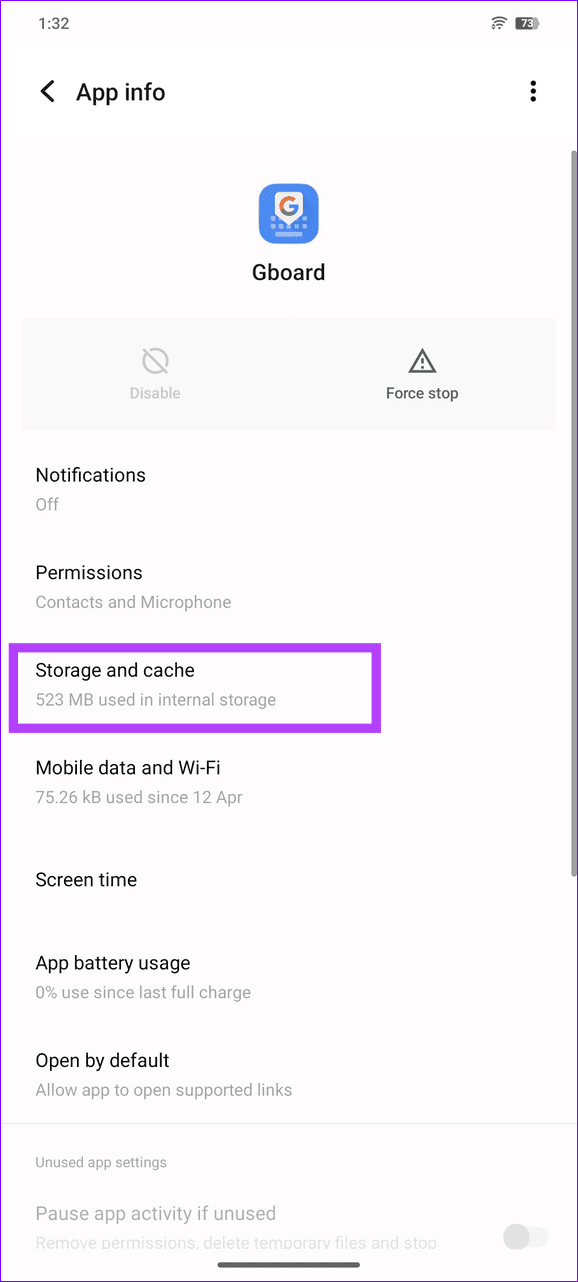
Step 1: Open the Settings app, select Apps, and search Gboard in the list of installed apps.


Step 2: Select Gboard and tap Storage and cache.
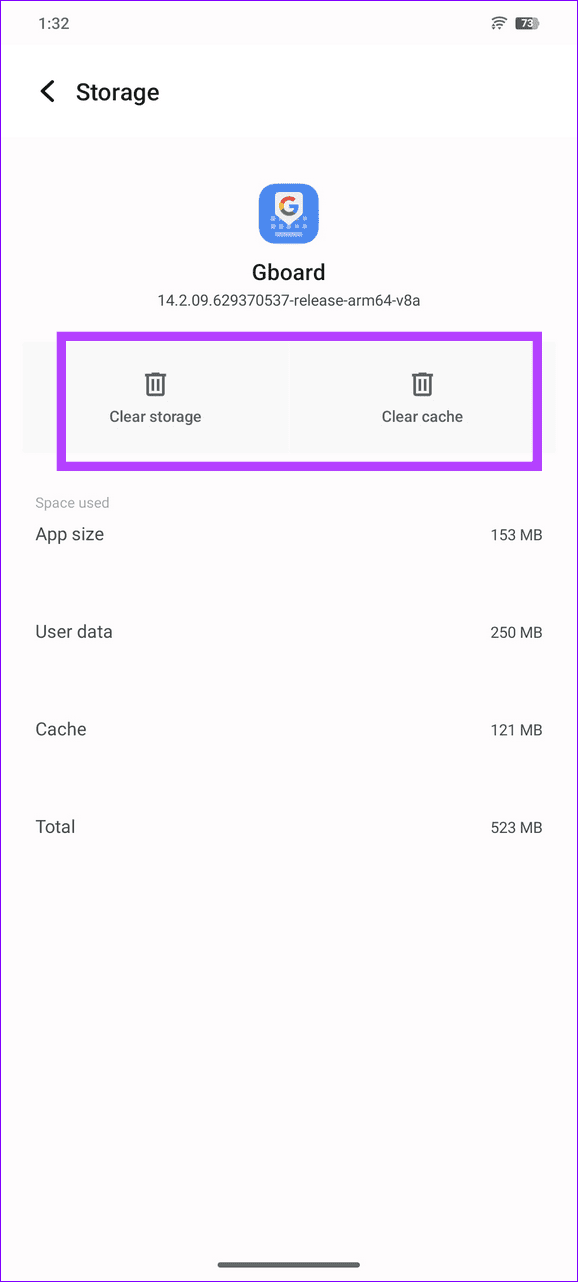
Step 3: Tap Clear cache, followed by Clear storage.
Fix 2: Uninstall Gboard Updates
Besides cache, Gboard may fail to work on Android if a corrupt app update has been installed. Uninstall it manually and retry opening Gboard.
Open Gboard settings (check the above steps), tap the vertical three-dot menu at the top right and select Uninstall updates.


Fix 3: Disable and Enable Gboard
Disabling and enabling the Gboard is another nifty trick that refreshes the app, fixing existing glitches preventing you from opening it.
Note: Disabling Gboard may be unavailable on certain Android smartphones.
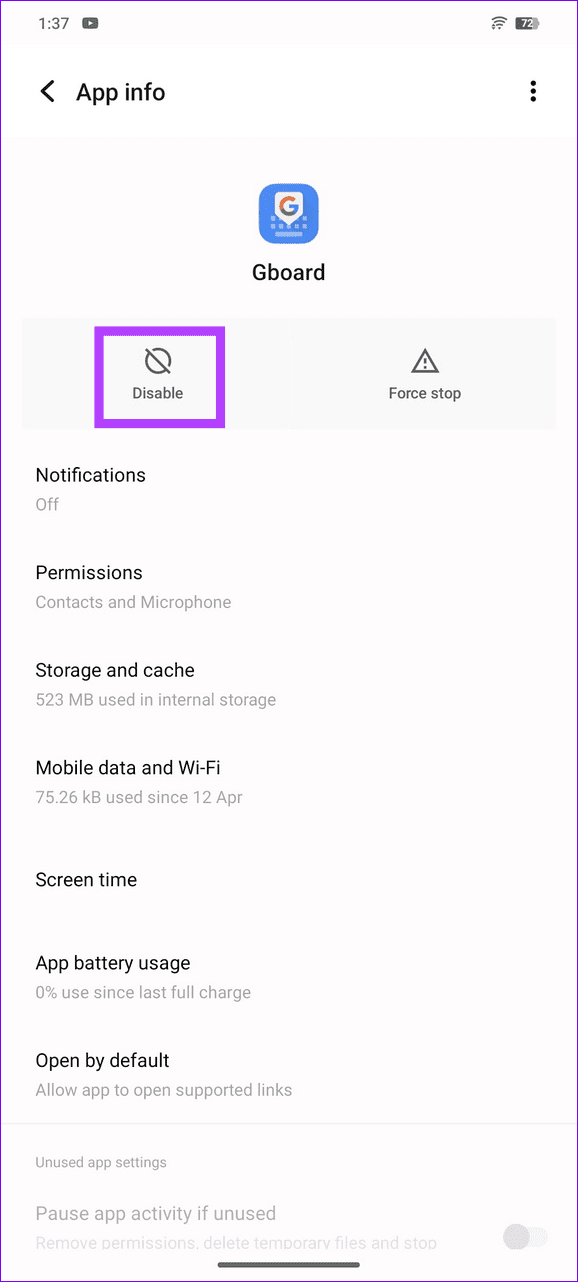
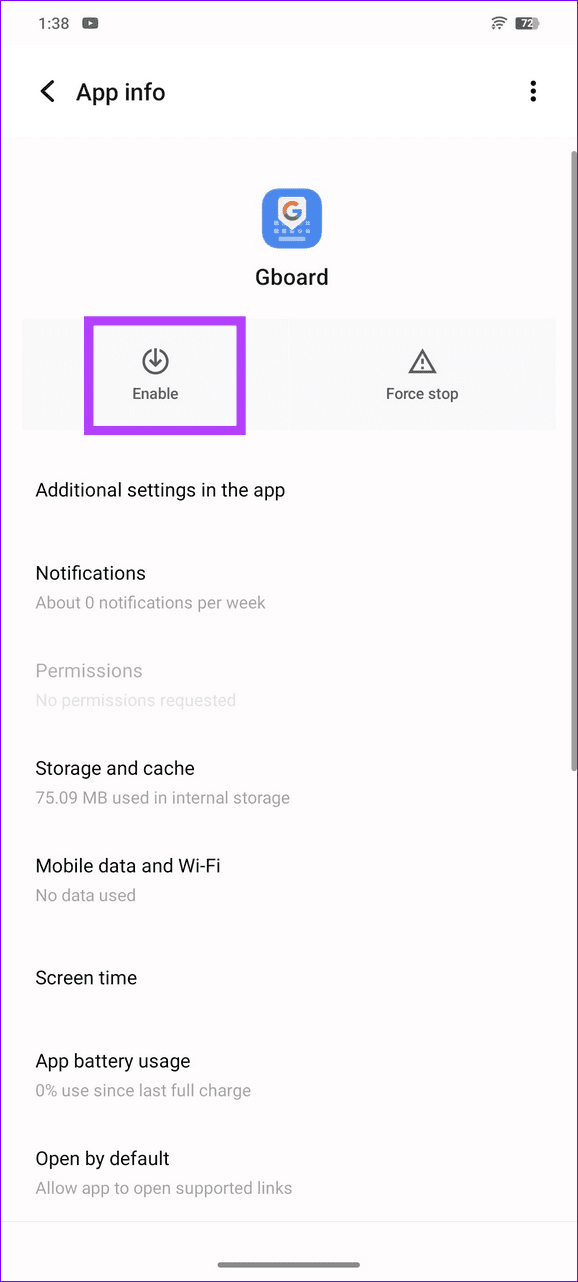
Step 1: Access Gboard Settings from Settings > Apps > Gboard, and tap Disable. Select Disable app when prompted to confirm it.
Step 2: Wait a few seconds and tap Enable to reactivate Gboard.
Fix 4: Temporarily Remove Keyboard Languages
It is common for Gboard to crash when installing multiple languages. To fix the issue, delete them temporarily and switch to a single language.
Step 1: Open Android Settings, tap the search icon at the top-right, and search On-screen keyboard.

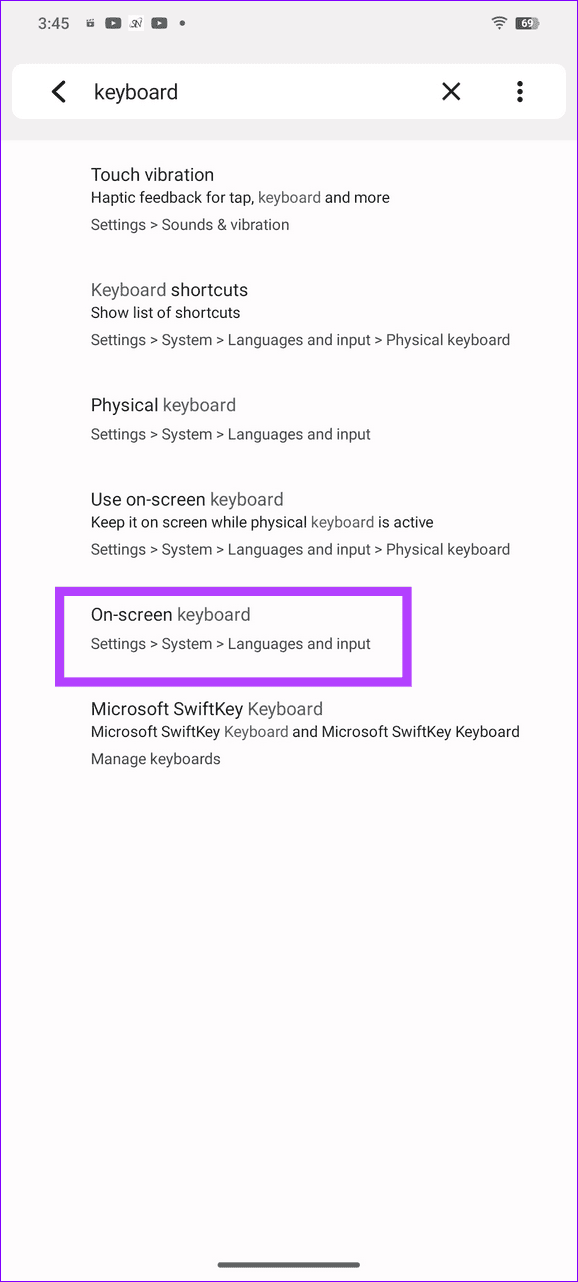
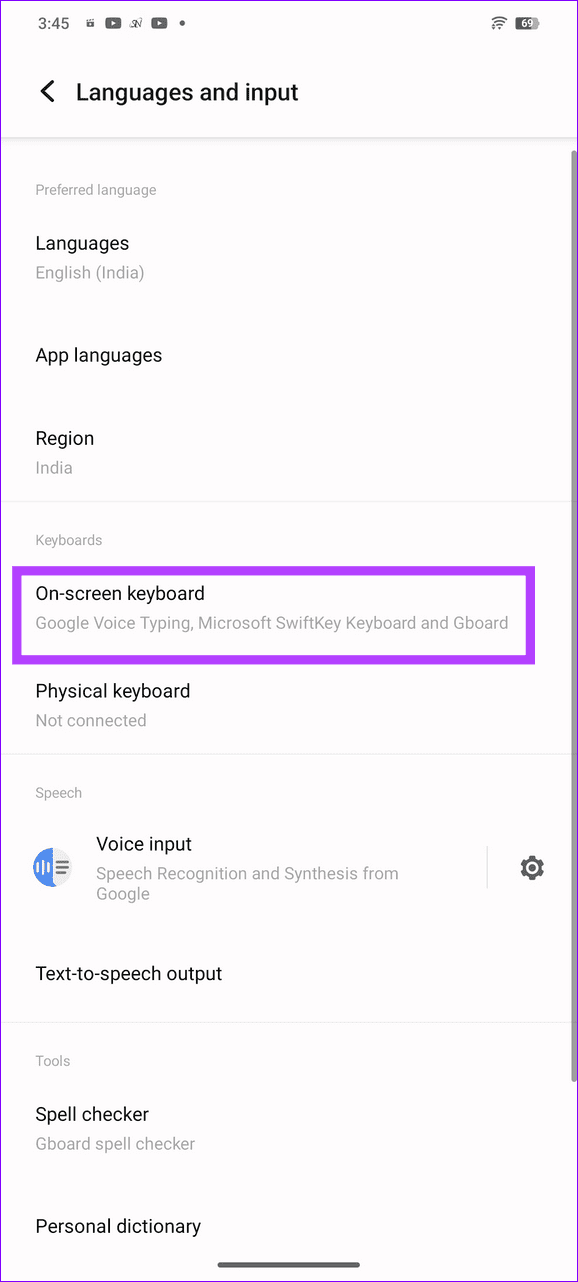
Step 2: Tap the On-screen keyboard and select Manage on-screen keyboards.
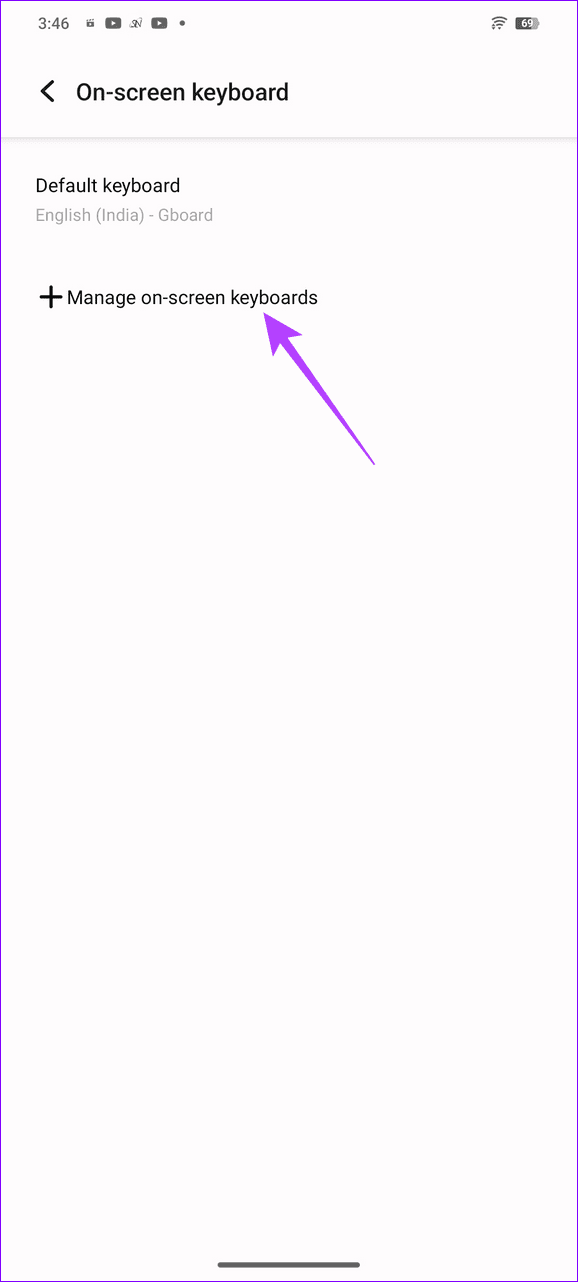
Step 3: Select Gboard and tap Languages.

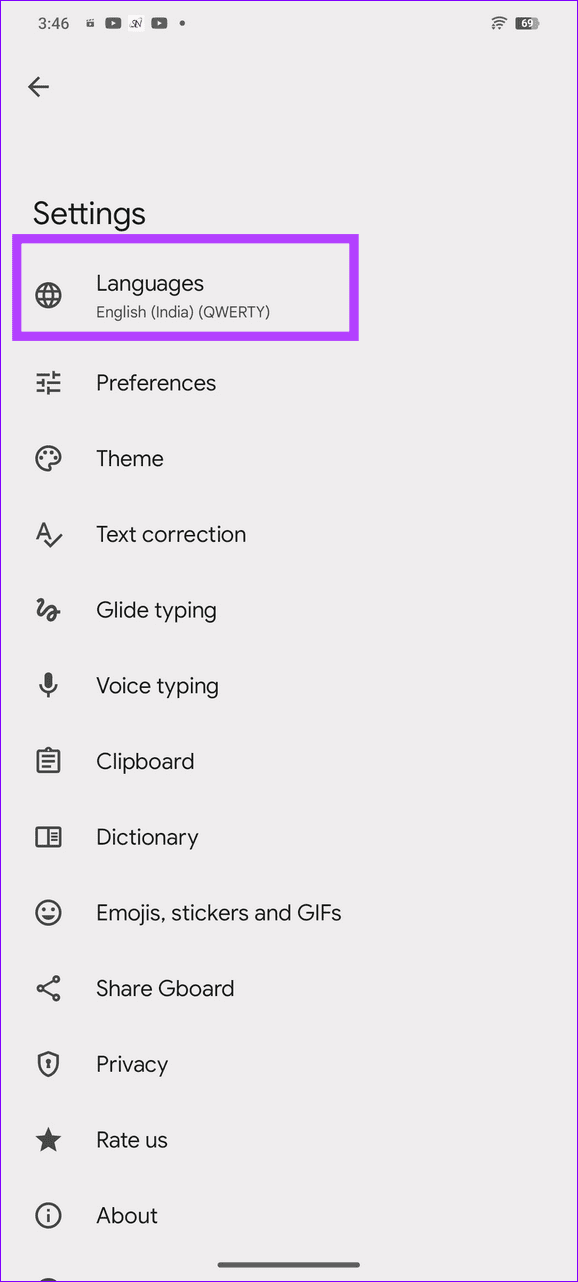
Step 4: Tap the Edit (pencil icon) at the top right, mark all non-primary languages, and select Delete. Retry opening the Gboard.
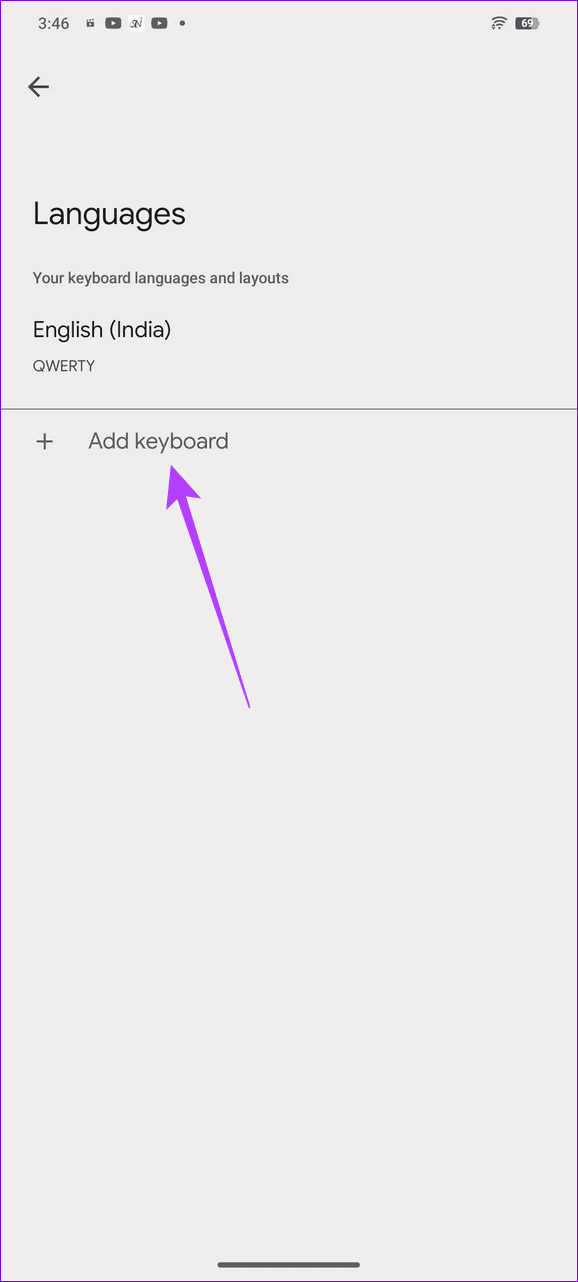
Step 5: To add languages you’ve removed earlier, select Add keyboard and pick your preferred language to re-add it.


Fix 5: Reset App Preferences
Lastly, incorrect Android app preferences can suppress Gboard, resulting in its abrupt crash. Reset all app preferences on Android and retry opening it.
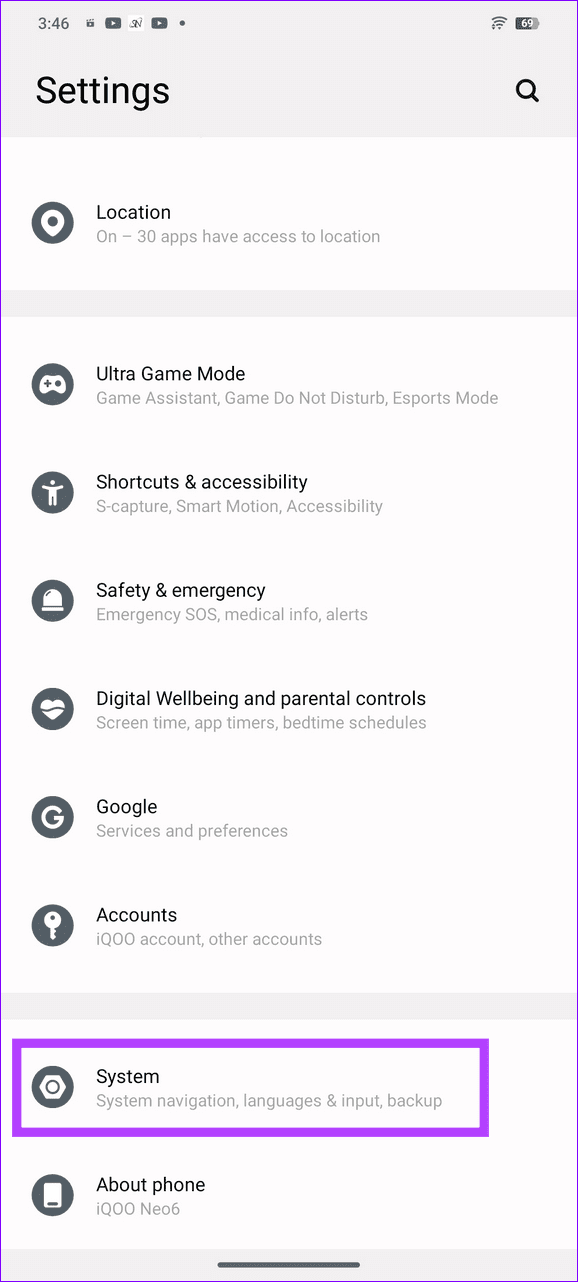
Step 1: Open Android settings, select System, and tap Reset options.

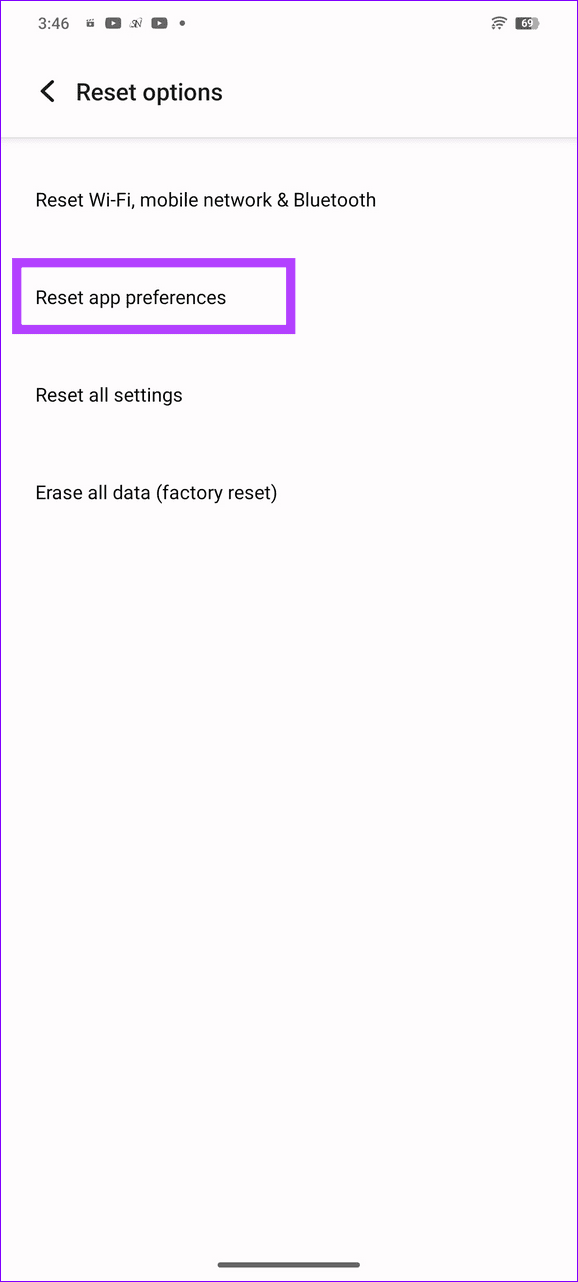
Step 2: Select Reset app preferences and tap Reset when prompted to confirm it.

Was this helpful?
Last updated on 15 July, 2024
Read Next
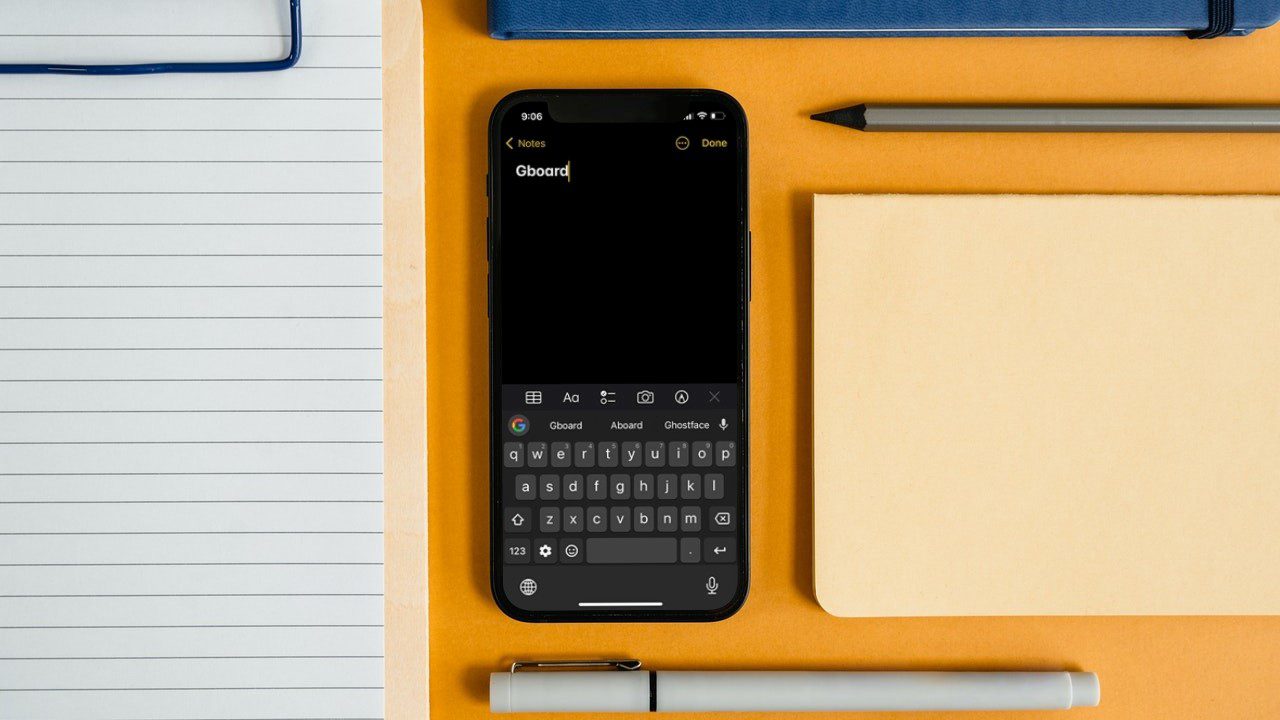 3 Ways to Fix Gboard Not Working on iPhone
Try Basic Fixes Close recent apps: It's possible that one of the apps you're using with Gboard has frozen or encountered issues, making it seem like there's a problem with
3 Ways to Fix Gboard Not Working on iPhone
Try Basic Fixes Close recent apps: It's possible that one of the apps you're using with Gboard has frozen or encountered issues, making it seem like there's a problem with
 How to Stop Gboard From Collecting Your Personal Data on Android and iOS
Method 1: Change Gboard Privacy Settings Google claims to collect your usage data on Gboard to improve the product and user experience.
How to Stop Gboard From Collecting Your Personal Data on Android and iOS
Method 1: Change Gboard Privacy Settings Google claims to collect your usage data on Gboard to improve the product and user experience.
 4 Ways to Fix Outlook App Not Working on Android
Try Basic Fixes Update the app: It could be that Outlook issues on your phone are limited to the current version of the app.
4 Ways to Fix Outlook App Not Working on Android
Try Basic Fixes Update the app: It could be that Outlook issues on your phone are limited to the current version of the app.
 4 Ways to Fix Auto Rotate Not Working on Android
Try Basic Fixes Remove your phone’s case: Start by removing your phone’s case and see if that gets the auto-rotate feature to work.
4 Ways to Fix Auto Rotate Not Working on Android
Try Basic Fixes Remove your phone’s case: Start by removing your phone’s case and see if that gets the auto-rotate feature to work.
 4 Ways to Fix Fingerprint Sensor Not Working on Android Phones
Try Basic Fixes Make sure your fingers are dry and clean: Capacitive and optical fingerprint scanners cannot read your fingers if they are wet or dirty.
4 Ways to Fix Fingerprint Sensor Not Working on Android Phones
Try Basic Fixes Make sure your fingers are dry and clean: Capacitive and optical fingerprint scanners cannot read your fingers if they are wet or dirty.
 4 Ways to Fix Snapchat Notifications Not Working on Android
Try These Fixes First Restart your phone: The first thing to do is restart your phone.
4 Ways to Fix Snapchat Notifications Not Working on Android
Try These Fixes First Restart your phone: The first thing to do is restart your phone.
 5 Ways to Fix Microsoft Authenticator Not Working on Android and iPhone
https://youtu.be/C7W_ykgaBOI Try Basic Fixes Update the app: The Microsoft Authenticator may not work properly if you are using an outdated version of the app.
5 Ways to Fix Microsoft Authenticator Not Working on Android and iPhone
https://youtu.be/C7W_ykgaBOI Try Basic Fixes Update the app: The Microsoft Authenticator may not work properly if you are using an outdated version of the app.
 3 Ways to Fix ChatGPT App Not Working on Android and iPhone
Try Basic Fixes Turn off your VPN connection: Problems with your VPN connection can prevent the ChatGPT app from communicating with the server and make it unresponsive.
3 Ways to Fix ChatGPT App Not Working on Android and iPhone
Try Basic Fixes Turn off your VPN connection: Problems with your VPN connection can prevent the ChatGPT app from communicating with the server and make it unresponsive.
The article above may contain affiliate links which help support Guiding Tech. The content remains unbiased and authentic and will never affect our editorial integrity.