Basic Fixes:
- Turn off your video before screen-sharing: Lower-end CPUs may find it challenging to keep up with both the video feed and screen-sharing over a Zoom call. Turn off your video before sharing your screen.
- Connect to a stable internet: Zoom video calls require a high-speed internet connection for a flawless online meeting. Especially while screen sharing, you need to have internet speeds in the double digits for a better experience.
- Restart Zoom: Restarting Zoom can fix minor glitches that make screen sharing impossible.
Fix 1: Enable Screen Sharing on Zoom
Screen sharing is enabled by default for Zoom meetings. However, if it has been turned off, you will no longer be able to share your screen and must re-enable it.
Step 1: Log into your Zoom account.
Step 2: Click Settings on the left pane and the Meetings tab on the right.

Step 3: Select In Meering (Basic), then under the Screen sharing section, ensure you select All Participants for Who Can Share.

Fix 2: Enable Screen Sharing Permission for Participants
It is impossible to share the screen without the host’s consent. So, if people can not share their screens, ensure that you have given them permission. If you are a participant in a Zoom call, you need to ask the host to enable screen sharing for you. The host will take a few steps to enable the participants’ screen sharing.
Fix 3: Enable Hardware Acceleration for Screen Sharing
This option is enabled by default, but it’s still advisable to double-check it from the Zoom settings menu. Here’s what you need to do.
Step 1: Open the Zoom app on Windows.
Step 2: Click on the profile icon at the top and go to Settings.
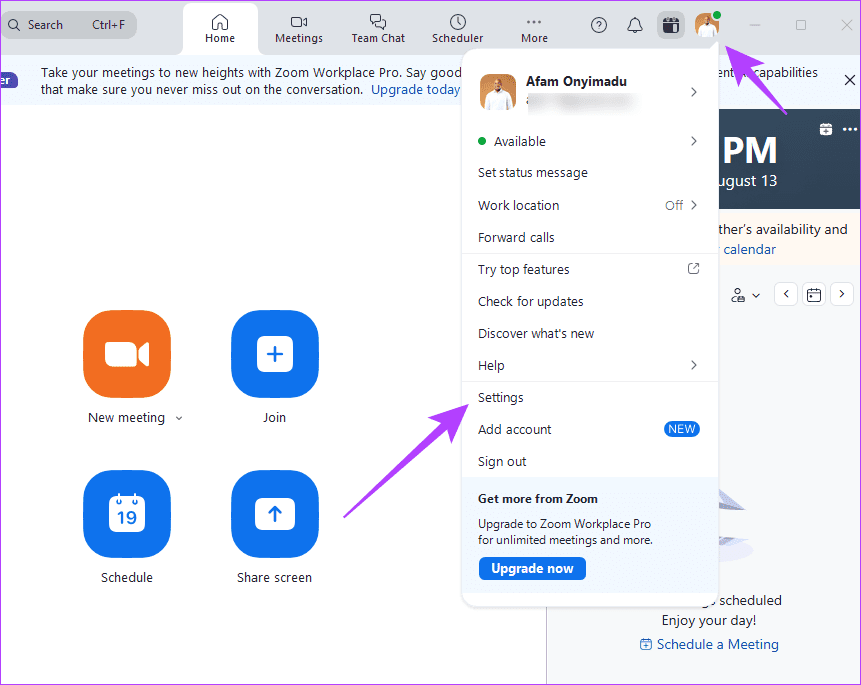
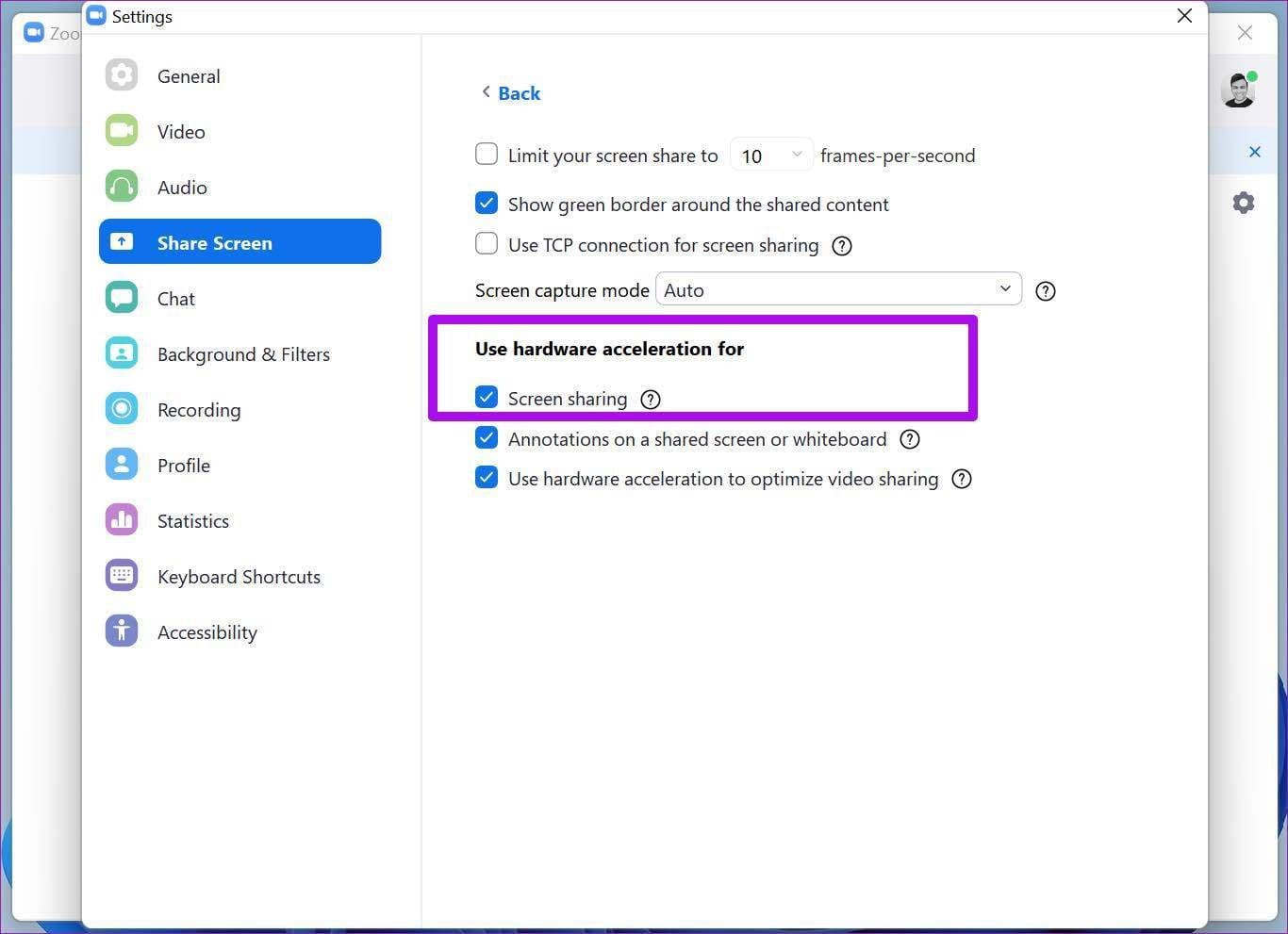
Step 3: Select Share Screen and click Advanced.

Step 4: Enable Screen sharing under the Use hardware acceleration for menu.
Fix 4: Lower Display Resolution
This one mostly applies to those using Zoom on a high-resolution display with 4K or 5K resolution. The higher the resolution, the more effort Zoom requires to share the screen with other participants. Thankfully, Windows allows you to scale down the resolution from the Settings menu.
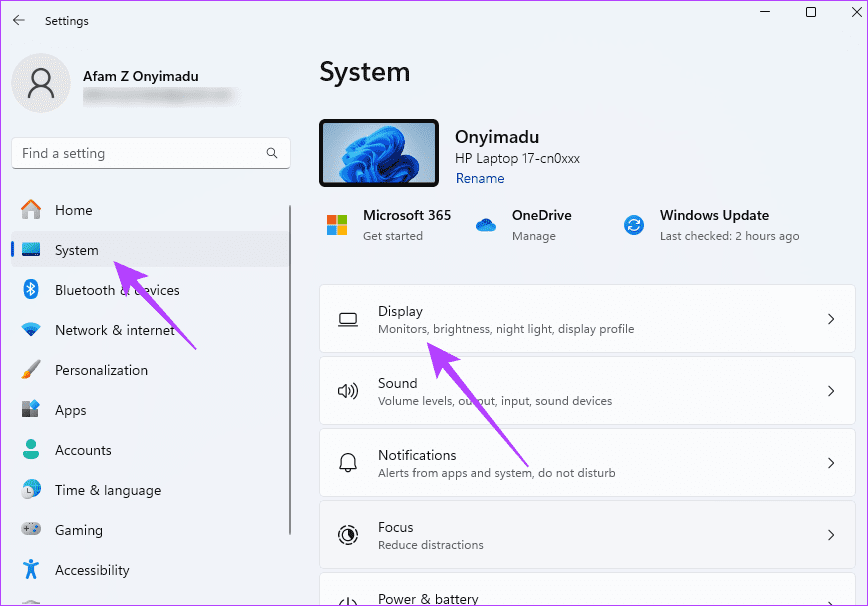
Step 1: Open the Settings menu on Windows (use Windows + I keys).
Step 2: Go to System > Display menu.
Step 3: Find Display resolution under the Scale & layout menu.
Step 4: Use the drop-down menu and lower down the screen resolution.

Open the Zoom app and see if it has fixed the issue of screen sharing not working. You may also use ZoomISO as an alternative.
Was this helpful?
Last updated on 13 August, 2024
Read Next
 How to Enable Screen Sharing for Participants on Zoom as a Host
Enable Screen Sharing for Participants on Zoom on Desktop You can allow participants to share their screens for the current meeting using one of the following two methods.
How to Enable Screen Sharing for Participants on Zoom as a Host
Enable Screen Sharing for Participants on Zoom on Desktop You can allow participants to share their screens for the current meeting using one of the following two methods.
 4 Fixes for Microsoft Teams Screen Sharing Not Working on Windows 11
https://youtu.be/Wm3ds6ia05A Preliminary Fixes Internet connection: Sharing your screen on Teams requires high-speed internet connectivity.
4 Fixes for Microsoft Teams Screen Sharing Not Working on Windows 11
https://youtu.be/Wm3ds6ia05A Preliminary Fixes Internet connection: Sharing your screen on Teams requires high-speed internet connectivity.
 3 Fixes for FaceTime Screen Sharing Not Working on iPhone
Basic Fixes Switch to 5G or Wi-Fi: The ability to share the screen of your iPhone during a FaceTime call depends a lot on your internet speed.
3 Fixes for FaceTime Screen Sharing Not Working on iPhone
Basic Fixes Switch to 5G or Wi-Fi: The ability to share the screen of your iPhone during a FaceTime call depends a lot on your internet speed.
 3 Fixes for Background Blur Not Working in Zoom App
Basic Fixes Clean camera lens: This is something that can cause issues with background blur on the Zoom app.
3 Fixes for Background Blur Not Working in Zoom App
Basic Fixes Clean camera lens: This is something that can cause issues with background blur on the Zoom app.
 4 Ways to Fix FaceTime Screen Sharing Not Working on Mac
Basic Fixes Check device support: Android and Windows users can join a FaceTime call via the web only.
4 Ways to Fix FaceTime Screen Sharing Not Working on Mac
Basic Fixes Check device support: Android and Windows users can join a FaceTime call via the web only.
 6 Fixes for Zoom Microphone Not Working on Windows 11/10
Basic Fixes You Should Try Restart the Zoom app and Windows PC.
6 Fixes for Zoom Microphone Not Working on Windows 11/10
Basic Fixes You Should Try Restart the Zoom app and Windows PC.
 7 Things to Know About Screen Sharing in Microsoft Teams
1.
7 Things to Know About Screen Sharing in Microsoft Teams
1.
 Can Zoom Host See My Screen Without Permission
Can Zoom Host See What I’m Doing In a Zoom meeting, the host of the video call and the meeting participants have the screen sharing function, provided the host has
Can Zoom Host See My Screen Without Permission
Can Zoom Host See What I’m Doing In a Zoom meeting, the host of the video call and the meeting participants have the screen sharing function, provided the host has
The article above may contain affiliate links which help support Guiding Tech. The content remains unbiased and authentic and will never affect our editorial integrity.