Fix 1: Turn on Watch History
A common reason YouTube might not save or update your watch history is if you have paused it. Here’s how to enable it.
Desktop
Step 1: Open your preferred browser, navigate to the YouTube website, and sign in to your account.
Step 2: Use the left pane to switch to the History tab.

Step 3: On your right, click the Turn on watch history button. If you see the Pause watch history option, it means the watch history is already enabled.
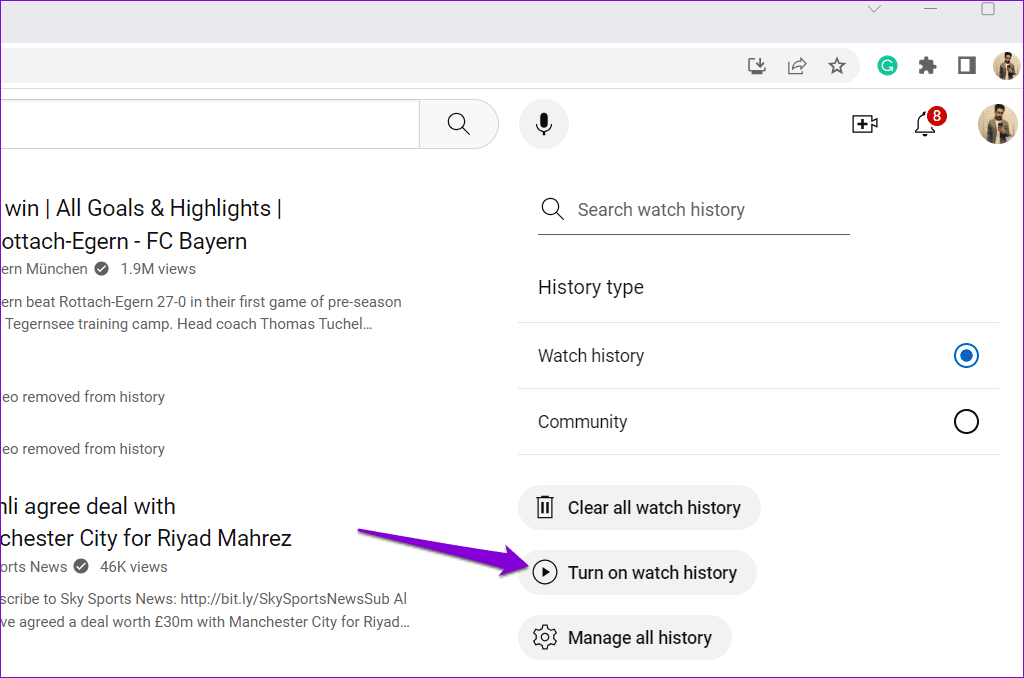
Step 4: Select Turn on to confirm.

Mobile
Step 1: Open the YouTube app on your Android or iPhone. Switch to the Library tab and tap on History.
Step 2: If the watch history is paused, you should see the Turn on button at the top. Tap on it and then select Turn on again to confirm.


Fix 2: Sign Out and Sign Back In
You can sign out of YouTube and then sign back in. This should help re-establish YouTube’s connection with its servers and resolve any issues. If you use YouTube on a desktop, click the profile icon at the top-right corner and select Sign out.

The process of signing out of the YouTube app varies for Android and iPhone. Here are the steps you can follow.
Android
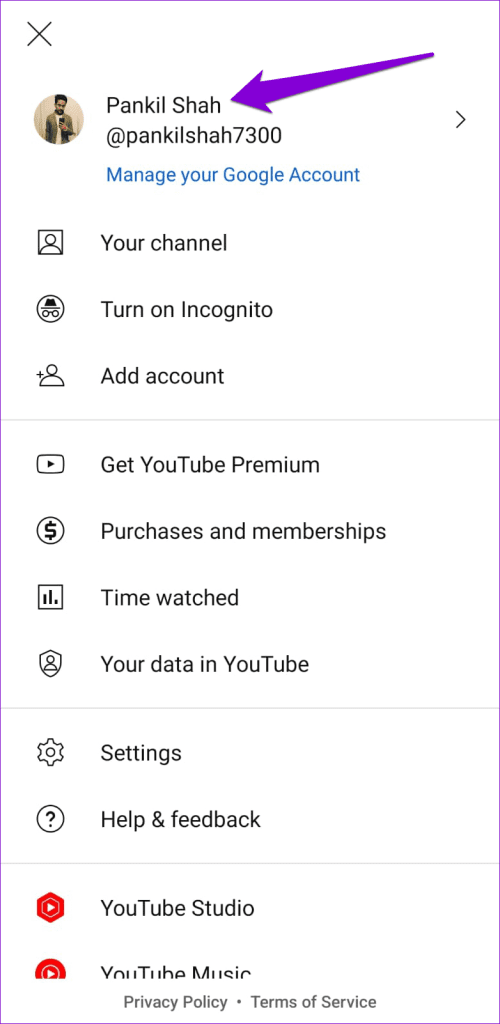
Step 1: Open the YouTube app on your Android, tap the profile icon in the top-right corner, and tap on your username.
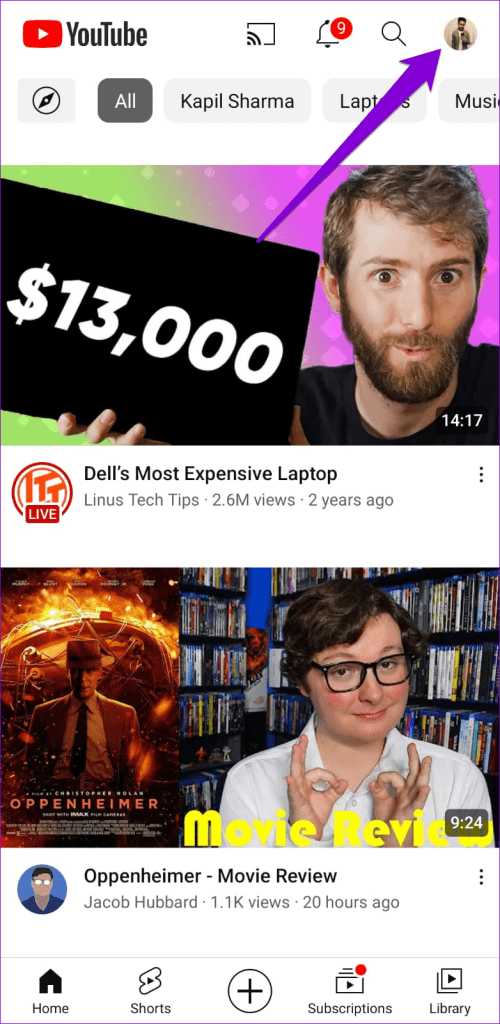
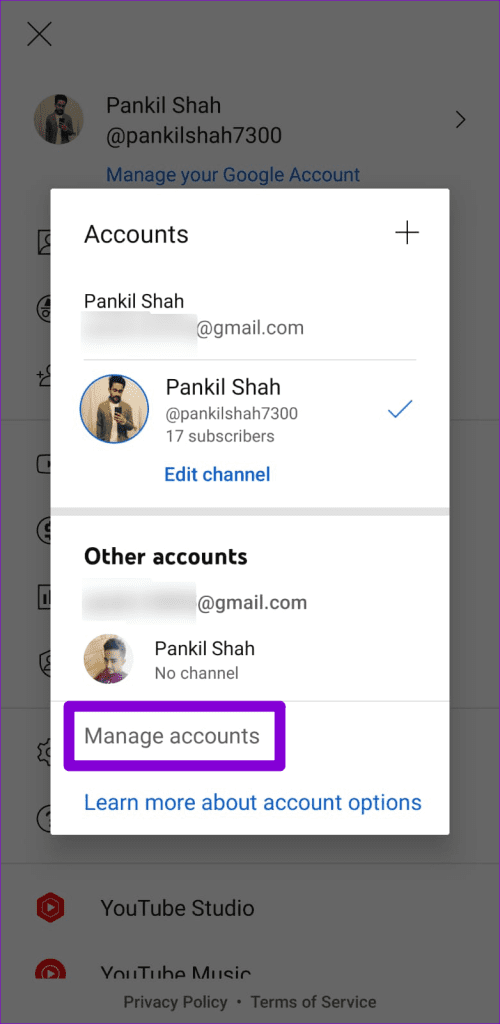
Step 2: Select the Manage accounts option.
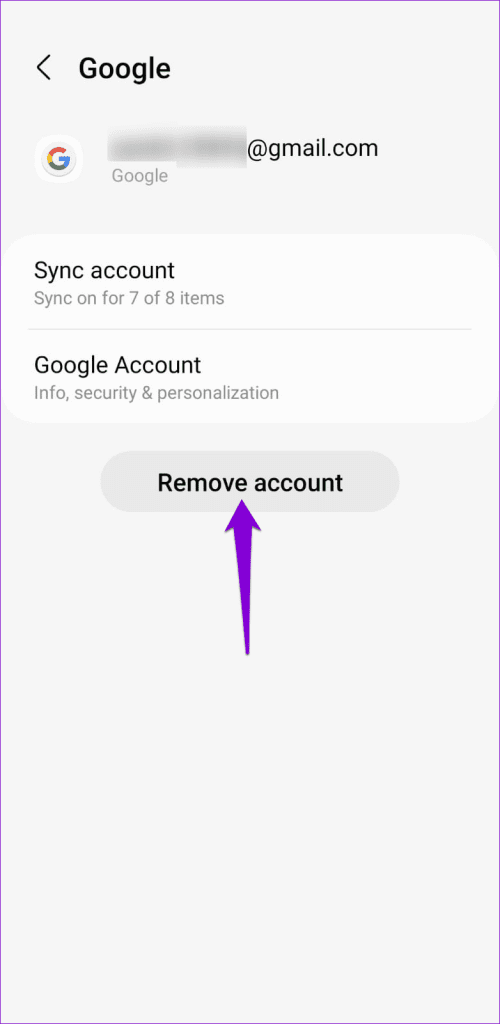
Step 3: Select your account from the list and click the Remove account option.

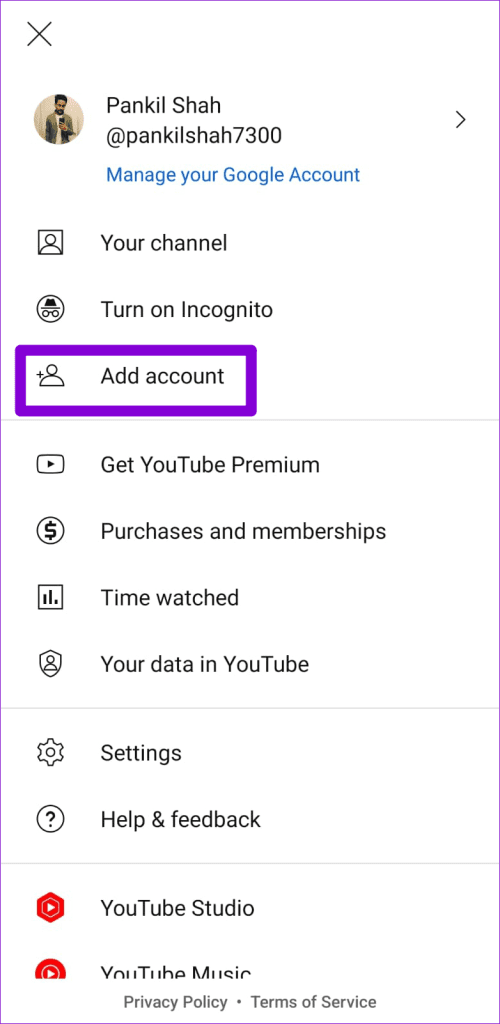
Step 4: Restart the YouTube app, tap the profile icon, and select Add account. Then, follow the on-screen prompts to sign in with your account.
iPhone
Step 1: Open the YouTube app and tap the profile icon in the top right corner.
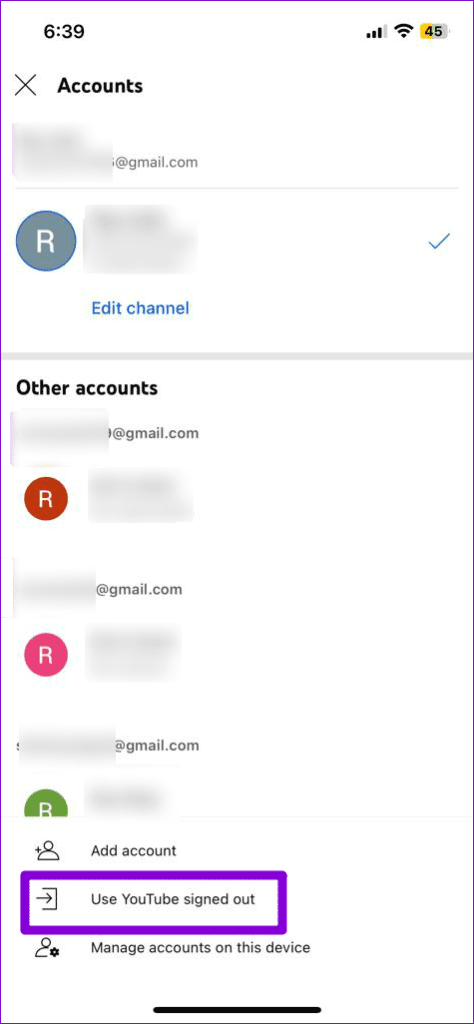
Step 2: Tap on your account name and select the Use YouTube signed out option.


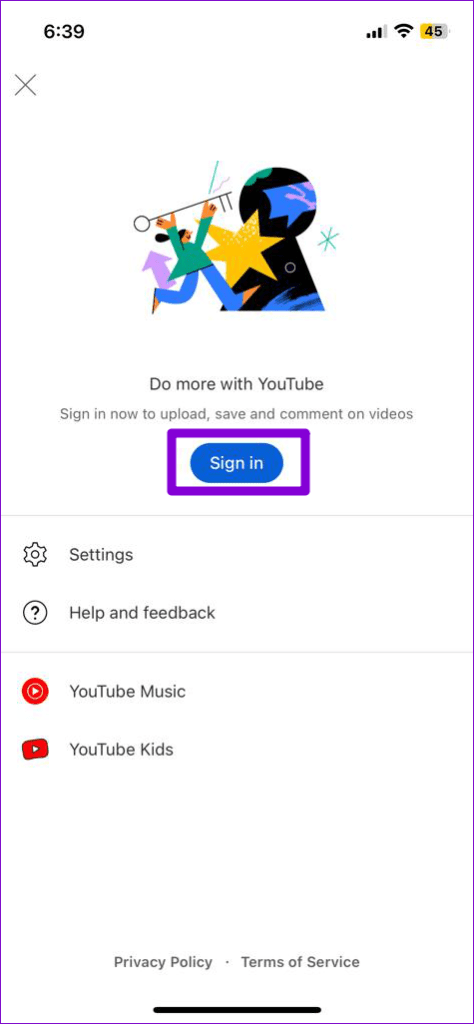
Step 3: Tap the profile icon again, select the Sign in option, and then add your account.

Fix 3: Disable Ad-Blocker Extensions (Desktop)
If you have an ad-blocker extension installed on your browser, it might interfere with YouTube’s ability to save your watch history. To check for this possibility, you can temporarily disable any ad-blocker extensions on your browser.
Type chrome://extensions (Chrome) or edge://extensions (Edge) in the address bar at the top and press Enter. Then, turn off the toggle next to the ad-blocker extension.

Restart your browser after this and check if the issue is still there.
Fix 4: Clear YouTube App Cache (Android)
Corrupted or inaccessible cache data can also prevent the YouTube app from running smoothly on your Android device, resulting in such issues. You can purge the existing YouTube app cache to see if that solves the problem.
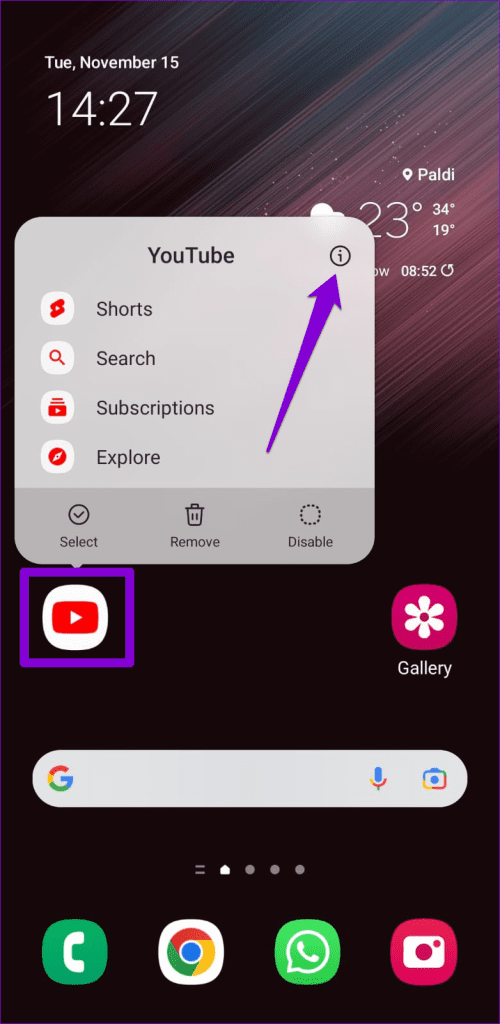
Step 1: Long-press on the YouTube app icon and tap the info icon from the menu that appears.
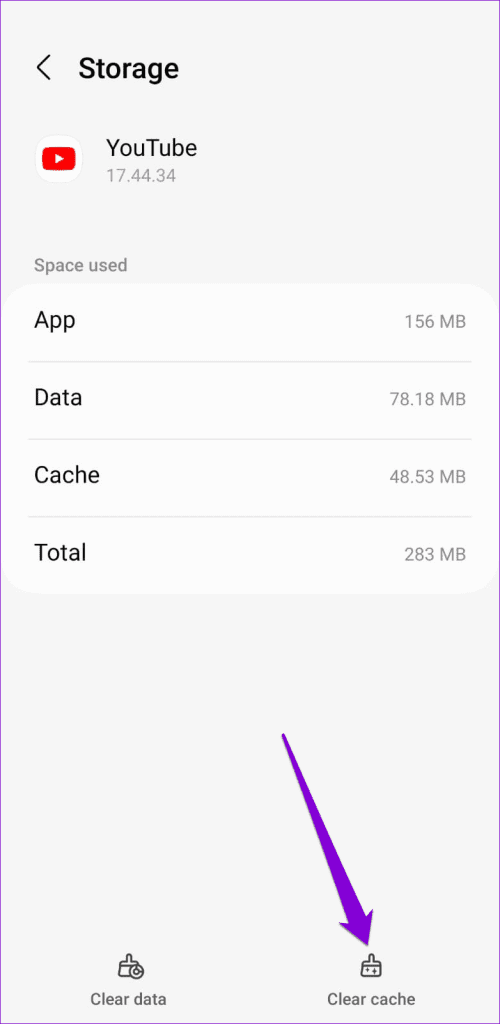
Step 2: Go to Storage and tap the Clear cache option.

Fix 5: Clear Cache and Cookies for YouTube (Desktop)
YouTube watch history may stop working in your browser if the cache and cookies associated with the site are old or corrupted. You can clear the cache and cookies for YouTube to fix the issue.
If you use Chrome, use these steps:
Step 1: Visit the YouTube website, click the padlock icon in the address bar, and select Site settings.

Step 2: Click the Clear data button under the Usage section.

Similarly, you can clear YouTube’s cache and cookies in Edge, Safari, or any other browser you use.
Was this helpful?
Last updated on 05 July, 2024
Read Next
 4 Cool Sites to Watch YouTube Videos Without YouTube
1.
4 Cool Sites to Watch YouTube Videos Without YouTube
1.
 Prime Video: Clear Continue Watching, Search, and Watch History
Clear Continue Watching on Amazon Prime Video The new Prime Video interface lacks an Edit button for managing its Continue Watching section.
Prime Video: Clear Continue Watching, Search, and Watch History
Clear Continue Watching on Amazon Prime Video The new Prime Video interface lacks an Edit button for managing its Continue Watching section.
 How to View and Reset Netflix Watch History
How to Delete Watch History on Netflix On Mobile and Desktop Step 1: Open the Accounts page on Netflix.
How to View and Reset Netflix Watch History
How to Delete Watch History on Netflix On Mobile and Desktop Step 1: Open the Accounts page on Netflix.
 How to Delete Facebook Watch History on Mobile and Desktop
Delete Entire Facebook Watch History on Mobile For the most part, the majority of folks use their phone to browse through Facebook.
How to Delete Facebook Watch History on Mobile and Desktop
Delete Entire Facebook Watch History on Mobile For the most part, the majority of folks use their phone to browse through Facebook.
 2 Ways to Watch YouTube Videos Not Available in Your Country
Basic Fixes: Clear YouTube Cache: You may not be able to watch a video on YouTube due to corrupt cache files.
2 Ways to Watch YouTube Videos Not Available in Your Country
Basic Fixes: Clear YouTube Cache: You may not be able to watch a video on YouTube due to corrupt cache files.
 How to Watch YouTube While Using Another Tab in Chrome
Method 1: Watch YouTube While on Another Tab on Desktop This method lets you open any website in a different tab, and your video will play on top of your
How to Watch YouTube While Using Another Tab in Chrome
Method 1: Watch YouTube While on Another Tab on Desktop This method lets you open any website in a different tab, and your video will play on top of your
 5 Ways to Fix YouTube Search Not Working
Try Basic Fixes Update or Reinstall the YouTube app: Apps like YouTube regularly receive updates that include bug fixes and performance improvements.
5 Ways to Fix YouTube Search Not Working
Try Basic Fixes Update or Reinstall the YouTube app: Apps like YouTube regularly receive updates that include bug fixes and performance improvements.
 3 Ways to Fix YouTube Dark Theme Broken or Not Working
Basic Fixes: Manually enable YouTube Dark Mode: You can use the options within the YouTube mobile and desktop apps to manually enable Dark Mode.
3 Ways to Fix YouTube Dark Theme Broken or Not Working
Basic Fixes: Manually enable YouTube Dark Mode: You can use the options within the YouTube mobile and desktop apps to manually enable Dark Mode.
The article above may contain affiliate links which help support Guiding Tech. The content remains unbiased and authentic and will never affect our editorial integrity.