Basic Fixes
- Check the YouTube server status: Visit Downdetector to check an active YouTube TV server outage.
- Restart the Amazon Fire TV Stick: Head to Fire TV Stick settings and open ‘My Fire TV’. Scroll down and select Restart.
- Disable VPN: Open the VPN app and select Disconnect to disable the active VPN connection. Reload the YouTube TV app.
- Update or reinstall the YouTube TV app: Open the Appstore, search the YouTube TV app, and select Update (if available). Alternatively, navigate to Fire OS Settings using the Gear icon > Applications > Manage Installed Applications. Select the YouTube TV app and pick Uninstall. Once removed, install it afresh from the Fire OS Appstore.
- Update FireOS: Go to the ‘My Fire TV’ menu under Fire OS Settings, select About > Check for Updates.
Fix 1: Force Stop YouTube TV and Reopen
The YouTube TV app may not work on Fire TV Stick due to existing glitches. Force-stop the app and reopen it to refresh and resolve the issue.
Step 1: Navigate to the Gear icon in the Fire OS home screen and open Applications.

Step 2: Scroll down and select Manage Installed Applications.

Step 3: Open the YouTube TV app and select Force stop.


Fix 2: Clear Cache and Data for the YouTube TV App
A corrupt cache or obsolete app data can cripple the YouTube TV app on the Fire TV Stick. Clear them manually and retry accessing the app.
Step 1: Open the Applications menu and select Manage Installed Applications (check the above steps).

Step 2: Scroll down and select YouTube TV.
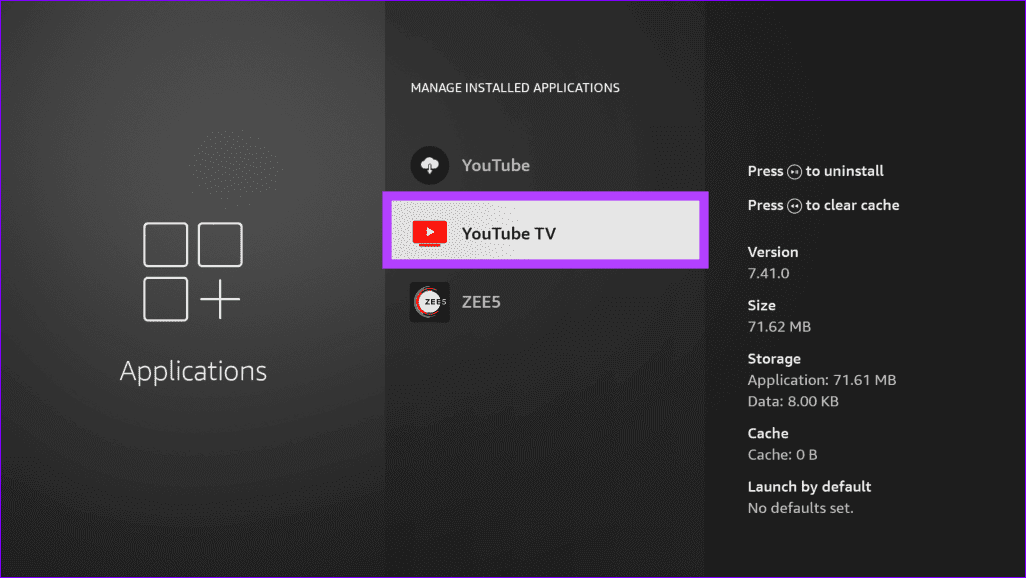
Step 3: Select Clear cache followed by Clear data to fix the YouTube TV app not working issue.

Fix 3: Check Connected Devices
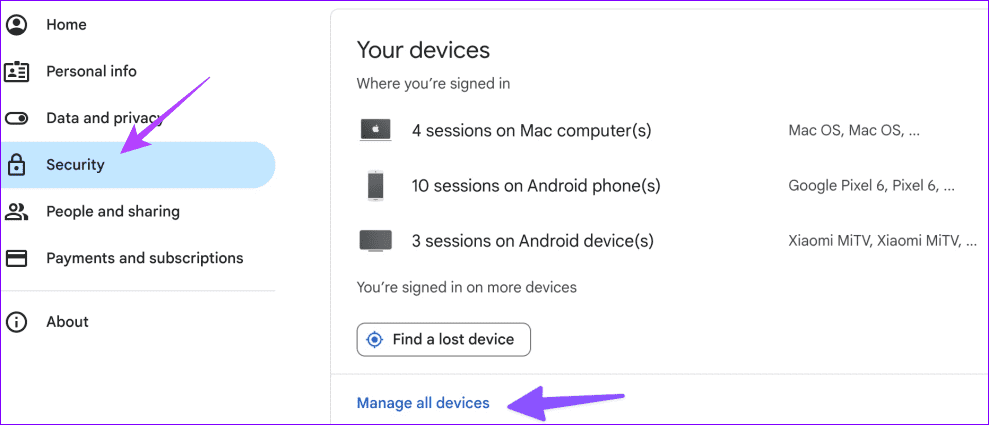
A YouTube TV subscription lets you stream its content on up to three devices simultaneously. If you’ve breached the device limit, the YouTube TV app may not work on your Fire TV Stick. To fix it, log out of other connected devices and retry opening the app.
Step 1: Open the Google Account page in your browser, select Security from the left sidebar, and click Manage all devices under ‘Your Devices’.
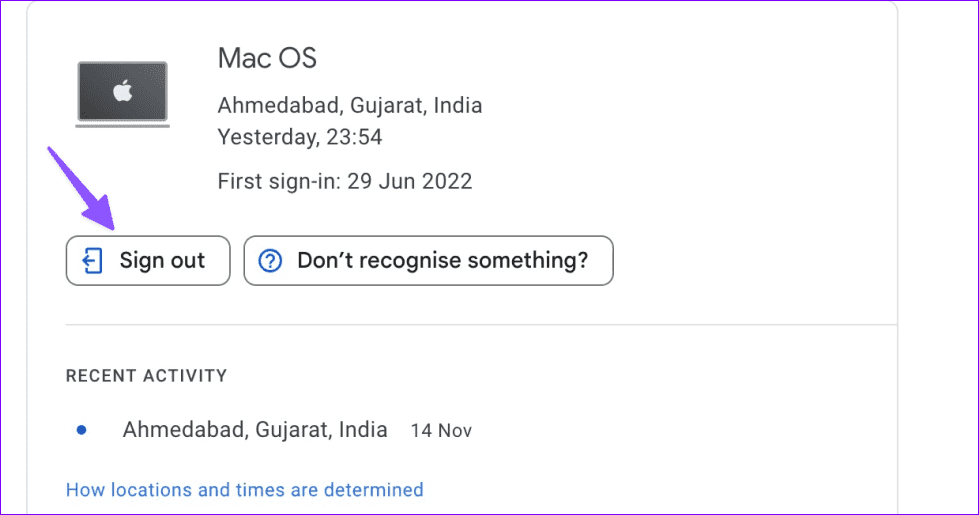
Step 2: Review and open a connected device in the list and select Sign out. Repeat the step to remove unnecessary devices and retry opening the YouTube TV app on your Fire TV Stick.
Was this helpful?
Last updated on 09 August, 2024
Read Next
 No Sound on Amazon Fire TV Stick YouTube App? Here’s the Fix
Basic Fixes Check if the audio is muted: The Fire TV 4K remote has a dedicated Mute button to disable audio.
No Sound on Amazon Fire TV Stick YouTube App? Here’s the Fix
Basic Fixes Check if the audio is muted: The Fire TV 4K remote has a dedicated Mute button to disable audio.
 3 Ways to Fix Apple TV App Not Working on Amazon Fire TV Stick
Basic Fixes Force quit and relaunch Apple TV app: This will give the app a fresh start on your Firestick.
3 Ways to Fix Apple TV App Not Working on Amazon Fire TV Stick
Basic Fixes Force quit and relaunch Apple TV app: This will give the app a fresh start on your Firestick.
 5 Ways to Fix Amazon Silk Browser Not Working on Fire TV Stick
Basic Fixes Check your network connection: Open Fire OS settings via the Gear icon at the top right.
5 Ways to Fix Amazon Silk Browser Not Working on Fire TV Stick
Basic Fixes Check your network connection: Open Fire OS settings via the Gear icon at the top right.
 How to Fix Netflix Not Working on Amazon Fire TV Stick
Basic Fixes Check Netflix server status: You can visit DownDetector to see if the Netflix servers are working for your area.
How to Fix Netflix Not Working on Amazon Fire TV Stick
Basic Fixes Check Netflix server status: You can visit DownDetector to see if the Netflix servers are working for your area.
 3 Ways to Fix Amazon Fire TV Stick Keeps Restarting
Basic Fixes Use official accessories: If you aren't using the original accessories with your Firestick, you might use an incompatible USB cable or adapter.
3 Ways to Fix Amazon Fire TV Stick Keeps Restarting
Basic Fixes Use official accessories: If you aren't using the original accessories with your Firestick, you might use an incompatible USB cable or adapter.
 2 Ways to Fix Black Screen on Amazon Fire TV Stick
Basic Fixes Check Amazon server status: You can visit DownDetector to see if Amazon servers are working fine for your region.
2 Ways to Fix Black Screen on Amazon Fire TV Stick
Basic Fixes Check Amazon server status: You can visit DownDetector to see if Amazon servers are working fine for your region.
 3 Ways to Fix Fire TV Stick Stuck on Amazon Logo Screen
Basic Fixes Use the official accessories: Your Fire TV Stick comes with official accessories that help ensure your device gets sufficient power and can work properly.
3 Ways to Fix Fire TV Stick Stuck on Amazon Logo Screen
Basic Fixes Use the official accessories: Your Fire TV Stick comes with official accessories that help ensure your device gets sufficient power and can work properly.
 3 Fixes for Dolby Vision Not Working on Amazon Fire TV Stick 4K
Basic Fixes Use HDMI 2.1 cable: This cable supports higher frame rates, improved bandwidth, and eARC (Audio Return Channel).
3 Fixes for Dolby Vision Not Working on Amazon Fire TV Stick 4K
Basic Fixes Use HDMI 2.1 cable: This cable supports higher frame rates, improved bandwidth, and eARC (Audio Return Channel).
The article above may contain affiliate links which help support Guiding Tech. The content remains unbiased and authentic and will never affect our editorial integrity.