Basic Fixes
- Check network connection: If there’s a problem with your Wi-Fi or cellular connection, X may not be able to send the message.
- Check if you’ve been blocked, or blocked the user: Check if you’ve blocked the user, or if you’ve been blocked by the user. In any case, you won’t be able to send the message.
- Restart X: Close the app and open it again to see if it fixes the issue.
- Check if X is down: If X is facing downtime, wait for the services to be restored.
- Update X: Update the app on your iPhone or Android device for a bug-free experience.
Fix 1: Check Direct Message Limits
Daily Limit on Messages
The first rule is that you can send only 500 messages daily on X. Once you reach that limit, you can’t send more messages on that day. You will have to wait for the next day to message again.
Tip: Other limits include accessing 2,400 posts per day, following 400 people only, and 4 changes to account email per hour.
Duplicate Messages
If you are sending the same message to different accounts or multiple times to the same account, especially those having links in them, X might consider them spam and block you from sending more messages for some time. You will need to wait at least 30 minutes before you can send more messages.
Fix 2: Verify Phone Number
If your number isn’t verified in your Twitter account, that could also be why Twitter messages fail to send, especially if you are trying to message an account that doesn’t follow you.
Step 1: Tap on the profile picture icon at the top and expand Settings & Support. Select Settings and privacy.

Step 2: Go to Your account, followed by Account information. Tap on Phone and add/verify your phone number.

Also Read: How to fix X (Twitter) search not working
Fix 3: Clear Cache
Accumulated cache and junk files can cause problems in an application. Clearing it from X can help you resolve the issues with sending messages.
On Android
Tap and hold the X app icon > select app info > tap on Clear data > Clear cache.


On iPhone
Offloading an application on your iPhone removes temporary data, including cache and junk files. However, it maintains all the other essential data, such as your sign-in information, in-app purchases, etc.
Step 1: On your iPhone, go to Settings > General > tap on iPhone Storage.
Step 2: Scroll down, select the X app, and tap on Offload App. Tap on the Offload App once again to confirm.
Step 3: Now, tap on Reinstall App.


Also Read: 4 fixes for X (Twitter) stuck on the loading screen
Fix 4: Check Cellular Data Access
Check if you have disabled cellular data access for X. If yes, the app can’t connect to the internet via mobile data.
On iPhone
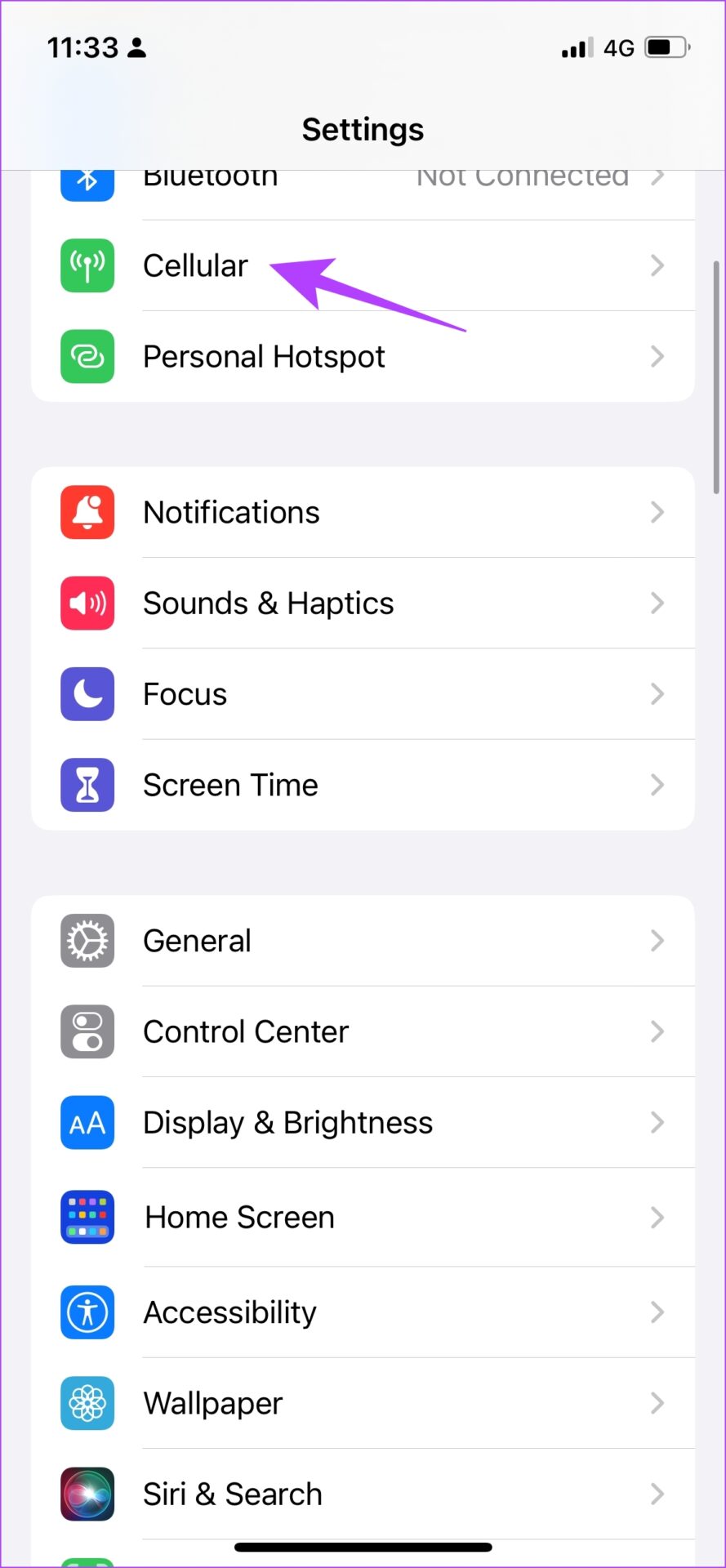
Open the Settings app > Cellular > scroll down to find X and turn on the toggle.

On Android
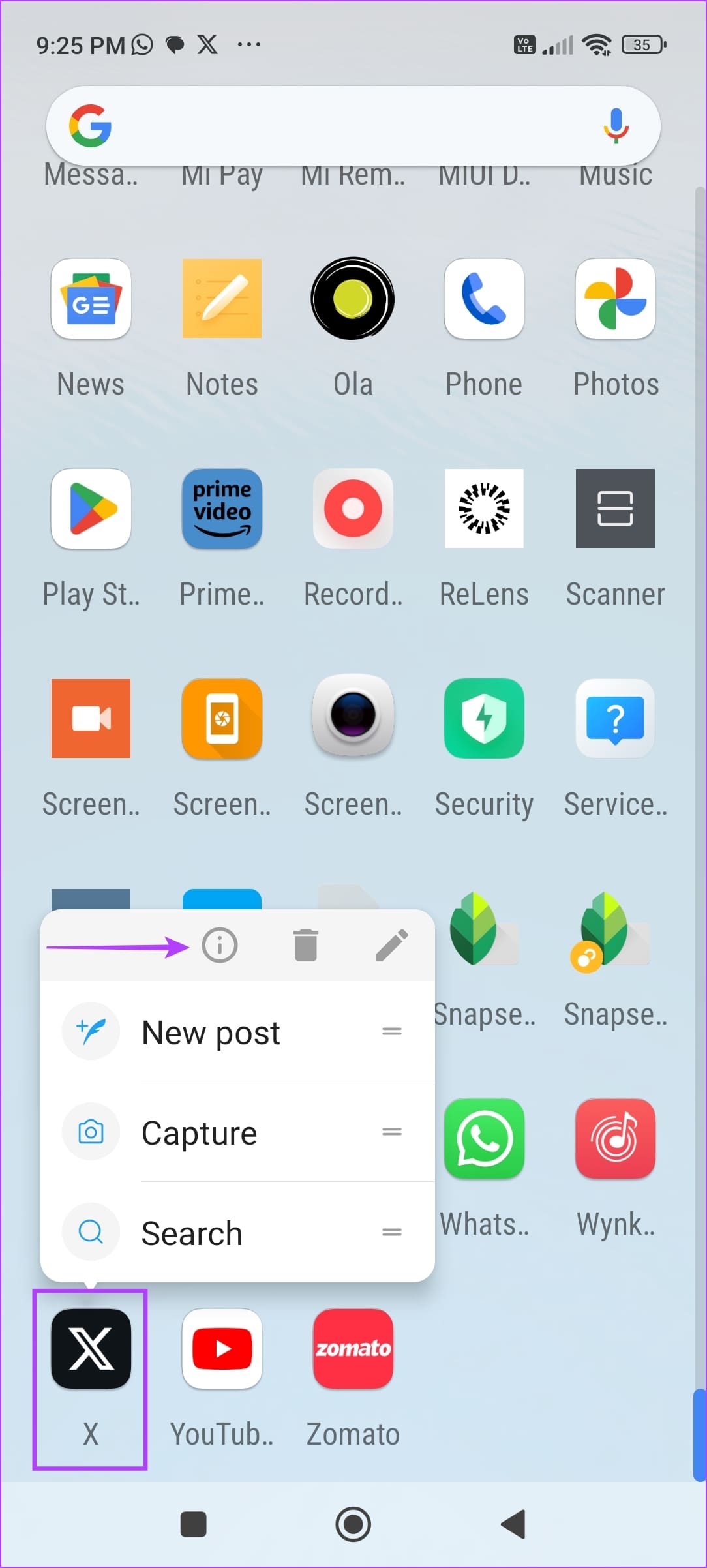
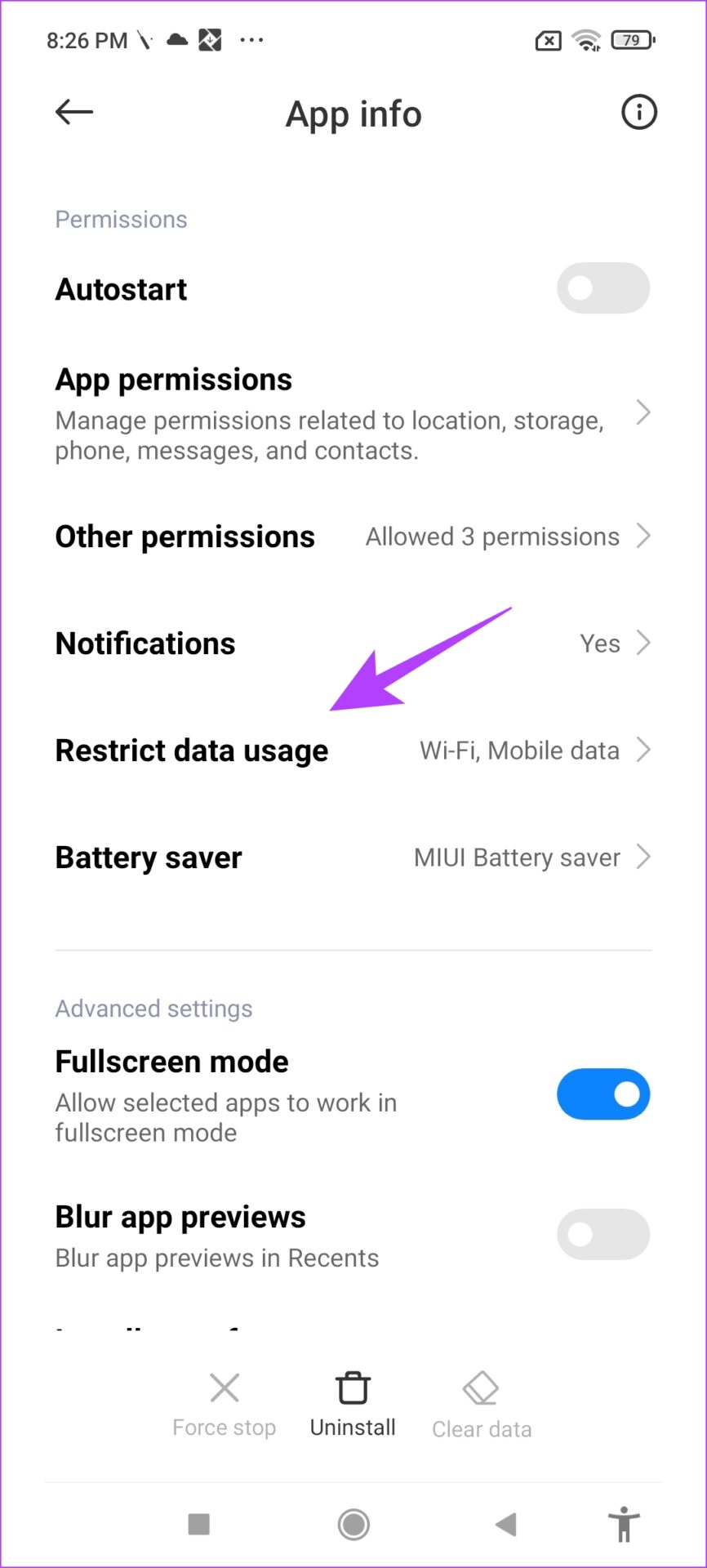
Step 1: Long-press on the X app icon > tap on the info icon. Scroll down to find Restrict data usage.
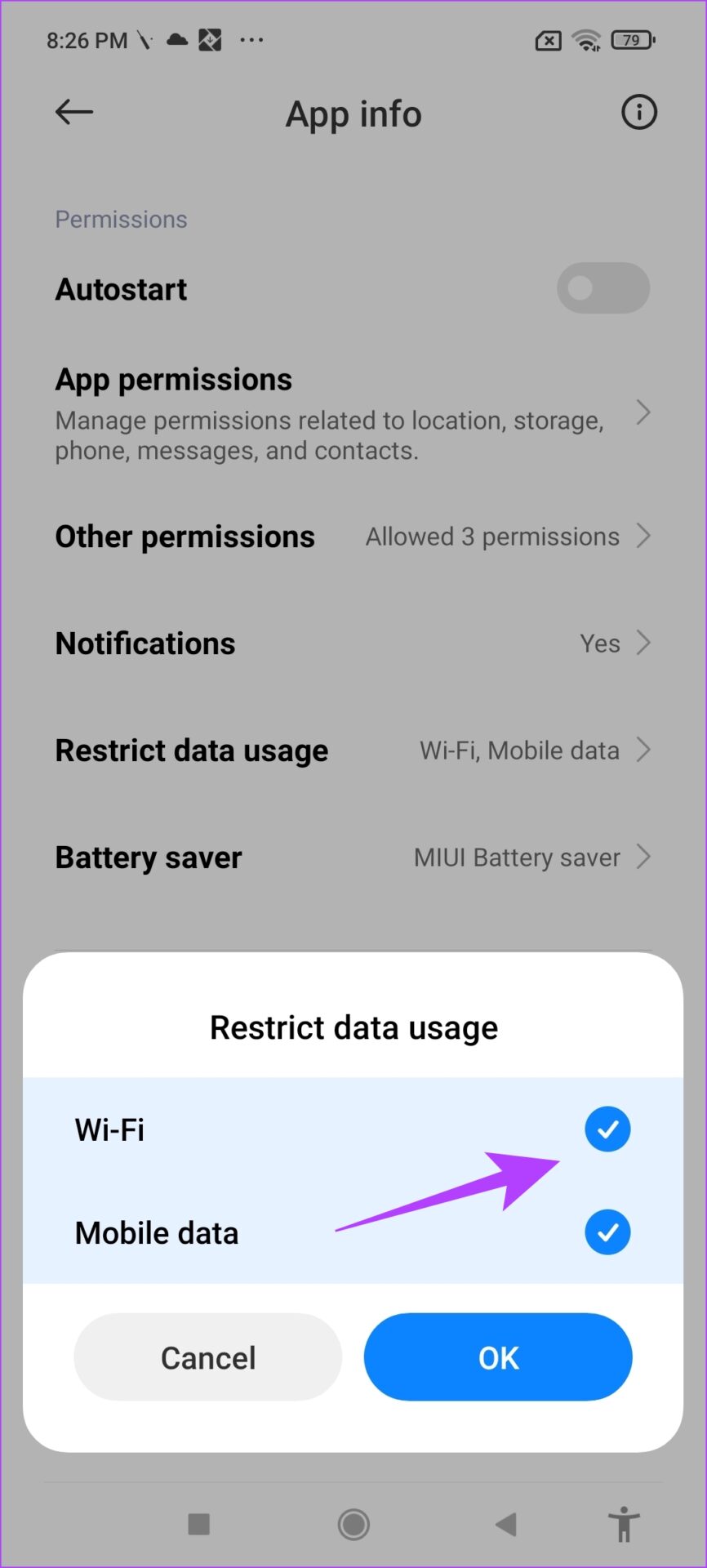
Step 2: Ensure both boxes are selected. This means X can access the internet via Wi-Fi and cellular data without restrictions.
Fix 5: Contact Support
Finally, if you have tried everything, your last shot is to contact X (Twitter) support and inform them about your issue. They should be able to assist and resolve your query.
Was this helpful?
Last updated on 27 August, 2024
Read Next
 3 Ways to Fix Snapchat “Failed to Send” Error on Your Phone
Basic Fixes: Check Snapchat server status: Go to Snapchat's Server Page on Downdetector and see if any new outages have been reported.
3 Ways to Fix Snapchat “Failed to Send” Error on Your Phone
Basic Fixes: Check Snapchat server status: Go to Snapchat's Server Page on Downdetector and see if any new outages have been reported.
 6 Ways to Fix Microsoft Outlook Failed to Delete a Message Error
Fix 1.
6 Ways to Fix Microsoft Outlook Failed to Delete a Message Error
Fix 1.
 8 Best Ways to Fix iMessage Needs to Enabled to Send This Message Error
Apple's iMessage is the exclusive messaging service separating iOS from Android.
8 Best Ways to Fix iMessage Needs to Enabled to Send This Message Error
Apple's iMessage is the exclusive messaging service separating iOS from Android.
 How to Force Send Text Message Instead of iMessage to a Contact
Let's see how to force send a text message instead of iMessage to a contact on your iPhone and iPad.
How to Force Send Text Message Instead of iMessage to a Contact
Let's see how to force send a text message instead of iMessage to a contact on your iPhone and iPad.
 How to Send a Video Message (Bubble) on Telegram
Record and Send Telegram Video Messages on iPhone and Android A Video Message on Telegram is an alternative to sending a voice message to your contact.
How to Send a Video Message (Bubble) on Telegram
Record and Send Telegram Video Messages on iPhone and Android A Video Message on Telegram is an alternative to sending a voice message to your contact.
 How to Send a Blank Message on WhatsApp
Sending long-winded messages has become a thing of the past.
How to Send a Blank Message on WhatsApp
Sending long-winded messages has become a thing of the past.
 How to Send a Voice Message on iPhone (via iMessage)
Method 1.
How to Send a Voice Message on iPhone (via iMessage)
Method 1.
 4 Fixes for “Cannot Send Audio Message At This Time” Error on iPhone
Basic Fixes Check internet connection: If you use Mobile Data for the Messages app, you might need better internet speeds in your current area.
4 Fixes for “Cannot Send Audio Message At This Time” Error on iPhone
Basic Fixes Check internet connection: If you use Mobile Data for the Messages app, you might need better internet speeds in your current area.
The article above may contain affiliate links which help support Guiding Tech. The content remains unbiased and authentic and will never affect our editorial integrity.