Fix 1: Disable Mobile Hotspot
I have personally noticed that keeping the mobile hotspot enabled prevented my phone from connecting to Android Auto, or it keeps disconnecting when turned on. Here’s how to turn it off.
Step 1: Open Settings > navigate to the Network and internet section. Tap on Hotspot and tethering.


Step 2: Next, select the Wi-Fi hotspot option > disable the Use Wi-Fi hotspot toggle.


Fix 2: Disconnect From Other Bluetooth Devices
Android Auto works by establishing a smooth connection with Bluetooth. However, your phone’s connection with other Bluetooth devices can hamper its connection with Android Auto.
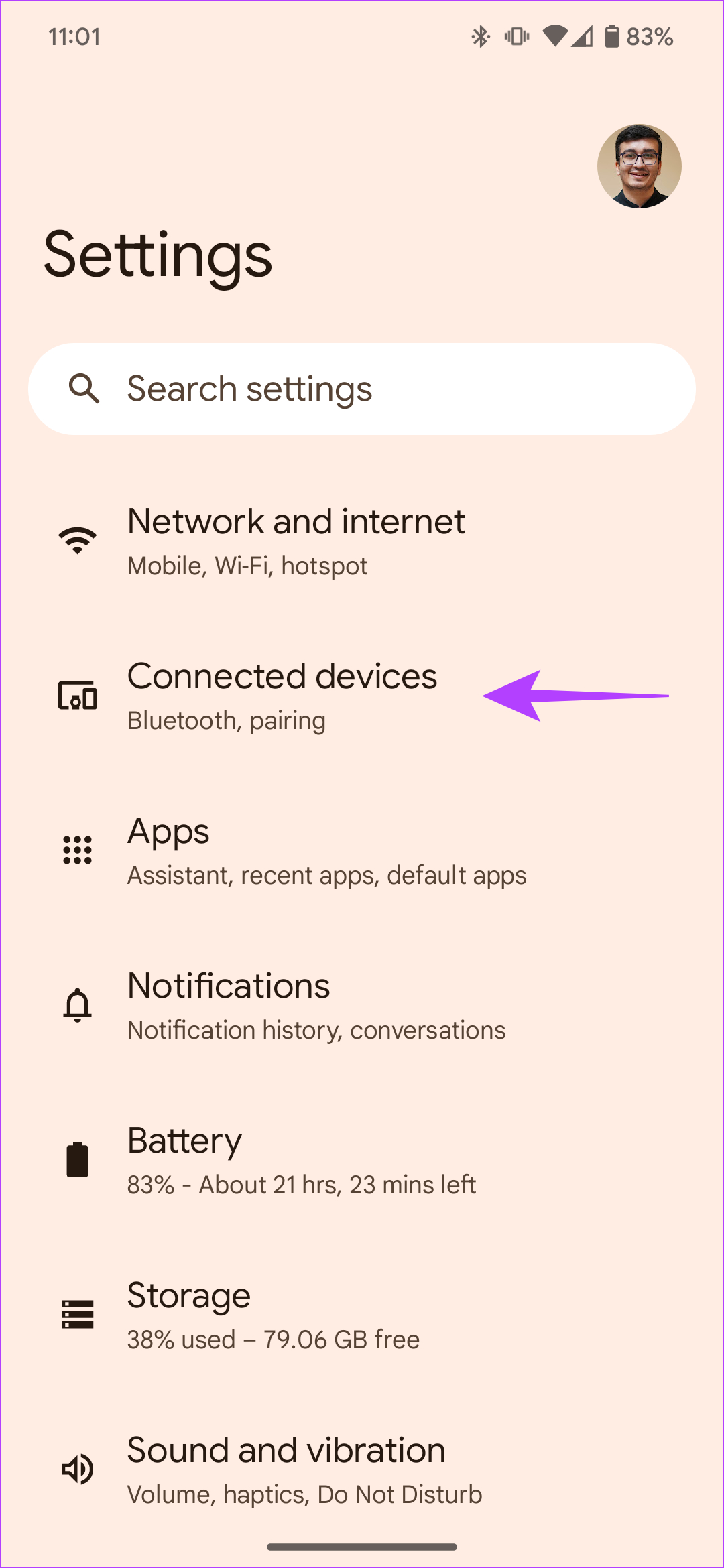
Step 1: Open Settings and navigate to the Connected devices section. Check if your phone is connected to any other Bluetooth device.
Step 2: If yes, select the device to which it is connected. Then, tap on Disconnect.


Fix 3: Disconnect From Wi-Fi Networks
Wi-Fi acts as a base for your wireless Android Auto connection. When there’s an issue with the connection, disconnect from other Wi-Fi networks to get your Android Auto wireless to connect automatically.
Step 1: Open Settings and navigate to the Network and internet section. Select the Internet tab.

Step 2: Now, check if your phone is connected to any other Wi-Fi network. If yes, choose the Wi-Fi network it is connected to. Then, tap Disconnect.


Fix 4: Don’t Connect a Different Phone to the Car’s USB Port
Let’s say you’re traveling with a friend, and they plug their phone into your car’s USB port. This can confuse your car’s Android Auto system. How? Well, when a different phone is connected to your car’s USB port, Android Auto will strive to establish a connection with that device. This interferes with the connection.
Fix 5: Manually Connect Your Phone to Your Car’s Bluetooth
Android Auto and your phone automatically connect via Bluetooth. However, sometimes, your phone may fail to establish a connection with your car due to a software glitch. In such situations, we suggest connecting your phone to your car’s Bluetooth system manually.
Step 1: Open Settings and navigate to the Connected devices section.
Step 2: Check for your car’s stereo under Saved devices. Then, tap on it to connect to your car.

FAQs
Both the wired and wireless options have pros and cons. While wireless Android Auto is convenient, it is frequently disturbed by connection disturbances. On the other hand, while the wired counterpart offers greater stability, constant charging degrades your phone’s battery health.
While it is reliable, you may face sudden connection disturbances. These disturbances occur as your Android Auto is dependent on a stable network connection.
Yes, wireless Android Auto drains more battery. There is no question of battery drain in a wired set-up as your phone gets charged simultaneously. However, since wireless Android Auto runs on Bluetooth and Wi-Fi, it depletes your phone’s battery.
Was this helpful?
Last updated on 29 August, 2024
Read Next
 3 Ways to Fix Android Not Connecting to Wi-Fi Automatically
Try Basic Fixes Use the updated Wi-Fi password: If the password is incorrect, your Android may fail to connect to a Wi-Fi network automatically.
3 Ways to Fix Android Not Connecting to Wi-Fi Automatically
Try Basic Fixes Use the updated Wi-Fi password: If the password is incorrect, your Android may fail to connect to a Wi-Fi network automatically.
 7 Ways to Fix Windows 11 Not Connecting to Wi-Fi Automatically
Fix 1: Enable Connect to Wi-Fi Automatically Windows 11 may not connect to a known network automatically if you haven't configured it to do so.
7 Ways to Fix Windows 11 Not Connecting to Wi-Fi Automatically
Fix 1: Enable Connect to Wi-Fi Automatically Windows 11 may not connect to a known network automatically if you haven't configured it to do so.
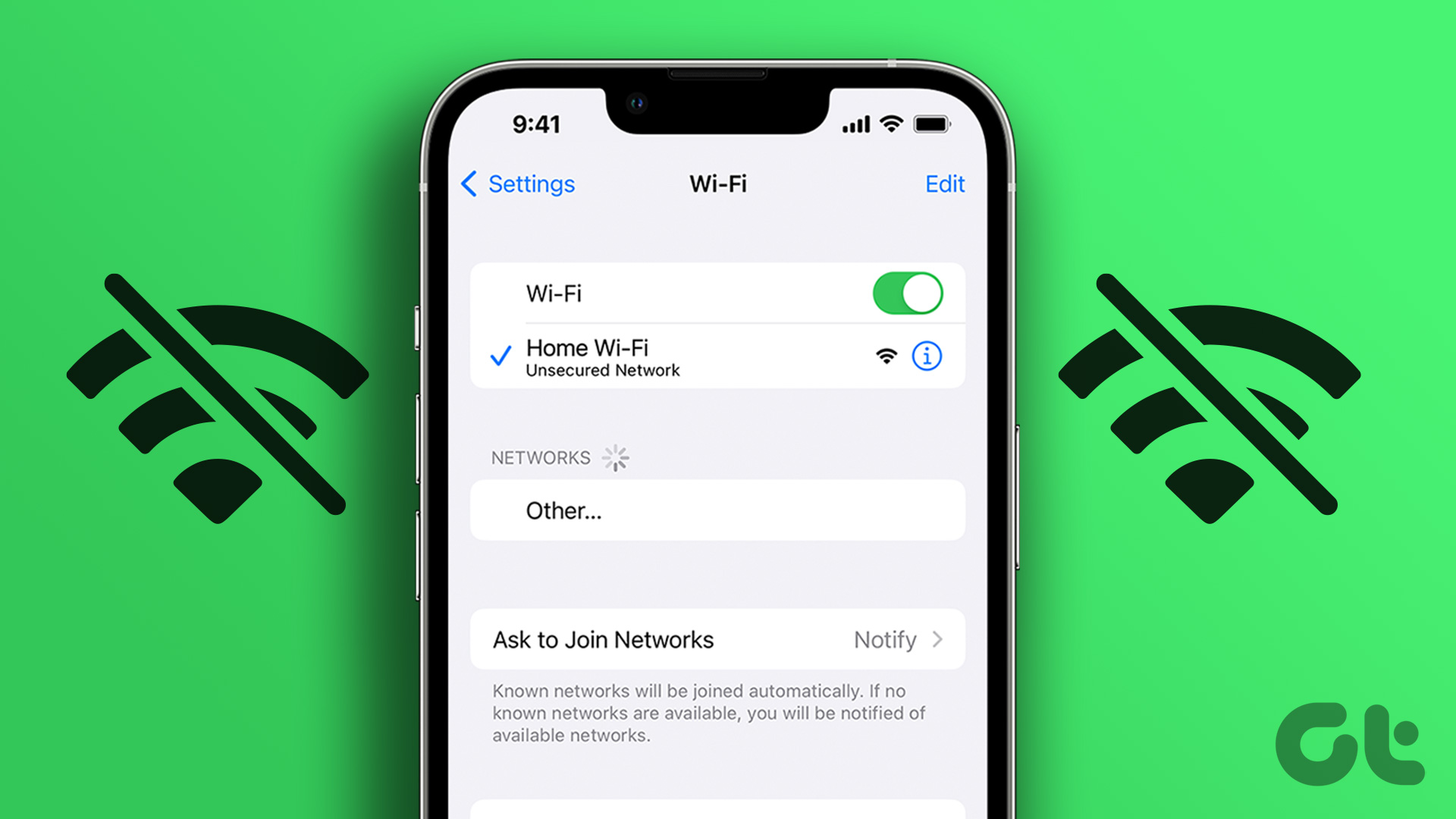 3 Ways to Fix iPhone Not Automatically Connecting to Wi-Fi
Before you begin, ensure that there isn't any problem with your network connectivity and the Wi-Fi router.
3 Ways to Fix iPhone Not Automatically Connecting to Wi-Fi
Before you begin, ensure that there isn't any problem with your network connectivity and the Wi-Fi router.
 2 Fixes for Bluetooth Device Not Connecting Automatically on iPhone
Basic Fixes Reconnect device: Open the Settings app, go to Bluetooth, select your device, and tap on Forget.
2 Fixes for Bluetooth Device Not Connecting Automatically on iPhone
Basic Fixes Reconnect device: Open the Settings app, go to Bluetooth, select your device, and tap on Forget.
 How to Stop Music From Automatically Playing in Apple CarPlay and Android Auto
How to Stop Apple CarPlay From Automatically Playing Music Unfortunately, there’s no toggle or option by default to stop Apple Music auto-play on iPhone.
How to Stop Music From Automatically Playing in Apple CarPlay and Android Auto
How to Stop Apple CarPlay From Automatically Playing Music Unfortunately, there’s no toggle or option by default to stop Apple Music auto-play on iPhone.
 Top 6 Wireless Earbuds With Wireless Charging
While wireless earbuds support support wired charging, it never hurts to drop them and let them charge overnight or over a long period.
Top 6 Wireless Earbuds With Wireless Charging
While wireless earbuds support support wired charging, it never hurts to drop them and let them charge overnight or over a long period.
 3 Ways to Fix Android Not Connecting to Bluetooth Devices
Basic Fixes Use 5GHz Wi-Fi: Bluetooth uses a 2.4GHz frequency band, which can overlap the signals and cause problems.
3 Ways to Fix Android Not Connecting to Bluetooth Devices
Basic Fixes Use 5GHz Wi-Fi: Bluetooth uses a 2.4GHz frequency band, which can overlap the signals and cause problems.
 4 Ways to Fix Android Phone Not Connecting to PC
Basic Fixes Ensure your phone is unlocked: Keep this in mind while connecting to PC.
4 Ways to Fix Android Phone Not Connecting to PC
Basic Fixes Ensure your phone is unlocked: Keep this in mind while connecting to PC.
The article above may contain affiliate links which help support Guiding Tech. The content remains unbiased and authentic and will never affect our editorial integrity.