Why Your Windows Screen Is Suddenly Zoomed In
A common reason why your screen may appear zoomed in on Windows 10 or 11 is if you accidentally scroll the mouse wheel while holding down the Ctrl key. A similar issue can also occur if you unintentionally trigger the Windows Magnifier tool.
Setting your Windows display to an incorrect resolution or scale can also cause such anomalies. Aside from that, issues with external displays, outdated drivers, or app-specific bugs are also responsible for the issue.
Try Basic Fixes
- Reconnect the external display: Disconnecting and reconnecting the display often resolves temporary glitches that may be causing the issue. Additionally, if your monitor has built-in zoom or scaling features, navigate to its settings menu and check for any adjustments that might be affecting the display.
- Avoid triggering the zoom shortcut: On both Windows 10 and 11, you can zoom in and out using the Ctrl + Plus (+) and Ctrl + Minus (-) keys. You can also do this by scrolling the mouse wheel up or down while holding the Ctrl key. It’s important to make sure you aren’t accidentally pressing these shortcuts while doing other things.
- Modify display settings in app or game: Does your Windows screen appear zoomed in when you run a specific app or game? If so, there may be nothing wrong with Windows. You should check the display settings within that particular app or game. If the issue persists, you may need to repair the app or game or reinstall it on your PC.
Fix 1: Use the Recommended Screen Resolution and Display Scale
Your first step is to ensure that your computer is set to the recommended screen resolution and display scale. Here’s how you can go about it.
Step 1: Right-click anywhere on an empty spot on the desktop and select Display settings.

Step 2: Click the drop-down menus next to Scale and Display resolution to select the recommended values.

Fix 2: Turn Off Magnifier
Enabling the Magnifier app on your Windows 10 or 11 computer can also cause the screen to appear zoomed in and move with your mouse. To turn off the Magnifier app on your PC, press the Windows key + Esc on your keyboard. After that, check if the screen appears fine.
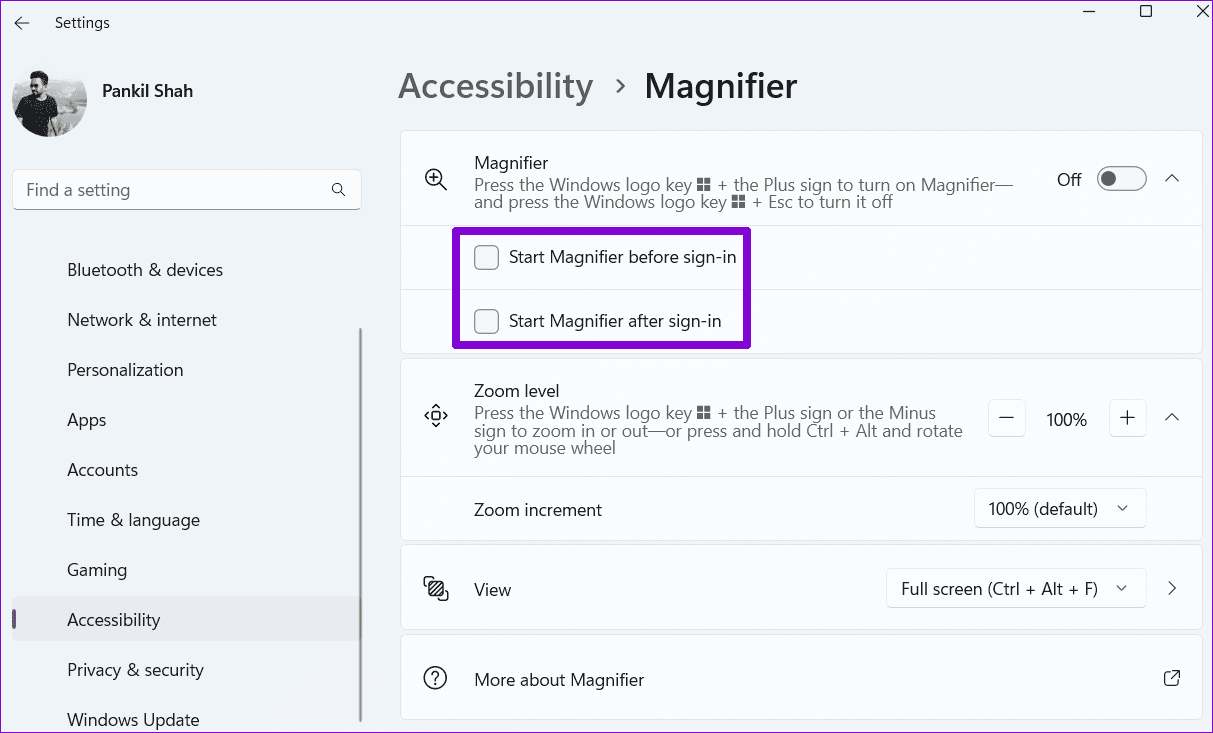
Additionally, to prevent Magnifier from turning on automatically before or after you sign-in, use these steps:
Step 1: Press the Windows key + I to launch the Settings app and head to Accessibility > Magnifier.

Step 2: Click on Magnifier and clear the Start Magnifier before sign-in and Start Magnifier after sign-in checkboxes.
Fix 3: Check Desktop Icon Size
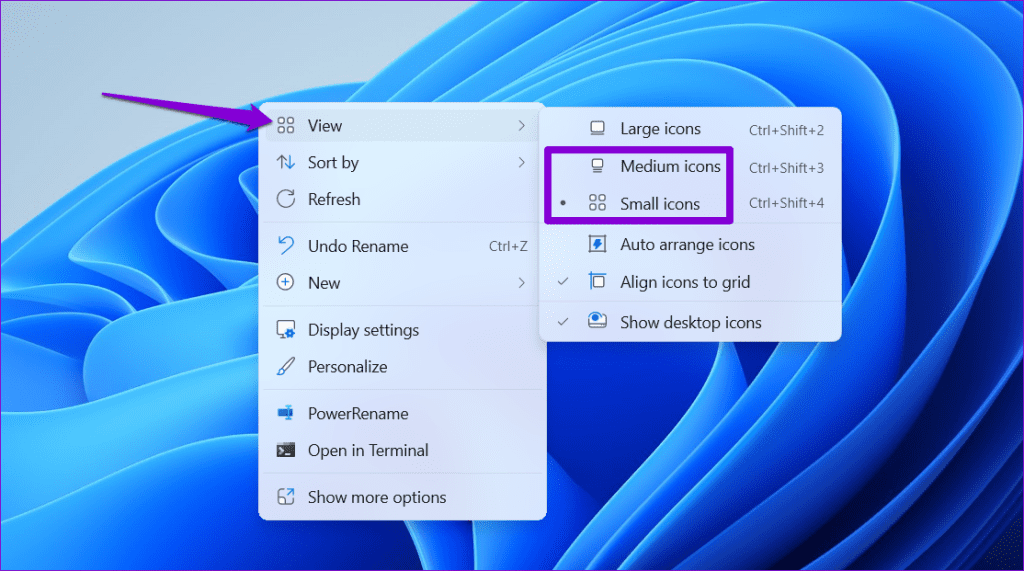
Your Windows screen may appear zoomed in if you inadvertently increase the size of desktop icons. To fix that, right-click anywhere on an empty spot on your desktop, go to View, and select Medium icons or Small icons. This will decrease the size of your desktop icons, and the screen should no longer appear zoomed in.
Fix 4: Reinstall Display Drivers
Corrupt or damaged display drivers on your PC can also cause such issues with your screen. You can try uninstalling and installing the problematic driver again to see if that helps.
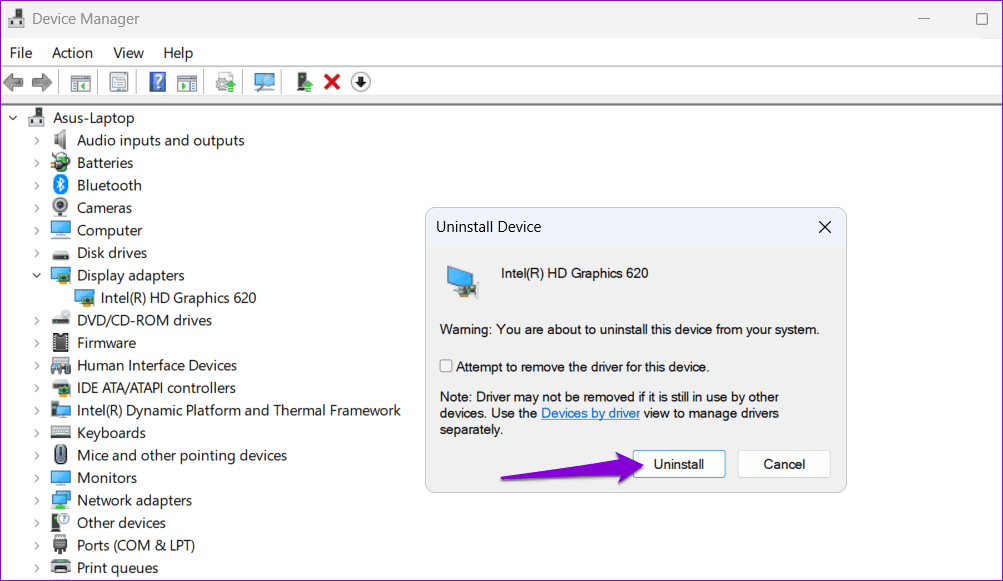
Step 1: Press the Windows + R keyboard shortcut to open the Run dialog box. Type devmgmt.msc in the box and press Enter.
Step 2: Expand Display adapters, right-click on your graphics driver, and select Uninstall device.

Step 3: Select Uninstall to confirm.
After completing the aforementioned steps, go to the manufacturer’s website (Intel, NVIDIA, or AMD), download the latest compatible display driver, and install it.
Was this helpful?
Last updated on 10 August, 2024
Read Next
 4 Ways to Fix WhatsApp Camera Zoomed in Problem
Try Basic Fixes Reinstall WhatsApp after taking the chat backup.
4 Ways to Fix WhatsApp Camera Zoomed in Problem
Try Basic Fixes Reinstall WhatsApp after taking the chat backup.
 Why Is My iPhone and Android Phone Screen Turning Green and How to Fix It
Your iPhone or Android screen may sometimes turn green after installing a new OS version.
Why Is My iPhone and Android Phone Screen Turning Green and How to Fix It
Your iPhone or Android screen may sometimes turn green after installing a new OS version.
 Why Is My YouTube Home Screen Blank and How to Fix It
Why Is Your YouTube Homepage Blank Here are a few of the reasons your YouTube homepage is currently blank: Watch History is off for the selected YouTube account.
Why Is My YouTube Home Screen Blank and How to Fix It
Why Is Your YouTube Homepage Blank Here are a few of the reasons your YouTube homepage is currently blank: Watch History is off for the selected YouTube account.
 How to Disable Control Center on iPhone Lock Screen and Why
How to Disable Control Center on a Locked iPhone or iPad Deactivating the Control Center from the iPhone or iPad Lock Screen only requires a brief visit to the Settings
How to Disable Control Center on iPhone Lock Screen and Why
How to Disable Control Center on a Locked iPhone or iPad Deactivating the Control Center from the iPhone or iPad Lock Screen only requires a brief visit to the Settings
 6 Ways to Get an Off-Screen Window Back on Screen on Windows
While using Microsoft Windows, I had a window that had somehow fallen completely off of my screen.
6 Ways to Get an Off-Screen Window Back on Screen on Windows
While using Microsoft Windows, I had a window that had somehow fallen completely off of my screen.
 5 Reasons Why Microsoft is Removing ReFS from Windows
Reasons Why Microsoft is Removing ReFS from Windows 1.
5 Reasons Why Microsoft is Removing ReFS from Windows
Reasons Why Microsoft is Removing ReFS from Windows 1.
 Why You Need to Activate Windows 10 on Your Computer: GT Explains
Microsoft changed a lot of things with the launch of Windows 10.
Why You Need to Activate Windows 10 on Your Computer: GT Explains
Microsoft changed a lot of things with the launch of Windows 10.
 What Is Microsoft Power Automate Desktop and Why Do You Need It
Microsoft recently announced that they have made the Power Automate Desktop completely free for all Windows 10 users.
What Is Microsoft Power Automate Desktop and Why Do You Need It
Microsoft recently announced that they have made the Power Automate Desktop completely free for all Windows 10 users.
The article above may contain affiliate links which help support Guiding Tech. The content remains unbiased and authentic and will never affect our editorial integrity.